Quick answer: Check Xbox status, restart the console, power-cycle the modem and router, and run Xbox network tests. Retry the Store or Game Pass download on Ethernet if possible. Manual DNS is an optional diagnostic—not a guaranteed speed boost.
Before you start
- The account that owns the purchase or Game Pass entitlement.
- Your Wi-Fi password or an Ethernet cable.
- Access to the modem and router power plugs.
- Enough free console storage for the game plus update overhead.
How to fix Xbox error 0x80072EE2
- Check Xbox status. Look for Store, account, or games-and-gaming incidents. If a relevant service is limited, wait and retry later.
- Restart the console. Hold the Xbox button, choose Restart console, then retry the download from My games & apps or the Store.
- Restart the connection. Shut down the Xbox, unplug the modem and router for about five minutes, reconnect the modem first, then the router, and start the console after internet service returns.
- Test the network. Open Settings > General > Network settings and run Test network connection. Use Test network speed & statistics to look for packet loss or unusually high latency.
- Try Ethernet. Connect the console directly to the router if possible. A successful wired download points to Wi-Fi signal, interference, or congestion.
- Cancel only the failed queue item and retry. Do not remove installed data for other games. Confirm there is enough free space before starting again.
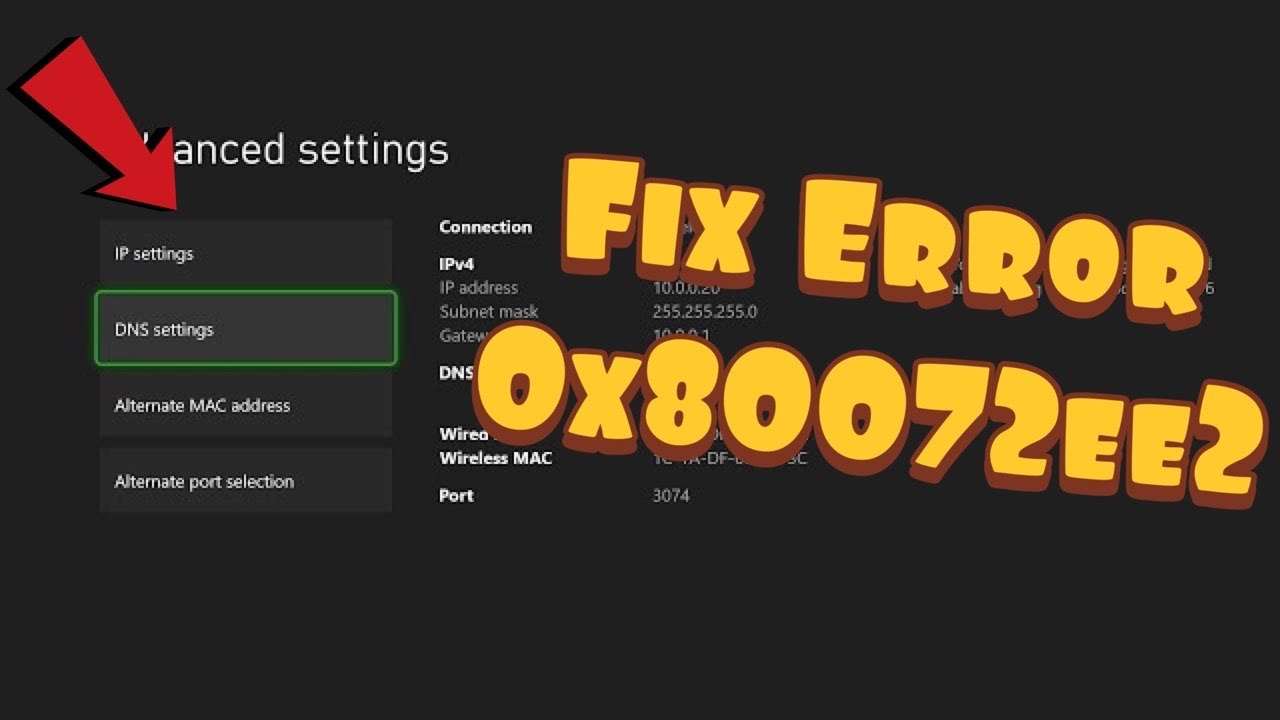
- Try manual DNS only as a final reversible test. In Advanced settings, open DNS settings and enter a reputable public resolver carefully. Test the connection again. If the error remains or performance worsens, return DNS to Automatic.
Why these steps work
Error 0x80072EE2 is encountered when the download or Store request times out. Status checks rule out a service-side incident. Restarting the devices renews the local session, while network tests and Ethernet identify packet loss or weak Wi-Fi. DNS changes only affect name resolution and do not create more bandwidth.
Other safe options
- Pause other console downloads and large household uploads.
- Sign out and back in only after confirming the correct account owns the game.
- Try a different game or app download to learn whether the problem affects one product or the whole Store.
- If every device on the connection is slow, contact the ISP with the test results.
Warnings and how to undo changes
Do not factory-reset the router, disable its firewall, or erase the console as an early fix. The video states that Google DNS will make the connection faster; that is not guaranteed. To undo manual DNS, return to Network settings, open Advanced settings and DNS settings, then select Automatic.
Source video
The video supplies the console menu path and DNS test. This guide replaces its speed claim with a limited, reversible diagnostic.
Frequently asked questions
Is 0x80072EE2 always an Xbox outage?
No. It can appear when a Store request times out anywhere along the path. Xbox status is the first check, followed by local network tests.
Will changing DNS improve download speed?
Not necessarily. DNS resolves names; it does not raise the connection’s bandwidth. Keep Automatic unless a careful comparison shows the alternate resolver helps.
Should I reinstall the whole game?
Not until the service and network are stable. A full reinstall can waste time and data if the connection is still timing out.
Official references
Checked October 1, 2026.
As an Amazon Associate I earn from qualifying purchases.