Quick answer: Restart the PlayStation Portal, reconnect it to a stable network, then retry the system-software update from Settings > System > System Software. PlayStation does not currently publish a code-specific page for 0x83200212, so the restart method demonstrated in the source video is an unofficial workaround that may work only when the update process is temporarily stuck.
Before you start
- Connect the Portal to its charger if the battery is low.
- Use a stable home Wi-Fi connection and keep the device near the router.
- Do not power the device off while an update is actively installing.
Fix error 0x83200212
- Wait if installation is moving. If the progress indicator is still changing, leave the Portal connected to power and Wi-Fi.
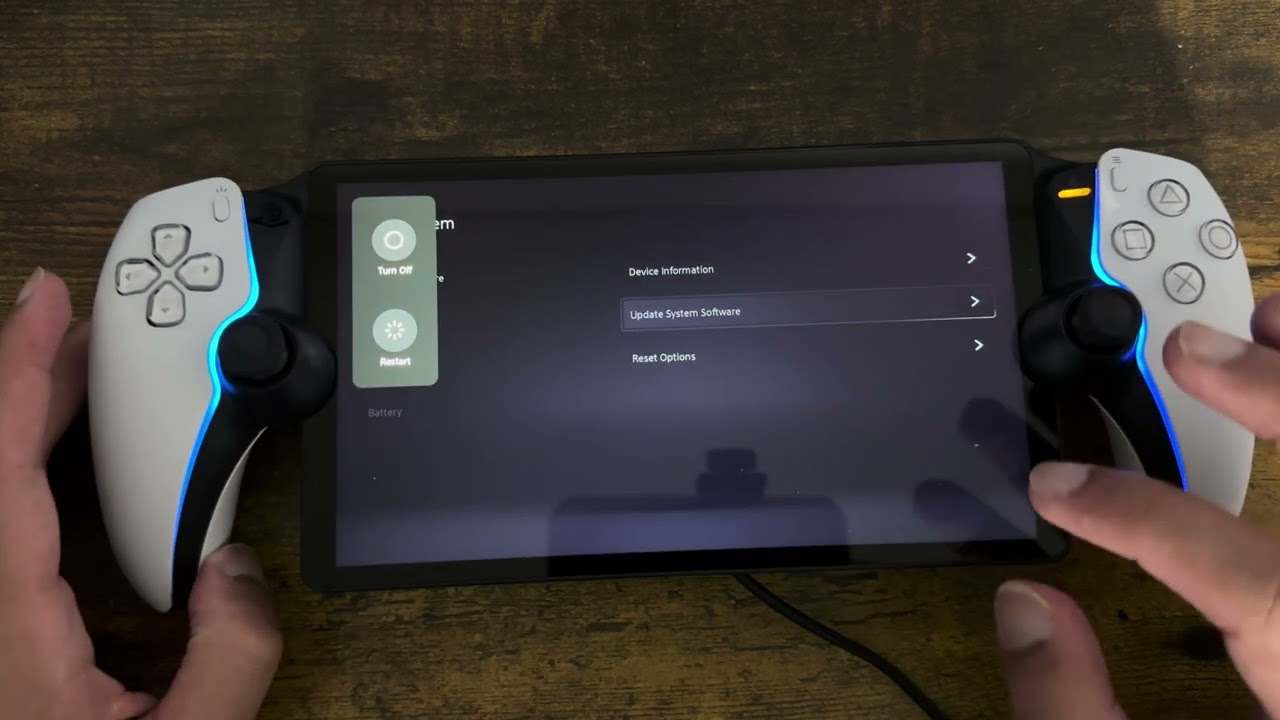
- Restart safely. If the update has stopped and the error is displayed, press and hold the power button and choose Restart.
- Reconnect Wi-Fi. Open the Quick Menu, confirm the Portal is connected to the intended network, and avoid a guest network that blocks device services.
- Retry the update. Swipe left from the top-right to open Quick Menu, then go to Settings > System > System Software > Update System Software.
- Check the installed version. Open Settings > System > System Software > Device Information. Some Portal versions require multiple updates, which PlayStation says is normal.
- Contact PlayStation if it repeats. Provide error
0x83200212, the installed version, and whether restart changed the result.
Why this may work
A restart clears a stalled update session and reconnects the Portal to PlayStation services without deleting user data. Retrying from the official system-software menu ensures the device requests the current package. Because the exact code is not documented, do not assume it always indicates the same root cause.
Alternatives
- Restart the router if other devices are also losing internet access.
- Try a different trusted home network to separate a network issue from a device issue.
- Use PlayStation support before resetting the Portal.
Warnings, limitations, and undo
Do not download update files from third-party sites. Do not reset the Portal merely because the first retry fails; resetting removes device settings and is a later support step. Restarting is fully reversible and changes no stored account data.
FAQ
Is 0x83200212 officially documented?
Not in the current public PlayStation error-code directory. The procedure here combines the visible video workaround with PlayStation’s official restart and update guidance.
Can I skip an update?
Use only options offered on the Portal screen. Completing the current official update is the safest route for ongoing stability and security.
Will restarting erase my Portal?
No. Restart and reset are different actions; restart does not erase the device.
Official references
Source video
As an Amazon Associate I earn from qualifying purchases.