Quick answer: Restart Steam and the router, verify Hell Let Loose, remove the regenerable LauncherInfo.hllinfo file, and flush Windows DNS. If the error remains, a public DNS server is an optional, reversible workaround. Team17 publishes steps for this exact Steam error.
Before you start
- Check whether Steam and Hell Let Loose services are available.
- Close Hell Let Loose and Steam before changing game files.
- Note your current DNS setting; most home PCs use Obtain DNS server address automatically.
- On a managed network, ask the administrator before changing DNS or firewall rules.
Fix the network error
- Restart the connection. Quit Steam, restart the PC, and power-cycle the router. Wait for the connection to return fully.
- Verify Hell Let Loose. In Steam, open Hell Let Loose > Properties > Installed Files > Verify integrity of game files.
- Remove the launcher information file. From the same Installed Files page, choose Browse, locate
LauncherInfo.hllinfo, and delete that file only. The game can regenerate it. - Allow the game through Windows Security. Check that the installed Hell Let Loose and Easy Anti-Cheat executables are not blocked. Add only the official files in the Steam installation folder; do not disable the firewall.
- Reset the Windows network stack. Open Command Prompt as administrator, run
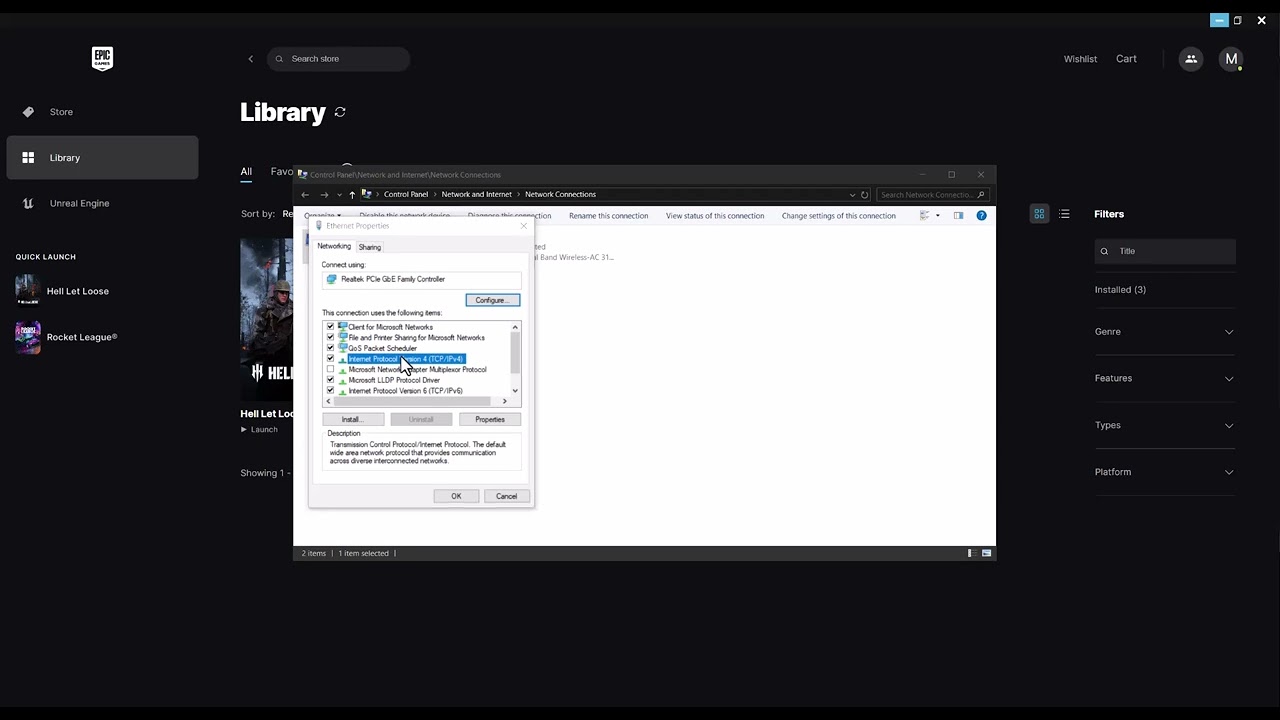
netsh winsock reset, then runipconfig /flushdns. Restart the PC. - Try a public DNS server. As the source-video workaround, set IPv4 DNS to Cloudflare’s
1.1.1.1and1.0.0.1, then test the server browser again.
Why this works
Team17 identifies the error as a connection or network issue and specifically recommends replacing the launcher-information file, checking security exceptions, resetting Winsock, flushing DNS, and testing another DNS provider. File verification repairs damaged installation data. A DNS change affects hostname lookup; it will not repair an outage or a banned account.
Alternative checks
- Remove special characters from the Steam display name temporarily; Team17 lists this as an additional test.
- Test another official server and remove restrictive server filters.
- Use Ethernet for one session to separate Wi-Fi instability from the game error.
- If Easy Anti-Cheat reports its own error, repair it from the official installer inside the game folder.
Warnings and how to undo the workaround
The Cloudflare DNS values are a video-derived variation on Team17’s public-DNS advice, not a guaranteed fix. To undo them, open the adapter’s IPv4 properties and select Obtain DNS server address automatically. Do not open router ports, disable IPv6, disable antivirus, or turn off the firewall unless Team17 support diagnoses a specific need.
Frequently asked questions
Will deleting LauncherInfo.hllinfo remove progress?
No. The file is launcher information, not your account progression. Delete only the named file from the verified installation folder.
Is Cloudflare DNS required?
No. Try the official file and network resets first. Public DNS is optional and reversible.
What if the error affects Game Pass rather than Steam?
Use Team17’s separate Game Pass article because the repair path includes Xbox app and Microsoft account components.
Official references
- Team17: A Network Error Has Occurred on Steam
- Steam file verification
- Microsoft Windows network commands and reset guidance
- Cloudflare DNS setup for Windows