Quick answer: If Skate will not load, crashes at startup, shows a black screen, or stays on the loading screen on PC, restart the launchers and PC, verify the game files, then repair or reinstall EA Javelin anticheat for Skate. If the problem continues, repair the game through the EA app, clear the EA app cache, turn off the in-game overlay for one test, and close software that may conflict with anticheat.
Before you start
- Check the EA server-status page. If Skate or the EA app is experiencing an outage, wait before reinstalling anything.
- Install pending updates for Skate, Steam or the EA app, Windows, and your graphics driver.
- Close Skate, Steam, the EA app, and Epic Games Launcher completely before repairing anticheat files.
- Do not download an anticheat installer from an unofficial mirror. Use the installer bundled with the game or EA’s official download.
How to fix Skate not loading or crashing on PC
- Restart the launchers and PC. Exit Steam and the EA app from the notification area, restart Windows, then open the launcher normally and try Skate once. This clears a stuck launcher or anticheat service without changing files.
- Verify Skate in Steam. In Steam, open Library, right-click Skate, choose Properties > Installed Files > Verify integrity of game files, and wait for the check to finish. If you own the game through another launcher, use that launcher’s repair or verify command.
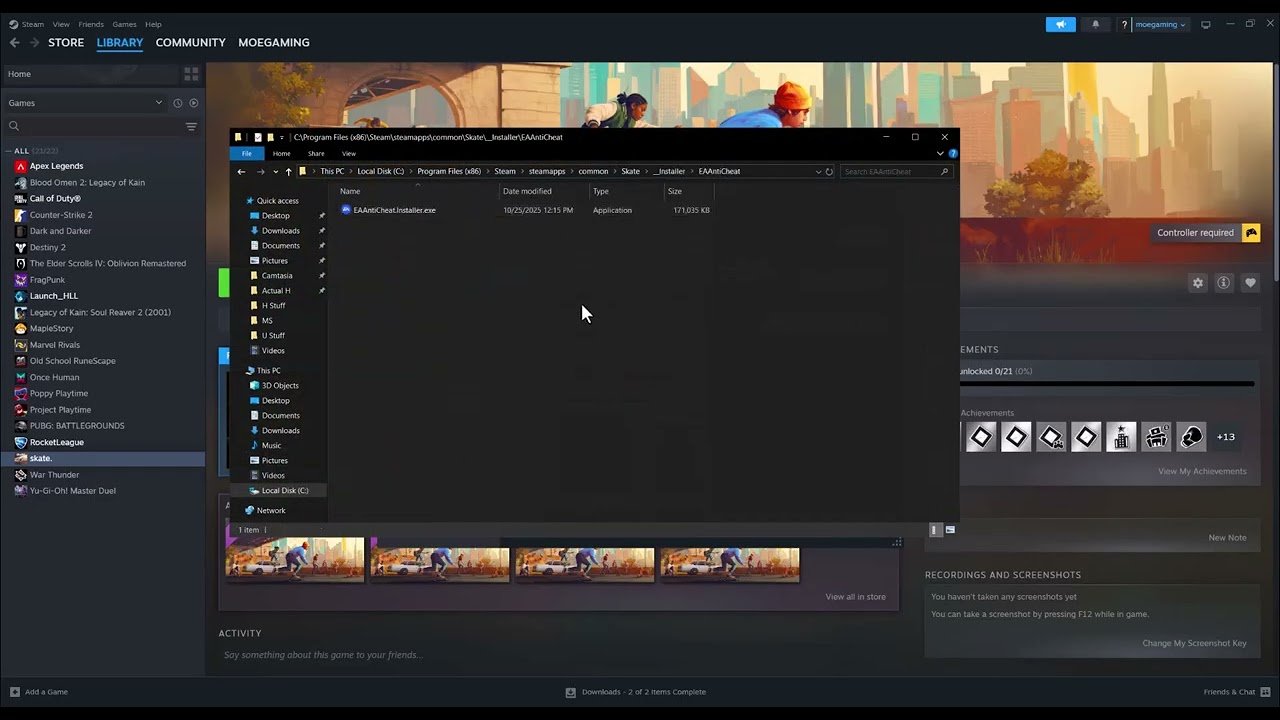
- Open the EA Javelin anticheat installer. In Steam, use Properties > Installed Files > Browse. The source video shows the installer inside the game’s
_Installerand EA anticheat folders. You can also use EA’s official Javelin anticheat installer. RunEAAntiCheat.Installer.exe, select Skate, and choose Repair or Install when offered. - Reinstall anticheat if repair is unavailable. EA’s current guidance says to open
C:\Program Files\EA\AC\EAAntiCheat.Installer.exe, choose the affected game, uninstall anticheat for that game, and then install it again. Do not choose Uninstall All unless you intend to repair every EA game that uses Javelin. - Repair Skate in the EA app. Open the EA app, go to Library, select the three-dot menu on Skate, and choose Repair. Even a Steam purchase can rely on EA components during launch.
- Clear the EA app cache. In the EA app, open the main menu, choose Help > App Recovery > Clear cache. Reopen the app after it restarts.
- Turn off the EA in-game overlay for one test. Open your EA profile menu, choose Settings > Application, and switch off In-game overlay. Turn it back on after testing because it is used for invitations and messages.
- Close conflicting background software. Exit VPNs, proxy tools, debuggers, unsupported overlays, hardware-monitoring utilities, and other software named in an EA anticheat warning. Update the named program before removing it.
- Use administrator access only for the supported launcher test. The video demonstrates changing the game executable’s compatibility settings. EA’s narrower recommendation for an anticheat service error is to right-click the EA app, choose Run as administrator, and launch the game from there. Avoid permanently forcing the Skate executable or installer to run as administrator unless the error specifically points to permissions.
Why this fixes the loading screen
Skate can appear to crash before its game window fully opens when the launcher cannot start EA Javelin anticheat, an anticheat file is damaged, another program conflicts with the service, or game files do not match the current build. Verification repairs the game data, while the Javelin installer rebuilds the protection component the game requires at launch.
If Skate still will not launch
- Update Windows and the GPU driver, restart, and test again.
- Turn off overclocking for one test and restore default CPU, GPU, and memory settings.
- Perform a Windows clean boot to isolate a background conflict, then re-enable services in small groups.
- Reinstall Skate only after anticheat repair, file verification, cache clearing, and a clean-boot test fail.
- Use the EA Error Reporter and include the exact time, launcher, crash behavior, and any anticheat message.
Warnings
- Do not disable Secure Boot, antivirus protection, or Windows security features as a first step.
- Do not download replacement DLL files or anticheat files from third-party websites.
- Do not delete save folders while troubleshooting a launch failure.
Optional PC gaming gear
If Skate launches but online sessions are unstable, a direct test with a Cable Matters Cat 6 Ethernet cable can separate Wi-Fi problems from a launch or anticheat failure.
As an Amazon Associate I earn from qualifying purchases.
Frequently asked questions
Does Skate require EA Javelin anticheat?
Check Skate’s properties in the EA app or its installation folder. EA says a protected game installs Javelin automatically and exposes its anticheat files in the game folder.
Should I run Skate as administrator?
Not as the first fix. For specific anticheat service errors, EA recommends running the EA app as administrator and launching from there. Revert any compatibility change that does not help.
Will repairing anticheat delete my Skate progress?
It repairs the launch protection component, not your EA account progress. Still close the game and launchers before making the change.