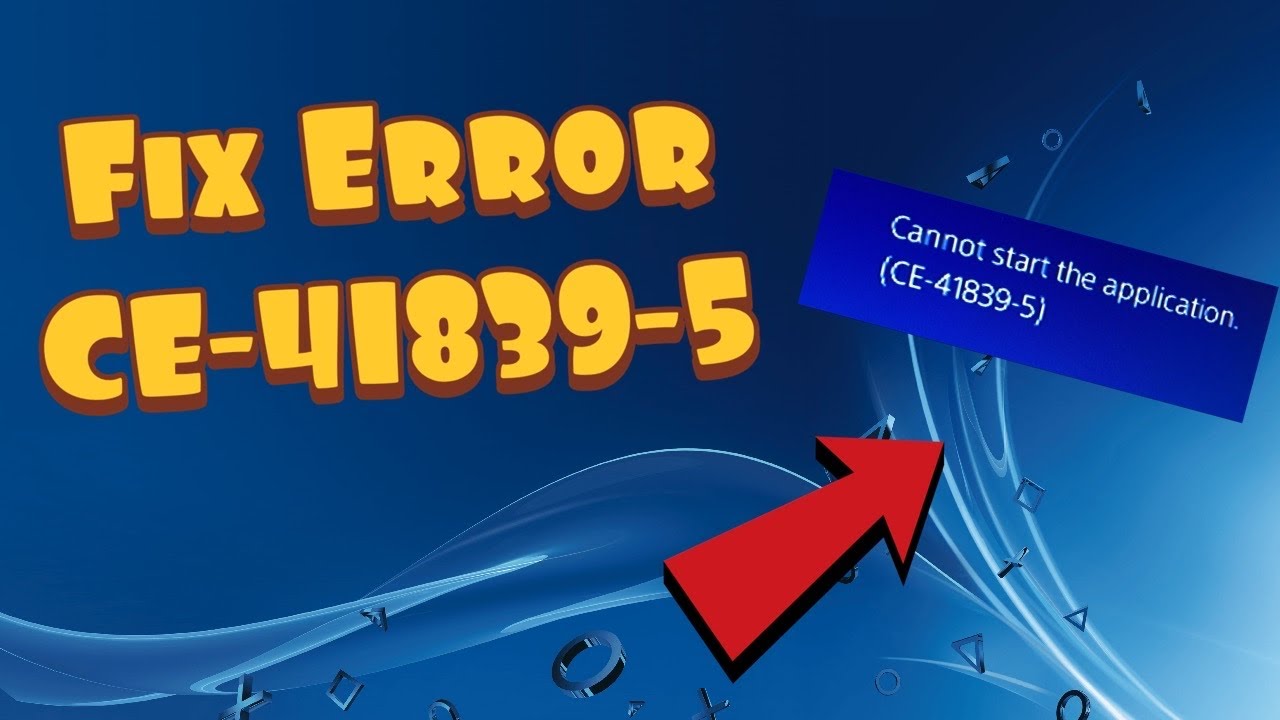
PS4 error CE-41839-5 is a game or application error. Sony’s current support sequence starts with updates and a full power cycle, then moves through licenses, reinstalling the affected content, and Safe Mode maintenance.
Quick answer: Update the PS4, turn it fully off and unplug it, then restart and restore licenses. If the same game still fails, delete and re-download it over wired internet. Use Safe Mode > Rebuild Database next; initialize only after a backup and only as a last resort.
Before you start
- Sync or back up important saved data before deleting content or using advanced Safe Mode options.
- Make sure the PS4 has enough free storage for a fresh download.
- Use wired internet when possible for a large reinstall.
- Confirm whether the error affects one application or several.
Fix PS4 error CE-41839-5
- Update the PS4 system software. Go to Settings > System Software Update and install the latest official version.
- Install the game’s update. Highlight the game on the home screen, press OPTIONS, and choose Check for Update.
- Perform a full power cycle. Turn the PS4 completely off, unplug the power cable, wait briefly, reconnect it, and restart.
- Restore licenses. Go to Settings > Account Management > Restore Licenses > Restore. This does not delete saved data.
- Test the affected game. If it opens, stop here. If only that title still fails, continue with a reinstall.
- Delete and re-download the game or app. Back up saves first, remove the application, and download it again over a wired connection if possible.
- Rebuild the database. Turn the PS4 off, hold the power button until the second beep, connect the controller by USB, and select Rebuild Database.
- Use initialization only as the final step. If Sony’s earlier steps fail across multiple applications, back up the PS4 and follow the official reinstall-system-software process.
Why this works
Updates correct known software faults, a power cycle clears temporary state, and restoring licenses refreshes content entitlements. Reinstalling replaces damaged application files, while Rebuild Database reconstructs the console’s content index.
What viewers reported
Several viewers said restoring licenses fixed the error. Others noted that the re-download took significant time, which is why the faster, nondestructive steps come first and the reinstall is reserved for a persistent single-game problem.
Alternatives and next checks
- If the PS4 cannot read a disc, clean and test the disc before reinstalling digital content.
- If several games crash with
CE-34878-0, use our PS4 CE-34878-0 guide. - If the console reports an HDD or disc-access error, use our PS4 CE-30005-8 guide.
- Contact PlayStation Support if the error returns after a clean reinstall or affects many unrelated applications.
Warnings
- Deleting a game normally leaves saved data separate, but confirm backups before removal.
- Rebuild Database can take time; do not interrupt power while it runs.
- Initialize PS4 or reinstalling system software erases console storage. Back up first and do not treat it as an early fix.
Frequently asked questions
Does restoring licenses delete saves?
No. Sony states that restoring licenses does not affect your data. It refreshes access records for purchased content.
Should I delete saved data too?
No, not by default. Start by reinstalling only the game or application. Saved data should be removed only when the game’s official support specifically identifies a corrupt save.
When should I initialize the PS4?
Only after the official update, power, license, reinstall, and database steps fail, and only after you have backed up the console.
Watch the source video
Official references
- PlayStation: PS4 error CE-41839-5
- PlayStation: Restore licenses
- PlayStation: Safe Mode on PS4 and PS5
- PlayStation: Troubleshoot game launch issues
Affiliate disclosure: As an Amazon Associate I earn from qualifying purchases. No product was added because these fixes do not require new hardware.