Quick answer: PS5 error NP-104602-3 is usually approached as a network or PlayStation Network connection problem. Check PSN first, restart the console and router, reconnect the PS5, then test 5 GHz, 2.4 GHz, or Ethernet. An alternate DNS resolver is optional; it cannot repair weak Wi-Fi, packet loss, or a service outage.
Before you start
- Save any open game progress and close the affected game.
- Have the Wi-Fi password available if you plan to forget and reconnect the network.
- If other devices are also offline, troubleshoot the router or ISP before changing the PS5.
- Check the official PlayStation status page. A service incident must be resolved by Sony.
How to fix PS5 error NP-104602-3
- Check PlayStation Network status. Visit PlayStation Status. If Gaming and Social or Account Management is affected, wait and retry after the incident is cleared.
- Restart the PS5 correctly. Press the PS button, choose Power, and select Restart PS5. A restart clears the current network session more completely than Rest Mode.
- Power-cycle the network. Unplug the modem and router for about 30 seconds. Reconnect the modem first, wait for it to come online, then reconnect the router and restart the PS5.
- Reconnect the console. Go to Settings > Network > Settings > Set Up Internet Connection. Select the normal network and re-enter its password if needed. Sony documents this as the standard PS5 connection path.
- Test the other Wi-Fi band. Highlight the saved network, press Options, open Wi-Fi Frequency Bands, and change Automatic to 5 GHz or 2.4 GHz. Use 5 GHz near the router for speed; use 2.4 GHz farther away for range. Viewers reported success with either band, so test rather than assume.
- Try Ethernet if possible. A wired connection removes radio interference from the test. If Ethernet works but Wi-Fi does not, the error is likely local wireless congestion, range, or router configuration.
- Test the connection. Open Settings > Network > Connection Status > Test Internet Connection. Confirm that obtaining an IP address, internet access, and PlayStation Network sign-in succeed.
- Update system software. Go to Settings > System > System Software > System Software Update and Settings. Install an available update, then restart.
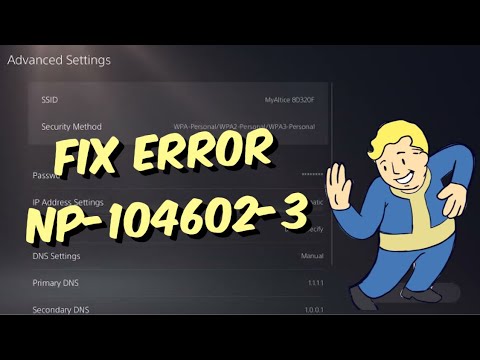
- Optionally test a public DNS resolver. In the network’s Advanced Settings, set DNS to Manual and enter Cloudflare 1.1.1.1 as Primary and 1.0.0.1 as Secondary. Record the old setting first. If nothing improves, return DNS to Automatic.
Why these steps work
The error can appear when the console cannot complete a network request. Restarting clears a stale session, changing Wi-Fi bands avoids local interference, Ethernet isolates wireless trouble, and a connection test shows where the failure occurs. DNS only changes how names are resolved; it does not lower true in-game latency or repair a damaged internet route.
Alternatives if the error continues
- Move the PS5 and router into the same room for one test.
- Pause downloads and streaming on the home network.
- Test a phone hotspot briefly. If that works, contact the home ISP or router maker.
- Do not factory-reset the PS5 for this error until PlayStation Support specifically recommends it.
Warnings
Do not enter random IP, gateway, MTU, or port-forwarding values from comments. A wrong static configuration can take the console offline. If manual DNS makes the connection worse, restore Automatic immediately.
Frequently asked questions
Should I use 5 GHz or 2.4 GHz?
Use 5 GHz when the PS5 is close to the router and 2.4 GHz when walls or distance weaken the signal. The better choice is the one that produces a stable test in your room.
Will changing DNS fix lag?
Usually not. It can help a name-resolution problem, but it does not fix weak Wi-Fi, congestion, packet loss, an ISP route, or a PSN outage.
Will these steps delete games or saves?
No. The steps above change connection settings and restart devices; they do not erase installed games or saved data.
Official references
Source video
As an Amazon Associate I earn from qualifying purchases.