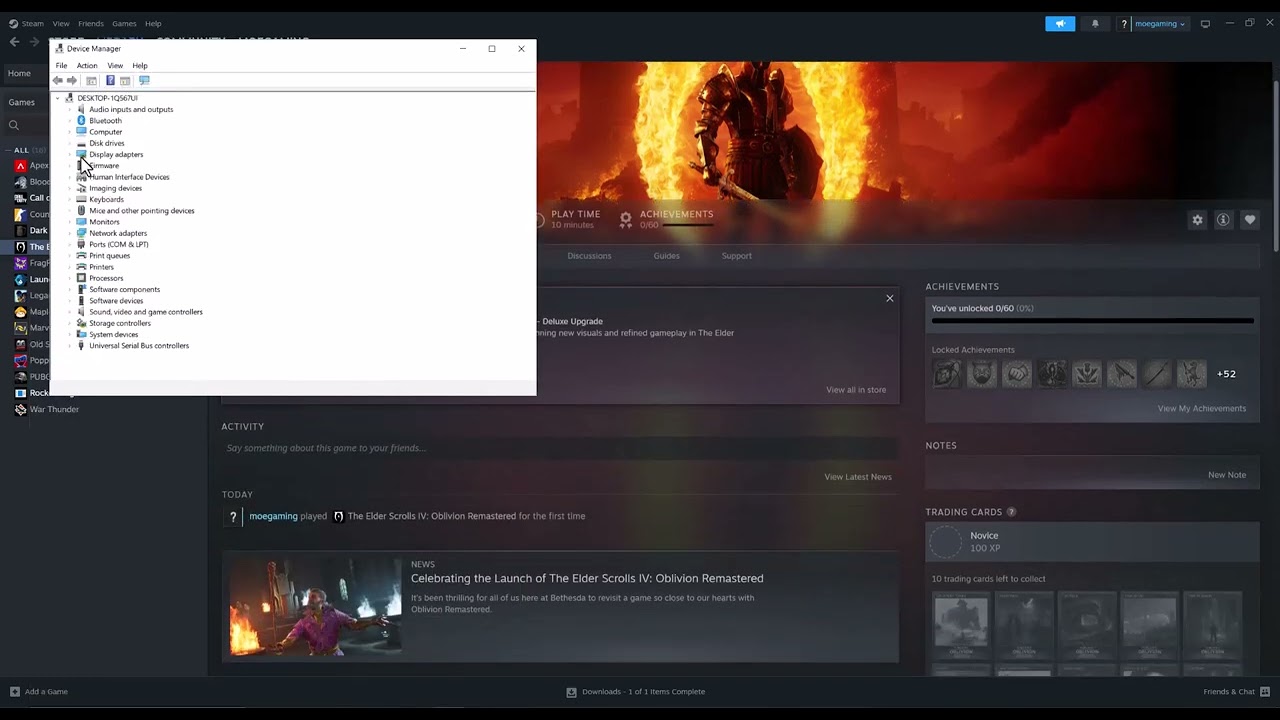
Quick answer: Make sure the PC meets Oblivion Remastered’s requirements and the game is installed on an SSD. Restart the PC, update the graphics driver, lower graphics quality, disable overlays and verify the game files in Steam. Remove mods for a clean test. Administrator mode can be tried temporarily, but turn it off again if it makes no difference.
Before you start
- Back up important saves before removing mods or changing files.
- Note whether the crash happens at launch, when loading a save or in one location.
- Confirm the game is on an SSD; Bethesda lists SSD storage in its troubleshooting guidance.
- Download GPU drivers only from the hardware maker.
Fix Oblivion Remastered crashing on Steam
- Restart the PC and Steam. Fully exit Steam, restart Windows and launch the game without other heavy applications running.
- Check requirements and storage. Compare the CPU, RAM, GPU and Windows version with the current store requirements. Move or reinstall the game on an SSD if it is on a mechanical hard drive.
- Update the graphics driver. Install the current stable NVIDIA, AMD or Intel driver for the exact GPU and restart again.
- Use the correct GPU. On a laptop or multi-GPU system, set Oblivion Remastered to High performance in Windows Settings > System > Display > Graphics.
- Lower the graphics load. Start with a lower quality preset. Close browsers and streaming apps, disable the Steam Overlay and Xbox Game Bar for one test, and turn off unnecessary recording overlays.
- Verify the game files. In Steam Library, right-click The Elder Scrolls IV: Oblivion Remastered, choose Properties > Installed Files > Verify integrity of game files. Relaunch after Steam finishes.
- Remove mods for a clean test. Disable all mods and custom injectors, then verify the files again. Test a new or known-good save before adding mods back one at a time.
- Test administrator mode once. From Installed Files, browse to the game folder. The source video demonstrates opening Properties > Compatibility for the game executables and enabling Run this program as an administrator. Test once; if it does not help, turn it off to avoid unnecessary elevation.
Why these steps work
Crashes can come from unsupported hardware, a driver fault, excessive memory or graphics load, corrupted files, or a mod conflict. Bethesda’s current guidance prioritizes requirements, correct GPU selection, current drivers, reduced settings and file repair. Administrator mode addresses only a narrow permissions problem and should not replace those checks.
If only one save or area crashes
- Load an earlier save made before entering the affected area.
- Remove mods and test again.
- Let dialogue and scripted scenes finish before moving rapidly into the next trigger.
- Install current game updates; Bethesda has fixed specific crashes in patches.
- Submit a Bethesda Support ticket with the save, location and crash time when the issue is repeatable.
Warnings
Removing a mod can change or break a save that depends on it, so keep backups. Do not add the entire Steam library to antivirus exclusions or disable antivirus permanently. Avoid DLL download sites, registry cleaners and aggressive overclocking.
FAQ
Why does Bethesda require an SSD?
The game’s streaming and performance requirements assume solid-state storage. A hard drive can produce severe loading and stability problems.
Should I run the game as administrator permanently?
No. Keep it only if a controlled test proves it solves the problem. Otherwise remove the setting.
Will Verify integrity delete saves?
It checks installed game files, not normal save data. It can replace modified game files, so back up modded setups first.
Official references
- Bethesda: Oblivion Remastered crashing on PC
- Bethesda: Oblivion Remastered will not launch
- Steam: Oblivion Remastered requirements
Source video
As an Amazon Associate I earn from qualifying purchases.