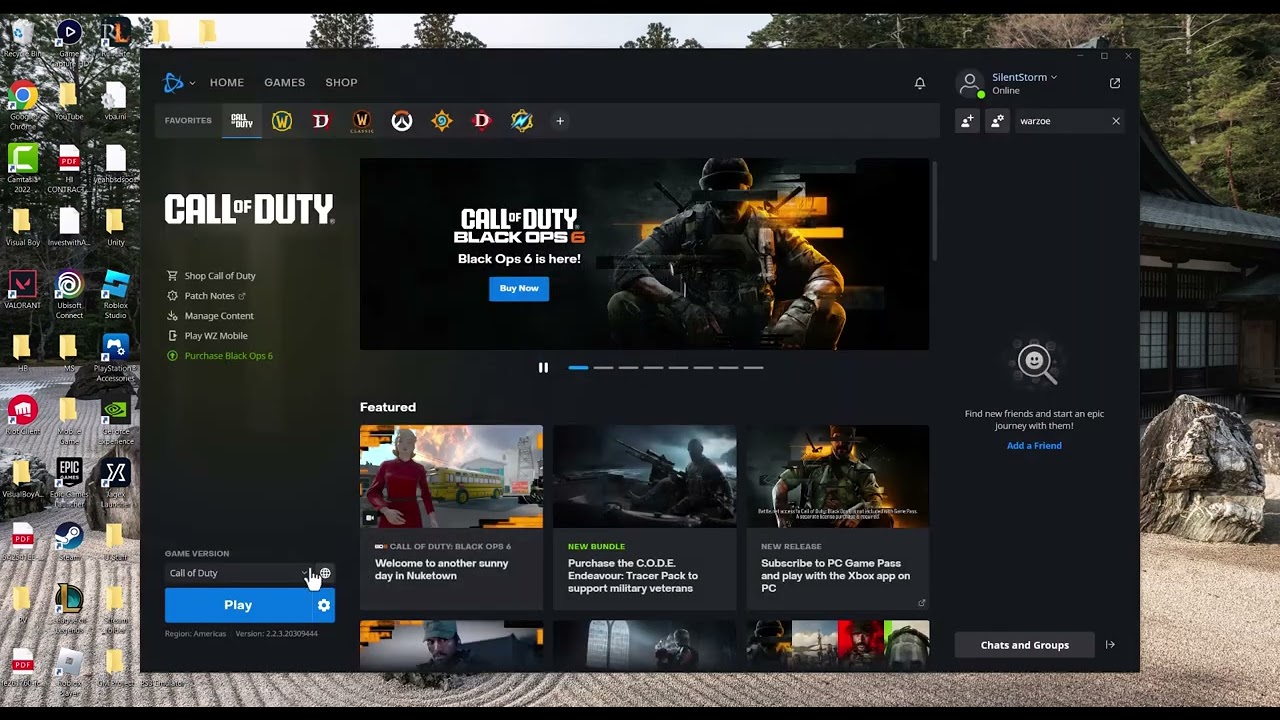
Quick answer: Open Battle.net, select Call of Duty, choose the gear beside Play, and run Scan and Repair. Then restart the launcher and allow shader preloading to finish at the main menu before entering a mode.
Before you start
- Confirm Battle.net and Call of Duty are fully updated.
- Close recording, overlay, RGB, tuning, and monitoring utilities for the first test.
- Keep at least several gigabytes free on the Windows and game drives.
- If you overclock or undervolt the CPU, GPU, or RAM, return it to a stable default while testing.
Fix Black Ops 6 crashes in Battle.net
- Restart the launcher cleanly. Quit Battle.net from the notification area, restart Windows, then open Battle.net again.
- Scan and repair Call of Duty. Select the game, open the gear menu next to Play, choose Scan and Repair, and let the process finish. Do not launch the game while files are being checked.
- Finish shader preloading. Launch the game and remain on the main menu until shader preloading reaches 100%. Activision warns that leaving the main menu can pause the process and contribute to performance trouble.
- Install the current supported graphics driver. Use NVIDIA, AMD, or Intel’s official updater. Choose a clean installation if the vendor offers one and restart afterward.
- Remove software conflicts. For one test, close third-party overlays, capture software, motherboard utilities, hardware monitoring tools, and aggressive antivirus add-ons. Re-enable programs one at a time after the game works.
- Check the game’s installation path and permissions. Keep Battle.net and the game at their normal privilege level. If you previously forced compatibility mode or permanent administrator access on
cod.exe, clear those settings and test.
Why this works
Scan and Repair replaces missing or damaged Call of Duty files. The other steps address the common points where a healthy installation can still fail: an incomplete shader cache, an incompatible display driver, or another program injecting an overlay into the game.
Additional options
- Reset Call of Duty graphics settings from the in-game menu if the crash began after a display change.
- Clear the Battle.net cache using Blizzard’s documented procedure, then sign in again.
- Check Activision Online Services before repeatedly changing the PC.
- Reinstall the game only after Scan and Repair completes without resolving the crash.
Warning: The video suggests forcing compatibility mode and administrator access. Treat that as a reversible last resort, not a default fix. If it makes launching worse, clear both boxes. Never download a replacement executable or DLL from an unofficial site.
Frequently asked questions
Does Scan and Repair remove my progression?
No. Online progression is stored with your Activision account. The tool checks local game files.
Why does Black Ops 6 crash while shaders are loading?
A damaged file, unstable driver, background hook, or interrupted shader process can cause it. Repair first, then allow loading to finish without leaving the menu.
Should I reinstall immediately?
No. Reinstalling is much slower than scanning and often reproduces the same software conflict.
Official references
Source video
As an Amazon Associate I earn from qualifying purchases.