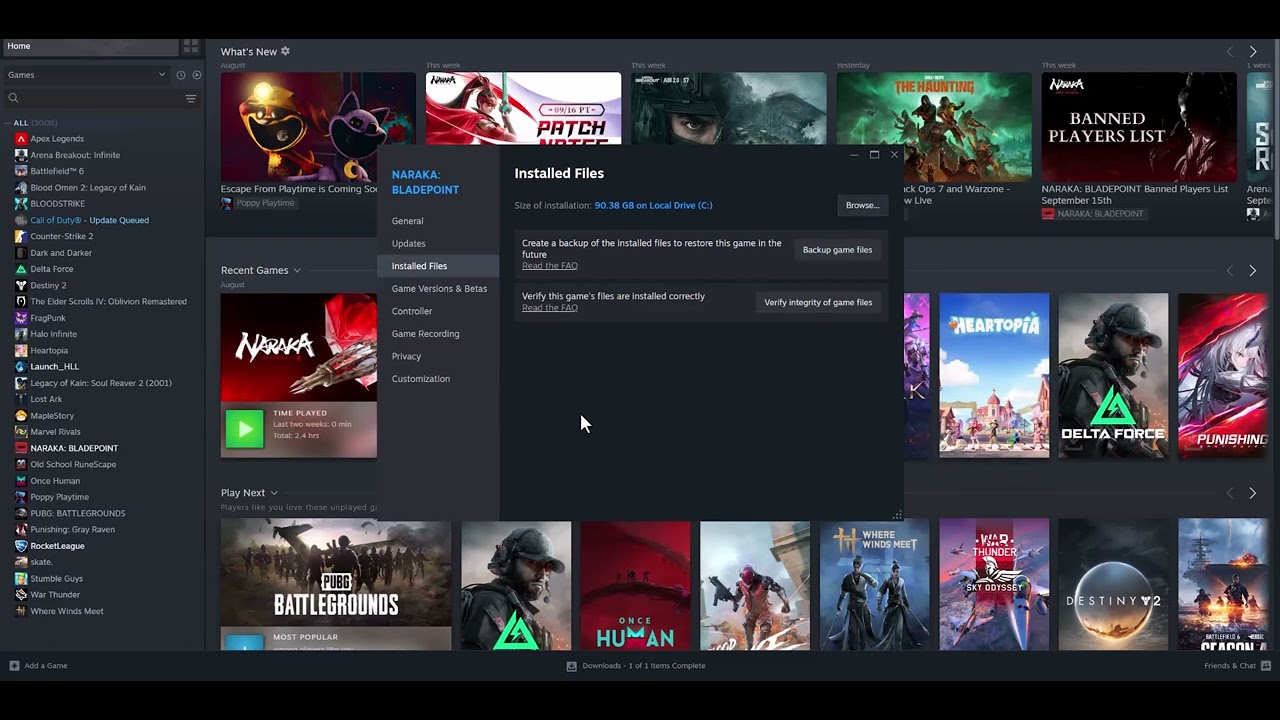
Quick answer: If EA SPORTS FC 27 crashes or will not open from Steam, verify the installed files first, restart Steam and the EA app, install pending Windows and GPU-driver updates, and close overlays or recording tools. Test after each change. Avoid downloading replacement DLL files or applying blanket compatibility settings to every executable.
Before you start
- Restart the PC once and confirm that Steam and the EA app can both sign in.
- Install any queued FC 27 update before troubleshooting an older build.
- Keep your EA Account and Steam credentials available, because relaunching the EA app may require another sign-in.
- If Windows Security or another antivirus shows a blocked-file alert, review the exact item instead of disabling protection for the whole system.
1. Verify FC 27 files in Steam
- Open Steam and select Library.
- Right-click EA SPORTS FC 27 and choose Properties.
- Select Installed Files.
- Choose Verify integrity of game files and let the scan finish.
- Restart Steam, open the EA app if prompted, and test the game.
This is the core method demonstrated in the source video. Steam compares the local installation with its current manifest and replaces files that are missing or do not match. The scan can take several minutes and may redownload a small amount of data.
2. Update the software FC 27 depends on
- Open Settings > Windows Update, check for updates, install them, and restart if requested.
- Install the current driver from NVIDIA, AMD, or Intel for your graphics hardware.
- Open the EA app and Steam again, then allow either launcher to finish its own update.
- Launch FC 27 without starting other games, capture tools, or tuning utilities.
EA’s current FC 27 PC guidance identifies graphics drivers, background applications, power settings, resolution, and memory configuration as common causes of unstable performance. A current driver and a clean restart remove several variables at once.
3. Close overlays and background tools
- Exit third-party overlays, FPS counters, RGB utilities, screen recorders, and GPU-tuning tools temporarily.
- Pause large downloads and close browser tabs that are using substantial memory.
- Start FC 27 from Steam and test one launch.
- If the game opens, restore the background tools one at a time to find the conflict.
4. Use a clean boot only if the crash continues
EA recommends a Windows clean boot when background tasks may be interfering. A clean boot is reversible, but it changes which non-Microsoft services start with Windows. Record what you disable and re-enable normal startup afterward. If the crash only happens in normal startup, re-enable services in small groups until the conflicting program is identified.
Why these fixes work
Launch failures usually occur before gameplay data loads. File verification repairs the installation; driver and operating-system updates address graphics or runtime faults; and a clean startup removes programs that inject overlays or compete for CPU, GPU, or memory resources. These steps target different points in the startup chain without modifying FC 27 files by hand.
What not to do
- Do not download DLL files from random websites. Use the official launcher, Windows Update, or a hardware vendor’s official driver page.
- Do not set every FC 27 executable to Windows 8 or Vista compatibility mode. The source video suggests compatibility changes, but that is not part of EA’s current FC 27 guidance and can create new launcher or anti-cheat problems.
- Do not leave “Run as administrator” forced on multiple launchers. Mismatched privilege levels can stop Steam, the EA app, and the game from communicating correctly.
- Do not reinstall first. Verification is faster and preserves the installation if only a few files are damaged.
If FC 27 still will not launch
- Check EA’s service status before changing more settings.
- Use the EA app’s repair option if your Steam launch also opens the EA app and the option is available.
- Lower the target frame rate and graphics quality if the crash happens after reaching the menu rather than at startup.
- Reinstall FC 27 only after verification, updates, and a clean-boot test fail.
- Include the crash time, platform, GPU model, driver version, and any exact error message when contacting EA Support.
Frequently asked questions
Will verifying files delete my FC 27 progress?
No. Steam verification checks the installed game files. Cloud or account-linked progress is separate, though it is always sensible to let Steam finish syncing before closing it.
Should I use compatibility mode?
Not as a default fix. It is absent from EA’s current FC 27 PC troubleshooting guidance and can interfere with modern launchers or anti-cheat components.
Why does the game open after I close overlays?
Some overlays hook into the same graphics process used by the game. Closing them is a diagnostic step; if it works, re-enable programs one at a time.
More FC 27 help
Official references
- EA: FC 27 PC performance troubleshooting
- EA: Fix crashing and freezing
- Steam Support: Verify game files