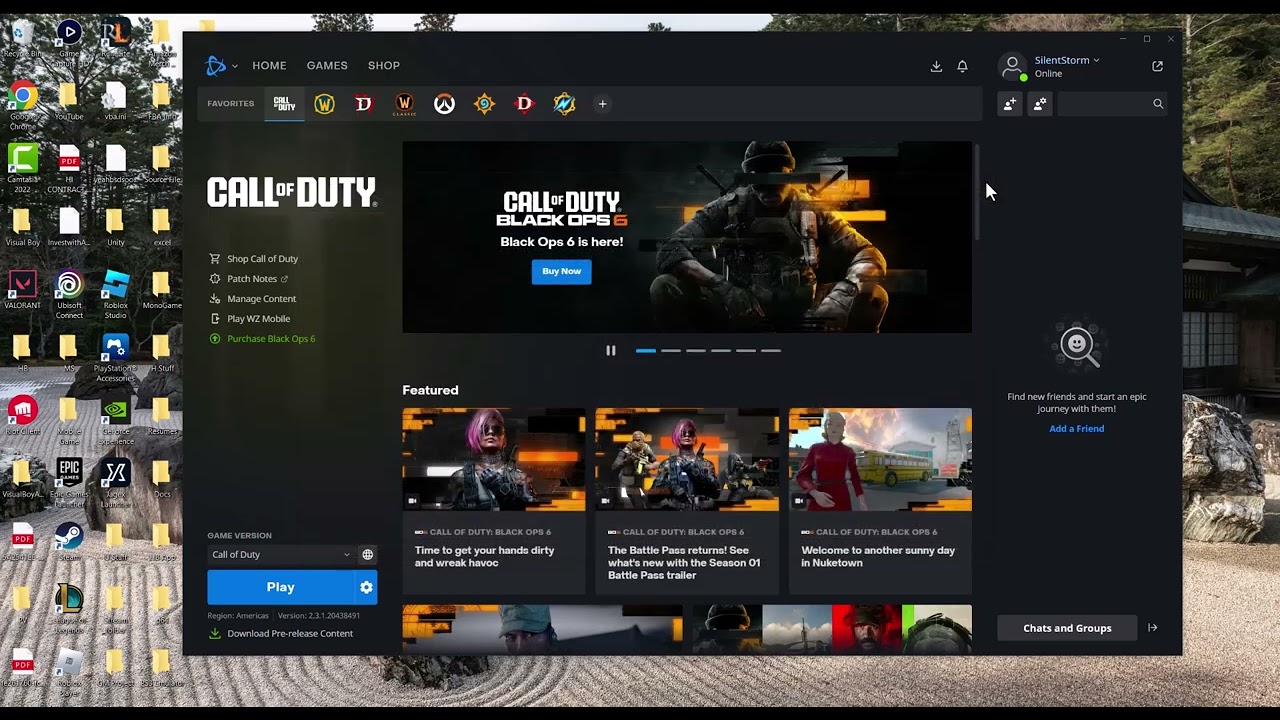
Quick answer: When the Battle.net desktop app is stuck connecting, first check for a Blizzard service incident. Fully exit Battle.net, restart the PC and router, then release and renew the Windows IP configuration and flush the DNS cache. A custom DNS server is an optional, reversible test—not a guaranteed server fix.
Before you start
- Save any router or Windows network settings you intend to change.
- Use an administrator account only for the Windows network commands that require it.
- If Blizzard reports maintenance or an outage, wait instead of changing your PC.
Fix Battle.net connection problems
- Check Blizzard support notices. Confirm whether maintenance or a live incident affects the Battle.net app or your game.
- Exit Battle.net completely. Close the window, then check the system tray and choose Exit. In Task Manager, end a stuck Battle.net or Agent process only if it remains after exit.
- Restart the PC. This reloads the app’s networking components and clears a stuck session.
- Power-cycle the network. Shut down the PC, unplug the modem and router for about 60 seconds, reconnect the modem first, wait for it to come online, then reconnect the router and start the PC.
- Renew the address and flush DNS. Open Command Prompt as administrator and run
ipconfig /release,ipconfig /renew, andipconfig /flushdns, one at a time. Microsoft documents these commands; expect a brief network disconnect during release and renew. - Disable a known proxy or VPN temporarily. If you intentionally use one, turn it off long enough to test. Turn it back on afterward if it is required for work or privacy.
- Try a different connection. Ethernet or a temporary mobile hotspot can show whether the problem is the PC, home network, or internet provider. Avoid large game downloads over metered data.
- Reinstall the Battle.net app only after network checks. Keep installed game folders in place, remove the desktop app through Windows Settings, restart, and get the current installer from Blizzard.
Why these steps work
The app depends on both Blizzard services and the local path to them. A restart clears hung launcher processes, the router cycle rebuilds the WAN session, and release/renew plus flushdns replaces stale local address and name-resolution data.
Optional DNS test
The source video demonstrates Cloudflare DNS at 1.1.1.1 and 1.0.0.1. This can help when an ISP resolver is failing, but it cannot repair a Blizzard outage. In the adapter’s IPv4 properties, write down the current setting before changing it. To undo the test, choose Obtain DNS server address automatically.
Warnings
- Changing DNS affects name resolution for the whole PC, not just Battle.net.
- Do not factory-reset the router for this issue; a normal power cycle is enough for the first test.
- Do not disable antivirus or firewall protection broadly. Check for a specific block and use the vendor’s supported exception flow.
Frequently asked questions
Does “stuck connecting” always mean Blizzard is down?
No. It can be a live service incident, a stuck app process, local DNS state, the router, or the internet path. The status check separates those cases.
Is flushing DNS safe?
It removes cached name lookups; Windows rebuilds them as sites are accessed. Release and renew briefly disconnects the network.
Should I keep 1.1.1.1 permanently?
Only if it proves reliable for your network. The change is optional and reversible.
Official references
- Blizzard Support: Can’t Connect to Battle.net Desktop App
- Blizzard Support
- Microsoft: ipconfig commands
Source video
As an Amazon Associate I earn from qualifying purchases.