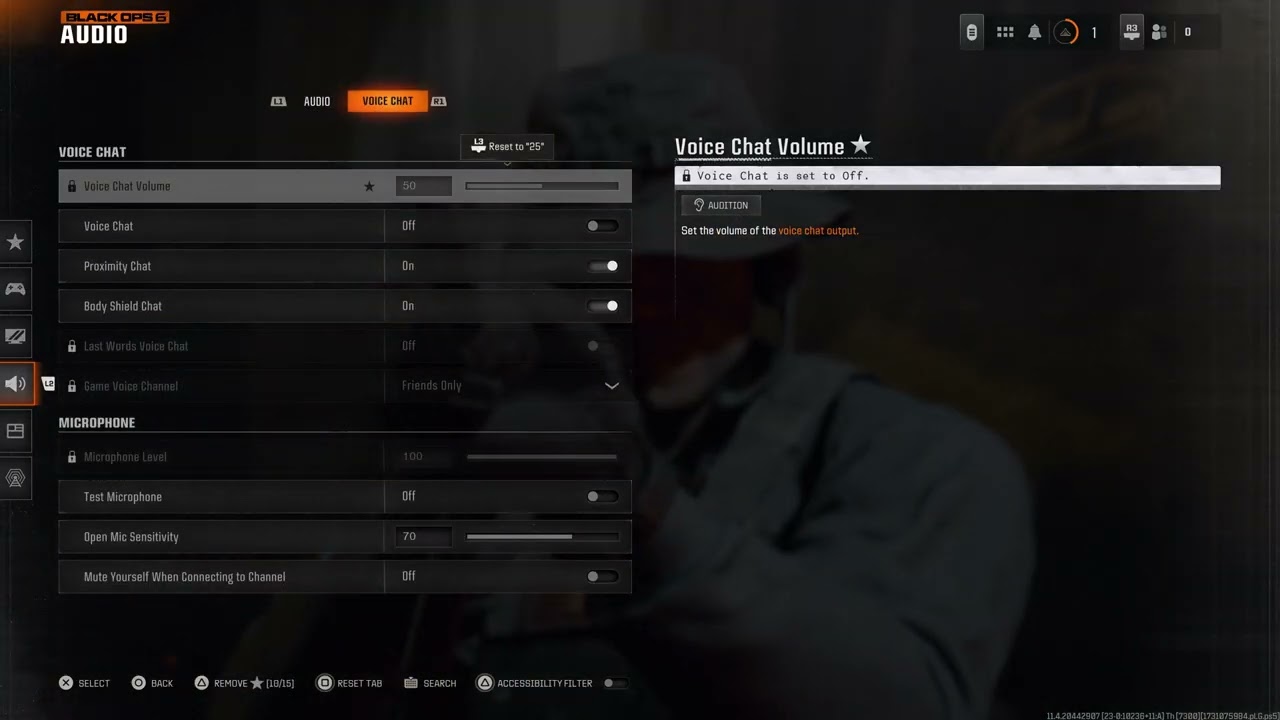
Quick answer: In Black Ops 6, open Settings > Audio > Voice Chat, turn Voice Chat on, raise Voice Chat Volume, and set Game Chat Voice to the audience you actually want to hear. If you want public lobby chat, choose All Lobby. Then join the correct channel, unmute the lobby, and check your console or PC microphone permission.
The source video demonstrates the in-game menu path. Activision’s current support page confirms the same route and notes that platform account settings can override the game’s settings.
Before you start
- Connect the headset or microphone before launching the game.
- Make sure the microphone works in your console’s audio test or Windows sound settings.
- Use an account that is allowed to communicate online; child, family, and privacy settings can block chat.
How to fix Black Ops 6 game chat
- From the main menu, open Settings.
- Select Audio, then open the Voice Chat tab.
- Set Voice Chat to On and move Voice Chat Volume above zero.
- Open Game Chat Voice. Choose All Lobby for public lobby communication, Party Only for your party, or Friends Only when you only want friends.
- Open the Chat section from the main menu and confirm you are connected to the intended chat channel. Black Ops 6 allows only one Chat Channel connection at a time.
- In the pre-game lobby, select Voice and make sure the lobby is not muted. During a match, open the scoreboard, highlight the affected player, and use Toggle Mute.
- Use the microphone test in the Voice Chat settings. If there is no input, select the correct microphone in Windows or your console’s sound settings, then restart the game.
Why this works
Voice chat can fail even while the microphone itself is working. The master Voice Chat switch, chat audience, active channel, per-player mute state, and platform privacy controls are separate layers. Correcting each layer removes the most common configuration conflicts without changing network security or account data.
If chat still does not work
- Leave any console party chat temporarily and rejoin the in-game channel.
- Disconnect other microphones so the game cannot select the wrong input.
- Restart the game after changing Windows microphone permissions or console privacy settings.
- Check for an Activision voice-chat enforcement notice. Settings changes cannot bypass an account communication restriction.
- If only one person is affected, ask both players to check their mute and blocked-player lists.
Warnings and limitations
All Lobby exposes you to public voice chat. Use Party Only or Friends Only when you prefer a smaller audience, and use mute, block, and report tools when needed. Do not disable parental controls without the account owner’s permission. Proximity Chat and opponent communication can also be limited by playlist rules.
Frequently asked questions
Why can I hear players but they cannot hear me?
The output path is working, but the game may be using the wrong input device, microphone permission may be denied, or the mic threshold may be too high. Test the mic and select the correct input first.
Why does party chat work but game chat does not?
Party chat and game chat use different channels. Leave or switch from the platform party, connect to the in-game channel, and confirm Game Chat Voice is not limited to a different audience.
Does this reset my audio settings?
No. These steps change only the relevant voice-chat choices. You can undo them by restoring the previous Voice Chat and Game Chat Voice values.
Official reference
Activision: Communication Features in Call of Duty: Black Ops 6
Source video
As an Amazon Associate I earn from qualifying purchases.