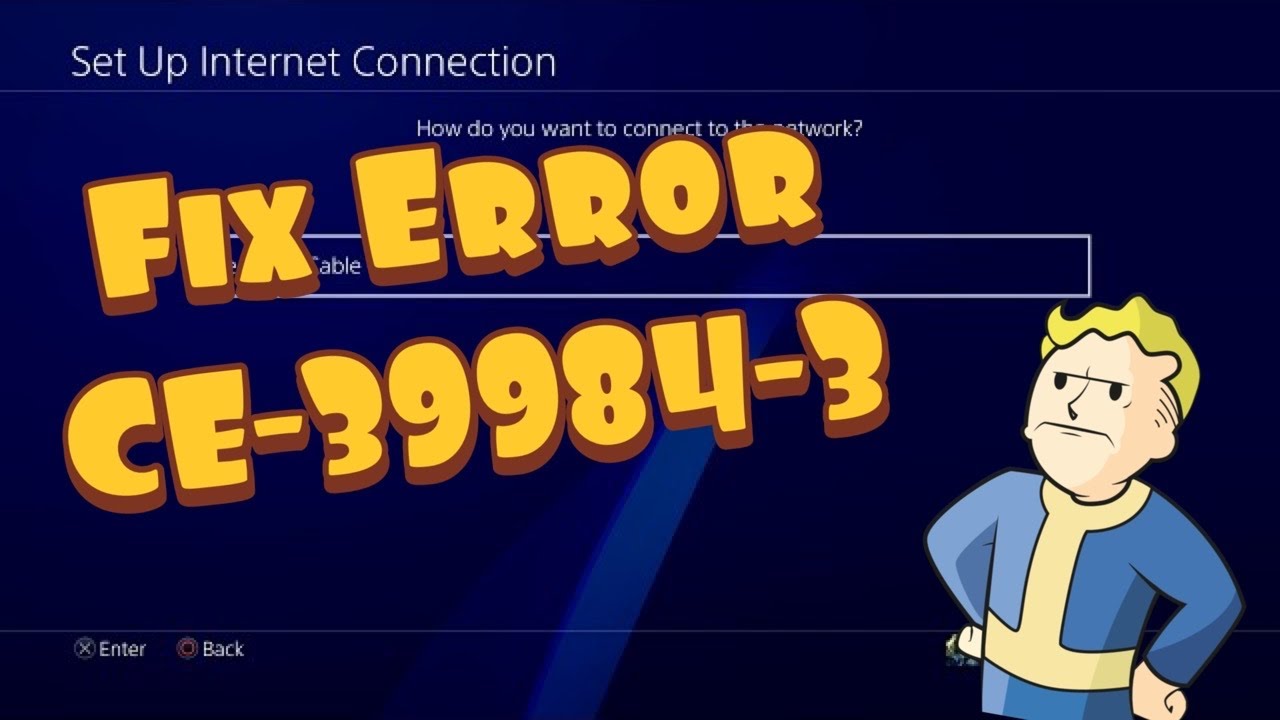
Quick answer: Check PlayStation Network status, restart the PS4 and networking equipment without factory-resetting the router, then test Ethernet. If the error persists, recreate the PS4 connection and use manual DNS only as a reversible diagnostic.
Before you start
- Your current Wi-Fi password or an Ethernet cable.
- Access to the modem and router power plugs.
- A phone or computer to check PlayStation status.
- Any special ISP or apartment-network settings you may need to reconnect.
How to fix PS4 error CE-39984-3
- Check PlayStation Network status. If account, gaming, or Store services show an incident, wait for recovery before changing the console.
- Restart the PS4. Use Power > Restart PS4 rather than Rest Mode.
- Power-cycle the network safely. Unplug the modem and router for about five minutes. Reconnect the modem first, wait until it is online, then reconnect the router and restart the PS4. Do not press a recessed reset button.
- Run Test Internet Connection. Open Settings > Network > Test Internet Connection. Note whether IP address, internet access, or PlayStation sign-in is the first failed stage.
- Try a wired connection. If possible, connect the PS4 directly to the router with Ethernet and set up the LAN connection. A successful wired test points to Wi-Fi signal or interference rather than the console account.
- Recreate the wireless connection. Choose Set Up Internet Connection, select the correct network again, and enter the current password. Move the console closer to the router for the test.
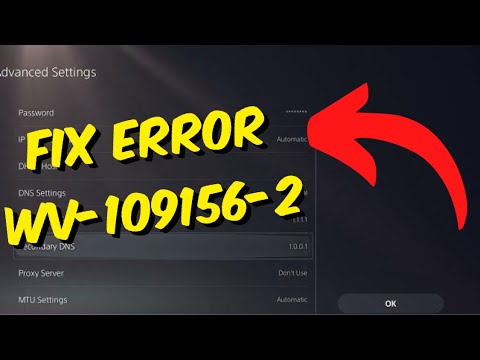
- Try manual DNS only if needed. Choose Custom, leave IP Address and MTU Automatic, choose Do Not Specify for DHCP Host Name, and Do Not Use for Proxy. A reputable public resolver can be entered manually. If nothing improves, set up the connection again with Easy to restore DNS to Automatic.
Why these steps work
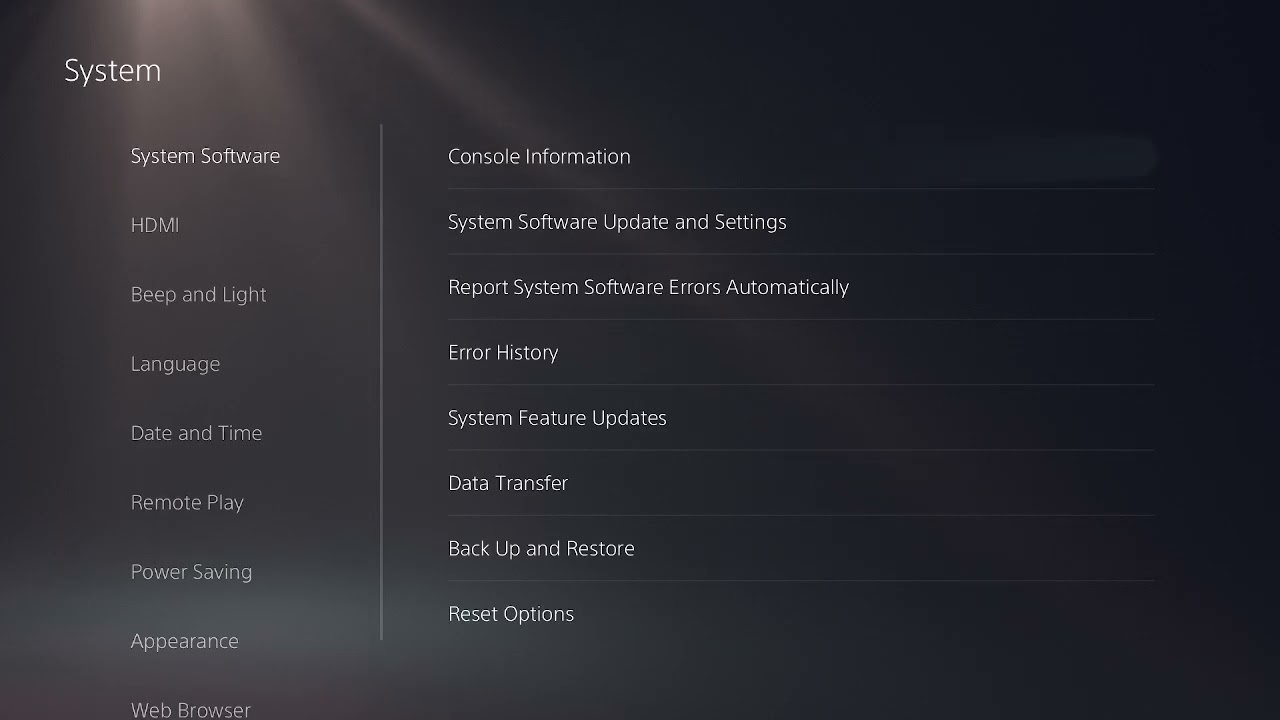
This sequence separates a PlayStation outage from a local connection problem. A normal router power cycle renews the session without deleting ISP or Wi-Fi configuration. Ethernet removes radio interference from the test. Manual DNS only changes name resolution; it does not increase line speed or fix a service outage.
Other safe options
- Pause large downloads and video streams on other devices during the test.
- Try the other Wi-Fi band if the router provides separate 2.4 GHz and 5 GHz networks.
- Use a brief phone-hotspot test only to compare networks, and stop before consuming substantial mobile data.
Warnings and how to undo changes
The source video recommends using the router’s physical reset control. Do not do that as a routine troubleshooting step: a factory reset can erase the ISP login, Wi-Fi name, password, port rules, and security configuration. Unplugging power is different and is safe. To undo manual DNS, recreate the PS4 connection with Easy or set DNS back to Automatic.
Source video
The wired-connection and DNS menu paths come from the video. The router-reset step is intentionally replaced with the safer first-party power-cycle procedure.
Frequently asked questions
Will changing DNS fix every CE-39984-3 case?
No. DNS cannot fix a PlayStation outage, poor Wi-Fi signal, failed account authentication, or an ISP fault. Treat it as one diagnostic after simpler checks.
Should I open ports on the router?
Not first. Test service status, restart equipment, and compare Ethernet before changing firewall or NAT rules. Avoid disabling the firewall or placing the console in an unrestricted DMZ.
Why does Ethernet matter?
It removes Wi-Fi congestion, distance, and interference from the path. If Ethernet works while Wi-Fi fails, focus on placement, band selection, and router settings.
Official references
Checked October 1, 2026.
As an Amazon Associate I earn from qualifying purchases.