Author: MoeGaming

  • Fix Black Ops 1 Unable to Join a Friend on PS5

    Fix Black Ops 1 Unable to Join a Friend on PS5

    Black Ops 1 unable to join friend session fix on PS5
    Start with party privacy and search preferences before changing advanced network settings.

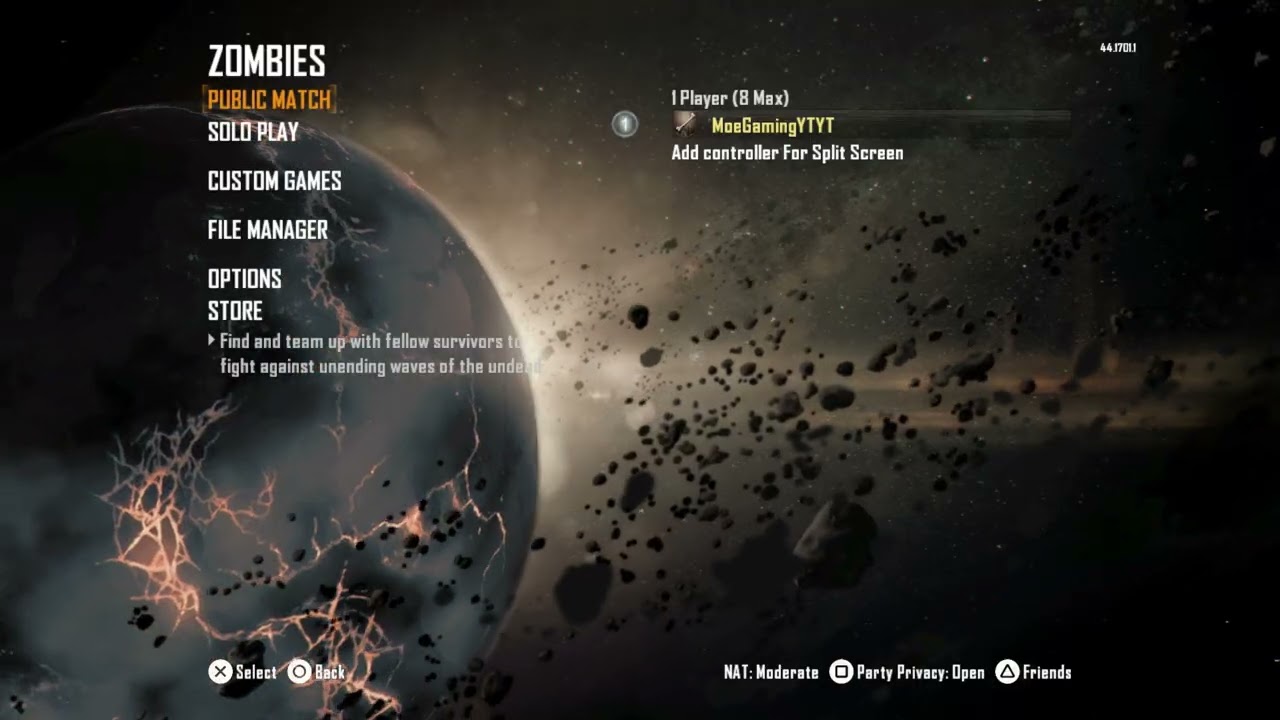
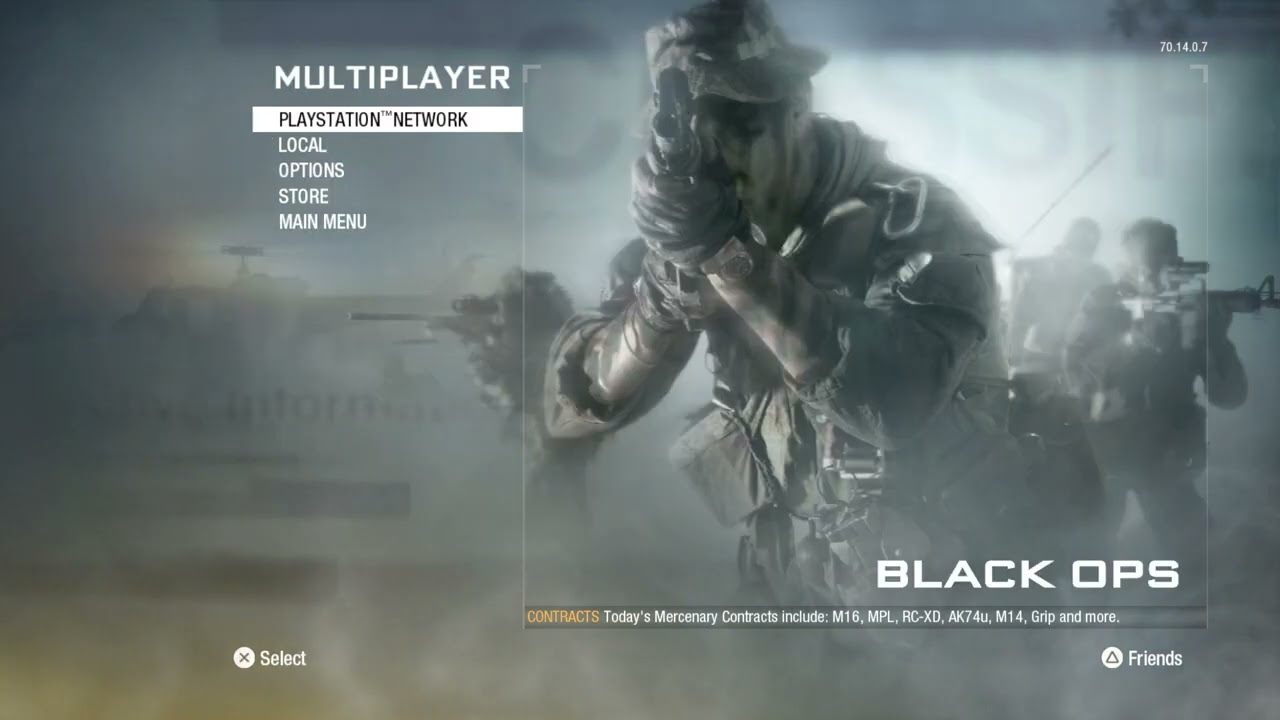
    Quick answer: If Black Ops 1 says you cannot join a friend’s session on PS5, have both players set the party or lobby privacy to Open and return matchmaking search preferences to Default. Confirm neither account has blocked the other, restart the game on both consoles, and let the other player host. If the multiplayer invite still fails, the video demonstrates joining through a Zombies lobby first as a workaround.

    This is a legacy multiplayer title, so a failed invite can involve lobby settings, account permissions, NAT behavior, service availability, or the current game session. The steps below begin with the reversible fixes shown in Moe Gaming’s video and then cover the safest current PlayStation checks.

    Before troubleshooting the lobby

    • Confirm both players are signed in to PlayStation Network and have any subscription required for online multiplayer.
    • Check PlayStation Network status and verify the game’s online functions are available.
    • Update the PS5 system software and install every available game update.
    • Make sure both players are launching the same game edition and compatible version.
    • Close the game completely on both consoles rather than resuming an old suspended session.

    How to fix Black Ops 1 unable to join a friend on PS5

    1. Set both lobbies to Open

    1. Open the Black Ops 1 multiplayer lobby.
    2. Open the party, lobby, or player-management panel.
    3. Find Party Privacy and set it to Open.
    4. Ask your friend to make the same change on their console.
    5. Send a fresh invite rather than reusing an invitation created before the setting changed.

    A friends-only or invite-only setting can sometimes persist from a previous session. Setting both sides to Open removes that local lobby restriction while you test. You can restore a more restrictive setting afterward.

    2. Return Search Preferences to Default

    Open the matchmaking or lobby search preferences and select Default on both consoles. A narrow preference can make two players appear incompatible even when both can play separately. Recreate the party after applying the change.

    3. Verify the friendship and block lists

    1. Open the PS5 Game Base and confirm the other account is still listed as a friend.
    2. Check the blocked-users list on both accounts.
    3. If either account appears blocked, unblock it and restart the game.
    4. Ask the non-hosting player to join from the current Game Base invitation.

    Do not share account passwords or remove unrelated privacy protections. This check is only meant to confirm that the two intended accounts can communicate and invite one another.

    4. Switch the host

    Disband the current lobby and let the other player create a new one. A host switch is a quick way to test whether one console’s session or home-network NAT behavior is preventing the join. If one person can host consistently and the other cannot, focus further network troubleshooting on the unsuccessful host.

    5. Try the Zombies-lobby workaround

    The source video shows a practical legacy-title workaround:

    1. Both players leave the current multiplayer party.
    2. One player opens Zombies and creates an open lobby.
    3. The friend joins that Zombies session.
    4. Once both players are together, return to the main menu and create a multiplayer lobby again.

    This is a community workaround demonstrated in the video, not a guaranteed PlayStation repair. It is useful because it forces the game to create a fresh shared session through a different mode.

    6. Restart the network path

    1. Close the game on both PS5 consoles.
    2. Restart both consoles.
    3. Power-cycle each router: unplug power, wait about 30 seconds, reconnect it, and wait until internet service returns.
    4. Use Ethernet for the test when possible.
    5. Run the PS5 internet-connection test and note the NAT result.

    If both players can join other games but not one another, incompatible or restrictive NAT behavior may be involved. Do not disable the router firewall or expose the console to the internet. Use the router manufacturer’s supported UPnP or console-gaming guidance, or ask the internet provider for help if the network is behind carrier-grade NAT.

    Why the friend-session error happens

    The message does not identify one root cause. An invite can fail because the lobby is not open, the party was created with stale settings, the accounts cannot communicate, the game versions differ, a service is unavailable, or the two network paths cannot establish a peer session. That is why changing the privacy and search settings, recreating the lobby, and switching host are more useful first tests than random DNS or port changes.

    If only Black Ops 1 is affected

    • Check whether each player can enter a public match separately.
    • Try again at a different time in case a legacy matchmaking service is degraded.
    • Remove and reinstall only after confirming the account, service, and network checks.
    • Record the exact mode and error wording if you need to contact PlayStation Support.
    • For the similar sequel issue, see our Black Ops 2 unable-to-join guide.

    Optional multiplayer accessories

    As an Amazon Associate I earn from qualifying purchases.

    Watch the original walkthrough

    Frequently asked questions

    Why can I join public matches but not my friend?

    Public matchmaking and direct friend sessions can use different lobby and network paths. Check party privacy, block lists, game versions, host choice, and NAT behavior.

    Should both players set Party Privacy to Open?

    Yes, during troubleshooting. That removes an invite restriction from either side. Once the connection works, you can return to a preferred privacy setting.

    Will changing DNS fix friend-session errors?

    It is not a primary fix. DNS helps locate services; it does not override lobby privacy or guarantee that two NAT connections can form a peer session.
    Official references

  • How to Fix Black Ops 2 Error CE-108255-1 on PS5

    How to Fix Black Ops 2 Error CE-108255-1 on PS5

    Black Ops 2 CE-108255-1 crash error fix on PS5
    PS5 error CE-108255-1 means the game or application encountered an error.

    Quick answer: For Black Ops 2 error CE-108255-1 on PS5, install the latest game and system updates, restart the console, and restore the game’s license. If the crash continues, reinstall the game and rebuild the PS5 database in Safe Mode. Only try another PS4/PS5 game version if you actually own it and the PlayStation product page offers that choice.

    CE-108255-1 is a PlayStation application-error code, not proof of one specific hardware or network fault. The safest approach is to start with PlayStation’s current steps and move from reversible fixes to more disruptive ones. The Moe Gaming video demonstrates license restoration, version selection, and database rebuilding; this guide places those steps in a careful troubleshooting order.

    Before you begin

    • Close Black Ops 2 completely instead of resuming it from a suspended state.
    • Make sure the PS5 has enough free storage for updates and temporary installation files.
    • Sync important save data with PlayStation Plus cloud storage or create an appropriate backup before reinstalling or using advanced recovery options.
    • Do not factory-reset the PS5 as a first response to this code.

    How to fix Black Ops 2 CE-108255-1 on PS5

    1. Update Black Ops 2 and PS5 system software

    1. Highlight Black Ops 2 on the home screen.
    2. Press Options on the controller and choose Check for Update.
    3. Open Settings > System > System Software > System Software Update and Settings.
    4. Install any available PS5 update, then restart the console.

    PlayStation’s official CE-108255-1 guidance begins with updating the game. A game build and system build that do not agree can crash at launch or during loading.

    2. Restart instead of using Rest Mode

    Turn the PS5 off completely, wait about 30 seconds, and start it again. This clears the running application state without deleting games or saves. Launch Black Ops 2 directly after the restart before opening other apps.

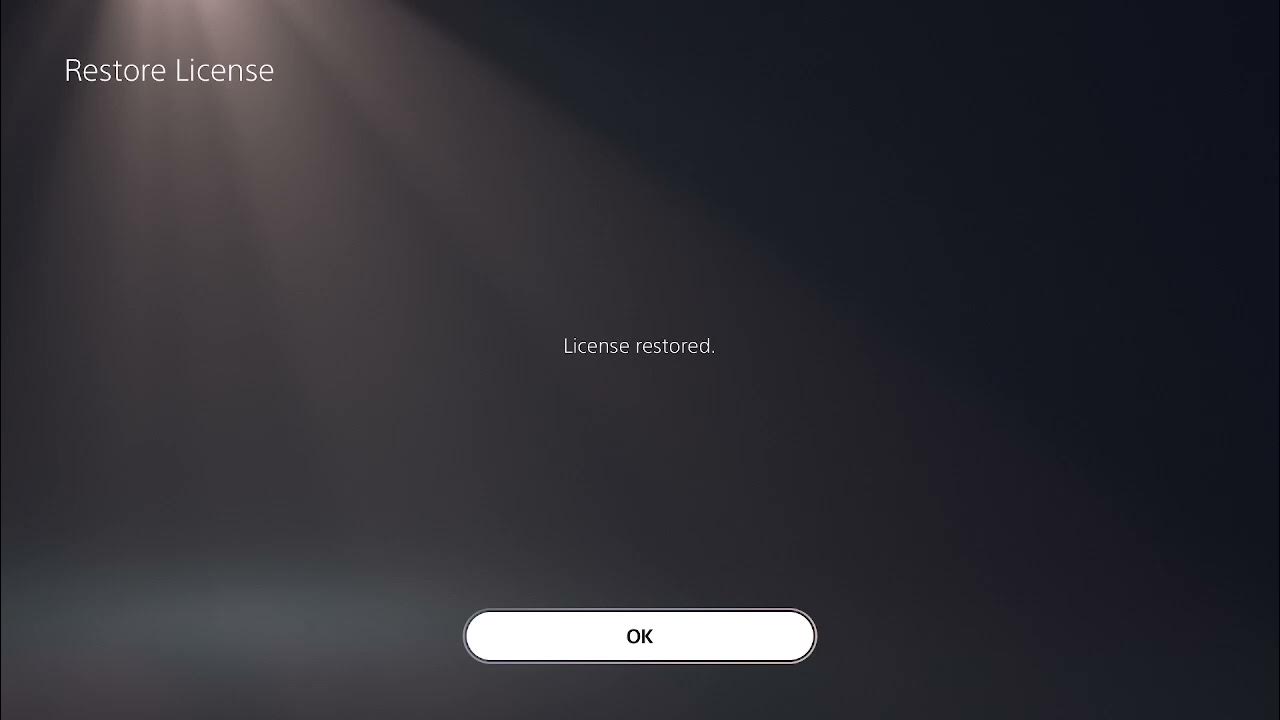
    3. Restore the Black Ops 2 license

    1. Open Settings > Users and Accounts > Other.
    2. Select Restore Licenses.
    3. Choose Restore and wait for the process to finish.
    4. Restart the PS5 and test the game.

    License restoration is non-destructive: it does not remove games, save data, or user content. It is most relevant when ownership verification or downloadable content is not being recognized correctly. It is not guaranteed to fix every CE-108255-1 crash.

    4. Confirm you are launching the intended game version

    If the PlayStation product page gives you access to more than one version, highlight the game, press Options, and select Game Version. Test the current native version first. If one build repeatedly crashes and you legitimately own another compatible build, the alternate version can be a temporary fallback while an update is investigated.

    Do not buy a second copy solely because of this error, and do not assume every Black Ops 2 release offers both PS4 and PS5 builds.

    5. Reinstall the game

    1. Confirm save data is synced or backed up.
    2. Highlight Black Ops 2, press Options, and choose Delete.
    3. Restart the PS5.
    4. Download the game again from Game Library or reinstall it from the disc.
    5. Allow the complete game and all required updates to finish before launching.

    A clean reinstall replaces corrupted or incomplete application files. Deleting the application normally does not delete separate saved data, but checking the backup first is still the sensible precaution.

    6. Rebuild the PS5 database in Safe Mode

    1. Turn the PS5 off completely.
    2. Hold the power button and release it after the second beep, which occurs several seconds after the first.
    3. Connect the DualSense controller with a USB cable and press the PS button.
    4. Select Clear Cache and Rebuild Database, then Rebuild Database.
    5. Let the console finish without unplugging it.

    Rebuilding the database scans the drive and recreates the content index. It is different from resetting the console and should not erase installed content, but any recovery operation should be allowed to finish uninterrupted.

    What if the error continues?

    • Test another game. If several unrelated games produce CE-108255-1, record the exact circumstances and contact PlayStation Support.
    • Check whether the crash happens only in one Black Ops 2 mode, map, or save. A repeatable content-specific crash is useful information for support.
    • If the PS5 reports storage errors or has very little space, free space and rerun the update or installation.
    • Use PlayStation’s game-launch troubleshooting page before considering a console reset.

    Why these fixes work

    CE-108255-1 is broad: it reports that an application failed, but it does not identify the root cause by itself. Updates address known software defects; a restart clears the active state; license restoration refreshes entitlement records; reinstalling replaces the game files; and rebuilding the database repairs the PS5’s content index. Moving in that order avoids jumping straight to a destructive remedy.

    Optional gaming accessories

    As an Amazon Associate I earn from qualifying purchases.

    Watch the original walkthrough

    Frequently asked questions

    Does restoring licenses delete anything?

    No. PlayStation says restoring licenses does not affect your data. It refreshes the console’s access to purchased content.

    Will rebuilding the database delete my games?

    The Rebuild Database option scans the drive and recreates its content database; it is not the Reset PS5 option. Read the Safe Mode labels carefully and do not choose a reset option for this routine troubleshooting step.

    Is CE-108255-1 always a hardware failure?

    No. It is an application error and can result from a game build, incomplete update, damaged installation, database issue, or another software problem. Multiple games failing after all official steps is a reason to contact PlayStation Support.

    Official references

  • How to Fix Black Ops 2 Lag on PS5

    How to Fix Black Ops 2 Lag on PS5

    Black Ops 2 lag fix settings on PS5
    Black Ops 2 lag on PS5 is usually best approached as a connection-quality problem, not a graphics problem.

    Quick answer: To reduce Black Ops 2 lag on PS5, first stop downloads and test a wired connection. If you use Wi-Fi, manually test the 5 GHz band when the console is close to the router or 2.4 GHz when it is farther away. Reconnect, restart the PS5 and router, and only then try a manual DNS such as Cloudflare’s 1.1.1.1 and 1.0.0.1. DNS can improve name lookups, but it does not directly reduce in-match ping.

    This guide is based on the settings demonstrated in Moe Gaming’s video, then checked against current PlayStation, Activision, and Cloudflare documentation. Work through the steps in order so you can tell which change actually helps.

    Before changing PS5 network settings

    • Check whether PlayStation Network or the game’s online service is having an outage.
    • Pause game downloads, cloud backups, streaming, and large uploads on the PS5 and other devices.
    • Run Settings > Network > Connection Status > Test Internet Connection and note the result.
    • Restart the router and PS5 once. Wait for the router to reconnect fully before starting the game.
    • If possible, compare one match over Ethernet. That test quickly separates Wi-Fi interference from a server-side issue.

    How to fix Black Ops 2 lag on PS5

    1. Use Ethernet when possible

    Connect the PS5 directly to the router with an Ethernet cable, then open Settings > Network > Settings > Set Up Internet Connection and select the wired connection. Ethernet does not make the game servers faster, but it removes most local Wi-Fi interference and packet loss.

    If the game runs smoothly over Ethernet but lags over Wi-Fi, focus on signal strength, router placement, congestion, and the frequency-band test below.

    2. Manually test the Wi-Fi frequency band

    1. Open Settings > Network > Settings > Set Up Internet Connection.
    2. Highlight the Wi-Fi network you use and press the controller’s Options button.
    3. Open Wi-Fi Frequency Bands.
    4. Try 5 GHz if the PS5 is close to the router with few walls between them.
    5. Try 2.4 GHz if the console is farther away or the 5 GHz signal is weak.
    6. Reconnect and test a full match before deciding which band performs better.

    Automatic band selection is convenient and may work perfectly. The point of choosing a band manually is to test whether the console has been switching between bands or using a poor signal. Five GHz is usually faster at short range; 2.4 GHz usually reaches farther but is more crowded.

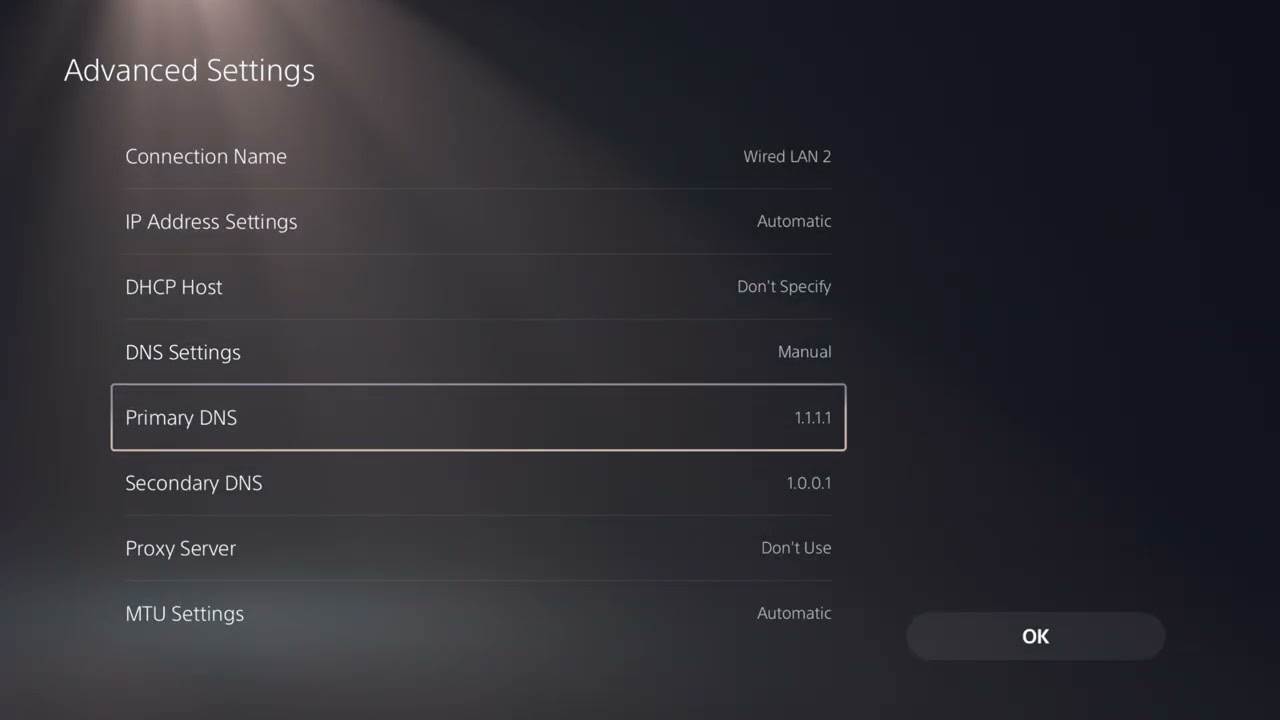
    3. Try Cloudflare DNS as an optional test

    1. Return to Set Up Internet Connection, highlight the active network, press Options, and choose Advanced Settings.
    2. Set DNS Settings to Manual.
    3. Enter 1.1.1.1 for Primary DNS.
    4. Enter 1.0.0.1 for Secondary DNS.
    5. Leave MTU and proxy settings unchanged unless your network administrator gave you different values.
    6. Save, reconnect, and restart the PS5.

    Those are Cloudflare’s documented IPv4 resolver addresses. DNS helps the console locate services, but once a multiplayer match is connected, latency is driven mainly by route quality, distance, congestion, packet loss, and the game servers. If the change does not help, switch DNS back to Automatic.

    4. Reduce congestion and improve signal quality

    • Move the PS5 or router into the open and away from thick walls, metal cabinets, cordless-phone bases, and microwaves.
    • Pause 4K streaming, cloud syncing, and large downloads during your test.
    • Do not use a VPN for the test; it can add another network route and more latency.
    • If your router has gaming or device-priority controls, prioritize the PS5 temporarily and compare results.
    • Avoid changing MTU or opening ports at random. Incorrect values can create a new connection problem.

    Why these fixes can work

    Lag is often a symptom of unstable delivery rather than low headline download speed. A Wi-Fi connection can be fast in a speed test while still losing or delaying small packets during a match. Ethernet removes the radio link. Choosing the better Wi-Fi band can reduce interference or weak-signal retransmissions. Stopping other traffic reduces local congestion.

    A DNS change has a narrower role: it changes the resolver used to find service addresses. It can help if the ISP’s DNS is slow or unreliable, but it is not a guaranteed ping fix. That is why it belongs after the more meaningful connection tests.

    If Black Ops 2 still lags

    1. Test another online game. If every game lags, troubleshoot the home network or contact the internet provider.
    2. Test Black Ops 2 at another time. A problem that appears only during peak periods can indicate network or server congestion.
    3. Confirm the game and PS5 system software are updated.
    4. Follow Activision’s Black Ops 2 connection guidance and compare the console’s NAT result.
    5. If the issue is actually an inability to join one friend rather than general lag, use our Black Ops 2 friend-session troubleshooting guide.

    Optional gaming accessories

    As an Amazon Associate I earn from qualifying purchases.

    Watch the original walkthrough

    Frequently asked questions

    Should I use 2.4 GHz or 5 GHz for PS5?

    Use 5 GHz at shorter range when the signal is strong. Try 2.4 GHz when the console is farther away or several walls separate it from the router. Test both in an actual match rather than assuming one is always better.

    Will 1.1.1.1 lower my Black Ops 2 ping?

    Not necessarily. It changes DNS resolution, not the physical route used by most game traffic after connection. Keep it only if testing shows a measurable improvement or more reliable sign-in.

    Why does Black Ops 2 lag while other games work?

    The specific game session, player host, server route, region, or current population can differ. Check service status and test at another time before changing advanced router settings.

    Official references

  • Fix “This USB Drive’s File System Is Unsupported” on PS5

    Fix “This USB Drive’s File System Is Unsupported” on PS5

    Quick answer: The PS5 “This USB drive’s file system is unsupported” message usually appears when a media or update drive is formatted as NTFS. Back up the drive, then format it as exFAT or FAT32. If you want the drive for game storage, format it as USB Extended Storage on the PS5 itself instead.


    PS5 USB drive file system is unsupported error
    Choose the format based on whether the USB drive will hold media, update files, or games.

    Warning: Formatting erases every file on the selected drive. Copy anything important to another location before you begin, verify the drive letter or device name carefully, and do not disconnect the drive while formatting is in progress.

    First, choose the correct PS5 USB format

    For videos, music, screenshots, or PS5 update files

    Use exFAT or FAT32. PlayStation officially supports both for USB media and manual system-software files. ExFAT is generally the better default for a modern drive because it can hold individual files larger than FAT32 allows.

    For PS4 or PS5 game storage

    Do not stop at a normal Windows exFAT/FAT32 format. Connect a compatible SuperSpeed USB drive to the console and go to Settings > Storage > USB Extended Storage > Format as USB Extended Storage.

    PlayStation lists a 250 GB minimum, an 8 TB maximum, and SuperSpeed USB 5 Gbps or later for extended storage. PS4 games can run directly from compatible USB extended storage. PS5 games can be stored there, but they must be copied back to console or M.2 SSD storage before playing.

    How to format the USB drive on Windows

    1. Back up every file you want to keep.
    2. Connect the USB drive to the PC.
    3. Open File Explorer > This PC.
    4. Confirm the correct drive by its name and capacity.
    5. Right-click the drive and select Format.
    6. For File system, choose exFAT or FAT32. Do not choose NTFS for PS5 media or update use.
    7. Leave Allocation unit size on Default.
    8. Choose whether to use Quick Format, then select Start and accept the erase warning.
    9. Wait for completion, safely eject the drive, and reconnect it to the PS5.

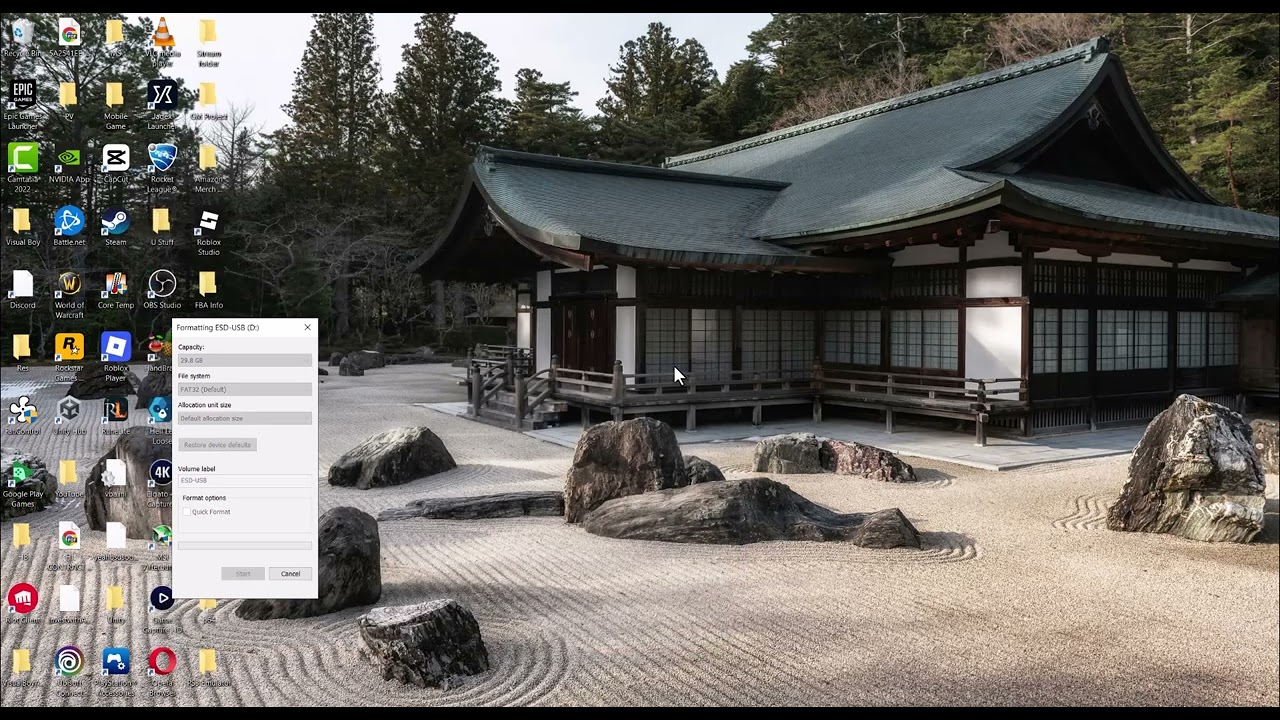
    The video recommends turning off Quick Format for a full format. A full format takes much longer and can be useful when you suspect drive errors. For a healthy drive that only needs its file system changed, a quick format is normally sufficient; Sony does not require one specific Windows formatting mode.

    If FAT32 is missing from the Windows menu on a larger drive, choose exFAT. Both are supported for the PlayStation uses described above.

    How to format the USB drive on a Mac

    1. Back up the USB drive.
    2. Open Disk Utility.
    3. Select View > Show All Devices.
    4. Select the physical USB drive—not your Mac’s internal disk.
    5. Choose Erase.
    6. Set Format to exFAT or MS-DOS (FAT).
    7. Choose Master Boot Record as the scheme when that option is shown.
    8. Select Erase, wait for completion, then eject the drive safely.

    How to format a drive as PS5 USB Extended Storage

    1. Back up the drive because the console format erases it.
    2. Connect a compatible SuperSpeed USB drive directly to a supported PS5 USB port—not through a USB hub.
    3. Open Settings > Storage.
    4. Select USB Extended Storage > Format as USB Extended Storage.
    5. If more than one drive is connected, use Select Another USB Drive and confirm the exact device before formatting.

    Do not unplug extended storage while it is being formatted or used. Follow the PS5 safe-removal option if the console is turned on.

    If the PS5 still says the file system is unsupported

    • Reconnect the drive directly to another supported USB port.
    • Confirm that the format completed as exFAT or FAT32, not NTFS.
    • For an update drive, verify the required uppercase folder and filename structure from PlayStation’s official update instructions.
    • For media, place files in the folder structure PlayStation describes and verify that the media file type itself is supported.
    • For game storage, confirm that the device meets the PS5 extended-storage speed and capacity requirements.
    • Test the drive on a computer. If it disconnects or reports errors there too, the hardware may be failing.

    Choosing a compatible external drive

    For game storage, verify SuperSpeed USB support, capacity, and direct-connection requirements before buying. As an Amazon Associate I earn from qualifying purchases. You can view the WD_BLACK 5TB P10 portable game drive on Amazon. PS5 games can be stored on compatible USB extended storage but must be copied back to console or M.2 SSD storage before play.

    Optional PS5 accessories

    These are general PS5 accessories and will not resolve an unsupported USB file system.

    Video walkthrough

    Frequently asked questions

    Can PS5 read NTFS USB drives?

    Not for the media and update workflows covered here. Use exFAT or FAT32, or let the PS5 create its own USB Extended Storage format for game storage.

    Should I choose FAT32 or exFAT for PS5?

    Both are supported for media and update drives. ExFAT is usually more practical for modern, larger files. FAT32 remains useful when a particular device or workflow specifically requires it.

    Can I play PS5 games from a USB external drive?

    No. You can store PS5 games on USB extended storage, but you must copy them back to console storage or a compatible internal M.2 SSD to play. Compatible PS4 games can run directly from USB extended storage.

    Official references

  • How to Fix Steam “No Internet Connection” While Downloading

    How to Fix Steam “No Internet Connection” While Downloading

    Quick answer: If Steam says “No Internet Connection” while a game is downloading or updating, clear Steam’s download cache first. If that does not work, change the download region, check the network, and then test a trusted public DNS such as Google Public DNS.


    Steam no internet connection error while updating or downloading
    Steam may show a connection error even when Windows is still online.

    This Steam no internet connection error usually points to a stuck download cache, a problem reaching the selected content server, or a Windows DNS/network issue. Start with the least disruptive fixes below and test the download after each one.

    1. Clear the Steam download cache

    1. Open Steam.
    2. Select Steam > Settings.
    3. Open Downloads.
    4. Select Clear Download Cache, then confirm.
    5. Let Steam restart and sign in again if prompted.

    This does not uninstall your games. It makes Steam discard locally cached download configuration and request fresh information from its servers. Valve specifically recommends this for games that will not download or start.

    2. Change the Steam download region

    A nearby Steam content server can be temporarily overloaded or unreachable even while the rest of your internet works.

    1. Go back to Steam > Settings > Downloads.
    2. Open Download Region.
    3. Select your closest region. If it is already selected, test another reasonably close region.
    4. Restart Steam and retry the download.

    Avoid choosing a distant region unless nearby options all fail; long distance can reduce download speed.

    3. Confirm that the problem is limited to Steam

    • Open a few normal websites in your browser.
    • Check Steam Support and the Steam client for a service alert.
    • Pause any VPN or proxy temporarily and test again.
    • Restart Steam, your PC, and then your router.
    • Make sure security software is not blocking Steam or its game-download traffic.

    If every device on the network is offline, troubleshoot the router or internet service first. If browsers work but only Steam fails, continue below.

    4. Change the DNS server in Windows

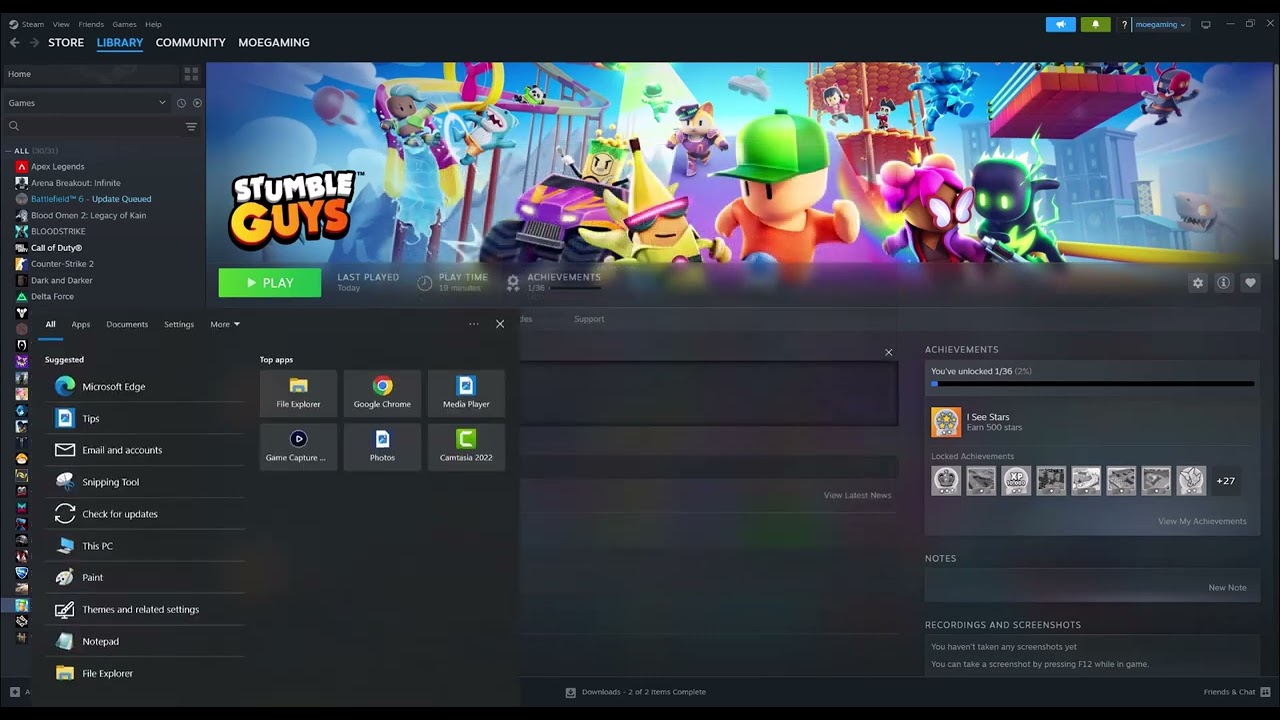
    The video demonstrates opening the active Ethernet or Wi-Fi adapter, selecting Internet Protocol Version 4 (TCP/IPv4), and changing the DNS setting from automatic to manual. One current, documented option is Google Public DNS:

    • Preferred DNS: 8.8.8.8
    • Alternate DNS: 8.8.4.4

    Windows 11 method

    1. Open Settings > Network & internet.
    2. Select the connected Wi-Fi or Ethernet network.
    3. Find DNS server assignment and select Edit.
    4. Choose Manual, enable IPv4, and enter the addresses above.
    5. Save, restart Steam, and test the download.

    Classic Control Panel method

    1. Search Windows for View network connections.
    2. Right-click the active Wi-Fi or Ethernet adapter and choose Properties.
    3. Select Internet Protocol Version 4 (TCP/IPv4), then Properties.
    4. Select Use the following DNS server addresses and enter the two addresses above.
    5. Select OK and retry Steam.

    Write down your original settings first. If the change makes no difference—or causes a new problem—switch DNS back to Automatic.

    5. Flush DNS and reset the Windows network only if needed

    Before a full network reset, open Command Prompt as administrator, run ipconfig /flushdns, and retry Steam. Microsoft also offers a Windows network reset, but treat that as a later step because it removes and reinstalls network adapters and may require VPN or virtual-network software to be configured again.

    Optional connection upgrade

    If large downloads repeatedly fail over unstable Wi-Fi, a wired connection can remove wireless interference. As an Amazon Associate I earn from qualifying purchases. You can view the Cable Matters Cat 6 Ethernet cable on Amazon. This is optional; it will not fix a Steam server outage or corrupted cache.

    Optional PC gaming accessories

    These are general gaming recommendations and will not fix Steam’s connection error.

    Video walkthrough

    Frequently asked questions

    Will clearing the Steam download cache delete installed games?

    No. It clears cached download configuration, not installed game files. Steam may ask you to sign in again.

    Why does Steam say no internet when my browser works?

    Steam may be unable to reach its selected content server, or its local cache and DNS lookup may be stale, while ordinary web traffic still works.

    Should I reinstall Steam?

    Usually not at first. Cache, region, server-status, and network checks are faster and less disruptive. Reinstall only after Steam’s official troubleshooting steps fail and you have protected any game-library data you do not want to redownload.

    Official references

  • Fix Black Ops 2 “Unable to Join Friend’s Game Session” on PS5

    Fix Black Ops 2 “Unable to Join Friend’s Game Session” on PS5

    Quick answer: If Black Ops 2 says it is unable to join a friend’s game session on PS5, set Party Privacy to Open on both consoles, confirm neither player has blocked the other, then leave the current mode and try joining from Zombies or Multiplayer again. If that fails, check Black Ops 2 and PlayStation Network status.


    Black Ops 2 unable to join friend game session on PS5
    Both players’ party settings matter when a Black Ops 2 session cannot be joined.

    The current PlayStation release of Call of Duty: Black Ops II supports PS4 and PS5, with PlayStation Plus required for online play. A join failure can come from closed party privacy, a stale in-game lobby, a friends/block-list mismatch, or a wider service or network problem.

    1. Set Party Privacy to Open for both players

    1. Open Black Ops 2 and enter the Multiplayer or Zombies lobby.
    2. Open the party or social settings.
    3. Set Party Privacy to Open instead of Invite Only or Closed.
    4. Have your friend change the same setting on their console.
    5. Back out of the party menu, reopen it, and send or accept the invitation again.

    Changing only the host’s setting may not be enough. The video’s main fix is to make sure both players use Open party privacy before attempting the join.

    2. Check friends and blocked-player lists

    • Confirm both accounts appear as friends on PlayStation Network.
    • Open the in-game friends list and make sure the correct account is shown.
    • Check that neither player has blocked the other on PSN or inside the game.
    • If the friendship looks stale, remove and re-add the friend, then restart the game on both consoles.

    Be careful with similar display names. Verify the exact PSN account before changing a block or friend setting.

    3. Switch between Zombies and Multiplayer

    A lobby can get stuck even when both players’ settings are correct. The quick workaround shown in the video is to rebuild the session from another mode:

    1. If the join fails in Multiplayer, both players should leave that lobby.
    2. Enter Zombies, create a fresh open party, and try joining there.
    3. If Zombies is the mode that fails, create a fresh Multiplayer party instead.
    4. Once the invitation works, return to the mode you actually want and rebuild the party.

    This forces the game to create a new lobby state and can clear a one-session joining problem.

    4. Confirm online-play requirements

    • Make sure both consoles are signed in to PlayStation Network.
    • Confirm both accounts have access to online multiplayer. PlayStation lists PS Plus as required for Black Ops 2 online play.
    • Install any available Black Ops 2 update on both consoles.
    • Update PS5 system software.
    • Fully close and restart the game on both systems after updating.

    5. Check Black Ops 2 and PlayStation service status

    Activision recommends checking the game’s server status before changing local network settings. If the platform indicator is not green or an alert is present, wait for the service to recover. Also check the PlayStation Network status page.

    If services are operating normally, restart both consoles and the home router. Do not factory-reset the router for a single lobby error.

    6. Test a wired connection

    Activision recommends wired Ethernet for the most consistent online-game connection. If one player repeatedly drops invites over Wi-Fi, connect that PS5 directly to the router and try again.

    As an Amazon Associate I earn from qualifying purchases. If you need one, you can view the Cable Matters Cat 6 Ethernet cable on Amazon. A cable can improve an unstable local connection, but it cannot fix closed party privacy or a server outage.

    Optional PS5 multiplayer accessories

    These accessories are optional and will not correct party privacy or server problems.

    What to do if only one friend cannot join

    If other players can join the host but one specific friend cannot, focus on the two accounts rather than the router:

    • Recheck both block lists.
    • Remove and re-add the PSN friendship.
    • Set both parties to Open.
    • Have the other player host a fresh lobby.
    • Try the Zombies-to-Multiplayer workaround again.

    If nobody can join either host, service status, subscription access, game updates, or network connectivity is more likely.

    Video walkthrough

    Frequently asked questions

    Is Black Ops 2 available on PS5?

    Yes. PlayStation’s current product page lists Call of Duty: Black Ops II for PS4 and PS5.

    Does only the host need Party Privacy set to Open?

    For this fix, set it to Open for both players. That removes Invite Only or Closed privacy as a possible barrier on either side.

    Why can I join Zombies but not Multiplayer?

    The affected lobby may be stale. Creating a fresh party in the other mode can reset the session, after which you can return to your preferred mode.

    Do I need PlayStation Plus?

    PlayStation lists PS Plus as required for Black Ops 2 online play. Both players should confirm that the account being used has online multiplayer access.

    Official references

  • Fix League of Legends “File Is Currently in Use” Update Error

    Fix League of Legends “File Is Currently in Use” Update Error

    Quick answer: For the League of Legends “unable to successfully update because a file is currently in use” error, fully end every Riot and League process in Task Manager, reopen Riot Client, and run its repair tool. If the locked file belongs to Riot Vanguard, use Riot’s normal uninstall/reinstall process before trying the manual service commands shown later in this guide.


    League of Legends file currently in use update error
    A background Riot, League, or Vanguard process can keep an update file locked.

    This Windows-only error means the updater cannot replace a file because another process or service still has it open. Closing the visible Riot Client window is not always enough, so work through the fixes in order.

    1. End all Riot and League processes

    1. Press Ctrl + Shift + Esc to open Task Manager.
    2. If needed, select More details.
    3. Look through Processes and Details for Riot Client, RiotClientServices, LeagueClient, LeagueClientUx, League of Legends, and related updater processes.
    4. Select each Riot or League process and choose End task.
    5. Wait a few seconds, then launch Riot Client again and retry the update.

    Do not end unrelated Windows processes. If you are unsure whether an item belongs to Riot, leave it alone and use the restart method next.

    2. Restart Windows

    A restart is the safest way to release a file that remains locked by a background process. Choose Restart, not Shut down, because Windows Fast Startup can preserve some state during a normal shutdown. After the PC returns, open Riot Client before launching other gaming utilities and retry the update.

    3. Run the Riot Client Full Repair Tool

    1. Open Riot Client.
    2. Select your profile icon, then open Settings.
    3. Select League of Legends.
    4. Choose the repair option and let the scan finish.
    5. Restart the client and try the update again.

    Riot’s current support documentation recommends its client repair tool when missing or corrupted files may be involved. This is less disruptive than deleting services or reinstalling the whole game.

    4. Reinstall Riot Vanguard normally

    League of Legends requires Riot Vanguard on Windows. If the updater is specifically failing on a Vanguard file, restore Vanguard through the supported uninstall flow:

    1. Close Riot Client and League completely.
    2. Open Windows Settings > Apps > Installed apps.
    3. Find Riot Vanguard, select its menu, and choose Uninstall.
    4. Restart the PC.
    5. Launch Riot Client or League so Vanguard can be installed again.
    6. Restart one more time if the client requests it.

    Removing Vanguard temporarily prevents League from launching until it is reinstalled and Windows has restarted.

    5. Advanced fallback: delete the Vanguard services manually

    The video’s second fix uses Windows Service Control commands. Use this only when the normal Vanguard uninstaller fails or leaves broken services behind. It requires an administrator account.

    1. Fully close Riot and League processes in Task Manager.
    2. Search for Command Prompt.
    3. Right-click it and choose Run as administrator.
    4. Run these commands one at a time:
    sc delete vgc
    sc delete vgk
    1. Restart Windows.
    2. Open Riot Client and allow Vanguard to reinstall.
    3. Restart again if prompted, then retry the League update.

    Important: These commands delete the registered Vanguard services; they do not repair an arbitrary League file. Do not change the service names or use sc delete on any other Windows service.

    6. If the update still says a file is in use

    • Install pending Windows updates and restart.
    • Temporarily close overlays, hardware-monitoring utilities, and third-party antivirus software, then test. Turn protection back on immediately afterward.
    • Check that Riot Client is allowed through security software rather than leaving protection disabled.
    • Use Riot’s official uninstall/reinstall guide for League as the final software step.
    • If the same filename keeps appearing, include that filename and Riot Client logs in a Riot Support ticket.

    Optional PC gaming gear

    As an Amazon Associate I earn from qualifying purchases.

    These accessories are optional and do not affect the Riot update repair.

    Video walkthrough

    Frequently asked questions

    Why does closing Riot Client not release the file?

    The visible window can close while Riot Client, League, updater, or Vanguard components remain active in the background. Task Manager or a Windows restart closes those remaining handles.

    Will reinstalling Vanguard delete my League account or progress?

    No. Account progress is stored with your Riot account. The process removes and reinstalls the local anti-cheat software.

    Should I run the service-delete commands first?

    No. Start with Task Manager, a restart, and Riot Client repair. Use the normal Vanguard uninstaller next. The commands are an advanced fallback for a damaged installation.

    Official references

  • How to Fix Black Ops 6 Dev Error 0xD8E46539 on PS5

    How to Fix Black Ops 6 Dev Error 0xD8E46539 on PS5

    Quick answer: On a PS5, highlight Call of Duty: Black Ops 6 on the Home screen, press the controller’s Options button, select Restore License, and confirm the restoration. Relaunch BO6 when it finishes. If the error remains, verify that the required BO6 content is installed and that you are using the current standalone version of the game.

    Black Ops 6 Dev Error 0xD8E46539 fix on PlayStation
    Start by restoring the Black Ops 6 license on your PlayStation console.

    Important 2026 update: Activision moved Black Ops 6 outside the main Call of Duty experience and made it a standalone title. Older BO6 files inside the Call of Duty experience were scheduled for automatic removal on July 7, 2026. That means your current menus may not look exactly like the older installation shown in the video. The license-restoration fix is still valid on PlayStation, but an outdated installation may need to be replaced with the standalone BO6 download.

    What causes BO6 Dev Error 0xD8E46539?

    Activision has not published a public definition for this exact error code. Based on the behavior demonstrated in the video, the successful reports from affected players, and Sony’s own license troubleshooting guidance, the error commonly appears when PlayStation cannot correctly validate the game license or when the installed BO6 content does not match what the game expects.

    Because there is no official definition for the code, treat that explanation as the most likely diagnosis—not a confirmed technical description from Activision.

    Fix 1: Restore the Black Ops 6 license on PS5

    1. Return to the PS5 Home screen.
    2. Highlight Call of Duty: Black Ops 6 without opening it.
    3. Press the controller’s Options button.
    4. Select Restore License.
    5. Select the BO6 license if prompted, confirm the restoration, and wait for it to finish.
    6. Launch Black Ops 6 and test it again.

    If Restore License does not appear in the game’s Options menu, use the full PS5 settings path:

    Settings → Users and Accounts → Other → Restore Licenses

    Sony states that restoring licenses does not affect saved data. It is therefore a sensible first fix before deleting or reinstalling a large game.

    Restore licenses on PS4

    On PS4, open Settings → Account Management → Restore Licenses, then select Restore. When it completes, restart BO6.

    Fix 2: Check the installed Black Ops 6 content

    If restoring the license does not solve Dev Error 0xD8E46539, make sure the required BO6 components are installed. Depending on which Call of Duty installation you have, use one of these paths:

    • From the PlayStation Home screen: Highlight the game, press Options, and open Manage Game Content. Install any missing BO6 component required for the mode you want to play.
    • Inside Call of Duty: Open the game menu, select Manage Files, choose the appropriate game tile, and install the required content.

    Do not install unrelated packs simply because they appear in the list. Confirm that the item is labeled for Black Ops 6 and for the mode you need, such as Multiplayer, Campaign, or Zombies.

    Fix 3: Install the current standalone version of BO6

    If you still have an older BO6 installation tied to the Call of Duty experience, download the current standalone version:

    1. Open the PlayStation Game Library.
    2. Go to Your Collection.
    3. Find Call of Duty: Black Ops 6.
    4. Select Download and allow the installation to finish completely.

    You can also find BO6 in the PlayStation Store. If the store asks you to buy the game again even though you own it, switch to the primary account that purchased or redeemed the game, restore its licenses, and check the Library again.

    Fix 4: Update the game and PlayStation system software

    An outdated console or partially installed game update can leave the installation in an inconsistent state.

    • Highlight BO6, press Options, and select Check for Update.
    • On PS5, open Settings → System → System Software → System Software Update and Settings.
    • Install every available update, restart the console, and test the game again.

    Fix 5: Reinstall BO6 only as a last resort

    If the license is restored, the proper content is present, and all updates are installed, remove and reinstall the current standalone BO6 title. Verify that cloud or console save synchronization has completed first. The initial license fix is much faster, so do not begin with a full reinstall.

    Frequently asked questions

    Will restoring PlayStation licenses delete my BO6 saves?

    No. Sony specifically states that restoring licenses does not affect your data.

    Why is Restore License missing from the Options menu?

    Use the system-level PS5 path instead: Settings → Users and Accounts → Other → Restore Licenses. On PS4, use Settings → Account Management → Restore Licenses.

    What if Black Ops 6 says content is missing?

    Check Manage Game Content or the in-game Manage Files menu and install the BO6 pack required for the mode you are launching. If you have an older Call of Duty HQ installation, download the current standalone BO6 version.

    Does this fix work on Xbox or PC?

    The PlayStation license-restoration steps do not apply to Xbox or PC. On those platforms, verify the installed BO6 components, install all platform and game updates, and repair or reinstall the game through the relevant launcher if necessary.

    Optional storage note

    Only consider a storage upgrade if PlayStation specifically reports that there is not enough free space to install the required BO6 files. Additional storage will not repair a license error by itself.

    Affiliate disclosure: As an Amazon Associate I earn from qualifying purchases.

    If lack of storage is blocking the required installation, you can view the WD_BLACK 2TB SN850P NVMe M.2 SSD for PS5 on Amazon. Confirm the current PS5 storage requirements and installation instructions before purchasing.

    Optional PS5 accessories

    These are optional accessories. None will repair a BO6 license or installation error when the existing hardware works normally.

    Official references