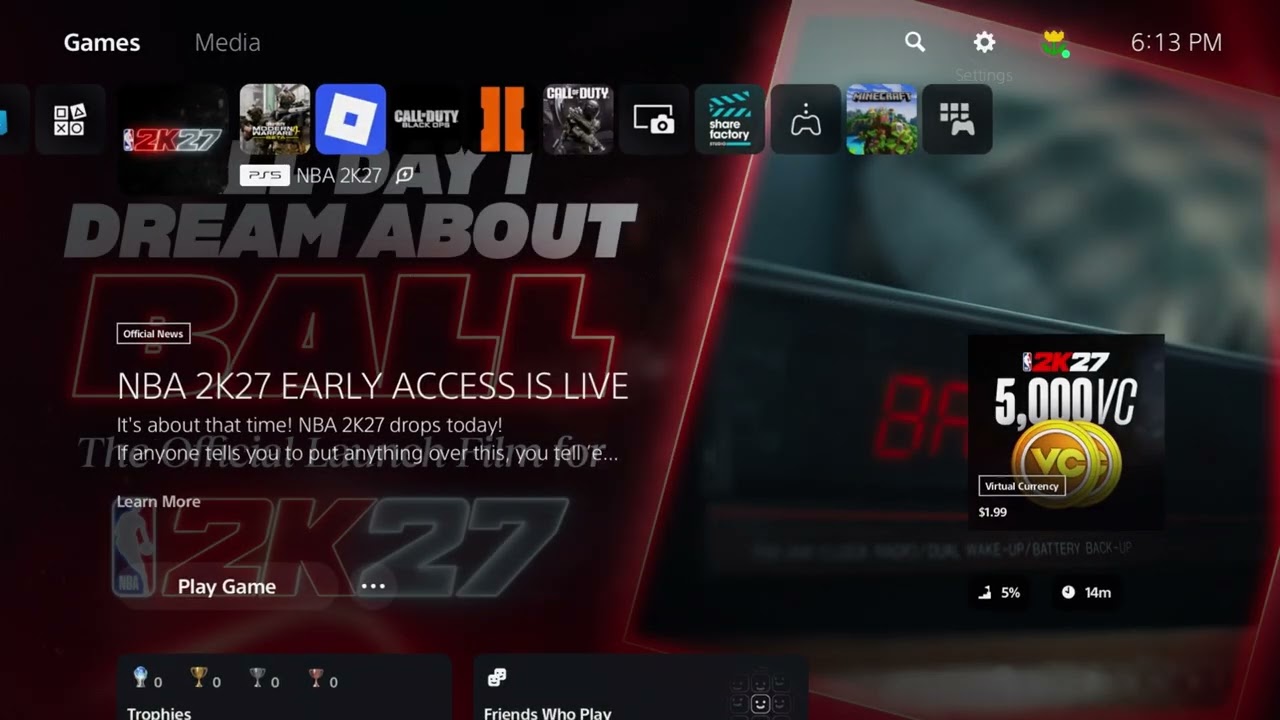
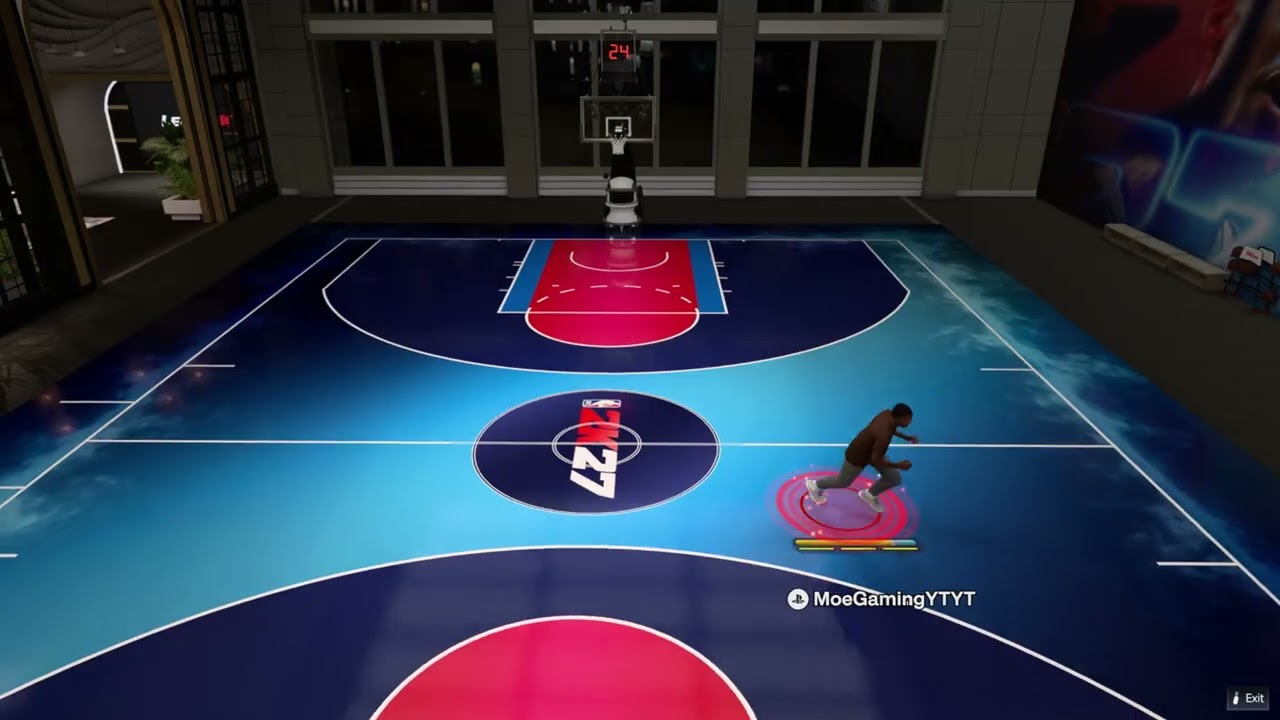
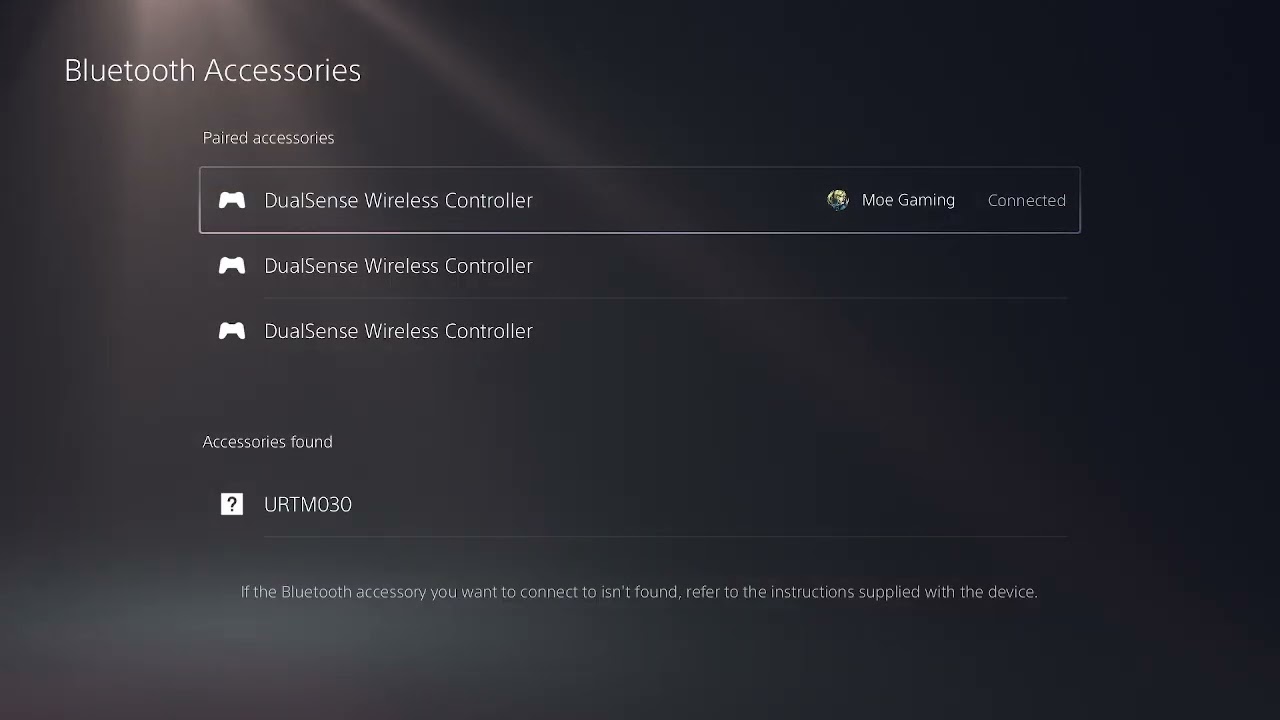
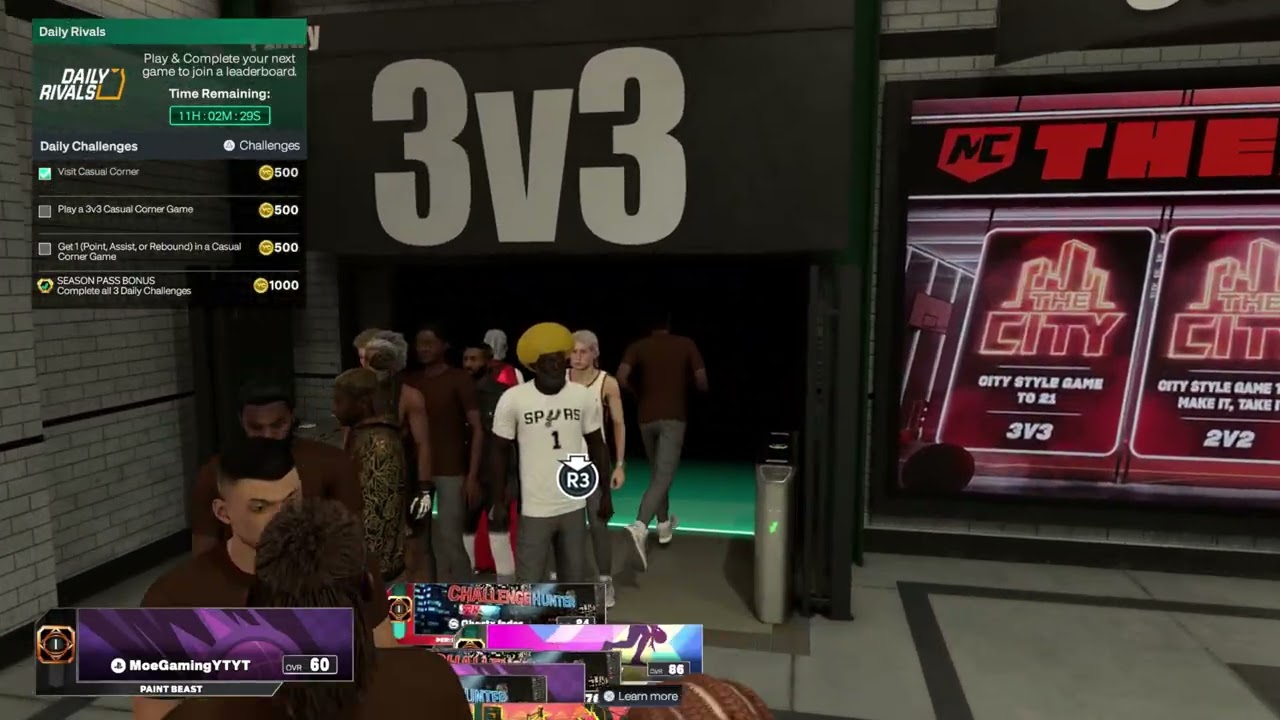
Fix NBA 2K27 PS5 controller input delay with USB communication
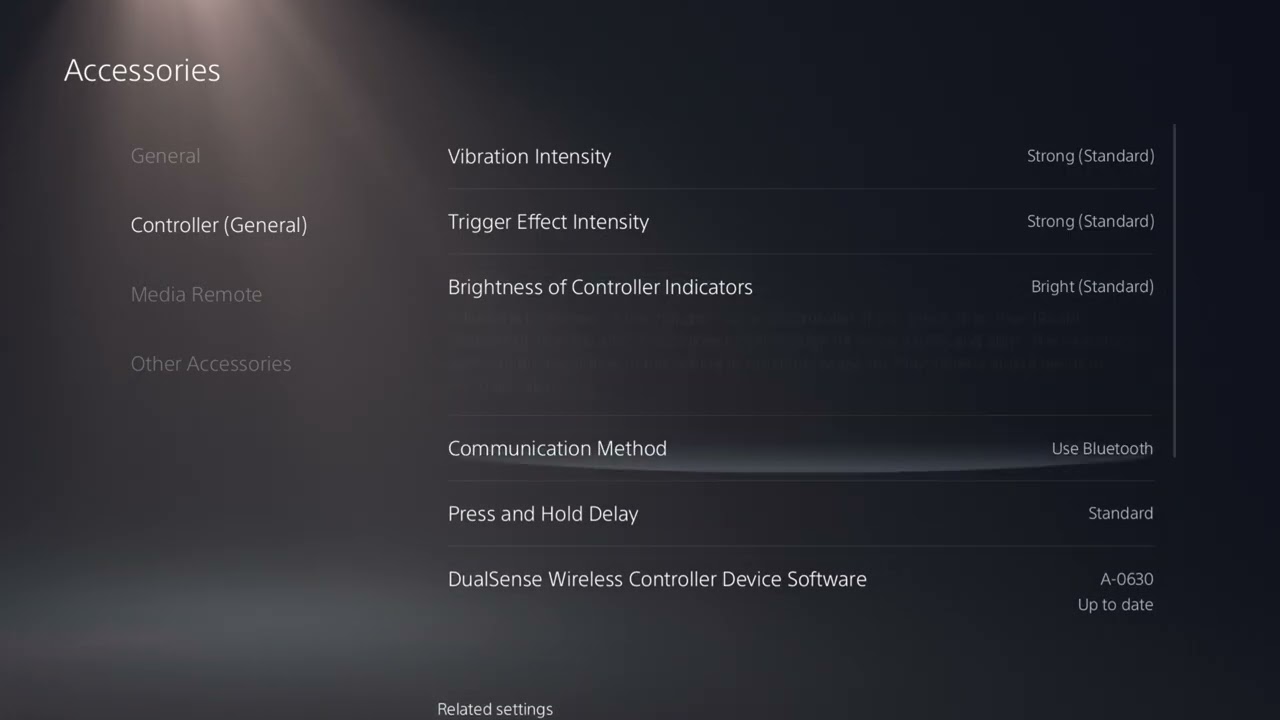
Quick answer: Update the DualSense device software, connect the controller with a USB cable that carries data, and set PS5 Settings > Accessories > Controller (General) > Communication Method to Use USB Cable. Then test in an offline NBA 2K27 mode. If offline control is responsive but online play is delayed, troubleshoot the connection rather than replacing the controller.
This guide combines the exact actions demonstrated in Moe Gaming’s source video with current first-party support information. Menu names can move after updates, so use the current on-screen label when it differs slightly.
Before you start
Use a USB cable capable of data transfer; many charge-only cables cannot carry controller input.
Charge the controller and disconnect unnecessary USB devices for the test.
Test the same action in an offline practice mode and an online game so controller delay is not confused with network lag.
1. Update DualSense device software
Connect the controller to the PS5.
Open Settings > Accessories > Controller (General).
Install any available DualSense wireless controller device software update.
Restart the PS5 after the update and test again.
Controller firmware updates can address compatibility and stability issues without changing game data.
2. Force a true USB data connection
Connect the DualSense directly to a PS5 USB port with a data-capable cable.
Open Settings > Accessories > Controller (General) > Communication Method.
Select Use USB Cable.
Keep the cable connected and test NBA 2K27 offline.
PlayStation states that Use USB Cable sends the controller signal through USB when connected. If the cable only charges, this test will not work as intended.
3. Check the display path
Enable Game Mode or a low-latency mode on the TV or monitor.
Disable unnecessary motion smoothing and image interpolation.
Connect the PS5 directly to the display for one test if a receiver or capture device is in the path.
Confirm the display is using the intended input and refresh mode.
Display processing can make every button press appear late even when the controller signal arrives normally.
4. Separate controller delay from online latency
Test dribbling, menus, or shot timing in an offline practice mode.
Run a second test in the affected online mode.
If only online play is delayed, use wired Ethernet, check 2K status, and avoid congested Wi-Fi.
If every PS5 menu and game is delayed, test another controller or cable.
This split prevents replacing a working controller for a server or network problem.
5. Reset the controller only if delay affects the whole console
Turn off the PS5.
Use the small reset button on the back of the DualSense for the interval described by PlayStation support.
Reconnect it to PS5 with USB and press the PS button.
Reapply the USB Communication Method and retest.
A reset can repair pairing state, but it will not reduce server ping or television processing delay.
Why these steps work
The workflow isolates four separate stages: controller firmware and transport, display processing, game behavior, and online latency. Changing one layer at a time reveals where the delay actually begins.
Warnings and common mistakes
A USB cable must support data, not only charging.
Do not buy a new controller until you test offline play, another cable, and display Game Mode.
Shot timing can vary by online latency and game mechanics even when button input is healthy.
Relevant gaming gear
As an Amazon Associate I earn from qualifying purchases.
Start MyCAREER and create a custom MyPLAYER build in NBA 2K27
Quick answer: From the NBA 2K27 main menu, choose MyCAREER, create or select a MyPLAYER, and choose Fire & Concrete to start the story. Use Create Your Own for a custom build, or Import Build only for an NBA 2K27 build uploaded through the official NBA 2K HQ app. A finished NBA 2K26 MyPLAYER, its progress, and its VC do not transfer into NBA 2K27.
This guide combines the exact actions demonstrated in Moe Gaming’s source video with current first-party support information. Menu names can move after updates, so use the current on-screen label when it differs slightly.
Before you start
Connect the console or PC to the internet and sign in to the correct 2K Account.
Decide the role you want: primary ball handler, shooter, wing defender, interior defender, or another specialty.
Do not spend VC until the build’s measurements, attribute caps, badges, and animations are confirmed.
1. Start a new MyCAREER build
Choose MyCAREER from the main menu.
Select a new player or build slot.
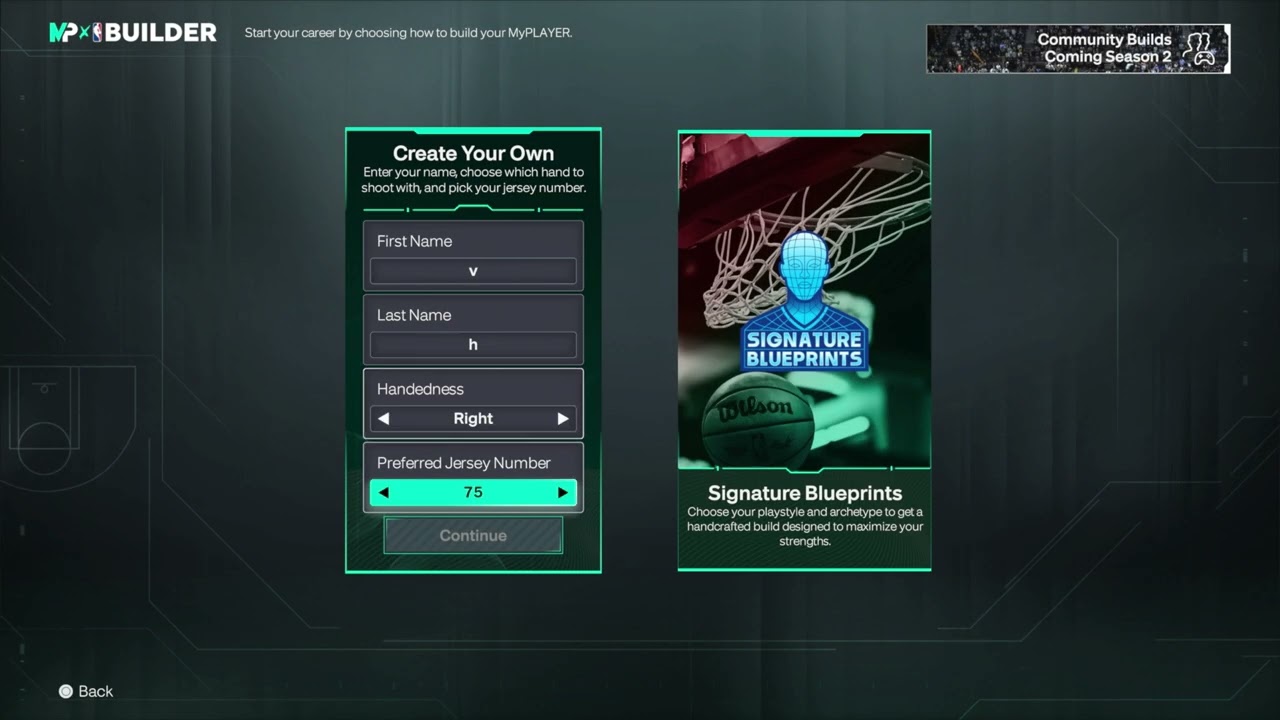
Customize appearance if prompted, or use a signature blueprint as a starting point.
Choose Create Your Own for a fully custom allocation.
Blueprints are faster, but a custom build gives direct control over tradeoffs. Starting the builder does not require you to commit immediately.
2. Set identity and physical measurements
Enter the player name, handedness, jersey number, and position.
Choose height, weight, and wingspan.
Review how each measurement changes attribute caps before continuing.
Select the body setting offered by the builder.
Measurements are functional choices. Taller height or longer wingspan may improve some defensive or finishing ceilings while reducing other caps.
3. Allocate attributes
Raise the attributes needed for the intended role first.
Watch how attribute choices change the overall potential, badges, and animation eligibility.
Continue until the builder reaches the required 99 overall potential allocation.
Use Options or the displayed advance prompt only after reviewing every cap.
The builder’s 99 potential represents the completed allocation ceiling, not the player’s starting in-game overall. Progression still requires gameplay or VC.
4. Review badges, takeovers, and animations
Check which badges unlock and at what attribute threshold.
Confirm the build meets key animation or package requirements.
Select takeovers that reinforce the role rather than trying to cover every weakness.
Return to attributes if a crucial threshold was missed.
A single point can sometimes change eligibility. Review thresholds before finalizing rather than rebuilding after spending currency.
5. Test the build before committing
Choose Test Build when offered.
Try the intended position, movement, shooting, finishing, and defense.
Test at more than one simulated overall if the builder allows it.
Return and revise measurements or attributes if the player feels wrong.
Testing cannot reproduce every online matchup, but it reveals movement, spacing, and control issues without spending VC.
Start the Fire & Concrete MyCAREER story
Create or select the MyPLAYER build you want to use.
Open MyCAREER from the main menu.
Choose Fire & Concrete from the available MyCAREER story options.
Read the current story description and choose Start Your Journey.
Continue through the opening sequence and use the MyPLAYER menus to review attributes before spending VC.
2K describes Fire & Concrete as NBA 2K27’s cinematic MyCAREER story. The walkthrough shows it as the route that begins before the NBA and continues toward the professional portion of the career. Other available modes are separate choices, so select the label that exactly says Fire & Concrete.
Can an NBA 2K26 build transfer to NBA 2K27?
No—not as a finished MyPLAYER with its attributes, badges, career progress, or VC. The Import Build option shown in NBA 2K27 is for a build created and uploaded with the official NBA 2K HQ app. 2K’s current support page says the app’s full builder is available for NBA 2K27, while NBA 2K25 and NBA 2K26 app features are limited to face scan and 2KTV. 2K also states that VC cannot move between yearly releases.
Install the official NBA 2K HQ app and select NBA 2K27.
Sign in with the platform account linked to the NBA 2K27 copy you use.
Create a new NBA 2K27 build in the app and upload it to the console or PC account.
In NBA 2K27, open MyCAREER and choose Import Build when the uploaded 2K27 build appears.
Review every measurement, attribute cap, badge, and animation before committing or spending VC.
You can manually use an old build as inspiration, but NBA 2K27’s ratings, badges, thresholds, and builder rules can produce a different result. A QR code or shared template also transfers a design recipe, not the prior game’s upgraded player or currency.
Do not delete the NBA 2K26 save expecting it to appear in 2K27.
Do not pay a third party to “move” a build or VC between years.
Do not delete an NBA 2K HQ account while troubleshooting; 2K warns that account deletion can remove linked content and progress.
Why these steps work
NBA 2K27’s builder links measurements and attributes to caps, badges, takeovers, and animation eligibility. Planning the role first and testing last makes those tradeoffs visible before money or progression time is committed.
Warnings and common mistakes
Finalizing and upgrading the wrong build can waste VC; review all thresholds first.
Do not assume an NBA 2K26 build transfers exactly—ratings, badges, and thresholds can change by game.
Online meta recommendations can become outdated after gameplay updates; build for a clear role you understand.
Relevant gaming gear
As an Amazon Associate I earn from qualifying purchases.
It is the total allocation ceiling used to complete the builder. The new MyPLAYER does not necessarily begin at 99 overall.
Can I edit a build after starting MyCAREER?
Some appearance or animation choices can change, but core measurements and attribute caps generally require a new build. Test carefully before committing.
Can I create a build in the companion app?
2K documents an NBA 2K HQ app with MyPLAYER builder features. Confirm the app is official and connected to the correct account before uploading.
Quick answer: Open the NBA 2K27 Social menu, select the player, choose Report, select the affected area—such as username, MyPLAYER image, text, or voice—and choose the accurate reason. Submit one truthful report and preserve clips or screenshots if serious misconduct occurred. A report requests review; it does not guarantee an immediate ban.
This guide combines the exact actions demonstrated in Moe Gaming’s source video with current first-party support information. Menu names can move after updates, so use the current on-screen label when it differs slightly.
Before you start
Record the player’s exact 2K name and platform when possible.
Preserve a short clip or screenshot without reposting harmful material publicly.
Use the category that best describes what actually happened.
Submit an in-game report
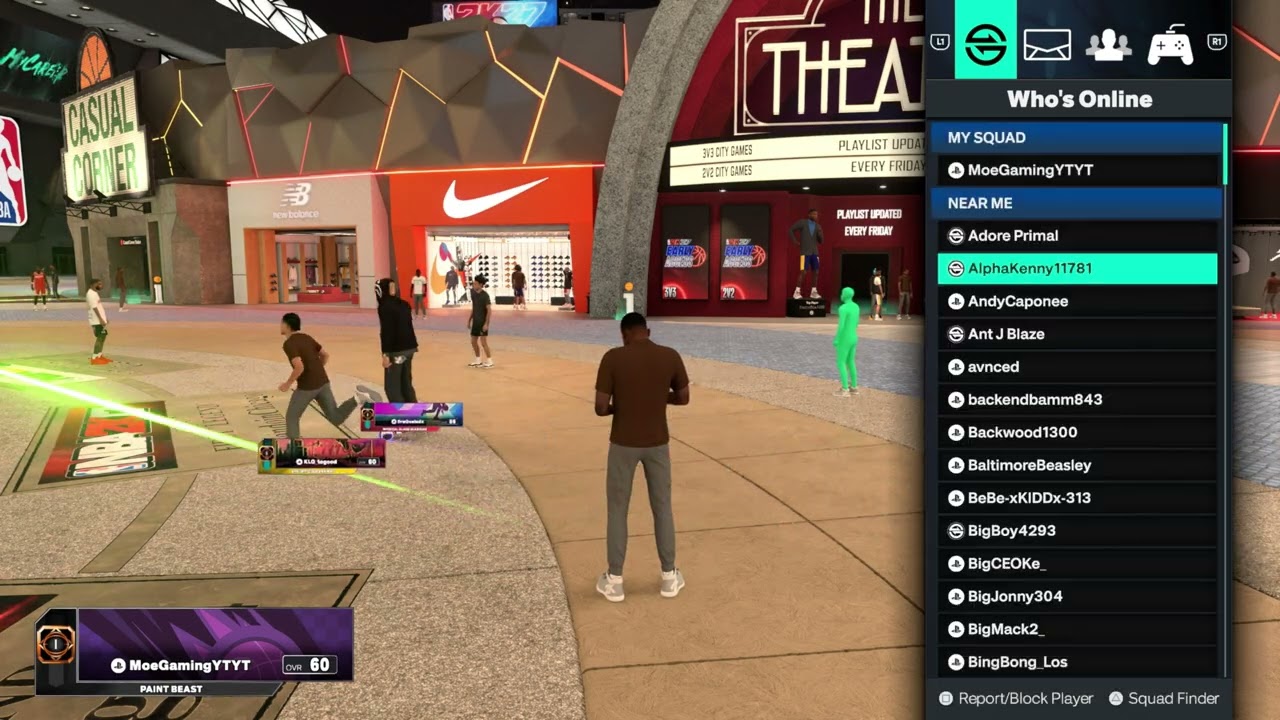
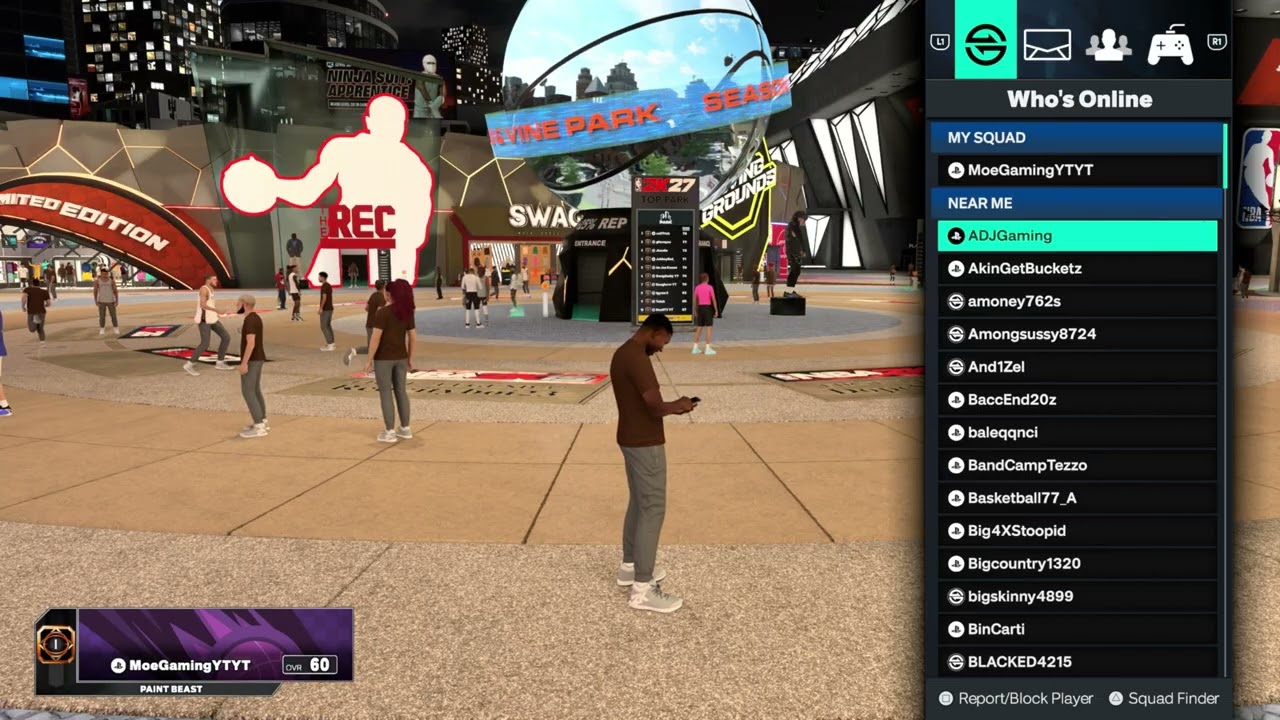
Open Social from the relevant online mode.
Locate the player in Nearby, Recent Players, the game session, or search results.
Open the player card and choose Report; on PlayStation the prompt may use Square.
Select the affected content or behavior category.
Choose the most accurate reason and submit.
The source walkthrough shows options for username, MyPLAYER image, text, and voice, with reasons that can include cheating, boosting, harassment, and illegal or offensive content. Menus may vary by mode.
Choose the correct reason
Use cheating only for suspected prohibited gameplay manipulation—not simply a strong opponent.
Use boosting for coordinated manipulation of progression or results when that is what occurred.
Use harassment or offensive-content categories for abusive communications or imagery.
Use the console’s own report and block tools too when the conduct occurred through PlayStation or Xbox services.
Accurate reports give reviewers a clearer signal and reduce noise caused by retaliatory or vague submissions.
Preserve evidence and contact support when necessary
Save a short gameplay clip or screenshot with the player name and timestamp.
Do not edit the clip in a way that removes context.
For serious threats, illegal content, or repeated abuse, open a 2K Support request and include the requested evidence.
Block or mute the player and leave the session if you feel unsafe.
2K’s support process may request additional information. Platform safety teams may also need a separate report for platform messages or profiles.
What happens after reporting
The report is sent for review under the game and platform rules.
Moderation may consider account history and evidence not visible to the reporter.
For privacy and security reasons, you may not receive details about another account’s outcome.
Do not repeatedly report the same incident unless support asks for more evidence.
No guide can guarantee a ban. The correct outcome depends on investigation and the applicable rules.
Why these steps work
The in-game report attaches the complaint to a specific player and category, while screenshots or clips help explain context when support requests it. Blocking and muting reduce immediate exposure without waiting for the review.
Warnings and common mistakes
Never file a false report because you lost a game or dislike another player.
Do not publish personal information, threats, or illegal content while asking others to report it.
If there is an immediate real-world safety threat, contact the appropriate local authority rather than relying only on game moderation.
Watch the original Moe Gaming walkthrough
Frequently asked questions
Will reporting someone automatically ban them?
No. A report requests review. The moderator determines whether a rule violation occurred and what action is appropriate.
Can I report voice chat?
The in-game report menu can include a voice category. Also use mute/block controls and preserve any evidence the platform allows.
Should I report the same player on PlayStation or Xbox too?
Yes when the misconduct also violates platform rules or occurred through platform messages or profiles. Use the platform’s official reporting flow.
NBA 2K27 crossplay friends squad invites and voice chat setup
Quick answer: Enable Crossplay from the NBA 2K27 main-menu Settings on both supported consoles, then open the City Social menu with L1 + R1, add the other person as a 2K Friend, and send a squad invite. For Co-Op MyCAREER, start Fire & Concrete, reach the supported NBA portion, choose Play Game > Play Next Game, turn Co-Op on, and invite the friend. Official crossplay is limited to PS5 and Xbox Series X|S; PC and Nintendo Switch players cannot join that cross-console pool.
This guide combines the exact actions demonstrated in Moe Gaming’s source videos with current first-party support information. Menu names can move after updates, so use the current on-screen label when it differs slightly.
Before you start
Both players need the same current NBA 2K27 update.
Crossplay partners must be on PS5 and Xbox Series X|S.
Online multiplayer may require the appropriate PlayStation or Xbox subscription.
Child accounts need communications and multiplayer permissions.
1. Enable crossplay on both consoles
Return to the NBA 2K27 main menu.
Open the gear or Features area and choose Settings.
Scroll to Crossplay and set it to On.
Have the other player repeat the same change, then restart the online mode if either setting changed.
Crossplay must be enabled on both sides. A PS5–Xbox Series X|S session cannot form if either player opts out.
2. Add the person as a 2K Friend
Load into MyCAREER and the City.
Press L1 + R1 to open Social.
Choose Search, or select the player from Near Me if present.
Open the player card and choose Add 2K Friend.
Have the recipient accept the request.
A platform friend is not always the same as a 2K Friend. The in-game relationship is the reliable bridge between supported consoles.
3. Allow friend requests and game invites
In Social, open Options.
Set friend requests and in-game invites to an allowed state such as Open to All or Friends Only, depending on the menu.
Verify the same settings on the other account.
If a child account cannot change them, review the console family and 2K account permissions.
Privacy settings can block a request even when crossplay is on and both consoles are online.
4. Invite a player to your squad
Open Social with L1 + R1.
Find the accepted 2K Friend through Search, friends, Near Me, or Squad Finder.
Select the player and choose Invite to Squad.
Wait for acceptance before entering a queue or traveling to another instance.
A squad keeps the group together for supported activities, but it does not override a full server instance or platform outage.
5. Fix “unable to join friend’s City”
Confirm both players are 2K Friends and Crossplay remains On.
Set in-game invites to Open to All temporarily for testing.
Leave any current squad, return to the main menu, and load the City again.
Send a fresh invitation after both players finish loading.
Check 2K server status if the problem affects many players.
This clears stale invitations and mismatched City instances without changing router settings unnecessarily.
6. Enable voice chat
Open Social with L1 + R1, then Options.
Set Voice Chat to Open to All if you want in-game chat.
On PS5, open Control Center > Sound and confirm Game Voice Chat is not muted.
Check headset input/output and account communication permissions.
The in-game menu shown in the video offers Open to All or Disabled. Console-level mute and family settings can still block audio.
7. Play Co-Op MyCAREER with a friend
Start or load the Fire & Concrete MyCAREER story.
Progress until the game makes the NBA portion available. If your story menu offers Skip to Chapter 6, the walkthrough shows that option as a faster path; read the warning before skipping story content.
Open the next-game screen and choose Play Game, then Play Next Game.
Change the top-right Co-Op setting from Off to On.
Select the invite option and choose the friend you want to join.
Wait for the friend to accept before launching the game. In the walkthrough, the invited player controls Trey Miller.
2K officially lists Co-Op MyCAREER as part of NBA 2K27. This is different from simply joining the same City squad: both players enter the supported story game together, so complete the story prerequisite and switch Co-Op on from the game-launch screen.
If the Co-Op toggle is missing: confirm both copies are updated, load the supported Fire & Concrete chapter, verify the friend and invite settings above, and return to the next-game screen. Do not assume every MyCAREER activity supports co-op.
Why these steps work
NBA 2K27 uses several independent gates: platform support, the Crossplay toggle, the 2K Friends relationship, invite/privacy settings, current City instance, and communications permissions. Checking them in that order finds the blocked layer without random network changes.
Warnings and common mistakes
Do not promise PC or Nintendo Switch crossplay; 2K lists crossplay only for PS5 and Xbox Series X|S.
Voice chat may expose you to other players. Use mute, block, or report controls when needed.
Do not share account passwords or verification codes to add a friend.
Relevant gaming gear
As an Amazon Associate I earn from qualifying purchases.
Recover a missing corrupted or deleted NBA 2K27 MyPLAYER on PS5
Quick answer: Close NBA 2K27, compare the PS5 console-save and cloud-save timestamps, and download the cloud copy only when you are confident it contains the missing MyPLAYER. A cloud download overwrites the local save, so do not choose the older file blindly. If no usable backup exists or the file is corrupted, stop editing save data and open a 2K Support case.
This guide combines the exact actions demonstrated in Moe Gaming’s source video with current first-party support information. Menu names can move after updates, so use the current on-screen label when it differs slightly.
Before you start
Close NBA 2K27 completely before managing saved data.
Confirm the PlayStation account and 2K Account used by the missing build.
Take photos of the console and cloud timestamps and sizes before overwriting anything.
PS5 cloud-save recovery requires PlayStation Plus cloud storage.
1. Check whether the file is missing or corrupted
Launch the game once and check every expected MyCAREER slot.
Confirm you did not load another PlayStation profile or 2K Account.
Record any corruption message exactly.
Close the game again before changing saved data.
2K separates missing files from corrupted files because their recovery paths and support evidence can differ.
2. Compare PS5 sync status
Highlight NBA 2K27 on the PS5 Home screen.
Press Options and open Check Sync Status of Saved Data when available.
Compare the local and cloud timestamps instead of assuming the cloud file is newer or better.
If automatic sync just uploaded the broken local file, do not overwrite it again.
A timestamp is evidence, not proof. Choose the backup that predates the loss and reasonably contains the missing build.
3. Download a known-good cloud save
Open Settings > Saved Data and Game/App Settings.
Choose Saved Data (PS5) > Cloud Storage > Download to Console Storage.
Select NBA 2K27 only after confirming the desired cloud timestamp.
Approve the overwrite, relaunch the game, and check the MyCAREER slots.
This is the recovery shown in the source video. It works only if the cloud actually holds a usable earlier copy.
4. Contact 2K Support if the file is absent or corrupt
Do not create and delete repeated placeholder builds unless 2K Support asks.
Collect the platform ID, 2K Account email, build position/archetype, overall rating, last-played date, and screenshots.
Open a case using 2K’s missing- or corrupted-file guidance.
Follow the support agent’s recovery instructions exactly.
Support may need account-side details that cannot be repaired by reinstalling the game.
Why these steps work
MyPLAYER progress involves local saved data plus online account information. Restoring a known-good local backup can recover the pointer and local state, while 2K Support is the appropriate path when the data is missing or corrupt beyond the available backup.
Warnings and common mistakes
Downloading from cloud storage overwrites the console copy. Compare timestamps and preserve evidence first.
Never delete reserved space; 2K explicitly warns that doing so can cause problems.
Reinstalling the game does not guarantee recovery of a missing MyPLAYER and may waste time before evidence is collected.
Relevant gaming gear
As an Amazon Associate I earn from qualifying purchases.
Can I recover a MyPLAYER without PlayStation Plus?
You may still have a usable console save, but PS5 cloud-storage downloads require the platform’s cloud-save service. Contact 2K Support if no backup is available.
Should I always choose the newest cloud save?
No. If the damaged or missing state has already synced, the newest file may contain the problem. Compare the timing of the loss with both copies.
Will restoring licenses recover MyPLAYER data?
No. License restoration repairs entitlement issues; it does not restore saved-game data.
NBA 2K27 camera angle and controller vibration settings
Quick answer: During a Park or court game, press D-pad Right to open Camera, use R1 or L1 to cycle views, and adjust zoom, height, key zoom, auto flip, and related options. To disable controller feedback from the main menu, open Features or the gear icon, choose Controller Settings, then turn Vibration Function and Trigger Effect off.
This guide combines the exact actions demonstrated in Moe Gaming’s source videos with current first-party support information. Menu names can move after updates, so use the current on-screen label when it differs slightly.
Before you start
For camera changes, enter an active court or Park game; some options do not appear while walking around the City.
For controller options, return to the main menu and locate Features or the settings gear.
Write down the current values if you may want to restore them.
Change the camera during a game
Press D-pad Right while the game is active.
Use R1 and L1 to cycle through available views such as Drive, 2K Low, and 2K Legacy.
Adjust Zoom and Height for the selected view.
Review Key Zoom, Rev Angle, Auto Flip, Fixed Height, and Flip Style where available.
Confirm the change or choose Reset to restore the preset.
Camera choices are context-sensitive. A view offered in an NBA game may differ from the Park or another online mode.
Choose a useful starting camera
Try 2K or 2K Low for a broad half-court view.
Use Drive if you prefer a closer angle behind the ball handler.
Test Auto Flip in a low-pressure game; disable it only if the direction change is distracting.
Change one setting at a time so you can identify what improved visibility.
There is no single competitive setting for every player. The useful view is the one that keeps teammates, defenders, and spacing readable without making movement disorienting.
Turn off vibration and adaptive trigger effects
Return to the NBA 2K27 main menu.
Open Features or the gear icon, then choose Controller Settings.
Scroll to Vibration Function and set it to Off.
Set Trigger Effect to Off if you also want to remove adaptive-trigger resistance.
Back out normally so the game stores the changes.
The game-level settings affect NBA 2K27. If feedback continues in other games, adjust the console’s controller settings separately.
If the setting does not save
Make the change from the main menu rather than during a temporary session.
Close the menu normally and wait for any save indicator.
Restart the game and recheck the setting.
Confirm the correct PlayStation or Xbox profile is active.
Per-profile configuration may not carry to another console account or a different local settings file.
Why these steps work
The in-game camera menu changes presentation for the current gameplay context, while Controller Settings controls feedback effects. Keeping these two menus separate prevents players from searching system settings for a game-specific option.
Warnings and common mistakes
Changing the camera during online play can briefly distract you; pause only in modes that actually allow it.
Disabling vibration or trigger effects changes feedback, not network latency or stick responsiveness.
Reset only the camera preset you intend to reset; do not erase saved data to fix a preference.
Relevant gaming gear
As an Amazon Associate I earn from qualifying purchases.
The detailed camera menu is intended for active gameplay contexts. Enter a Park or court game and try again.
Does turning off vibration reduce input delay?
It may change how the controller feels, but it is not a network or USB-latency fix. Use the separate controller-delay guide for connection troubleshooting.
What is the best NBA 2K27 camera?
2K and 2K Low are common starting points because they show spacing well, but preference depends on mode, display, and play style.
PS5 error CE-109531-9 appears when the console does not support the Bluetooth audio device being connected directly.
Quick answer: PS5 error CE-109531-9 means the Bluetooth audio device is not supported for a direct console connection. You cannot fix that incompatibility by pairing it again. Use a PlayStation-compatible wireless headset with its USB or PlayStation Link adapter, connect a wired 3.5 mm headset to the DualSense controller, or route audio through a compatible TV or receiver.
This error is different from a temporary pairing failure. PlayStation’s official error page says the Bluetooth device is not compatible, so the correct solution is to use a supported connection method rather than repeatedly deleting and re-pairing the same earbuds or headphones.
Why PS5 shows CE-109531-9
The PS5 supports Bluetooth for selected accessories, including controllers and certain input devices, but it does not provide a general direct Bluetooth-audio profile for ordinary headphones and earbuds. Direct wireless game audio also has demanding latency and chat requirements. When an unsupported audio device is selected from Settings > Accessories > General > Bluetooth Accessories, the console can display CE-109531-9.
How to fix PS5 error CE-109531-9
Option 1: Use the headset’s supported USB wireless adapter
Confirm the headset’s product page or manual explicitly lists PS5 compatibility.
Connect the headset’s included USB transmitter or adapter to the PS5. Do not substitute an unrelated Bluetooth dongle.
Turn on the headset and follow its pairing procedure.
Open Settings > Sound > Audio Output.
Select the USB headset or adapter under Output Device.
Open Microphone > Input Device and select the same headset if it includes a microphone.
A headset that uses its own PS5-compatible 2.4 GHz USB receiver does not rely on the console’s unsupported direct Bluetooth-audio route. Keep the receiver paired with the headset according to the manufacturer’s instructions.
Option 2: Use a PlayStation Link device and USB adapter
Compatible PlayStation Link headsets and earbuds communicate through the PlayStation Link USB adapter. Connect the adapter to the console, put the accessory in pairing mode, and use the Link buttons as described in the device’s quick-start guide. Then confirm it is selected under Audio Output.
The adapter is for supported PlayStation Link products; it is not a universal Bluetooth receiver for arbitrary headphones.
Option 3: Connect a wired headset to the DualSense controller
Connect a compatible 3.5 mm headset plug to the jack on the bottom of the DualSense controller.
Open Settings > Sound > Audio Output.
Choose Headset Connected to Controller as the output device.
Set Output to Headphones to the desired option.
Test microphone level under Settings > Sound > Microphone.
This is the simplest way to use many conventional gaming headsets without buying a wireless adapter. A headset with separate PC microphone and headphone plugs may need a compatible four-pole console adapter.
Option 4: Use the TV, monitor, or receiver’s audio output
The PS5 sends audio over HDMI. If the connected television, monitor, soundbar, or AV receiver supports your headphones, pair or connect them to that device instead. This bypasses direct PS5 Bluetooth pairing.
Check for audio delay, microphone limitations, and whether the display passes multichannel audio correctly. A headset connected to the TV usually cannot provide PS5 voice-chat microphone input.
What not to do
Do not repeatedly re-pair the same unsupported earbuds. CE-109531-9 identifies compatibility, not a forgotten pairing record.
Do not assume every generic USB Bluetooth dongle works. The PS5 may not recognize it as a supported USB-audio device, and microphone or volume control may fail.
Do not buy a headset based only on the word “Bluetooth.” Look for explicit PS5 support and confirm whether it includes the required USB receiver.
Do not reset the PS5. A factory reset cannot add an unsupported Bluetooth-audio profile.
If a supported USB headset is not detected
Restart the PS5 with the adapter connected.
Try another supported USB port and avoid an unpowered hub.
Update the PS5 system software.
Charge the headset and repeat the manufacturer’s adapter-pairing process.
Check Settings > Sound > Audio Output and select the device manually.
Test the headset on another supported device if the manufacturer provides that option.
If the headset is explicitly PS5-compatible but never appears as an input or output device, contact the headset manufacturer with the exact model and adapter version.
Why a USB or wired connection works
With a supported USB receiver, the headset’s adapter handles the proprietary wireless link and presents it to the PS5 as a compatible USB audio device. With a wired headset, the DualSense controller carries audio and microphone data through its supported connection. Both methods avoid the unsupported direct Bluetooth-audio pairing that triggers CE-109531-9.
Compatible accessory options
As an Amazon Associate I earn from qualifying purchases.
Can PS5 connect directly to AirPods or ordinary Bluetooth earbuds?
Not through the standard direct Bluetooth-audio pairing used by phones. Use a supported USB-audio adapter solution or another compatible audio route.
Will any Bluetooth USB adapter fix CE-109531-9?
No. Compatibility, microphone support, latency, and controls vary. Use an adapter included with or explicitly supported by the headset and listed for PS5.
Can I use the headset through my television?
Often, if the TV supports it. Game audio may work, but PS5 voice-chat microphone input usually will not pass back through the TV.
Is CE-109531-9 a broken Bluetooth chip?
Usually no. The official meaning is that the selected Bluetooth device is not supported. Controllers and other supported accessories can still work normally.
NBA 2K27 City map with major venues, training facilities, and multiplayer destinations
Quick answer: Load MyCAREER, enter the City, open the map, highlight the labeled venue you want, and set a waypoint. The central Park is the easiest reference point: Crew HQ and the Theater are just above it; The REC and Starting Five are below it; Proving Grounds is lower-left; Ante-Up is lower-right; and Street Kings, the training gyms, Triple Threat Park, and the Track are in the upper part of the map. Follow the waypoint rather than relying only on the neighborhood description because City layouts and seasonal presentation can change.
This guide combines the visible map routes and entrances demonstrated in Moe Gaming’s videos with 2K’s current City and game-mode documentation. It covers the Park, Casual Corner, Gatorade Training Facility, Street Kings, Art of Shooting Gym, Ante-Up, Triple Threat Park, the Track, the Theater, Starting Five, The REC, Proving Grounds, Open Court Athletics, Crew HQ, and travel equipment.
For travel equipment, unlock or own the item first; unavailable gear will not appear in the wheel.
Find and enter the Park
Open the City map and look near the central area for the large basketball-globe landmark.
Place a waypoint and follow the navigation marker to the entrance.
Enter the Park and walk to an available Got Next spot to queue for a court.
The Park is an online social basketball area. Match availability and queue rules can vary, so an empty spot is not guaranteed.
Find Casual Corner
Open the map and move toward the upper-left portion shown by the source walkthrough.
Look for the subway-station-style entrance and enter it.
Choose an available activity such as 3v3, 5v5, or Learn 2K when presented.
Wait for the required players rather than repeatedly leaving the queue.
2K describes Casual Corner as a new City space. It is designed for more approachable competition, but the exact activity list can change with live updates.
Find the Gatorade Training Facility
Open the map and locate the Gatorade Training Facility toward the upper-right area.
Set a waypoint, enter the building, and approach an available workout station.
Follow the station prompt and complete the workout; do not interrupt the game while progress is being recorded.
The facility contains training activities and practice space. Availability or reward timing may depend on MyCAREER progression and current game rules.
Equip a hoverboard or other travel equipment
While standing in the City, press L1 to open the equipment wheel.
Highlight a hoverboard or another travel item that is already unlocked or owned.
Confirm the selection, hold R2 to accelerate, and steer normally.
Press Circle to unequip it when finished.
Only equipment attached to the current account and build appears. Buying or unlocking an item does not fix connection or loading problems.
Find Street Kings
Open the City map and look in the upper-right area, across from the Theater or Crew HQ.
Set a waypoint on Street Kings and enter through the labeled entrance.
Inside, choose among the three street courts shown in the walkthrough: Rucker Park Classic, Holcombe Park, or Claremont Park.
Approach the activity you want and follow its on-screen matchmaking prompt.
2K describes Street Kings as a City mode with a tournament format and Court Crashers. Available activities can rotate, so use the live in-game prompts for the current rules.
Find the Art of Shooting Gym
Look in the upper-right area of the City map for the Art of Shooting Gym label.
Set a waypoint and enter the building.
Approach a shooting area, pick up the ball, and follow any drill or activity prompt displayed for your MyPLAYER.
The walkthrough shows the gym being usable for free shooting and practice. Do not assume a particular VC or skill reward is guaranteed; rewards and objectives depend on the current drill, quest, and season.
Find Ante-Up
Open the map and move to the lower-right section near the front of the City layout shown in the video.
Select the Ante-Up label, set a waypoint, and enter the venue.
Check the displayed court or activity before joining so you understand its current VC entry amount and payout.
Warning: Ante-Up can involve risking virtual currency. Stakes, available courts, and rewards can change. Confirm the live amount on screen before joining rather than relying on an older example.
Find Triple Threat Park
Look in the upper portion of the City map for the Triple Threat Park label.
Set a waypoint and enter the park.
Open the local map or check the court indicators to find a court that needs players.
Join the appropriate queue for the team size shown.
2K Support says Triple Threat Park is available on PS5, Xbox Series X|S, and PC through MyTEAM or the City. Win-streak and limited-time reward rules can reset or rotate, so check the current in-game challenge panel.
Find the Track
Look in the upper-right area of the City map for the Track label.
Set a waypoint, enter the venue, and approach the race activity you want.
Read the live format and reward panel before starting. The walkthrough shows standard matchmaking and a Survivor format in which the last racer is eliminated at intervals.
The video shows a large weekly Survivor reward, but leaderboard prizes and requirements are live-service content. Treat the amount displayed in your own game as authoritative.
Find the Theater
Use the central Park as your reference point and look slightly above it for the Theater.
Set a waypoint and enter the venue.
Review the current activity cards, then choose the queue that matches your preferred team size and squad rules.
The video shows 1v1, 2v2, 3v3, and no-squads options. 2K rotates Theater activities, so the exact lineup can change from the examples shown.
Find Starting Five
Look below the central Park in the lower-right portion of the map.
Select Starting Five and enter through either labeled access point shown in the walkthrough.
Review the lineup screen, choose the available team or roster option, and continue when ready.
Use the current mode prompts for team selection and matchmaking because the available choices can change after updates.
Find The REC
Open the map and look directly below the Park for The REC.
Set a waypoint and approach the entrance.
Use the squad entrance if you already have a group, or the no-squads entrance if you want the game to assemble teammates.
Check that you entered the intended queue before matchmaking begins.
2K confirms that The REC is one of the City’s supported game modes. The environment may rotate, so a different gym presentation does not necessarily mean you chose the wrong venue.
Find Proving Grounds
Look at the lower-left side of the central Park area for the Proving Grounds label.
Set a waypoint and enter the venue.
Choose the entrance or activity for the displayed 1v1, 2v2, or 3v3 format.
Read any quest or challenge requirements before joining.
Mode availability and ranking rules may change with updates. Follow the current Proving Grounds panel rather than an older reward or playlist description.
Find Open Court Athletics
Look in the upper area of the map for the Open Court Athletics training-gym label.
Set a waypoint and enter the building.
Open the court menu and choose an available activity, such as a free run or gauntlet, when shown.
Follow the matchup and objective prompts for the selected activity.
Open Court Athletics can be tied to training, quests, or challenges. The exact opponent, reward, and activity depend on the live menu.
Find and access Crew HQ
Use the central Park as a landmark and look just above it for Crew HQ.
If the entrance says membership is required, open the Options/Quit menu and go to the Crew section.
Choose Quick Join for a public 2K crew, join an available crew, or create your own crew.
Return to Crew HQ and enter once your MyPLAYER is an owner or member.
The walkthrough shows 3v3 and 5v5 activities inside Crew HQ. Joining a temporary public crew only to access the venue can affect your current crew membership, so read the confirmation screen before leaving or switching crews.
Why these steps work
The City map uses labeled destinations and waypoints, so selecting the venue directly is more reliable than memorizing a route from one season. The central Park gives you a stable reference point for nearby multiplayer venues, while the equipment wheel keeps owned travel items separate from gameplay and animation settings.
Warnings and common mistakes
City locations and live activities can move or change after a season update; use the current in-game map as the source of truth.
Do not purchase travel gear solely to reach these buildings; all locations can be reached on foot.
Online Park and Casual Corner play may require the platform’s online multiplayer service and an active connection.
Relevant gaming gear
As an Amazon Associate I earn from qualifying purchases.
DualSense charging station — optional equipment; buy only if it fits the specific setup described above.
Watch the original Moe Gaming walkthroughs
These videos show the City map positions, venue entrances, and live activity screens used in this guide. The newest locations appear first.
Frequently asked questions
Why can’t I see a venue on my map?
Finish the current MyCAREER introduction or objective, then reload the City map. Live-service updates can also move labels or temporarily change activities, so check the current map rather than an older screenshot.
Do I need a squad for The REC?
No. The walkthrough shows separate squad and no-squads access. Use the entrance that matches whether you already have teammates.
Why can’t I enter Crew HQ?
Your MyPLAYER must belong to a crew. Open the Crew menu and either quick-join a public crew, join an available crew, or create one before returning to the entrance.
Is the large Track or Ante-Up reward guaranteed?
No. Those are live prizes or stakes that can change. Read the current reward, entry amount, and eligibility rules shown in your game before joining.
Why can’t I see my hoverboard?
The wheel shows travel equipment owned or unlocked for the account. Check the relevant reward or inventory menu and confirm the item is available on the current MyPLAYER.
Is Casual Corner the same as the Park?
No. They are separate City destinations with different activities and matchmaking contexts.
Why is a court or workout station unavailable?
Another player may be using it, the activity may require more players, or the current MyCAREER objective may restrict access. Try another station or return after progressing.
Quick answer: Start with Steam’s Verify integrity of game files tool, then restart Windows and confirm that the PC meets NBA 2K27’s requirements. Install current Windows and GPU updates and close overlays or monitoring tools for one test. Avoid forcing Windows 8 compatibility mode as a first fix; NBA 2K27 officially requires a current 64-bit Windows 10 environment.
This guide combines the exact actions demonstrated in Moe Gaming’s source video with current first-party support information. Menu names can move after updates, so use the current on-screen label when it differs slightly.
Before you start
Save any open work and restart Windows once.
Confirm that NBA 2K27 is installed on an SSD and the PC supports AVX2 and DirectX feature level 12.0.
Remove undocumented Steam launch options before testing.
1. Verify the Steam installation
Open Steam and select Library.
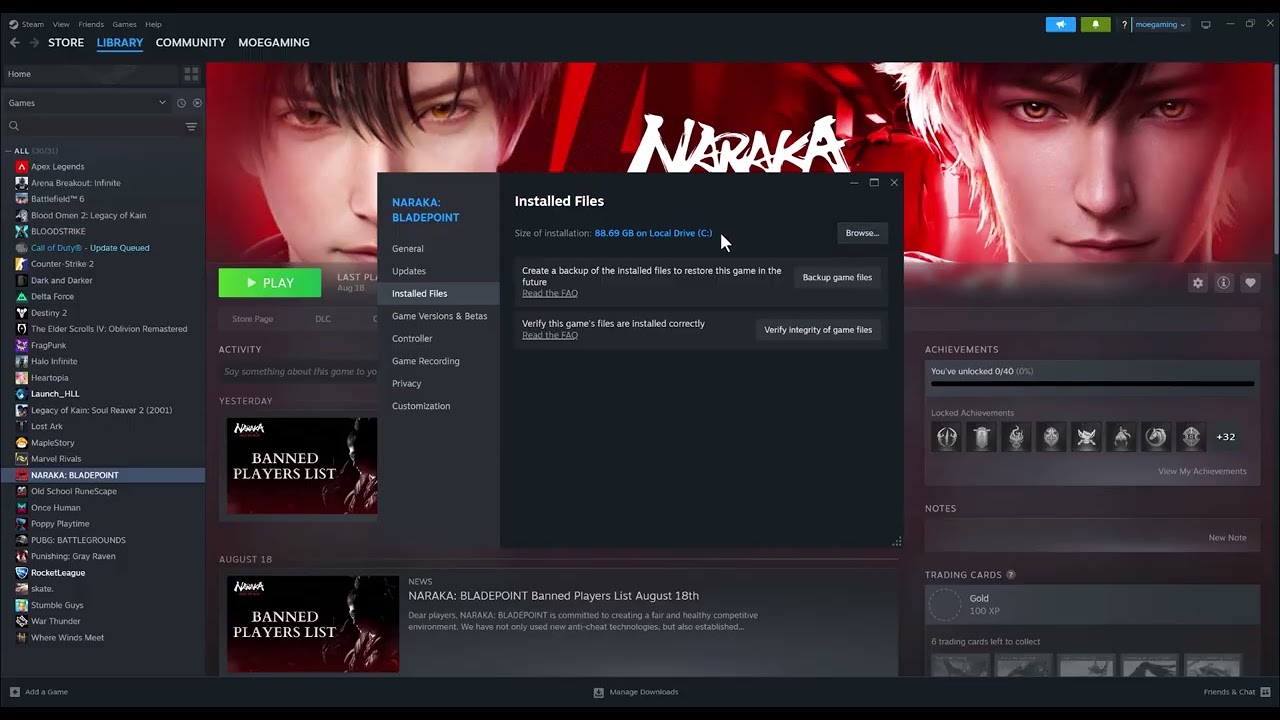
Right-click NBA 2K27 and choose Properties.
Open Installed Files and select Verify integrity of game files.
Wait for Steam to finish and reacquire any missing files, then restart Steam.
Verification compares the local installation with Steam’s current manifest. It is the least disruptive way to repair a missing or altered executable, library, or game asset.
2. Check the official PC requirements
Press Win + R, run dxdiag, and note the CPU, memory, Windows version, and GPU.
Confirm the game is on an SSD and the processor supports AVX2.
Make sure the GPU exposes DirectX feature level 12.0—not merely that the PC has the DirectX 12 runtime.
A PC can install the game yet fail at launch when a required CPU instruction, feature level, memory amount, or storage type is missing.
3. Update Windows and the graphics driver
Install pending Windows updates and restart.
Download the current supported driver directly from NVIDIA, AMD, or Intel for the installed GPU.
Restart again after the driver installation and let the game finish any shader preparation.
Current system components and a cleanly loaded graphics driver remove common launch and device-reset causes.
4. Isolate software conflicts
Close frame-rate overlays, RGB tools, capture hooks, hardware monitoring, and third-party tuning utilities.
Return CPU, GPU, and memory tuning to stable defaults for the test.
Temporarily test with nonessential antivirus features disabled only if the vendor explains how; restore protection immediately afterward.
Overlays and low-level monitoring utilities can hook the same graphics or input processes used by a game. Testing without them identifies a conflict without deleting the game.
5. Use compatibility or administrator settings only as a targeted fallback
Open the NBA 2K27 installation folder from Steam.
If permissions are the confirmed problem, test Run this program as administrator once.
Remove the setting if it makes no difference. Do not leave Windows 8 compatibility enabled by default.
The source video demonstrates compatibility and administrator options, but compatibility mode can misrepresent the operating environment. Verification, requirements, supported updates, and conflict testing should come first.
Why these steps work
These steps separate a damaged installation from an unsupported PC or a system-level conflict. File verification repairs game data; requirement checks catch hard incompatibilities; driver and conflict tests address the environment in which the executable starts.
Warnings and common mistakes
Do not download replacement DLL files or “DirectX repair” packages from third-party sites.
Do not delete Steam cloud saves while troubleshooting a launch issue.
Reinstall only after verification and the system checks fail; reinstalling cannot add missing CPU or GPU capabilities.
Relevant gaming gear
As an Amazon Associate I earn from qualifying purchases.
Why does Steam say all files are valid but NBA 2K27 still crashes?
The installation may be intact while the PC lacks a required capability or a driver, overlay, security tool, or unstable tuning profile interferes at launch.
Should I use Windows 8 compatibility mode?
Not as the normal configuration. NBA 2K27’s official requirements call for current 64-bit Windows 10. Compatibility mode is a narrow diagnostic fallback, not a universal fix.
Will verifying files delete MyCAREER progress?
Steam verification replaces game installation files; it is not intended to erase account or save progress. Avoid manually deleting save or userdata folders.
DirectX error 0x887A0005 means Windows lost access to the graphics device or its driver.
Quick answer: To fix Black Ops 7 DirectX error 0x887A0005, install a supported GPU driver and current Windows updates, verify the game files, allow shader preloading to finish, and remove GPU or CPU overclocks. Disable third-party overlays and monitoring tools for one test. Do not force DirectX 11: the current PC requirements call for DirectX 12.
Microsoft maps 0x887A0005 to DXGI_ERROR_DEVICE_REMOVED. In plain language, the game lost access to the graphics device because the driver reset, the device stopped responding, or the graphics environment changed. The error does not automatically mean the GPU is physically broken.
Before you start
Restart the PC once and close unnecessary applications.
Confirm the PC meets Activision’s current Black Ops 7 requirements, including a compatible DirectX 12 GPU and supported Windows version.
Remove any unsupported launch argument added during earlier troubleshooting.
Write down when the crash occurs: at launch, during shader compilation, in a menu, or during a particular match.
How to fix Black Ops 7 DirectX error 0x887A0005
1. Install the recommended graphics driver
Identify the installed NVIDIA, AMD, or Intel graphics model in Windows Device Manager or the manufacturer’s control panel.
Use the GPU manufacturer’s official driver page or Activision’s linked recommended-driver guidance.
Install the supported driver and restart Windows.
If the error began immediately after a driver update, use the manufacturer’s supported clean-install or rollback process rather than installing files from a third-party driver site.
A graphics driver reset is one of the common ways Windows produces DXGI_ERROR_DEVICE_REMOVED. A restart after installation is important because it reloads the driver stack.
2. Update Windows
Open Settings > Windows Update.
Select Check for updates.
Install available cumulative and platform updates.
Restart even if Windows does not explicitly prompt you.
Modern DirectX components are serviced through Windows. Downloading an unofficial “DirectX repair” package is unnecessary and risky.
3. Verify the Black Ops 7 files
Steam: Open Library, right-click Black Ops 7, choose Properties > Installed Files > Verify integrity of game files.
Battle.net: Open the game page, open the options menu beside Play, and use Scan and Repair when available.
Let the launcher finish and reacquire any missing files before starting the game. A damaged shader, executable, or graphics asset can produce a repeatable GPU-device error.
4. Let shader preloading complete
Start the game and remain at the main menu until shader preloading reports completion. Avoid entering a match while compilation is still running. After a driver update, the game may need to rebuild its shader cache.
5. Return the CPU, GPU, and memory to stock settings
Disable GPU overclocking and undervolting profiles.
Return CPU tuning to the manufacturer’s defaults for the test.
If memory is using an aggressive XMP/EXPO profile and other applications also crash, test the platform defaults.
Close tuning utilities after applying stock settings.
A profile can pass a short benchmark but fail under a different game workload. Testing stock settings determines whether instability is involved without assuming that the hardware is defective.
6. Disable overlays and monitoring hooks
Temporarily close third-party frame-rate overlays, recording hooks, RGB suites, GPU monitoring, and performance injectors. Also test with the launcher overlay disabled. Re-enable one item at a time after the game is stable so you can identify a conflict.
7. Lower GPU load for a controlled test
Reset graphics settings to a recommended preset.
Disable on-demand texture streaming temporarily.
Set a sensible frame-rate cap rather than running an uncapped menu.
Reduce VRAM-heavy texture settings if the usage meter is over the GPU’s budget.
Check temperatures and make sure fans and vents are not obstructed.
If lower settings stop the crash, raise options gradually. That result points to workload, thermal, driver, or stability pressure; it does not prove that a single graphics option was corrupt.
Why this guide does not recommend forcing DirectX 11
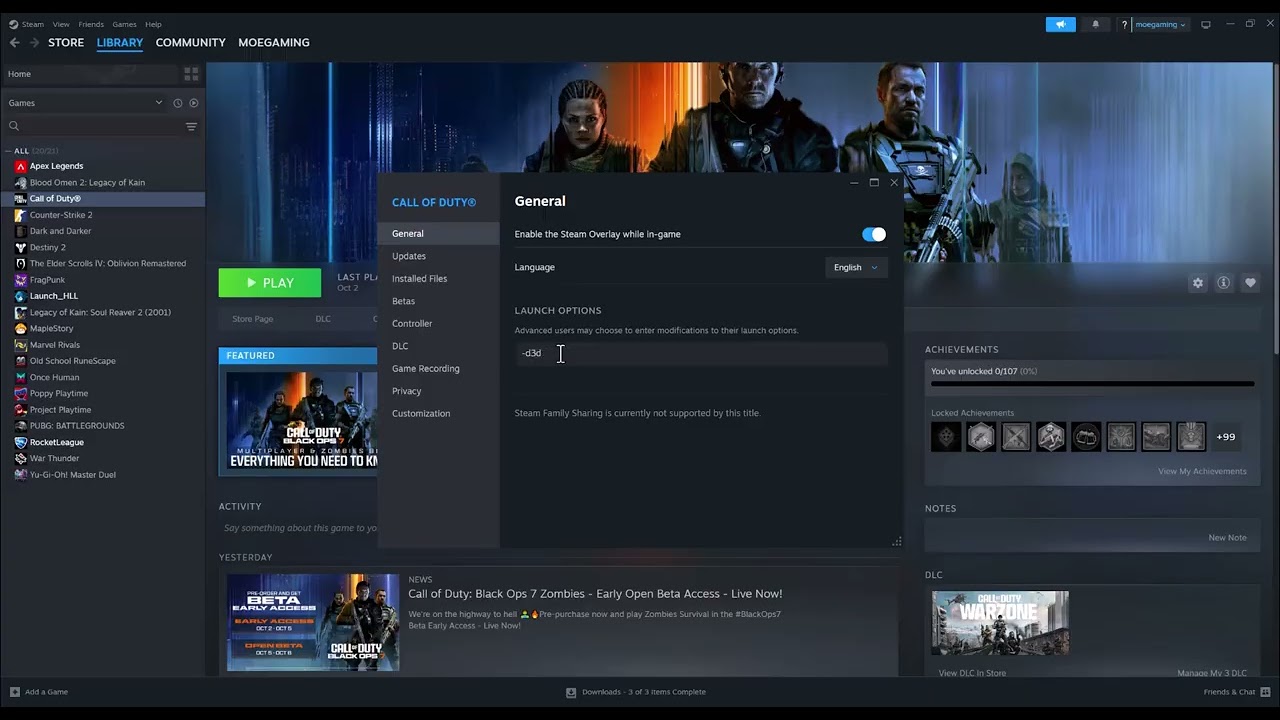
The source video mentions launch options such as -dx11, -dx12, and -d3d11. Current Activision requirements specify DirectX 12 for Black Ops 7, so forcing an undocumented DirectX 11 path is not a reliable primary fix. Unsupported arguments can be ignored, create a different launch problem, or complicate support. Remove them and troubleshoot the supported configuration first.
If 0x887A0005 still appears
Check Windows Reliability Monitor for a display-driver reset at the crash time.
Test another demanding DirectX 12 game. Multiple applications failing suggests a system-level driver, temperature, power, or stability issue.
Reinstall Black Ops 7 only after file verification and driver troubleshooting.
Submit the crash report and diagnostic details to Activision Support.
If the entire PC loses display output or restarts, investigate hardware stability with the PC or component manufacturer.
Optional PC gaming accessories
As an Amazon Associate I earn from qualifying purchases.
Xbox wireless controller — optional for controller play on a compatible PC; it will not resolve GPU-driver errors.
HDMI 2.1 cable — relevant only when replacing a damaged display cable or using a compatible high-refresh display; it does not fix DXGI driver resets.
Watch the original walkthrough
Frequently asked questions
What does 0x887A0005 mean?
Microsoft defines it as DXGI_ERROR_DEVICE_REMOVED: the graphics device became unavailable to the application, often because the driver reset or the device stopped responding.
Should I reinstall DirectX?
Not from a third-party download. Windows services current DirectX components. Update Windows, the supported GPU driver, and the game files instead.
Can an overclock cause this error?
Yes. A marginal GPU, CPU, or memory profile can cause a driver reset under a particular workload. Test manufacturer-default settings before replacing hardware.