Author: MoeGaming

  • How to Fix 2XKO Error RGIOP-99005 on PS5

    How to Fix 2XKO Error RGIOP-99005 on PS5

    Quick answer: For 2XKO error RGIOP-99005 on PS5, close the game and check PlayStation and Riot service status first. If services are available, restart the PS5 and router, then test a wired LAN connection. On Wi-Fi, open Settings > Network > Settings > Set Up Internet Connection, press Options on the saved network, and test one Wi-Fi band instead of Automatic. If the error continues, use Advanced Settings to test Cloudflare DNS at 1.1.1.1 and 1.0.0.1, then restart the console.

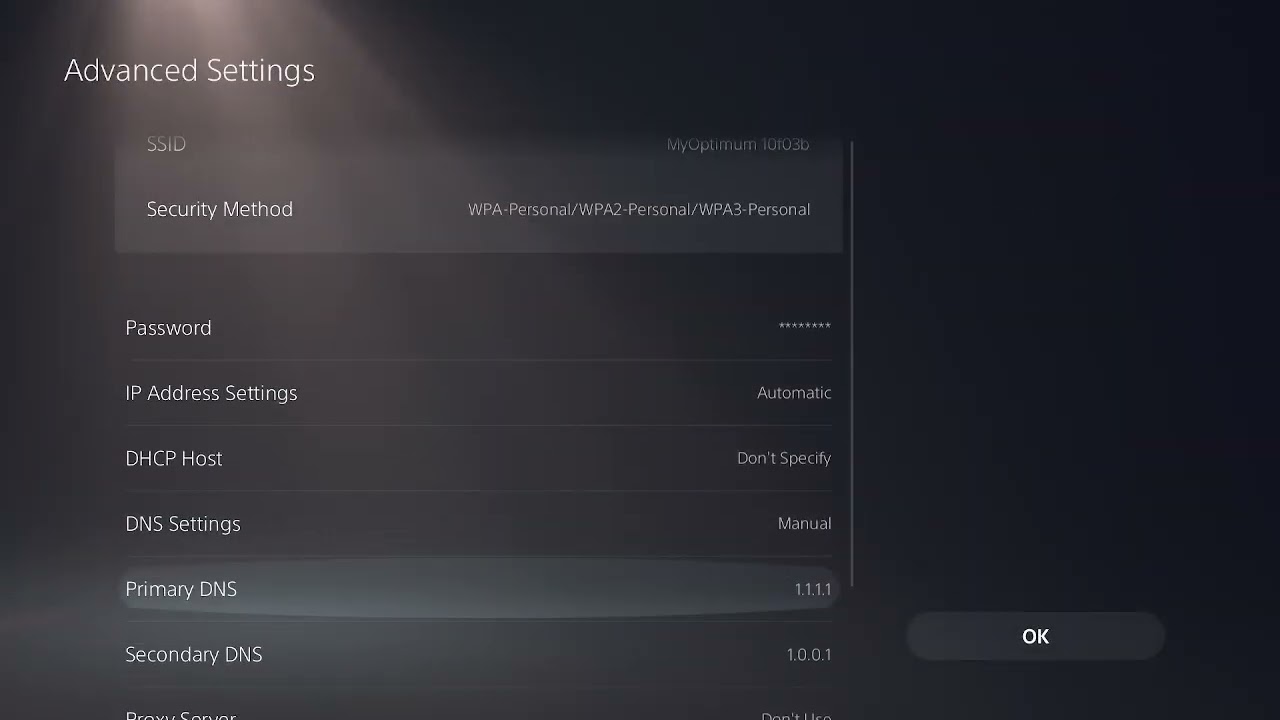
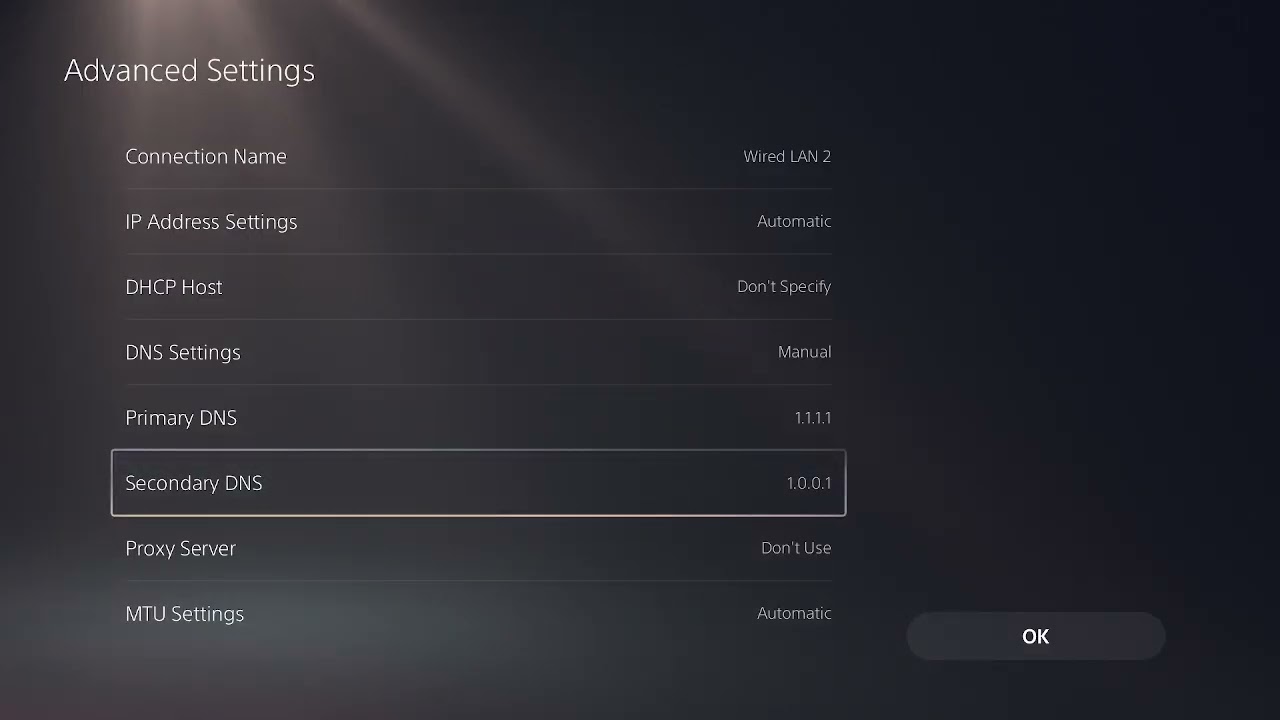
    Moe Gaming’s walkthrough shows the PS5 network menus and DNS values used below. Riot does not currently publish a public code-specific explanation for RGIOP-99005, so this guide treats it as a connection/session error and avoids claiming that one DNS change is guaranteed to fix it.

    Before changing the PS5 network

    • Write down the exact code: RGIOP-99005.
    • Confirm that another online game or the PlayStation Store can connect.
    • Check PlayStation service status and Riot’s service-status page before changing local settings.
    • Record any existing manual DNS or IP values so you can restore them.

    How to fix 2XKO error RGIOP-99005 on PS5

    1. Rule out a service outage

    1. Check the official PlayStation Network status page.
    2. Check Riot’s service status for 2XKO incidents or maintenance.
    3. If either service reports a problem, wait and retest after the incident is resolved.

    A local Wi-Fi or DNS change cannot repair a server-side outage. This check prevents unnecessary changes when many players are affected at once.

    2. Restart 2XKO, the console, and router

    1. Close 2XKO from the PS5 switcher or game menu.
    2. Restart the PS5; do not use Rest Mode for this test.
    3. Turn off the router, unplug it for about one minute, then reconnect it.
    4. Wait for internet service to return fully and launch 2XKO again.

    This clears the current game session, console network state, and temporary router session without deleting game data.

    3. Test a wired LAN connection

    1. Connect the PS5 directly to the router with an Ethernet cable.
    2. Go to Settings > Network > Settings > Set Up Internet Connection.
    3. Select Set Up Wired LAN, connect, and run Test Internet Connection.
    4. Launch 2XKO and retry the same action that produced RGIOP-99005.

    If Ethernet works while Wi-Fi does not, the game installation is probably not the main problem. Focus on Wi-Fi signal, congestion, or band switching.

    4. Choose a stable Wi-Fi frequency band

    1. Open Settings > Network > Settings > Set Up Internet Connection.
    2. Highlight the saved Wi-Fi network and press the controller’s Options button.
    3. Select Wi-Fi Frequency Bands.
    4. Test 5 GHz when the PS5 is near the router with few walls.
    5. If 5 GHz is weak at the console, test 2.4 GHz instead.
    6. Run the connection test and retry 2XKO.

    The video demonstrates changing the setting away from Automatic. Automatic is not always defective, but forcing one band is a useful diagnostic when a dual-band router keeps moving the PS5 between links. Viewer feedback on the walkthrough specifically identified band switching as the cause for some players.

    5. Test Cloudflare DNS as a fallback

    1. Highlight the active network under Set Up Internet Connection and press Options.
    2. Choose Advanced Settings.
    3. Leave IP address and DHCP settings unchanged.
    4. Change DNS Settings from Automatic to Manual.
    5. Enter Primary DNS: 1.1.1.1.
    6. Enter Secondary DNS: 1.0.0.1.
    7. Save, test the connection, restart the PS5, and open 2XKO.

    Cloudflare documents those addresses for its public resolver. DNS helps the console resolve service names; it does not fix a Riot outage or guarantee lower in-game latency. Return DNS to Automatic if the test makes no difference.

    6. Test another network only to isolate the cause

    If possible, briefly connect the PS5 to a trusted alternate network or personal hotspot, while watching mobile-data limits. If 2XKO opens there, the normal router or internet route is involved. Switch back afterward; a hotspot is a diagnostic, not the preferred permanent gaming connection.

    Why these steps can work

    RGIOP-99005 can appear while the PS5 is trying to establish or maintain an online session. Service-status checks rule out remote incidents. Restarting clears stale sessions. Ethernet removes wireless interference. Locking a band tests unstable roaming between 2.4 and 5 GHz. A DNS change tests name resolution without altering the account or game files.

    If the error remains

    • Install any pending 2XKO and PS5 system-software updates.
    • Confirm the correct PlayStation account is signed in and allowed to use online features.
    • Return experimental network settings to their original values before contacting support.
    • Send Riot Support the exact code, platform, time of failure, region, connection type, and the steps already tested.

    Warnings

    • Do not factory-reset the router for this error.
    • Do not open random ports or enable router DMZ mode without an exact current first-party instruction.
    • Do not buy hardware until Ethernet or another controlled test shows that Wi-Fi is the cause.
    • Results vary: the source video has reports of the band/DNS steps working and reports where they did not.

    Optional network accessory

    As an Amazon Associate I earn from qualifying purchases.

    Watch the original Moe Gaming walkthrough

    Frequently asked questions

    Is RGIOP-99005 a PS5 hardware failure?

    The walkthrough and successful viewer reports point to a connection/session problem, not proof of failed hardware. Test service status and the network before considering repair.

    Should I always use 5 GHz?

    No. Five GHz is often better near the router, while 2.4 GHz usually reaches farther. Use the band that is stable at the PS5.

    Will 1.1.1.1 reduce 2XKO ping?

    Not necessarily. DNS resolves service names; it does not control the full route to Riot’s game server. Keep it only if testing shows a clear benefit.

    Why did a hotspot work?

    A successful hotspot test changes the router, DNS path, and internet route at once. It shows that the usual network path is involved, but does not identify which component without further testing.
    Official references

  • How to Fix Where Winds Meet Crashing or Not Launching on Steam

    How to Fix Where Winds Meet Crashing or Not Launching on Steam

    Quick answer: If Where Winds Meet crashes or will not launch through Steam, first install every pending game and Windows update, confirm the PC meets the current requirements, and restart Steam. Then disable the Steam Overlay for a controlled test and use Properties > Installed Files > Verify integrity of game files. If it still fails, open the installation folder and launch the game executable once, update the graphics driver, and reinstall to an SSD only after the simpler checks fail.

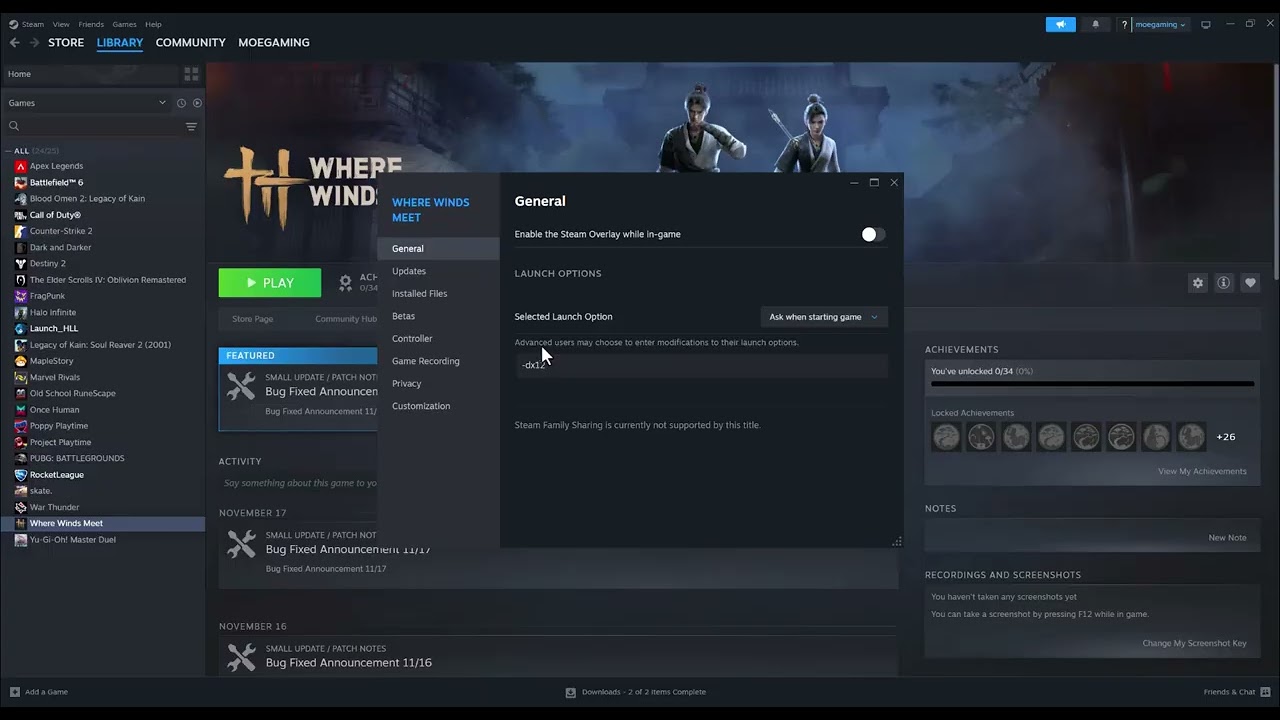
    The source walkthrough demonstrates the Steam menu paths for the overlay, file verification, and installation folder. This guide keeps those useful steps, removes unverified DirectX launch flags, and adds the current requirements and recovery order from Where Winds Meet and Steam.

    Before you start

    • Close Where Winds Meet completely and let Steam finish all downloads.
    • Restart the PC so an old game or anti-cheat process is not still running.
    • Confirm there is enough free storage for both the game and temporary update files.
    • Do not add random launch commands copied from unrelated games. Where Winds Meet does not publish a universal -dx11 or -dx12 fix.

    How to fix Where Winds Meet crashing or not launching

    1. Check the current PC requirements and updates

    1. In Steam, open Library and confirm that Where Winds Meet has no pending update.
    2. Open Windows Update and install supported Windows updates, then restart.
    3. Compare the PC with the official Where Winds Meet requirements. The official guide lists 64-bit Windows 10 or 11 and recommends an SSD; its larger packages can require more than 100 GB of free space.
    4. If the PC is below the minimum requirement, reduce background load before testing. A setting change cannot compensate for unsupported hardware.

    This is the first check because missing data, an unfinished update, or insufficient storage can stop the game before its main window appears.

    2. Restart Steam and test without the Steam Overlay

    1. Exit Steam from its menu rather than only closing the window.
    2. Reopen Steam, right-click Where Winds Meet, and select Properties.
    3. Under General, turn off Enable the Steam Overlay while in-game.
    4. Launch the game once.

    The overlay is a useful diagnostic because it injects an interface into the running game. If disabling it changes nothing, turn it back on; leaving it disabled is not required.

    3. Verify the installed files in Steam

    1. Right-click the game in the Steam Library and choose Properties.
    2. Select Installed Files.
    3. Choose Verify integrity of game files.
    4. Let the check finish without pausing Steam, then restart Steam and launch the game.

    Steam compares the local installation with the expected files and reacquires missing or damaged data. Steam notes that this can take several minutes; Where Winds Meet is a large installation, so allow it to finish.

    4. Launch the game executable once from its folder

    1. Open Properties > Installed Files and select Browse.
    2. Locate the Where Winds Meet game executable in the installation directory.
    3. Double-click the executable once and note any Windows error message.

    The official Where Winds Meet installation guide recommends launching the executable from the game directory when the launcher does not respond. Do not permanently force administrator or compatibility mode unless official support specifically asks for it; those settings can introduce a different permissions problem.

    5. Update the graphics driver and close conflicting software

    1. Install the current stable driver directly from NVIDIA, AMD, or Intel for the installed GPU.
    2. Restart Windows after the driver installation.
    3. Temporarily close recording overlays, hardware-monitoring overlays, RGB utilities, and other nonessential software.
    4. Keep security software enabled. If it reports a blocked file, verify the file and publisher instead of disabling protection.

    If the game opens after one background application is closed, update or reconfigure that specific program rather than turning off every protection permanently.

    6. Reinstall only after the repair checks fail

    If the executable still will not start and Steam verification repeatedly finds errors, uninstall Where Winds Meet through Steam, restart the PC, and reinstall it. Use an SSD when possible, choose an installation path that uses the Windows system language or English as the official guide recommends, and leave enough free space for updates.

    Why this troubleshooting order works

    The steps move from low-risk causes to larger changes. Updates and requirements rule out an unsupported or incomplete installation. Disabling the overlay tests one common injected component. File verification repairs the installation without deleting it. Launching the executable can expose a clearer Windows error, and a clean driver/background-software test addresses rendering or process conflicts. Reinstallation is last because it costs the most time and bandwidth.

    If the game still crashes

    • If it reaches a loading percentage and then stops, record the percentage and whether it happens on every character or save.
    • If it crashes only after several minutes, check temperatures and Windows Reliability Monitor for the failing module.
    • If an error names a DLL, driver, anti-cheat component, or initialization code, send that exact text to official support.
    • If the launcher alone is unresponsive, reinstall the launcher as the official guide recommends before downloading the full game again.

    Warnings and common mistakes

    • Do not stack multiple undocumented launch flags; you will not know which change caused a new problem.
    • Do not download replacement DLL files from third-party websites.
    • Do not disable antivirus or firewall protection permanently.
    • Do not assume every crash has the same cause. Viewer feedback on the source video includes both successful repairs and different symptoms such as initialization errors and loading stalls.

    Watch the original Moe Gaming walkthrough

    Frequently asked questions

    Should I use -dx11 or -dx12 in Steam launch options?

    Not as a default fix. No current first-party Where Winds Meet instruction supports those flags as a universal solution. Leave launch options blank unless the developer gives a command for a specific build or error.

    Will verifying files delete my save?

    Steam verification repairs installed game files; it is not intended to erase normal save data. Cloud and local save behavior can vary, so back up irreplaceable local saves before uninstalling.

    Why does the game launch from the executable but not Steam?

    That points toward the Steam handoff, overlay, launcher, or another injected process rather than the core executable. Re-enable changes one at a time to isolate the conflict.

    Should I install Where Winds Meet on an SSD?

    The official PC guide recommends an SSD for better installation and loading performance. An SSD will not repair every crash, but it can avoid storage-performance bottlenecks and slow patching associated with an HDD.

    Affiliate disclosure

    As an Amazon Associate I earn from qualifying purchases.

    Official references

  • How to Fix Battlefield 6 Lag on PC

    How to Fix Battlefield 6 Lag on PC

    “Lag” in Battlefield 6 can mean two different problems: high ping from the network or low frame rate from the PC. Diagnose which number is spiking before changing settings. EA’s Performance Display can show FPS and ping together, making it much easier to apply the right fix.

    Quick answer: Turn on Battlefield’s Performance Display. If ping is high, check server status, stop background downloads, restart the router and use Ethernet. If FPS is low, match the game’s resolution and refresh rate to Windows, test V-Sync off, lower the graphics preset and assign the high-performance GPU in Windows on multi-GPU PCs.

    First identify ping lag or FPS lag

    In supported EA games, open Settings > Gameplay and enable Performance Display. Watch the FPS and ping readings when the problem occurs.

    • High or unstable ping: players teleport, shots register late, or a network warning appears.
    • Low or unstable FPS: the entire image stutters or feels choppy even in menus or local rendering.
    • Both: work through the network steps first, then graphics changes one at a time.

    Fix high ping and network lag

    1. Check Battlefield service status

    A server incident cannot be fixed with PC settings. Check EA’s Battlefield server status before changing the network. EA’s current high-ping guide begins with service status and connection quality.

    2. Stop background traffic

    Pause game downloads, cloud backups, streaming and large updates on the PC and other devices. EA recommends closing background activity that consumes bandwidth.

    3. Restart the PC and router

    Restart the PC. Unplug the modem and router for about 30 seconds, reconnect them, and wait for internet service to return. EA recommends this to clear congestion and refresh the connection.

    4. Prefer Ethernet

    Connect the PC directly to the router when possible. EA specifically recommends wired connections for Battlefield 6 high ping. If Wi-Fi is unavoidable, move closer to the router and test a less congested wireless channel.

    5. Treat custom DNS as an optional name-resolution test

    Changing DNS does not directly lower game-server ping, but it can help when domain resolution is failing. Cloudflare documents 1.1.1.1 and 1.0.0.1 for IPv4. After changing DNS, Windows’ ipconfig /flushdns command clears the DNS resolver cache. If there is no DNS-related symptom, leave the setting automatic.

    Fix low FPS and rendering stutter

    1. Use Battlefield’s verified graphics settings

    Open Battlefield 6 Settings > Graphics. Make sure Fullscreen Resolution and Refresh Rate match the Windows display settings. EA recommends testing Vertical Sync off to reduce lag, then lowering the performance preset or graphics quality if the frame rate remains unstable.

    2. Select the correct Windows GPU

    In Windows 11, open Settings > System > Display > Graphics, add Battlefield 6 if needed, open Options, and choose High performance when the PC has both integrated and discrete GPUs. Save the setting and restart the game. Microsoft also lists Let Windows decide as a valid option, so it is not necessary to change it on a single-GPU system.

    3. Update drivers and verify the game

    Install the current graphics driver supported by the GPU vendor and Windows, restart the PC, then repair or verify Battlefield 6 in the EA app, Steam or Epic launcher. If the problem is a DirectX crash rather than lag, use the separate Battlefield 6 DXGI_ERROR_DEVICE_HUNG guide.

    Why this order works

    Ping and frame rate come from different systems. A DNS or router change cannot repair GPU frame-time spikes, and lowering graphics will not fix an overloaded internet connection. Measuring both values first prevents random changes and makes it clear whether each step helped.

    Warnings

    • Do not assume custom DNS will lower game-server ping.
    • Do not select Power saving for a demanding game on a multi-GPU PC unless you are intentionally testing power usage.
    • Change one graphics setting at a time so you can identify the real cause.
    • A server outage requires waiting; repeated reinstalls will not repair it.

    Frequently asked questions

    What is a good first test for Battlefield 6 lag?

    Enable Performance Display and compare FPS with ping while the lag occurs. That immediately separates most graphics and network problems.

    Does 1.1.1.1 DNS reduce ping?

    Not generally. It changes DNS resolution, not the route to the Battlefield server. Use it only when DNS resolution is part of the problem.

    Should I disable V-Sync?

    EA recommends testing V-Sync off for lag, but the best result depends on the monitor and frame-rate behavior. Re-enable it if tearing becomes worse than the latency improvement.

    Watch the original walkthrough

    The Moe Gaming video demonstrates Windows DNS and graphics-preference menus. This guide adds EA’s current ping/FPS diagnosis and corrects the claim that Windows’ automatic GPU choice is never valid. Source video: How To Fix Lag Battlefield 6 On PC.

    Recommended network hardware

    If Wi-Fi instability is the confirmed cause and the router is within cable reach, a direct wired connection is usually the cleanest test. The Cable Matters Cat 6 Ethernet cable is a direct product option.

    Affiliate disclosure: As an Amazon Associate I earn from qualifying purchases.

    Official references

  • MW4 Beta on PS5: Download, Launch and Fix Crashes

    MW4 Beta on PS5: Download, Launch and Fix Crashes

    The Call of Duty: Modern Warfare 4 Open Beta is a separate PS5 download, not a mode that must be launched through another Call of Duty installation. Official Call of Duty and PlayStation pages list open access from August 28 at 10:00 a.m. PT through September 1, 2026 at 10:00 a.m. PT. This guide covers both the correct installation path and safe launch troubleshooting.

    Quick answer: Open PlayStation Store, search for Call of Duty: Modern Warfare 4 Beta, download the separate beta application, and launch it from the PS5 Home screen or Game Library. If it will not start, check for an update, restart the PS5, restore the beta license, confirm the beta window is live, and reinstall only after those steps fail.

    Before you download

    • Use a PS5. Activision’s official announcement does not list a PS4 version.
    • Make sure the PS5 is signed into the account you will use to play.
    • Leave enough free storage for the current store download plus update space. The source video showed roughly 50 GB, but the live store size is authoritative.
    • The Open Beta is time-limited. A successful installation will not launch outside the official access window.

    Download and launch the MW4 Beta on PS5

    1. Open PlayStation Store on the PS5.
    2. Search for Call of Duty: Modern Warfare 4 Beta.
    3. Select the dedicated Beta product and choose Download.
    4. If search opens another Call of Duty product page, use the three-dot menu to view editions or related products and select the MW4 Beta entry.
    5. Wait for the application and any available update to finish installing.
    6. Return to the PS5 Home screen or open Game Library.
    7. Select Call of Duty: Modern Warfare 4 Beta and choose Play once the beta is live.

    Activision’s official beta guide confirms that the beta downloads separately through each platform’s digital storefront. The PlayStation Blog gives the same PS5 search, download, and Home/Game Library launch path.

    Fix the MW4 Beta crashing or not launching

    1. Confirm the beta window is open

    Open access runs from August 28 at 10:00 a.m. PT through September 1, 2026 at 10:00 a.m. PT, subject to Activision’s live schedule. Outside that period, reinstalling will not make the beta playable.

    2. Check for an application update

    1. Highlight the MW4 Beta on the PS5 Home screen.
    2. Press Options.
    3. Select Check for Update.
    4. Install the update, then restart the beta.

    PlayStation’s crash guide starts by checking that the game itself and PS5 system software are current.

    3. Restart the PS5

    Close the beta completely, select Power > Restart PS5, and launch the dedicated beta application again. A restart is safer than immediately deleting a large download.

    4. Restore the beta license

    1. Highlight the MW4 Beta and press Options.
    2. Choose Restore License if the shortcut appears.
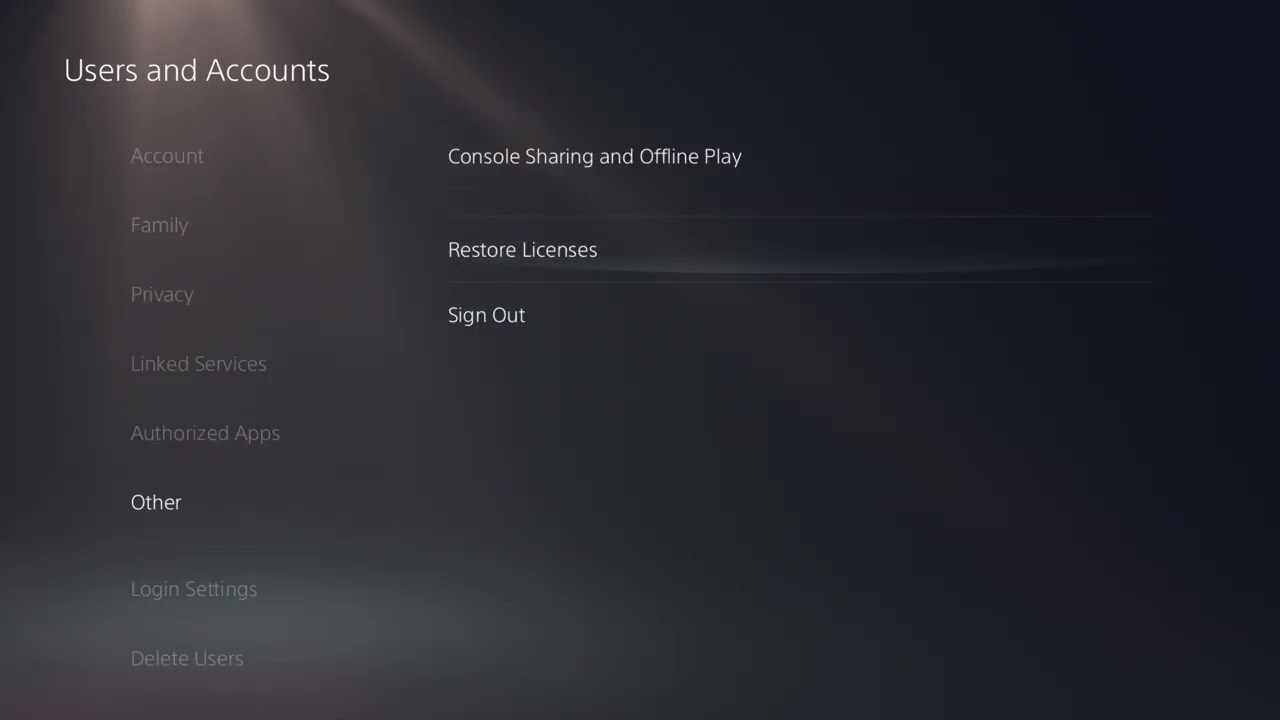
    3. Otherwise open Settings > Users and Accounts > Other > Restore Licenses.
    4. Restore the relevant license and retry.

    PlayStation confirms that restoring licenses does not erase game data.

    5. Verify the account and Console Sharing setting

    Sign into the account that downloaded the beta. The PlayStation Store listing says the content can be used on the account’s main PS5 through Console Sharing and Offline Play and on another PS5 when that account is signed in. If the tile shows a lock, verify the account and license before reinstalling.

    6. Check the download and free space

    1. Open the PS5 control center and select Downloads/Uploads.
    2. Resume a paused download and allow every beta update to finish.
    3. If a download is stuck, pause and resume it once.
    4. Confirm the console has enough free internal storage.
    5. Launch only after the queue is complete.

    7. Reinstall the dedicated beta application

    If the update, restart, license, account, and download checks all pass but the beta still crashes, delete the Modern Warfare 4 Beta application and download that same dedicated beta product again. Do not delete unrelated Call of Duty games or saved data unless an official support step specifically requires it.

    8. Clear cache only if normal steps fail

    PlayStation’s game-launch guidance lists Safe Mode cache clearing after the restart, license restore, reinstall, and system-update checks. Use Clear Cache and Rebuild Database carefully, choose the cache option first, and do not reinstall system software for a single beta problem.

    Why these steps work

    The most common confusion is launching the wrong product. The MW4 Beta has its own store listing and application tile. Once the correct application is installed, updates, the account license, the official access window, and complete download data are the safest variables to test before deeper console maintenance.

    Alternatives and edge cases

    • If PlayStation Store search does not surface the beta, open the official PlayStation Store beta listing linked below on the same account, then check Game Library on PS5.
    • If the download is stuck, use PlayStation’s pause/resume and cancel/re-download guidance.
    • If PlayStation Network or Call of Duty services report an incident, wait and retry after recovery.
    • If the beta repeatedly crashes after a clean reinstall, submit an Activision bug report with the time, PS5 model, error code, and reproducible step.

    Warnings

    • The beta is limited-time software; availability after September 1, 2026 is not promised.
    • Do not delete other Call of Duty content packs simply because the separate beta fails.
    • Do not reinstall PS5 system software for one game unless PlayStation Support specifically directs you.
    • A one-word skeptical viewer comment is not evidence for or against a fix; the steps above follow current Call of Duty and PlayStation documentation.

    Frequently asked questions

    Do I need to launch the beta through another Call of Duty game?

    No. Activision says the MW4 Beta is a separate storefront download, and the PS5 instructions launch its own application from Home or Game Library.

    Is the MW4 Open Beta free?

    Yes during the official open period. Activision says no preorder or beta code is required for Open Beta access.

    Why does the beta tile show a lock?

    Make sure the account that downloaded it is signed in, the correct beta license is restored, and Console Sharing and Offline Play match the console you are using.

    Will restoring licenses delete the beta or saved data?

    No. PlayStation states that restoring licenses does not affect your data.

    Watch the original Moe Gaming walkthroughs

    Optional PS5 accessories

    As an Amazon Associate I earn from qualifying purchases.

    Official references

  • How to Fix NBA 2K27 “Problem Prevents Gameplay” on PS5

    How to Fix NBA 2K27 “Problem Prevents Gameplay” on PS5

    The NBA 2K27 message “A problem has been encountered that prevents gameplay from continuing” usually appears when an online session, account entitlement, update, or connection cannot complete cleanly. It does not identify one universal cause, so the safest fix is to check the service and game data before changing network settings.

    Quick answer: Close NBA 2K27, confirm 2K and PlayStation services are available, install the latest game and PS5 updates, restart the console, and restore the game license. If the error affects only one mode, try another online mode and return. If every online mode fails, test the PS5 connection and use Ethernet before treating custom DNS as an optional name-resolution test.

    Before you start

    • Write down whether the error affects one mode, one MyPLAYER, or every online activity.
    • Do not delete MyCAREER saves, cloud data, or NBA 2K reserved data.
    • Pause downloads and streaming on the console and network while testing.
    • Use the same PSN and NBA 2K accounts that normally own and play the game.

    Fix the gameplay-continuing error on PS5

    1. Check 2K and PlayStation service status

    If the game’s servers or PlayStation Network are having an incident, local changes will not repair the session. Check service status first and wait if the affected service reports a problem.

    2. Apply the latest NBA 2K27 data

    1. Highlight NBA 2K27 on the PS5 home screen.
    2. Press Options and choose Check for Update.
    3. Install any update, then start the game and remain at the main menu long enough for in-game data to synchronize.
    4. If prompted to return to the main menu to apply an update, do so before entering MyCAREER.

    2K’s official support guidance for related online errors says missing current data can prevent continued play and warns against deleting reserved space while updates are synchronizing.

    3. Restart the game and PS5

    Close NBA 2K27 completely. Select Power > Restart PS5, then launch the game again. A restart clears a stuck session without touching saved data.

    4. Restore the NBA 2K27 license

    1. Highlight NBA 2K27 on the PS5 home screen or in Game Library.
    2. Press Options and select Restore License.
    3. Alternatively, open Settings > Users and Accounts > Other > Restore Licenses.
    4. Restart the game after the restore finishes.

    PlayStation confirms that restoring licenses does not affect game data. This is safer than reinstalling and directly addresses an entitlement mismatch.

    5. Refresh the account session

    1. Open Settings > Users and Accounts > Other.
    2. Choose Log Out for the affected account.
    3. Sign back into the same PSN account, restart NBA 2K27, and test again.

    Use this step only when the network is working and an account session appears stuck. Do not remove the user profile or saved data.

    6. Test another NBA 2K mode

    If MyCAREER is the only affected area, open another mode such as Play Now or MyTEAM, complete the connection or update prompt, return to the main menu, and test MyCAREER again. 2K recommends a mode switch for related 727E66AC connection behavior.

    7. Stabilize the connection

    1. Open Settings > Network > Connection Status > Test Internet Connection.
    2. Restart the router if the result is unstable.
    3. Use a wired Ethernet connection when practical.
    4. If using Wi-Fi, move closer to the router and test the appropriate 5 GHz or 2.4 GHz band rather than leaving a weak connection untreated.
    5. Restart the PS5 and retest the same game mode.

    8. Use custom DNS only as an optional test

    The source video demonstrates Cloudflare’s public IPv4 DNS addresses, 1.1.1.1 and 1.0.0.1. DNS can help when name resolution is failing, but it does not fix a 2K server outage, a corrupted save, or ordinary packet loss. Record the original setting and switch back to Automatic if the test makes no difference.

    Why this order works

    Service availability and current game data affect every player and should be checked before local changes. Restarting and restoring licenses repair common session and entitlement problems without erasing anything. Network changes come later because the error text alone does not prove the router or DNS is at fault.

    Alternatives if the error continues

    • Try the published NBA 2K27 server and MyCAREER online-error guide if several online modes fail.
    • If gameplay works but feels delayed, use the separate NBA 2K27 lag on PS5 guide.
    • Use PS5 Safe Mode’s Clear Cache option only after the normal restart, update, and license steps.
    • Submit a 2K Support ticket with the exact mode, time, platform, account, and steps already tried if the problem is reproducible.

    Warnings

    • Do not delete reserved space or interrupt an update sync; 2K warns that this can create more problems.
    • Do not delete MyCAREER save data as a first-line fix.
    • Do not assume custom DNS improves game-server latency.
    • If only one save is affected, back up data before any reinstall or Safe Mode action.

    Frequently asked questions

    Will restoring licenses delete MyCAREER progress?

    No. PlayStation says restoring licenses does not affect your data.

    Should I reinstall NBA 2K27 immediately?

    No. Check services, updates, restart, restore licenses, refresh the account session, and test the network first. Reinstallation is slower and does not fix an outage.

    Does 1.1.1.1 guarantee a fix?

    No. It only changes DNS resolution. It cannot repair server downtime, Wi-Fi packet loss, or a damaged save.

    Why does another mode work?

    A different mode can trigger pending online data or avoid a mode-specific session problem. Return to the main menu after the test so any update prompt can apply.

    Watch the original Moe Gaming walkthrough

    Optional network gear

    As an Amazon Associate I earn from qualifying purchases.

    Official references

  • NBA 2K27 Crew Guide: Start, Join and Manage a Crew

    NBA 2K27 Crew Guide: Start, Join and Manage a Crew

    NBA 2K27’s Crew system lets you create a group with its own identity and preferences or join an existing community. This guide combines the create and join walkthroughs and separates the permanent choices from the live settings that 2K can change.

    Quick answer: Enter the City, press Options, open the Crews tab, then choose Start a Crew, Join a Crew, or Quick Join a 2K Crew. A new crew requires at least three members in the current NBA 2K27 screen. Choose privacy, focus, active time, vibe, microphone preference, language, and region carefully before inviting players.

    Before you create or join

    • Load MyCAREER and enter the City.
    • Make sure online play and crossplay settings match the people you want to play with.
    • Decide whether you want a long-term community crew or a quick public option mainly for Crew HQ access.
    • Read the current confirmation screen before leaving an existing crew; 2K’s official Crew guidance warns that changing crews can affect cooldowns, rewards, and XP.

    Start a Crew in NBA 2K27

    1. Press Options while your MyPLAYER is in the City.
    2. Move to the Crews tab and select Start a Crew.
    3. Review the generated crew name. The NBA 2K27 walkthrough shows that the displayed name is randomized rather than freely typed.
    4. Set the abbreviation that appears in games, then write a short, appropriate bio.
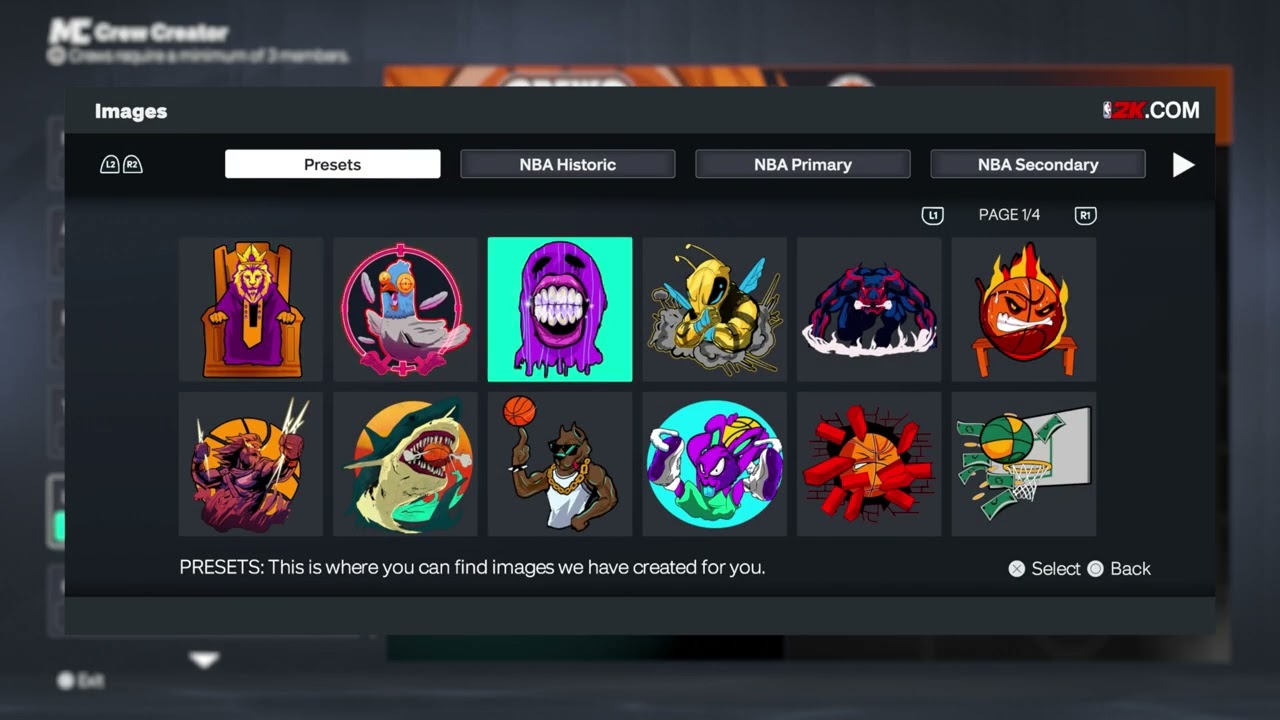
    5. Choose team colors, a logo, and one of the available background choices.
    6. Set privacy to Open, Invite Only, or Private according to the live options shown by the game.
    7. Choose the crew focus, active times, vibe, microphone preference, primary language, and region.
    8. Create the crew, then invite enough players to meet the current minimum. The video’s creation screen requires at least three members.

    Choose the right privacy setting

    • Open: players can join freely while space is available.
    • Invite Only: players request access and the crew controls acceptance.
    • Private: use direct invitations for a closed friend group when that option appears in your current NBA 2K27 menu.

    The exact labels can change in an update. 2K’s official Crew documentation describes Open and Invite Only behavior, while the new NBA 2K27 screen in Moe Gaming’s video also shows a Private option.

    Join an existing Crew

    1. Press Options in the City and open Crews.
    2. Choose Join a Crew to browse community-created groups.
    3. Review privacy, focus, active times, vibe, microphone preference, language, region, level, and available spaces.
    4. Apply or join using the live prompt.
    5. If you already received an invitation, open the invitations area rather than searching again.
    6. Return to Crew HQ after membership is confirmed.

    Use Quick Join a 2K Crew

    Quick Join a 2K Crew places you in a 2K-created public group when space is available. It is useful for accessing Crew activities quickly, but it is not the same as building a coordinated clan with friends. The source walkthrough shows a nearly full public crew; capacity and availability can differ in your session.

    Manage your Crew

    1. Open the City main menu and return to the Crews tab.
    2. Use Crew Management to review editable identity and preference fields.
    3. Open the Members area to review participation and roles.
    4. Promote or remove members only when necessary, and communicate the reason before changing a long-running group.
    5. Check weekly goals and the current reward track before scheduling games.

    2K’s official Crew article explains that the president controls crew settings and membership. It also notes that leaving can reduce crew XP and that some rewards have a cooldown. Treat the live NBA 2K27 menu as the final authority for current timing.

    Why these steps work

    The Crews tab is the control center for creation, discovery, invitations, management, and membership. Matching focus, schedule, language, region, and microphone preference before joining reduces the chance that a crew looks suitable by name but cannot regularly play together.

    Alternatives and troubleshooting

    • If no community crew fits, use the filters again or start a small crew with friends.
    • If Crew HQ says membership is required, confirm that the join or creation process finished before returning to the entrance.
    • If friends cannot see or join the same crew, verify crossplay and online privacy settings, then use the NBA 2K27 crossplay and friends guide.
    • If the Crews tab is missing, finish the MyCAREER introduction, apply current game data, and reload the City.

    Warnings

    • Use an appropriate abbreviation and bio. 2K’s Player Code of Conduct still applies.
    • Do not leave a crew casually if you are working toward cooldown-gated or one-time rewards.
    • Turning off crossplay can remove a console player from an active crew under 2K’s documented Crew rules.
    • Do not promise a prospective member a reward amount or unlock that the current game does not display.

    Frequently asked questions

    How many members does an NBA 2K27 crew need?

    The current creation screen shown in the source video says a crew requires at least three members. Check the live screen before creating because 2K can update rules.

    What is the difference between Join a Crew and Quick Join?

    Join a Crew browses player-created groups. Quick Join places you in a 2K-created public crew when one has space, which is faster but less coordinated.

    Can I type any crew name I want?

    The NBA 2K27 walkthrough shows a randomized name choice, with a separately editable abbreviation and bio. Use the options displayed in your current build.

    Why can’t I enter Crew HQ?

    Membership must be active first. Open the Crews tab, complete a join or creation flow, then revisit Crew HQ using the City locations guide.

    Watch the original Moe Gaming walkthroughs

    Optional crew-session gear

    As an Amazon Associate I earn from qualifying purchases.

    Official references

  • NBA 2K27 Free VC Guide: Quests, Rewards, Locker Codes and Drops

    NBA 2K27 Free VC Guide: Quests, Rewards, Locker Codes and Drops

    NBA 2K27 puts progression and VC opportunities in different menus, City locations, and limited-time campaigns. This guide combines six Moe Gaming walkthroughs so you can find quests, City challenges, Daily Rewards, 2KTV, Daily Pick ’Em, locker codes, and eligible Twitch Drops without treating each small feature as a separate thin article.

    Quick answer: In the City, press Square for the active quest and Triangle for City challenges, or use the full MyCAREER menus. Check Daily Rewards, 2KTV, and Daily Pick ’Em near the Arena area shown in the walkthroughs. For locker codes or Twitch Drops, use only a current official NBA 2K announcement, complete its stated eligibility steps, and confirm the reward in game—no 50,000-VC or 100,000-VC code is guaranteed simply because it appears in a video title or old list.

    Before you start

    • Load a MyCAREER save and enter the City. If you still need a build, use the NBA 2K27 MyCAREER build guide.
    • Finish any introductory objective that blocks free movement or hides City menus.
    • Connect to 2K’s online services and make sure the game has finished downloading current data.
    • Treat every reward amount and timer shown in the videos as an example. The live screen in your copy of the game is authoritative.

    View every MyCAREER quest

    1. While standing in the City, press Square to open the currently active quest quickly.
    2. To see the full list, press Options to open the main menu.
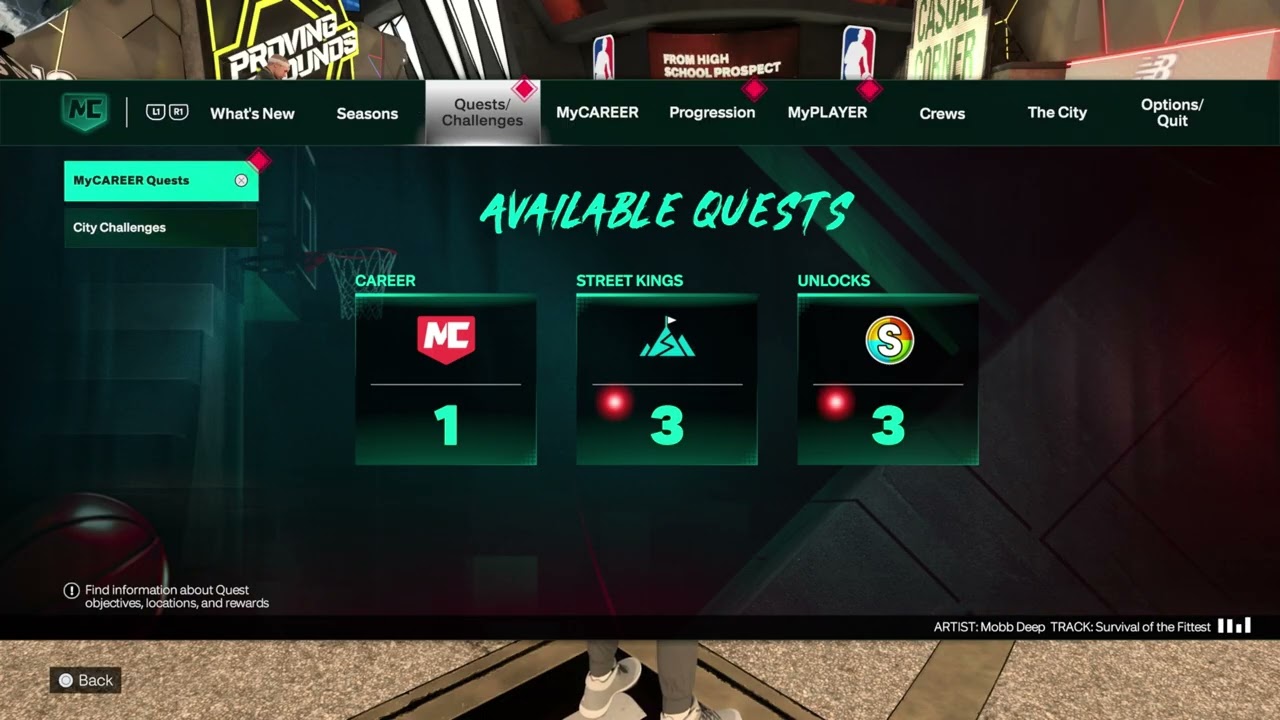
    3. Open MyCAREER Quests.
    4. Review the available groups shown in the walkthrough: Career, Street Kings, Unlocks, Training, and Completed.
    5. Open a quest and read its objective, expiry information, and reward before tracking it.

    The shortcut is useful when you already know what you are doing; the full menu is better when you want to compare daily, weekly, unlock, and career objectives. 2K’s current Rebirth guidance also confirms that some unlock progress is tracked under MyCAREER quests.

    View daily, weekly, starter, and lifetime challenges

    1. Press Triangle in the City to open the challenge panel directly.
    2. Review Daily Challenges first if you want time-limited objectives.
    3. Open Starter Challenges for early unlocks and introductory rewards.
    4. Check Lifetime Challenges for longer progress goals, boosts, badges, and other rewards listed by the live game.
    5. Review Weekly Races and their current requirements before traveling to the Track.
    6. Alternatively, open the main menu and go to Quests and Challenges > City Challenges.

    Quests and challenges are separate lists. If an objective is missing from one screen, check the other before assuming the game failed to track it.

    Claim the Daily Reward

    1. Open the City map and look near the Arena area shown in the source video.
    2. Travel to the station labeled for Daily Rewards.
    3. Stand at the prompt and press X.
    4. Wait for the reward animation and confirm the item, VC, or Rep boost shown on your screen.
    5. Note the next available time displayed at the station. Do not assume it resets at midnight in your time zone.

    The walkthrough received a two-hour 2X Rep reward and showed another claim timer. Your result can be different, and live-service reward pools can change.

    Watch 2KTV for eligible VC rewards

    1. Find the 2KTV screen near the Arena area on the City map.
    2. Open the station and choose an episode or segment that displays a VC reward.
    3. Watch the required content and follow any on-screen question or completion prompt.
    4. Confirm that the reward was credited before leaving the screen.

    The video shows example segments advertising 600 VC, but the amount, eligible episodes, and completion rules are live values. Skipping content may prevent credit, so follow the current prompt rather than assuming every video pays.

    Use Daily Pick ’Em

    1. Find the Daily Pick ’Em activity near the Arena area shown in the walkthrough.
    2. Open it and review the games or selections that are currently available.
    3. Make your pick before the activity closes.
    4. Return after the result is settled and follow the live claim prompt if your selection qualifies.

    A matchup already marked in progress may be locked. Pick availability and VC rewards depend on the live schedule, so there may be nothing to enter at certain times.

    Use official locker codes and Twitch Drops safely

    1. Check NBA 2K’s official site or verified NBA 2K social accounts for a current locker code or announced Drops campaign.
    2. Read the eligible platform, region, end time, account-linking requirement, and exact reward before starting.
    3. For a Twitch Drop, sign in to Twitch, watch a participating live channel for the required time, and confirm progress in Twitch’s Drops & Rewards inventory.
    4. Claim the Drop in Twitch when the campaign requires it, then follow 2K’s current delivery or code-redemption instructions.
    5. For a locker code, open NBA 2K27’s code-entry screen, type the code exactly as published, and submit it before its stated expiration.
    6. Confirm the reward in game before closing the screen or contacting support.

    The source video shows the general watch-progress and code-entry flow, but it does not verify that a 50,000-VC or 100,000-VC code is active for every player. Twitch explains that each game publisher sets a Drop campaign’s eligibility and fulfills the in-game reward. Codes and campaigns can expire quickly, be limited by region or platform, or award different items.

    • Never enter a 2K, PlayStation, Xbox, Steam, Nintendo, or Twitch password on an unofficial code page.
    • A third-party code tracker is not proof that a code is active. Confirm it through 2K and the live in-game result.
    • Do not buy a “locker code,” account, or VC offer from another player.
    • If Twitch progress does not move, verify that the channel is participating and that the correct Twitch and 2K/platform accounts are linked.

    Are 100,000-VC locker codes guaranteed?

    No. A video title or old code listing is not a live guarantee. Use only a current, official announcement and read its quantity, eligibility, and deadline. If 2K does not currently advertise that reward, assume it is unavailable.

    Why this workflow works

    The City shortcuts expose the active quest and challenge panels quickly, while the full MyCAREER menus reveal categories that a shortcut can hide. The three City reward stations are separate activities with their own timers and eligibility rules, so checking each live screen prevents missed or incorrectly assumed rewards.

    Alternatives when an activity is missing

    • Return to the main menu and let NBA 2K27 finish applying any update data.
    • Complete the current MyCAREER introduction or required quest, then reload the City.
    • Check the NBA 2K27 City locations guide and use a waypoint instead of an older visual landmark.
    • If every online feature is unavailable, check 2K server status before reinstalling anything.

    Warnings

    • Do not buy VC from an unofficial seller or share your account credentials to claim a reward.
    • Do not promise yourself a specific Daily Reward or 2KTV payout; the examples can rotate.
    • Do not delete saved data or reserved game data just because a menu is temporarily missing.
    • Seasonal map presentation and activity locations can change. Use the current in-game map.

    Frequently asked questions

    What is the difference between a quest and a challenge?

    Quests are grouped under MyCAREER categories such as Career, Street Kings, Unlocks, and Training. City challenges have their own daily, starter, lifetime, and weekly-race groupings. Check both menus when tracking progression.

    Why is my Daily Reward unavailable?

    The prior claim may still be on cooldown, the current MyCAREER introduction may be incomplete, or online data may not have synchronized. Read the timer at the station, return to the main menu, and check 2K’s service status if several online features fail.

    Can I skip a 2KTV segment and still receive VC?

    Do not assume that you can. The source video did not verify full-skip eligibility. Follow the live completion or question prompt and confirm the balance change.

    Are the reward amounts guaranteed?

    No. The videos document what appeared during that session. 2K can rotate challenges, reward pools, episode values, and timers.

    Watch the original Moe Gaming walkthroughs

    The videos below show the live menu paths and City stations used in this guide.

    Optional gaming accessories

    As an Amazon Associate I earn from qualifying purchases.

    Official references

  • How to Fix PS5 Error Code CE-112987-8

    How to Fix PS5 Error Code CE-112987-8

    PlayStation defines CE-112987-8 as a problem purchasing, downloading or installing content on PS5. The safest recovery order is to update the console, clear the failed download, restart, sign out and back in, then restore licenses. Network changes should come later, only if the console also fails a connection test.

    Quick answer: Update PS5 system software, open Downloads/Uploads and cancel/delete the failed item, restart the console, then sign out and back in. If the error remains, use Settings > Users and Accounts > Other > Restore Licenses and retry from Game Library.

    What CE-112987-8 means

    This code is tied to a store purchase, download or installation rather than a general hardware failure. It can appear when a download entry is stuck, account authentication needs refreshing or the console cannot validate the content license.

    How to fix CE-112987-8

    1. Update the PS5 system software

    Go to Settings > System > System Software > System Software Update and Settings, then select Update System Software. Install any available update and restart the console. PlayStation lists current system software as the first requirement in its error and download guidance.

    2. Remove the failed download and retry

    Press the PS button to open Control Center and select Downloads/Uploads. Highlight the failed content, press Options, and choose Cancel and Delete. This removes the incomplete download entry, not your game save. Return to Game Library or PlayStation Store and start the download again.

    3. Restart the PS5

    Fully restart the console instead of entering Rest Mode. PlayStation’s current CE-112987-8 page specifically recommends a restart before moving to license troubleshooting.

    4. Sign out and sign back in

    Open Settings > Users and Accounts > Other, sign out of the PlayStation account, then sign in again. This refreshes the account session used to validate the purchase and download.

    5. Restore licenses

    Go to Settings > Users and Accounts > Other > Restore Licenses and restore the affected license. You can also highlight owned content on the home screen or in Game Library, press Options, and select Restore License. PlayStation says the process does not affect data.

    6. Check the purchase or payment only when relevant

    If CE-112987-8 appears during checkout rather than after a completed purchase, confirm the transaction history and payment method under the account’s payment and subscription settings. Do not buy the same content twice while the original transaction is still processing.

    Network checks are optional, not the first fix

    The original video demonstrates changing Wi-Fi band and DNS after signing in again. Those steps can help only if the console also has a connection or name-resolution problem. First run Settings > Network > Connection Status > Test Internet Connection and check PlayStation service status. If the connection is healthy, keep DNS automatic and focus on the failed download and license.

    If the error continues

    • Pause and resume the download once before canceling it.
    • Check that the console has enough free storage.
    • Try downloading from Game Library rather than a stale store page.
    • For disc add-ons, confirm that the disc and PlayStation account regions match.
    • Use PlayStation’s Safe Mode database-rebuild guidance only after normal download steps fail; do not choose Reset PS5.

    Why these steps work

    A system update repairs compatibility problems, deleting the failed queue entry removes incomplete installation state, signing back in refreshes account authentication, and restoring licenses asks PlayStation to revalidate ownership. None of those steps requires erasing the console.

    Warnings

    • Canceling a failed download is different from deleting saved data.
    • Do not factory-reset the PS5 for this error.
    • Do not repeatedly repurchase content while a transaction is pending.
    • Only change DNS after confirming a network problem; custom DNS is not a universal fix for store errors.

    Frequently asked questions

    Does Restore Licenses erase games or saves?

    No. PlayStation states that restoring licenses does not affect data.

    What if the error appears while buying content?

    Check transaction history and the payment method before retrying. If a charge is pending, avoid purchasing the same item again.

    Should I use 1.1.1.1 DNS?

    Only as a targeted network test when the PS5 connection test or name resolution is failing. It is not part of PlayStation’s primary CE-112987-8 recovery sequence.

    Watch the original walkthrough

    The Moe Gaming video demonstrates signing out and the optional network menus. This guide places PlayStation’s current download and license steps first. Source video: How To Fix PS5 Error Code CE-112987-8.

    Affiliate disclosure: As an Amazon Associate I earn from qualifying purchases.

    Official references

  • How to Fix Battlefield 6 “Content Not Installed”

    How to Fix Battlefield 6 “Content Not Installed”

    Battlefield 6 can display “Content Not Installed,” “Multiplayer Not Installed” or “Purchase to Play” when a mode has not been enabled in the game’s Install/Uninstall screen or when the platform does not recognize the content license. EA says the original installation/purchase issue has been fixed, but the content-management steps remain useful when a component is missing.

    Quick answer: In Battlefield 6, open Settings > System. Under Setup, select Edit beside Install/Uninstall, enable the mode you want, let it finish installing, and restart the game. On PS5, also check Options > Manage Game Content and restore the license if necessary.

    Before you begin

    • Confirm whether you own the full Battlefield 6 experience or are using free-to-play Battlefield REDSEC.
    • Sign in to the EA account and platform account tied to the purchase.
    • Make sure there is enough free storage and no paused download.
    • Do not delete saved data while changing installed components.

    How to install the missing Battlefield 6 content

    1. Use Battlefield’s Install/Uninstall menu

    Launch Battlefield 6 and open Settings. Select System. Under the Setup section, choose Edit next to Install/Uninstall. Enable the component or mode you are trying to play. EA’s current Battlefield error guide lists this exact path for multiplayer-not-installed and purchase-to-play messages.

    2. Wait for the platform download to finish

    Selecting a component can begin a separate platform download. Leave the game and check the system’s download queue. Do not relaunch the mode until the installation is complete, then fully close and restart Battlefield 6.

    3. Check Manage Game Content on PlayStation

    On PS5, highlight Battlefield 6 on the home screen, press Options, and open Manage Game Content. Install any missing single-player, multiplayer or language component needed by your edition. If a required pack is listed as installed but fails validation, remove and reinstall that pack.

    4. Restore the PlayStation license

    If the correct files are present but the game still asks you to purchase them, highlight the game, press Options, and choose Restore License. The full path is Settings > Users and Accounts > Other > Restore Licenses. This refreshes the entitlement without deleting progress.

    5. Verify files on PC

    On PC, use the repair or verify-files option in the EA app, Steam or Epic Games launcher, then restart the launcher. EA recommends repairing or verifying files for Battlefield installation or launch problems.

    Full game versus Battlefield REDSEC

    Battlefield REDSEC is a free-to-play experience with its own available modes. It can play alongside Battlefield 6 users, but downloading REDSEC does not necessarily unlock paid full-game content. If “Purchase to Play” appears only on a paid mode, confirm the edition on the store account before reinstalling.

    If the message remains

    • Restart the PC or console and the EA app or platform launcher.
    • Check EA’s server status before repeatedly reinstalling files.
    • Confirm that the correct platform account is linked to the intended EA account.
    • On PlayStation, make sure the account region and any disc/add-on region are compatible.
    • For a true connectivity message rather than an install message, use the Battlefield 6 connection-failed guide.

    Why the fix works

    Battlefield checks both the local component and the account entitlement. Enabling the mode installs its files; repairing or reinstalling the pack corrects damaged local data; restoring a license refreshes platform ownership. Those are different problems, so completing them in that order avoids an unnecessary full reinstall.

    Warnings

    • Do not delete saved data or cloud saves when removing a game component.
    • Do not assume free REDSEC access includes every paid Battlefield 6 mode.
    • Do not interrupt a content pack while it is installing or copying.
    • Only reinstall the entire game after component-level repair fails.

    Frequently asked questions

    EA says the issue was fixed, so why do I still see it?

    The server-side issue can be fixed while a local mode remains uninstalled, a download is paused or a platform license needs refreshing.

    Does Restore Licenses delete Battlefield progress?

    No. PlayStation states that restoring licenses does not affect data.

    Can REDSEC players access the full Battlefield 6 game?

    REDSEC provides its advertised free modes. Paid Battlefield 6 content still requires the appropriate entitlement.

    Watch the original walkthrough

    The original Moe Gaming video demonstrates Battlefield’s Install/Uninstall menu and the PS5 content/license checks. Source video: How To Fix Battlefield 6 Content Not Installed Purchase To Play.

    Two additional walkthroughs confirm the current in-game path: Settings > System > Edit beside Install/Uninstall. If a named pack is checked but still produces the error, uncheck it, close the game while the component is removed, then recheck it and allow the download to finish. On Steam, the second video also shows checking the game’s installed DLC; use the EA in-game menu as the cross-platform source of truth.

    Optional PlayStation hardware

    For readers shopping for supported current-generation hardware, the PlayStation 5 Digital Edition is a direct product link. New hardware is not required to repair an installation or entitlement error on an existing console.

    Affiliate disclosure: As an Amazon Associate I earn from qualifying purchases.

    Official references

  • How to Fix Black Ops 7 “Content Not Found”

    How to Fix Black Ops 7 “Content Not Found”

    Black Ops 7 can show “Content Not Found” when the base game is present but the files for Campaign, Multiplayer or Zombies are missing, damaged or tied to the wrong PlayStation edition. Start with Call of Duty’s own file manager, then check the console-level game content and license.

    Quick answer: Open Call of Duty, select Menu > Manage Files > Manage Files, and install the missing Black Ops 7 mode. On PS5, also highlight the game, press Options > Manage Game Content, confirm the PS5 content is installed, then use Restore License if ownership is not recognized.

    Before you start

    • Sign in with the account that purchased or redeemed Black Ops 7.
    • Make sure the console has enough free storage for the selected mode.
    • Confirm whether you want Campaign, Multiplayer, Zombies or another component; these can be installed separately.
    • Do not delete saved data. The steps below concern game files and licenses.

    How to fix “Content Not Found” in Black Ops 7

    1. Install the missing mode through Call of Duty

    Launch Call of Duty and open the main menu. Select Manage Files, select Manage Files again, then choose the Black Ops 7 tile. Install the specific Campaign, Multiplayer or Zombies component you need. Activision’s current content-management guide uses this same menu path.

    2. Restart after the install finishes

    Let the download and installation complete before relaunching. A mode can remain unavailable while a required pack is still queued, paused or copying. Restart the game after the platform reports that the install is complete.

    3. Check Manage Game Content on PS5

    From the PS5 home screen, highlight Black Ops 7 and press the controller’s Options button. Select Manage Game Content and install any missing Black Ops 7 component. If a pack is present but the error persists, remove and reinstall only that component before reinstalling the entire game.

    4. Confirm that the PS5 edition is installed

    The Cross-Gen Bundle can expose both PS4 and PS5 versions. Activision specifically advises PS5 owners to install the PS5 version. Open the game tile’s options and verify the version before downloading large content packs again.

    5. Restore the game license

    Highlight Black Ops 7 on the PS5 home screen, press Options, and choose Restore License. You can also use Settings > Users and Accounts > Other > Restore Licenses. PlayStation states that restoring licenses does not affect saved data.

    If the content is installed but still unavailable

    • Restart the console, then check Downloads/Uploads for a paused or failed pack.
    • Update Black Ops 7 and PS5 system software.
    • Confirm that the disc region and PlayStation account region match when using a disc and downloadable add-ons.
    • Delete and reinstall the affected add-on or mode pack before reinstalling the full game.
    • If the error changes to a network message, use the Black Ops 7 connection-failed guide.

    Why this works

    The base launcher, game entitlement and mode files are separate checks. “Content Not Found” can appear when the launcher can start but the selected mode is absent or when PlayStation cannot validate the purchase. Installing the correct component repairs the local side; restoring the license refreshes ownership on the account side.

    Warnings

    • Do not delete console saved data while repairing game content.
    • Do not reinstall every Call of Duty title unless the affected pack cannot be repaired individually.
    • Installing the wrong console version can waste storage and leave the intended PS5 mode unavailable.
    • Free-to-play content does not automatically grant ownership of paid Black Ops 7 modes.

    Frequently asked questions

    Does restoring licenses delete my progress?

    No. PlayStation says the restore-license process does not affect your data.

    Why can I open Call of Duty but not Multiplayer or Zombies?

    The launcher or base game can be installed while an individual mode is missing. Check Manage Files and Manage Game Content for that mode.

    Should I reinstall the whole game?

    Only after checking the individual mode packs, the correct PS5 version and the license. Reinstalling a single affected component is faster and less disruptive.

    Watch the original walkthrough

    The Moe Gaming video shows both the in-game Manage Files menu and the PS5 license/content options. Source video: How To Fix Black Ops 7 “Content Not Found”.

    Optional PlayStation hardware

    For readers comparing compatible current-generation hardware, the PlayStation 5 Digital Edition is a direct product link. Buying hardware is not required to fix an existing content-license problem.

    Affiliate disclosure: As an Amazon Associate I earn from qualifying purchases.

    Official references