Author: MoeGaming

  • How to Fix PS4 Error CE-34878-0 (Game Crashing or Freezing)

    How to Fix PS4 Error CE-34878-0 (Game Crashing or Freezing)

    Quick answer: Update both the affected game and PS4 system software, then restart the console. If CE-34878-0 continues, disconnect a PlayStation Camera and turn off face recognition if you use them, then rebuild the database in Safe Mode. Back up your data before any initialization step; initializing the PS4 erases console storage and should be a last resort.
    PS4 error CE-34878-0 crash and freeze troubleshooting

    Before you start

    • Note whether CE-34878-0 affects one game or every application.
    • Sync trophies and back up important saved data to PlayStation Plus cloud storage or a USB drive.
    • For Safe Mode, use a data-capable USB cable; a charge-only cable will not pair the controller.
    • Do not choose Initialize PS4 while following the database steps.

    How to fix PS4 error CE-34878-0

    1. Install the latest game update. Highlight the affected game, press Options, and select Check for Update. Let the installation finish.
    2. Update PS4 system software. Open Settings > System Software Update and install any offered update. Sony lists current game and system software as the first requirement for this error.
    3. Restart the PS4. Fully restart rather than entering Rest Mode, then test the game again.
    4. Disconnect PlayStation Camera if applicable. Sony specifically recommends unplugging the camera, restarting, then opening Settings > Login Settings and turning off Enable Face Recognition.
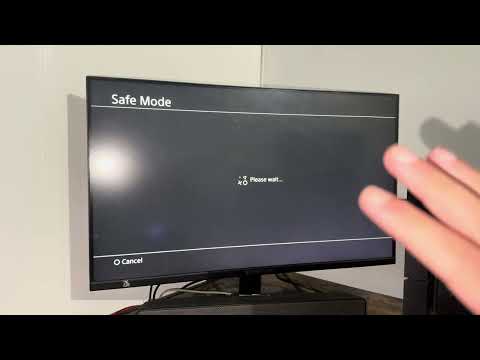
    5. Rebuild the database in Safe Mode. Turn the PS4 completely off. Hold the power button until the second beep, about seven seconds later. Connect the controller with a USB data cable, press the PS button, and select 5. Rebuild Database. This scans the drive and recreates the content index without intentionally deleting games or saves.
    6. Update system software from Safe Mode if normal updating fails. Return to Safe Mode and choose 3. Update System Software, then Update Using Internet. Use Sony’s official USB update instructions only if the online method will not work.
    7. Test the original hard drive configuration. If CE-34878-0 started after replacing the internal HDD, Sony recommends reinstalling the original drive to determine whether the replacement or its installation is responsible.
    8. Initialize only after a full backup. If the error persists after the supported steps, back up the console, then use Settings > Initialization > Initialize PS4. This deletes console data. A USB system-software reinstall is an even more destructive last step.
    9. Request repair if every app crashes. A recurring error across many games, especially immediately at startup, can indicate a console or storage fault rather than one damaged game.

    Why rebuilding the database can help

    The PS4 database is an index of installed content. If the index is inconsistent, the console may fail while loading a game even when most game files remain intact. Rebuilding the database recreates that index. It is less destructive than initialization, but it cannot repair failed hardware or guarantee that damaged game data is restored.

    If only one game shows CE-34878-0

    • Back up its save, delete the game application, and reinstall it from the disc or your library.
    • Check the publisher’s service and known-issues page for a current game-specific crash.
    • Remove newly installed add-ons for one test if the crashes began immediately after adding them.

    Warnings

    • Initialize PS4 erases data. Back up first and verify the backup before proceeding.
    • Use update and reinstallation files only from PlayStation’s official system-software page.
    • Do not interrupt a database rebuild or system update by removing power.

    Optional PS4 gaming gear

    The WESEARY wireless gaming headset lists PS4, PS5, and PC compatibility. It is an optional accessory and will not resolve CE-34878-0.

    As an Amazon Associate I earn from qualifying purchases.

    Frequently asked questions

    Does Rebuild Database delete PS4 games or saves?

    It is designed to rebuild the console’s content index, not erase user data. Backups are still wise before storage troubleshooting.

    What is the difference between Rebuild Database and Initialize PS4?

    Rebuild Database reindexes stored content. Initialize PS4 resets the console and deletes local data.

    Should I reinstall system software first?

    No. Start with game and system updates, restart, the camera check, and database rebuild. Reinstallation belongs near the end because it is disruptive and can be destructive.
    Watch the original walkthrough

    Official references

  • How to Fix Path of Exile “Patch You Need to Update To” on PS5

    How to Fix Path of Exile “Patch You Need to Update To” on PS5

    Quick answer: Fully close Path of Exile, highlight the game on the PS5 home screen, press the Options button, and select Check for Update. Install anything offered, restart the PS5, and try again. If PS5 says the game is current but the message appeared immediately after a patch, check the Path of Exile console announcements and wait 10–15 minutes before changing network settings. A DNS change can help a name-resolution problem, but it cannot install a missing patch or end server maintenance.

    Path of Exile patch update login error on PS5

    Before you start

    • Save or finish any other activity, then close Path of Exile instead of leaving it suspended.
    • Confirm that the PS5 has free storage space and is signed in to PlayStation Network.
    • Keep your current Wi-Fi password nearby if you plan to reconfigure the connection.
    • Do not delete the game until you have checked for an update and ruled out maintenance.

    How to fix the Path of Exile patch login error on PS5

    1. Close the game completely. Press the PS button, highlight Path of Exile in the switcher, press Options, and choose Close Game. Reopen it once. The login message itself asks for a restart because a client left open during a deployment can still be running the previous build.
    2. Check for the update manually. From Games Home, highlight Path of Exile, press Options, and choose Check for Update. Let the download and installation finish before launching the game. PlayStation says this is the supported way to force a version check.
    3. Restart the PS5. Use Control Center > Power > Restart PS5. A restart clears a suspended client and makes the console register the newly installed build.
    4. Check for a rollout or maintenance window. Review the official Path of Exile console announcements and patch notes. Client patches and game realms do not always become available at the same instant. If a new deployment has just started, wait 10–15 minutes and check for the update again.
    5. Test the PS5 connection. Go to Settings > Network > Connection Status > Test Internet Connection. If PlayStation Network sign-in fails, solve that connection problem before reinstalling Path of Exile.
    6. Restart the router if the connection test is unstable. Turn the router off, wait about five minutes, restart it, and let it reconnect fully. Then restart the game.
    7. Choose the appropriate Wi-Fi band. Go to Settings > Network > Settings > Set Up Internet Connection, highlight the saved network, press Options, and open Wi-Fi Frequency Bands. Try 5 GHz when the PS5 is close to the router; use 2.4 GHz when walls or distance make 5 GHz weak. Automatic is still valid if it is stable.
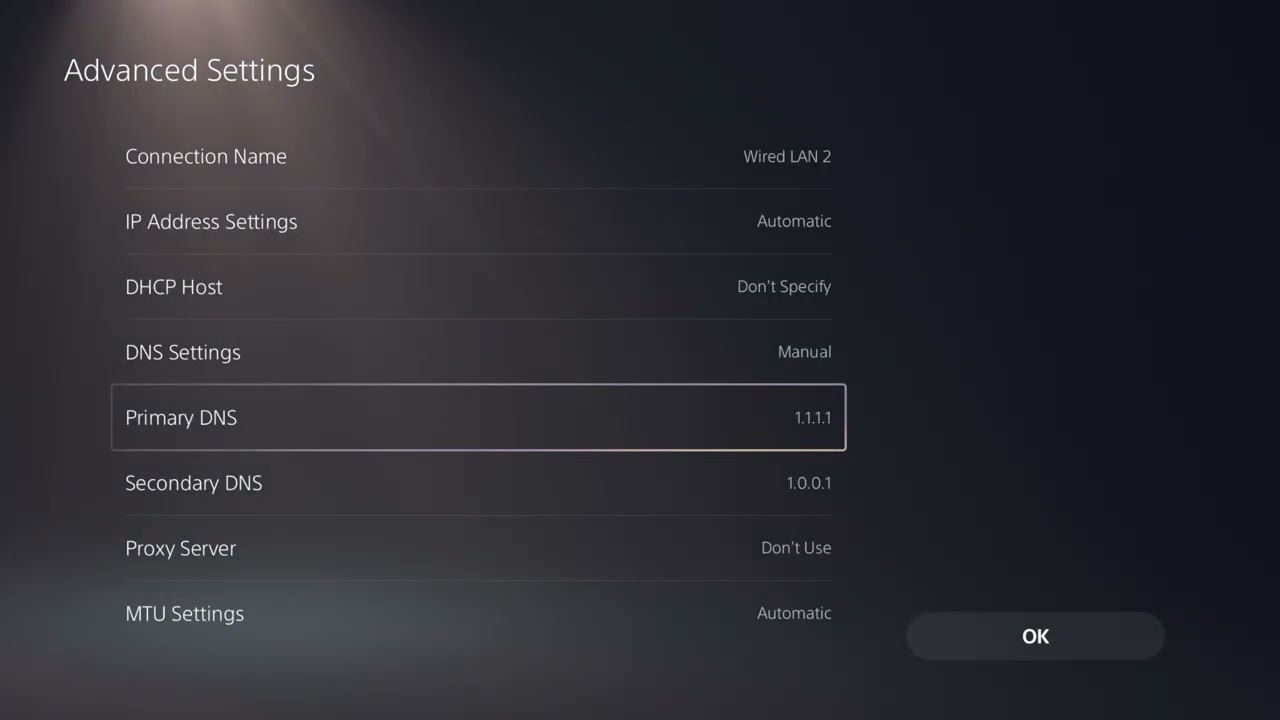
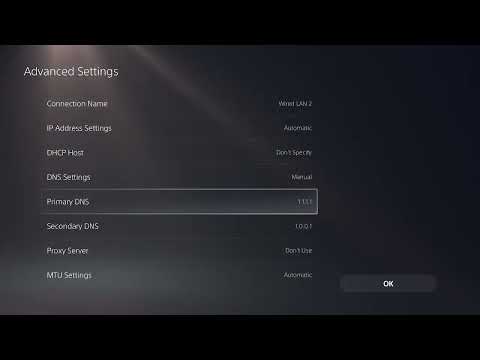
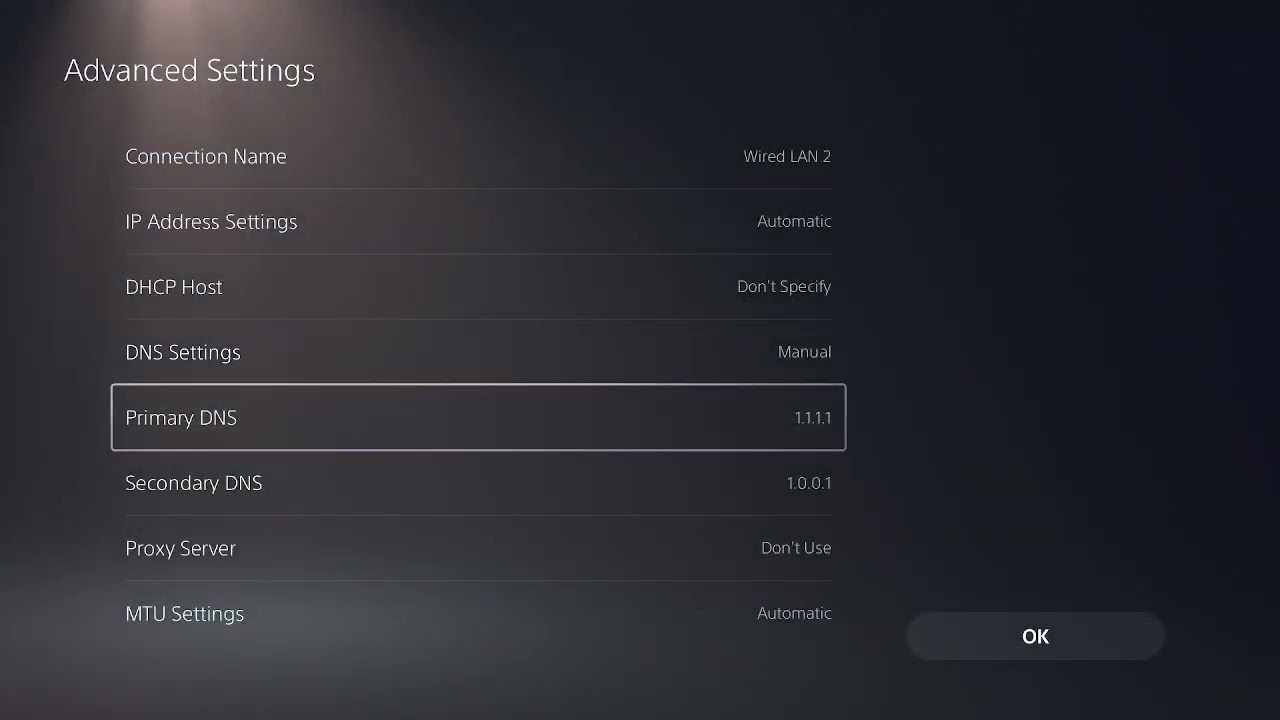
    8. Try alternate DNS only for a persistent lookup or routing symptom. In the saved network’s Advanced Settings, set DNS to Manual and use Cloudflare’s IPv4 resolver: primary 1.1.1.1, secondary 1.0.0.1. Save, test the connection, and revert to Automatic if it does not help.
    9. Reinstall only as a final client-side step. If the official service is available, PS5 repeatedly reports the latest version, and the error continues after several hours, delete and reinstall the correct PS5 edition from your library.

    Why these steps work

    This message normally means the client build and the game realm disagree. Closing the old process and forcing PS5 to check for the current package resolves a genuine version mismatch. Waiting resolves a staged server rollout. Network changes are secondary: they can repair access to update or login services, but they do not replace the required game files.

    If the error still appears

    • Check whether the console downloaded the PS4 edition instead of the PS5 edition.
    • Pause other large downloads and confirm the game update completed rather than remaining queued.
    • Try a wired connection to distinguish weak Wi-Fi from a patch problem.
    • Record the client version shown at the login screen and include it in a Grinding Gear Games support report.

    Warnings

    • Do not repeatedly reinstall during an announced outage; it cannot bring the realm back online.
    • Changing DNS does not guarantee lower latency and should be reversed if connection quality worsens.
    • Do not delete saved data as a first response to a server/client version mismatch.

    Optional PS5 network gear

    A direct wired test with a Cable Matters Cat 6 Ethernet cable can show whether Wi-Fi is part of the problem. For game audio after the connection is restored, the WESEARY PS5/PC wireless gaming headset is a compatible optional accessory; neither product installs a missing patch.

    As an Amazon Associate I earn from qualifying purchases.

    Frequently asked questions

    Why does PS5 say Path of Exile is updated when the game says it is not?

    The game realm may have moved to a newer build before the PlayStation package is available in every region, or the suspended client may still be the previous build. Close it, wait briefly, and run Check for Update again.

    Will changing to 1.1.1.1 download the patch?

    No. DNS translates service names to addresses. It can help only when the existing DNS service is failing; PS5 still must receive the actual update through PlayStation.

    Should I reinstall immediately?

    No. Check for an update, restart, and rule out maintenance first. Reinstallation costs time and bandwidth and will not fix an unavailable server.

    Watch the original walkthrough

    Official references

  • How to Fix Star Wars Battlefront II Error Code 1066 on PS5

    How to Fix Star Wars Battlefront II Error Code 1066 on PS5

    Quick answer: Battlefront II error code 1066 on PS5 is usually handled as an online connection or account-session problem. Check EA and PlayStation status, close the game, restart the console and router, then test Ethernet. If Wi-Fi is required, select a stable frequency band. Confirm the correct EA account is linked before trying custom DNS.

    Star Wars Battlefront II error code 1066 on PS5

    Before you start

    • Check EA server status and PlayStation Network status.
    • Install pending Battlefront II and PS5 system updates.
    • Confirm another online app or game can connect on the same console.
    • Note whether 1066 appears at startup, after choosing multiplayer, or after an account-linking prompt.

    How to fix Battlefront II error 1066

    1. Wait if the services are down. If EA or PSN reports an incident, do not reinstall the game. Try again after the service status returns to normal.
    2. Close and reopen Battlefront II. From the PS5 home screen, highlight the game, press Options, and choose Close Game. Relaunch and retry the online mode.
    3. Restart the PS5. Choose Power > Restart PS5. Avoid Rest Mode for this test because it may preserve the stalled session.
    4. Power-cycle the router. Disconnect power for about 30 seconds, reconnect it, and wait for the connection lights to stabilize. Then test the PS5 internet connection.
    5. Test Ethernet. Connect the console directly to the router and select the wired connection under Settings > Network > Settings > Set Up Internet Connection. If error 1066 disappears, the Wi-Fi path is the likely cause.
    6. Choose a fixed Wi-Fi band. Highlight the saved network, press Options, select Wi-Fi Frequency Bands, and test 5 GHz near the router or 2.4 GHz at longer range. The source walkthrough shows this change after the normal restart steps.
    7. Forget and reconnect to the network. Remove the saved Wi-Fi connection, join it again with the correct password, and rerun Test Internet Connection.
    8. Verify the EA account link. Sign in to the EA Account portal through EA’s official website and check the Connections page. Make sure the PlayStation account is linked to the expected EA account. Do not unlink accounts casually; EA warns that entitlements and progress may not transfer to a different account.
    9. Try trusted DNS only after the prior checks. In the network’s advanced settings, set primary DNS to 1.1.1.1 and secondary DNS to 1.0.0.1, save, and restart the console. Restore Automatic if it does not help.

    Why these fixes work

    Error 1066 can appear when the game cannot complete its session with EA services. A full restart clears a stale console or game session, Ethernet removes Wi-Fi interference from the test, and confirming the EA link addresses an account mismatch. DNS only helps if service-name lookup is failing; it cannot repair an EA outage or account restriction.

    If error 1066 keeps returning

    • Pause downloads and streaming on the PS5 and other home devices.
    • Test a temporary phone hotspot to identify whether the home internet connection is involved.
    • Restore Automatic DNS if custom DNS did not improve the result.
    • Avoid unlinking the PlayStation account until EA Support confirms that is necessary.
    • Contact EA Help with the error code, timestamp, PSN ID, linked EA account, ISP, and connection-test result.

    Warnings

    • Do not share EA or PlayStation credentials with anyone offering an unofficial fix.
    • Do not disable router security, place the PS5 in a DMZ, or forward random ports as a first step.
    • Reinstalling a large game is unlikely to help during a confirmed service outage.

    Optional network gear

    For a wired comparison test, a Cable Matters Cat 6 Ethernet cable can help isolate Wi-Fi instability.

    As an Amazon Associate I earn from qualifying purchases.

    Frequently asked questions

    Is Battlefront II error 1066 always an EA outage?

    No. It may be a service incident, a stale local session, unstable network path, or EA-account link issue. Check both service-status pages before changing anything.

    Should I unlink my PlayStation account from EA?

    Not as a routine fix. EA places restrictions on account linking, and moving a platform account can affect access to entitlements or progress. Contact EA Support first.

    Does changing DNS fix error 1066?

    Only when DNS resolution is part of the failure. It will not bypass maintenance or fix an account problem, so use it after restarts, status checks, and a wired test.

    Watch the original walkthrough

    Official references

  • How to Fix Black Ops 1 “Server Not Available” on PS5

    How to Fix Black Ops 1 “Server Not Available” on PS5

    Quick answer: When Black Ops reports that the server is not available on PS5, check the Call of Duty and PlayStation service status first. If both are online, restart the game, PS5, and router; test Ethernet; then force the PS5 to use the more stable 5 GHz or 2.4 GHz Wi-Fi band. Try a trusted DNS resolver only after those checks.

    Black Ops 1 server not available error on PS5

    Before you start

    • Check Activision Online Services and PlayStation Network status.
    • Confirm the PS5 can open another online game or the PlayStation Store.
    • Finish any game or system update before changing network settings.
    • These steps address a connection problem. They cannot restore a retired game service or a title unavailable through your current platform or subscription.

    How to fix “Server Not Available” on PS5

    1. Retry after checking live status. If Activision or PSN reports an incident, wait for recovery. Repeated restarts will not repair a server-side outage.
    2. Close the game fully. Highlight the running game on the PS5 home screen, press the Options button, and choose Close Game. Reopen it once.
    3. Restart the PS5. Use Power > Restart PS5, not Rest Mode. A full restart refreshes the console’s network session and game process.
    4. Power-cycle the router. Disconnect the router from power for about 30 seconds, reconnect it, and wait until internet service is stable before turning the PS5 connection back on.
    5. Test the connection. Open Settings > Network > Connection Status > Test Internet Connection. If the console has no internet or cannot sign into PSN, solve that broader issue first.
    6. Test Ethernet. Connect the PS5 to the router with a network cable, then go to Settings > Network > Settings > Set Up Internet Connection and select the wired network. Activision strongly recommends a wired connection for online play.
    7. Choose a fixed Wi-Fi band. If Ethernet is not practical, open Set Up Internet Connection, highlight your saved Wi-Fi network, press Options, choose Wi-Fi Frequency Bands, and test 5 GHz. If the console is far from the router or separated by walls, test 2.4 GHz instead. Do not leave it on Automatic if band switching causes dropouts.
    8. Forget and reconnect to Wi-Fi. Remove the saved network, reconnect with the correct password, and test again. This rebuilds the saved connection profile.
    9. Try DNS last. Edit the network’s advanced settings and enter Cloudflare DNS: primary 1.1.1.1, secondary 1.0.0.1. Save and retest. Restore Automatic DNS if it makes no difference.

    Why the Wi-Fi-band change can help

    Automatic band selection can move a console between 2.4 GHz and 5 GHz as signal conditions change. A fixed band removes that transition during testing. Five gigahertz is generally faster at close range; 2.4 GHz usually reaches farther but may be more congested. Ethernet avoids both radio conditions.

    If the server message remains

    • Pause downloads and streaming on the console and other devices.
    • Test a temporary phone hotspot to identify whether the home internet path is involved. Do not use it for a large update.
    • Confirm the Activision account and PlayStation account are signed in correctly.
    • Restore Automatic DNS if custom DNS did not help.
    • Contact Activision Support with the exact title/version, service, time, ISP, and test results.

    Warnings

    • Do not pay for a “server unlock” or enter account details into an unofficial website.
    • Do not change random router ports or disable router security as a first step.
    • DNS does not bypass maintenance, account restrictions, or a retired service.

    Optional network gear

    A direct wired test with a Cable Matters Cat 6 Ethernet cable can help separate Wi-Fi instability from an Activision or PSN issue.

    As an Amazon Associate I earn from qualifying purchases.

    Frequently asked questions

    Should I use 5 GHz or 2.4 GHz on PS5?

    Use 5 GHz near the router for speed and lower local interference; test 2.4 GHz at longer range. The more stable result is the right choice for the console’s location.

    Will 1.1.1.1 lower my ping?

    Not necessarily. DNS helps the console find services; it does not change the physical route of live game traffic. Use it as a troubleshooting test.

    Why can other games work when Black Ops cannot?

    Each game uses different online services. An Activision-side issue or account session can affect one title while PSN and other games remain available.

    Watch the original walkthrough

    Official references

  • How to Fix Roblox Crashing or Closing Without an Error on PC

    How to Fix Roblox Crashing or Closing Without an Error on PC

    Quick answer: If Roblox closes without an error on Windows, restart the PC, check Roblox status, install Windows and graphics-driver updates, clear temporary files, and reinstall Roblox from the official source. If it still exits, isolate antivirus or background-app conflicts. The source video also demonstrates a reversible Compatibility-tab test, but Roblox’s current guidance says Windows compatibility mode should remain off.

    Roblox crashing or closing without an error message on Windows PC

    Before you start

    • Check Roblox Status. If the platform is experiencing an incident, wait rather than repeatedly reinstalling.
    • Save work in other applications and restart Windows.
    • Use only the official Roblox website or Microsoft Store build. Avoid modified clients and third-party launchers while troubleshooting.
    • Record whether the crash happens before login, when joining any experience, or only in one experience.

    How to fix Roblox closing without an error

    1. Test another Roblox experience. If only one experience closes, its content may be the issue. If every experience fails, continue with the PC-level steps.
    2. Update Windows and the graphics driver. Install pending Windows updates, then install the current driver from NVIDIA, AMD, Intel, or the computer manufacturer’s official support page. Restart after updating.
    3. Close conflicting software. Exit overlays, injectors, macro tools, debuggers, VPNs, unsupported FPS unlockers, and aggressive hardware-monitoring tools. Roblox’s anti-cheat guidance says incompatible background software can prevent the client from running.
    4. Clear temporary internet and Roblox files. Close Roblox. Press Windows + R, enter %temp%, and remove temporary files Windows allows you to delete. Skip files reported as in use. Then restart the PC.
    5. Check the firewall or antivirus alert. Keep protection enabled, but allow the official Roblox executable if your security product blocked it. If a third-party antivirus has quarantine history, restore only a verified Roblox file and add the narrow exception recommended by that vendor.
    6. Reinstall Roblox cleanly. Uninstall Roblox in Windows Settings, restart the PC, and download it again from Roblox’s official site or install the Microsoft Store version. Do not reuse an installer from an unofficial download site.
    7. Try a clean boot. Use Microsoft’s clean-boot process to start Windows with nonessential startup software disabled. If Roblox works, re-enable items in groups until the conflict is identified.
    8. Review the Compatibility tab as a reversible test. The video shows right-clicking the Roblox Player executable or shortcut, opening Properties > Compatibility, and testing Disable fullscreen optimizations. Apply one change at a time and revert it if there is no improvement.
    9. Keep Windows compatibility mode off. Roblox’s current graphics guidance specifically says to unselect compatibility mode if it is enabled. Avoid permanently forcing every Roblox executable, installer, or protocol handler to run as administrator.

    Why these steps help

    A silent exit can happen when Windows closes the client after a driver failure, security software blocks a component, temporary installation data is damaged, or Roblox anti-cheat detects incompatible software. Updating and reinstalling repairs supported components; a clean boot identifies conflicts without weakening the entire system.

    If Roblox still crashes

    • Switch between the official website client and Microsoft Store version to determine whether one package is damaged.
    • Return CPU, GPU, and memory overclocks to default for one test.
    • Open Windows Reliability Monitor and note the faulting application and timestamp; do not download replacement DLLs based on a random web result.
    • Collect the Roblox log requested by Support and report the exact experience, time, Windows version, and steps already tried.

    Warnings

    • Do not disable antivirus or Windows security permanently.
    • Do not use modified Roblox clients, injectors, or third-party “crash fix” executables.
    • Do not leave compatibility or administrator settings enabled unless a controlled test clearly helps.
    • Back up important files before broader Windows repair work.

    As an Amazon Associate I earn from qualifying purchases.

    Frequently asked questions

    Why does Roblox close without showing an error?

    A background conflict, graphics-driver problem, blocked file, damaged local installation, or platform incident can end the process before Roblox displays a message.

    Should Roblox run in compatibility mode?

    No. Roblox’s current official graphics guidance says to turn compatibility mode off if it is selected.

    Is “Disable fullscreen optimizations” safe to test?

    It is a reversible Windows setting. Test it on the Roblox Player only, then turn it back off if it does not improve the crash.

    Watch the original walkthrough

    Official references

  • How to Fix Black Ops 7 TRAVIS–RILEA Error on PC

    How to Fix Black Ops 7 TRAVIS–RILEA Error on PC

    Quick answer: The Black Ops 7 TRAVIS–RILEA message usually means the PC client cannot complete its connection to Call of Duty online services. Check Activision’s live service status first, close bandwidth-heavy apps, then safely rebuild the game’s local configuration folders by renaming them instead of deleting them. If that does not help, repair the game files and test a wired connection before changing DNS.

    Black Ops 7 TRAVIS-RILEA connection failed fix on PC

    Before you start

    • Check Activision Online Services for a current outage. A local fix cannot restore an unavailable service.
    • Close Black Ops 7, Call of Duty HQ, Battle.net or Steam, and the Xbox app if it is running.
    • Pause downloads, cloud backups, streaming, and VPN or proxy software for one test.
    • Make a note of custom graphics, controller, and accessibility settings. Rebuilding local configuration folders may reset them.

    How to fix TRAVIS–RILEA in Black Ops 7 on PC

    1. Confirm the service is online. Open Activision’s service-status page and select Black Ops 7. Also check the status page for your launcher platform. If an incident is listed, wait and try again after the service recovers.
    2. Restart the complete session. Quit the game and launcher, restart Windows, and power-cycle the router by disconnecting it from power for about 30 seconds. Reconnect it, wait until internet service is stable, then launch the game once.
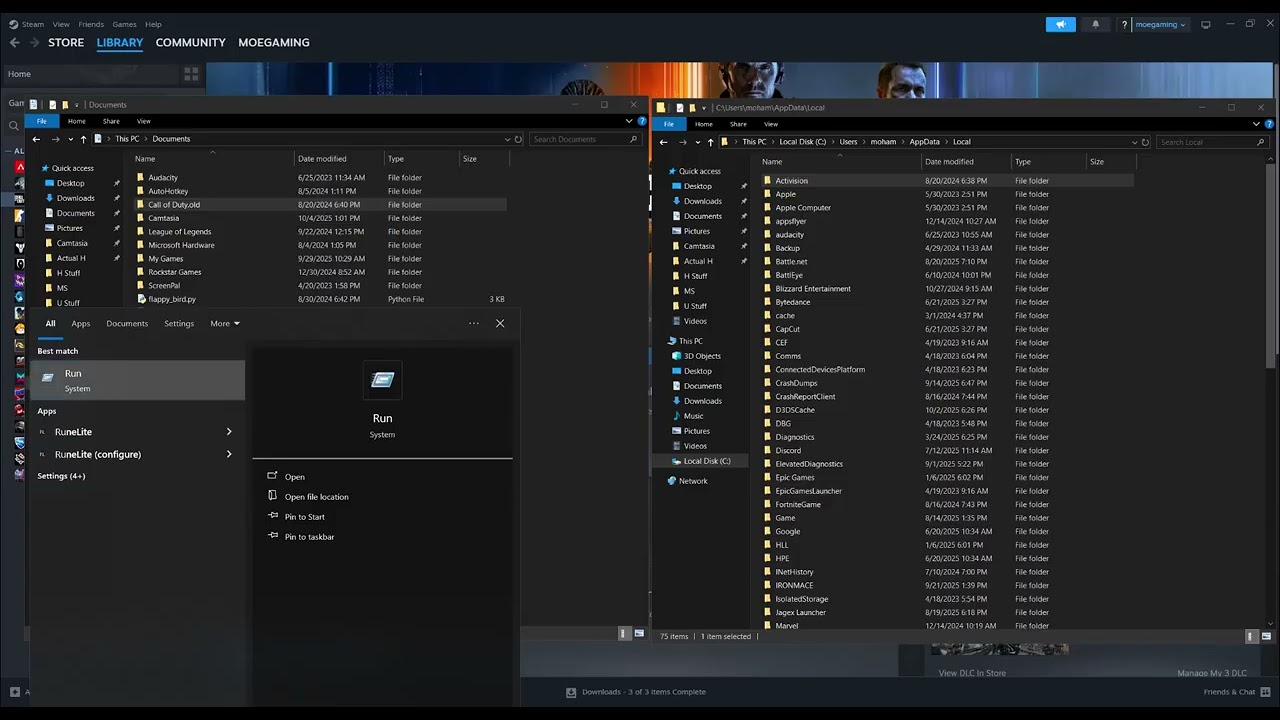
    3. Rename the Documents configuration folder. Open File Explorer and go to Documents. Find the Call of Duty folder and rename it to Call of Duty.old. Do not delete it. The source video demonstrates this reset so the game can create a clean configuration on its next launch.
    4. Rename the local Activision folder. Press Windows + R, enter %LOCALAPPDATA%, and press Enter. If an Activision folder is present, rename it to Activision.old. Leave the backup in place until the game launches and your settings are confirmed.
    5. Launch Black Ops 7 and retest. Start the normal launcher and allow the game to rebuild its local folders. Sign in and test an online mode. If the error is gone, reapply settings manually rather than copying the entire old folder back.
    6. Repair the installed game. In Battle.net, choose the gear beside Play and select Scan and Repair. In Steam, open Properties > Installed Files > Verify integrity of game files. In the Xbox app, use the game’s Manage > Files > Verify and Repair option when available.
    7. Test without a VPN and security filter. Disconnect VPNs and proxies. Keep Windows Security enabled, but allow the game and launcher through the firewall if Windows asks. Do not disable protection permanently.
    8. Test Ethernet. Connect the PC directly to the router if possible. This separates a weak or unstable Wi-Fi link from an Activision account or service problem.
    9. Try a trusted DNS resolver only as a final network test. If other service checks pass, use Cloudflare’s documented DNS addresses, 1.1.1.1 and 1.0.0.1, then restart the PC. DNS can fix name-resolution trouble but will not fix an Activision outage.

    Why rebuilding the folders can work

    Black Ops 7 stores local settings and cached connection data outside the main installation. A damaged or stale local file can survive a normal game-file repair because the launcher verifies the installation, not every user-specific configuration file. Renaming the folders preserves a rollback copy while forcing the game to generate clean defaults.

    If the error continues

    • Make sure Windows, the network-adapter driver, and the launcher are current.
    • Sign out of the launcher, restart it, and sign back into the correct Activision-linked platform account.
    • Test another network, such as a temporary phone hotspot, only to identify whether the home network is involved.
    • If the clean folders do not help, close the game and rename the new folders, then restore the original folder names to recover your prior settings.
    • Contact Activision Support with the exact error name, platform, launcher, time of failure, and troubleshooting already completed.

    Warnings

    • Rename configuration folders; do not permanently delete them before the game is tested.
    • Do not forward random ports, disable the firewall, or install third-party “network optimizer” tools.
    • Do not assume DNS is the fix when Activision reports a service outage.

    Optional network gear

    For a clean wired test, a Cable Matters Cat 6 Ethernet cable can help determine whether Wi-Fi instability is contributing to the connection failure.

    As an Amazon Associate I earn from qualifying purchases.

    Frequently asked questions

    Will renaming the Call of Duty folder delete progress?

    Online progression is tied to the account, but local graphics, controls, and other preferences can reset. Keeping the renamed folder provides a rollback copy.

    Should I delete the Activision folder?

    No. Rename it first. Deletion removes the easiest recovery path if the reset does not solve the problem.

    Does TRAVIS–RILEA always mean my internet is down?

    No. It can involve the Activision service, launcher session, local configuration, or the path between the PC and service. Check live status before changing settings.

    Watch the original walkthrough

    Official references

  • How to Fix Skate Not Loading or Crashing on PC

    How to Fix Skate Not Loading or Crashing on PC

    Quick answer: If Skate will not load, crashes at startup, shows a black screen, or stays on the loading screen on PC, restart the launchers and PC, verify the game files, then repair or reinstall EA Javelin anticheat for Skate. If the problem continues, repair the game through the EA app, clear the EA app cache, turn off the in-game overlay for one test, and close software that may conflict with anticheat.

    Skate not loading or crashing on PC EA Javelin anticheat repair

    Before you start

    • Check the EA server-status page. If Skate or the EA app is experiencing an outage, wait before reinstalling anything.
    • Install pending updates for Skate, Steam or the EA app, Windows, and your graphics driver.
    • Close Skate, Steam, the EA app, and Epic Games Launcher completely before repairing anticheat files.
    • Do not download an anticheat installer from an unofficial mirror. Use the installer bundled with the game or EA’s official download.

    How to fix Skate not loading or crashing on PC

    1. Restart the launchers and PC. Exit Steam and the EA app from the notification area, restart Windows, then open the launcher normally and try Skate once. This clears a stuck launcher or anticheat service without changing files.
    2. Verify Skate in Steam. In Steam, open Library, right-click Skate, choose Properties > Installed Files > Verify integrity of game files, and wait for the check to finish. If you own the game through another launcher, use that launcher’s repair or verify command.
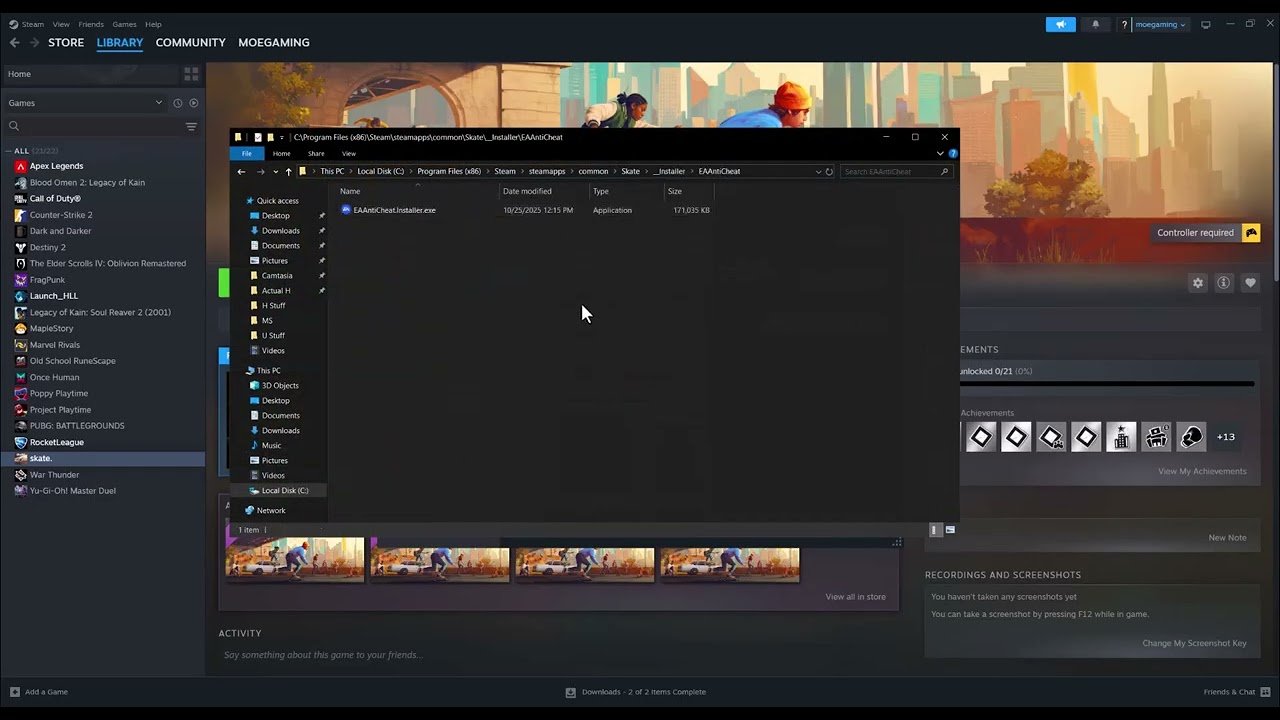
    3. Open the EA Javelin anticheat installer. In Steam, use Properties > Installed Files > Browse. The source video shows the installer inside the game’s _Installer and EA anticheat folders. You can also use EA’s official Javelin anticheat installer. Run EAAntiCheat.Installer.exe, select Skate, and choose Repair or Install when offered.
    4. Reinstall anticheat if repair is unavailable. EA’s current guidance says to open C:\Program Files\EA\AC\EAAntiCheat.Installer.exe, choose the affected game, uninstall anticheat for that game, and then install it again. Do not choose Uninstall All unless you intend to repair every EA game that uses Javelin.
    5. Repair Skate in the EA app. Open the EA app, go to Library, select the three-dot menu on Skate, and choose Repair. Even a Steam purchase can rely on EA components during launch.
    6. Clear the EA app cache. In the EA app, open the main menu, choose Help > App Recovery > Clear cache. Reopen the app after it restarts.
    7. Turn off the EA in-game overlay for one test. Open your EA profile menu, choose Settings > Application, and switch off In-game overlay. Turn it back on after testing because it is used for invitations and messages.
    8. Close conflicting background software. Exit VPNs, proxy tools, debuggers, unsupported overlays, hardware-monitoring utilities, and other software named in an EA anticheat warning. Update the named program before removing it.
    9. Use administrator access only for the supported launcher test. The video demonstrates changing the game executable’s compatibility settings. EA’s narrower recommendation for an anticheat service error is to right-click the EA app, choose Run as administrator, and launch the game from there. Avoid permanently forcing the Skate executable or installer to run as administrator unless the error specifically points to permissions.

    Why this fixes the loading screen

    Skate can appear to crash before its game window fully opens when the launcher cannot start EA Javelin anticheat, an anticheat file is damaged, another program conflicts with the service, or game files do not match the current build. Verification repairs the game data, while the Javelin installer rebuilds the protection component the game requires at launch.

    If Skate still will not launch

    • Update Windows and the GPU driver, restart, and test again.
    • Turn off overclocking for one test and restore default CPU, GPU, and memory settings.
    • Perform a Windows clean boot to isolate a background conflict, then re-enable services in small groups.
    • Reinstall Skate only after anticheat repair, file verification, cache clearing, and a clean-boot test fail.
    • Use the EA Error Reporter and include the exact time, launcher, crash behavior, and any anticheat message.

    Warnings

    • Do not disable Secure Boot, antivirus protection, or Windows security features as a first step.
    • Do not download replacement DLL files or anticheat files from third-party websites.
    • Do not delete save folders while troubleshooting a launch failure.

    Optional PC gaming gear

    If Skate launches but online sessions are unstable, a direct test with a Cable Matters Cat 6 Ethernet cable can separate Wi-Fi problems from a launch or anticheat failure.

    As an Amazon Associate I earn from qualifying purchases.

    Frequently asked questions

    Does Skate require EA Javelin anticheat?

    Check Skate’s properties in the EA app or its installation folder. EA says a protected game installs Javelin automatically and exposes its anticheat files in the game folder.

    Should I run Skate as administrator?

    Not as the first fix. For specific anticheat service errors, EA recommends running the EA app as administrator and launching from there. Revert any compatibility change that does not help.

    Will repairing anticheat delete my Skate progress?

    It repairs the launch protection component, not your EA account progress. Still close the game and launchers before making the change.

    Watch the original walkthrough

    Official references

  • How to Fix Locked or Hidden Text Chat in Roblox

    How to Fix Locked or Hidden Text Chat in Roblox

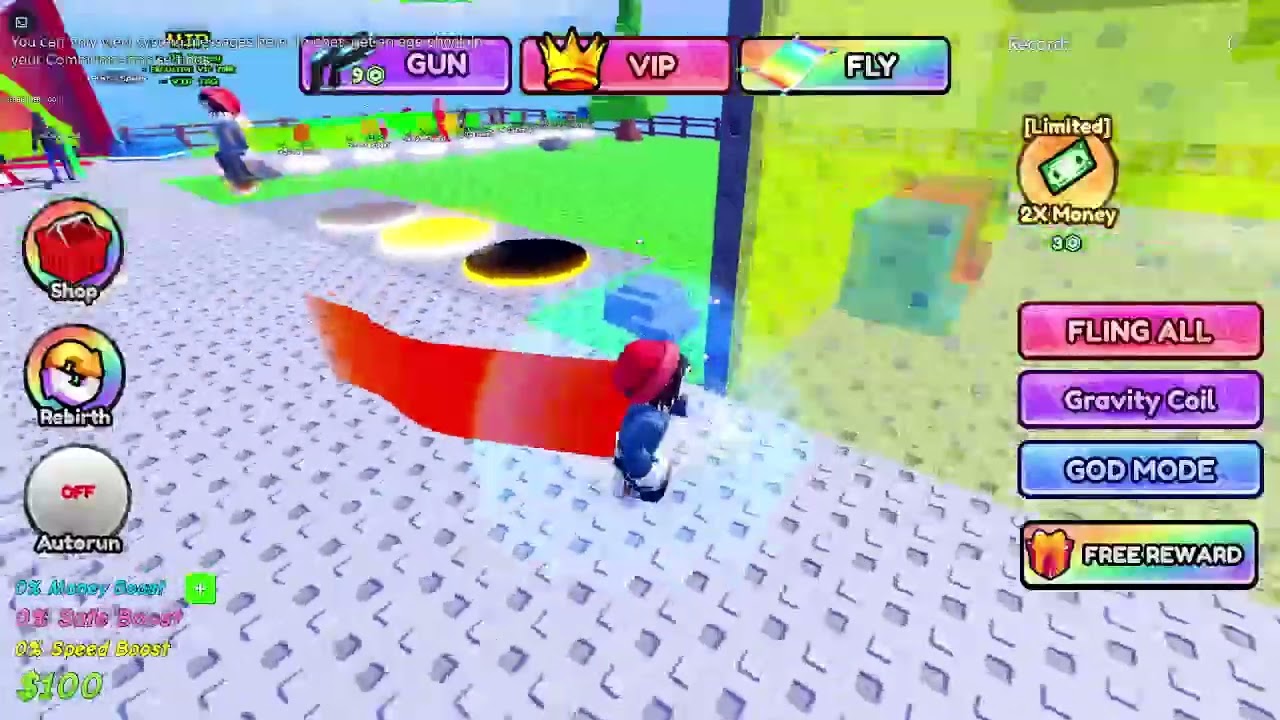
    If Roblox shows “You can only view system messages here” or its text-chat box is locked or hidden, the account usually has not completed the required age check, communication is disabled in privacy or parental controls, or that experience does not allow chat for the account’s age group. Complete the official age check, review Communication settings, and then rejoin a chat-enabled experience.

    Quick answer

    1. Open Roblox Settings > Account Info and review the account’s Age Group.
    2. Select Continue with selfie to complete facial age estimation; Roblox may offer ID verification as an alternative.
    3. Open Settings > Privacy & content restrictions > Communication > Experience chat.
    4. Enable the allowed chat option or have the linked parent approve it when required.
    5. Close and reopen Roblox, then test an experience that supports text chat.

    Before you start

    • Use only Roblox’s built-in age-check flow. Do not send identity documents or selfies to another player, creator, or unofficial website.
    • Make sure the account’s birthday information is accurate.
    • If the account is supervised, the linked parent may need to change the communication setting.
    • Chat availability depends on age group, region, parental controls, and the individual experience.

    How to fix locked or hidden text chat in Roblox

    1. Read the message shown in the chat panel

    If the panel says you can only view system messages and asks for an age check, the game is explaining an account eligibility requirement—not a controller or network failure. Reinstalling Roblox will not remove that requirement.

    2. Complete the official Roblox age check

    Open Settings > Account Info, find Age Group, and choose Continue with selfie. Follow the camera prompts. Roblox uses facial age estimation to place the account in an age group. If the estimate cannot be completed, the service may offer ID verification where available.

    The original walkthrough demonstrates the selfie route; it does not require an ID when facial estimation succeeds.

    3. Review Experience Chat permissions

    After the age check, go to Settings > Privacy & content restrictions > Communication > Experience chat. Choose the option available for the verified age group. Roblox says chat cannot be enabled until the account completes an age check.

    4. Ask the linked parent to approve communication when required

    For supervised accounts, a parent may need to use Roblox parental controls. Current Roblox guidance says children ages 5–9 need parental consent for Experience Chat, and users under 16 need parental consent for Direct Chat. The available choices can also vary by region.

    5. Rejoin a chat-enabled experience

    Leave the current experience, close Roblox, reopen it, and join again. Open the in-experience menu or chat control. Some experiences disable chat completely or restrict it for specific age groups, so test another well-known chat-enabled experience before assuming the account setting failed.

    6. Update Roblox and refresh the sign-in

    If communication is enabled but the control still does not appear, install the latest Roblox update. Sign out, restart the device, and sign back in so the new account eligibility and privacy settings are loaded.

    7. Check for account restrictions and regional limits

    Review Privacy & content restrictions for stricter content maturity or communication limits. If the expected option is absent after a successful age check, consult Roblox Support. Availability may depend on the account’s region and age group.

    Why these fixes work

    Roblox now ties communication access to an age-checked account and the applicable privacy or parental-control policy. Completing the age check establishes the account’s age group; Communication settings determine what that group may use; rejoining forces the experience to load the current permissions. The experience itself still has the final ability to support or disable chat.

    What not to do

    • Do not enter a false birthday or use another person’s face or ID to bypass the age requirement.
    • Do not send personal information to an unofficial “verification” page.
    • Do not assume every Roblox experience supports text chat.
    • Do not disable parental controls without the linked parent’s approval.

    Frequently asked questions

    Why can I see system messages but cannot type?

    The experience can display system messages while player chat remains unavailable because of age-check, communication, parental, regional, or experience-level restrictions.

    Do I need an ID to unlock Roblox chat?

    Not always. Roblox offers facial age estimation through a selfie. ID verification may be offered as an alternative when available or when estimation cannot be completed.

    Why is chat still missing after age verification?

    Check Experience Chat permissions, parental controls, and regional eligibility. Then restart Roblox and test another experience that supports chat.

    Can a game developer disable chat?

    Yes. An individual experience may not enable text chat, or it may limit chat for particular age groups. Account permission does not force every experience to provide the feature.

    Is voice chat the same as text chat?

    No. Voice and text are separate communication features with their own eligibility and controls. Fixing Experience Chat does not automatically enable voice chat.

    Watch the original walkthrough

    Official references

  • How to Fix Battlefield 6 Crashing or Not Launching on PS5

    How to Fix Battlefield 6 Crashing or Not Launching on PS5

    If Battlefield 6 crashes, freezes, returns to the PS5 home screen, or will not launch, update the game and console first, restart the system, disconnect nonessential USB devices, and restore the license. Then verify the installed game content, clear the PS5 cache, rebuild the database, and reinstall only if the failure continues.

    Quick answer

    1. Close Battlefield 6 and install the latest game and PS5 updates.
    2. Restart the PS5; if needed, shut it down and power-cycle it.
    3. Disconnect nonessential USB storage and accessories for one test.
    4. Restore the Battlefield 6 license.
    5. Verify required content is installed and test from internal storage.
    6. Clear cache and rebuild the database before reinstalling.

    Before you start

    • Note whether the game crashes at startup, in the menu, while joining a match, or during gameplay.
    • Check whether other PS5 games also crash or power off the console.
    • Finish any active game download or update before testing.
    • Back up important console data before any destructive option. The steps below do not require a factory reset.

    How to fix Battlefield 6 crashing or not launching on PS5

    1. Check Battlefield and PlayStation service status

    If the game opens but fails while connecting to online services, check EA’s Battlefield support and server status plus PlayStation Network status. A server incident may cause connection failures or menu loops, but it normally does not explain a complete PS5 shutdown.

    2. Install all game and system updates

    Highlight Battlefield 6 on the PS5 home screen, press Options, and select Check for Update. Then open Settings > System > System Software > System Software Update and Settings. EA and PlayStation both put current software at the start of crash troubleshooting.

    3. Close the game and restart the console

    Close Battlefield 6 fully rather than resuming a suspended session. Restart the PS5. If the crash returns, turn the console off, disconnect its power cable after the light stops flashing, wait about 30 seconds, reconnect it, and start again.

    4. Disconnect nonessential USB devices

    For one clean test, disconnect external USB storage, capture devices, hubs, and other accessories that Battlefield 6 does not require. EA recommends removing USB devices when isolating console crashes. Reconnect them one at a time after the game is stable.

    5. Restore the Battlefield 6 license

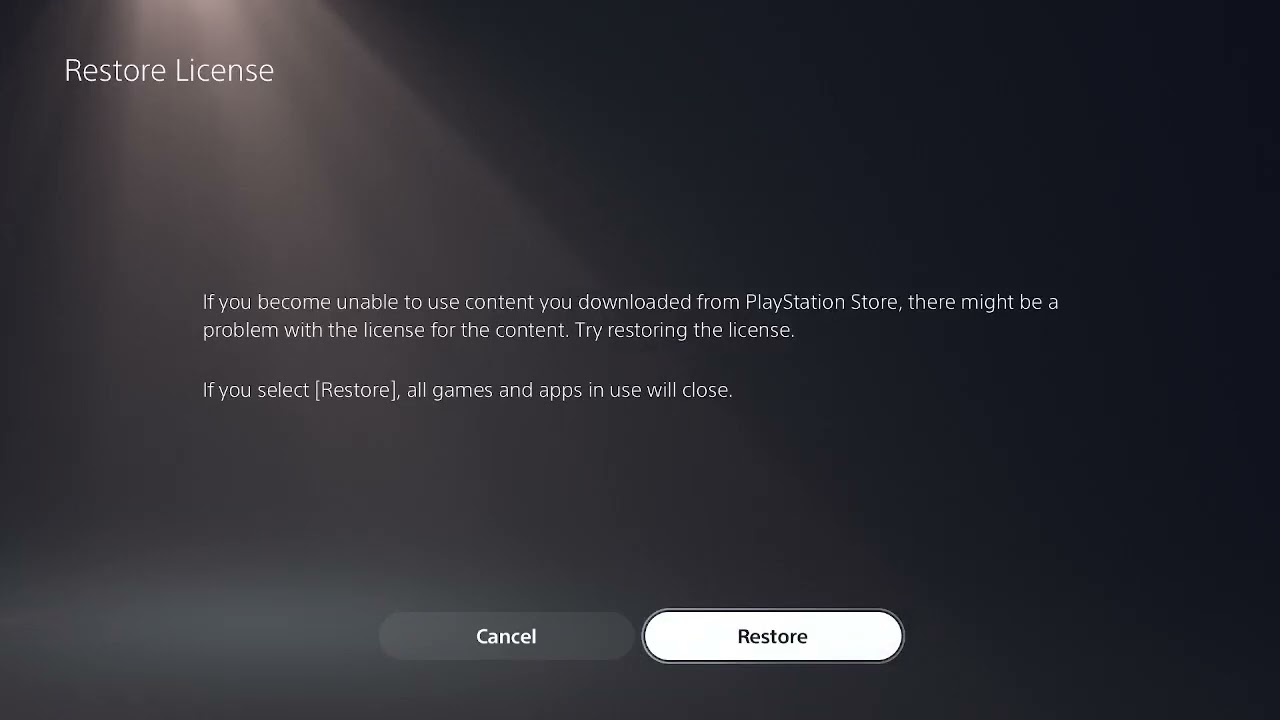
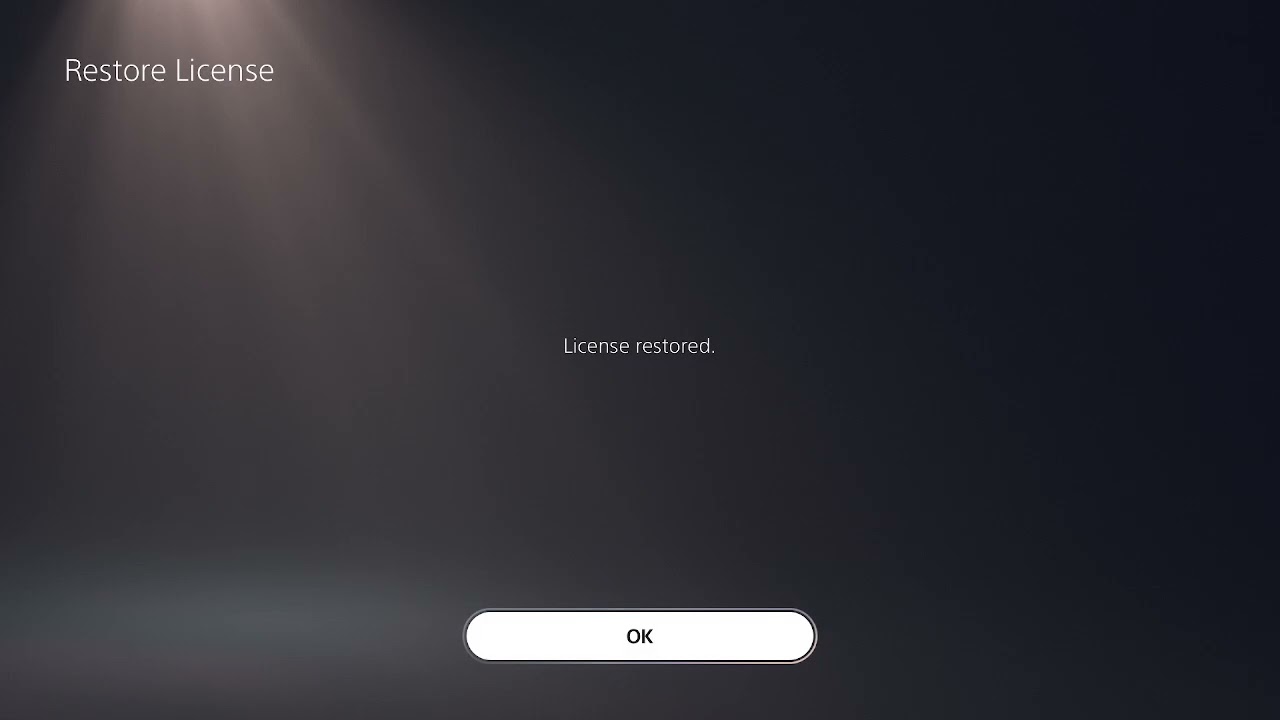
    Highlight the game, press Options, and select Restore License. Alternatively, go to Settings > Users and Accounts > Other > Restore Licenses. Sony says this process does not affect saved data.

    6. Verify the installed content

    Highlight Battlefield 6, press Options, and open Manage Game Content. Make sure the content required for the mode you are launching is installed. If a specific component shows incomplete or damaged, remove and redownload only that component where the menu allows it.

    Do not delete packs randomly. Required content can change with updates, and removing the wrong item may create a separate “content not installed” problem.

    7. Test the game from internal console storage

    If Battlefield 6 is installed on M.2 or USB extended storage, move or reinstall it to the PS5’s internal drive for a diagnostic test. EA recommends internal storage when troubleshooting repeated crashes. A successful test can point to the external drive, connection, or installation location.

    8. Clear the cache and rebuild the database

    Turn off the PS5, then hold the power button until the second beep. Connect the controller with USB and choose Clear Cache and Rebuild Database. Try Clear System Software Cache first; if needed, return and choose Rebuild Database.

    These options are not factory resets. Do not select Reset PS5 or Reinstall System Software for this single-game issue.

    9. Reinstall Battlefield 6

    If updates, license repair, installed-content checks, and cache/database steps fail, delete Battlefield 6 and download a fresh copy. Let the base game and every required update finish before launching. Test the clean installation before reconnecting optional USB storage.

    10. Stop if the PS5 powers off completely

    A game closing to the home screen is different from the PS5 losing power. If the console shuts down, shows a heat warning, becomes unusually hot, or does the same thing in other demanding games, stop repeated tests. Ensure open ventilation and use PlayStation’s hardware diagnostic or repair process. A power, cooling, or hardware problem needs different treatment than damaged game files.

    Why these fixes work

    Updates resolve known compatibility problems. Restarting and power-cycling clear temporary state. Disconnecting USB devices and testing internal storage isolate external hardware. License repair addresses authorization, while content checks and reinstalling replace missing or damaged game files. Cache clearing and database rebuilding repair temporary data and content indexing without erasing the console.

    If Battlefield 6 crashes only during multiplayer

    Check server status and test a different mode. Restart the router and use Ethernet when possible. If the game itself remains open but a match disconnects, follow connection troubleshooting rather than repeatedly reinstalling. If it closes to the home screen, continue with the crash steps above.

    Frequently asked questions

    Will restoring the Battlefield 6 license delete my progress?

    No. Sony says restoring licenses does not affect data. Battlefield online progress is normally associated with your linked accounts.

    Should I delete and reinstall every content pack?

    No. First check which content is required and whether a component is incomplete. Randomly deleting packs can create another launch problem.

    Is rebuilding the PS5 database safe?

    Rebuild Database is a supported diagnostic that scans the content index. It is not the same as Reset PS5. Read each Safe Mode option carefully.

    What if Battlefield 6 crashes after a specific update?

    Confirm the update fully installed, restart, and check EA’s current Battlefield error and support pages. If many players report the same version-specific crash, document the exact trigger and wait for or report it to EA rather than repeatedly resetting the console.

    Watch the original walkthrough

    Official references

  • How to Fix Where Winds Meet Crashing or Not Launching on PS5

    How to Fix Where Winds Meet Crashing or Not Launching on PS5

    When Where Winds Meet crashes, freezes, or refuses to launch on PS5, start with the current game and system updates, a full restart, and a license restore. If the problem continues, use PlayStation’s supported cache/database steps and reinstall only after checking whether the issue follows one save file or affects the whole game.

    Quick answer

    1. Close Where Winds Meet completely and restart the PS5.
    2. Check for the latest game and PS5 system-software updates.
    3. Highlight the game, press Options, and choose Restore License.
    4. Sign out and back in to PlayStation Network if the launch authorization appears stuck.
    5. Use Safe Mode to clear the system cache and rebuild the database.
    6. Reinstall the game only if the supported steps above fail.

    Before you start

    • Confirm whether only Where Winds Meet crashes or several games do.
    • Note whether the failure occurs at launch, while loading a save, or during gameplay.
    • Sync important saves to cloud storage or make a backup before destructive troubleshooting.
    • Do not reset or reinstall PS5 system software for a single-game problem unless PlayStation Support specifically directs you to do so.

    How to fix Where Winds Meet crashing or not launching on PS5

    1. Check for a current service or patch issue

    Look for a new Where Winds Meet patch and review the game’s official news. The developers have continued PS5 stability work, including memory optimization intended to reduce crashes. If the problem began immediately after a new update and many players report it, avoid repeated reinstalls while waiting for a corrective patch.

    2. Close the game and restart the PS5

    Press the PS button, highlight Where Winds Meet in the switcher, press Options, and close the game. Restart the console rather than returning from Rest Mode. This clears the running game process and temporary system state.

    3. Update the game and PS5 system software

    Highlight Where Winds Meet, press Options, and select Check for Update. Then open Settings > System > System Software > System Software Update and Settings. Install available updates and restart before testing again.

    4. Restore the game license

    Highlight Where Winds Meet on the home screen, press Options, and select Restore License. You can also go to Settings > Users and Accounts > Other > Restore Licenses. Sony states that this process does not affect your data.

    This step is especially relevant when the game suddenly refuses to start, shows a lock, or returns to the home screen before loading.

    5. Refresh the PlayStation Network sign-in

    Open Settings > Users and Accounts > Other > Sign Out, restart the PS5, and sign back in to the account that owns or is entitled to the game. Several viewers of the original walkthrough reported that a license restore or refreshed sign-in allowed the game to launch again.

    6. Test without the existing save if the crash happens during loading

    If the game opens but one character or save crashes at the same point, sync or back up the save and test a new game or another profile without overwriting the original. Sony recommends this comparison because a damaged save can look like a general game crash.

    7. Clear cache and rebuild the database in Safe Mode

    Turn off the PS5. Press and hold the power button, releasing it after the second beep. Connect the controller by USB, choose Clear Cache and Rebuild Database, and first try Clear System Software Cache. If needed, return and choose Rebuild Database.

    Rebuilding scans the console’s content index; it is not the same as resetting the PS5. Do not choose Reset PS5 or Reinstall System Software, because those are destructive options.

    8. Reinstall Where Winds Meet

    If the game still fails while other PS5 games work, delete only Where Winds Meet and download a fresh copy from your library. Install it to the PS5’s internal storage for the first retest. Make sure the download and update finish completely before launching.

    9. Treat full console shutdowns as a hardware-safety warning

    If the PS5 powers off completely, displays an overheating message, smells hot, or also crashes in other games, stop repeatedly launching the game. Move the console to a well-ventilated area, disconnect unnecessary USB devices, and use PlayStation’s hardware diagnostic or repair support. A full loss of power is different from an ordinary game crash.

    Why these fixes work

    Updates address known game and system bugs. A restart clears temporary state, while a license restore and new sign-in repair entitlement authorization. Cache clearing and database rebuilding target damaged temporary data or content indexing. The save-file test separates a corrupted save from an installation problem, and reinstalling replaces the game files only after the faster checks are exhausted.

    Fixes to avoid

    • Do not repeatedly delete optional language packs unless official support identifies one as the cause.
    • Do not reset the entire PS5 for one crashing game.
    • Do not delete a cloud or local save until it has been backed up and tested safely.
    • Do not ignore complete console shutdowns or overheating warnings.

    Frequently asked questions

    Does restoring licenses delete my Where Winds Meet save?

    No. Sony says restoring licenses does not affect your data.

    Should I rebuild the PS5 database?

    It is a supported step after updates, restart, and license checks fail. Choose only Clear Cache and Rebuild Database in Safe Mode—not the reset or system-software reinstall options.

    Why does the game crash only on one save?

    A repeatable crash on one save may indicate damaged or incompatible save data. Back it up and test another save or profile before changing the whole console.

    What if Where Winds Meet crashes after every new patch?

    Install the latest hotfix, check official patch notes, and report the exact version, location, and action that triggers the crash. Recurrent patch-specific crashes may require a developer fix rather than another reinstall.

    Watch the original walkthrough

    Official references