PS4 error CE-41839-5 is a game or application error. Sony’s current support sequence starts with updates and a full power cycle, then moves through licenses, reinstalling the affected content, and Safe Mode maintenance.
Quick answer: Update the PS4, turn it fully off and unplug it, then restart and restore licenses. If the same game still fails, delete and re-download it over wired internet. Use Safe Mode > Rebuild Database next; initialize only after a backup and only as a last resort.
Before you start
Sync or back up important saved data before deleting content or using advanced Safe Mode options.
Make sure the PS4 has enough free storage for a fresh download.
Use wired internet when possible for a large reinstall.
Confirm whether the error affects one application or several.
Fix PS4 error CE-41839-5
Update the PS4 system software. Go to Settings > System Software Update and install the latest official version.
Install the game’s update. Highlight the game on the home screen, press OPTIONS, and choose Check for Update.
Perform a full power cycle. Turn the PS4 completely off, unplug the power cable, wait briefly, reconnect it, and restart.
Restore licenses. Go to Settings > Account Management > Restore Licenses > Restore. This does not delete saved data.
Test the affected game. If it opens, stop here. If only that title still fails, continue with a reinstall.
Delete and re-download the game or app. Back up saves first, remove the application, and download it again over a wired connection if possible.
Rebuild the database. Turn the PS4 off, hold the power button until the second beep, connect the controller by USB, and select Rebuild Database.
Use initialization only as the final step. If Sony’s earlier steps fail across multiple applications, back up the PS4 and follow the official reinstall-system-software process.
Why this works
Updates correct known software faults, a power cycle clears temporary state, and restoring licenses refreshes content entitlements. Reinstalling replaces damaged application files, while Rebuild Database reconstructs the console’s content index.
What viewers reported
Several viewers said restoring licenses fixed the error. Others noted that the re-download took significant time, which is why the faster, nondestructive steps come first and the reinstall is reserved for a persistent single-game problem.
Alternatives and next checks
If the PS4 cannot read a disc, clean and test the disc before reinstalling digital content.
If the console reports an HDD or disc-access error, use our PS4 CE-30005-8 guide.
Contact PlayStation Support if the error returns after a clean reinstall or affects many unrelated applications.
Warnings
Deleting a game normally leaves saved data separate, but confirm backups before removal.
Rebuild Database can take time; do not interrupt power while it runs.
Initialize PS4 or reinstalling system software erases console storage. Back up first and do not treat it as an early fix.
Frequently asked questions
Does restoring licenses delete saves?
No. Sony states that restoring licenses does not affect your data. It refreshes access records for purchased content.
Should I delete saved data too?
No, not by default. Start by reinstalling only the game or application. Saved data should be removed only when the game’s official support specifically identifies a corrupt save.
When should I initialize the PS4?
Only after the official update, power, license, reinstall, and database steps fail, and only after you have backed up the console.
PS4 error WS-43689-0 means a PlayStation Store payment failed. Sony says the saved credit-card payment may not have completed, so start with the payment record rather than resetting the console.
Quick answer: Check PlayStation service status, then open Settings > Account Management > Account Information > Wallet > Payment Methods. Correct the card and billing information or use another accepted method. Stop rapid retries and wait if the account is temporarily limited.
Before you start
Check that PlayStation Store is available in the official status page.
Confirm the card has not expired and has enough available funds.
Use the exact billing address recorded by the issuer.
Review whether an earlier attempt already created a pending charge before retrying.
Fix PS4 error WS-43689-0
Check PlayStation status. If PlayStation Store or account services show an incident, wait until service is restored.
Close and reopen the store. Exit PlayStation Store, restart the PS4, and return to checkout once.
Open the wallet settings. Go to Settings > Account Management > Account Information > Wallet > Payment Methods.
Check the saved card. Review the number, expiration date, cardholder name, billing address, and postal code.
Update or re-add the method. Correct the record, or remove the card and add it again if the stored information is stale.
Try another supported method. Use a different accepted card or a region-supported alternative rather than repeatedly forcing the same payment.
Review the account region. The payment method and PlayStation Store country/region must be compatible. Do not falsify the region.
Wait before retrying. If several attempts failed, stop and allow up to 24 hours for a temporary payment restriction to clear.
Why this works
The console submits the stored payment record to PlayStation and the card issuer. Correct details and a supported method remove common validation failures, while waiting prevents repeated fraud checks from compounding the problem.
What viewers reported
Many comments described repeated checkout attempts that continued to fail before later working. Spamming the purchase button is not a reliable fix and can make it harder to tell whether a pending charge or temporary restriction exists.
Alternatives
Check or change the payment method through Sony’s official Account Management page.
Use our WS-43709-3 guide if the message specifically points to an expired card.
Use our WC-34737-4 guide when the saved payment details are invalid.
Contact the issuer if PlayStation Store is healthy and a correct supported card is declined.
Warnings
Check transaction history before trying again so you do not create duplicate purchases.
Never share the full card number, security code, password, or verification code.
Do not use a VPN or a false region to bypass payment controls.
Frequently asked questions
Is WS-43689-0 a console hardware problem?
No. Sony identifies it as a payment error. A factory reset will not correct an expired card, billing mismatch, or store-side restriction.
Can I use wallet funds instead?
Yes, if wallet funding or an official voucher is available for the account region. Confirm the voucher region before redeeming it.
Why should I wait 24 hours?
Repeated failed validations can trigger a temporary restriction. A quiet period is safer than continuing to submit the same payment.
NBA 2K27 screen, pick-and-roll, slip, fade and matchup controls on PS5
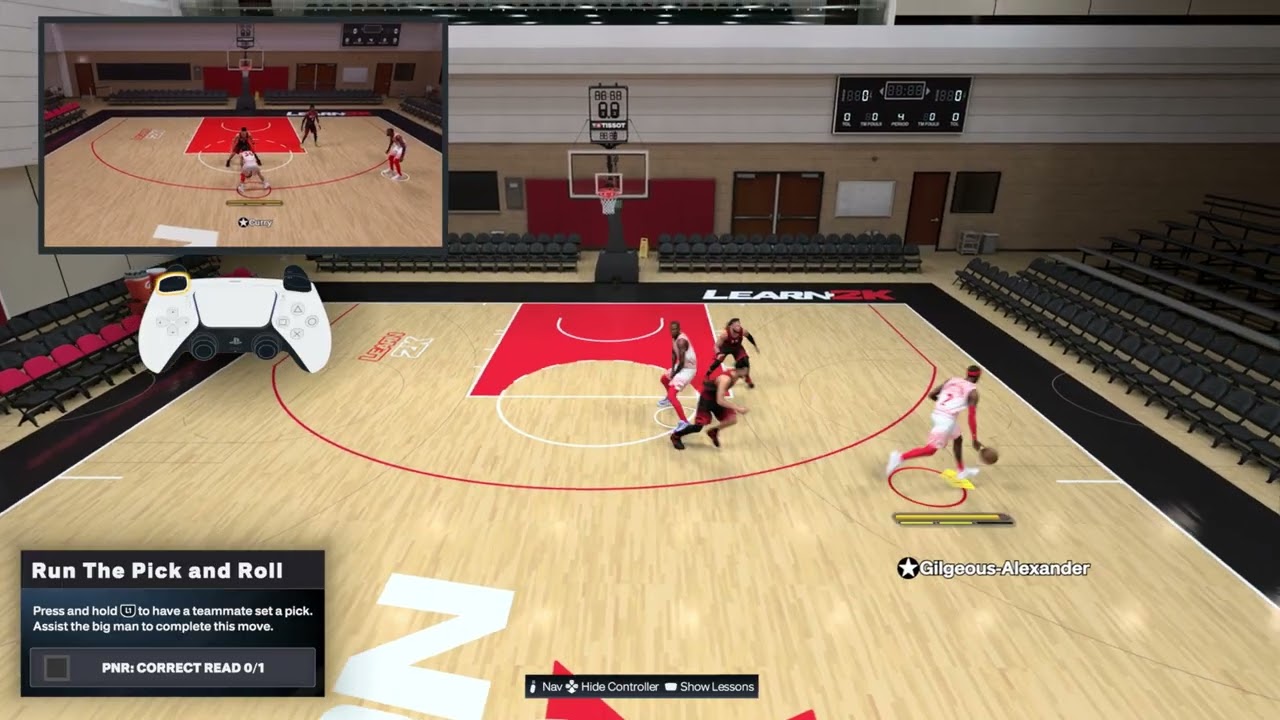
Quick answer: On PS5, hold L1 for a quick on-ball screen, or tap L1 and choose the on-screen teammate icon when you want a specific screener. Once the pick arrives, dribble shoulder-to-shoulder past it and read the defense: drive if the lane opens, pull up when the defender goes under or the big stays in drop coverage, pass to the roller, or tap R1 to make the screener fade. Press L3 to flip the called screen, and press L1 again to send the screener on an early slip.
NBA 2K27 uses several context-sensitive buttons. On offense, R1 can direct a pick-and-fade; on defense, R1 opens the matchup assignment. When playing off the ball, the Learn 2K prompt says to tap R2 while moving for a burst away from a screen. Follow the live prompt if you changed your controller preset or if a later update displays a different command.
Action
Default PS5 input shown
When to use it
Quick on-ball screen
Hold L1
Bring the nearest suitable screener to the ball.
Choose a specific screener
Tap L1, then select the teammate icon
Create the matchup or spacing you want.
Flip the called screen
Press L3
Move the pick to the other side of the ball handler.
Slip the screen
Press L1 again
Send the big toward the basket before firm contact.
Pick-and-fade
Tap R1 after calling the screen
Send the screener toward the perimeter instead of the rim.
Set an off-ball screen
Circle near the defender
Free a teammate while you do not have the ball.
Adjust screen facing as the screener
L2 or R2 while holding the screen position
Track the defender’s angle without abandoning the screen.
Off-ball burst/get open
Tap R2 while moving
Accelerate away from a screen and call for a pass.
Change defensive matchup
Press R1, then choose the player icon
Reassign who your controlled defender guards.
Before you call the screen
Use a lineup with a capable ball handler and a teammate who can set a useful screen. In MyCAREER, review the NBA 2K27 MyPLAYER build guide before spending VC on a role that does not fit this play.
Give the screener space to approach; a crowded paint or sideline can ruin the angle.
Check the on-screen controller prompts if you changed your control preset.
For online modes, expect more input delay and less predictable help defense than in an offline practice session.
1. Start with the ball above or beside the three-point line
Bring the ball up with enough room between you and the nearest defender.
Slow down before calling the screen so the teammate has time to reach the correct position.
Keep the paint in view and notice which defender could rotate to help.
A pick and roll works best when the screener has a clear route and the ball handler can move in more than one direction. Calling it while trapped near the baseline gives the defense fewer decisions to make.
2. Press L1 and select the screener
Press L1 while you have the ball.
Read the teammate icons that appear on screen.
Choose the teammate you want to set the pick. In the source walkthrough, the desired screener is selected with Circle.
Wait for the teammate to move into position rather than sprinting away immediately.
The button icon is tied to the current lineup and desired teammate. If Circle belongs to a different player in your possession, use the icon displayed over the screener you actually want.
3. Use the screen shoulder-to-shoulder
Let the screener become set.
Dribble close to the screener’s shoulder so your defender has to go around the pick.
Accelerate only after the screen creates separation.
Keep the screener and the help defender in view as you turn the corner.
Going too wide lets the on-ball defender slide through the gap. Moving too early can cause the screen to miss or produce an offensive foul, while hesitating too long gives the defense time to recover.
4. Read the defense and choose the open result
Defender trails you: attack the lane before the defender catches up.
Defender goes under: stop for an open jumper only if the ball handler can make that shot.
Two defenders pressure the ball: pass to the screener when the roll is open.
Help defender protects the rim: look for an open teammate on the perimeter instead of forcing a contested finish.
Nothing opens: pull the ball out and reset the possession.
The walkthrough demonstrates turning the corner for a dunk, but a dunk is not guaranteed. Player ratings, stamina, spacing, defender position, difficulty, and online latency all affect the result.
5. Pass to the roller when the lane opens
Watch the screener after contact with the defender.
When the screener turns toward the basket and has a clear passing lane, make the normal pass shown by your current control prompts.
Pass before the help defender closes the gap.
If the lane is covered, keep the ball or pass to a different open teammate.
2K says NBA 2K27 improves pick-and-roll pocket passing and off-ball screen decisions. The play is still based on reading coverage: the roller is an option, not an automatic target.
6. Flip the screen or change its angle
If the defender is already positioned to beat the screen, change the pick before you use it.
Call the screen and wait until the screener is approaching or set.
Press L3 to flip the screen to the opposite side.
Pause long enough for the screener to move, then dribble tight to the new shoulder.
When you are controlling the screener off the ball, the Learn 2K demonstration uses L2 or R2 while maintaining the screen position to adjust which way the player faces. These are different actions: L3 flips a called on-ball screen; L2/R2 adjusts the body angle while you are the screener.
7. Slip the screen for an early roll
Press and hold L1 to call the pick.
Before the screener makes firm contact, press L1 again.
Watch the big cut toward the basket.
Pass only when the lane is clear, then finish with the appropriate shot input.
A slip punishes defenders who jump toward the ball handler or switch too early. In the source caption, one spoken line says “hold R1,” but the visible Learn 2K instruction and the rest of the walkthrough identify L1. Use the on-screen L1 prompt.
8. Run a pick-and-fade
Hold L1 to call the screen.
Tap R1 so the screener fades instead of rolling.
Use the screen and draw the screener’s defender toward the ball.
Pass to the fading teammate only when the perimeter passing lane is open.
Take the jumper if the receiver is set and uncontested; otherwise keep the possession alive.
The fade is most useful with a screener who can shoot. It creates spacing, but it does not guarantee the Learn 2K drill will register on a rushed, late, or contested attempt.
9. Attack drop coverage
Drop coverage keeps the screener’s defender closer to the basket. That can take away the roll while leaving space in front of the dropping big.
Hold L1 and use the screen closely.
Watch the screener’s defender rather than staring only at your matchup.
If the big retreats into the paint, stop in the open space for a pull-up jumper.
If the defender steps up, pass to the roller or attack the gap they leave.
The associated Learn 2K objective specifically describes a pull-up jumper against the drop. A dunk or layup may be a sound live-game read, but it may not satisfy that tutorial objective.
10. Set an off-ball screen
Move beside the defender guarding the teammate you want to free.
Press Circle as shown in the source walkthrough to set your body.
Stay still long enough for your teammate to use the pick.
Release and reposition after the teammate clears the screen.
Do not keep shuffling into the defender after beginning the screen. Moving contact can trigger an offensive-foul animation, and poor spacing can block your teammate instead of freeing them.
11. Come off a screen and get open off the ball
Start moving around the off-ball screen.
Tap R2 for the short acceleration burst shown by the Learn 2K prompt.
Change direction around the screener rather than running straight into the defender.
Show your hands, receive the pass, and shoot only if separation remains.
The narration later says R1, but the caption explicitly reads the visible tutorial as “tap R2 while moving around off ball.” That matches R2’s acceleration context, so this guide uses R2. If your screen shows a different input, follow the live prompt.
12. Call for the ball after you separate
In the “get open” demonstration, tapping R2 helps create separation and the player raises a hand as the pass arrives. Timing matters: call for the ball after you clear the defender, not while the passing lane is blocked. Teammate AI may decline the request when a defender can intercept the pass, so reset and try another angle rather than repeatedly demanding the ball.
13. Change a defensive matchup
While defending, press R1 to open the matchup assignment.
Select the on-screen icon for the opponent you want your controlled defender to guard.
Confirm that the matchup indicator changes before the next action develops.
This R1 command is defensive and contextual; it does not conflict with the offensive R1 pick-and-fade command. Matchup icons can change with the players currently on the floor.
Practice the controls in Learn 2K
Moe Gaming’s pick-and-roll walkthrough points to NBA 2K27’s Learn 2K area and its intermediate tutorials. Use those drills first because they show the active button prompt, explain the required finish, and immediately confirm whether the move registered. After the input is consistent, practice reading help defense in a normal offline possession before taking it online.
Why the pick and roll works
The screen forces two defenders to communicate in a small window. The on-ball defender may trail, switch, or go under, while the screener’s defender may drop, hedge, or pressure the ball. Each response can leave a different player or area open. Staying close to the pick and waiting until the defense commits creates the advantage.
Alternatives when the basic pick and roll stalls
Choose a different screener to create a better speed or size matchup.
Call the action from the opposite side so the ball handler’s dominant hand faces the open lane.
Use the screen and reject it—drive the other way—only when the defender commits too early.
Reset outside the arc instead of driving into a packed paint.
Practice in a lower-pressure offline mode until the timing feels consistent.
Warnings and common mistakes
Do not assume Circle always selects the same teammate; read the current icon.
Do not sprint before the screener is set.
Do not force a pass through a defender just because the screener begins rolling.
Do not hold the ball until the shot clock expires while waiting for a perfect animation.
Control layouts can change with presets or updates. Use the live on-screen prompt if it differs from the walkthrough.
Frequently asked questions
Which button calls a pick and roll on PS5?
Press L1 to bring up the screen action, then select the desired teammate using the icon displayed on screen. The walkthrough uses Circle for its chosen screener.
Why does the wrong teammate set the screen?
The teammate icons change with your lineup and possession. Select the icon over the player you want instead of memorizing one face button.
Why does the screener stay outside instead of rolling?
The screen angle, spacing, play context, player tendencies, or defensive coverage may change the teammate’s movement. Give the screener room, use the pick closely, and reset if the lane does not open.
Should I shoot, drive, or pass?
Choose the open result. Drive when the lane is clear, shoot when the defender leaves space and your player can make the shot, and pass when the screener or another teammate is open.
Does this guarantee a dunk?
No. The video demonstrates a dunk after using the screen, but ratings, stamina, defense, difficulty, and timing determine the finish.
Watch the Moe Gaming controls walkthroughs
These short demonstrations show the active Learn 2K prompts and the resulting movement. Button names in this guide follow the visible prompt when an auto-caption or spoken line conflicts with it.
Basic pick and roll
Run the pick and roll
Flip the screen
Slip the screen
Run a pick-and-fade
Play against drop coverage
Set an off-ball screen
Adjust the screen facing
Come off a screen
Get open off the ball
Change a defensive matchup
Optional controller replacement
As an Amazon Associate I earn from qualifying purchases.
DualSense wireless controller — relevant only if the existing L1 or face buttons are physically unreliable; a new controller will not fix timing or defensive reads.
PS4 error WS-43709-3 means the credit card saved to the PlayStation account may have expired. Sony’s code-specific page directs you to verify the card in the PS4 wallet settings.
Quick answer: Go to Settings > Account Management > Account Information > Wallet > Payment Methods. Check the card’s expiration date and billing information, then update or replace the saved card before making one careful checkout attempt.
Before you start
Check the expiration date printed on the current card.
Have the bank’s exact billing address available.
Confirm the card type is accepted in the PlayStation account’s region.
Check PlayStation status if payment settings fail to load.
Fix PS4 error WS-43709-3
Open Payment Methods. On PS4, go to Settings > Account Management > Account Information > Wallet > Payment Methods.
Check the expiration date. If the card has expired, remove it and add the replacement card.
Verify the billing record. Make sure the cardholder name, street address, postal code, and other requested details match the issuer.
Edit or replace the method. Save the corrected information or remove the old card and register the current one.
Restart PlayStation Store. Close the store, reopen it, and make one new purchase attempt after the account finishes saving.
Try another accepted method. If the card is current but still declined, use another supported method linked to the same account region.
Check with the issuer. Ask whether the transaction was declined or online purchases are restricted. Do not share full card details with anyone else.
Wait after repeated failures. Stop retrying for up to 24 hours if several attempts or payment edits were made.
Why this works
The error is tied to the saved credit-card record. Updating an expired card and matching the issuer’s billing details lets PlayStation validate the payment method again.
What viewers reported
Comments show that a store restart occasionally helped after the payment details were corrected, but results varied. Treat the card expiration and billing record as the primary issue because that is what Sony assigns to this code.
Alternatives
Manage the card through Sony’s official web Account Management page.
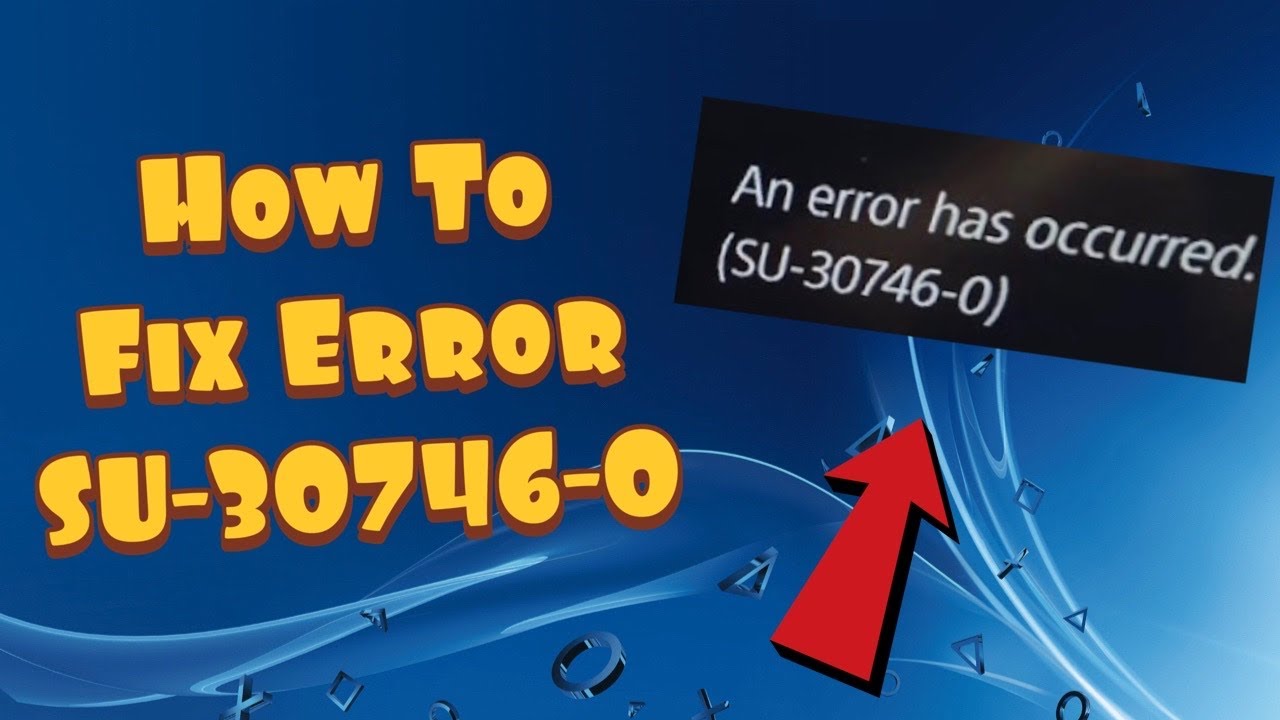
PS4 error SU-30746-0 means the system software update failed. A partially downloaded update, unstable connection, or damaged update file can prevent the console from completing the installation.
Quick answer: Restart the PS4 and retry the update over wired internet. If it fails again, delete the failed update from Notifications and go to Settings > System Software Update. Use Sony’s official USB update only after the normal update continues to fail.
Before you start
Connect the DualShock 4 with a USB data cable if you may need Safe Mode.
Use a stable wired internet connection when available.
Keep the console connected to power throughout the update.
For a USB update, use a FAT32 or exFAT drive and download files only from PlayStation.
Fix PS4 error SU-30746-0
Restart the PS4. Open Power > Restart PS4, then allow the console to reconnect before trying the update again.
Switch to wired internet. Connect the PS4 directly to the router when possible. Sony recommends a wired connection for the retry.
Delete the failed update notification. Open Notifications, highlight the system update file, press OPTIONS, and select Delete.
Start a fresh online update. Go to Settings > System Software Update and follow the prompts. Do not turn off the console while it installs.
Try Safe Mode’s update option. Turn the PS4 off, hold the power button until the second beep, connect the controller by USB, and choose Update System Software.
Prepare the official USB update. On a computer, format a USB drive as FAT32 or exFAT. Create PS4 and then UPDATE folders.
Download the correct file. From Sony’s PS4 system-software page, save the update file as PS4UPDATE.PUP inside PS4/UPDATE.
Install from USB. Start Safe Mode and choose Update System Software > Update from USB Storage Device > OK.
Why this works
Deleting the failed notification prevents the PS4 from reusing a damaged download. Wired internet reduces interruption risk, while the official USB method supplies a fresh update file directly to Safe Mode.
What viewers reported
Some viewers said Safe Mode’s Rebuild Database helped when the normal update remained stuck, and others needed a controller connected by a data-capable USB cable. Rebuild Database is a secondary maintenance step, not a substitute for the correct update file.
If the update still fails
Verify the folder names and PS4UPDATE.PUP capitalization exactly.
Try a different USB port or a known data-capable controller cable.
Use Safe Mode > Rebuild Database only after the update paths above fail.
Contact PlayStation Support before choosing Initialize PS4 or a full reinstallation.
Warnings
Do not download PS4 update files from mirrors or third-party sites.
The normal update file and the larger reinstallation file are not interchangeable.
Initialize PS4 and Reinstall System Software can erase console data; back up first and use them only as a last resort.
Frequently asked questions
Does SU-30746-0 mean the PS4 hard drive has failed?
Not by itself. It means the system update failed. Try Sony’s fresh update sequence before assuming a hardware fault.
Can I update without a USB drive?
Yes. Restart, delete the failed notification, and retry through Settings first. USB is the fallback for repeated download failures.
Will Rebuild Database delete games?
Rebuild Database reorganizes the content index and is not intended to erase installed games, but you should still maintain backups of important saved data.
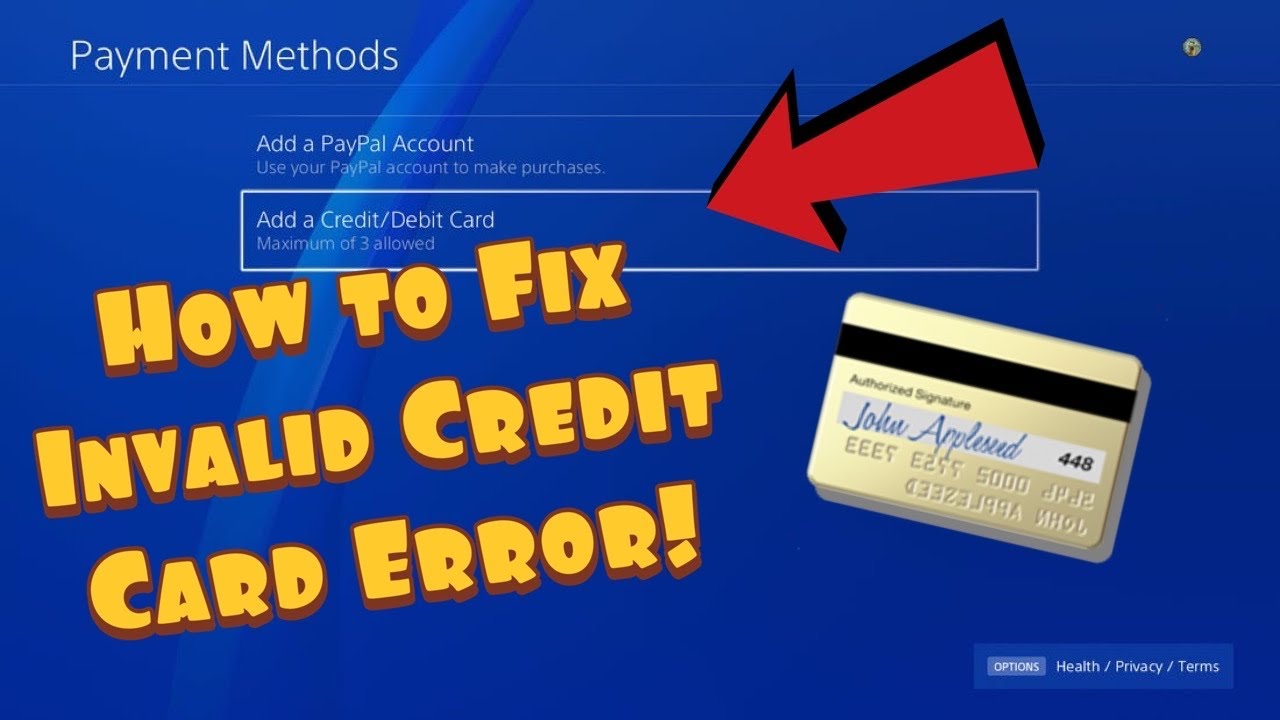
PS4 error WC-34737-4 means PlayStation could not validate the information saved for your payment method. The usual causes are an expired card, a billing-address mismatch, incorrect card details, or a temporary payment restriction.
Quick answer: Open Settings > Account Management > Account Information > Wallet, remove the affected payment method, and add it again with the exact billing details held by the bank. If it still fails, use another accepted method or wait 24 hours before retrying.
Before you start
Check the card’s expiration date and available balance.
Use the billing name and address exactly as the bank records them.
Make sure the payment method is supported in the PlayStation account’s country/region.
Do not post card numbers, screenshots, or billing details in comments or support forums.
Fix PS4 error WC-34737-4
Open the PS4 wallet settings. Go to Settings > Account Management > Account Information > Wallet > Payment Methods.
Inspect the saved details. Check the card number, expiration date, cardholder name, security code when requested, and billing address.
Remove the payment method. Delete the affected card from the wallet rather than repeatedly submitting the same saved record.
Add it again carefully. Enter the details exactly as shown by the card issuer. Avoid abbreviations or an old postal code if the bank has a different billing address.
Retry one purchase. Close and reopen PlayStation Store, then make one careful attempt.
Try another accepted payment method. Sony recommends a different card or another supported option if the first method still fails.
Wait 24 hours. Sony warns that several registration or deletion attempts in a short period can temporarily prevent payment changes.
Use wallet funds if appropriate. A PlayStation Store voucher can be an alternative, but buy it only from a trusted retailer and for the correct account region.
Why this works
PlayStation compares the saved payment information with the card issuer’s records. Removing and re-adding the method replaces stale details. Waiting helps when fraud-prevention systems have temporarily limited repeated edits or checkout attempts.
What viewers reported
Viewer results were mixed: correcting an old address helped some people, while others needed a different payment method or time for the restriction to clear. That is why this guide avoids promising that repeated card removal will work immediately.
Alternatives
Edit or add the payment method through official PlayStation Account Management.
Check the WS-43709-3 guide if PlayStation specifically says the card has expired.
Use our WS-43689-0 guide for a more general payment-failed message.
Ask the bank whether it declined the transaction, without sharing sensitive details with third parties.
Warnings
Do not retry rapidly; repeated failures can extend a temporary restriction.
Never change the account country/region or use a VPN to force a payment.
Do not buy discounted voucher codes from unverified sellers.
Frequently asked questions
Why is correct card information still rejected?
The billing address may not match the issuer’s record, the card may not be supported for that account region, or a temporary security hold may be active.
Will removing a card cancel subscriptions?
It can affect the payment method used for future renewals. Review active subscriptions and add a valid method before the next billing date.
Should I keep trying during the 24-hour wait?
No. Sony specifically warns that repeated changes in a short time can restrict payment-information updates.
PS5 error WS-119699-5 appears when the console cannot finish creating a PlayStation account. Sony’s current guidance focuses on the email address and the console’s connection to PlayStation.
Quick answer: Check the email address carefully, restart the PS5, reconnect with wired LAN when possible, and retry. On Wi-Fi, move the console closer to the router. If the same address still fails, Sony recommends trying another email address.
Before you start
Use an email inbox you can open now so you can complete any verification message.
Confirm the country/region and date of birth are accurate before submitting the account form.
Check PlayStation Network status before repeatedly retrying.
Do not use a VPN to misrepresent the account region.
Fix WS-119699-5 on PS5
Recheck the email address. Look for missing characters, spaces, or a typo in the domain. Sony lists this as the first check.
Restart the PS5. Press the PS button, open Power, and choose Restart PS5. Return to account creation after the console reconnects.
Check PSN status. If account services are degraded, wait instead of submitting the form repeatedly.
Test the internet connection. Go to Settings > Network > Connection Status > Test Internet Connection and confirm the PS5 reaches the internet and PlayStation.
Use wired LAN if possible. Connect the console to the router, then choose Settings > Network > Settings > Set Up Internet Connection > Set Up Wired LAN.
Improve Wi-Fi. Move the PS5 closer to the router and remove obstacles between them. Restart the router if the connection is unstable.
Try a different email address. Sony specifically recommends another address if the first remains unsuccessful. Use an address you own and can verify.
Wait before another attempt. If every detail is correct and services are healthy, leave the form for a while and retry once rather than looping submissions.
Why this works
Account creation has to validate the entered identity details and reach Sony’s account servers. Correcting the address removes a local validation failure, while restarting and changing the network path refreshes a stalled connection.
What viewers reported
Viewer comments show the error commonly appears at the final account-creation step. Some users suggested unofficial email-domain or VPN workarounds; those are not part of Sony’s guidance and can create region or account-security problems, so this guide does not recommend them.
Safe alternatives
Create the account only through Sony’s official account flow, then sign in on the PS5.
Try from a different trusted home network if the current connection blocks PlayStation services.
Contact PlayStation Support if multiple owned email addresses fail on a healthy connection.
Warnings
Never share the verification code or account password with anyone.
Do not create an account for a false country/region to bypass the error.
Do not keep submitting the same form rapidly; wait and make one careful retry.
Frequently asked questions
Does WS-119699-5 mean my email is already used?
Not necessarily. Sony describes it as a failure to create the account and asks you to check the address. If the email is already linked to an account, use the official sign-in or account-recovery flow instead of creating another.
Can I fix it by changing DNS?
DNS is not part of Sony’s code-specific instructions. First use automatic network settings, restart the network, and test wired LAN.
Will restarting the PS5 erase anything?
No. A normal Restart PS5 does not erase games, saved data, or users.
PS5 error NW-102636-8 means the connection to PlayStation timed out. It normally points to a temporary PlayStation service issue, a router problem, weak Wi-Fi, or a connection configuration that needs to be refreshed—not a failed console.
Quick answer: Review the PS5 connection, restart the modem/router for more than five minutes, move closer to Wi-Fi or use wired LAN, then check PlayStation status and retry. Sony recommends waiting if the service is temporarily unavailable.
Before you start
Save any work and pause active downloads on the PS5 and other devices.
Keep the Wi-Fi password available if you need to reconnect the console.
If possible, prepare an Ethernet cable for a direct test; buying new hardware is not required.
Check whether the problem affects every online game or only one title.
Fix PS5 error NW-102636-8
Check PlayStation Network first. Open the official service-status page. If account, gaming, or store services show an incident, leave the PS5 settings unchanged and retry after Sony clears it.
Test the console connection. Go to Settings > Network > Connection Status > Test Internet Connection. A failed IP, internet, or PlayStation sign-in result identifies where the timeout occurs.
Review the saved network. Open Settings > Network > Settings > Set Up Internet Connection, select the correct network, and confirm the password and automatic IP/DNS settings.
Power-cycle the network equipment. Turn the modem and router off, disconnect power for at least five minutes as Sony recommends, reconnect the modem first, wait for it to come online, and then restart the router and PS5.
Improve the Wi-Fi path. Move the PS5 nearer to the router, remove obvious obstacles, and test again. A 5 GHz connection is usually better at short range, while 2.4 GHz can reach farther through walls.
Test wired LAN. Connect the PS5 directly to the router and choose Set Up Wired LAN. If LAN works while Wi-Fi fails, focus on signal quality or router placement.
Check the game’s own service. If PSN works but one game still times out, check that publisher’s official status page before reinstalling anything.
Wait and retry. Sony lists waiting as part of the official fix because a temporary route or server issue may resolve without local changes.
Why this works
The error appears when the PS5 cannot complete its connection to PlayStation within the allowed time. A proper router restart clears stale sessions, a better Wi-Fi path reduces packet loss, and a wired test separates a wireless problem from a wider service outage.
What viewers reported
Several viewers said the connection resumed after they revisited the internet settings. A few mentioned custom DNS, but Sony’s current error page does not require it. Keep DNS automatic first; if you test another reputable resolver later, return to automatic if it makes no difference.
Alternatives if the timeout returns
Forget the saved Wi-Fi network, reconnect once, and rerun Test Internet Connection.
Temporarily pause large downloads and streams elsewhere on the network.
If every device is offline, contact the internet provider rather than changing PS5 settings.
Do not factory-reset the PS5 for a simple network timeout.
Do not disable the router firewall or copy random port-forwarding lists.
Do not keep changing DNS, MTU, and proxy settings at the same time; test one reversible change at a time.
Frequently asked questions
Is NW-102636-8 a PlayStation ban?
No. Sony describes it as a connection timeout, not an account suspension. A suspended account normally shows a different message and error code.
Will restarting the router erase its settings?
No. Disconnecting power and reconnecting it is different from pressing the router’s factory-reset button. Do not press Reset.
Should I reinstall the game?
Not first. If PSN itself times out, reinstalling a game will not repair the network. Reinstall only when the issue is isolated to one title and its official support recommends it.
Skate error 1088922958 appears during a failed online session on PS5. EA does not currently document that number as a separate hardware fault, so treat it as a server, account-session, or local-network problem. Check service status before changing the console.
Quick answer: Check EA and PlayStation service status, fully close and update Skate, restart the PS5, refresh the PlayStation/EA sign-in session, and power-cycle the router. Use wired LAN or a stable Wi-Fi band. Try alternate DNS only after the basic connection checks.
Before you start
Confirm the PS5 can sign in to PlayStation Network and open another online service.
Check whether friends in the same region are also being disconnected.
Make sure Skate and PS5 system software are updated.
Do not unlink the EA Account as a first troubleshooting step; relinking can create account complications.
Fix connection lost error 1088922958
Check EA and PlayStation status. Open the Skate support page and PlayStation service-status page. If either service reports an outage or maintenance, wait and retry later; local settings cannot repair a server outage.
Close and update Skate. Highlight Skate, press Options, select Close Game, then Check for Update. Restart the PS5 after the update finishes.
Refresh the account session. Confirm the correct PlayStation user is active. Sign out of PlayStation Network and sign back in, then launch Skate. If EA asks for account verification, complete it using the already-linked EA Account.
Restart the router and console. Power off the PS5. Unplug the router and modem for about one minute, reconnect them, wait for service to return, and restart the console.
Test the PS5 connection. Go to Settings > Network > Connection Status > Test Internet Connection. A successful speed test does not prove that EA is reachable, but a failed PSN sign-in or NAT result identifies a local issue.
Use wired LAN or choose the best Wi-Fi band. Under Settings > Network > Settings > Set Up Internet Connection, use Set Up Wired LAN when possible. On Wi-Fi, press Options on the saved network and test 5 GHz near the router or 2.4 GHz at longer range.
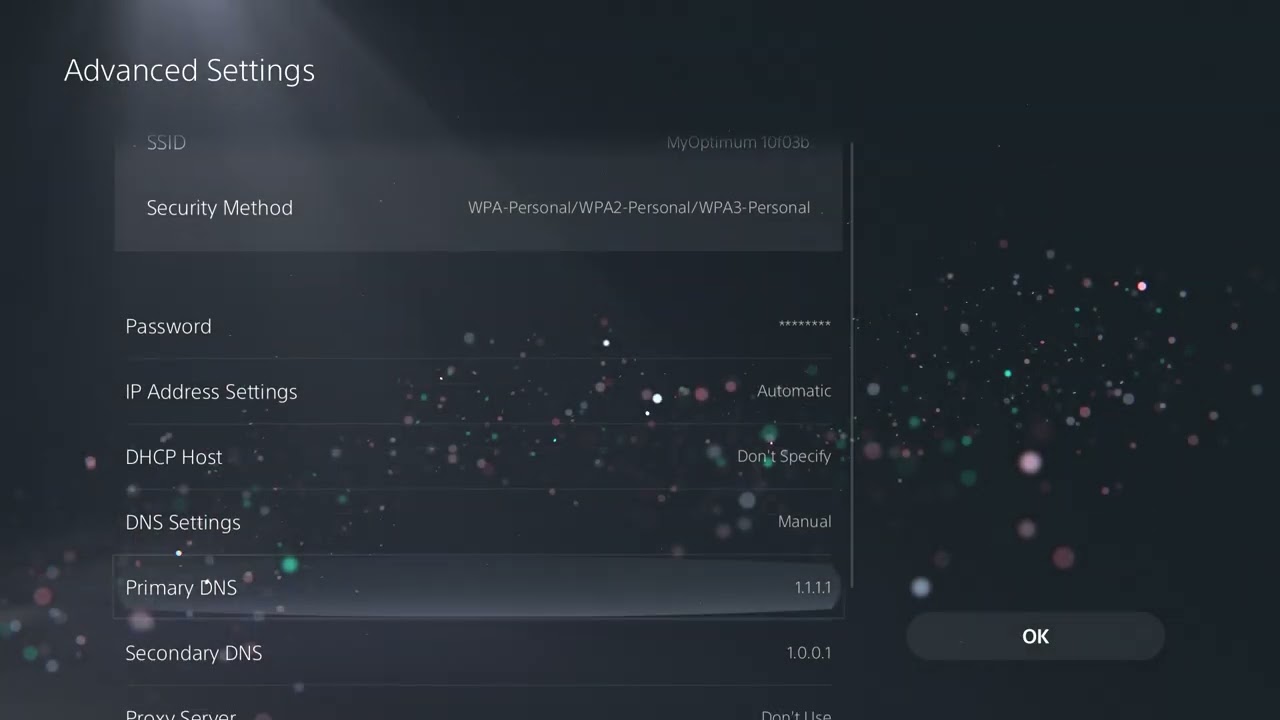
Try alternate DNS only as a secondary test. In Advanced Settings, set DNS to Manual and test Cloudflare 1.1.1.1 and 1.0.0.1, or another reputable resolver. Return to Automatic if it makes no difference.
Restore licenses only if the error includes locked or missing content. Go to Settings > Users and Accounts > Other > Restore Licenses. This is useful for entitlement symptoms, but it does not fix an EA outage.
Why these steps work
The game must complete separate handshakes with PlayStation Network, the linked account, and EA’s online services. Restarting refreshes those sessions. A wired connection and a deliberate Wi-Fi-band choice reduce local packet loss. DNS can help only when the current resolver is failing to locate services reliably.
If the code returns
Pause downloads, streams, VPN traffic, or other heavy activity on the home network.
Check that the router is not configured for IPv6-only service; PS5 supports IPv6 but not an IPv6-only network.
Review the EA Account connections page while signed in, but do not unlink a platform account casually.
Use Skate’s official support page to report the exact code, timestamp, platform, and region.
If the game also crashes before connecting, use our Skate loading and crash guide only for the PC version; PS5 connection errors need the console flow above.
Warnings
Do not open random ports or disable the router firewall.
Do not reset the PS5 or delete saved data for a connection error.
A DNS change is not a universal latency fix and should remain optional.
Frequently asked questions
Is 1088922958 an EA server error?
It can occur during a failed EA connection, but the number alone does not prove the server is down. Check both EA and PlayStation status, then test the local connection.
Should I unlink my EA Account?
No, not as a first step. EA account links can have restrictions, and unlinking the wrong account can affect access or progress.
Will restoring licenses delete Skate progress?
No. PlayStation states that restoring licenses does not affect data, but use it only when ownership or locked-content symptoms are present.
Affiliate disclosure: As an Amazon Associate I earn from qualifying purchases. No product was added here because the safe fixes do not require new hardware.
Windows exception 0xC0000005 means a program tried to read, write, or execute an invalid memory address. In games, the immediate cause can be damaged files, a bad mod, an overlay or security conflict, an unstable overclock, a driver problem, or a broader hardware fault. The code alone does not prove that RAM is defective.
Quick answer: Update the game and Windows, verify the game files, update the graphics driver from its manufacturer, remove mods and custom launch options, close overlays, and test CPU, GPU, and RAM at stock settings. Reinstall the game last. If unrelated apps also crash with 0xC0000005, investigate Windows or hardware rather than only the game.
Before you start
Write down the game name, launcher, faulting module, and when the crash happens.
Remove custom launch commands and disable mods before troubleshooting the base game.
Restart Windows to finish any pending update.
Back up local saves before a full uninstall if the game does not use cloud saves.
Fix 0xC0000005 in a game
Update the game and launcher. Install the newest game patch and restart Steam, Epic Games, Battle.net, the Xbox app, or the publisher’s launcher.
Verify the game files. In Steam, right-click the game > Properties > Installed Files > Verify integrity of game files. Use the equivalent Repair or Verify option in another launcher. Let it reacquire damaged files before testing.
Update Windows and the GPU driver. Install Windows updates, then download the correct driver through official NVIDIA, AMD, or Intel tools. Restart the PC after installation.
Test without mods, overlays, and injectors. Temporarily remove game mods and close recording overlays, hardware monitors, RGB utilities, reshade tools, and other software that attaches to the game process.
Return tuning to stock. Disable CPU or GPU overclocks, undervolts, and aggressive memory settings for the test. Access violations can appear when a workload exposes unstable memory or timing.
Check free storage and security history. Make sure the game and Windows drives have working space. Review Windows Security protection history for a quarantined game file, but do not disable protection globally. Restore or allow a file only when the game publisher and digital signature confirm it is legitimate.
Reinstall the game cleanly. Uninstall it through the launcher, restart Windows, and install a clean copy. Test before restoring mods or overlays.
If several programs crash with the same code
A game-only failure points first to that game, its files, or software around it. If browsers, productivity apps, and several games all log 0xC0000005, treat it as a system-wide stability issue. Install Windows and device updates, review Event Viewer for the faulting module, test at stock firmware settings, and use the PC or component manufacturer’s diagnostics. Persistent cross-application crashes may require professional hardware testing.
Why file verification helps
Game patches replace thousands of files. A failed download, antivirus quarantine, or disk interruption can leave one library or asset mismatched. Verification compares the local installation with the launcher’s known copy and downloads only what is missing or altered.
Warnings: avoid unsafe internet fixes
Do not download individual DLL files from third-party sites.
Do not disable Data Execution Prevention or antivirus protection globally.
Do not apply random registry edits for a generic access-violation code.
Do not assume replacing RAM is the first step when only one game crashes.
It can be related to unstable or faulty memory, but it also occurs when software accesses memory incorrectly. Test the game files and software environment first, then escalate if multiple applications fail.
Will reinstalling Windows fix it?
A clean Windows installation is a last resort, not the first fix. Isolate whether the crash is game-specific before taking that step.
Why does the error appear after an update?
The patch may have been interrupted, a mod may no longer match the game, or a driver/overlay conflict may surface with new code. Verify files and test the unmodified game.
Affiliate disclosure: As an Amazon Associate I earn from qualifying purchases. No product was added here because the safe fixes do not require new hardware.