Author: MoeGaming

  • How to Fix GTA 5 Not Launching in Epic Games Launcher

    How to Fix GTA 5 Not Launching in Epic Games Launcher

    Quick answer: Fully close Epic Games Launcher and Rockstar Games Launcher, restart Windows, check Rockstar service status, and verify GTA 5 from Epic Library > three dots > Manage > Verify. Remove custom launch arguments and mods for the test, then update or reinstall Rockstar Games Launcher if the handoff still fails.
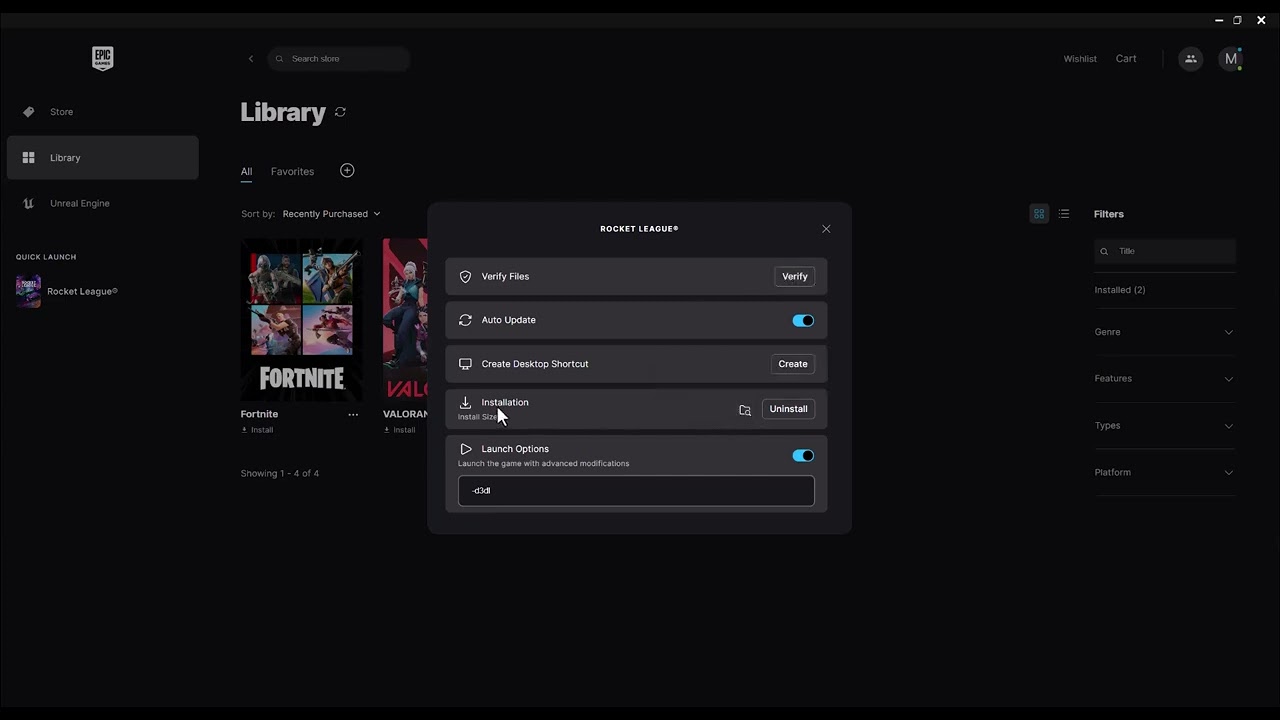
    GTA 5 not launching in Epic Games Launcher
    The source video demonstrates Epic’s Verify workflow for GTA 5.

    Before you start

    • Confirm Epic, Rockstar Games Launcher, and GTA5.exe are not still running in Task Manager.
    • Check Rockstar Service Status.
    • Back up single-player saves before removing mods or reinstalling.
    • Note whether Epic shows Running, Rockstar Launcher opens and closes, or GTA displays an error.

    How to fix GTA 5 not launching from Epic

    1. Restart Windows. This clears a stuck Epic-to-Rockstar launcher handoff and releases locked files.
    2. Open Epic Games Launcher normally. Sign into the Epic account that owns GTA 5 and confirm Rockstar Games Launcher uses the linked Rockstar account.
    3. Verify GTA 5. Open Epic Library, select the three dots beside GTA 5, choose Manage, then Verify. Epic says this checks for damaged or corrupted files and repairs differences without affecting saved data.
    4. Remove custom launch options. Clear any DX11, DX12, or other arguments for the first clean test. The source video mentions renderer flags, but forcing an unsupported mode can create a second problem.
    5. Remove mods for a clean test. Move Script Hook, ASI loaders, ReShade, and modified files out of the GTA directory. Verification may replace changed files, but manually confirm the folder is clean.
    6. Update Rockstar Games Launcher. Exit it completely and reopen it so it can update. Also install current Windows and graphics-driver updates.
    7. Launch through Epic. Start GTA 5 from Epic rather than running GTA5.exe directly. This preserves the ownership and account-link checks between Epic and Rockstar.
    8. Repair the Rockstar launcher layer. If Epic verification passes but Rockstar Games Launcher loops or closes, uninstall Rockstar Games Launcher, restart, and install the current official version. Do not delete the GTA game folder unless you intend to redownload it.
    9. Clean-boot Windows. If it still fails, disable non-Microsoft startup apps for one test to identify overlays, injectors, security tools, or tuning utilities that conflict with launch.

    Why this works

    The Epic edition uses two launchers: Epic confirms ownership and starts Rockstar Games Launcher, which authenticates the Rockstar account and starts GTA. Verification repairs the game package; restarting and updating repair the launcher handoff; removing mods and custom flags returns the executable to a supported baseline.

    Compatibility mode and administrator access

    The video shows Windows compatibility and administrator options. They are not good universal defaults for GTA 5. Compatibility mode can make a modern launcher behave like an older Windows version, while mixed privilege levels can stop Epic and Rockstar from communicating. Test the normal configuration first and use elevated access only when official support requests it.

    Alternatives

    • Switch between GTA V Legacy and Enhanced only if the owned edition and PC meet that edition’s requirements.
    • If BattlEye blocks Story Mode on a specific PC, read our GTA 5 0xc000009a/BattlEye limitation guide. Disabling BattlEye is Story Mode-only and prevents GTA Online access.
    • If one Windows profile is damaged, test from a new local administrator account before reinstalling the whole game.

    Warnings

    Do not download replacement DLL or executable files. Do not disable BattlEye if you intend to use GTA Online. Do not unlink Epic and Rockstar accounts as a routine fix; account-link changes can require Rockstar Support.

    Frequently asked questions

    Will Verify delete my GTA saves?

    Epic states that verification does not affect saved data. Back up single-player saves anyway before broader launcher or mod cleanup.

    Why does Rockstar Games Launcher open when I use Epic?

    The Epic version still uses Rockstar’s launcher for Rockstar account authentication and startup.

    Should I force DX11 or DX12?

    Not as the first fix. Clear custom arguments, verify files, and let the supported build select its normal mode.

    Official references

    Source video

    As an Amazon Associate I earn from qualifying purchases.
  • How to Fix Xbox App Games Not Downloading or Installing

    How to Fix Xbox App Games Not Downloading or Installing

    Quick answer: Restart Windows, update the Microsoft Store and Xbox app, run wsreset.exe, then Repair the Xbox app before using Reset. Confirm the destination drive has space and uses NTFS. If the download cannot resolve a service address, flush the Windows DNS cache and test again.

    Xbox app games not downloading or installing on Windows
    The source video demonstrates Store cache reset and the Windows app-repair controls.

    Before you start

    • Check Xbox Status for Store, account, or gaming-service incidents.
    • Sign in to the Xbox app and Microsoft Store with the Microsoft account that owns the game or subscription.
    • Confirm the install drive has enough free space and is connected.
    • Pause other large downloads.

    How to fix Xbox app downloads

    1. Restart the PC. A restart reloads Gaming Services, Store licensing, and the download service.
    2. Update Windows. Open Settings > Windows Update, install available updates, and restart if requested.
    3. Update Store apps. Open Microsoft Store > Library > Get updates. Update Xbox, Gaming Services, and Microsoft Store before retrying.
    4. Reset the Microsoft Store cache. Press Windows+R, type wsreset.exe, and press Enter. A blank window may appear briefly before the Store opens.
    5. Repair the Xbox app. Go to Settings > Apps > Installed apps > Xbox > Advanced options > Repair. Microsoft recommends Repair before Reset because it is less disruptive.
    6. Reset only if Repair fails. Return to Advanced options and choose Reset. This clears the app’s local data and signs you out, but it does not delete installed game saves stored by the games themselves or cloud progression.
    7. Check the install location. In the Xbox app, open Settings > Install Options and choose a healthy NTFS drive. Avoid removable or disconnected paths.
    8. Clear a stale DNS cache. Open Terminal or Command Prompt as administrator and run ipconfig /flushdns. Microsoft documents this command as a DNS troubleshooting step.
    9. Optionally test another DNS resolver. If name resolution remains unreliable, try Cloudflare 1.1.1.1 and 1.0.0.1. Save the existing automatic setting and restore it if there is no improvement.
    10. Sign out and back in. Sign out of both Microsoft Store and Xbox, restart, then sign into the same owning account.

    Why these steps work

    Xbox game installation depends on the Xbox app, Microsoft Store licensing, Gaming Services, storage permissions, and Windows networking. Repair preserves app data while replacing damaged components. Reset rebuilds the app state. wsreset.exe clears the Store cache, and ipconfig /flushdns removes stale resolver entries.

    If the download is still stuck

    • Cancel the queued item, restart, and start the install again.
    • Temporarily disconnect a VPN or proxy and retry.
    • Test another internal NTFS drive.
    • If only one title fails, open its Store page and confirm it supports the current Windows version and PC architecture.
    • For an ownership-specific message, see our Xbox app error 0x803F8001 guide.

    Warnings

    Reset signs you out and removes the app’s local preferences. Do not delete the WindowsApps folder or change its ownership; doing so can break Store permissions. Do not download unofficial Gaming Services packages.

    Frequently asked questions

    Does wsreset delete my games?

    No. It resets the Microsoft Store cache and does not uninstall installed games.

    Does Xbox app Reset delete saves?

    It clears Xbox app data and signs you out. It is not intended to delete separate game installations or cloud progression, but allow games to finish syncing before troubleshooting.

    Why does the download fail on one drive?

    The drive may lack free space, be disconnected, use an unsupported file system, or have a damaged installation folder.

    Official references

    Source video

    As an Amazon Associate I earn from qualifying purchases.
  • How to Fix Black Ops 6 Crashing on Steam

    How to Fix Black Ops 6 Crashing on Steam

    Quick answer: Verify Black Ops 6 in Steam first, install Activision’s currently recommended graphics driver, close overlays and remapping or recording tools, reboot Windows, and test with all custom launch options removed. Avoid copying random DirectX flags or compatibility settings before the supported steps are exhausted.

    Black Ops 6 crashing on Steam troubleshooting
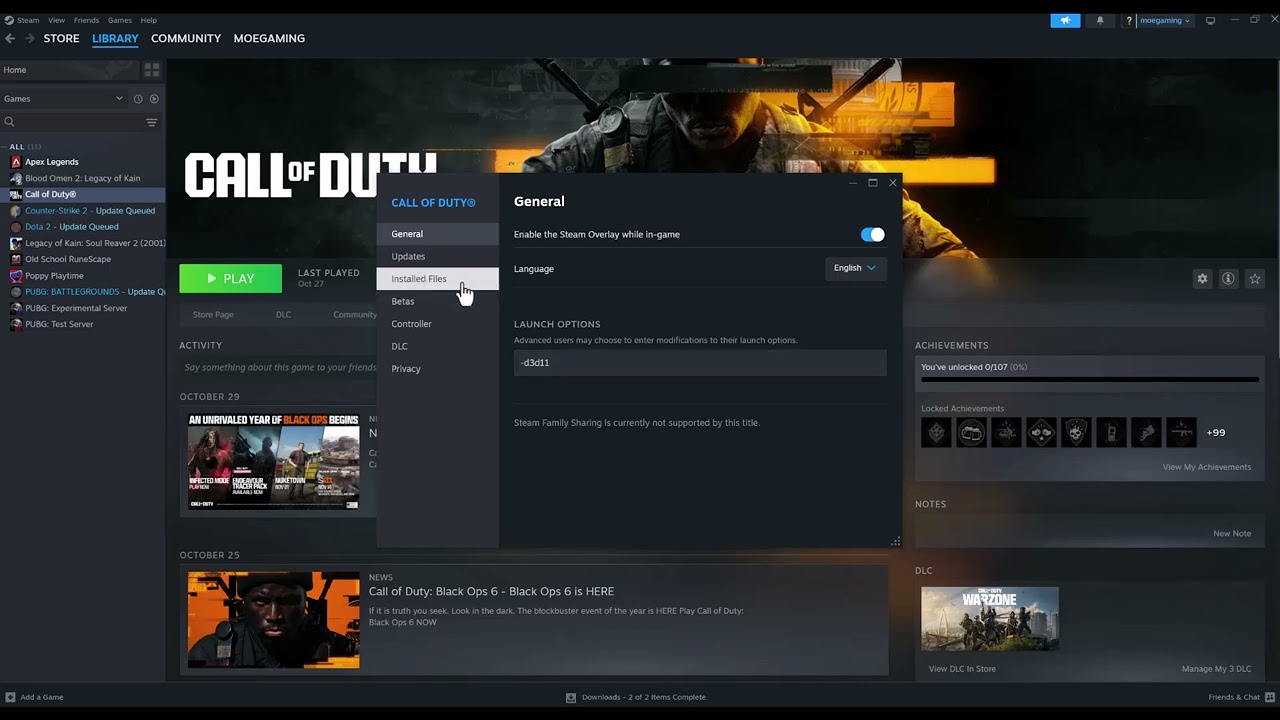
    The source video begins with Steam’s built-in file verification.

    Before you start

    • Confirm the PC meets the official minimum system requirements.
    • Install pending Windows updates and restart.
    • Note whether the crash happens before the menu, while shaders compile, or only in a match.
    • Check Activision Online Services. A service incident cannot be fixed by reinstalling.

    How to fix Black Ops 6 crashing on Steam

    1. Restart Windows. Choose Restart, not Shut down, so the current driver and service sessions are reloaded.
    2. Verify the game files. In Steam Library, right-click Call of Duty, choose Properties > Installed Files > Verify integrity of game files. Let Steam replace damaged or missing files.
    3. Remove custom launch options. In Properties > General, clear the Launch Options box for a clean test. The source transcript mentions a DirectX 11 flag, but that is not Activision’s general BO6 recommendation and can make diagnosis harder.
    4. Update the graphics driver. Use the recommended driver link on Activision’s BO6 support page rather than an unrelated beta package. Choose a clean driver installation if the vendor offers it.
    5. Close software conflicts. Exit input remappers, hardware monitoring overlays, capture injectors, RGB utilities, and third-party game overlays. Activision warns that remapping, overlay, and recording software may interfere with boot or gameplay.
    6. Disable unnecessary overlays for one test. Turn off the Steam Overlay and other overlays, then launch from Steam. Re-enable them one at a time after the game is stable.
    7. Let shaders finish. After an update or driver change, leave the game at the menu until shader pre-loading completes. Interrupting it can produce stutter or instability.
    8. Check temperatures and free storage. Keep the PC ventilated and maintain enough free space for updates and shader caches.
    9. Reinstall only after verification fails. Uninstall Call of Duty in Steam, restart, and install to a healthy drive. A reinstall is slower but replaces files that verification could not repair.

    Why these steps work

    Steam verification repairs the local package, while current drivers address graphics crashes. Removing hooks and overlays gives the game a clean process environment. Clearing custom launch options also restores the supported renderer selection instead of forcing a mode copied from an older Call of Duty release.

    What not to do first

    The video also shows Run as administrator, Windows compatibility mode, and a DirectX launch flag. Those can occasionally help a particular PC, but they are not universal fixes. Compatibility mode can alter permissions or Windows behavior, and an obsolete renderer flag may cause a new failure. Use them only if Activision Support asks for a specific diagnostic.

    Alternatives and escalation

    • Run a clean boot to identify a background conflict.
    • Remove overclocks temporarily and test at default CPU, GPU, and memory settings.
    • If the crash reports 0xC0000005, use our 0xC0000005 access-violation guide for targeted checks.
    • Submit an official Call of Duty PC Crash Report with the requested logs.

    Warnings

    Do not disable antivirus or the Windows firewall permanently. Do not download replacement DLL files from third-party sites. Do not remove anti-cheat components to play online.

    Frequently asked questions

    Will Steam verification delete my progress?

    Online progression is tied to your Activision account. Verification checks local installed files; it does not intentionally reset account progression.

    Why did Steam reacquire files?

    Steam found files that differed from its expected package. Restart and test after the download finishes.

    Should I force DirectX 11?

    Not by default. Remove custom arguments and use Activision’s supported configuration unless its support team instructs otherwise.

    Official references

    Source video

    As an Amazon Associate I earn from qualifying purchases.
  • How to Fix PS5 Error CE-100095-5

    How to Fix PS5 Error CE-100095-5

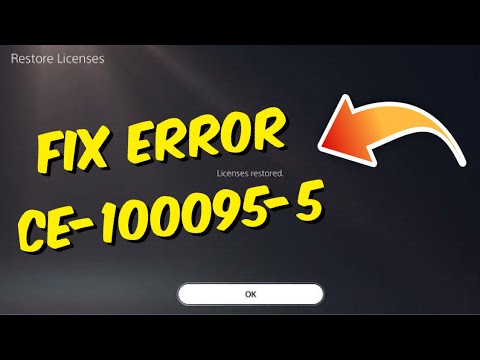
    Quick answer: Sony identifies PS5 error CE-100095-5 as a problem starting an application and recommends deleting and reinstalling the affected game or app. Try an update and license restoration first, then reinstall. Do not delete saved data unless it is backed up and every safer step has failed.

    PS5 error CE-100095-5 game installation troubleshooting
    The source video shows the affected-app and PS5 repair workflow.

    Before you start

    • Identify whether the error affects one game or several apps.
    • Sync PS5 saves to PlayStation Plus cloud storage or copy supported data to a USB backup before any destructive step.
    • Make sure the console has enough free storage to download the entire game again.
    • Keep the PS5 powered on throughout installation; Sony specifically warns against turning it off mid-install.

    How to fix error CE-100095-5

    1. Restart the game and PS5. Close the app from the home screen, choose Power > Restart PS5, and try once more.
    2. Check for a game update. Highlight the game, press Options, and choose Check for Update. Also install any PS5 system software update under Settings > System > System Software.
    3. Restore licenses. Go to Settings > Users and Accounts > Other > Restore Licenses. Sony says this does not affect your data and it can help when a game crashes or has a license problem.
    4. Delete and reinstall the affected application. Highlight it, press Options, select Delete, then download it again from Game Library or insert the disc. This removes the installed application, not its separate saved-data entry.
    5. Let installation finish completely. Do not start from a partially installed state and do not power off the console while files are being copied or downloaded.
    6. Clear system cache if reinstalling was not enough. Turn off the PS5. Hold the power button until the second beep, connect the controller by USB, choose Clear Cache and Rebuild Database, then Clear System Software Cache.
    7. Rebuild the database. Return to Safe Mode and select Rebuild Database. This scans the drive and rebuilds the content database without intentionally deleting games or saves.

    Why the fix works

    CE-100095-5 often points to application files the PS5 cannot start cleanly. An update replaces known-bad components, Restore Licenses refreshes ownership information, and reinstalling writes a fresh application package. Cache clearing and database rebuilding address stale indexes without jumping straight to a console reset.

    What about saved data?

    The video mentions deleting saved data, and at least one viewer reported that it helped. That is a last-resort diagnostic, not Sony’s primary code-specific fix. A local save can contain hours of progress. Back it up first, delete only the affected game’s local save, and understand that unsynced progress may be permanently lost.

    Alternatives if it still fails

    • For a disc game, clean the disc and test another disc to separate media trouble from console trouble.
    • Try installing to console storage rather than an added M.2 SSD for one test.
    • If several unrelated games fail, use PlayStation Repairs or contact PlayStation Support; the storage device may need diagnosis.

    Warnings

    Safe Mode options named Reset PS5 and Reset PS5 (Reinstall System Software) erase user data. Do not select them as ordinary troubleshooting steps. Reinstall System Software also removes the PS5 system software and requires a USB reinstall file.

    Frequently asked questions

    Does deleting a game delete my save?

    Normally, deleting the application does not delete its separate saved data. Still, verify a cloud or USB backup before changing anything.

    Does Restore Licenses erase data?

    No. Sony states that restoring licenses does not affect your data.

    Can I start playing before the download is finished?

    Wait for the full installation. Starting from a ready-to-play marker can leave required content unavailable.

    Official references

    Source video

    As an Amazon Associate I earn from qualifying purchases.
  • How to Fix PS5 Error NP-104602-3

    How to Fix PS5 Error NP-104602-3

    Quick answer: PS5 error NP-104602-3 is usually approached as a network or PlayStation Network connection problem. Check PSN first, restart the console and router, reconnect the PS5, then test 5 GHz, 2.4 GHz, or Ethernet. An alternate DNS resolver is optional; it cannot repair weak Wi-Fi, packet loss, or a service outage.

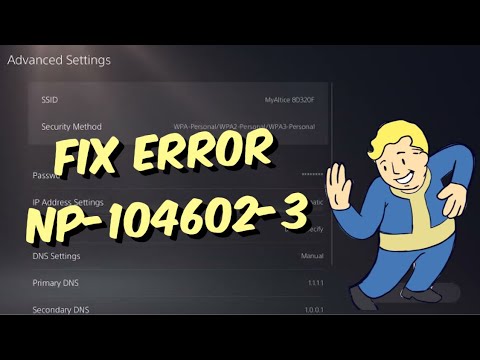
    PS5 error NP-104602-3 network troubleshooting screen
    The source video demonstrates the PS5 network menus used in this guide.

    Before you start

    • Save any open game progress and close the affected game.
    • Have the Wi-Fi password available if you plan to forget and reconnect the network.
    • If other devices are also offline, troubleshoot the router or ISP before changing the PS5.
    • Check the official PlayStation status page. A service incident must be resolved by Sony.

    How to fix PS5 error NP-104602-3

    1. Check PlayStation Network status. Visit PlayStation Status. If Gaming and Social or Account Management is affected, wait and retry after the incident is cleared.
    2. Restart the PS5 correctly. Press the PS button, choose Power, and select Restart PS5. A restart clears the current network session more completely than Rest Mode.
    3. Power-cycle the network. Unplug the modem and router for about 30 seconds. Reconnect the modem first, wait for it to come online, then reconnect the router and restart the PS5.
    4. Reconnect the console. Go to Settings > Network > Settings > Set Up Internet Connection. Select the normal network and re-enter its password if needed. Sony documents this as the standard PS5 connection path.
    5. Test the other Wi-Fi band. Highlight the saved network, press Options, open Wi-Fi Frequency Bands, and change Automatic to 5 GHz or 2.4 GHz. Use 5 GHz near the router for speed; use 2.4 GHz farther away for range. Viewers reported success with either band, so test rather than assume.
    6. Try Ethernet if possible. A wired connection removes radio interference from the test. If Ethernet works but Wi-Fi does not, the error is likely local wireless congestion, range, or router configuration.
    7. Test the connection. Open Settings > Network > Connection Status > Test Internet Connection. Confirm that obtaining an IP address, internet access, and PlayStation Network sign-in succeed.
    8. Update system software. Go to Settings > System > System Software > System Software Update and Settings. Install an available update, then restart.
    9. Optionally test a public DNS resolver. In the network’s Advanced Settings, set DNS to Manual and enter Cloudflare 1.1.1.1 as Primary and 1.0.0.1 as Secondary. Record the old setting first. If nothing improves, return DNS to Automatic.

    Why these steps work

    The error can appear when the console cannot complete a network request. Restarting clears a stale session, changing Wi-Fi bands avoids local interference, Ethernet isolates wireless trouble, and a connection test shows where the failure occurs. DNS only changes how names are resolved; it does not lower true in-game latency or repair a damaged internet route.

    Alternatives if the error continues

    • Move the PS5 and router into the same room for one test.
    • Pause downloads and streaming on the home network.
    • Test a phone hotspot briefly. If that works, contact the home ISP or router maker.
    • Do not factory-reset the PS5 for this error until PlayStation Support specifically recommends it.

    Warnings

    Do not enter random IP, gateway, MTU, or port-forwarding values from comments. A wrong static configuration can take the console offline. If manual DNS makes the connection worse, restore Automatic immediately.

    Frequently asked questions

    Should I use 5 GHz or 2.4 GHz?

    Use 5 GHz when the PS5 is close to the router and 2.4 GHz when walls or distance weaken the signal. The better choice is the one that produces a stable test in your room.

    Will changing DNS fix lag?

    Usually not. It can help a name-resolution problem, but it does not fix weak Wi-Fi, congestion, packet loss, an ISP route, or a PSN outage.

    Will these steps delete games or saves?

    No. The steps above change connection settings and restart devices; they do not erase installed games or saved data.

    Official references

    Source video

    As an Amazon Associate I earn from qualifying purchases.
  • How to Fix PS5 Error CE-106485-4

    How to Fix PS5 Error CE-106485-4

    Quick answer: Sony says CE-106485-4 indicates trouble reading system software or application data. Update PS5 system software first, restart, remove a partial install, check the disc if applicable, then clear cache or rebuild the database.

    PS5 error CE-106485-4 data reading troubleshooting
    Moe Gaming’s PS5 data-reading error troubleshooting video thumbnail.

    Before you start

    • Keep the PS5 connected to stable power.
    • Back up important saves before deleting application data.
    • For disc games, have a clean microfiber cloth.
    • Confirm enough free storage is available.

    How to fix it

    1. 1. Update PS5 system software
      Open Settings > System > System Software > System Software Update and Settings > Update System Software. Install the latest version and restart.
    2. 2. Retry the operation once
      Cancel the failed copy, download, or installation, restart the PS5, and start it again from the original source.
    3. 3. Remove only the partial application
      If a broken tile or partial install remains, delete that application data, not your saved data, then retry.
    4. 4. Check the disc
      For disc copies, eject the disc, confirm the label faces the correct direction for your console orientation, and wipe the readable surface from the center outward with a soft dry cloth.
    5. 5. Test another disc or digital title
      A known-good disc helps distinguish damaged media from the console drive. If digital titles also fail, focus on system software and storage data.
    6. 6. Clear cache and rebuild the database
      Start PS5 in Safe Mode, choose Clear Cache and Rebuild Database, clear system software cache first, then use Rebuild Database if needed.
    7. 7. Contact PlayStation Support
      If multiple clean discs or digital apps fail after the supported steps, stop before resetting the console and arrange support or repair.

    Why these fixes work

    The official code description points to unreadable system or application data. Updating system software addresses known platform issues; restarting and removing a partial install clears inconsistent application data; disc checks isolate physical media; and Safe Mode maintenance refreshes cached/indexed data. The source video demonstrates disc orientation, cleaning, retrying, and rebuilding. Its factory-reset suggestion is not used as a routine fix because safer supported steps should come first.

    Other safe options

    • Install the digital version only if you already own it; do not repurchase merely to test.
    • Try the disc in another compatible console if available.
    • Use PlayStation’s backup and restore process before considering any reset suggested by Support.

    Warnings

    • Do not use liquids, abrasives, or circular wiping on a game disc.
    • Deleting application data is different from deleting saved data—check the screen carefully.
    • Do not select Reset PS5 during Safe Mode maintenance unless data is backed up and PlayStation Support recommends it.

    Frequently asked questions

    What does CE-106485-4 mean?

    PlayStation says there may be a problem reading system software or application data.

    Can a dirty disc cause it?

    It can contribute in disc-copy cases, but digital titles can also be affected, so update system software first.

    Does Rebuild Database delete my games?

    The maintenance option normally rebuilds the content index. It is not the Reset PS5 option, but back up important data before deeper troubleshooting.

    Should I factory-reset the PS5?

    Not as an early fix. Complete update, restart, partial-install, media, cache, and database checks first, then contact Support.

    Source video

    Official references

    As an Amazon Associate I earn from qualifying purchases.
  • Fix GTA 5 BattlEye Error 0xc000009a (Story Mode Workaround)

    Fix GTA 5 BattlEye Error 0xc000009a (Story Mode Workaround)

    Important limitation: This workaround is for GTA V Story Mode only. Disabling BattlEye prevents GTA Online from starting. If you want to play GTA Online, keep BattlEye enabled and use the repair steps later in this guide.

    Quick answer: If GTA V on PC stops with BattlEye error 0xc000009a and you only need Story Mode, close the game, open Rockstar Games Launcher settings, turn off BattlEye for Grand Theft Auto V, and relaunch into Story Mode. Turn BattlEye back on before attempting GTA Online.

    GTA 5 BattlEye error 0xc000009a Story Mode workaround
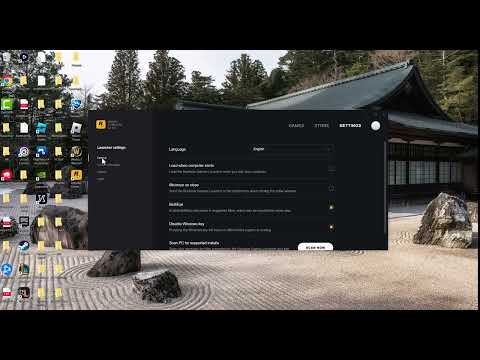
    Moe Gaming’s GTA 5 BattlEye error 0xc000009a troubleshooting video thumbnail.

    What this workaround does

    This does not repair BattlEye. It prevents BattlEye from starting with the game, which can let the single-player campaign launch when the anti-cheat component is the part failing. Rockstar requires BattlEye for GTA Online on PC, so online sessions, jobs, races, and heists will not be available while it is disabled.

    Before you start

    • Use this workaround only when you intend to play Story Mode.
    • Close GTA V completely before changing the launcher setting.
    • Update Rockstar Games Launcher and GTA V first.
    • Do not delete save files, install unofficial DLLs, or disable Windows security.
    • Remember where the BattlEye setting is so you can restore it before going online.

    Use the Story Mode-only workaround

    1. Close GTA V.
      Exit the game and wait for it to disappear from Task Manager. Close Rockstar Games Launcher as well if it is still handling an unfinished launch.
    2. Open Rockstar Games Launcher.
      Sign in with the Rockstar account normally used for GTA V.
    3. Open the launcher settings.
      Select Settings, choose Grand Theft Auto V, and locate the BattlEye option shown for the game.
    4. Turn BattlEye off.
      Disable the BattlEye setting. Do not remove unrelated game files or change anti-cheat services manually.
    5. Launch GTA V into Story Mode.
      Start the game and choose Story Mode. If the same error remains, stop and use the repair options below; repeatedly toggling the setting will not help.
    6. Re-enable BattlEye before GTA Online.
      Close the game, return to the same launcher setting, and turn BattlEye back on. Restart the launcher before selecting GTA Online.

    Why it can work

    BattlEye loads alongside GTA V when the protected online environment is enabled. If error 0xc000009a occurs during that startup process, disabling the component can remove the failing launch stage and allow Story Mode to open. That is why this is a bypass for offline play, not a complete repair. The source video demonstrates disabling BattlEye, while several viewers correctly note that GTA Online cannot then be used.

    If you need GTA Online, repair the installation instead

    1. Turn BattlEye back on.
      GTA Online will not launch correctly without the anti-cheat component enabled.
    2. Restart Windows.
      A full restart clears a stuck BattlEye service or launcher process.
    3. Update everything.
      Install current Windows updates, Rockstar Games Launcher updates, and GTA V updates.
    4. Verify GTA V’s files.
      In Rockstar Games Launcher, open Settings, select GTA V under installed games, and run the game-file verification option. Steam and Epic owners should use the equivalent verification command in their store client.
    5. Repair BattlEye only through the official installation.
      If verification does not restore it, use the BattlEye files installed with GTA V or allow the official launcher to reinstall them. Do not download replacement anti-cheat executables from third-party websites.
    6. Check security-software history.
      See whether Windows Security or another trusted security tool quarantined a verified Rockstar or BattlEye file. Restore or allow a file only after confirming it belongs to the official GTA V installation.
    7. Contact Rockstar Support.
      Include the exact error, launcher/store, GTA V edition, Windows version, and whether Story Mode works with BattlEye disabled.

    Other safe checks

    • Close overlays, monitoring utilities, and mod loaders before starting the game.
    • Remove Story Mode mods temporarily and verify the original game files.
    • Run the launcher from the normal Windows account first; do not change service permissions unless Rockstar Support directs you.
    • If the error began after an update, check Rockstar service status and current support notices before reinstalling the entire game.

    Warnings

    • GTA Online does not work with BattlEye disabled. This includes online sessions and heists.
    • Do not use the workaround to load cheats or modified files into GTA Online.
    • Do not permanently disable antivirus protection or the Windows firewall.
    • Do not download “fixed” BattlEye files, DLL bundles, or registry cleaners from unofficial sites.
    • If the game launches only with BattlEye off, the underlying online launch problem is still unresolved.

    Frequently asked questions

    Can I play GTA Online after disabling BattlEye?

    No. Rockstar requires BattlEye for GTA Online on PC. Re-enable it and restart the launcher before trying to join an online session.

    Does disabling BattlEye delete my GTA Online character?

    No. It changes how the PC game starts; it does not delete your Rockstar account or online character. You simply cannot access GTA Online while BattlEye is disabled.

    Is this a permanent fix for error 0xc000009a?

    No. It is a temporary Story Mode workaround. A permanent online fix requires BattlEye to start correctly.

    What if Story Mode still shows the error?

    Turn BattlEye back on, restart Windows, update the launcher and game, verify the installation, and contact Rockstar Support if the error continues.

    Should I uninstall BattlEye manually?

    Use game-file verification or the official GTA V installation files first. Avoid third-party uninstallers and downloads.

    Source video

    Official references

    As an Amazon Associate I earn from qualifying purchases.
  • How to Fix PS4 Error CE-34224-5

    How to Fix PS4 Error CE-34224-5

    Quick answer: PlayStation classifies CE-34224-5 as a system error. Back up the PS4 first, then use Settings > Initialization > Initialize PS4 and restore the backup. If you replaced the internal hard drive, test the original or another compatible drive.

    PS4 error CE-34224-5 system error troubleshooting
    Moe Gaming’s PS4 system-error troubleshooting video thumbnail.

    Before you start

    • A USB drive with enough free space for the backup.
    • Access to the PlayStation account and two-step verification method.
    • Stable power during backup and initialization.
    • Time to redownload updates and any content that is not included in the backup.

    How to fix it

    1. 1. Restart and update first
      Restart PS4 and install the latest system software if the console remains usable. If the error disappears, stop; do not initialize unnecessarily.
    2. 2. Sync saves
      Upload supported saves to PlayStation Plus cloud storage or copy them to USB where available.
    3. 3. Create a full backup
      Connect a USB drive and open Settings > System > Back Up and Restore > Back Up PS4. Confirm the backup completes before proceeding.
    4. 4. Initialize the PS4
      Open Settings > Initialization > Initialize PS4. Follow the prompts only after verifying the backup. This erases local console data.
    5. 5. Restore the backup
      After setup, sign in, update system software, connect the USB drive, and use Settings > System > Back Up and Restore > Restore PS4.
    6. 6. Check a replacement hard drive
      If the internal HDD was changed and the error persists, reinstall the original compatible drive or test another known-good compatible drive, then reinstall system software as PlayStation directs.
    7. 7. Arrange service if it continues
      Persistent errors with multiple compatible drives can indicate console hardware trouble. Contact PlayStation Repairs instead of repeating initialization.

    Why these fixes work

    PlayStation’s exact code page treats CE-34224-5 as a system-level problem and prescribes backup followed by initialization. That recreates the system data, while testing another drive isolates a failing or incompatible replacement HDD. The source video is only seconds long and no transcript became available after all retries, so no unverified video-only steps are included.

    Other safe options

    • If Settings is inaccessible, use PS4 Safe Mode and follow PlayStation’s system-software guidance, but read each option because some erase data.
    • Before changing hardware, reseat the drive only if the console is powered off and you are comfortable following PlayStation’s hardware instructions.
    • Use PlayStation Repairs when the original drive also fails.

    Warnings

    • Initialize PS4 erases local users, games, screenshots, settings, and unsynced saves.
    • Never interrupt power during backup, initialization, or system-software installation.
    • Do not repeatedly initialize a console that shows signs of a failing drive; secure the backup and seek service.

    Frequently asked questions

    What does CE-34224-5 mean?

    PlayStation labels it a system error.

    Can I skip the backup?

    Only if you accept permanent loss of local data. Back up before initialization whenever the console allows it.

    Will Initialize PS4 erase trophies?

    Synced trophies remain tied to your account, but sync them before initialization. Unsynced local information may be lost.

    What if I installed a new HDD?

    PlayStation specifically recommends trying another HDD or reinstalling the original drive if the error persists.

    Source video

    Official references

    As an Amazon Associate I earn from qualifying purchases.
  • How to Fix PS4 Error WV-33898-1

    How to Fix PS4 Error WV-33898-1

    Quick answer: WV-33898-1 means the PS4 could not connect to the server. Check the entered browser address, power-cycle the PS4 and router, test the internet connection, and check PlayStation status before changing advanced settings.

    PS4 error WV-33898-1 server connection troubleshooting
    Moe Gaming’s PS4 server-connection error video thumbnail.

    Before you start

    • Photograph the error and note which app or web address triggered it.
    • Confirm another device can use the same internet connection.
    • Have your Wi-Fi password available.
    • Do not erase saved data for a server-connection error.

    How to fix it

    1. 1. Check the web address
      If the error appears in the PS4 browser, carefully re-enter the full URL. A typo or retired page can look like a network failure.
    2. 2. Restart the PS4
      Power the console completely off, wait 30 seconds, and turn it back on.
    3. 3. Power-cycle the router
      Unplug the modem/router for at least five minutes as PlayStation advises for this code. Restore power and wait for the connection to stabilize.
    4. 4. Test the connection
      On PS4, open Settings > Network > Test Internet Connection. Confirm Obtain IP Address, Internet Connection, and PlayStation Network Sign-In complete.
    5. 5. Check service status
      Review PlayStation Network status. If the affected service is down, wait and retry later.
    6. 6. Improve the local link
      Use Ethernet if available, or move the console closer to the router. Pause large downloads and streams while testing.
    7. 7. Contact the right service
      If only one website or game server fails while PSN and other services work, the destination server may be unavailable. Contact that provider with the timestamp and URL.

    Why these fixes work

    The code is a server-connection failure, so the safest order checks the destination, refreshes the console and router sessions, and tests both local connectivity and PlayStation services. The source video did not expose a usable transcript after repeated attempts, so this guide relies on PlayStation’s current code-specific instructions rather than guessing at hidden steps.

    Other safe options

    • Try a known-good website or another online game to narrow the failure.
    • Use a wired connection temporarily to rule out Wi-Fi interference.
    • Ask the ISP about an outage if all household devices are affected.

    Warnings

    • Do not factory-reset the PS4 for this code.
    • Do not disable router security or place the PS4 in a DMZ as an early fix.
    • If a browser page no longer exists, network changes cannot restore it.

    Frequently asked questions

    Is WV-33898-1 a PSN ban?

    No. PlayStation describes it as a problem connecting to the server.

    Why wait five minutes with the router unplugged?

    That is the interval on PlayStation’s code-specific guidance and allows the network equipment to fully power down.

    Should I change DNS?

    Not before URL, restart, status, and connection tests. DNS is only an optional diagnostic if name resolution is suspected.

    Will reinstalling the game help?

    Usually not when the same server connection fails outside the game.

    Source video

    Official references

    As an Amazon Associate I earn from qualifying purchases.
  • How to Fix PS5 Error CE-120706-6

    How to Fix PS5 Error CE-120706-6

    Quick answer: Sony identifies CE-120706-6 as a stopped game update. Restore licenses, restart the PS5, rebuild the database in Safe Mode, and delete/reinstall the game only if the earlier steps fail.

    PS5 error CE-120706-6 game update troubleshooting
    Moe Gaming’s PS5 update-error troubleshooting video thumbnail.

    Before you start

    • Keep the PS5 connected to stable power.
    • Confirm there is enough free console storage for the update.
    • Sync important saves to PlayStation Plus cloud storage or USB where supported.
    • Have the PlayStation account that owns the game signed in.

    How to fix it

    1. 1. Check free space and retry once
      Open Settings > Storage and leave comfortable room beyond the displayed update size. Resume or retry the update once.
    2. 2. Restore licenses
      Go to Settings > Users and Accounts > Other > Restore Licenses, choose Restore, then retry the update.
    3. 3. Restart the console
      Use Power > Restart PS5. Avoid Rest Mode for this test, then reopen Downloads/Uploads.
    4. 4. Rebuild the database
      Turn off PS5. Hold the power button until the second beep, connect the controller by USB, choose Clear Cache and Rebuild Database > Rebuild Database, and wait for completion.
    5. 5. Download the update again
      Cancel the failed item from Downloads/Uploads and start a fresh update check from the game tile.
    6. 6. Delete and reinstall only as a last step
      Back up saves, delete the affected game, then reinstall it from disc or Game Library and download the latest update.

    Why these fixes work

    A stopped update may be tied to an invalid license record, a stale system session, or inconsistent storage indexing. Sony’s ordered process refreshes licenses, restarts services, and rebuilds the database before the destructive reinstall step. The source video demonstrates cancel/redownload, license restoration, restart, and reinstall, but Sony’s exact code page places database rebuilding before deletion.

    Other safe options

    • For a disc game, clean the readable surface and confirm the base game installs before downloading the update.
    • Try a wired network if the update repeatedly fails during download rather than installation.
    • If the error persists after reinstall, contact PlayStation Support with the code and game name.

    Warnings

    • Do not unplug the PS5 while rebuilding the database.
    • Deleting a game can remove local game data; back up saves first.
    • Rebuild Database is not the same as Reset PS5—do not choose a reset option.

    Frequently asked questions

    What does CE-120706-6 mean?

    PlayStation says the game update stopped installing.

    Will restoring licenses delete anything?

    No. It refreshes purchase entitlements and does not delete games or saves.

    Does rebuilding the database erase games?

    The Rebuild Database option reorganizes the content index and normally keeps games and saves. Select the option carefully.

    Why is reinstalling last?

    It takes longer and can risk unsynced local data, while the earlier supported steps are less disruptive.

    Source video

    Official references

    As an Amazon Associate I earn from qualifying purchases.