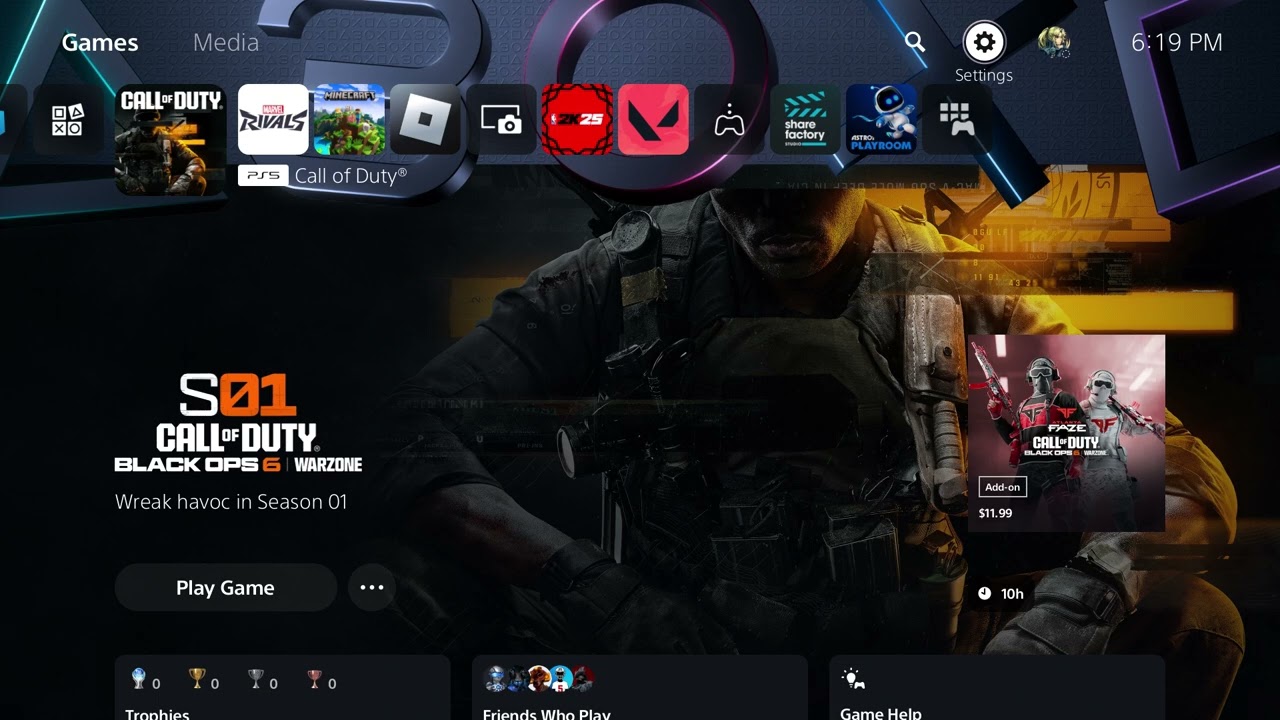
Quick answer: PlayStation says PS5 error CE-107750-0 means an error occurred while playing a game. Turn the PS5 completely off, unplug it for five minutes, reconnect it and restart. Then update both the game and PS5 system software. If the code returns, reinstall the affected game and rebuild the database in Safe Mode. Back up the console before using Reset Console as the final step.
Before you start
Sync important saves to PlayStation Plus cloud storage or copy supported data to USB.
Make sure the console has free storage space and stable power.
Have the PlayStation Network account credentials available before a reset.
Official steps for CE-107750-0
Turn off and unplug the PS5. Shut the console down completely. Disconnect the power cable, wait five minutes, reconnect it and restart. This is the first action in PlayStation’s code-specific guidance.
Update the affected game. Highlight the game on the home screen, press Options and choose Check for Update. Let any update finish before launching it.
Update PS5 system software. Open Settings > System > System Software > System Software Update and Settings > Update System Software. Restart when prompted.
Delete and reinstall the game. Go to Settings > Storage, select the affected game and delete it. Download or install a fresh copy. Deleting a game does not delete a cloud save, but confirm saves are synchronized first.
Rebuild the database in Safe Mode. Turn off the PS5. Hold the power button and release it after the second beep, connect the controller by USB, then choose Clear Cache and Rebuild Database > Rebuild Database. Do not unplug the console while it runs.
Back up and reset only if the error continues. Back up PS5 data first. Then open Settings > System > System Software > Reset Options > Reset Your Console. Reinstall the game after setup.
Why this sequence works
The order separates temporary power state, outdated software, damaged game files and a corrupted storage index. Rebuilding the database scans the drive and recreates the content index without being the same as a factory reset. Reset Console is last because Sony warns that it erases data on console storage.
Alternatives and diagnosis
If only one game fails, focus on its update and reinstall before resetting the console.
If several games fail, rebuild the database and check available storage.
If the PS5 shuts down, overheats or reports storage errors, stop testing and use PlayStation Repairs.
Warnings
Do not disconnect power during a system update or database rebuild. Reset Console erases local data; a backup is required. Safe Mode option names can change slightly with system software, so follow the current on-screen wording.
FAQ
Does Rebuild Database delete games?
It rebuilds the storage index and is not intended to delete installed games or saves. A separate Reset Console action does erase console storage.
Should I reinstall before rebuilding the database?
Yes, that is the order in PlayStation’s code-specific guidance: update, reinstall, then rebuild the database if needed.
What if CE-107750-0 affects every game?
Back up data and contact PlayStation Support if the official sequence fails, especially if storage or hardware symptoms appear.
Quick answer: Xbox error 0x8007045D points to a read/write or data-access failure. Restart the console, confirm the internal drive has free space, update the console and game, then retry. If it occurs while downloading a profile, remove only the affected profile and add it again. If it persists across games, use Reset and keep my games & apps before considering a full factory reset.
Before you start
Know the email address and password for the affected Xbox account.
Connect the console to stable power and the internet.
Back up captures that exist only on the console before any reset.
How to fix Xbox error 0x8007045D
Check Xbox service status. If account, profile or store services are limited, wait until the status page is clear.
Restart the console. Hold the Xbox button on the controller, choose Restart console, then select Restart. Test the same game or profile action again.
Perform a full power cycle. Hold the console’s Xbox button for about 10 seconds until it shuts down. Unplug power for 30 seconds, reconnect it and start the console.
Check storage. Open Settings > System > Storage devices. Make room on the internal drive and confirm any external drive is detected. If the affected game is on an external drive, move it to internal storage and test it there.
Update the console and game. Go to Settings > System > Updates. Install the console update and any update queued for the affected game.
Refresh the affected profile. If the code appears while downloading or using a profile, go to Settings > Account > Remove accounts and remove only that profile. Restart, choose Add new, and sign in again. Removing a profile from one console does not delete the Microsoft account.
Reinstall only the affected game. If one game fails but other games work, uninstall that game, restart and install it again on the internal drive.
Reset while keeping games and apps. Go to Settings > System > Console info > Reset console, then choose Reset and keep my games & apps. This refreshes the operating system while retaining installed games. You will need to sign in again.
Why this works
0x8007045D is associated with an input/output failure. A hard restart clears a stalled storage or system process, while moving or reinstalling the affected title separates a damaged game installation from a wider console issue. The keep-games reset replaces system files without immediately erasing the full game library.
What to try next
Disconnect a nonessential external drive and test the game from internal storage.
If several games fail from the same external drive, stop using that drive until it is checked; repeated retries can worsen data loss.
If the error continues after the keep-games reset, contact Xbox Support before selecting the erase-everything option.
Warnings
Reset and remove everything erases accounts, saved settings and local content. Choose it only after cloud saves are synchronized and a support technician or the documented troubleshooting flow calls for it. Never remove another person’s account from a shared console without permission.
FAQ
Will removing my profile delete my games?
No. It removes that sign-in from the console. Purchased games remain tied to the Microsoft account and installed files remain unless you uninstall them.
Should I format an external drive?
Not first. Move the affected game to internal storage and test. Formatting erases the drive.
What if the code appears during profile download?
Restart the network and console, then add the profile again. If Xbox services show an incident, wait before repeating the download.
Quick answer: When Black Ops 6 hangs at Fetching Account Data From Platform, check Activision and platform status first. If services are online, fully close Call of Duty, restart the console or PC, install pending updates, and try a clean sign-in. Restarting the router and testing a wired connection can help when account data is delayed by an unstable route.
Before you start
Keep the platform and Activision accounts linked exactly as they are.
Have access to the platform sign-in, but never share passwords or verification codes.
Pause downloads, cloud backups and 4K streaming during the test.
How to fix Fetching Account Data From Platform
Check service status. Use Activision Online Services and the status page for Xbox, PlayStation, Steam or Battle.net. If the platform identity service is degraded, account data may not arrive until it recovers.
Quit Call of Duty completely. Do not leave the game suspended. On Xbox, choose Quit and remove the game from Quick Resume for this test. On PlayStation, close the game from the switcher. On PC, close the game and launcher and end any remaining Call of Duty process.
Restart the system. Use a full Restart, reopen the launcher and sign in. This discards the old authentication token and requests fresh account data.
Update the game, launcher and system. Make sure Call of Duty HQ and Black Ops 6 content are current. Also install console system software or Windows and launcher updates.
Power-cycle the network. Unplug the modem and router for about 60 seconds. Reconnect the modem, wait for it to come online, then reconnect the router and test again.
Use a stable connection. Test Ethernet if available. Activision also recommends checking connection speed and limiting bandwidth-heavy applications.
Refresh only the platform sign-in. Sign out of the console profile or PC launcher, restart, then sign back in. Avoid unlinking the Activision account; that is a different action and can affect access or progress.
Why this works
This screen appears while Call of Duty requests account, entitlement and profile data through the platform and Activision services. An outage, stale suspended session, outdated client or interrupted connection can leave that request waiting. The steps above force a new authenticated session without changing account ownership.
If it is still stuck
Try another network briefly. A successful hotspot test points to the router or ISP route, not the account itself.
On PC, verify or scan and repair the game files in Steam, Battle.net or the Xbox app.
If other profiles work on the same system, contact Activision Support and report that detail; it helps separate an account problem from a device problem.
Warnings
Do not create a replacement Activision account, unlink accounts repeatedly or delete cloud saves. Do not disable the router firewall permanently. Those changes can make recovery harder and are not required for a normal data-fetch timeout.
FAQ
Will reinstalling Black Ops 6 fix it?
Only if damaged local files are involved. Check outages, fully restart and verify files before downloading the game again.
Does this mean my account is gone?
No. The message says the client is waiting for account data; it does not by itself indicate deletion or a ban.
Why does another profile work?
That suggests the device and installation can connect. Give Activision Support both account results without sharing private credentials.
Quick answer: Marvel Rivals can show an Out of Video Memory message even on a graphics card with enough VRAM. Start by removing any CPU or GPU overclock, updating the game and graphics driver, and verifying the game files. If the PC uses a 13th- or 14th-generation Intel desktop processor, follow the official Marvel Rivals guidance: install the motherboard maker’s latest stable BIOS first. Only use Intel XTU to lower the performance-core ratio if the BIOS update does not solve the instability and you understand the change.
Before you start
Check your CPU model, graphics card and available VRAM in Task Manager or the GPU control panel.
Save work and create a restore point before changing firmware or tuning settings.
Download BIOS files only from the exact motherboard or PC manufacturer support page.
Fix Marvel Rivals out of video memory
Restart and return hardware to stock settings. Disable temporary CPU/GPU overclocks and close tuning utilities. Launch the game once with default clock and power settings.
Update Marvel Rivals and Windows. Install the latest game patch and pending Windows updates, then restart. Do not test before the restart is complete.
Install the current graphics driver. Use the official NVIDIA, AMD or Intel download page. Choose a clean installation when the vendor installer offers it, then restart the PC.
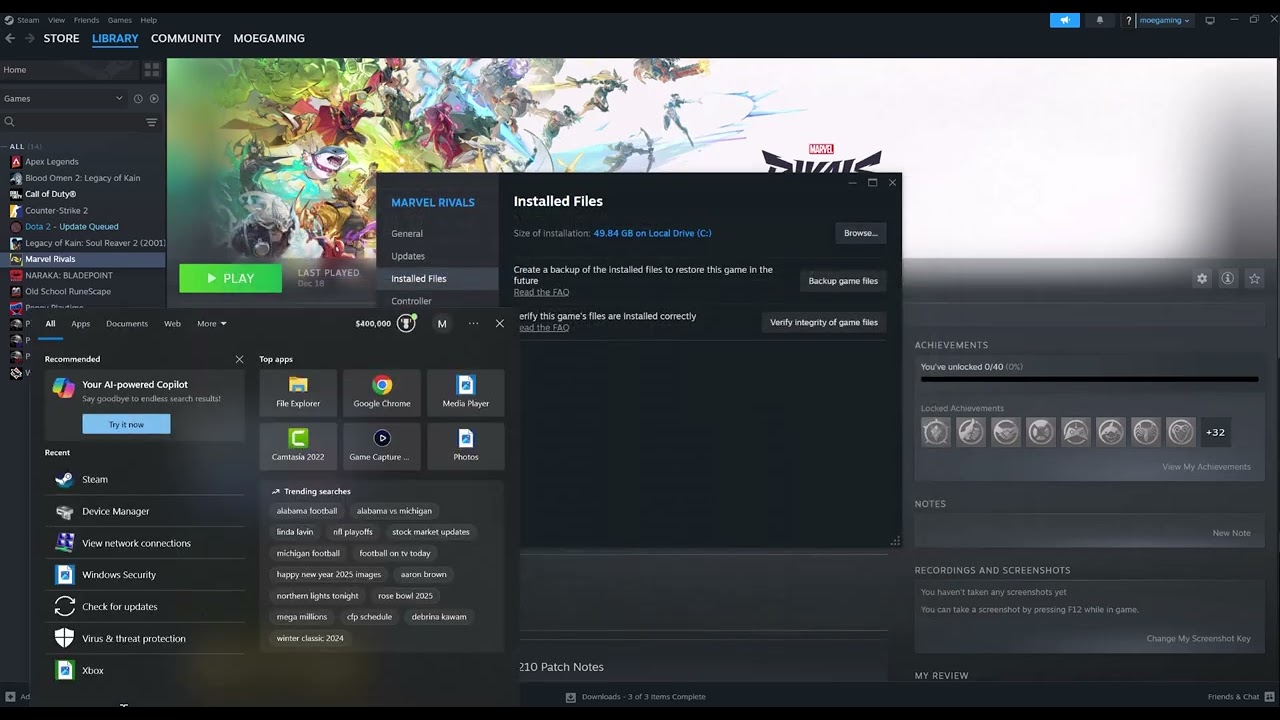
Verify the game files. In Steam, open Library, right-click Marvel Rivals, choose Properties > Installed Files > Verify integrity. On Epic Games, open the game’s menu and choose Manage > Verify.
Check for Intel 13th/14th-generation CPU instability. Marvel Rivals says these CPUs can produce stability problems, low-VRAM warnings or shader-compilation crashes. Install the latest stable BIOS supplied for your motherboard or prebuilt PC. Keep the system connected to reliable power and do not interrupt the update.
Use Intel XTU only if necessary. The official game guide suggests reducing the performance-core ratio by two or three steps when the BIOS update is not enough—for example, 55x to 53x. Apply the smallest change, restart and test. If XTU is unsupported on the system, stop and contact the PC or motherboard maker.
Reduce VRAM demand. If the error appears after the main menu loads, lower texture quality first, disable high-resolution texture options and close browsers, capture tools and overlays. Keep the page file system-managed unless a qualified support technician recommends otherwise.
Why the error can be misleading
During shader compilation, unstable CPU results or corrupted shader/game data can surface as a graphics-memory allocation failure. That explains why some players with high-end cards still see the message. On a genuinely VRAM-limited card, lowering texture memory use prevents the allocation from exceeding the available budget.
Alternatives if the error remains
Test without Discord, GeForce, Xbox Game Bar or performance-monitor overlays.
Reinstall Marvel Rivals after verification fails repeatedly or reports files it cannot repair.
Contact the PC manufacturer or Intel if a supported BIOS and stock settings still produce shader crashes.
Warnings
A BIOS update or CPU multiplier change affects the whole PC, not just Marvel Rivals. Do not flash a BIOS for a different board, interrupt a firmware update or increase voltage. Lowering the core ratio may reduce peak CPU performance. Laptop and locked systems may not support XTU.
FAQ
Why do I get this with an RTX 4070 or 4080?
The message is not always proof that the GPU has run out of physical VRAM. The official guide specifically connects some low-VRAM warnings and shader crashes to Intel 13th/14th-generation CPU instability.
Should I increase virtual memory?
Leave the Windows page file on system-managed first. A custom page file can mask memory pressure but will not repair unstable hardware, corrupted files or an outdated driver.
Is lowering the P-core ratio permanent?
An XTU change can persist depending on configuration, but firmware updates or resets may change it. Record the original value so it can be restored.
Quick answer: If Black Ops 6 is stuck on Waiting for Relay, first check Activision and platform service status. If services are online, fully close Call of Duty instead of leaving it suspended, restart your PC or console, install pending game and system updates, and test again. A complete restart clears a stale relay session; a wired connection and router restart address the most common local connection causes.
Before you start
Make sure you know the sign-in details for the platform account you use with Call of Duty.
Pause large downloads and streaming on the same network.
Do not unlink your Activision account or delete saved data for this error.
How to fix Waiting for Relay in Black Ops 6
Check for an outage. Open Activision Online Services, select Black Ops 6 and your platform, then check the matching Xbox, PlayStation, Battle.net or Steam status. If either service reports an incident, wait for recovery instead of changing local settings.
Completely quit Call of Duty. On Xbox, highlight the game, press the Menu button and choose Quit; remove it from Quick Resume if it keeps reopening the same session. On PlayStation, use the switcher to close the game. On PC, close Call of Duty and its launcher, then confirm no Call of Duty process remains in Task Manager.
Restart the device. Use Restart rather than Sleep or Rest Mode. Reopen the platform launcher, sign in normally and launch Black Ops 6.
Install every pending update. Update Black Ops 6, the Call of Duty launcher, your console system software or Windows, and your PC launcher. A version mismatch can prevent the client from negotiating a new relay session.
Restart the home network. Turn off the modem and router, wait about 60 seconds, reconnect the modem first, then the router. Wait until the connection is stable before launching the game.
Test a wired or quieter connection. Activision recommends a wired connection, checking connection speed and limiting bandwidth-heavy apps. If Ethernet is unavailable, move closer to the router and use the less-congested Wi-Fi band.
Refresh the platform session. Sign out of the Xbox, PlayStation, Steam or Battle.net account, restart the device, then sign back in. Do not unlink the Activision account; unlinking can create a separate account problem.
Why this works
The relay step connects the game client, platform network and Activision services. A suspended game can retain an expired session, while an outage, version mismatch or unstable route can keep the handshake from completing. Fully quitting the game forces a clean session; updates and a stable route remove the other common blockers.
If the screen still does not move
Try a phone hotspot only as a brief test. If it works there, the issue is likely with the home network or ISP route.
On PC, use the launcher’s file verification or scan-and-repair feature before reinstalling the entire game.
Contact Activision Support with your platform, approximate time, region and a photo of the exact screen if the status page is green and the problem continues.
Warnings
Do not forward ports, disable your firewall permanently or place a PC in a router DMZ as a first step. Do not delete local saves or unlink accounts for a relay wait; those actions do not repair a server handshake and can create data or access problems.
FAQ
Does Waiting for Relay mean I am banned?
Not by itself. It normally indicates that the online session has not completed. Check the account’s notifications separately if you received an enforcement message.
Why does quitting from Quick Resume help?
Quick Resume can restore an old network session. A full quit makes Call of Duty authenticate and create a fresh connection.
Should I reinstall Black Ops 6?
Only after checking service status, restarting, updating and repairing files. Reinstalling is slow and will not fix an Activision or platform outage.
Quick answer: Check Activision service status, restart the PC rather than shutting it down, power-cycle the router, and test Ethernet. Remove a VPN or proxy, update the game, and return network settings to automatic. Flush the DNS cache or test a known public resolver only if service-name resolution is the suspected failure.
The source video demonstrates Windows DNS and network-adapter steps.
Ask whether party members were disconnected at the same time.
Pause large downloads and cloud synchronization.
Write down any manual IP or DNS values before changing them.
How to fix Lost Connection to Host / Server Timed Out
Restart Windows. Select Start > Power > Restart. The video correctly emphasizes Restart because it reloads network drivers and services more reliably than a Fast Startup shutdown.
Restart the network in order. Unplug modem and router for about 30 seconds. Reconnect the modem, wait for its online light, then reconnect the router and start the PC.
Use Ethernet for a test. A direct cable rules out Wi-Fi interference and roaming. If wired play is stable, repair the wireless link rather than the game installation.
Disconnect VPNs and proxies. A VPN can add latency, change matchmaking region, or drop UDP traffic. Close it fully and test a normal ISP route.
Update BO6 and Windows. Finish game updates in the launcher, install Windows updates, and use the PC or adapter manufacturer’s current network driver.
Return IP settings to automatic. Open Settings > Network & internet > Advanced network settings > More network adapter options. Open the active adapter’s IPv4 properties and use automatic IP unless the network administrator supplied static values.
Flush the DNS cache. Open Command Prompt or Terminal as administrator and run ipconfig /flushdns. Microsoft says this discards negative and dynamically added resolver-cache entries.
Optionally test alternate DNS. Use Cloudflare 1.1.1.1 and 1.0.0.1 only as a resolver test. One viewer reported that returning to Automatic helped instead, so keep whichever setting is stable on the actual network.
Allow the game through security software. Keep Windows Firewall enabled and allow the official Call of Duty executable and launcher. Remove duplicate or stale entries instead of disabling protection.
Test a clean session. Close overlays, packet filters, traffic shapers, and background downloads, then play one match outside a party to isolate the failing layer.
Why this works
The message means the session stopped receiving a usable response before its timeout. A service outage, unstable Wi-Fi, congested router, VPN path, firewall rule, stale resolver entry, or local network driver can all break the session. The steps move from server-side checks to local isolation without changing undocumented ports or registry values.
If only parties fail
Let a different player host the party.
Confirm all players have the same current game version.
Test without crossplay for one match, then restore the preferred setting.
Have every party member restart after a playlist update.
Alternatives
Test a phone hotspot briefly to compare the ISP route.
Replace the Ethernet cable or change the router port.
Check the router log for WAN reconnects at the exact disconnect time.
Do not permanently disable the firewall or antivirus. Do not enter random MTU or port-forwarding values. DNS is not a cure for packet loss, and using a public resolver can be worse on some ISP networks.
Frequently asked questions
Does flushing DNS improve ping?
No. It clears cached name-resolution records. It may fix a bad lookup but does not shorten the gameplay route.
Why does Restart help when Shut down does not?
Windows Fast Startup can preserve part of the previous system session during shutdown. Restart reloads drivers and services.
Is this always my internet?
No. If many players disconnect together or Activision reports an incident, wait for the service to recover.
NBA 2K27 two-hand, dominant-hand, off-hand and rim-hang controls on PS5
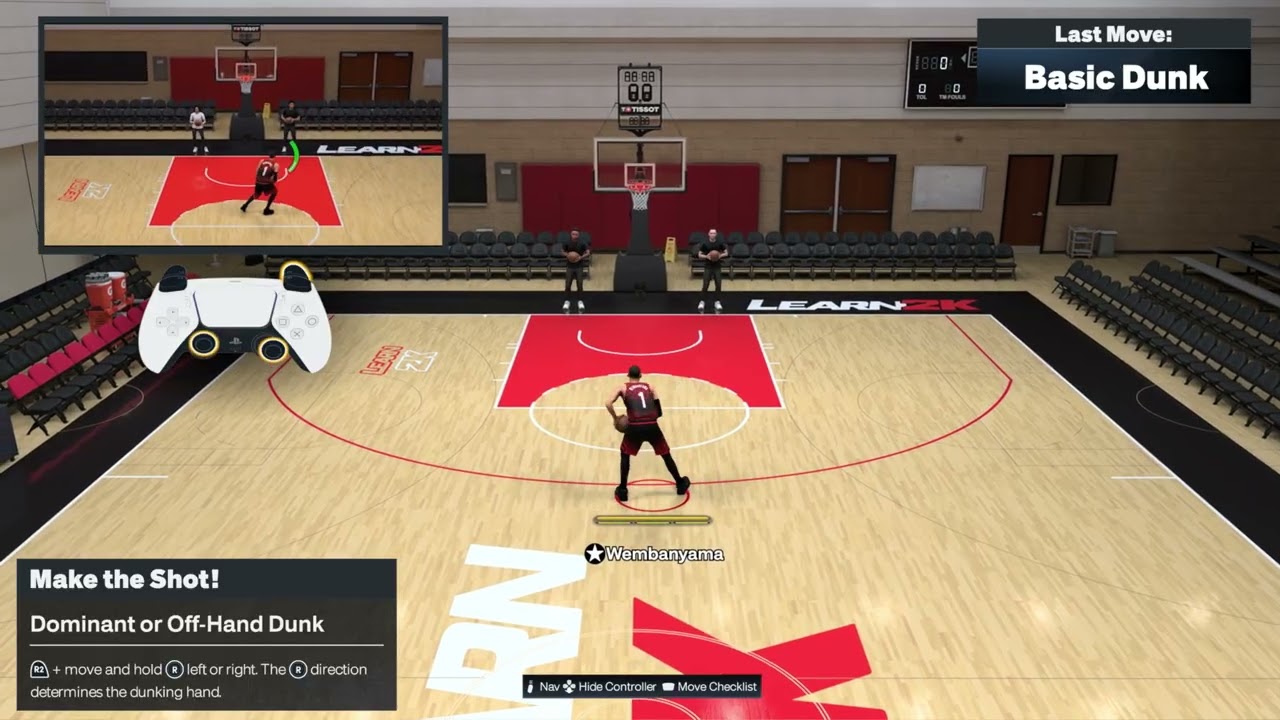
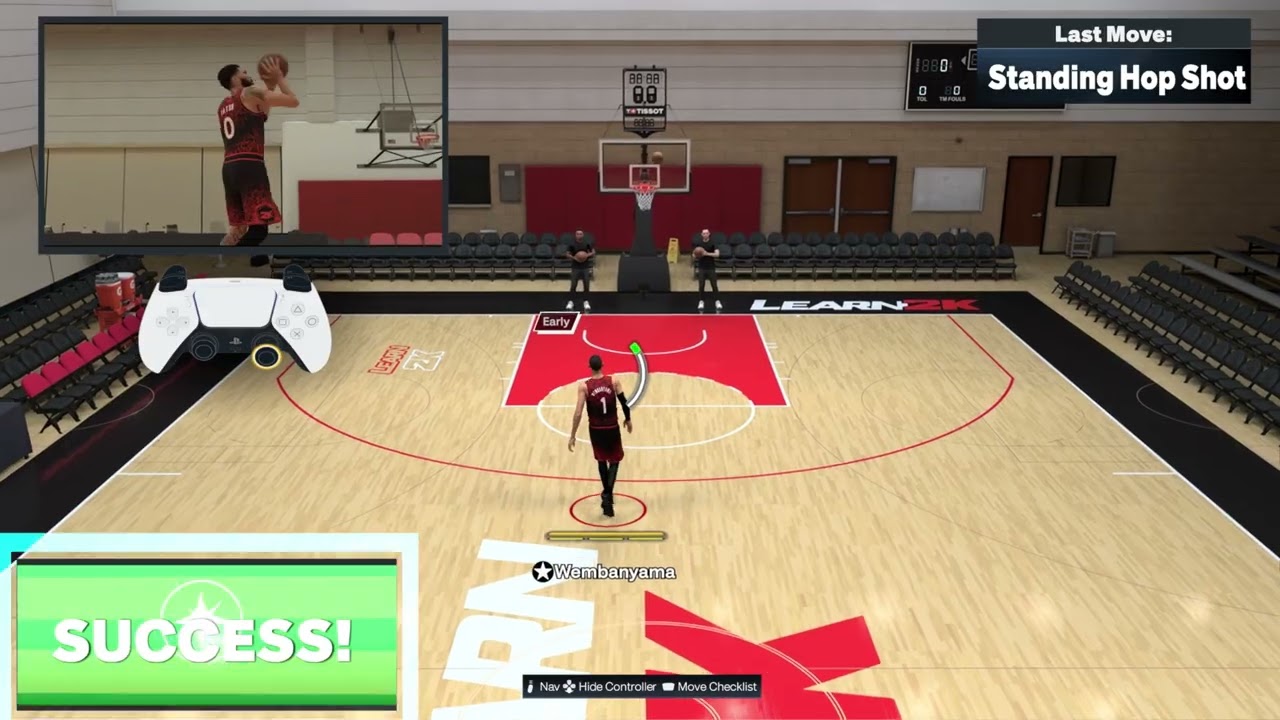
Quick answer: For a basic normal dunk on PS5, drive into close range, hold R2, then press and hold Square. Hold the Right Stick up for a two-hand dunk or left/right to choose the dunking hand. For a controllable rim hang, start a two-hand dunk and keep R2 held at the rim; use the Left Stick to swing and Right Stick up to pull up. NBA 2K27 requires manual Dunk Meter timing, so the trigger alone does not guarantee the finish.
Action
Default PS5 input
Important detail
Two-hand dunk
Hold R2 + hold Right Stick up while driving in close
Time the Dunk Meter before returning the stick to neutral
Dominant/off-hand dunk
Hold R2 + hold Right Stick left or right in close range
The stick direction selects the dunking hand
Controllable rim hang
During a two-hand dunk, keep R2 held at the rim
Left Stick controls swing; Right Stick up pulls up
Normal dunk
Hold R2 while driving in close, then press and hold Square
The demonstrated button input requests the dunk; ratings, lane and timing still matter
Basic normal dunk
Build momentum toward an open lane.
Enter close range without running directly into a set defender.
Hold R2.
Press and hold Square to request the normal dunk.
Follow the current Dunk Meter and release cue shown on screen.
The walkthrough demonstrates the R2-plus-Square trigger. NBA 2K27’s official gameplay documentation adds the key limitation: all dunks use manual Dunk Meter timing, and a defender can tighten the make window during the attempt.
Before you try the dunk
Use a player with enough driving or standing dunk ability for the situation.
Leave a clear lane; a defender in the takeoff path can shrink the meter window or change the animation.
Start in Learn 2K or an offline practice mode so you can see the current meter and prompt.
Enter close range without running directly into a set defender.
Hold R2 and move and hold the Right Stick up.
Watch the Dunk Meter and return the stick to neutral at the make window shown on screen.
The short source clip demonstrates the R2-plus-up trigger. NBA 2K’s current gameplay documentation adds a critical rule: every dunk attempt in NBA 2K27 is manually timed. Treat the button sequence as the start of the dunk, not the whole finish.
2. Choose the dominant or off hand
Drive into close range with the ball protected.
Hold R2.
Move and hold the Right Stick left or right.
Use the direction that places the ball farther from the nearest defender.
Complete the Dunk Meter timing shown on screen.
The stick direction determines which hand the player attempts to use. It does not guarantee that exact animation if the lane, ratings or defender force a different outcome.
3. Turn a two-hand dunk into a controllable rim hang
Start a two-hand dunk with R2 + Right Stick up.
When the player reaches the rim, keep R2 held.
Use the Left Stick to control the swing.
Move the Right Stick up if you want the player to pull up on the rim.
Release and drop safely rather than holding the animation longer than needed.
Use the two-hand setup for this move. Current controls specify a two-handed dunk as the entry into a controllable rim hang.
Why the dunk input can succeed but the shot can miss
NBA 2K27’s Dunk Meter evaluates the defense throughout the attempt, from takeoff through the finish. An open lane produces a wider timing window; a late helper or strong rim protector can tighten it in mid-air. Player ratings, fatigue, takeoff angle and badges also matter. The input requests the dunk type, while the meter and live context determine the result.
Pass to the corner when help defense rotates early.
Use Learn 2K to practice meter timing with one player before switching builds.
Warnings and common mistakes
Do not stop at the trigger input; NBA 2K27 requires manual Dunk Meter timing.
Do not assume Right Stick left always means dominant hand. It selects a side, and ball hand plus player orientation matter.
Do not force a rim hang in traffic or when you only need the basket.
Online latency can shift the apparent timing window. Practice in the mode you actually play.
Control presets and patches can change prompts. Follow the current Learn 2K display if it differs.
Frequently asked questions
Why am I getting a layup instead of a dunk?
The player may be too far away, too tired, below the needed dunk rating, blocked by a defender, or using a drive angle that does not support the requested animation.
Why does a correctly triggered dunk still miss?
The Dunk Meter still needs to be timed, and its window can tighten as a defender contests the attempt.
Can I choose which hand dunks?
Yes. Hold R2 and move the Right Stick left or right in close range. The direction selects the attempted dunking side.
Why will the rim hang not start?
Begin with a two-hand dunk and keep R2 held as the player reaches the rim. Releasing R2 early ends the setup.
Does a better controller make the meter easier?
Only if your current R2 or Right Stick is faulty. It will not widen the meter or replace good takeoff selection and timing.
Watch the Moe Gaming walkthroughs
Controllable rim hang
Dominant or off-hand dunk
Two-hand dunk
Optional controller replacement
As an Amazon Associate I earn from qualifying purchases.
DualSense wireless controller — relevant only if testing confirms a faulty R2 trigger or Right Stick; it will not improve ratings or meter timing.
NBA 2K27 rhythm, go-to and quick-shot controls on PS5
Quick answer: For a standard jump shot on PS5, press and hold Square, then release at the green-window cue. For a pull-up jumper, keep moving around the perimeter, hold Square and release at the player’s cue. For Rhythm Shooting, hold the Right Stick down to start, then push it up at the speed of the release. The green window changes with location, ratings, fatigue and the contest, so the same count will not work for every shot.
Shot
Default PS5 input shown
Main timing cue
Rhythm shot
Hold Right Stick down, then move and hold it up
Match the upward stick speed to the jumper’s tempo
Go-to shot
Left Stick neutral; move and hold Right Stick up
Let the signature shot begin before returning the stick to neutral
Quick catch-and-shoot
Hold L2 as the pass arrives; press Square immediately
Prepare before the catch, then start the shot without an extra dip
Standard button shot
Hold Square, then release
Release at the player’s normal visual cue
Pull-up jump shot
Keep moving around the perimeter, hold Square, then release
Use the standard shot input while momentum is carrying the player
Shot-timing adjustment
Release when the attempt enters the green window
The window can shrink or shift with distance, ratings, fatigue and contests
Basic jump shot with Square
Set your feet in open space.
Press and hold Square to begin the jump shot.
Watch the player’s release cue and the shot meter or feedback.
Release Square as the attempt reaches the green window.
The source walkthrough demonstrates the basic hold-and-release input. A green release is timing feedback, not a fixed number of seconds that transfers to every player or court location.
Pull-up jump shot while moving
Move around the perimeter with enough space to shoot.
Keep your momentum instead of coming fully to a stop.
Use the standard PS5 shot input: press and hold Square.
Release at the moving animation’s visual cue.
The pull-up video’s automatic captions clearly describe shooting while moving around the perimeter but omit the button name. The Square input above comes from the separate standard-jump-shot walkthrough and the default PS5 layout. Follow the current Learn 2K prompt if your preset differs. The source example also misses, which shows that the input starts the animation but does not guarantee a make.
Free throws: Square-button release or Rhythm Shooting
Quick answer: At the free-throw line on the default PS5 layout, hold Square to begin the shot and release it at your player’s visible timing cue. Moe Gaming’s new free-throw demonstration uses this button method; it also recommends improving the player’s Free Throw attribute if the animation stays hard to time.
Enter a practice game or drill that gives your player free throws, and confirm the active shot-control prompt.
Press and hold Square once the shooter is ready.
Watch the shot meter or the animation’s release cue. Release Square in the green timing window instead of relying on a fixed count.
Read the result and feedback; repeat with the same player before trying to transfer the timing to another shot package.
Why it works: The button starts the shot and the release supplies timing input. The exact cue changes with the player, mode and control preset. If timing stays difficult, practice with one free-throw animation and review the player’s Free Throw rating before spending VC; a higher attribute may help but does not replace timing.
Alternative: 2K’s official NBA 2K27 gameplay guidance says Rhythm Shooting also works at the free-throw line with the Pro Stick. Practice the Rhythm method separately if you already use it for jump shots. 2K specifically says Rhythm Shooting requires a green timing result for a make; the video narrator suggests every free throw must be perfectly green, but the official statement does not establish that rule for every Square-button attempt. Do not treat an early or late release as proof of a hardware fault.
Common questions: Why does the same Square hold miss with another player? Free-throw animations and ratings can change the cue. Can the Pro Stick take a free throw? Yes, 2K explicitly added Rhythm Shooting at the line. What if my controls differ? Follow the current in-game prompt; custom presets and updates can change the displayed input.
Release in the green window shown for that attempt. The shot-timing walkthrough notes that the usable window changes with the player and court location; farther shots can require more precision. NBA 2K27’s official gameplay guide also explains that feedback separates early or late timing from fast or slow Rhythm Shooting tempo.
If the feedback is early or late, adjust when you release Square or begin the upward Rhythm motion.
If the green window feels smaller, check distance, stamina, ratings and defensive pressure before changing the animation.
Practice from one location with one player, then add movement and online latency.
Before you practice
Use NBA 2K27’s Learn 2K shooting drills with the default PlayStation layout.
Pick one player and one jump-shot animation while learning; different releases have different tempos.
Turn on shot feedback so you can separate Timing errors from Tempo errors.
Rhythm Shooting grades both when the shot reaches its release point and how closely your upward Pro Stick motion matches the player’s natural tempo. NBA 2K27’s official gameplay guide says the meter tick moves with your physical stick movement and the feedback identifies early/late timing plus fast/slow tempo.
Stand in open space and stop moving with the Left Stick.
Move and hold the Right Stick straight down to begin the shot.
As the player raises the ball, move and hold the Right Stick up.
Match the speed of that upward movement to the jump-shot animation.
Read both feedback labels after the attempt and change only one part at a time.
If timing is correct but tempo is fast, slow the upward push slightly. If tempo is correct but the shot is late, begin the upward motion earlier.
2. Perform a go-to shot
Bring the player to a comfortable shooting spot.
Return the Left Stick to neutral; continuing to steer can request a moving shot instead.
Move and hold the Right Stick up.
Let the player’s signature go-to animation begin, then finish the input using the visual release cue.
A go-to shot is meant to create a familiar signature look, not guarantee separation. If a defender stays attached, pass or reset instead of forcing the attempt.
3. Use the quick catch-and-shoot input
Get your feet set and create a clear passing lane.
Press and hold L2 just before the pass reaches you.
As soon as the catch completes, press Square to start the shot.
Use your normal release cue rather than releasing early simply because the setup is faster.
The short walkthrough demonstrates the input but also misses the example shots. That is an important limitation: L2 can reduce the extra catch dip, but it does not override shot timing, ratings, stamina or a contest.
4. Diagnose misses with shot feedback
Early or late: move the start of your upward stick motion or Square release.
Tempo too fast or slow: change the speed of the upward Pro Stick motion, not the start time.
Heavy contest: improve separation instead of trying to compensate with timing.
Different player feels wrong: learn that player’s release rather than copying an identical count.
Only online attempts feel late: practice the same animation online and avoid switching between several shot methods during one game.
Why the fix works
NBA 2K27’s upgraded Rhythm Shooting separates the release into measurable timing and tempo components. That makes feedback actionable: an early/late result tells you when the input happened, while a fast/slow result tells you how the stick moved. The quick-shot setup prepares the catch before the ball arrives, and the go-to input keeps the Left Stick neutral so the game can select the signature shot instead of a directional jumper.
Alternatives
Use the standard hold Square and release method if two-stage stick timing is uncomfortable.
Use a normal catch-and-shoot attempt when you have enough space; the quick setup is most useful when a closeout is coming.
Move the ball to an open teammate instead of forcing a go-to shot into a contest.
Practice from one spot until the feedback is consistent, then add movement and online latency.
Warnings and common mistakes
Do not flick down and up instantly for Rhythm Shooting; the upward speed must match the animation.
Do not keep the Left Stick tilted during a go-to shot if you want the neutral signature animation.
Do not treat L2 as an automatic green. The source demonstration shows that the shot can still miss.
Stick drift can spoil neutral inputs. Confirm drift in another game or the console UI before replacing hardware.
Control presets and patches can change prompts. Follow the current Learn 2K display if it differs.
Frequently asked questions
Is Rhythm Shooting just down then up?
That is the motion, but the speed of the upward push matters. NBA 2K27 grades Tempo as well as Timing.
Why does my go-to shot become a moving shot?
The Left Stick may not be neutral, or the player may still have directional momentum. Release the Left Stick and let the player settle first.
Why does the quick shot still have a slow animation?
The catch angle, pass quality, player animation and readiness can still add movement. Hold L2 before the catch and start Square immediately, but do not expect every pass to produce the same animation.
Should I use Square or the Pro Stick?
Square is simpler. Rhythm Shooting gives separate timing and tempo feedback and can offer more control once the motion is consistent.
Does a new controller fix bad shot timing?
Only if your current stick or buttons are physically faulty. It cannot fix a rushed release, poor spacing, low ratings or network delay.
Watch the Moe Gaming walkthroughs
Rhythm Shooting
Go-to shot
Quick catch-and-shoot
Optional controller replacement
As an Amazon Associate I earn from qualifying purchases.
DualSense wireless controller — consider this only after confirming stick drift or an unreliable Square/L2 input; hardware will not correct timing or tempo.
NBA 2K27 layup, gather and step-through controls on PS5
Quick answer: For a basic layup on the default PS5 layout, drive into close range and hold Square. Most advanced finishes use the Right Stick: hold it left or right for a scoop, down for a floater, or diagonally down-left/down-right for a Euro step. Hold R2 with the relevant stick direction for hop and spin gathers. For a step-through, tap Square for a pump fake, then hold Square or move and hold the Right Stick before the fake ends.
Move
Default PS5 input
Best setup
Quick scoop layup
Hold Right Stick left or right
Drive at the rim and move the ball away from the defender
Runner / floater
Hold Right Stick down
Drive into close range with space in front
Reverse layup
Hold Right Stick toward the baseline side
Drive along the baseline and pass under the rim
Euro step
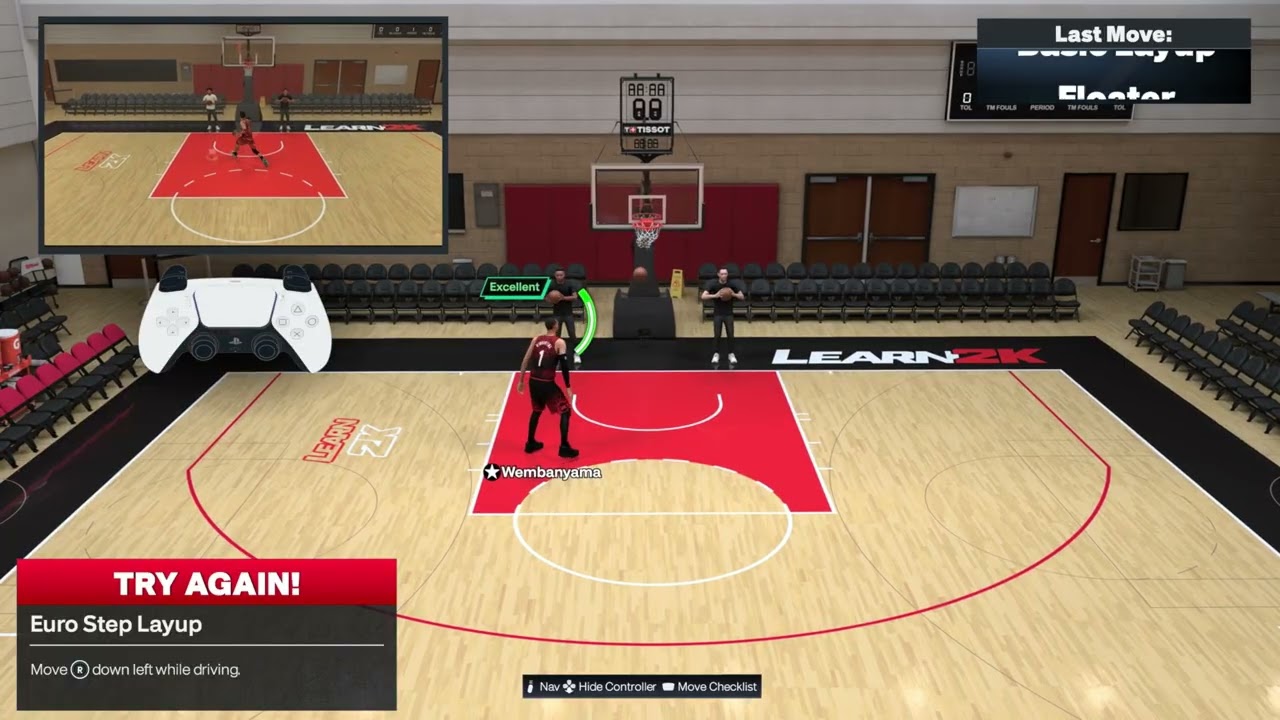
Hold Right Stick down-left or down-right; or double-tap Square
Attack a defender with room to step across
Slow-step decel
Start a Euro step, then hold L2 during the gather
Use the change of pace before the finish
Hop-step finish
Hold R2 and Right Stick down-left/down-right while driving
Hop into open space instead of directly into the defender
Spin gather
Hold R2 and double-tap Square; or rotate and hold Right Stick
Drive with enough space to complete the spin
Half-spin gather
With ball in right hand, rotate Right Stick from right toward up and hold
Use a short quarter-circle; mirror it for the other hand
Hop / stepback gather
Hold R2 and move Right Stick in the hop direction
Stand or drive laterally before the input
Step-through
Tap Square for pump fake, then hold Square or hold Right Stick in a direction
Work at close range after ending the dribble
Normal layup
Drive into close range and hold Square
Use the open lane when an advanced gather is unnecessary
Basic normal layup
Drive toward an open side of the basket.
Enter close finishing range without running directly into a set defender.
Press and hold Square to begin the layup.
Use the on-screen feedback and release cue for the selected animation.
The short walkthrough demonstrates the basic Square-button finish. The animation and make still depend on approach angle, ratings, fatigue and the contest.
Pump fake before a step-through
Tap Square after ending the dribble to pump fake, then use the step-through input before the fake ends. NBA 2K27’s official gameplay guide confirms that a pump fake can lead directly into its new five-direction Pro Stick step-through system.
Before you practice
These instructions use the default PlayStation controls shown in NBA 2K27’s Learn 2K drills.
Practice offline first so latency does not hide whether the move registered.
Check that your player’s layup package and finishing ratings support the animation you expect.
Follow the live Learn 2K prompt if your custom control preset differs from this page.
1. Perform a quick scoop layup
Begin a controlled drive toward the basket.
As you enter finishing range, move and hold the Right Stick left or right.
Choose the side that carries the ball away from the nearest contest.
Keep driving through the gather and use the shot feedback to judge timing.
The scoop is about release angle, not extra speed. If you point the stick toward the defender, the game may select a more contested animation.
2. Use a runner or floater
Drive into the lane without reaching the restricted area.
Move and hold the Right Stick down.
Let the player begin the runner animation and time the finish.
A floater is useful when a rim protector is waiting deeper in the paint. Starting too close can turn it into another layup animation.
3. Trigger a reverse layup
Approach along a baseline instead of driving straight down the middle.
Keep enough momentum to travel under or around the rim.
Hold the Right Stick toward the baseline side. The current controls list shows Right Stick right on the right baseline.
Mirror the setup on the other side and follow the on-screen prompt if it displays a different direction.
The baseline route matters. The same stick input from the middle of the paint may select a normal layup instead.
4. Do a Euro-step layup
Drive toward the paint with space to take two lateral steps.
Move and hold the Right Stick down-left or down-right, choosing the side that avoids the defender.
As an alternative, double-tap Square while driving.
Finish only after the gather begins; do not change directions again mid-animation.
The source demonstration needed several attempts because a diagonal input can register as straight down or sideways. Make a clean diagonal movement rather than rolling the stick slowly.
5. Add the slow-step decel
Begin the same Euro-step input.
While the gather is forming, press and hold L2.
Keep the drive line open and let the player slow the gather before finishing.
The deceleration changes pace to disrupt the defender’s contest timing. It does not create automatic separation, and holding L2 too early may change your movement before the Euro begins.
6. Use the hop-step finish
Drive toward one side of the lane.
Hold R2.
Move and hold the Right Stick down-left or down-right toward the open landing area.
Complete the finish after the hop.
The associated video calls this a “Hot Step Finish,” while current control references describe the action as a hop-step layup. The input and demonstrated movement are the important parts. Do not aim the hop directly into a set defender.
7. Perform a spin gather
Drive with the ball and leave room for the player to turn.
Hold R2 and double-tap Square.
Alternatively, with the ball in the right hand, rotate the Right Stick clockwise and keep holding it as the gather starts.
Mirror the rotation when the ball is in the opposite hand.
The double-tap is usually easier to reproduce. A slow stick rotation can become a dribble move or a different finish.
8. Perform a half-spin gather
Drive with the ball in the right hand.
Rotate the Right Stick in a short quarter-circle from right toward up.
Keep holding at the end of the motion to convert the move into a gather and shot.
Mirror the arc when the ball is in the left hand.
The source narration first says “half circle” and later clarifies a smaller quarter-circle. The current controls cross-check also specifies a quarter-circle. Use a compact, deliberate arc and practice in Learn 2K until the objective registers.
9. Do a hop or stepback gather
Start from a standstill or move laterally rather than sprinting directly at the rim.
Hold R2.
Move the Right Stick in the direction you want the player to hop.
Hold the direction long enough for the gather to begin, then complete the shot.
If you are driving straight ahead, the same input can select a hop-step layup. Your approach angle helps determine the animation.
10. Finish with a step-through
Work into close range and end the dribble.
Tap Square for a pump fake.
Before the fake ends, press and hold Square, or move and hold the Right Stick in the direction you want to step.
Release according to the shot timing cue.
2K officially describes five Pro Stick directions for the new step-through up-and-under system. The direction changes the separation move, so practice more than one response instead of repeating the same side.
Why these inputs work differently in NBA 2K27
NBA 2K27 separates advanced gathers—such as Euros, hops and spins—from the finish. Its Dynamic Layup Engine then pairs the gather with a finish based on the matchup, angle, ratings and defender position. That is why the same button sequence can look different on two possessions. The goal is to request the right family of move and give the engine a clean lane, not to force one identical animation every time.
Alternatives when a move will not register
Use the listed Square-button alternative for Euro or spin gathers.
Switch hands before the move so the stick direction matches the ball hand.
Slow the approach and enter the input once rather than repeatedly flicking the stick.
Use Learn 2K until the drill confirms the input, then move to an offline scrimmage.
Choose a normal layup when the lane is already open; an advanced gather adds risk when no defender needs to be moved.
Warnings and common mistakes
A correct input does not guarantee a make. Ratings, stamina, contest level and release timing still matter.
Do not hold R2 for moves that do not call for turbo; it can change the selected animation.
Do not assume every diagonal is identical. Ball hand and drive direction affect the result.
Online delay can make a double-tap or short stick arc register late.
Game updates or custom presets can change prompts. Trust the current in-game Learn 2K display when it conflicts with an old guide.
Frequently asked questions
Why does my Euro step become a floater?
The Right Stick likely registered straight down instead of diagonally down-left or down-right. Use a clean diagonal input and begin it while driving.
Why does the spin gather become a dribble move?
The rotation may be too slow, the player may be outside finishing range, or the stick may have returned to neutral before the gather registered. The R2 plus double-tap Square alternative is easier to test.
Can every build perform every animation?
The input can request the move, but available packages, ratings, fatigue and defender position influence what animation and result you receive.
Does L2 make every Euro step slower?
L2 is used during the Euro gather for the slow-step decel. Timing it before the Euro begins can affect your drive instead.
Should I use the Pro Stick or Square?
The Pro Stick gives more directional control. Square alternatives can be easier for Euro and spin gathers, especially while learning.
Watch the Moe Gaming walkthroughs
Slow-step decel
Hop-step finish
Euro-step layup
Runner / floater
Half-spin gather
Spin gather
Hop / stepback gather
Step-through
Quick scoop layup
Reverse layup
Optional controller replacement
As an Amazon Associate I earn from qualifying purchases.
DualSense wireless controller — relevant only if your current controller has confirmed stick drift or unreliable buttons; it will not fix timing, ratings or defensive reads.
Quick answer: Check Activision and PlayStation service status, power-cycle the router, use Ethernet if possible, and test both 5 GHz and 2.4 GHz Wi-Fi. Pause competing downloads and measure the PS5 connection. DNS can help name resolution, but it cannot repair true packet loss, congestion, or a poor route.
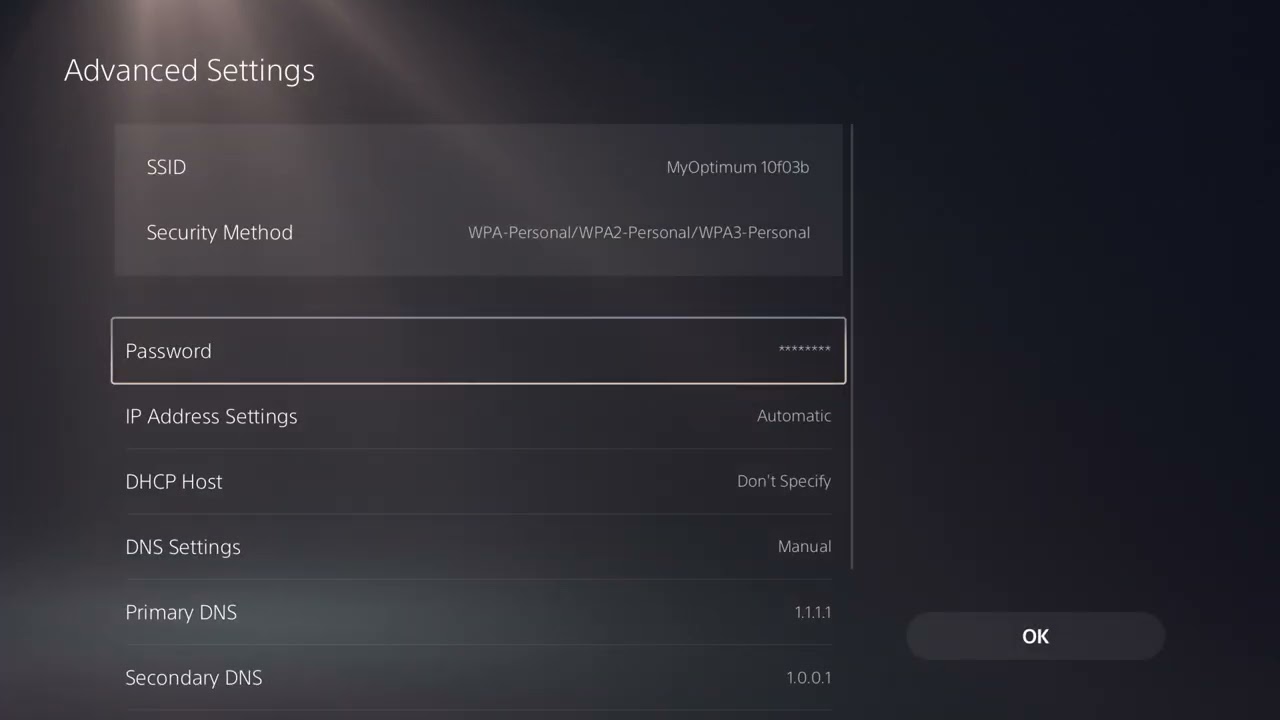
The source video shows the PS5 Wi-Fi band and DNS menus.
Before you change settings
Check whether every player in the match is lagging. If so, the server may be the cause.
Open Activision Online Services and PlayStation Status.
Pause downloads, cloud backups, and 4K streaming on the home network.
Record whether the problem is high latency, packet loss, rubber-banding, or a disconnect.
How to reduce Black Ops 6 lag on PS5
Restart the game and PS5. Fully close Call of Duty, restart the console, and test one match.
Power-cycle the router. Unplug the modem and router for about 30 seconds. Reconnect the modem, wait for service, then reconnect the router.
Test Ethernet. Connect the PS5 directly to the router. If lag disappears, focus on Wi-Fi range or interference rather than reinstalling BO6.
Choose the better Wi-Fi band. Go to Settings > Network > Settings > Set Up Internet Connection. Highlight the saved network, press Options, and set Wi-Fi Frequency Bands to 5 GHz or 2.4 GHz. Use 5 GHz nearby and 2.4 GHz through more walls.
Run the PS5 network test. Open Settings > Network > Connection Status > Test Internet Connection. Download speed is not the same as low latency, but a failed sign-in or very unstable result is useful evidence.
Reduce local congestion. Stop other console downloads, PC updates, cloud sync, and high-bitrate streams. Enable router QoS only if the router vendor documents it and you understand the settings.
Update everything. Install PS5 system software, BO6 updates, and router firmware from the router maker.
Optionally test Cloudflare DNS. In the saved network’s Advanced Settings, set DNS to Manual with 1.1.1.1 and 1.0.0.1. If performance is unchanged or worse, restore Automatic.
Compare another connection. A brief phone-hotspot test can separate the home ISP path from the console or game. Do not use a capped hotspot for large updates.
Why this works
BO6 needs a stable, low-jitter path between the PS5 and the match host or service. Ethernet removes wireless interference. Selecting the correct band can improve either speed or range. Power-cycling renews the local connection. Reducing competing traffic lowers queueing delay on the home router.
DNS is not a ping booster
The video and some viewers report that alternate DNS helped. That can happen if the ISP resolver is failing or slow during service lookup. Once connected to a match, DNS does not carry gameplay packets, so it cannot solve weak signal, bufferbloat, packet loss, or distant servers.
Alternatives
Move the router higher and away from dense walls, TVs, and metal objects.
Test a different Ethernet cable and router port.
Use the closest matchmaking region available through the game; do not use a VPN to force a distant region.
Do not copy an MTU value from a comment. The wrong MTU can create fragmentation or failed connections. Avoid permanent firewall disabling and random port-forwarding rules.
Frequently asked questions
Why does only BO6 lag?
Different games use different servers, routes, tick rates, and matchmaking regions. One game can expose a route or server issue that speed tests miss.
Is 5 GHz always better?
No. It is faster at short range but loses strength through walls. A clean 2.4 GHz signal may be more stable farther away.
Should I reinstall BO6?
Not for ordinary online lag. Reinstall only if the game also crashes, fails verification, or Activision identifies damaged files.