Quick answer: In the Black Ops 6 social or party menu, set the party to Open, then try invitations in both directions. If that fails, check Activision and PlayStation service status, fully restart the game and PS5, and power-cycle the router. Changing DNS can be a final reversible test, but it will not repair a server outage or a strict NAT configuration.
Prerequisites
Both players should be signed into PlayStation Network and their Activision accounts.
Update Call of Duty and PS5 system software before comparing party settings.
Cross-platform groups need crossplay enabled for every player.
Restart the session. Close Call of Duty from the PS5 switcher, restart the console, then reopen the game. Have the other player do the same.
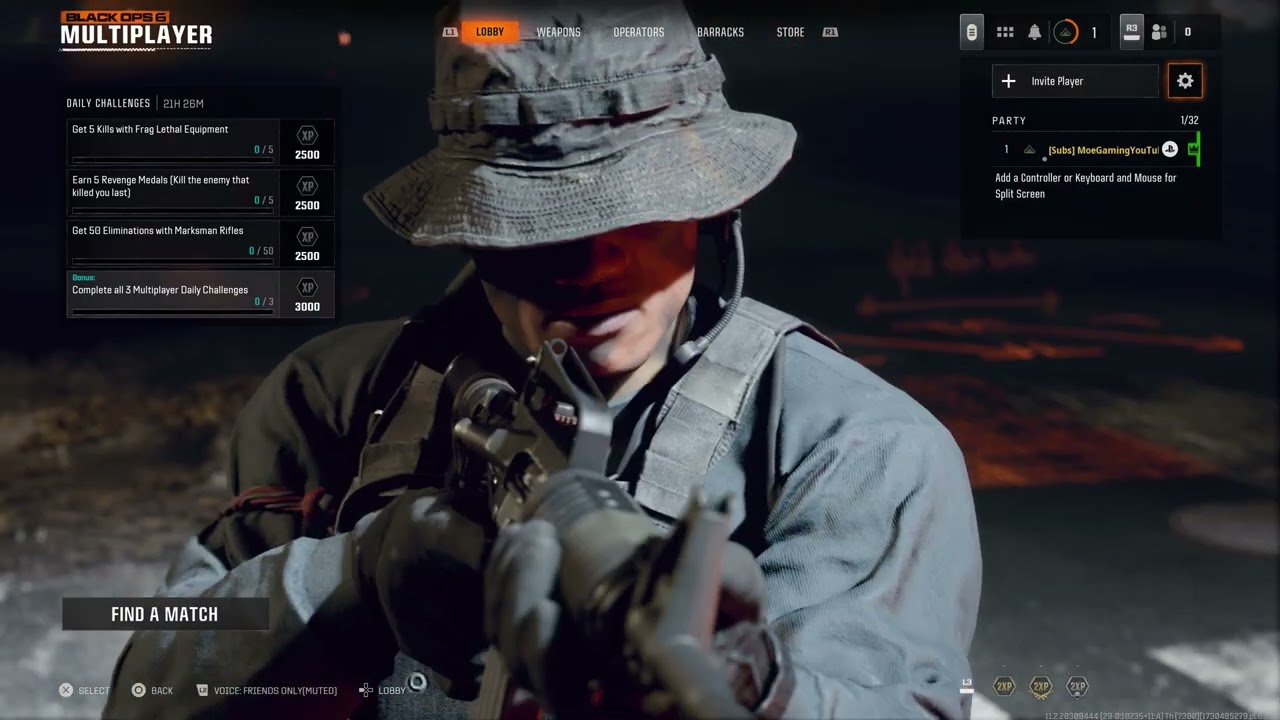
Set party privacy to Open. From the multiplayer lobby, open the party or social panel, select the party settings/cog, and change privacy or joinability to Open. Repeat this on the other player’s system.
Try invitations both ways. First have Player A invite Player B. If it fails, disband the lobby, let Player B host, and send the invitation in the opposite direction. This creates a fresh lobby owner and connection path.
Confirm crossplay and account permissions. For mixed platforms, enable crossplay. Check that neither account’s privacy or family settings block multiplayer communication.
Power-cycle the network. Turn off the PS5. Unplug the modem/router for at least five minutes, reconnect it, wait until internet service returns, then start the PS5.
Test the PS5 connection. Go to Settings > Network > Connection Status > Test Internet Connection. Resolve sign-in or internet failures before reopening the game.
Try public DNS only as a last test. Go to Settings > Network > Settings > Set Up Internet Connection, highlight the active network, choose Advanced Settings, and set DNS to Manual. The video demonstrates Cloudflare’s Primary 1.1.1.1 and Secondary 1.0.0.1. Record the old setting so you can return it to Automatic.
Why the fix can work
An open party allows eligible friends to join without a stale invitation token. Switching hosts also changes which console owns the lobby. The restart and router cycle clear temporary sessions, while a DNS change can help only when name resolution is the failing layer.
Alternatives
Use a wired Ethernet connection for testing.
Remove and re-add the affected Activision friend, then restart the game.
Have every player enter multiplayer independently before forming the party.
If only one network fails, contact the ISP about NAT or router firmware rather than factory-resetting the router.
Warnings and limitations
Do not factory-reset the router for a single party error unless you have its ISP credentials and configuration backup. Manual DNS does not open NAT ports, bypass parental controls, or fix Activision maintenance. Return DNS to Automatic if the change does not help.
Frequently asked questions
Why can I join some friends but not one specific player?
The affected player may have a closed party, incompatible crossplay setting, account restriction, or network-specific NAT problem. Test each player as host.
Will reinstalling Black Ops 6 help?
Usually not for a party-only problem. Check services, party permissions, accounts, and networking first.
Does this guarantee the error is fixed?
No. Party errors can be server-side. These steps address the reversible local causes the source video demonstrates.
Quick answer: Close Black Ops 6 and its launcher, identify whether your PC uses NVIDIA, AMD, or Intel graphics, then install the current driver recommended by Activision from the GPU maker’s official site. Restart Windows before testing the game. If the warning began immediately after a newer driver, return to Activision’s recommended version instead of repeatedly reinstalling the same release.
Before you start
Save open work because the driver installer and Windows restart can interrupt running apps.
Make sure you know which GPU is actually running the game, especially on a laptop with integrated and discrete graphics.
Create a Windows restore point if you plan to roll back or perform a clean driver installation.
How to fix the GPU driver version error
Exit the game and launcher. Close Call of Duty HQ and Steam, Battle.net, or the Xbox app. Open Task Manager and make sure the game is no longer running.
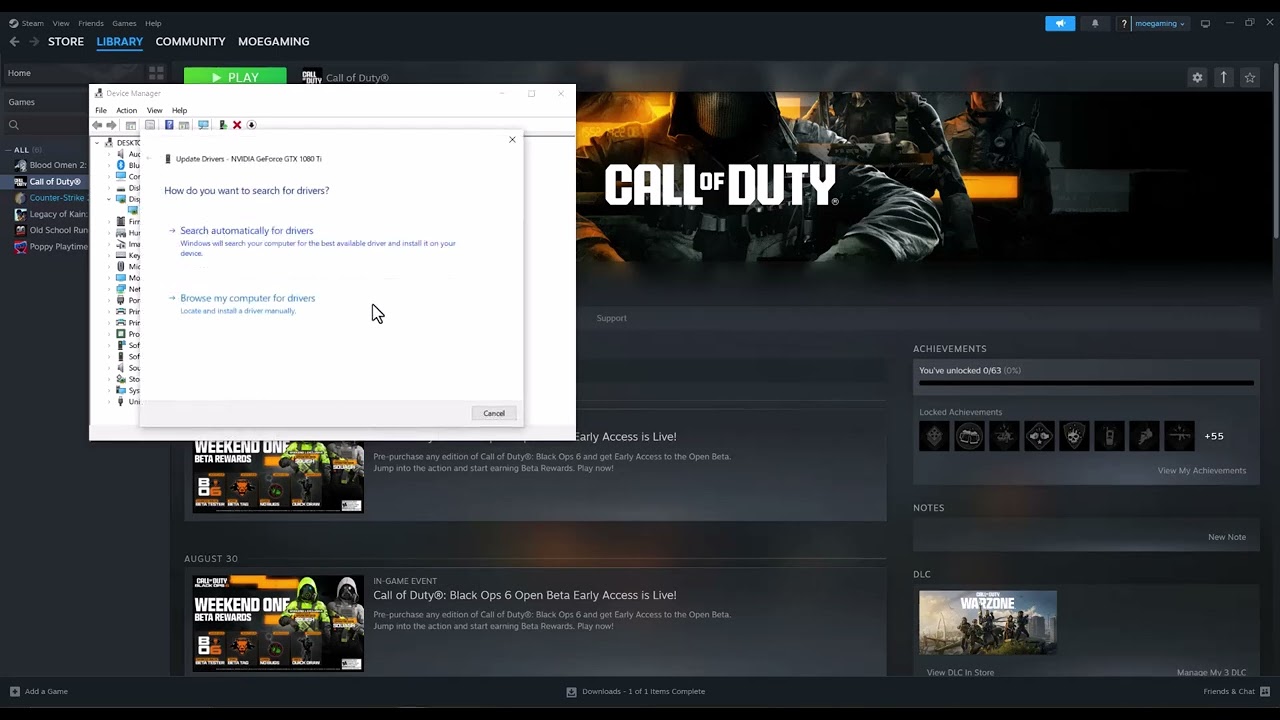
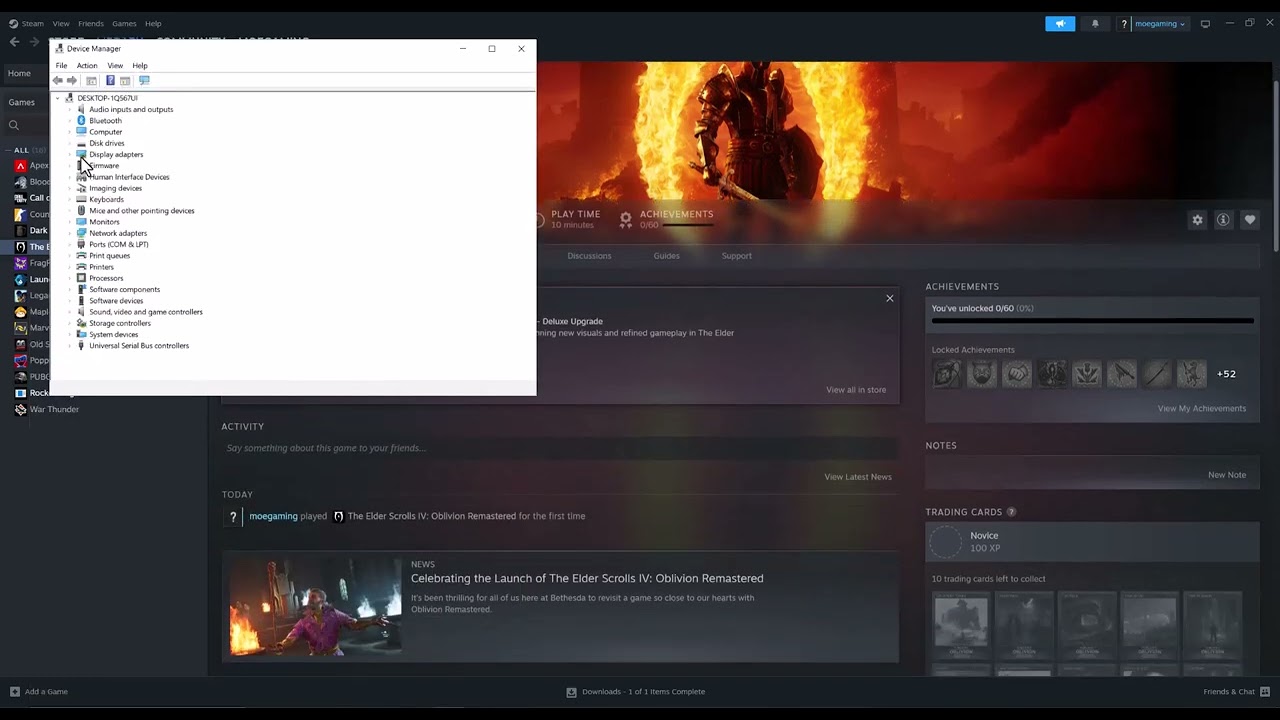
Identify the graphics adapter. Right-click Start, choose Device Manager, expand Display adapters, and note the exact NVIDIA, AMD, or Intel model. If two adapters appear, the higher-performance discrete GPU is normally the one that needs the game-ready driver.
Install the recommended driver. Follow the vendor installer and leave the display driver selected. A clean-install option can help when a previous update is damaged, but it may reset graphics profiles.
Restart the PC. Do this even if the installer does not demand it; the game can keep detecting old components until Windows reloads the driver.
Confirm the version. In Device Manager, open the GPU’s Properties > Driver, then compare the installed version and date with the package you installed.
Launch Black Ops 6 and let shaders rebuild. Do not interrupt shader preloading. Test a private match or menu first.
Why this works
Black Ops 6 checks the graphics driver because its DirectX features depend on vendor components outside the game files. Windows’ automatic search may report that the “best” driver is installed even when a newer game-ready package exists. Installing from the GPU manufacturer replaces the complete driver stack that the game detects.
If the warning remains
Compare your version with Activision’s current video-card driver guidance. Activision also notes that a newer driver can occasionally introduce trouble; use its recommended version when that happens.
Verify the game files in Steam or Battle.net after the driver restart.
On laptops, set Call of Duty to the high-performance GPU in Settings > System > Display > Graphics.
If the error started with the newest package, use the vendor’s official installer for the previous recommended version. Do not download an old package from an unofficial mirror.
Warnings
Do not uninstall a display adapter at random on a laptop, flash a GPU BIOS, or use a registry “driver fixer.” Those steps are unnecessary for a normal version warning. A brief black screen during a legitimate driver installation is expected.
Frequently asked questions
Can I use Update driver in Device Manager?
You can try it, but Windows often offers a stable general driver rather than the newest game-ready release. The GPU maker’s official package is the better check.
Should I always install the newest driver?
No. Use Activision’s current recommendation. If a just-released driver causes the warning or crashes, a known-good recommended version may be safer.
Will updating the driver erase my game or progression?
No. It can reset per-game graphics profiles, but it does not remove Black Ops 6 or online progression.
NBA 2K27 triple-threat stepover controls demonstrated on PS5
Quick answer: Most of these NBA 2K27 triple-threat moves start from a stationary catch before the dribble. Use a quick Right Stick flick or rotation, then release it immediately. The demonstrated PS5 inputs include an up-left flick for a stepover, a clockwise half-rotation for a spin out, a counterclockwise rotation for a cross spin out, R2 + Right Stick down for a stepback, and a down-left flick with the left pivot foot established for a back-to-basket stepover.
This guide combines seven short Moe Gaming demonstrations into one reference. The inputs below come from those demonstrations, while 2K’s official gameplay page confirms that NBA 2K27 has separate Triple-Threat Style, Breakdown, Jab-Step and Stepover animation categories. Your equipped package, pivot foot, camera orientation and timing can change the animation, so use the current Learn 2K prompt when it differs.
Move
PS5 input demonstrated
Key condition
Mid stepover
Quickly flick Right Stick diagonally up-left, then release
Start in triple threat before dribbling
Cross spin out
Quickly rotate Right Stick counterclockwise, then release
Use one clean rotation
Spin out
Rotate Right Stick clockwise to about the halfway point, then release
Do not keep circling the stick
Back-to-basket stepover
With the left pivot foot established, quickly flick Right Stick down-left, then release
Pivot-foot setup matters
Stepback
Hold R2 and press or flick Right Stick down/back
Leave space behind the ball handler
Hesitation escape
Hold R2 and move left on the analog stick
The source narration does not name which stick; confirm the live Learn 2K prompt
Stepover
Quickly flick Right Stick diagonally up-left, then release
The animation can vary with the equipped triple-threat package
Before you practice
Catch the ball and stay stationary so your player is in a true triple-threat stance.
Use the default PlayStation control preset or compare every input with the current Learn 2K display.
Practice offline first. Online delay can make a correct flick appear late.
Make short, clean stick motions. Holding a direction can call a shot or a different animation.
Check your equipped Triple-Threat Style, Breakdown, Jab-Step and Stepover packages because packages change the motion produced by the same input.
If R2 or the Right Stick responds inconsistently, test the controller before changing your timing.
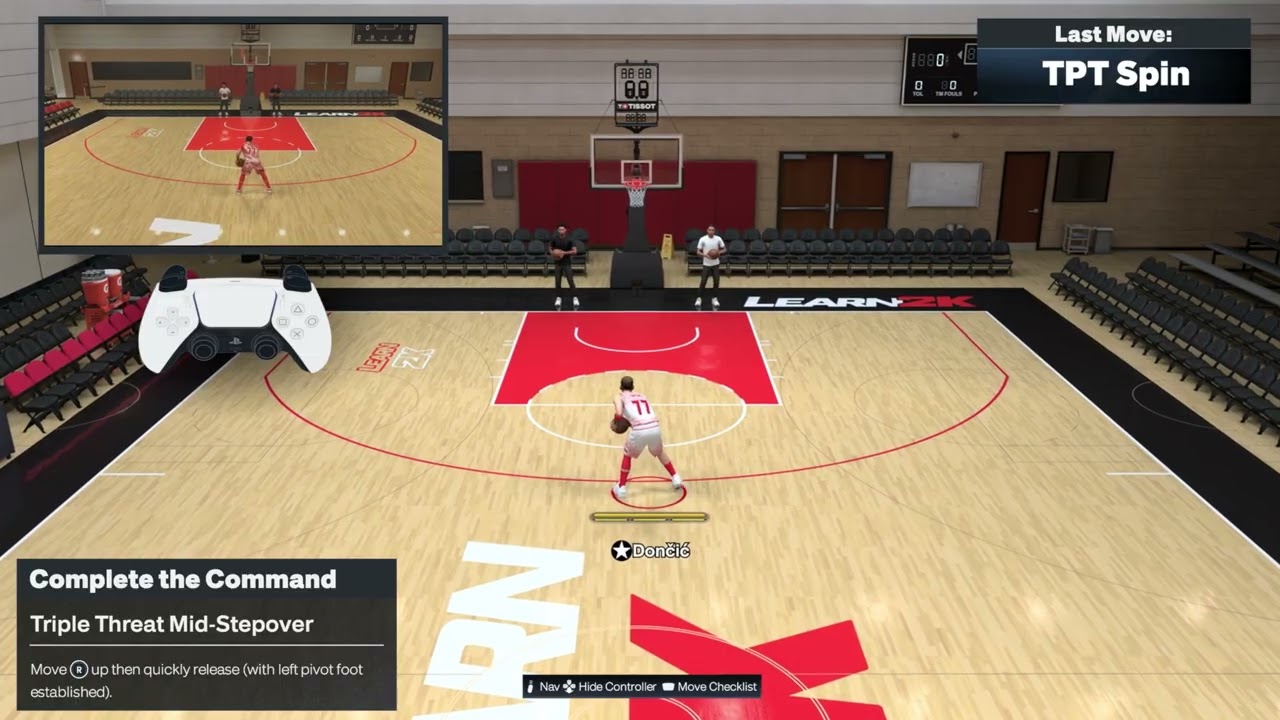
1. Perform a triple-threat mid stepover
Catch the ball and stop before beginning a dribble.
Keep the Left Stick neutral.
Quickly flick the Right Stick diagonally up-left.
Release the stick immediately and let the stepover animation complete.
The demonstration uses a fast up-left diagonal motion. If your player mirrors the move or shows a different stepover, check the pivot foot and equipped triple-threat package rather than repeating the input faster.
2. Perform a cross spin out
Enter triple threat with room to turn away from the defender.
Make one quick counterclockwise rotation with the Right Stick.
Release the stick as the rotation finishes.
Wait for the player to begin the cross spin before adding a drive or shot input.
A continuous circle can add an unintended input. The source demonstration uses a quick rotation followed by an immediate release.
3. Perform a regular spin out
Start stationary in triple threat.
Rotate the Right Stick clockwise.
Stop at roughly the halfway point and release it.
Let the spin-out animation begin before steering into open space.
The important difference from the cross spin is the rotation direction. Practice the clockwise and counterclockwise versions separately until you can trigger each one deliberately.
4. Perform a back-to-basket stepover
Set up with your back angled toward the basket and the left pivot foot established.
Quickly flick the Right Stick down-left.
Release it immediately.
Allow the stepover to finish before starting the dribble.
This input is stance-dependent. If the opposite pivot foot is established, the animation or direction may mirror. Recreate the left-pivot setup from the demonstration before assuming the timing is wrong.
5. Create space with a triple-threat stepback
Start from triple threat with clear floor behind the ball handler.
Press and hold R2.
Press or flick the Right Stick down/back.
Release the stick and read the defender before shooting or driving.
The stepback uses turbo plus a backward Pro Stick request. Do not hold the Right Stick after the animation begins because a longer input can call another action.
6. Try the hesitation escape carefully
Begin in triple threat and hold R2.
Use the current Learn 2K prompt for the leftward escape direction.
Move left on the stick identified by that prompt and release.
Reset if a different animation triggers.
Source limitation: the video narration says to hold R2 and move left on “your analog stick,” but it does not identify Left Stick or Right Stick. This guide does not guess. Confirm the current in-game prompt before using the move in a competitive game.
7. Trigger the standard stepover
Settle into triple threat before starting a dribble.
Quickly flick the Right Stick diagonally up-left.
Release it instead of holding the diagonal.
Allow the equipped stepover package to determine the exact animation.
The standard and mid-stepover demonstrations use closely related up-left inputs. Package selection and stance determine which animation you see, so treat Learn 2K as the final reference if your result differs.
Why these inputs work
NBA 2K27 separates triple-threat and dribbling motions into individual animation categories. A quick Pro Stick flick requests a directional move, while a rotation requests a spin-family move. R2 modifies some requests into escape or stepback actions. The game then applies the animation package equipped on the current player, which is why two builds can respond to the same input with different-looking movement.
Alternatives and follow-ups
Use a simple jab or pass if the defender stays balanced. A complicated animation is not always the best possession.
Reset to a stationary catch if a move becomes a live dribble.
Do not practice first in a ranked or wagered mode. Learn the package offline.
Do not hold the Right Stick after a flick; longer inputs can request a shot or another move.
Do not assume a left/right input is identical with the opposite pivot foot or camera angle.
Packages, attributes, fatigue, defensive contact and patches can change the resulting animation.
The hesitation-escape narration is ambiguous about which analog stick to use. Follow the live Learn 2K prompt.
A replacement controller will not fix timing or package selection.
Frequently asked questions
Why does my stepover look different?
Your Triple-Threat Style or Stepover package may differ from the player in the demonstration. Pivot foot and camera orientation can also mirror the movement.
Why do I start dribbling instead of staying in triple threat?
You may be moving the Left Stick or holding the Pro Stick too long. Stop completely, keep the Left Stick neutral and use one quick flick.
What is the difference between spin out and cross spin out?
The demonstrations use opposite Right Stick rotations: clockwise for the regular spin out and counterclockwise for the cross spin out.
Can I use these inputs online?
Yes, but online delay changes when the animation appears. Confirm each move offline before judging its timing in multiplayer.
Are these controls guaranteed after every update?
No. 2K can change control prompts and animation behavior. The current in-game Learn 2K prompt takes priority.
Watch the Moe Gaming demonstrations
Triple-threat mid stepover
Triple-threat cross spin out
Triple-threat spin out
Back-to-basket stepover
Triple-threat stepback
Triple-threat hesitation escape
Triple-threat stepover
Optional controller replacement
As an Amazon Associate I earn from qualifying purchases.
Quick answer: Turn the PS5 and DualSense controller off, then use PlayStation’s official reset procedure first. Reconnect with the USB cable and test. If the drift remains, the source video demonstrates gently cleaning around each raised analog stick, pressing and rotating each stick clockwise and counterclockwise, and clearing loose dust without opening the controller. Treat the cleaning method as an unofficial, possibly temporary workaround; persistent drift usually needs repair.
Before you start
Test in more than one game so a game’s dead-zone setting is not mistaken for hardware drift.
Turn off the console and disconnect the controller before cleaning.
Use no sharp tool, lubricant or household cleaner around the sticks.
Do not open the controller if it is under warranty or if you are not trained to repair electronics.
Fix PS5 controller stick drift without opening it
Update and test. Install the latest PS5 system software and any controller device-software update. Test both sticks in another game or menu.
Reset the DualSense officially. Turn off the PS5 and disconnect the controller. Find the small reset hole beside the Sony logo on the back. Use a pin to press and hold the button for at least five seconds.
Reconnect by USB. Connect the controller to the PS5 using the official or another data-capable USB cable, then press the PS button.
Inspect the stick edges. With the controller off, gently lift or tilt one stick and look for visible dust around the base. Remove surface debris with a clean, dry microfiber cloth or a hand-operated air blower.
Use a barely damp alcohol pad only if necessary. The source video wipes around the outside edge while the stick is tilted. If you try this, use a pad lightly dampened with electronics-safe isopropyl alcohol, never dripping. Keep liquid out of the controller and let it dry fully before reconnecting. Skip this step if you are unsure.
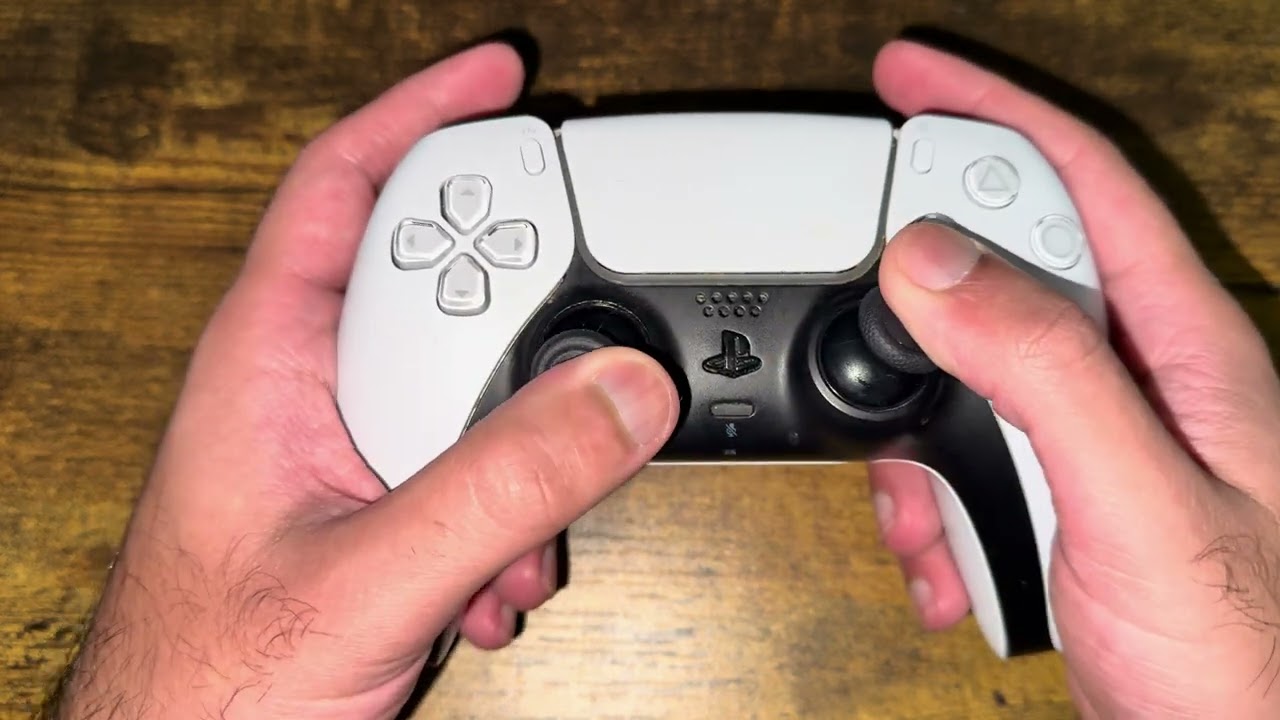
Rotate the stick. Press the stick straight down gently and rotate it around its full range clockwise for about 60 seconds, then counterclockwise for about 60 seconds. Repeat on the other stick without forcing it.
Test before repeating. Reconnect the controller and test in the same game and another title. If the drift returns quickly, stop repeating the cleaning cycle and arrange repair.
Why this may work
The official reset can clear a controller software or pairing problem. Gentle movement and surface cleaning may dislodge loose debris around the stick mechanism. Viewer feedback on the source video is mixed: several people reported immediate improvement, while others said the drift returned within minutes or later. That pattern is consistent with a temporary cleaning effect rather than a repair for worn internal parts.
Alternatives and next steps
Increase the in-game stick dead zone slightly as a temporary workaround, if the game offers the setting.
Test the controller with a different PS5 profile and game.
Start a PlayStation Repairs request for a button or analog-stick issue.
If the controller is out of warranty, use a qualified repair service rather than applying more liquid or forcing the stick.
Consider a DualSense Edge only if replaceable stick modules and its other features justify the cost; it is not required for ordinary PS5 play.
Warnings
Do not spray canned cleaner or liquid directly into the controller, use WD-40, put the controller in rice, or blow moisture into it with your mouth. Do not force the sticks. Cleaning does not restore worn potentiometer parts, and opening the controller can damage it or affect warranty service.
FAQ
Is the video method permanent?
Not necessarily. Some viewers reported lasting improvement, while others said drift returned quickly. Use repair for persistent or severe drift.
How long should I hold the reset button?
PlayStation says at least five seconds. The source video suggests longer, but the official five-second procedure is sufficient to reset the controller.
Can software cause stick drift?
A pairing, firmware or game-setting problem can resemble drift. True recurring movement across games often points to debris or internal wear.
Quick answer: Make sure the PC meets Oblivion Remastered’s requirements and the game is installed on an SSD. Restart the PC, update the graphics driver, lower graphics quality, disable overlays and verify the game files in Steam. Remove mods for a clean test. Administrator mode can be tried temporarily, but turn it off again if it makes no difference.
Before you start
Back up important saves before removing mods or changing files.
Note whether the crash happens at launch, when loading a save or in one location.
Confirm the game is on an SSD; Bethesda lists SSD storage in its troubleshooting guidance.
Download GPU drivers only from the hardware maker.
Fix Oblivion Remastered crashing on Steam
Restart the PC and Steam. Fully exit Steam, restart Windows and launch the game without other heavy applications running.
Check requirements and storage. Compare the CPU, RAM, GPU and Windows version with the current store requirements. Move or reinstall the game on an SSD if it is on a mechanical hard drive.
Update the graphics driver. Install the current stable NVIDIA, AMD or Intel driver for the exact GPU and restart again.
Use the correct GPU. On a laptop or multi-GPU system, set Oblivion Remastered to High performance in Windows Settings > System > Display > Graphics.
Lower the graphics load. Start with a lower quality preset. Close browsers and streaming apps, disable the Steam Overlay and Xbox Game Bar for one test, and turn off unnecessary recording overlays.
Verify the game files. In Steam Library, right-click The Elder Scrolls IV: Oblivion Remastered, choose Properties > Installed Files > Verify integrity of game files. Relaunch after Steam finishes.
Remove mods for a clean test. Disable all mods and custom injectors, then verify the files again. Test a new or known-good save before adding mods back one at a time.
Test administrator mode once. From Installed Files, browse to the game folder. The source video demonstrates opening Properties > Compatibility for the game executables and enabling Run this program as an administrator. Test once; if it does not help, turn it off to avoid unnecessary elevation.
Why these steps work
Crashes can come from unsupported hardware, a driver fault, excessive memory or graphics load, corrupted files, or a mod conflict. Bethesda’s current guidance prioritizes requirements, correct GPU selection, current drivers, reduced settings and file repair. Administrator mode addresses only a narrow permissions problem and should not replace those checks.
If only one save or area crashes
Load an earlier save made before entering the affected area.
Remove mods and test again.
Let dialogue and scripted scenes finish before moving rapidly into the next trigger.
Install current game updates; Bethesda has fixed specific crashes in patches.
Submit a Bethesda Support ticket with the save, location and crash time when the issue is repeatable.
Warnings
Removing a mod can change or break a save that depends on it, so keep backups. Do not add the entire Steam library to antivirus exclusions or disable antivirus permanently. Avoid DLL download sites, registry cleaners and aggressive overclocking.
FAQ
Why does Bethesda require an SSD?
The game’s streaming and performance requirements assume solid-state storage. A hard drive can produce severe loading and stability problems.
Should I run the game as administrator permanently?
No. Keep it only if a controlled test proves it solves the problem. Otherwise remove the setting.
Will Verify integrity delete saves?
It checks installed game files, not normal save data. It can replace modified game files, so back up modded setups first.
Quick answer: Confirm the PC and graphics card support Counter-Strike 2, install the current stable GPU driver, and restart Windows. Then test the source video’s reversible Steam launch option -vulkan. If CS2 still fails, remove the option and verify the game files. A very old or unsupported GPU cannot be fixed with a launch flag.
Before you start
Write down the complete message, including CRenderDeviceMgrDx11::CreateDevice() and any “requires DX11” text.
Identify the GPU in Task Manager > Performance > GPU.
Download drivers only from NVIDIA, AMD, Intel or the computer manufacturer.
Do not download replacement DLL files or DirectX installers from third-party sites.
Fix the CRenderDeviceMgrDx11::CreateDevice error
Restart Windows. A full restart clears a graphics-driver session that may have failed during an update or crash.
Check Windows and hardware support. Compare the PC with the current Counter-Strike 2 requirements on Steam. Run dxdiag from Windows Search and review the Display tab for the GPU, driver and supported feature levels.
Update the graphics driver. Install the current stable package for the exact GPU, then restart. On a laptop, also check the system manufacturer’s driver page if the vendor package is rejected.
Force the high-performance GPU. On a dual-GPU laptop, open Windows Settings > System > Display > Graphics, add or select CS2 and choose the high-performance GPU.
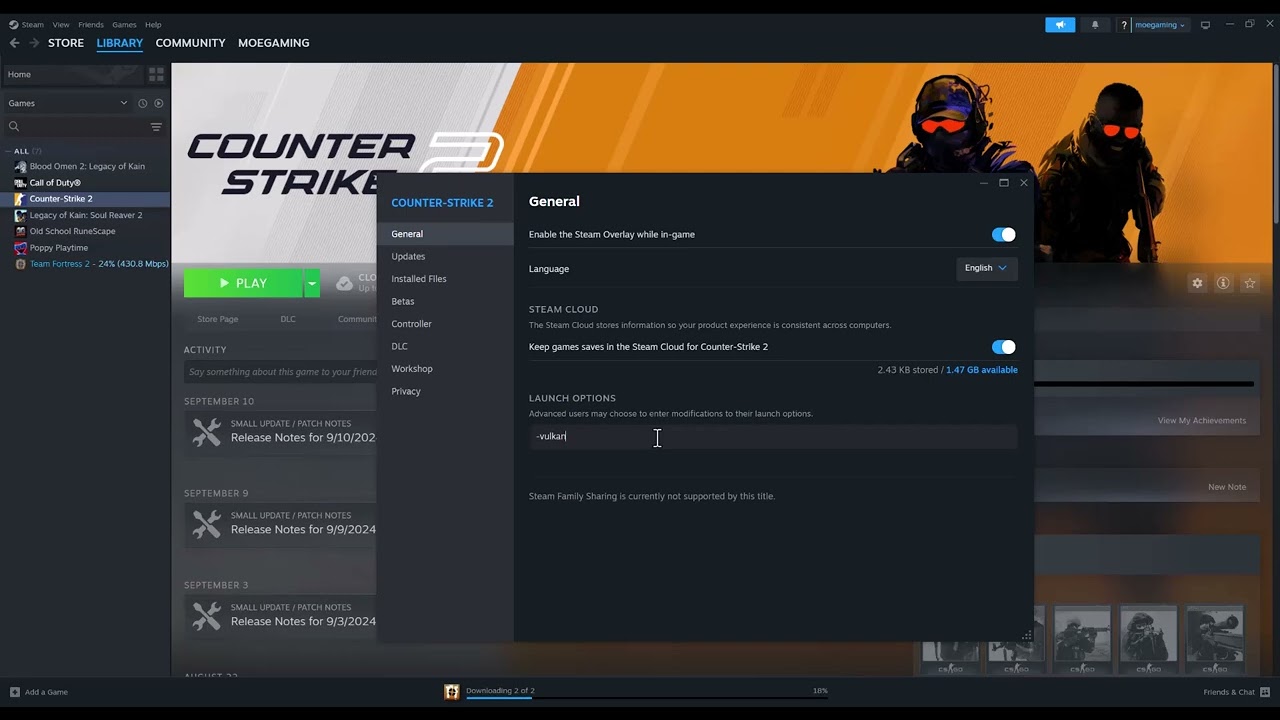
Test Vulkan. In Steam Library, right-click Counter-Strike 2, open Properties > General and enter -vulkan in Launch Options. Start the game once. This bypasses the DirectX 11 renderer and is the primary workaround demonstrated in the source video.
Undo the launch option if it does not help. Return to the same field and delete -vulkan. An unsupported or unstable Vulkan path can cause different launch or performance problems.
Verify game files. Open Steam Properties > Installed Files > Verify integrity of game files. Let Steam replace damaged or missing files, then restart Steam.
Remove conflicting launch options. Delete old renderer, resolution or compatibility flags and test with a clean Launch Options field.
Why this works
The error occurs while CS2 is trying to create a graphics device through DirectX 11. A current driver and correct GPU selection address the normal DirectX path. The -vulkan option asks the Source 2 engine to use Vulkan instead, which can avoid a broken DirectX initialization. File verification replaces damaged game components.
If the error continues
Install all supported Windows updates and restart.
Disable overlays and GPU-tuning tools for one test, then re-enable them individually.
Return GPU and CPU overclocks or undervolts to stock settings.
Test another game that requires a modern graphics API. Similar failures can indicate a driver or hardware problem.
If dxdiag does not show the required feature level, use supported hardware rather than unofficial DLL wrappers.
Warnings
-vulkan is an unofficial troubleshooting workaround for this specific error, not a guaranteed performance upgrade. It is reversible. Do not edit the registry blindly, disable security software permanently or copy DLL files from download sites.
FAQ
Should I leave -vulkan enabled?
Only if CS2 starts and remains stable. Remove it if performance worsens, the game crashes or the original error remains.
Can I install DirectX 11 on any graphics card?
No. Windows components cannot add hardware feature support that the GPU lacks.
Will verifying files remove my inventory?
No. Steam inventory items are account-based. Verification checks local game files; custom local files may be replaced.
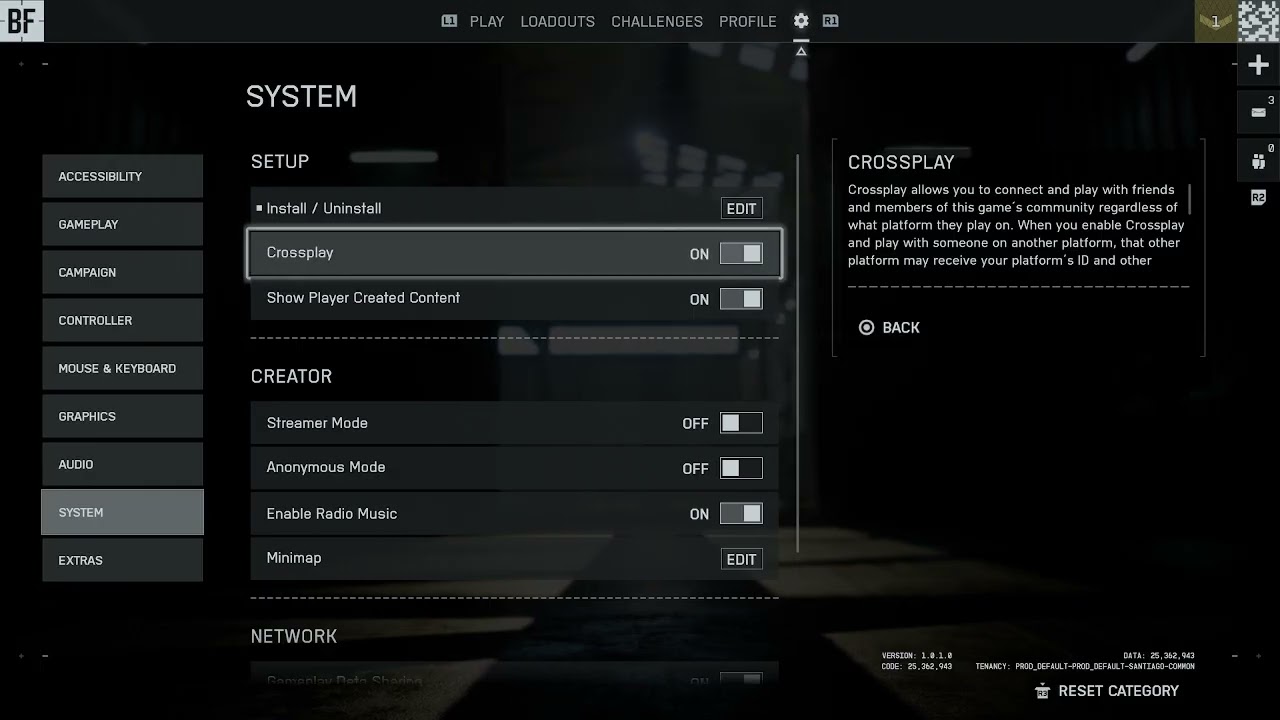
Quick answer: On Battlefield 6 for Xbox or PlayStation, open the cog icon from the main menu, choose System, then Setup, and switch Cross-play on or off. The toggle is not available on PC. You also cannot change it while in a party, on a server or actively matchmaking.
Before you start
Leave the current party and cancel matchmaking.
Return to the main menu rather than changing settings during a match.
Know that disabling crossplay limits the pool to players on the same platform.
PC players cannot disable crossplay in Battlefield 6.
Turn Battlefield 6 crossplay on or off
Return to the main menu. Leave any active match or server and exit the party if the setting appears locked.
Open Settings. Select the cog icon in the upper area of the Battlefield 6 main menu.
Choose System. Open the System section, then select Setup.
Find Cross-play. On Xbox or PlayStation, highlight the Cross-play toggle.
Choose the behavior. Turn it On to match across supported platforms, or Off to restrict matchmaking to your own platform.
Apply and return. Back out of the menu so the setting is saved, then begin matchmaking again.
Re-form the party. If you are playing with friends on another platform, enable crossplay before inviting them and confirm everyone has cross-platform permissions enabled on their platform account.
Why the option can be missing or locked
EA documents the crossplay switch only for Xbox and PlayStation. It is unavailable on PC. On supported consoles, Battlefield locks the setting while you are in a party, on a server or matchmaking because changing the eligible player pool would invalidate the current session.
What changes when crossplay is off
You will match only with players on the same platform.
Queue times can increase, especially in less-populated regions, modes or off-peak hours.
Friends on another platform cannot join until crossplay is enabled again.
Turning it off does not change progression, owned content or controller settings.
If crossplay will not change
Leave the party, server and matchmaking queue.
Restart Battlefield 6 and return directly to System > Setup.
Install pending game and console updates.
Check the console’s privacy and multiplayer permissions.
If the toggle is still absent on Xbox or PlayStation, capture the menu screen and contact EA Help with the platform and game version.
Warnings
Disabling crossplay is not an anti-cheat guarantee and does not remove every skill or input difference. On PC there is no supported switch, so do not edit configuration files or use third-party tools to force the option.
FAQ
Can PC players turn crossplay off?
No. EA’s Battlefield 6 guidance says the setting can be changed on Xbox and PlayStation only.
Why is the toggle greyed out?
Leave the party, server and matchmaking queue, then return to the main menu. The setting cannot be changed during those states.
Will disabling crossplay make matchmaking slower?
It can. The game has fewer eligible players because it searches only your platform.
Quick answer: PS4 error CE-33986-9 means the Internet connection test failed. Check PSN status, restart the PS4 and router, and run Settings > Network > Test Internet Connection. Use Ethernet if possible. If ordinary setup still fails, you can test a reputable public DNS resolver, but return it to Automatic if it makes no difference.
Before you start
Check whether phones or computers can use the same network.
Save the Wi-Fi password and any custom network values before changing them.
Do not press the router’s recessed Reset button; that can erase its configuration.
A DNS change cannot repair an outage or a weak Wi-Fi signal.
Fix CE-33986-9 on PS4
Check PSN status. If PlayStation reports an incident, wait for recovery instead of changing the console or router.
Run the official connection test. Open Settings > Network > Test Internet Connection. Note whether the failure occurs at IP Address, Internet Connection or PlayStation Network Sign-In.
Restart the console. Turn the PS4 off completely, wait until its light goes dark and start it again.
Power-cycle the router. Unplug the modem/router for about 60 seconds, reconnect it and wait for normal Internet status before testing the PS4.
Try Ethernet. Connect the console directly to the router, then choose Settings > Network > Set Up Internet Connection > Use a LAN Cable > Easy. A successful wired test points to Wi-Fi range, interference or saved settings.
Recreate the Wi-Fi connection. Choose Use Wi-Fi > Easy and select the correct network. Re-enter the password carefully and leave IP Address and MTU on Automatic, DHCP Host Name on Do Not Specify and Proxy Server on Do Not Use.
Optional: test manual DNS. The source video demonstrates Custom setup with automatic IP, no DHCP host name, manual DNS and no proxy. Use one complete pair: Cloudflare 1.1.1.1 and 1.0.0.1, or Google 8.8.8.8 and 8.8.4.4. Test again, and restore DNS to Automatic if the result does not improve.
Update network firmware. Install the latest PS4 system software and follow the router manufacturer’s instructions for any firmware update.
Why these steps work
The connection test checks whether the PS4 can obtain a local address, reach the Internet and sign in to PSN. Restarting refreshes sessions and address leases. Ethernet bypasses radio interference. A manual DNS resolver changes only how service names are looked up, so it is a secondary, reversible test rather than a guaranteed fix.
Alternatives
Move the console or router to reduce walls and interference.
Pause large downloads and streams temporarily.
Try a different router port and Ethernet cable.
Test a mobile hotspot briefly to separate a console problem from the home network; monitor data usage.
Contact the ISP if multiple devices fail to obtain an Internet connection.
Warnings
Do not enter a manual IP address copied from another device, open ports at random or disable Wi-Fi security. Keep the previous DNS setting so the change can be undone. Public DNS does not make the connection private and does not bypass a PSN restriction.
FAQ
Which DNS is better?
Neither pair is guaranteed to help. Test one complete pair and keep it only if the connection test becomes reliable.
Why does Internet Connection succeed but PSN Sign-In fail?
The home Internet path may work while PlayStation services are unavailable or the account needs attention. Check PSN status and account notifications.
Will resetting the router fix it?
A normal power cycle may help. A factory reset is unnecessary for this code unless the router owner intentionally wants to rebuild its configuration.
Quick answer: PS5 error WS-116332-6 means access from the console may be prohibited or PlayStation services may be temporarily unavailable. Check the game server and PSN status first. If services are healthy, check the account email, spam folder and PlayStation My Support for a suspension notice. A temporary suspension must normally expire; eligible permanent account suspensions and account-debt cases have official appeal or repayment paths.
Before you start
Do not pay anyone who claims they can “unban” a PlayStation account or console.
Use only PlayStation’s official support and My Support pages.
Check the email address used as the account’s sign-in ID, including junk and spam folders.
If the PS5 was purchased used, keep the seller receipt and marketplace correspondence.
Resolve WS-116332-6
Check service status. Look at the game publisher’s server page and PlayStation Network status. If either reports maintenance or congestion, wait and retry later; the code does not prove a suspension by itself.
Restart once. Close the affected game, restart the PS5 and test sign-in again. Do not repeat this endlessly if every account is blocked and PSN is online.
Check the PlayStation Safety email. PlayStation normally emails the account’s sign-in address with the suspension type and length. Search the inbox and spam folder for recent PlayStation messages.
Check My Support. Sign in to PlayStation My Support from another device to review the account status and any available action.
Identify account versus console restriction. If only one account cannot sign in, the restriction may be account-based. If no account can use online PlayStation services on that PS5, it may be a console suspension or another console-specific access issue.
Use an appeal only when eligible. PlayStation states that appeals may be available for permanent account suspensions. Follow the link shown in the official suspension page or My Support; do not submit repeated unrelated tickets.
Handle account debt through the official form. If the notice says a chargeback created an account debt, follow PlayStation’s balance-payment process. Do not send card details in chat or email.
Contact PlayStation Support if there is no notice. Provide the code, console serial number, purchase status and the affected account. A viewer with a replacement console reported that support removed an incorrect restriction, but only PlayStation can confirm whether that applies to your device.
Why these steps work
WS-116332-6 covers more than one access state. Service checks eliminate a temporary outage. The notification and My Support pages show whether PlayStation applied an account, communication or console suspension. That distinction determines whether waiting, appealing, resolving account debt or contacting support is appropriate.
What will not fix a suspension
Changing DNS, Wi-Fi bands or router ports cannot remove an account or console restriction.
Creating a new account does not bypass a console suspension and may violate the service rules.
Factory-resetting the PS5 does not change PlayStation’s server-side suspension record.
Third-party “unlock” tools are unsafe and cannot legitimately alter PlayStation’s account systems.
Warnings
Do not evade a suspension or misrepresent account ownership. A second-hand console suspension cannot be lifted according to PlayStation; contact the seller. Never share passwords, recovery codes, card details or console serial numbers publicly.
FAQ
Does WS-116332-6 always mean the PS5 is banned?
No. PlayStation says access may be prohibited or temporarily unavailable. Check status and official account notifications before concluding it is a ban.
Can I appeal a temporary suspension?
PlayStation’s public guidance offers appeals only in certain cases, including some permanent suspensions. A temporary suspension normally ends at the time shown in the notice.
What if the console was refurbished?
Contact the retailer and PlayStation with proof of purchase. Do not assume the previous owner’s restriction can be removed; PlayStation says a second-hand suspended console is a seller issue.
PlayStation’s code page for WS-116367-4 says to test sign-in from another device; if that also fails, access may be suspended for a Terms of Service violation. The additional video recommends contacting support but overpromises an automatic reversal. Support can explain available options, but not every suspension is appealable or reversible.
Original source video
https://www.youtube.com/watch?v=cri4K0Xm67k
As an Amazon Associate I earn from qualifying purchases.
Quick answer: PS4 error NP-34957-8 is a server-connection problem. Check PlayStation Network status first. If PSN is online, fully turn off the PS4, restart the modem/router, reconnect by Ethernet if possible, and test the Internet connection again. If many players are seeing the code at the same time, waiting for the service to recover is safer than changing console settings.
Before you start
Confirm whether other online games and PlayStation Store are also unavailable.
Save the Wi-Fi password before removing a saved network.
Do not factory-reset the router; a normal power cycle is enough for this test.
Leave account, storage and saved-data settings alone while PSN reports an incident.
Fix PS4 error NP-34957-8
Check PlayStation Network status. Look for an incident affecting Account Management, Gaming and Social, or PlayStation Store. If a service is degraded, wait and retry after its status returns to normal.
Close the game or app completely. Highlight it on the home screen, press Options and choose Close Application. Relaunching forces a fresh connection instead of reusing the failed session.
Restart the PS4. Choose Power > Turn Off PS4. Wait until the light is fully off, unplug power for about one minute, reconnect it and start the console.
Power-cycle the modem/router. Unplug the network equipment for about five minutes, as PlayStation recommends for this code. Reconnect it and wait until the normal Internet lights are stable before starting the PS4.
Test Ethernet. Connect the PS4 directly to the router with a known-good cable, then open Settings > Network > Set Up Internet Connection > Use a LAN Cable > Easy. If wired access works, Wi-Fi range or interference is likely involved.
Test the connection. Open Settings > Network > Test Internet Connection. Note which stage fails: obtaining an IP address, Internet connection, or PlayStation Network sign-in.
Reconnect Wi-Fi only if needed. Set up the saved wireless network again and enter the password carefully. Keep IP Address, DHCP Host Name, MTU and Proxy on their normal automatic settings unless the network administrator gave you specific values.
Why these steps work
The PS4 must reach both the home router and PlayStation’s servers. A status check separates an external outage from a local connection problem. Restarting clears a stale session, while cycling the router renews its Internet state. Ethernet removes Wi-Fi interference from the test.
Alternatives if the code remains
Pause downloads and streaming on other devices for one test.
Try another Ethernet cable or router port.
Use a phone hotspot briefly as a diagnostic test, not a permanent setup; watch mobile-data use.
Contact the ISP if several household devices also lose Internet access.
Contact PlayStation Support with the code, time and failed connection-test stage if PSN is online and only the console is affected.
Warnings
Do not initialize the PS4, delete saved data, disable router security or open ports at random for NP-34957-8. A factory reset will not repair a PlayStation outage and can create more work.
FAQ
Is NP-34957-8 a ban?
No. PlayStation documents it as a server-connection error. Suspension errors use different codes and normally include an account or console restriction notice.
Should I change DNS?
Not first. DNS does not fix an outage or weak signal. Test the official restart and connection steps before changing advanced settings.
Why did the error disappear later?
That can happen when a temporary PSN incident or local router session clears. Several viewers reported that the code appeared simultaneously and later resolved, but individual causes can differ.