Author: MoeGaming

  • Fix PS4 Error CE-33992-6: PSN Status and Internet Connection Test

    Fix PS4 Error CE-33992-6: PSN Status and Internet Connection Test

    Moe Gaming PS4 CE-33992-6 network error video thumbnail
    Moe Gaming-owned source thumbnail.

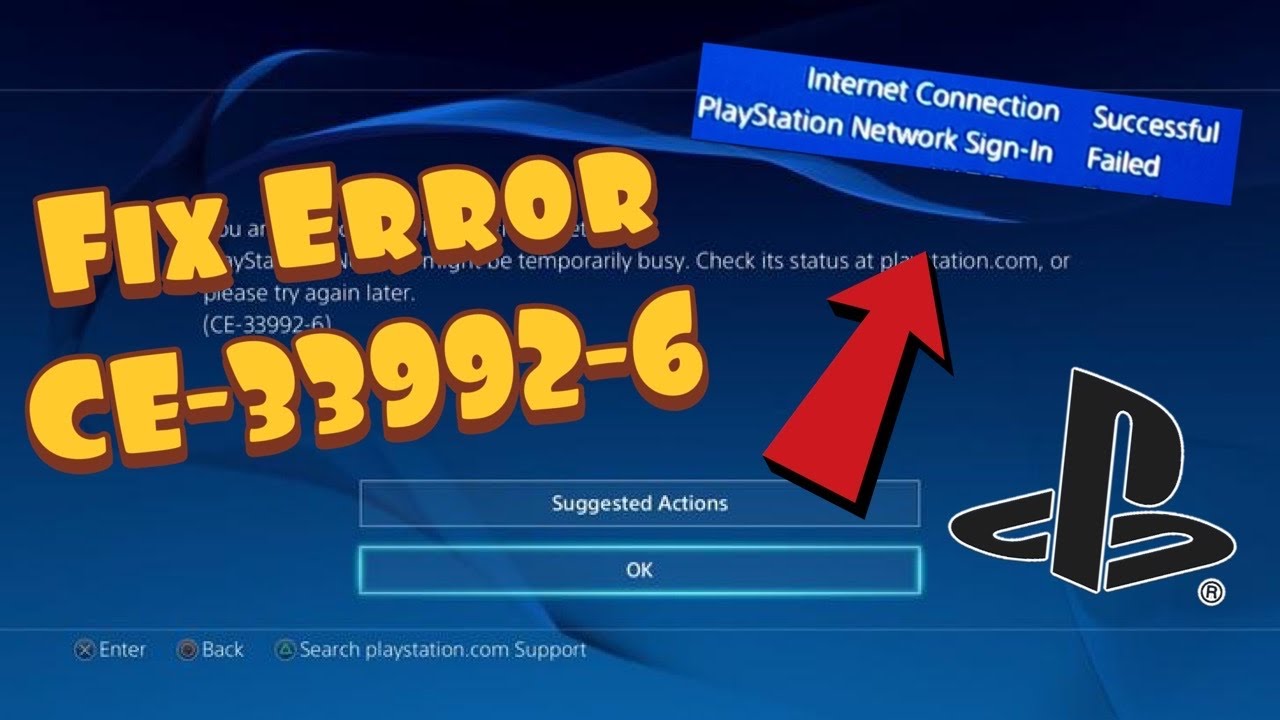
    Quick answer: PlayStation identifies PS4 error CE-33992-6 as an internet connection test error. Check PSN status from another connected device. If PlayStation services are green, run Settings > Network > Test Internet Connection and investigate the home network; Sony recommends a connection with at least 5 Mbps download. Do not mistake a failing network test for proof that your PSN account is suspended.

    Prerequisites

    Have access to a phone or computer to view service status, know your Wi-Fi credentials if reconnecting, and note whether other devices on the same network can access PlayStation services. The Moe Gaming video addresses PSN sign-in symptoms; Sony’s current code page gives a more specific network-test diagnosis.

    Step-by-step diagnosis

    1. On another internet-connected device open PlayStation Network status. If any relevant service is impaired, wait and retry after it recovers.
    2. On PS4 open Settings > Network > Test Internet Connection. Write down which stage fails—obtaining an IP address, internet access or PSN sign-in—rather than repeatedly changing every setting.
    3. If PSN is green but the internet test fails, restart the PS4 and your home modem/router using the manufacturer’s normal power procedure, then repeat the test. This briefly interrupts connectivity for everyone on that network, so choose an appropriate time.
    4. Try moving the PS4 closer to the router or, if convenient, Ethernet. Measure the download speed; Sony’s code-specific guidance suggests trying another network with 5 Mbps or better if your speeds are lower.
    5. If another adequate connection works, troubleshoot the original network or contact your ISP. If multiple networks fail while PSN is green, record the error and contact PlayStation support for account/console-specific help.

    Why the order matters

    A service outage and a local connectivity failure produce similar sign-in symptoms but require different responses. The PlayStation code page says to check service health before treating the home network as the cause. Temporary improvements after a router reboot do not establish that the console or account was at fault.

    Alternatives and warnings

    Do not factory-reset your PS4, open router ports, or disable its firewall merely because the code appears. Those are broader, riskier changes and not part of Sony’s short code-specific sequence. Undo: if you tested a different Wi-Fi network, reconnect to your usual one once its connection has recovered; an Ethernet test can simply be disconnected.

    FAQ

    Does CE-33992-6 mean I am banned?

    No. Sony defines it as an internet connection test error.

    What if PSN is down?

    Wait until service status recovers before troubleshooting the router.

    Official references

    Sony CE-33992-6 guidance · Live PSN status.

    Source video

    Watch the original Moe Gaming demonstration below. The video is source material, while official references above govern current supported steps.

    As an Amazon Associate I earn from qualifying purchases. This guide includes no product recommendations or affiliate purchase links.
  • Fix PS4 Errors SU-41350-3 and SU-30645-8: Update File Not Recognized

    Fix PS4 Errors SU-41350-3 and SU-30645-8: Update File Not Recognized

    Moe Gaming PS4 SU-41350-3 update error video thumbnail
    Moe Gaming-owned source thumbnail.

    Quick answer: PlayStation defines PS4 error SU-41350-3 as “the update file cannot be recognized.” Delete the failed update notification, retry Settings > System Software Update with a wired internet connection where possible, then use the official Safe Mode USB route if needed. The embedded Moe Gaming video is from 2020; do not download the firmware version or unofficial file shown or discussed then.

    Prerequisites

    Do not power off during an active update. For the USB route, you need a working PC/Mac, a compatible USB drive and the current update file from Sony’s system-software page. Back up important saves if the console still starts normally, especially before any Safe Mode action that could reset it.

    Official sequence

    1. Connect the PS4 to the internet by Ethernet if available. This can avoid an incomplete Wi-Fi update download.
    2. On the PS4 function area choose Notifications, highlight the failed update, press OPTIONS, then choose Delete. This deletes the failed download notification, not installed games or saved data.
    3. Open Settings > System Software Update to request the current update again. Let it download and install fully.
    4. If the PS4 still cannot read the file, follow Sony’s PS4 USB update instructions: create a PS4/UPDATE folder on a properly formatted USB drive, save Sony’s current update file there as PS4UPDATE.PUP, and connect the drive to the PS4.
    5. Boot in Safe Mode according to Sony’s instructions and choose the Update System Software option for USB. Select Update from USB Storage Device > OK, not Initialize PS4 (Reinstall System Software). A reinstallation is a different, potentially destructive procedure.

    Why this works

    Clearing the failed download and fetching a fresh update addresses a file the console cannot recognize. Sony’s code-specific help explicitly recommends that sequence; the USB route is the fallback when the online download continues to fail. An old video’s exact firmware number is not a safe substitute for Sony’s current file.

    Alternatives and warnings

    If the USB is not detected, confirm the folder spelling and filename exactly, use the current Sony update file rather than a third-party mirror, and review the filesystem instructions on the official page. Do not select any Safe Mode initialization or reinstall option unless you explicitly intend to erase/rebuild the console and have backups. Undo: no persistent console setting changes; unplug the USB after updating. If failures continue, ask PlayStation support about storage or hardware.

    FAQ

    Will deleting the update notification erase my games?

    No; it removes the failed update item so a fresh download can start.

    Can I use the 2020 file from the video?

    No. Use only the current official update file for your PS4.

    Official references

    SU-41350-3 code page · Current PS4 system-software instructions.

    SU-30645-8 follows the same update-file path

    The additional SU-30645-8 source demonstrates the USB Safe Mode route. Start with a fresh download from PlayStation and Safe Mode Update System Software. Do not choose Initialize PS4 (Reinstall System Software) unless you intend the destructive reinstall process.

    Original source video

    Watch the original Moe Gaming demonstration below. The video is source material, while official references above govern current supported steps.

    As an Amazon Associate I earn from qualifying purchases. This guide includes no product recommendations or affiliate purchase links.
  • PS4 Error NP-32038-6: Restore Licenses and Check PSN Connectivity

    PS4 Error NP-32038-6: Restore Licenses and Check PSN Connectivity

    Moe Gaming PS4 NP-32038-6 error video thumbnail
    Moe Gaming-owned source thumbnail.

    Quick answer: If PS4 error NP-32038-6 interrupts a game launch, first check PSN status and confirm the account owns the game. Then use Settings > Account Management > Restore Licenses > Restore, restart the PS4, and retry. The Moe Gaming video also tries custom DNS and signing out/in; those are optional network checks, not evidence of any account ban.

    What you need

    Know which PSN account acquired the game, have a working connection, and record any custom DNS settings so you can undo them. If a game requires PlayStation Plus, check that the subscription is active. The video speculates about a “shadow ban” but supplies no account-level evidence; do not present that as a diagnosis.

    Steps to try

    1. Check PlayStation status on a phone or computer. If account or game services are affected, wait for recovery instead of repeatedly changing settings.
    2. Sign into the purchasing account. On PS4 go to Settings > Account Management > Restore Licenses > Restore. Sony says the restore does not remove saved data.
    3. Restart PS4, return to the Library, and test the affected game. If only one title fails, check its edition and entitlement rather than altering the entire network.
    4. If connection tests are failing, run Settings > Network > Test Internet Connection. Try a wired connection if convenient, or reconnect to the Wi-Fi network using your normal automatic settings first.
    5. Optional, unofficial video-derived DNS test: Under Settings > Network > Set Up Internet Connection choose your Wi-Fi/LAN, choose Custom, keep IP address Automatic and DHCP host name Do Not Specify, then enter DNS Manual with primary 1.1.1.1 and secondary 1.0.0.1. Keep MTU Automatic and proxy Do Not Use. Test the connection and game; this might help only if DNS resolution was the issue.

    Why these checks help

    Sony supports restoring licenses when a purchased game is missing, locked or crashing. The DNS change changes only the resolver, not the game license or PSN account status. The captions appear to say “1.1.1” once, but the recognizable complete address is 1.1.1.1; do not enter an incomplete address. Neither Sony nor the video establishes a guaranteed, code-specific DNS cure.

    Warnings and alternatives

    Undo the DNS test: repeat network setup and choose DNS Automatic (or restore your recorded addresses). Avoid changing your PSN password solely to test this code; follow PlayStation’s normal account-security process only if you have actual login/security evidence. If entitlement is still missing, contact PlayStation game support with the exact code and purchase details.

    FAQ

    Does this error prove I am banned?

    No. A video speculation is not proof of a suspension.

    Will custom DNS fix everyone?

    No; if the underlying problem is entitlement or PSN service, changing DNS will not solve it.

    Official references

    Sony license restore · PSN status · Game support.

    Source video

    Watch the original Moe Gaming demonstration below. The video is source material, while official references above govern current supported steps.

    As an Amazon Associate I earn from qualifying purchases. This guide includes no product recommendations or affiliate purchase links.
  • PS4 Error WS-43691-3: PlayStation Plus Renewal and Game Download Checks

    PS4 Error WS-43691-3: PlayStation Plus Renewal and Game Download Checks

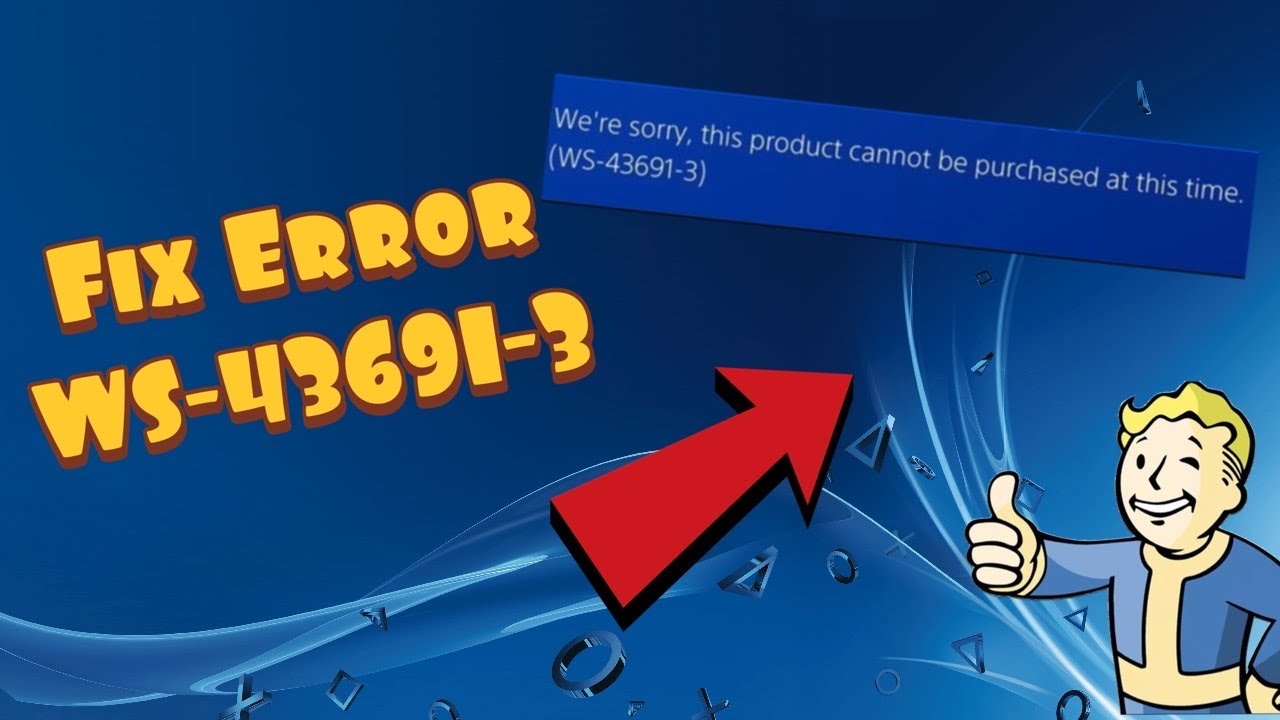
    Moe Gaming PS4 WS-43691-3 error video thumbnail
    Moe Gaming-owned source thumbnail.

    Quick answer: WS-43691-3 may appear in more than one PS4 Store situation, as the Moe Gaming source video describes. If a PlayStation Plus renewal fails, check your current membership and retry through the official PlayStation Store or app. If a game or add-on is locked or will not download, use Settings > Account Management > Restore Licenses on PS4, restart, and retry. A license restore does not extend a subscription or correct a payment failure.

    Prerequisites

    Use the PS4 account that owns the game or membership. Check PlayStation Network status and your existing subscription before attempting another purchase; avoid buying duplicate membership time simply to troubleshoot an error. The five-year-old video mentions historic pricing and third-party subscription codes—those details can change and are not necessary to follow this guide.

    Follow the branch that matches your error

    1. Renewal branch: If the console says you already have an active membership, verify its renewal date in account subscriptions. Sign in to the official PlayStation Store in a browser or PlayStation app with the same account and check whether the renewal option is offered. Do not assume a promotional offer is available to existing members.
    2. If an official Store purchase also fails, check PlayStation status, payment method and wallet guidance through PlayStation Store support; pause instead of repeating charges. Contact PlayStation support for an account-specific billing error.
    3. Game/download branch: Confirm the product was purchased on this account and the membership (where applicable) is valid. On PS4 open Settings > Account Management > Restore Licenses > Restore; Sony says this does not affect saved data.
    4. Restart the console, sign back into the purchasing account if needed, then retry from the Library or Store. If the purchase or add-on is missing, check the product edition and your transaction history before buying anything again.

    Why the steps differ

    The video presents restoring licenses for download trouble and using another official PlayStation purchase surface for renewal trouble. Sony’s restore-license guide explicitly lists missing games/add-ons and locked games as uses; it does not say license restoration fixes all WS-43691-3 cases. Viewer feedback is mixed, with both successful restores and reports that the video workaround did not work.

    Alternatives and warnings

    For a persistent purchase issue, use PlayStation’s official billing support rather than unofficial resale-code workarounds. For a persistent download issue, verify the console is the primary PS4 for that owner if appropriate, then use PlayStation games support. Do not deactivate an account’s primary console simply because a comment suggests it; that can affect other users’ access.

    FAQ

    Will restoring licenses delete saves?

    No, Sony says the restore does not affect your data.

    Should I buy a PS Plus code to clear WS-43691-3?

    Not as a troubleshooting prerequisite. Verify membership and account eligibility first.

    Official references

    Restore licenses · PlayStation Store support · PSN status.

    Source video

    Watch the original Moe Gaming demonstration below. The video is source material, while official references above govern current supported steps.

    As an Amazon Associate I earn from qualifying purchases. This guide includes no product recommendations or affiliate purchase links.
  • Fix Skate “Unable to Connect to EA” on PC: Service Restart and Connection Checks

    Fix Skate “Unable to Connect to EA” on PC: Service Restart and Connection Checks

    Moe Gaming Skate video thumbnail, EA connection error
    Moe Gaming-owned source thumbnail.

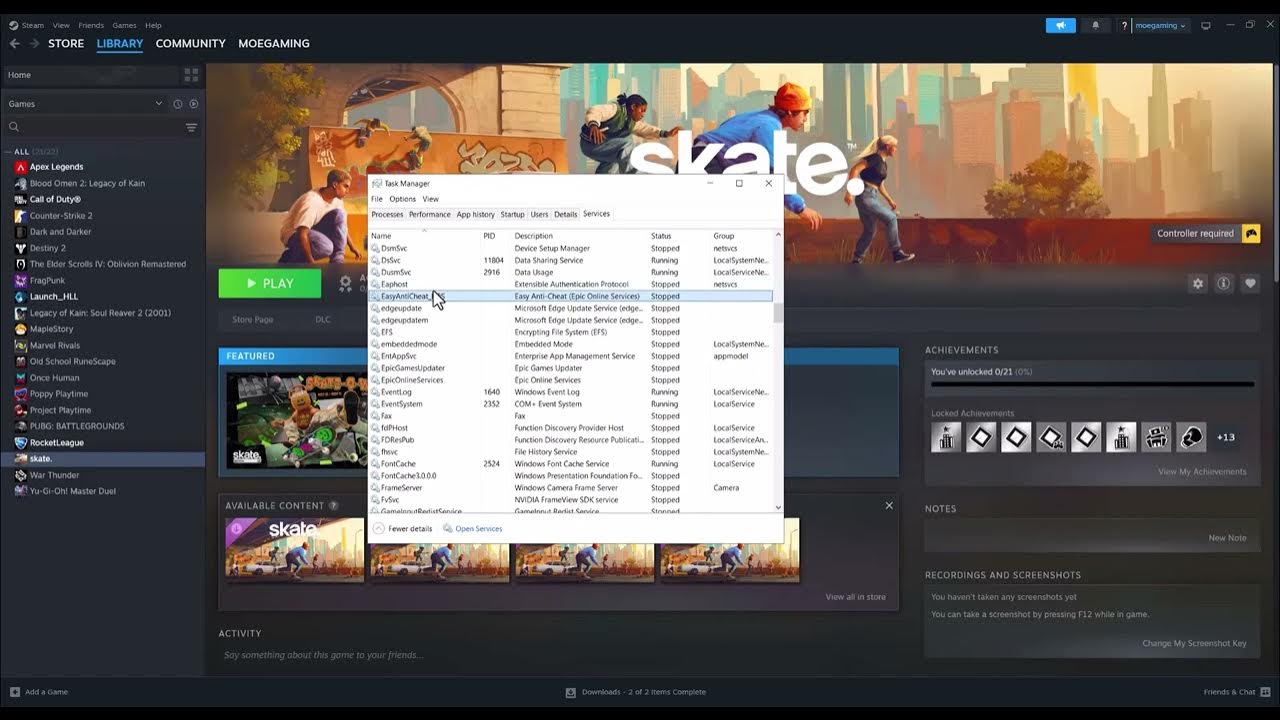
    Quick answer: Check EA’s live server status first. If EA and Skate are available, restart the EA app and the game. On Windows, Moe Gaming demonstrates a further unofficial, temporary workaround: start or restart an EA-related background service in Task Manager’s Services tab, then relaunch Skate. It may help only when the local service has stalled; it cannot repair an EA outage or wrong account link.

    Before you change anything

    These steps are for Skate on a Windows PC. Close Skate and save any open work. Confirm your internet connection works, you are signed into the correct EA Account, and the Steam/Epic account is linked if you launch through one of those stores. EA says unlinking an account can risk purchases and progress; do not unlink it as a quick fix.

    Steps in order

    1. Visit the EA status page and check Skate plus the EA app. If a service is down, wait and retry; a local service restart will not bring the servers back.
    2. Exit Skate and the EA app completely, restart the PC, open the EA app, and sign in with the intended account. EA’s connection guide also recommends checking local connectivity.
    3. Optional video-derived workaround: Open Windows Task Manager (right-click the taskbar and select Task Manager, or press Ctrl+Shift+Esc). Select the Services tab or section, depending on your Windows version.
    4. Find a service whose displayed name clearly belongs to the EA app (for example, EA Background Service). Right-click that EA service and select Start if stopped or Restart if available and running. Do not indiscriminately restart unrelated Windows services and do not change any startup type.
    5. Reopen the EA app, then launch Skate and test the connection. If Restart is unavailable or an access-denied message appears, skip the workaround instead of weakening permissions.

    Why this may help—and what it cannot do

    The video suggests the EA background process may be stopped or stalled; starting it again can restore the local app-to-service path in some cases. EA does not identify this as a guaranteed Skate-specific fix. One viewer reported having to repeat the step every time, so a recurring failure warrants checking EA app updates, connection quality and EA Help rather than treating the workaround as permanent.

    Alternatives and warnings

    If Skate still cannot connect, check the linked account, relaunch after an EA app update, try a wired connection if possible, and review EA’s current Skate error guide. There is no need to disable a firewall or security product. Undo: no persistent settings were changed; if the restart disrupts another EA game, close it and restart Windows to return services to their normal startup behavior.

    FAQ

    Will restarting the EA service fix a server outage?

    No. Wait for EA to restore service.

    Does this apply on PlayStation or Xbox?

    No. Task Manager exists on Windows only; console users should use EA’s status, connectivity and account-link guidance.

    Official references

    EA server status · EA connection troubleshooting · Skate account linking and risks.

    Source video

    Watch the original Moe Gaming demonstration below. The video is source material, while official references above govern current supported steps.

    As an Amazon Associate I earn from qualifying purchases. This guide includes no product recommendations or affiliate purchase links.
  • How to Enable TPM 2.0 for Black Ops 7 on PC

    How to Enable TPM 2.0 for Black Ops 7 on PC

    Quick answer: Press Windows + R, run tpm.msc, and check for “The TPM is ready for use” with Specification Version 2.0. Activision requires TPM 2.0 and Secure Boot for Black Ops 7. If TPM is unavailable, enter UEFI through Windows Advanced startup and follow your PC or motherboard maker’s exact instructions to enable Intel PTT, AMD CPU fTPM, or the equivalent security-device option.

    Prerequisites

    • Install current Windows updates and save all open files.
    • Find the exact PC or motherboard model and download its manual from the manufacturer.
    • If BitLocker or device encryption is enabled, make sure the recovery key is backed up before changing firmware security settings.

    Check whether TPM 2.0 is already enabled

    1. Press Windows + R.
    2. Enter tpm.msc and select OK.
    3. Under Status, look for The TPM is ready for use.
    4. Under TPM Manufacturer Information, confirm Specification Version: 2.0.
    5. If TPM 2.0 is present, also run msinfo32 and confirm BIOS Mode: UEFI and Secure Boot State: On.

    Enable TPM 2.0 through UEFI

    1. Open Advanced startup. In Windows 11, go to Settings > System > Recovery. Next to Advanced startup, choose Restart now.
    2. Enter firmware settings. Choose Troubleshoot > Advanced options > UEFI Firmware Settings > Restart.
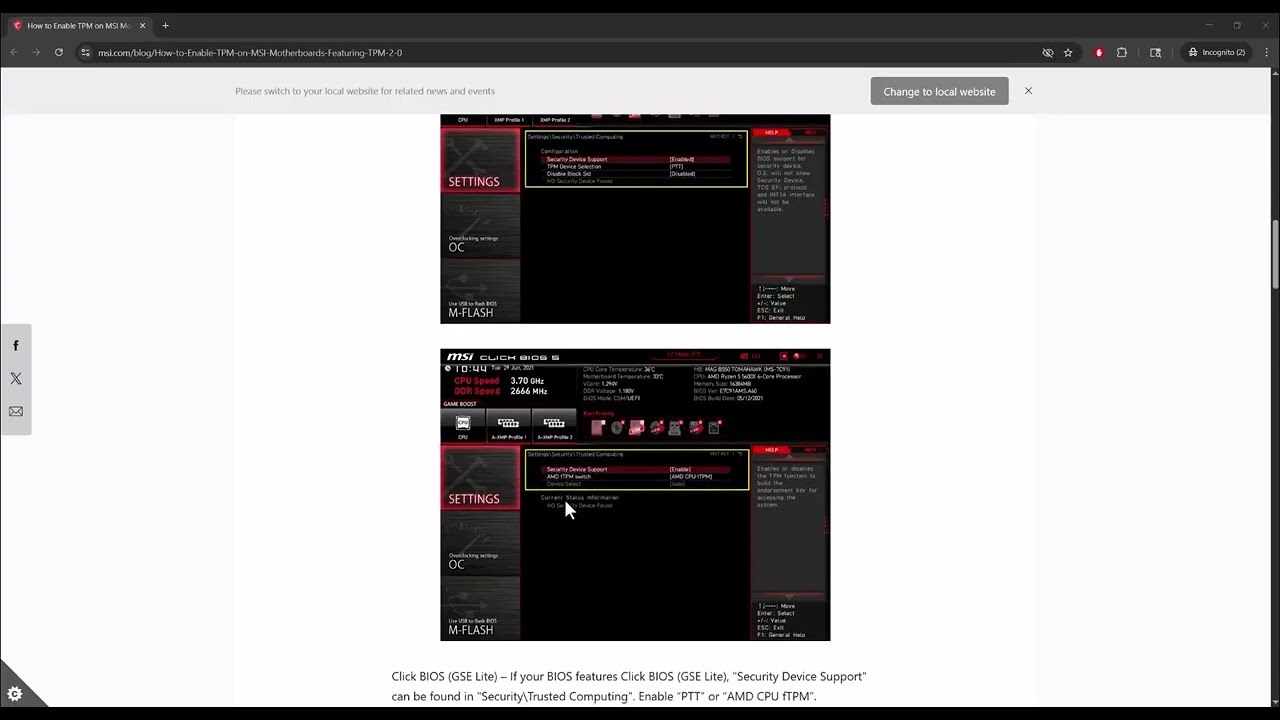
    3. Use the manufacturer’s manual. Locate a menu such as Security, Advanced, or Trusted Computing. Menu names vary significantly.
    4. Enable the correct TPM option. Intel systems may call it Intel PTT or Security Device Support; AMD systems often use AMD CPU fTPM. Do not change unrelated firmware settings.
    5. Save and restart. Use the firmware’s Save & Exit command, then boot Windows.
    6. Verify again. Run tpm.msc and confirm TPM 2.0 is ready. Run msinfo32 to check Secure Boot separately.
    7. Launch Call of Duty. Allow the game’s security validation to finish. If the requirement remains, update Windows and consult Activision’s motherboard-specific section.

    Why this works

    TPM 2.0 provides hardware-backed measurements used by the game’s security and attestation system. Activision states that Black Ops 7 requires TPM 2.0 and Secure Boot. Enabling only TPM may not clear a warning that also reports Secure Boot or a failed attestation.

    Alternatives and next checks

    • If tpm.msc reports no compatible TPM, check the manufacturer’s documentation before assuming the PC lacks the hardware.
    • If BIOS Mode is Legacy, do not switch to UEFI casually. Disk conversion and boot configuration may be required; follow Activision and Microsoft guidance or get professional help.
    • If TPM is enabled but validation fails, install current Windows updates and check whether the motherboard maker provides a firmware update for your exact model.

    Warnings

    Firmware menus differ by model. The source video shows one MSI-style example, not a universal path. An incorrect UEFI change can stop Windows from booting or trigger a BitLocker recovery prompt. Do not clear the TPM, convert MBR/GPT, flash firmware, or disable security features merely to experiment. Use the exact manufacturer instructions.

    Frequently asked questions

    Is TPM 2.0 optional for Black Ops 7?

    No. Activision’s current guidance says TPM 2.0 and Secure Boot are required for Black Ops 7.

    Is Intel PTT the same as TPM 2.0?

    Intel PTT is a firmware-based implementation that can provide the required TPM 2.0 capability when supported and enabled.

    Why is TPM enabled but the game still complains?

    Secure Boot may be off, Windows may need updates, or the firmware version may have a known attestation issue. Check Activision’s full guidance and the motherboard support page.

    Source video

    Official references

    As an Amazon Associate I earn from qualifying purchases.

  • Fix Black Ops 6 Error 0x00001338 N and Startup Crashes

    Fix Black Ops 6 Error 0x00001338 N and Startup Crashes

    Quick answer: Close Call of Duty and its launcher, back up the Documents\Call of Duty\players folder, then rename it to players-backup. Relaunch the game so it creates a clean players folder. This is a reversible, video-demonstrated workaround for 0x00001338 N and some startup crashes labeled 0xc0000005 N; it may reset local graphics and control settings and is not a guaranteed fix for every access violation.

    Before you start

    • Close Black Ops 6, Call of Duty HQ, and Steam, Battle.net, or the Xbox app.
    • Do not permanently delete the folder first. Renaming gives you an undo path.
    • Take screenshots of sensitive, graphics, controller, and keybind settings you want to restore manually.

    Rebuild the players folder

    1. Confirm the game is closed. Open Task Manager and end any remaining Call of Duty process only after the game has finished saving.
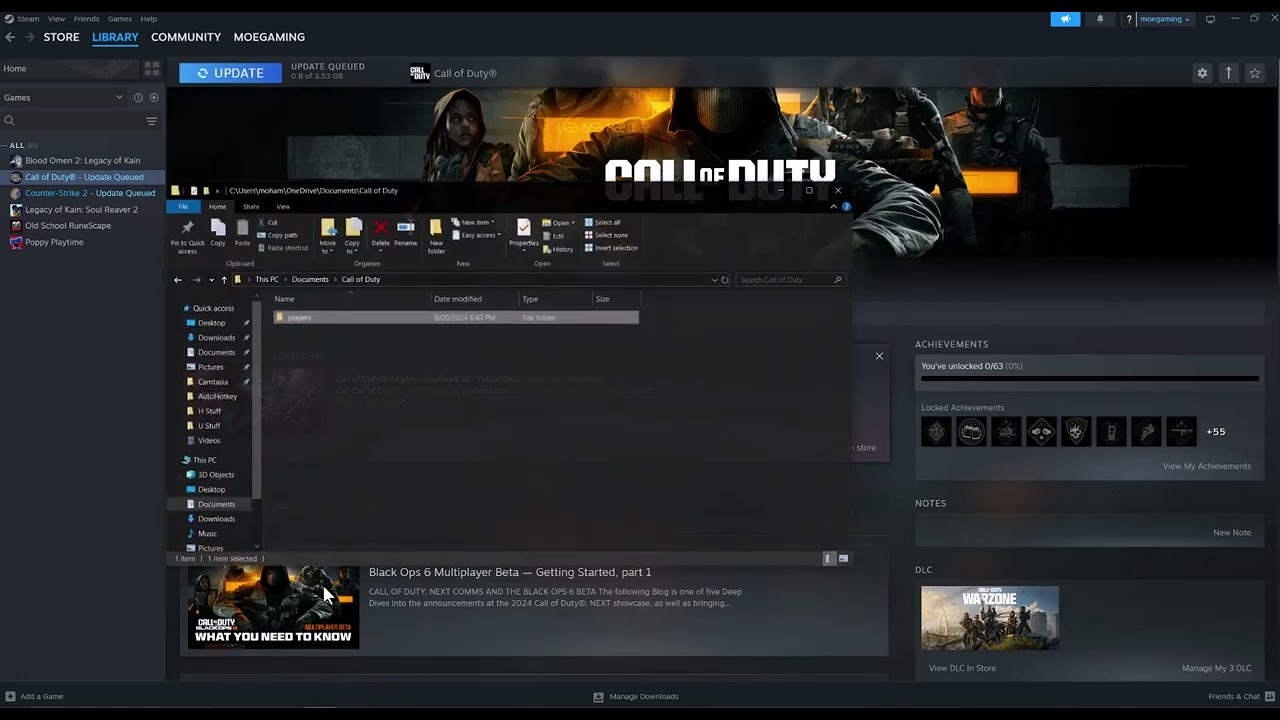
    2. Open Documents. In File Explorer, go to Documents\Call of Duty. OneDrive users may find Documents inside the OneDrive folder.
    3. Back up the folder. Copy the players folder to another location, or at minimum confirm cloud sync is not actively writing to it.
    4. Rename it. Change players to players-backup. Renaming is safer than deleting because you can restore individual configuration files later.
    5. Launch Call of Duty. The game should create a new players folder with default local settings.
    6. Let shaders finish. Do not force-close the game while shader preloading or first-run setup is in progress.
    7. Test before restoring settings. Reach the main menu and test a mode. Reapply settings manually in small groups so you can identify a value that reintroduces the crash.

    Why this can work

    The players folder stores local configuration and cached game-specific state. If one of those files is malformed or incompatible after an update, Call of Duty can crash before reaching the menu. Renaming the folder forces a clean local configuration without changing the installed game files.

    If it does not work

    • Restore the original folder by closing the game, deleting the newly generated players folder, and renaming players-backup back to players.
    • Verify or scan and repair the game files in the launcher.
    • Install Activision’s recommended graphics driver, not an unverified third-party package.
    • Disable overlays and monitoring hooks temporarily, then re-enable them one at a time.
    • Remove any CPU/GPU overclock for a test and check Windows Update.

    Warnings and limitations

    This workaround resets local settings and may prompt you about cloud-versus-local configuration. Read any cloud-sync dialog carefully. Do not delete unrelated Documents folders or online account data. The generic code 0xc0000005 can have many causes; this guide applies specifically when Black Ops 6 crashes during startup and the source video’s players-folder reset matches the symptom.

    Frequently asked questions

    Will this erase online progression?

    Black Ops progression is tied to the online account, but local graphics, input, and accessibility preferences can reset. Keeping the backup protects the original local files.

    What if there is no Call of Duty folder?

    Check the OneDrive Documents location. If the game has never created the folder, this workaround does not apply.

    Should I copy the whole backup into the new folder?

    No. That can restore the corrupt state. Reapply settings in the game; restore individual files only if you know exactly what they contain.

    Source video

    Official references

    As an Amazon Associate I earn from qualifying purchases.

  • Fix Xbox App Errors 0x87e0000f and 0x87e00005

    Fix Xbox App Errors 0x87e0000f and 0x87e00005

    Quick answer: For Xbox app installation errors 0x87e0000f and 0x87e00005, update the Microsoft Store and Xbox app, set Windows date/time automatically, then use Windows’ Repair option for the Xbox app. Use Reset only if Repair fails because Reset clears the app’s local data and signs you out.

    Prerequisites

    • Restart Windows and confirm the PC can browse the internet.
    • Sign in to the Microsoft Store and Xbox app with the account that owns Game Pass or the game.
    • Pause VPN or proxy software only for a controlled test, then re-enable it.

    Fix 0x87e0000f or 0x87e00005

    1. Check Xbox service status. If Store, account, or gaming services are degraded, wait before changing Windows.
    2. Update Microsoft Store apps. Open Microsoft Store, select Library or Downloads, then choose Get updates or Check for updates. Install updates for Microsoft Store, Xbox, Gaming Services, and related components.
    3. Sync the clock. Open Settings > Time & language > Date & time. Turn on Set time automatically and Set time zone automatically, then select Sync now. Incorrect time can break Store authentication.
    4. Restart the PC. This lets Store and Gaming Services load their updated versions.
    5. Repair the Xbox app. Go to Settings > Apps > Installed apps > Xbox > Advanced options. Select Terminate if shown, then Repair. Repair is the lower-impact option and should be tried first.
    6. Test the installation. Open the Xbox app, sign in, and retry the same game and drive.
    7. Reset the Xbox app only if needed. Return to Advanced options and select Reset. You will need to sign in again and may need to restore app preferences.
    8. Repair Gaming Services. Under Installed apps, open Gaming Services > Advanced options, use Repair, restart, and test. Use Reset only after Repair.

    Why this works

    The Xbox app relies on Microsoft Store licensing, Gaming Services, account tokens, and a valid system clock. Updating aligns those components. Repair asks Windows to correct the app without clearing its data; Reset creates a clean local app state when cached data is corrupt.

    Alternatives

    • Try a different installation drive with enough free space.
    • Run Windows Update and install pending cumulative updates.
    • Sign out of both Microsoft Store and Xbox, restart, then sign into both with the same account.
    • If only one game fails, cancel its queue entry and start a new download rather than resetting every gaming component.

    Warnings and limitations

    Reset clears the selected app’s local data and signs you out; use Repair first. It normally does not erase already installed game files, but do not delete game folders manually. Older videos may show the retired Windows Store Apps troubleshooter; current Windows builds may not include it, so the supported Apps settings are the reliable route.

    Frequently asked questions

    Are 0x87e0000f and 0x87e00005 identical?

    No, but both videos demonstrate the same Store/Xbox app repair path. Combining them avoids two thin pages with duplicated instructions.

    Should I reinstall Windows?

    No. Update, time sync, Repair, and Reset are proportionate first steps.

    Why does the correct clock matter?

    Store sign-in and licensing use time-sensitive security tokens. A significantly wrong clock can make valid requests look expired or not yet valid.

    Source videos


    Official references

    As an Amazon Associate I earn from qualifying purchases.

  • Fix PS5 Error CE-118527-4 (Hostname Resolution)

    Fix PS5 Error CE-118527-4 (Hostname Resolution)

    Quick answer: PlayStation identifies CE-118527-4 as a PS5 hostname-resolution problem. Test the console’s internet connection, power-cycle the router/modem for at least five minutes, and verify any manually entered DNS values. If the network is healthy, check with the ISP and retry later because the symptom can be temporary.

    Important correction: The source video’s title calls this a PS4 code, but Sony’s current error-code page lists CE-118527-4 for PS5. The steps below use the official PS5 guidance and current PS5 menu names.

    Before you start

    • Record any custom IP or DNS values before changing the connection.
    • Make sure you can reach the router or ask the network owner to restart it.
    • Do not factory-reset the router; Sony does not require that for this code.

    How to fix CE-118527-4 on PS5

    1. Test the connection. Open Settings > Network > Connection Status > Test Internet Connection. Confirm that the PS5 receives an IP address and reaches the internet.
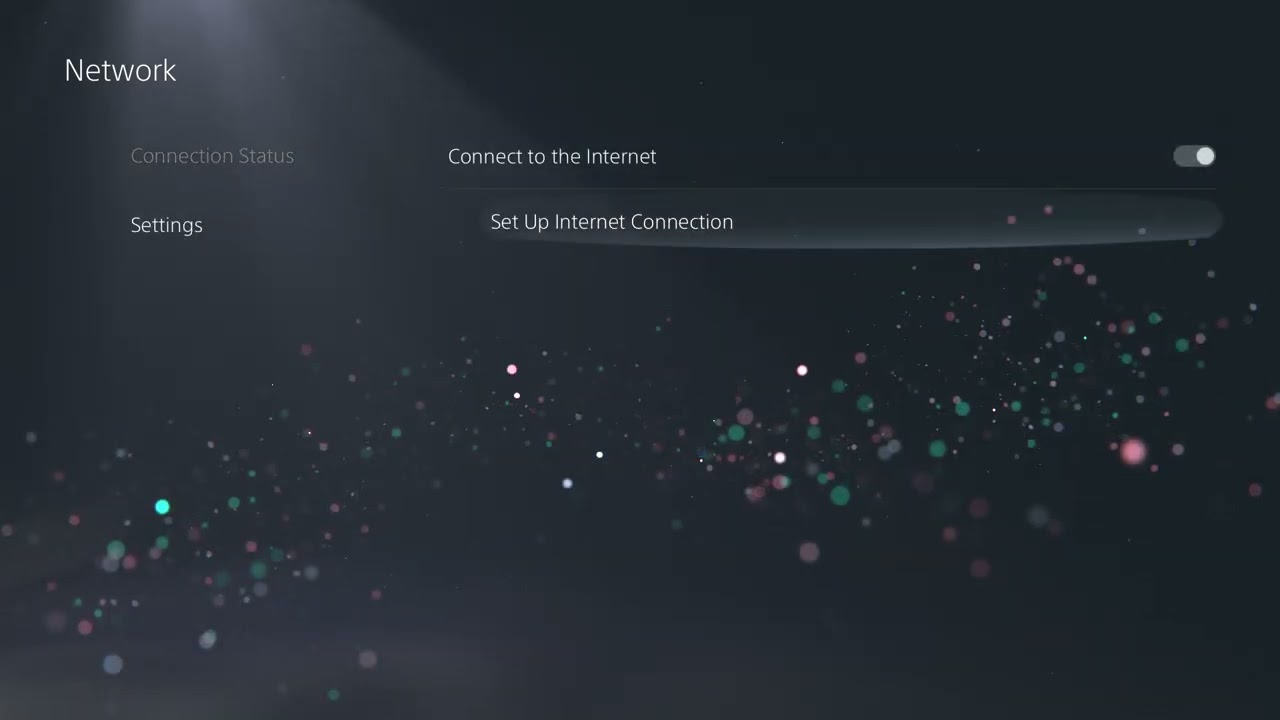
    2. Reconnect if the test fails. Open Settings > Network > Settings > Set Up Internet Connection. Select the correct Wi-Fi or wired network and enter the credentials again.
    3. Restart the PS5. Choose Power > Restart PS5 so network services start with a clean session.
    4. Power-cycle the modem/router. Turn off the PS5, unplug the networking equipment, and wait at least five minutes. Reconnect the modem first, wait for service, reconnect the router, and test again.
    5. Check manual DNS entries. Highlight the active connection, choose Advanced Settings, and inspect DNS. If it is Manual, correct the Primary and Secondary addresses or temporarily return DNS to Automatic.
    6. Try a reputable public DNS only as a test. The video demonstrates Google DNS: Primary 8.8.8.8, Secondary 8.8.4.4. Cloudflare’s 1.1.1.1 and 1.0.0.1 are another option. Keep whichever setting is reliable; otherwise return to Automatic.
    7. Check with the ISP. Ask whether DNS service or network maintenance is occurring. Sony says the error may be temporary, so wait a few minutes and retry.

    Why this works

    A hostname must be translated into an IP address before the PS5 can reach it. Error CE-118527-4 appears when that resolution fails through the current network path. Reconnecting, restarting the router, and correcting DNS address the local causes without touching game data.

    Alternatives

    • Connect the PS5 to Ethernet to rule out Wi-Fi interference.
    • Test a mobile hotspot briefly. If the code disappears, the home router or ISP path is likely involved.
    • Update router firmware using only the router maker’s instructions.

    Warnings

    Do not factory-reset the router unless the ISP or manufacturer directs you and you have the configuration backup. A public DNS does not bypass an outage, account restriction, or parental-control rule. Avoid changing IP, MTU, or proxy settings for a hostname-resolution code unless your network administrator requires it.

    Frequently asked questions

    Is CE-118527-4 a PS4 or PS5 error?

    It is a PS5 error in Sony’s current support catalog. The source video title is mislabeled.

    Will changing DNS delete games or saves?

    No. DNS is a network setting. Record the old value so you can undo the test.

    What if every device has DNS problems?

    Restart the modem/router, then contact the ISP. A problem affecting every device is unlikely to be specific to the PS5.

    Source video

    Official references

    As an Amazon Associate I earn from qualifying purchases.

  • Fix PS5 Errors NW-102261-2 and NW-102265-6

    Fix PS5 Errors NW-102261-2 and NW-102265-6

    Quick answer: PS5 errors NW-102261-2 and NW-102265-6 both mean the console could not connect to a server. Check PlayStation Status, restart the PS5, use wired Ethernet if possible, and power-cycle the modem/router for at least five minutes. Sony lists reconfiguring the network and temporarily changing DNS as later steps.

    What you need

    • Access to the modem/router and the PS5 network settings.
    • An Ethernet cable if you can test a wired connection.
    • Your ISP or router documentation before changing ports, firmware, or static addresses.

    Fix NW-102261-2 or NW-102265-6

    1. Check PlayStation Status. Open status.playstation.com. If sign-in, gaming, or store services are degraded, wait and retry later.
    2. Restart the PS5. Use Power > Restart PS5; do not only enter Rest Mode.
    3. Test Internet Connection. Go to Settings > Network > Connection Status > Test Internet Connection. Note whether internet or PlayStation Network sign-in fails.
    4. Prefer Ethernet for the test. Connect the PS5 directly to the router when possible, then set up the wired connection under Settings > Network > Settings.
    5. Improve Wi-Fi conditions. Move the console/router closer, remove obvious interference, and test the other Wi-Fi band if your router provides separate 2.4 GHz and 5 GHz networks.
    6. Power-cycle networking equipment. Turn off the PS5. Unplug the modem and router, wait at least five minutes as Sony specifies, then reconnect the modem first and the router second.
    7. Reconfigure the saved network. Forget the connection and set it up again, carefully re-entering the Wi-Fi password.
    8. Check router firmware. Follow the router manufacturer’s documentation or ask the ISP. Do not install firmware for a different model.
    9. Temporarily change DNS if needed. In the connection’s Advanced Settings, select Manual DNS. The videos demonstrate Cloudflare 1.1.1.1 and 1.0.0.1. Sony allows testing a reputable public DNS. Return to Automatic if there is no improvement.
    10. Leave advanced changes to the network owner. Sony also lists a static IP and specific TCP/UDP ports, but incorrect settings can break other devices. Ask the ISP or router vendor for help.

    Why these steps work

    Both codes describe a failed server connection, not damaged console storage. A status check separates a PlayStation outage from a local fault. Restarting renews the PS5 session; wired testing removes wireless interference; a modem/router cycle renews network state; and DNS replacement tests whether hostname resolution is the weak point.

    Alternatives

    • Try a mobile hotspot briefly to determine whether the home ISP or router is involved. Avoid large downloads over metered data.
    • Pause other heavy uploads and downloads.
    • Ask the ISP whether maintenance, filtering, or carrier-grade NAT is affecting the connection.

    Warnings

    Do not factory-reset the router, open every port, or invent a static IP. Port forwarding should use only Sony’s documented ports and should be handled by someone who understands the local network. A public DNS does not fix a PlayStation outage.

    Frequently asked questions

    Are NW-102261-2 and NW-102265-6 the same problem?

    They are separate codes, but Sony currently describes both as being unable to connect to a server and publishes the same troubleshooting sequence for each.

    Should I rebuild the PS5 database?

    No. These are network/server errors, so start with Sony’s connectivity steps.

    Why did changing DNS help?

    It may have changed how the console resolved a service hostname. If it makes no difference, return DNS to Automatic.

    Source videos


    Official references

    As an Amazon Associate I earn from qualifying purchases.