Quick answer: Verify Marvel Rivals in Steam first: Library > right-click Marvel Rivals > Properties > Installed Files > Verify integrity of game files. Then remove custom launch options, update the graphics driver, and confirm the PC supports DirectX 12.
Before you start
- Close Marvel Rivals and restart Steam.
- Install pending game, Steam, and Windows updates.
- Check that the installation drive has free space.
- Copy custom Steam launch options to a note before removing them.
Fix Marvel Rivals not opening
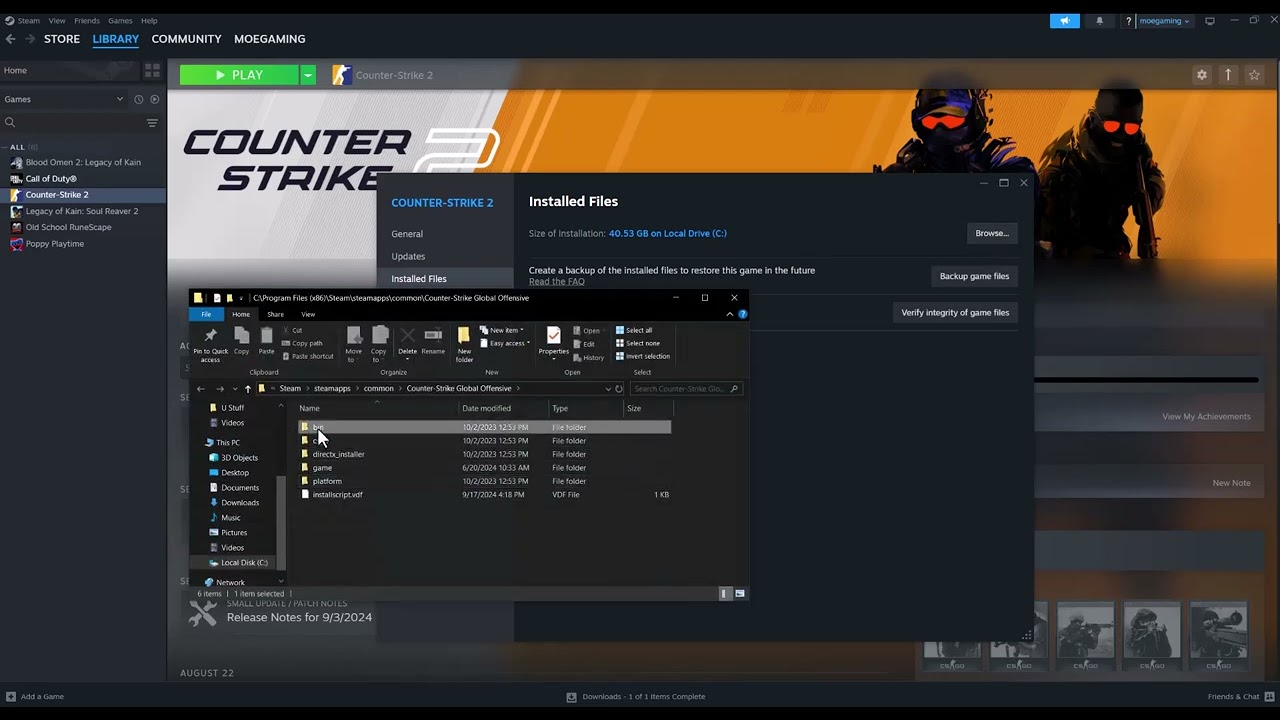
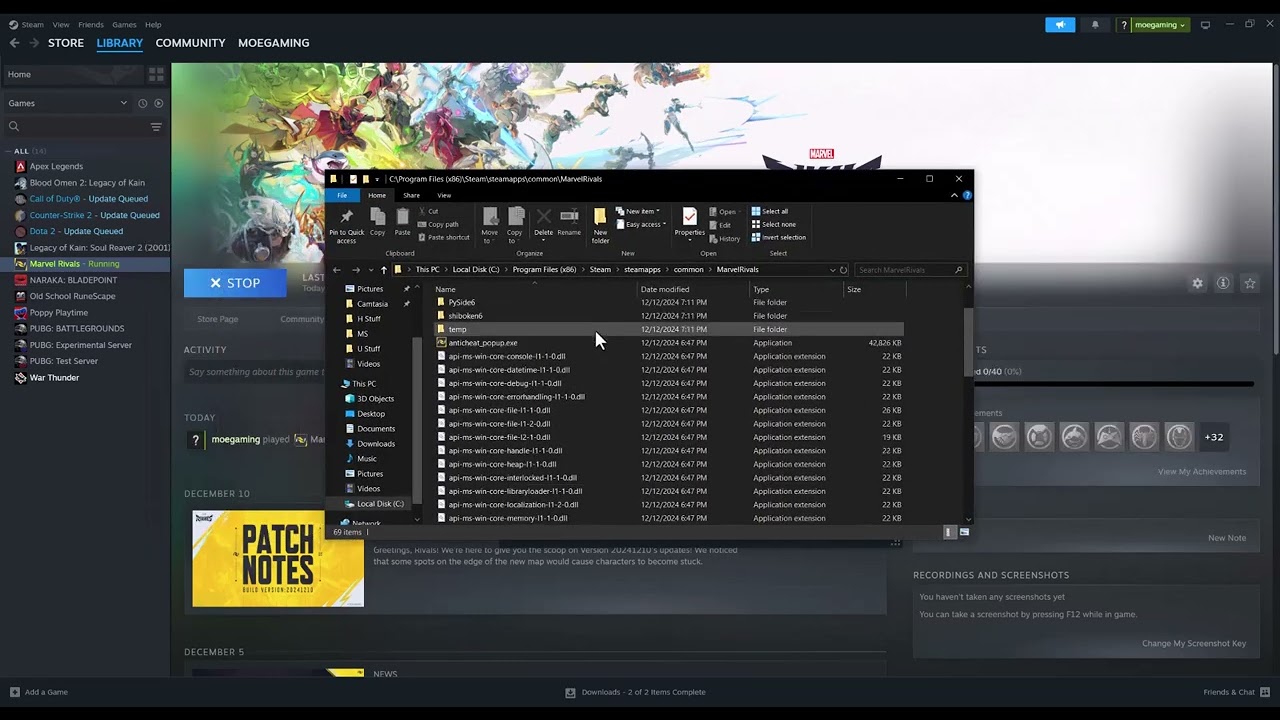
- Verify the game files. In Steam Library, right-click Marvel Rivals, select Properties > Installed Files > Verify integrity of game files. Let Steam reacquire anything it finds.
- Clear custom launch options. In Properties > General, remove arguments such as forced DirectX flags for the first test. An old or conflicting flag can stop the launcher before a window appears.
- Update the display driver. Install the current driver directly from NVIDIA, AMD, or Intel, restart Windows, and test again.
- Confirm DirectX 12 and system requirements. Press Win+R, run
dxdiag, and compare the PC with the requirements on the official Steam listing. A DirectX 12 unsupported message will not be fixed by compatibility mode. - Close conflicting software. Temporarily exit overlays, capture tools, RGB utilities, injectors, and aggressive tuning software. Keep antivirus enabled; review its quarantine history instead of disabling protection.
- Reset forced compatibility settings. Browse to the launcher or executable, open Properties > Compatibility, and clear forced compatibility mode and permanent administrator access unless official support requested them.
- Reinstall only if verification cannot repair the installation. Uninstall through Steam, restart, and reinstall to a healthy drive.
Why this works
The most common launch failures happen before the game can display an error: damaged files, an incompatible launch argument, a driver problem, or another program hooking the renderer. Verification repairs the installation while the remaining checks isolate the environment.
If Steam changes from Running back to Play
- Check Windows Security protection history for a quarantined game file, then verify again.
- Open Windows Event Viewer or Reliability Monitor and note the faulting module before changing more settings.
- Test with overlays off and hardware at stock settings.
- If the error names DirectX 12, focus on GPU support and the driver rather than administrator mode.
Warning: The video includes compatibility mode and administrator access, but viewer feedback is mixed and some failures were actually DirectX 12 errors. Those settings are not a universal fix. Do not download replacement EXE or DLL files.
Frequently asked questions
Will file verification remove my account progress?
No. Marvel Rivals progression is tied to the game account; verification checks local installation files.
Why are one or two files reacquired every time?
Some launchers regenerate small local files. If the game still fails, note the exact error and check security software or drive health.
Should I use Windows 8 compatibility mode?
Not by default. Marvel Rivals is a modern DirectX 12 game, and forced legacy compatibility can create new problems.
Official references
- Steam Support: Verify integrity of game files
- Official Marvel Rivals Steam page and system requirements
Source video
As an Amazon Associate I earn from qualifying purchases.