Quick answer: Check Black Ops 6 and Xbox service status, run the Xbox network and multiplayer tests, restart the router, and test Ethernet. If the connection is stable but matchmaking still behaves oddly, try a reputable public DNS resolver. Do not factory-reset the router just to chase game lag.
The source video demonstrates a router restart and manual DNS. It also mentions the router reset pin; this guide intentionally excludes that destructive step because a factory reset can erase ISP credentials, Wi-Fi names, passwords, and security settings.
Before you start
- Stop game downloads and streaming on the Xbox and other devices.
- Record the current Xbox DNS setting.
- Use the same Black Ops 6 mode and region for before/after tests.
- Remember that server-side lag cannot be fixed from the console.
Fix Black Ops 6 lag in order
- Check official status. Review Activision Online Services and Xbox Status. If either reports trouble, wait and retest later.
- Test the Xbox connection. Go to Settings > General > Network settings. Run Test network connection, Test multiplayer connection, and Test network speed & statistics. Note latency, packet loss, and NAT type.
- Restart the game and console. Quit Black Ops 6 from the guide, then restart the Xbox to clear a stale session.
- Power-cycle the router. Unplug router power for about 30 seconds, reconnect it, and wait until the internet connection is fully restored.
- Test Ethernet. Activision recommends a wired connection because Wi-Fi reliability and bandwidth can vary. If wired play fixes the lag, improve Wi-Fi placement or keep Ethernet.
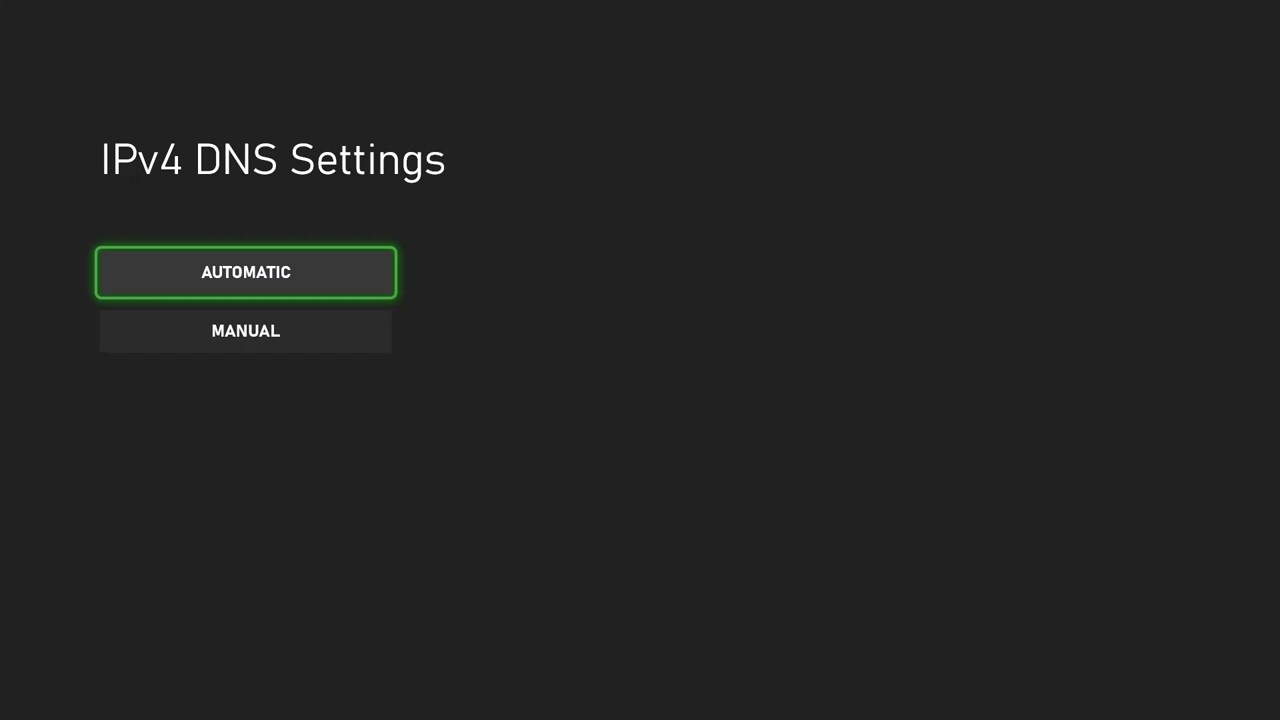
- Try manual DNS only as an optional test. Open Network settings > Advanced settings > DNS settings > Manual. Use Google Public DNS
8.8.8.8and8.8.4.4, or Cloudflare1.1.1.1and1.0.0.1. Restart the game and compare several matches.
Why these steps help
Official status checks separate a server incident from a home-network issue. Xbox tests can expose packet loss, strict NAT, or high latency. Restarting network equipment clears temporary state, and Ethernet removes wireless interference. DNS can help service discovery, but it does not shorten physical distance to the game server and is not a guaranteed ping fix.
What the numbers mean
- Packet loss: Aim for 0%. Persistent loss causes rubber-banding and delayed actions.
- Latency: Lower is better, but the route and server region matter more than raw download speed.
- NAT: Open or moderate is generally easier for multiplayer than strict. Do not use a DMZ as a permanent shortcut.
Warnings and undo
Never press the router’s recessed Reset button unless you intend to erase its configuration and have the ISP setup details. To undo manual DNS, return to DNS settings and choose Automatic. If DNS makes no measurable difference, leave it automatic.
Frequently asked questions
Why does BO6 lag when other games are fine?
The selected server region, route, game service health, or a title-specific update can differ. Compare official status and Xbox multiplayer tests before blaming bandwidth.
Will faster DNS increase download speed?
Usually not. DNS resolves names; sustained download throughput depends on the connection, local network, and content server.
Should I reinstall Black Ops 6?
Not for ordinary network lag. Reinstall only if the game also crashes, files are corrupted, or Activision/Xbox guidance calls for it.
Official references
- Activision: Connecting to Black Ops 6
- Activision Online Services
- Google Public DNS
- Cloudflare 1.1.1.1
Source video
As an Amazon Associate I earn from qualifying purchases.
Leave a Reply