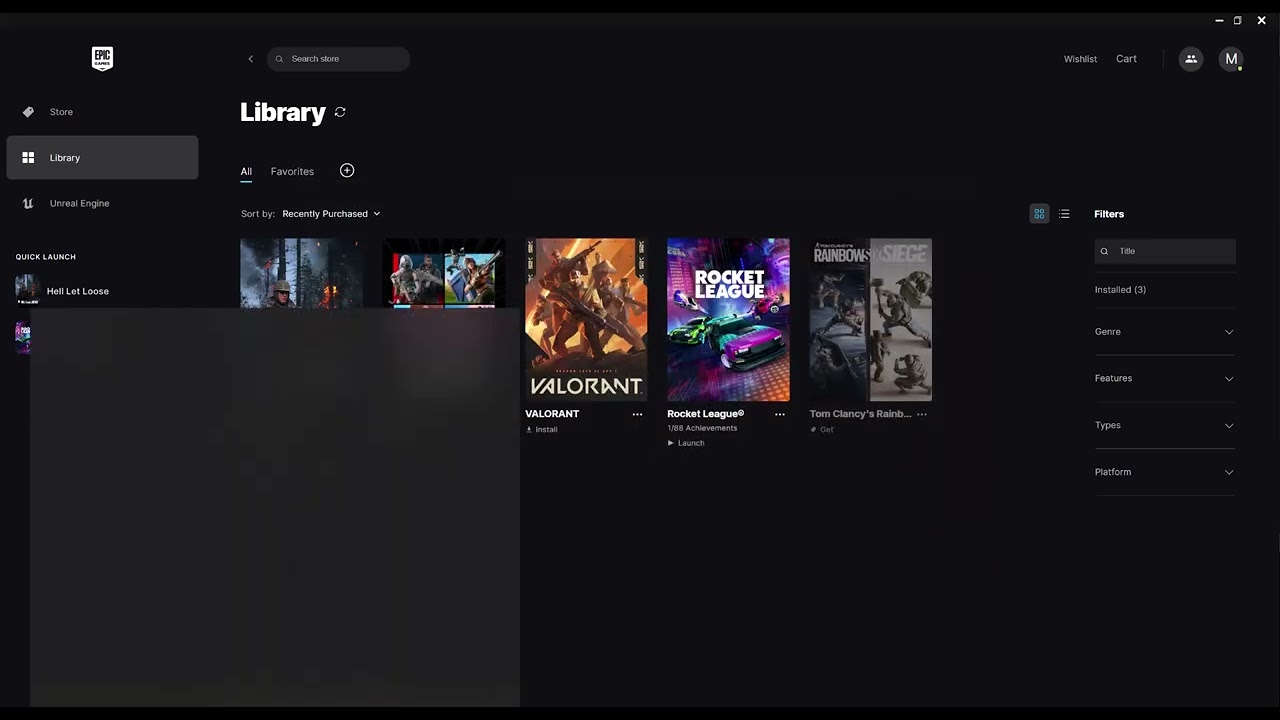
Quick answer: Turn on Rocket League’s Connection Quality Indicators, check Epic service status, restart the router, and test a wired connection. If DNS lookups appear to be the problem, try Cloudflare DNS (1.1.1.1/1.0.0.1) and flush the Windows DNS cache. DNS changes can help name-resolution trouble, but they do not guarantee lower in-match ping.
Before you start
- Pause downloads, cloud backups, and video streams on the network.
- Record the current DNS setting—usually Obtain DNS server address automatically.
- Test more than one match so one bad server does not distort the result.
- Check Epic Games status before changing Windows.
Diagnose the kind of lag
- Open Rocket League Settings > Interface.
- Enable Connection Quality Indicators.
- Watch for High Latency, Latency Variation, Packet Loss, or Server Health. A Server Health warning points away from your PC; repeated packet loss on every server points toward the route or home network.
Fix Rocket League connection lag
- Restart the router. Disconnect router power for about 30 seconds, reconnect it, and wait for service to return. Do not press a factory-reset button.
- Test Ethernet. A wired connection removes Wi-Fi interference and is explicitly recommended by Rocket League Support.
- Choose the nearest region. In Rocket League’s Play menu, set the matchmaking region closest to you instead of leaving an unsuitable manual region selected.
- Set Cloudflare DNS. In Windows, search for View network connections. Right-click the active Ethernet or Wi-Fi adapter, choose Properties, double-click Internet Protocol Version 4 (TCP/IPv4), and choose Use the following DNS server addresses. Enter
1.1.1.1and1.0.0.1. - Flush the DNS cache. Open Command Prompt as administrator and run
ipconfig /flushdns. Restart Rocket League. - Compare results. Play several matches in the same region. Keep the change only if the indicators improve consistently.
Why these steps help
Wired networking reduces radio interference and latency variation. Restarting the router clears transient connection state. A DNS resolver affects how service hostnames are resolved, so it can help lookup failures; once a match is connected, however, DNS normally does not control the path or physical distance to the game server.
Alternatives
- Try Google Public DNS at
8.8.8.8and8.8.4.4. - Disconnect bandwidth-heavy devices and retest.
- Synchronize the Windows clock and verify Rocket League files.
- Ask the ISP to investigate persistent packet loss that also appears outside the game.
Warnings and undo
Do not disable the firewall or expose the PC through a router DMZ. To undo the DNS change, reopen IPv4 Properties and select Obtain DNS server address automatically. If your workplace, school, or ISP requires a managed resolver, ask the administrator before changing it.
Frequently asked questions
Will 1.1.1.1 lower my ping?
Not necessarily. It can improve DNS resolution, but gameplay latency mainly depends on network congestion, routing, Wi-Fi quality, and distance from the server.
What does packet loss mean?
Some data sent between the PC and server did not arrive. Even low percentages can cause rubber-banding or missed inputs.
Should I forward ports?
Use the official Rocket League platform guide first. Modern routers with UPnP often do not need manual forwarding, and incorrect rules can create conflicts.
Official references
- Rocket League Support: PC connection troubleshooting
- Rocket League: Connection Quality Indicators
- Cloudflare 1.1.1.1 documentation
Source video
As an Amazon Associate I earn from qualifying purchases.
Leave a Reply