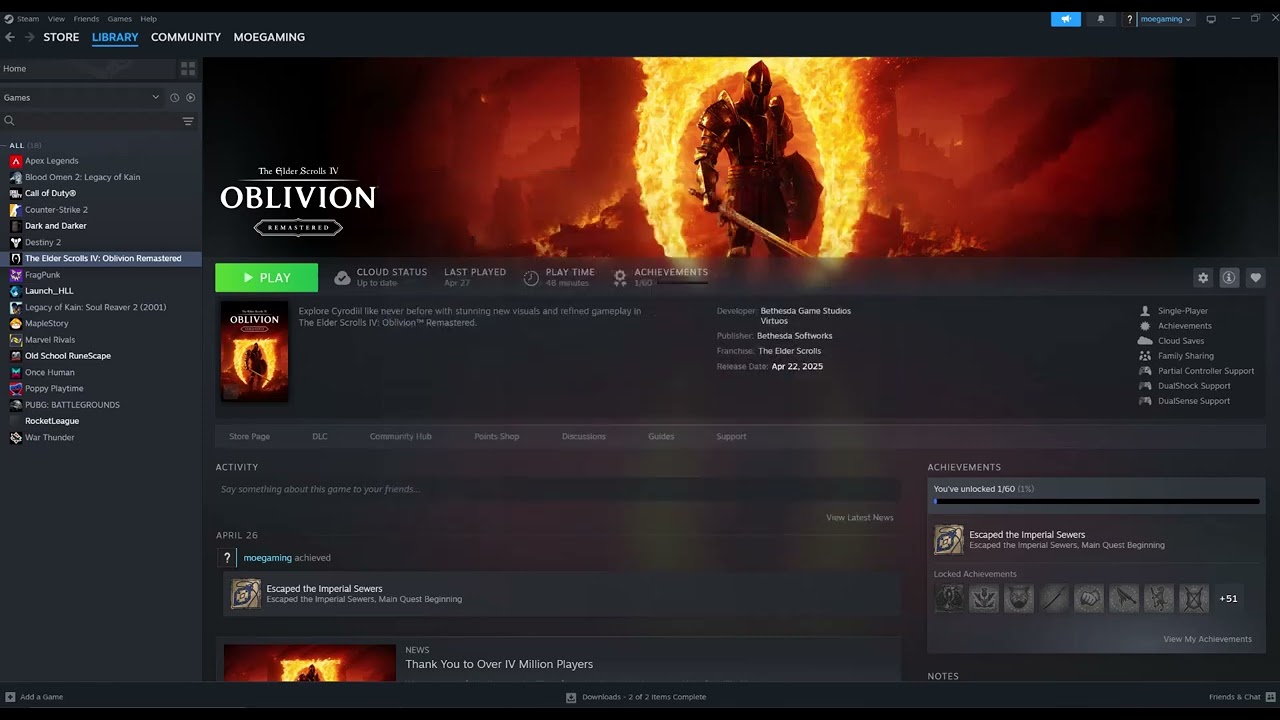
Quick answer: Update the game, disable incompatible mods, and verify Hogwarts Legacy in Steam: Library > Hogwarts Legacy > Properties > Installed Files > Verify integrity of game files. Then update the GPU driver and restart Windows. Try administrator mode only if the normal launch still fails.
The video demonstrates verification, administrator mode, and a driver update. Current Portkey Games support also flags outdated visual mods as a launch problem after PC updates, so mod cleanup belongs near the top of the checklist.
Before you start
- Close Hogwarts Legacy and Steam.
- Back up saves from
%LOCALAPPDATA%Hogwarts LegacySavedSaveGames. - Note whether the crash began after a game, Windows, driver, or mod update.
- Confirm the PC meets the official minimum requirements.
Fix Hogwarts Legacy crashes in order
- Install updates. Open Steam, finish any queued Hogwarts Legacy update, and install current Windows updates.
- Disable third-party mods. Move unofficial mod files out of the game’s
~modsfolder instead of deleting them. Test the unmodified game. - Verify game files. In Steam Library, right-click Hogwarts Legacy, choose Properties > Installed Files > Verify integrity of game files, and wait for completion.
- Update the GPU driver. Use NVIDIA, AMD, or Intel’s official driver tool or download page. Restart the PC after installation.
- Test a normal launch. Start the game from Steam before adding compatibility changes.
- Try administrator mode only if needed. From Steam’s Installed Files page, choose Browse, find the main Hogwarts Legacy executable, open Properties > Compatibility, enable Run this program as an administrator, and apply.
Why these steps work
Verification compares the local installation with Steam’s current manifest and reacquires missing or damaged files. Removing incompatible mods prevents old assets from loading against newer game code. A current GPU driver addresses rendering crashes, while administrator mode can test whether Windows file permissions are blocking required writes.
Alternatives if it still crashes
- Disable overlays and monitoring tools temporarily.
- Reset overclocks to stock settings.
- Use the official Portkey Games PC troubleshooting guide and bug-report site.
- If the crash started after enabling ray tracing, test with ray tracing disabled.
Warnings and reversibility
Do not download “fixed” DLLs or executables from third-party sites. Administrator mode grants the game elevated privileges; disable it after testing if it provides no benefit. To undo, uncheck the Compatibility option and return moved mod files one at a time only after confirming they support the current build.
Frequently asked questions
Will Verify Integrity delete saves?
It checks installed game files, not normal save files, but keeping a backup is still good practice before troubleshooting.
Why did the crash start after an update?
An update can expose a damaged file or make an older mod incompatible. Portkey Games specifically documents visual-mod incompatibilities after PC changes.
Should I reinstall immediately?
No. Verification is faster and usually the better first installation repair. Reinstall only after verification, mod removal, and driver checks fail.
Official references
- Portkey Games: PC Troubleshooting for Steam
- Portkey Games: Known PC mod issue
- Steam: Verify game files
Source video
As an Amazon Associate I earn from qualifying purchases.
Leave a Reply