Where Winds Meet lag on PS5 can mean two different things: network delay, where enemies or actions jump and respond late, or low frame rate, where the picture looks choppy. The network steps below help only with latency, packet loss, and disconnect-style lag. Graphics slowdown needs in-game performance settings or a game update.
Quick answer: Check for a current Where Winds Meet or PlayStation outage, restart the game and router, use wired LAN when possible, and manually choose the better 5 GHz or 2.4 GHz Wi-Fi band instead of leaving an unstable automatic choice. DNS is an optional test, not a guaranteed speed boost.
Before you start: identify the kind of lag
- Network lag: delayed hits, rubber-banding, teleporting players, or disconnects.
- Frame-rate slowdown: choppy motion while offline menus remain responsive.
- Server-side latency: everyone in the same region or activity has problems at once.
- This guide focuses on network lag. Do not expect a DNS change to increase frames per second.
Reduce Where Winds Meet network lag
- Check current service conditions. Review PlayStation Network status and recent Where Winds Meet notices. The developer has documented regional high-latency work and server-infrastructure upgrades, so a temporary server problem cannot be repaired from the console.
- Close and reopen the game. Fully close Where Winds Meet rather than leaving it suspended, then restart the PS5. This creates a new session and removes a stalled connection.
- Power-cycle the router. Turn off the router and modem, unplug them, wait about one minute, reconnect them, and wait for internet service to return before launching the game.
- Use wired LAN if possible. On PS5, go to Settings > Network > Settings > Set Up Internet Connection > Set Up Wired LAN. A cable avoids Wi-Fi interference and is the best test of whether wireless conditions are causing packet loss.
- Choose a Wi-Fi band manually. Highlight the saved Wi-Fi network under Set Up Internet Connection, press Options, select Wi-Fi Frequency Bands, and try 5 GHz when the console is close to the router. Try 2.4 GHz when walls or distance make 5 GHz unstable.
- Pause competing traffic. Stop large downloads, cloud backups, and 4K streams on the same connection while testing. Resume them after confirming the game is stable.
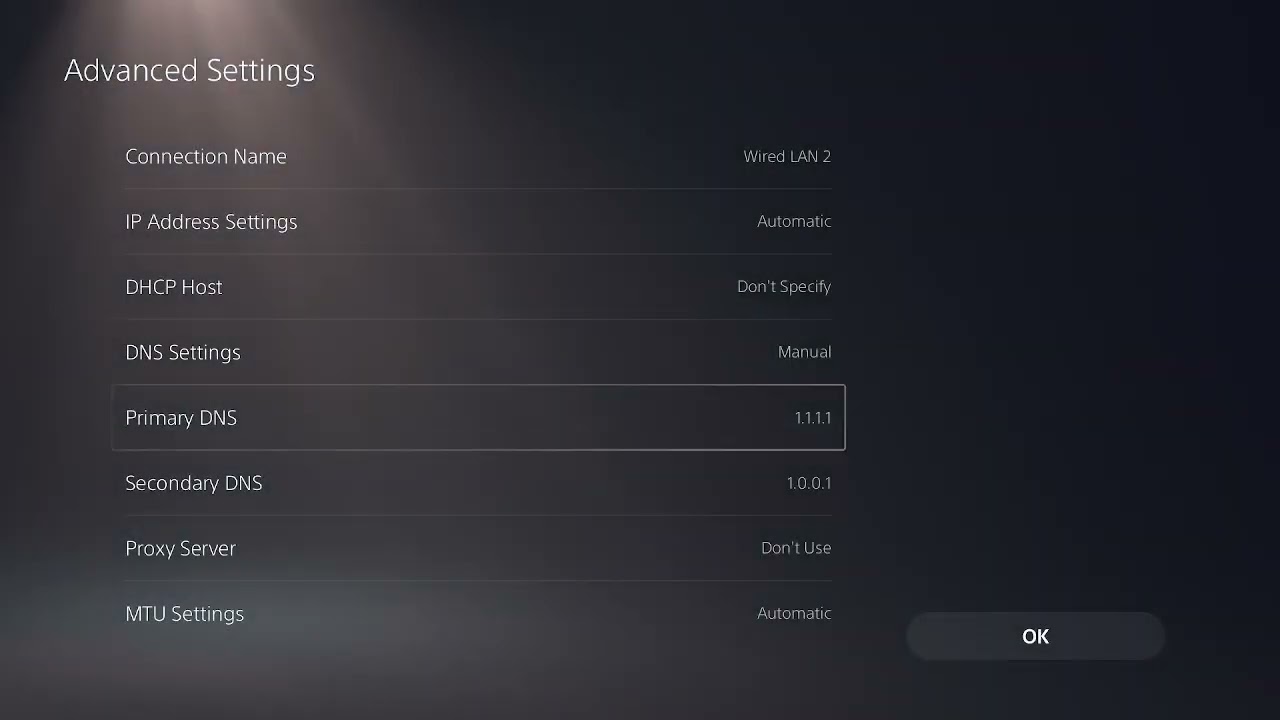
- Test an alternate DNS only if name resolution seems unreliable. Under the network’s Advanced Settings, set DNS to Manual and test a reputable resolver such as Cloudflare
1.1.1.1and1.0.0.1. Record the original setting so you can return to Automatic if there is no improvement.
Why these changes work
A wired link removes wireless interference. Manually selecting a band prevents the console from clinging to a congested or weak frequency. Restarting network equipment renews the local session, while pausing other traffic reduces queueing and packet loss. DNS can help a faulty resolver, but it does not shorten the physical route to a game server after the connection is established.
If the problem is frame rate instead
- Switch Where Winds Meet to its performance-focused graphics mode if the option is available.
- Update the game and PS5 system software.
- Restart after a large patch so the game is not finishing background work.
- Compare performance in a solo area and a crowded city. Slowdown only in dense areas may be rendering load rather than network delay.
- For the PC version, see our separate Where Winds Meet PC lag and stuttering guide.
Warnings
- Do not open random router ports or disable the firewall for a lag problem.
- Changing DNS is reversible and optional; return it to Automatic if connectivity gets worse.
- 5 GHz is usually faster at short range, while 2.4 GHz often reaches farther. Test rather than assuming one is always better.
Frequently asked questions
Will changing DNS lower my ping?
Usually not by much after a game session is connected. It may help only when the ISP’s resolver is slow or unreliable.
Why does Where Winds Meet lag only in cities?
Crowded areas can expose either server load or rendering load. Check whether the frame rate is low or whether actions are delayed before changing the network.
Should I use Wi-Fi or Ethernet?
Use Ethernet when practical. It is the simplest way to remove Wi-Fi interference from the test.
Watch the source video
Official references
- Where Winds Meet: Version 2.0 network optimizations
- PlayStation: Set up wired and wireless internet
- PlayStation Network service status
- Cloudflare: Set up 1.1.1.1 DNS
Affiliate disclosure: As an Amazon Associate I earn from qualifying purchases. No product was added here because the safe fixes do not require new hardware.