The NBA 2K27 message “A problem has been encountered that prevents gameplay from continuing” usually appears when an online session, account entitlement, update, or connection cannot complete cleanly. It does not identify one universal cause, so the safest fix is to check the service and game data before changing network settings.
Before you start
- Write down whether the error affects one mode, one MyPLAYER, or every online activity.
- Do not delete MyCAREER saves, cloud data, or NBA 2K reserved data.
- Pause downloads and streaming on the console and network while testing.
- Use the same PSN and NBA 2K accounts that normally own and play the game.
Fix the gameplay-continuing error on PS5
1. Check 2K and PlayStation service status
If the game’s servers or PlayStation Network are having an incident, local changes will not repair the session. Check service status first and wait if the affected service reports a problem.
2. Apply the latest NBA 2K27 data
- Highlight NBA 2K27 on the PS5 home screen.
- Press Options and choose Check for Update.
- Install any update, then start the game and remain at the main menu long enough for in-game data to synchronize.
- If prompted to return to the main menu to apply an update, do so before entering MyCAREER.
2K’s official support guidance for related online errors says missing current data can prevent continued play and warns against deleting reserved space while updates are synchronizing.
3. Restart the game and PS5
Close NBA 2K27 completely. Select Power > Restart PS5, then launch the game again. A restart clears a stuck session without touching saved data.
4. Restore the NBA 2K27 license
- Highlight NBA 2K27 on the PS5 home screen or in Game Library.
- Press Options and select Restore License.
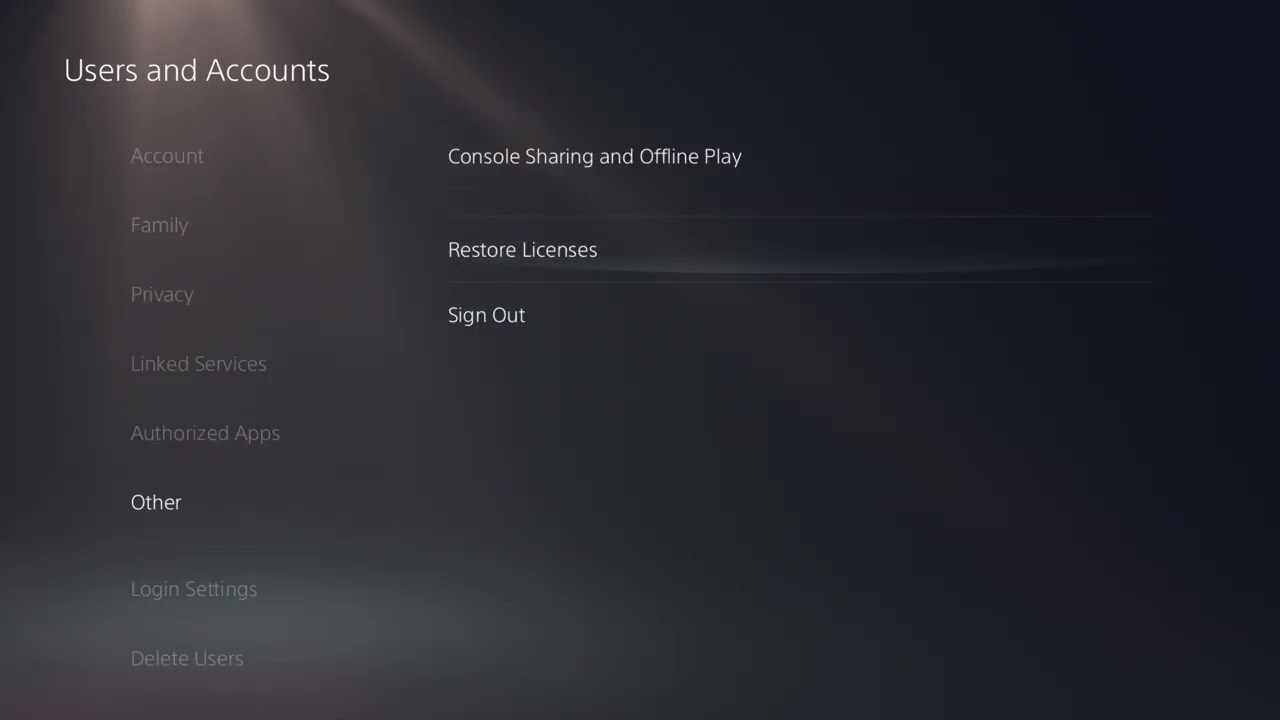
- Alternatively, open Settings > Users and Accounts > Other > Restore Licenses.
- Restart the game after the restore finishes.
PlayStation confirms that restoring licenses does not affect game data. This is safer than reinstalling and directly addresses an entitlement mismatch.
5. Refresh the account session
- Open Settings > Users and Accounts > Other.
- Choose Log Out for the affected account.
- Sign back into the same PSN account, restart NBA 2K27, and test again.
Use this step only when the network is working and an account session appears stuck. Do not remove the user profile or saved data.
6. Test another NBA 2K mode
If MyCAREER is the only affected area, open another mode such as Play Now or MyTEAM, complete the connection or update prompt, return to the main menu, and test MyCAREER again. 2K recommends a mode switch for related 727E66AC connection behavior.
7. Stabilize the connection
- Open Settings > Network > Connection Status > Test Internet Connection.
- Restart the router if the result is unstable.
- Use a wired Ethernet connection when practical.
- If using Wi-Fi, move closer to the router and test the appropriate 5 GHz or 2.4 GHz band rather than leaving a weak connection untreated.
- Restart the PS5 and retest the same game mode.
8. Use custom DNS only as an optional test
The source video demonstrates Cloudflare’s public IPv4 DNS addresses, 1.1.1.1 and 1.0.0.1. DNS can help when name resolution is failing, but it does not fix a 2K server outage, a corrupted save, or ordinary packet loss. Record the original setting and switch back to Automatic if the test makes no difference.
Why this order works
Service availability and current game data affect every player and should be checked before local changes. Restarting and restoring licenses repair common session and entitlement problems without erasing anything. Network changes come later because the error text alone does not prove the router or DNS is at fault.
Alternatives if the error continues
- Try the published NBA 2K27 server and MyCAREER online-error guide if several online modes fail.
- If gameplay works but feels delayed, use the separate NBA 2K27 lag on PS5 guide.
- Use PS5 Safe Mode’s Clear Cache option only after the normal restart, update, and license steps.
- Submit a 2K Support ticket with the exact mode, time, platform, account, and steps already tried if the problem is reproducible.
Warnings
- Do not delete reserved space or interrupt an update sync; 2K warns that this can create more problems.
- Do not delete MyCAREER save data as a first-line fix.
- Do not assume custom DNS improves game-server latency.
- If only one save is affected, back up data before any reinstall or Safe Mode action.
Frequently asked questions
Will restoring licenses delete MyCAREER progress?
No. PlayStation says restoring licenses does not affect your data.
Should I reinstall NBA 2K27 immediately?
No. Check services, updates, restart, restore licenses, refresh the account session, and test the network first. Reinstallation is slower and does not fix an outage.
Does 1.1.1.1 guarantee a fix?
No. It only changes DNS resolution. It cannot repair server downtime, Wi-Fi packet loss, or a damaged save.
Why does another mode work?
A different mode can trigger pending online data or avoid a mode-specific session problem. Return to the main menu after the test so any update prompt can apply.
Watch the original Moe Gaming walkthrough
Optional network gear
- Cable Matters Cat 6 Ethernet cable — a direct wired test when Wi-Fi is unstable
- PS5 and PC gaming headset — useful for confirming voice chat separately from session connectivity
As an Amazon Associate I earn from qualifying purchases.