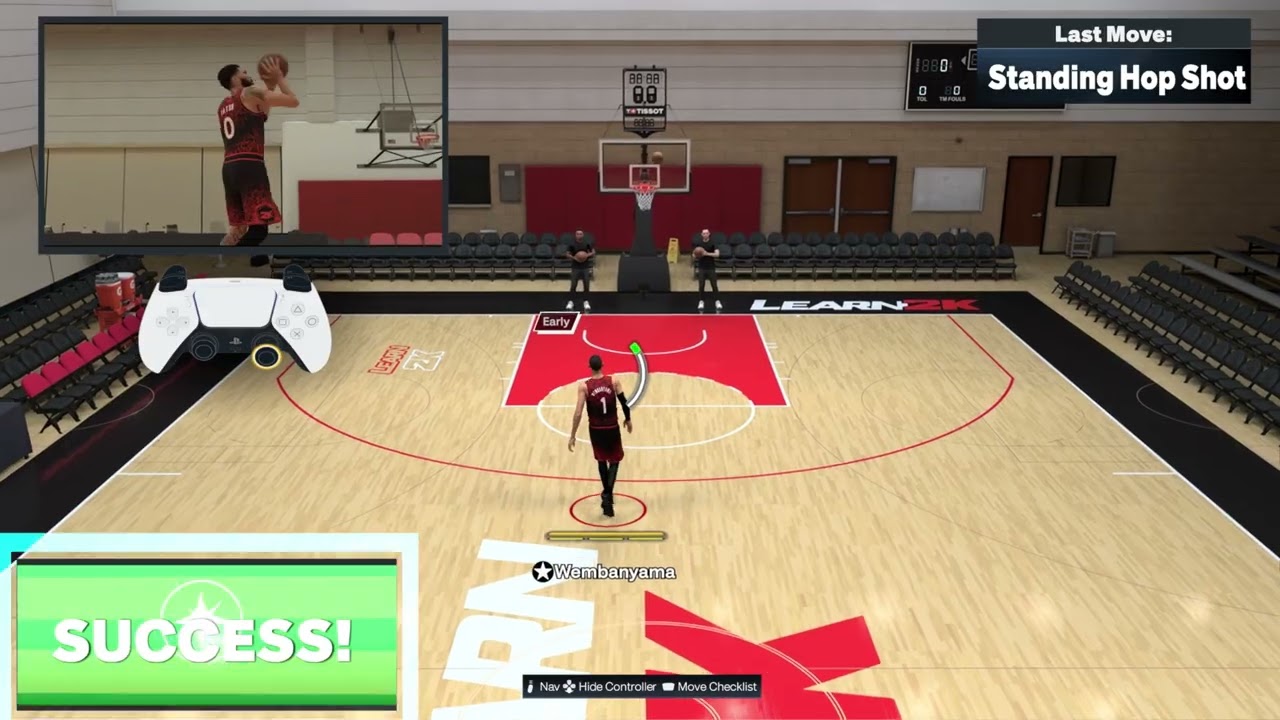
Quick answer: For a standard jump shot on PS5, press and hold Square, then release at the green-window cue. For a pull-up jumper, keep moving around the perimeter, hold Square and release at the player’s cue. For Rhythm Shooting, hold the Right Stick down to start, then push it up at the speed of the release. The green window changes with location, ratings, fatigue and the contest, so the same count will not work for every shot.
| Shot | Default PS5 input shown | Main timing cue |
|---|---|---|
| Rhythm shot | Hold Right Stick down, then move and hold it up | Match the upward stick speed to the jumper’s tempo |
| Go-to shot | Left Stick neutral; move and hold Right Stick up | Let the signature shot begin before returning the stick to neutral |
| Quick catch-and-shoot | Hold L2 as the pass arrives; press Square immediately | Prepare before the catch, then start the shot without an extra dip |
| Standard button shot | Hold Square, then release | Release at the player’s normal visual cue |
| Pull-up jump shot | Keep moving around the perimeter, hold Square, then release | Use the standard shot input while momentum is carrying the player |
| Shot-timing adjustment | Release when the attempt enters the green window | The window can shrink or shift with distance, ratings, fatigue and contests |
Basic jump shot with Square
- Set your feet in open space.
- Press and hold Square to begin the jump shot.
- Watch the player’s release cue and the shot meter or feedback.
- Release Square as the attempt reaches the green window.
The source walkthrough demonstrates the basic hold-and-release input. A green release is timing feedback, not a fixed number of seconds that transfers to every player or court location.
Pull-up jump shot while moving
- Move around the perimeter with enough space to shoot.
- Keep your momentum instead of coming fully to a stop.
- Use the standard PS5 shot input: press and hold Square.
- Release at the moving animation’s visual cue.
The pull-up video’s automatic captions clearly describe shooting while moving around the perimeter but omit the button name. The Square input above comes from the separate standard-jump-shot walkthrough and the default PS5 layout. Follow the current Learn 2K prompt if your preset differs. The source example also misses, which shows that the input starts the animation but does not guarantee a make.
Free throws: Square-button release or Rhythm Shooting
Quick answer: At the free-throw line on the default PS5 layout, hold Square to begin the shot and release it at your player’s visible timing cue. Moe Gaming’s new free-throw demonstration uses this button method; it also recommends improving the player’s Free Throw attribute if the animation stays hard to time.
- Enter a practice game or drill that gives your player free throws, and confirm the active shot-control prompt.
- Press and hold Square once the shooter is ready.
- Watch the shot meter or the animation’s release cue. Release Square in the green timing window instead of relying on a fixed count.
- Read the result and feedback; repeat with the same player before trying to transfer the timing to another shot package.
Why it works: The button starts the shot and the release supplies timing input. The exact cue changes with the player, mode and control preset. If timing stays difficult, practice with one free-throw animation and review the player’s Free Throw rating before spending VC; a higher attribute may help but does not replace timing.
Alternative: 2K’s official NBA 2K27 gameplay guidance says Rhythm Shooting also works at the free-throw line with the Pro Stick. Practice the Rhythm method separately if you already use it for jump shots. 2K specifically says Rhythm Shooting requires a green timing result for a make; the video narrator suggests every free throw must be perfectly green, but the official statement does not establish that rule for every Square-button attempt. Do not treat an early or late release as proof of a hardware fault.
Common questions: Why does the same Square hold miss with another player? Free-throw animations and ratings can change the cue. Can the Pro Stick take a free throw? Yes, 2K explicitly added Rhythm Shooting at the line. What if my controls differ? Follow the current in-game prompt; custom presets and updates can change the displayed input.
Watch the free-throw demonstration
Official NBA 2K27 gameplay notes: Rhythm Shooting and free throws.
Read the shot-timing window
Release in the green window shown for that attempt. The shot-timing walkthrough notes that the usable window changes with the player and court location; farther shots can require more precision. NBA 2K27’s official gameplay guide also explains that feedback separates early or late timing from fast or slow Rhythm Shooting tempo.
- If the feedback is early or late, adjust when you release Square or begin the upward Rhythm motion.
- If the green window feels smaller, check distance, stamina, ratings and defensive pressure before changing the animation.
- Practice from one location with one player, then add movement and online latency.
Before you practice
- Use NBA 2K27’s Learn 2K shooting drills with the default PlayStation layout.
- Pick one player and one jump-shot animation while learning; different releases have different tempos.
- Turn on shot feedback so you can separate Timing errors from Tempo errors.
- Practice offline first. If every input feels late, work through the NBA 2K27 input-delay checklist.
- Use the NBA 2K27 camera and vibration guide if the shooting cue is hard to see.
1. Learn the two parts of Rhythm Shooting
Rhythm Shooting grades both when the shot reaches its release point and how closely your upward Pro Stick motion matches the player’s natural tempo. NBA 2K27’s official gameplay guide says the meter tick moves with your physical stick movement and the feedback identifies early/late timing plus fast/slow tempo.
- Stand in open space and stop moving with the Left Stick.
- Move and hold the Right Stick straight down to begin the shot.
- As the player raises the ball, move and hold the Right Stick up.
- Match the speed of that upward movement to the jump-shot animation.
- Read both feedback labels after the attempt and change only one part at a time.
If timing is correct but tempo is fast, slow the upward push slightly. If tempo is correct but the shot is late, begin the upward motion earlier.
2. Perform a go-to shot
- Bring the player to a comfortable shooting spot.
- Return the Left Stick to neutral; continuing to steer can request a moving shot instead.
- Move and hold the Right Stick up.
- Let the player’s signature go-to animation begin, then finish the input using the visual release cue.
A go-to shot is meant to create a familiar signature look, not guarantee separation. If a defender stays attached, pass or reset instead of forcing the attempt.
3. Use the quick catch-and-shoot input
- Get your feet set and create a clear passing lane.
- Press and hold L2 just before the pass reaches you.
- As soon as the catch completes, press Square to start the shot.
- Use your normal release cue rather than releasing early simply because the setup is faster.
The short walkthrough demonstrates the input but also misses the example shots. That is an important limitation: L2 can reduce the extra catch dip, but it does not override shot timing, ratings, stamina or a contest.
4. Diagnose misses with shot feedback
- Early or late: move the start of your upward stick motion or Square release.
- Tempo too fast or slow: change the speed of the upward Pro Stick motion, not the start time.
- Heavy contest: improve separation instead of trying to compensate with timing.
- Different player feels wrong: learn that player’s release rather than copying an identical count.
- Only online attempts feel late: practice the same animation online and avoid switching between several shot methods during one game.
Why the fix works
NBA 2K27’s upgraded Rhythm Shooting separates the release into measurable timing and tempo components. That makes feedback actionable: an early/late result tells you when the input happened, while a fast/slow result tells you how the stick moved. The quick-shot setup prepares the catch before the ball arrives, and the go-to input keeps the Left Stick neutral so the game can select the signature shot instead of a directional jumper.
Alternatives
- Use the standard hold Square and release method if two-stage stick timing is uncomfortable.
- Use a normal catch-and-shoot attempt when you have enough space; the quick setup is most useful when a closeout is coming.
- Move the ball to an open teammate instead of forcing a go-to shot into a contest.
- Practice from one spot until the feedback is consistent, then add movement and online latency.
Warnings and common mistakes
- Do not flick down and up instantly for Rhythm Shooting; the upward speed must match the animation.
- Do not keep the Left Stick tilted during a go-to shot if you want the neutral signature animation.
- Do not treat L2 as an automatic green. The source demonstration shows that the shot can still miss.
- Stick drift can spoil neutral inputs. Confirm drift in another game or the console UI before replacing hardware.
- Control presets and patches can change prompts. Follow the current Learn 2K display if it differs.
Frequently asked questions
Is Rhythm Shooting just down then up?
That is the motion, but the speed of the upward push matters. NBA 2K27 grades Tempo as well as Timing.
Why does my go-to shot become a moving shot?
The Left Stick may not be neutral, or the player may still have directional momentum. Release the Left Stick and let the player settle first.
Why does the quick shot still have a slow animation?
The catch angle, pass quality, player animation and readiness can still add movement. Hold L2 before the catch and start Square immediately, but do not expect every pass to produce the same animation.
Should I use Square or the Pro Stick?
Square is simpler. Rhythm Shooting gives separate timing and tempo feedback and can offer more control once the motion is consistent.
Does a new controller fix bad shot timing?
Only if your current stick or buttons are physically faulty. It cannot fix a rushed release, poor spacing, low ratings or network delay.
Watch the Moe Gaming walkthroughs
Rhythm Shooting
Go-to shot
Quick catch-and-shoot
Optional controller replacement
As an Amazon Associate I earn from qualifying purchases.
- DualSense wireless controller — consider this only after confirming stick drift or an unreliable Square/L2 input; hardware will not correct timing or tempo.