Author: MoeGaming

  • Fix War Thunder Easy Anti-Cheat aces.exe Errors

    Fix War Thunder Easy Anti-Cheat aces.exe Errors

    War Thunder Easy Anti-Cheat aces.exe error troubleshooting
    Moe Gaming-owned source-video thumbnail.

    Quick answer: For a War Thunder Easy Anti-Cheat or aces.exe launch error, verify the game files first, then run the Easy Anti-Cheat setup in the game folder and choose its repair option when available. Update Windows and security definitions, restart, and use Run as administrator only as a one-time diagnostic. Do not force Steam into Windows 95 compatibility mode.

    Before you start

    • Use the official Steam or Gaijin installation.
    • Keep Windows security enabled and note any quarantined War Thunder or anti-cheat file.
    • Close War Thunder, its launcher and Steam before repairing files.

    Fix the Easy Anti-Cheat aces.exe error

    1. Restart the PC. This clears a stuck game or anti-cheat service.
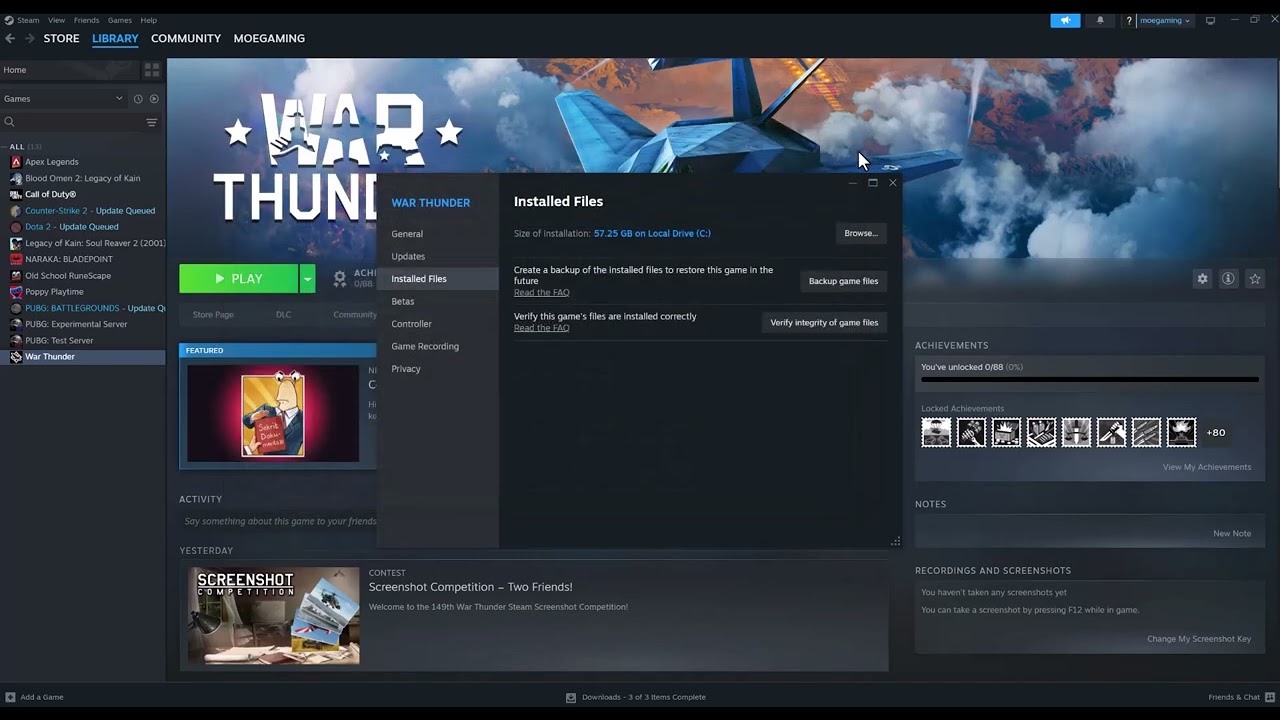
    2. Verify game files. In Steam, open Library > War Thunder > Properties > Installed Files > Verify integrity of game files. In the standalone launcher, use its file-check function.
    3. Repair Easy Anti-Cheat. Browse the War Thunder installation for the EasyAntiCheat setup program. Open it, select War Thunder if prompted and choose Repair Service. If the current installer offers different wording, follow its on-screen repair option.
    4. Update Windows. Install Windows updates and current GPU drivers, then restart.
    5. Review security history. If Windows Security or another antivirus quarantined a verified game component, restore it only after confirming the path belongs to the official installation. Add the narrowest possible allow rule; do not disable protection globally.
    6. Try a one-time administrator launch. Gaijin documents running launcher.exe or aces.exe as administrator when the launcher does not start the game. Use this as a test, not a permanent requirement.
    7. Reinstall the anti-cheat or game. If repair is unavailable or fails, remove and reinstall the official anti-cheat component, then verify files again. Reinstall War Thunder only after the smaller repairs fail.
    8. Contact Gaijin Support. Include the exact message, launcher logs and the time of the failure. Do not post logs publicly.

    Why this works

    Easy Anti-Cheat must start a valid service and match the game’s installed files. File verification repairs missing or changed components; the setup utility restores the service; updates and a narrow security review address blocked or incompatible files.

    Alternatives

    • Launch once from the official Gaijin launcher to compare with Steam.
    • Remove unofficial overlays, injectors or mods that hook the game process.
    • Use Easy Anti-Cheat Player Support when its service reports a specific error.

    Warnings

    Do not disable anti-cheat to enter protected multiplayer, download replacement aces.exe files, or force Steam into obsolete compatibility modes. Those changes can create security and launch problems. To undo the one-time administrator test, launch normally; if you changed Compatibility properties, clear those boxes.

    FAQ

    Is aces.exe malware?

    It is War Thunder’s executable when it resides in the verified official game folder. A file with the same name elsewhere should not be trusted automatically.

    Can I play online with Easy Anti-Cheat disabled?

    Protected multiplayer requires the game’s supported anti-cheat path. Do not use disabling it as a workaround.

    Should Steam run in Windows 95 mode?

    No. The source video suggests old compatibility modes, but they are inappropriate for a current Steam and War Thunder installation.

    Official references

    Source video

    The Moe Gaming video below is source material. Current first-party instructions and the warnings in this guide take priority.

    As an Amazon Associate I earn from qualifying purchases. This guide includes no product recommendations or affiliate purchase links.
  • Fix Roblox Memory Dump Errors on Windows

    Fix Roblox Memory Dump Errors on Windows

    Roblox memory dump error troubleshooting on Windows PC
    Moe Gaming-owned source-video thumbnail.

    Quick answer: A Roblox “memory dump” usually means the client crashed and wrote diagnostic data; it does not by itself prove that system RAM is defective. Restart Windows, install updates and perform a clean Roblox reinstall. Remove the local Roblox folder only after uninstalling so stale client files are replaced. Do not permanently run every Roblox executable as administrator.

    Before you start

    • Save Roblox Studio projects outside the application folder.
    • Close Roblox Player, Roblox Studio and related browser sessions.
    • If Roblox Support asked for logs, copy the requested log files before clearing local data.
    • Use only Roblox’s official site or Microsoft Store listing for reinstalling.

    Fix the memory dump error

    1. Restart Windows. Roblox lists a reboot as the first general desktop troubleshooting step.
    2. Update Windows and the GPU driver. Install stable updates from Windows Update and the GPU manufacturer, then restart again.
    3. Test a clean launch. Close overlays, recorders and nonessential background tools. Keep antivirus enabled; if it blocks Roblox, create a narrow allow rule rather than disabling protection.
    4. Uninstall Roblox. Open Windows Settings > Apps > Installed apps, select Roblox and uninstall it.
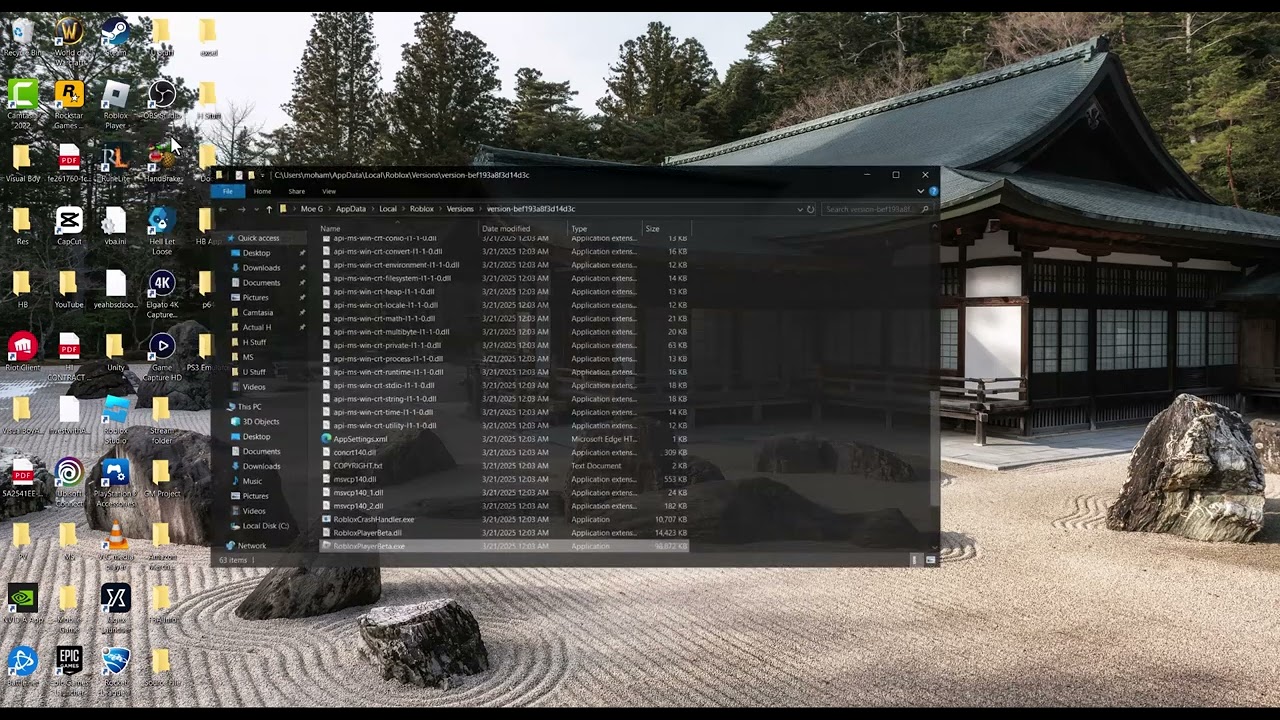
    5. Clear the leftover client folder. Press Win+R, enter %localappdata% and remove the Roblox folder only after uninstalling. This deletes cached client files and logs, not the online account.
    6. Restart and reinstall. Download Roblox again from its official source and test one experience before restoring extra tools or overlays.
    7. Check storage and memory pressure. Keep free disk space available and close memory-heavy applications. If many unrelated programs crash, run Windows Memory Diagnostic and seek hardware support.
    8. Contact Roblox Support. Preserve the exact crash time, Windows version and requested logs. Send logs only through Roblox’s official support process.

    Why this works

    A clean reinstall replaces corrupted or mismatched client files. Restarting clears stuck processes; current drivers address graphics-related crashes; removing only the leftover Roblox folder prevents old cache data from surviving the reinstall.

    Alternatives

    • For the Microsoft Store version, try its Windows Repair option before Reset or reinstall.
    • Test another Windows user profile to identify damaged per-user settings.
    • If Roblox Studio alone crashes, reset Studio settings from within Studio when it can still open.

    Warnings

    Deleting the entire local folder removes logs and local settings, so preserve anything Roblox Support requested first. Permanent administrator mode expands the application’s privileges and is not a necessary default fix. Do not download replacement DLL files or “memory dump fix” utilities from random sites.

    FAQ

    Does a memory dump mean my RAM is bad?

    No. It records crash information. Hardware testing becomes relevant only when multiple unrelated apps also fail or Windows reports memory errors.

    Will clearing Local AppData delete my Roblox account?

    No. The account is online, but the local client cache and logs are removed.

    Should I send a dump file publicly?

    No. Crash logs can contain system and path details. Send only files requested by official Roblox Support through its support channel.

    Official references

    Source video

    The Moe Gaming video below is source material. Current first-party instructions and the warnings in this guide take priority.

    As an Amazon Associate I earn from qualifying purchases. This guide includes no product recommendations or affiliate purchase links.
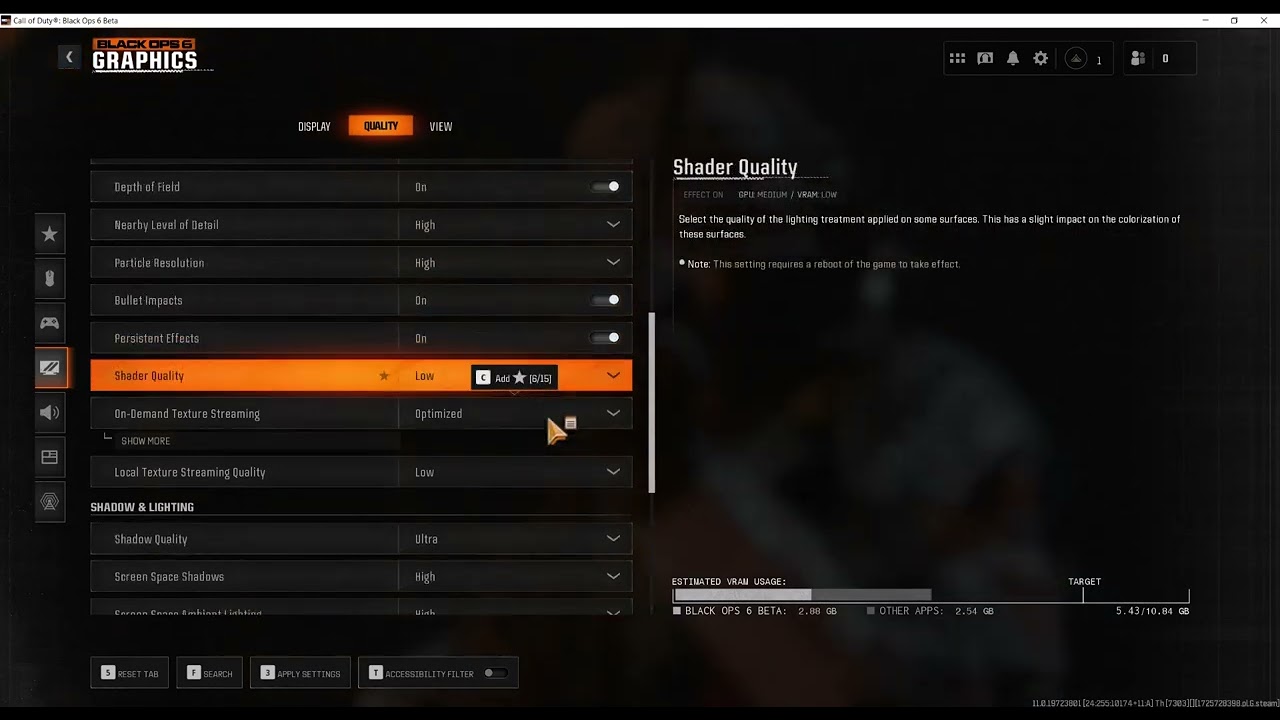
  • Fix Black Ops 6 Lag on PC: FPS vs Network Latency

    Fix Black Ops 6 Lag on PC: FPS vs Network Latency

    Black Ops 6 PC lag, low FPS, and network latency troubleshooting
    Moe Gaming-owned source-video thumbnail.

    Quick answer: First decide whether Black Ops 6 is dropping frames or suffering network latency. For low FPS, let shader preloading finish, update the graphics driver, verify the game files and start with the Minimum quality preset before raising settings gradually. For rubber-banding or packet loss, check Activision services, stop background transfers and test Ethernet. Public DNS does not increase frame rate.

    Before you start

    • Restart the PC and install current Windows and GPU-driver updates.
    • Note the CPU, GPU, RAM and whether the game is on an SSD.
    • Use the in-game telemetry for FPS, latency and packet loss instead of treating every slowdown as the same problem.

    Fix low FPS and stutter

    1. Finish shader preloading. Stay on the main menu until Shader Preloading completes. Activision warns that leaving the menu pauses it and can cause performance problems.
    2. Apply a safe baseline. Open Settings > Graphics > Quality and choose the Minimum preset. Restart the game when prompted.
    3. Raise settings one group at a time. Increase texture quality or detail only while frame pacing remains stable. Keep heavy shadow, particle and volumetric settings low on weaker hardware.
    4. Use an appropriate upscaler. Choose the option supported by the installed GPU and avoid aggressive sharpening. If the image becomes unstable, disable it for comparison.
    5. Verify files. In Steam, open the game’s Properties > Installed Files > Verify integrity of game files. Battle.net users should use its Scan and Repair command.
    6. Close overlays and heavy background apps. Test without capture tools, extra browser tabs and nonessential overlays, then re-enable them one at a time.

    Fix network lag

    1. Check Activision Online Services before changing the PC.
    2. Pause downloads, cloud sync and streaming on the PC and other household devices.
    3. Use Ethernet or improve Wi-Fi placement, then restart the router if multiple devices are affected.
    4. Test another nearby game server or playlist. Record packet loss and time of day if the problem persists.

    Why this works

    Low FPS is a rendering workload problem; latency is a network-path problem. Shader completion, lower graphics and file repair address rendering and installation. Ethernet and bandwidth control address packet delay. Changing DNS may alter name lookup but cannot directly raise FPS or repair packet loss after a connection is established.

    Alternatives

    • Cap FPS to a stable value below the machine’s fluctuating maximum.
    • Disable on-demand texture streaming temporarily if it competes with a limited connection.
    • Reset graphics settings to default if several manual changes made performance worse.

    Warnings

    The Minimum preset reduces visual quality. Note original settings so you can undo changes. Do not download third-party “FPS boosters,” delete system files or disable security software. To undo the video’s DNS test, return the network adapter’s DNS setting to Automatic.

    FAQ

    Why does Black Ops 6 stutter after an update?

    Shaders may need to preload again, and updated files or drivers can change the workload. Let preloading finish before judging performance.

    Does 1.1.1.1 fix low FPS?

    No. DNS changes name resolution, not GPU or CPU performance.

    Should I use the Minimum preset permanently?

    Use it as a baseline. Raise settings gradually until the balance of image quality and stable frame time suits the PC.

    Official references

    Source video

    The Moe Gaming video below is source material. Current first-party instructions and the warnings in this guide take priority.

    As an Amazon Associate I earn from qualifying purchases. This guide includes no product recommendations or affiliate purchase links.
  • Fix Xbox Error 0x8027025a: App Took Too Long

    Fix Xbox Error 0x8027025a: App Took Too Long

    Xbox error 0x8027025a app took too long to start troubleshooting
    Moe Gaming-owned source-video thumbnail.

    Quick answer: Xbox error 0x8027025a appears when sign-in or an app takes too long to start. Quit the app completely and reopen it, restart the console, check Xbox Status and install pending updates. If only one app is affected, reinstall that app after its saves have synchronized. Changing wall outlets is not an official code-specific fix.

    Before you start

    • Check whether the problem affects one app, several apps or console sign-in.
    • Let cloud saves synchronize before uninstalling a game.
    • Do not interrupt an active console update.

    Fix error 0x8027025a

    1. Quit the affected app. Highlight it on Home, press the Menu button and choose Quit. Wait a few seconds and reopen it.
    2. Check Xbox Status. Look for an incident involving Account & profile, Store, Gaming & social or the specific title.
    3. Restart the console. Hold the Xbox button and choose Restart console. This performs a clean restart without removing data.
    4. Install updates. Check Settings > System > Updates, then open My games & apps > Manage > Updates.
    5. Test another app. If every app is slow, free some storage space, disconnect unneeded USB devices and test again. If one app fails, focus on that installation.
    6. Power-cycle if needed. Shut down the console, unplug its power cable for about one minute, reconnect it and start normally. Use the same known-good outlet unless there is independent evidence of an electrical problem.
    7. Reinstall only the affected app. Confirm saves are synchronized, uninstall the title, restart and download it again.
    8. Contact Xbox Support. Report whether the error occurs during sign-in or launch and whether other apps work.

    Why this works

    The official error identifies a timeout rather than a single hardware fault. Quitting and restarting clears a stuck process; service checks catch server-side delays; updates and reinstalling repair an app that is incomplete or corrupted.

    Alternatives

    • Move the app between internal and expansion storage if the current drive has other errors.
    • Disconnect from the network briefly and test an offline-capable app.
    • Try a different profile to distinguish an account sign-in delay from an application problem.

    Warnings

    Do not repeatedly hard-power-off during updates. Do not factory-reset the console until Xbox Support has ruled out service, app and storage causes. Reinstalling can be large and may use significant data.

    FAQ

    What does 0x8027025a mean?

    Xbox describes it as an error that can occur when signing in or opening an Xbox app because the operation took too long.

    Should I change power outlets?

    Not for this code alone. A normal restart or power-cycle is sufficient unless the console shows a separate power problem.

    Will reinstalling erase cloud saves?

    Synced cloud saves remain with the account, but confirm synchronization before uninstalling.

    Official references

    Source video

    The Moe Gaming video below is source material. Current first-party instructions and the warnings in this guide take priority.

    As an Amazon Associate I earn from qualifying purchases. This guide includes no product recommendations or affiliate purchase links.
  • Fix PS4 Error WS-37400-4: PSN Sign-In and Network

    Fix PS4 Error WS-37400-4: PSN Sign-In and Network

    PS4 error WS-37400-4 network and PSN sign-in troubleshooting
    Moe Gaming-owned source-video thumbnail.

    Quick answer: For PS4 error WS-37400-4, check PlayStation Network status before changing anything. If PSN is available, restart the PS4 and router, run Test Internet Connection, recreate the saved connection and try Ethernet. The video’s hotspot and public-DNS methods are optional, reversible diagnostics; they do not repair a PSN outage.

    Before you start

    • Save the Wi-Fi password.
    • Check whether other devices can reach the internet.
    • Do not press the router’s factory-reset button.
    • Record automatic network settings before testing manual DNS.

    Fix WS-37400-4

    1. Check PlayStation Status. If Account Management or Gaming and Social has an incident, wait and retry after the status page clears.
    2. Restart cleanly. Fully restart the PS4. Power-cycle the modem/router, wait until its normal lights return and then test again.
    3. Run the PS4 network test. Open Settings > Network > Test Internet Connection. Note which stage fails: IP address, internet or PSN sign-in.
    4. Recreate the connection. Choose Settings > Network > Set Up Internet Connection and reconnect with Easy/Automatic settings.
    5. Try Ethernet. A wired test bypasses weak signal and interference. On Wi-Fi, move the PS4 and router closer and pause large household downloads.
    6. Use a hotspot only as a diagnostic. A brief phone-hotspot test can show whether the home ISP or router is involved. Stop immediately if data charges are a concern.
    7. Optional DNS test. In Custom network setup, leave IP and MTU automatic and test Cloudflare DNS 1.1.1.1 / 1.0.0.1. If it makes no difference, return DNS to Automatic.
    8. Contact the right support. If the PS4 reaches the internet but PSN sign-in alone fails while status is healthy, contact PlayStation. If all devices fail, contact the ISP.

    Why this works

    Each step isolates a different layer: PlayStation service, console session, local Wi-Fi, router/ISP path and name resolution. The order avoids unnecessary DNS or account changes when the problem is a temporary outage.

    Alternatives

    • Try the same PSN account on the PlayStation App or a browser.
    • Use 2.4 GHz for range or 5 GHz near the router when both are available.
    • Update PS4 system software after the connection is stable.

    Warnings

    Do not expose the PS4 through router DMZ, copy another device’s static IP or factory-reset network equipment. Public DNS is not guaranteed to fix the code. To undo the DNS test, recreate the connection with Easy settings or set DNS back to Automatic.

    FAQ

    Is WS-37400-4 a ban?

    The code alone does not establish a suspension. Check service and network status first.

    Will rebuilding the database fix it?

    That is not a first-line network step and is unnecessary unless a separate storage or menu problem exists.

    Can a hotspot prove the PS4 is healthy?

    It can help isolate the home network, but it does not prove every console component or PSN service is healthy.

    Official references

    Source video

    The Moe Gaming video below is source material. Current first-party instructions and the warnings in this guide take priority.

    As an Amazon Associate I earn from qualifying purchases. This guide includes no product recommendations or affiliate purchase links.
  • Fix PS4 Error CE-41893-5: USB Extended Storage

    Fix PS4 Error CE-41893-5: USB Extended Storage

    PS4 error CE-41893-5 USB extended storage troubleshooting
    Moe Gaming-owned source-video thumbnail.

    Quick answer: PS4 error CE-41893-5 can appear when a USB drive that is formatted as extended storage is being used as though it were a normal FAT32 or exFAT USB drive. A PS4 extended-storage drive is reserved for installed games and applications. Safely stop using it before disconnecting it, then either keep it as extended storage or erase and reformat it for ordinary USB files. The least disruptive solution is to use a second USB drive.

    Before you start

    • Do not unplug the drive while the PS4 is running or its access light is active.
    • Formatting erases the entire drive. Move any installed games you want to keep back to system storage or plan to download them again.
    • Saved games are not stored on PS4 extended storage, but confirm your saves and captures are backed up before erasing any device.

    Fix CE-41893-5

    1. Confirm the drive’s current role. Open Settings > Devices > USB Storage Devices. If the drive is identified as extended storage, the PS4 is using it for applications rather than ordinary files.
    2. Close running games and apps. Wait for downloads, updates and transfers to finish.
    3. Stop the drive safely. Select the drive and choose Stop Using This Extended Storage. You can also use the Quick Menu storage option if it is available.
    4. Choose one purpose. To keep installed games on the drive, reconnect it as extended storage and use a separate FAT32/exFAT USB drive for screenshots, video clips or exported saves. To repurpose it, first move or remove its games, then format it as exFAT or FAT32. Formatting erases everything on the drive.
    5. Reconnect and retry. Fully shut down the PS4, reconnect only the device needed for the task, restart and repeat the copy or export.
    6. Update system software. If the same error appears with a correctly formatted second drive, install the current PS4 system-software update and test another USB port or known-good drive.

    Why this works

    Extended storage and ordinary USB storage use different formats and permissions. The console cannot treat the same volume as both an application-install drive and a generic file-transfer drive at the same time. Separating those roles removes the conflict without changing account or network settings.

    Alternatives

    • Move games between system storage and extended storage instead of reformatting the drive.
    • Use a small, separate exFAT USB drive for captures and save exports.
    • If the drive disconnects repeatedly, test its cable and power supply before replacing it.

    Warnings

    Do not select Format as Extended Storage or reformat the drive on a computer unless you accept complete data loss on that device. Never unplug extended storage without stopping it first. To undo a repurpose, the PS4 can format the drive as extended storage again, but doing so erases its ordinary files.

    FAQ

    Can one USB drive store PS4 games and ordinary files?

    Not while it is configured as PS4 extended storage. Use separate devices or reformat the drive for a single purpose.

    Will stopping extended storage delete games?

    No. Stopping it safely only dismounts the drive. Formatting it is the step that erases data.

    Which normal USB formats does PS4 support?

    PlayStation documentation uses FAT32 and exFAT for ordinary USB storage tasks.

    Official references

    Source video

    The Moe Gaming video below is source material. Current first-party instructions and the warnings in this guide take priority.

    As an Amazon Associate I earn from qualifying purchases. This guide includes no product recommendations or affiliate purchase links.
  • How to Fix Roblox ‘Failed to Load EVR.dll’ on Windows

    How to Fix Roblox ‘Failed to Load EVR.dll’ on Windows

    Roblox failed to load EVR.dll Windows error screen

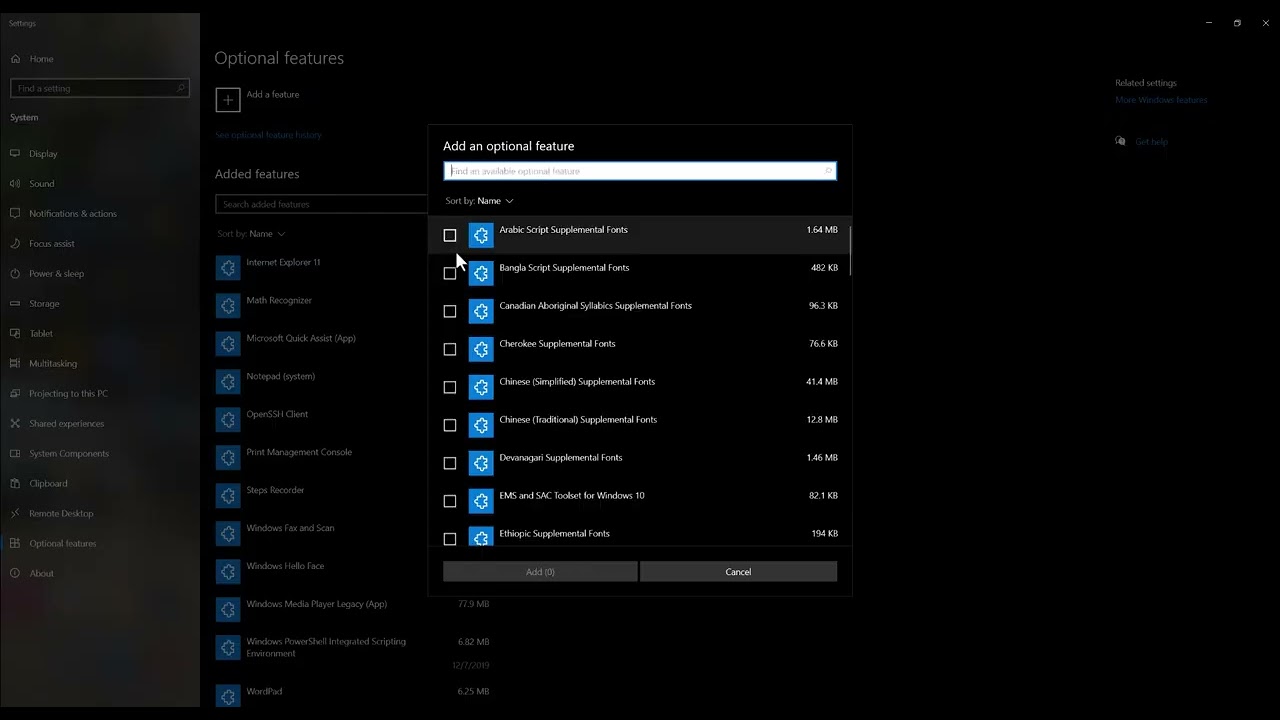
    Quick answer: First check Settings > System > About > Windows specifications. If the edition name ends in N, install Media Feature Pack from Settings > Apps > Optional features > View features, restart Windows, and run Windows Update. If you do not use an N edition, repair system files and reinstall Roblox from the official site or Microsoft Store instead of downloading EVR.dll separately.

    Before you start

    • Confirm the full message names EVR.dll.
    • Check whether Windows is an N edition; the Media Feature Pack is specifically for N editions.
    • Save work before restarting.
    • Never download a loose DLL from a file-sharing or driver-download site.

    Fix the EVR.dll error

    1. Check the Windows edition. Open Settings > System > About and read Edition under Windows specifications.
    2. Install Media Feature Pack on Windows N. Open Settings > Apps > Optional features > View features, search for Media Feature Pack, select it and install.
    3. Restart and update. Restart Windows, then install current Windows updates. Optional media components do not fully register until restart.
    4. Test Roblox. Launch the same experience. If it opens, no separate DLL download is needed.
    5. Repair Windows files if the PC is not N. Open Terminal as administrator and run DISM /Online /Cleanup-Image /RestoreHealth, then sfc /scannow. Restart after both finish.
    6. Reinstall Roblox safely. Uninstall Roblox, restart, and download a new installer from Roblox or install the official Microsoft Store app.
    7. Check security software. Review quarantine history for the official Roblox files. Restore only when the publisher and path are verified; do not disable protection permanently.

    Why this works

    EVR.dll belongs to Windows media playback infrastructure. Windows N editions omit media technologies until Media Feature Pack is installed. On standard editions, a missing or corrupt system component is better repaired through Windows servicing than by copying a DLL from the web.

    Alternatives

    • Try the Microsoft Store Roblox build if the desktop installer remains damaged.
    • Create a new Windows user for one test to rule out a profile-specific problem.
    • Install current graphics drivers from the GPU maker after Windows is repaired.
    • Send Roblox Support the exact message, Windows edition and diagnostics if the error remains.

    Warnings and undo steps

    The source video points to an old standalone download path. Current Windows 10/11 N systems normally install Media Feature Pack through Optional Features. Do not use an outdated package or third-party DLL. To remove the optional component, return to Optional features > Installed features, select Media Feature Pack and choose Uninstall, then restart.

    FAQ

    What is Windows N?

    It is a Windows edition sold without some media technologies. The edition name explicitly includes N.

    Should every Roblox player install Media Feature Pack?

    No. This step is for N editions or systems where Microsoft explicitly offers the feature.

    Can I download EVR.dll by itself?

    No. Use Windows Update, Optional Features, DISM and SFC so the file comes from a trusted Microsoft source.

    Official references

    Source video

    https://www.youtube.com/watch?v=d9hRj6Ugydk

    As an Amazon Associate I earn from qualifying purchases.

  • Fix PS5 Network Errors NW-102315-2 and NW-102379-2

    Fix PS5 Network Errors NW-102315-2 and NW-102379-2

    PS5 error NW-102315-2 network troubleshooting screen

    Quick answer: NW-102315-2 is a PlayStation Network communication error. Check PSN status, restart the PS5, use Ethernet where possible, and recreate the connection. On Wi-Fi, move closer to the router. Turn off the modem/router for at least five minutes, update its firmware, and try public DNS only as a temporary, reversible test.

    Before you start

    • Note whether the error affects sign-in, downloads or only one game.
    • Save the Wi-Fi password.
    • Check other devices on the same network.
    • Do not factory-reset the router or expose the PS5 through DMZ.

    Fix NW-102315-2

    1. Check PSN status. Wait through maintenance or a service incident.
    2. Restart and reconnect. Restart the PS5, forget the saved network and set it up again.
    3. Use Ethernet. A wired test bypasses Wi-Fi congestion and interference.
    4. Improve Wi-Fi placement. Reduce obstructions and test 5 GHz near the router or 2.4 GHz farther away.
    5. Restart network equipment. Power off modem/router for at least five minutes, reconnect and wait until it is ready.
    6. Update router firmware. Use the vendor’s exact model instructions or ask the ISP.
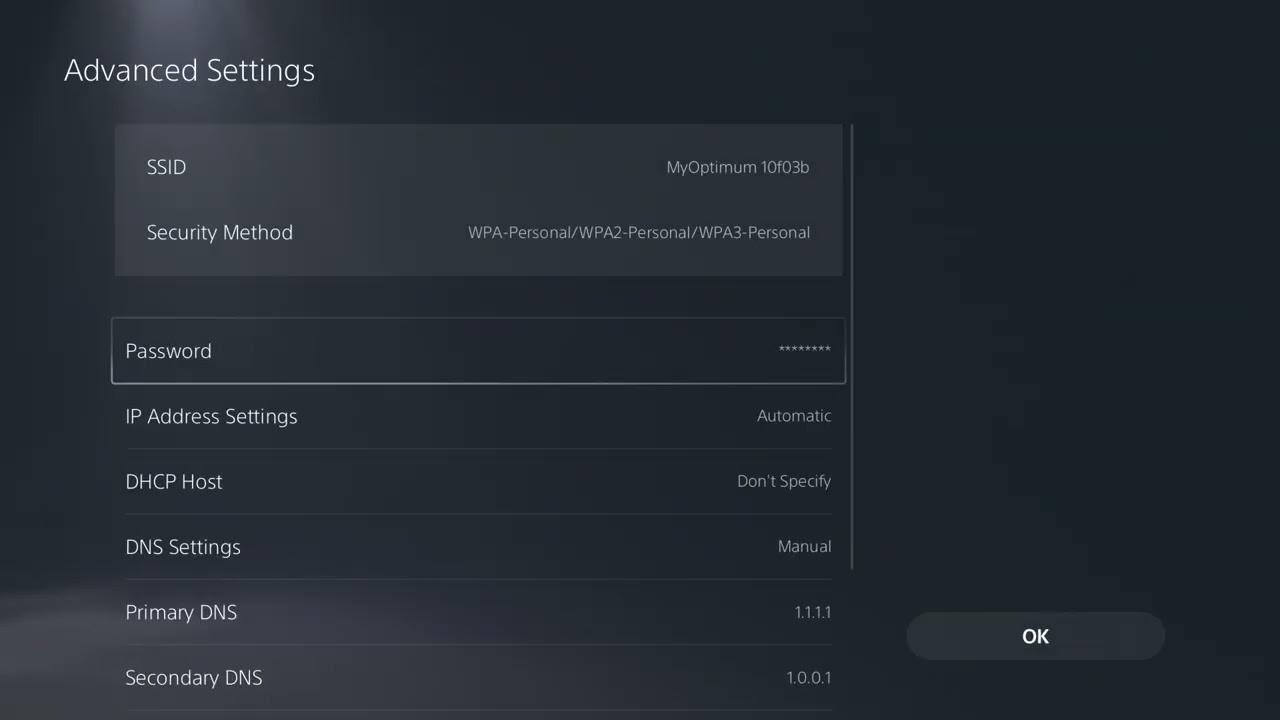
    7. Optional DNS test. Under the saved connection’s Advanced Settings, try a complete public DNS pair such as Cloudflare 1.1.1.1 / 1.0.0.1. Return to Automatic if it does not help.
    8. Escalate advanced routing. PlayStation lists port and static-IP changes, but ask the ISP or network administrator rather than copying random values.

    Why this works

    The error means communication with PlayStation Network failed. Service checks prevent unnecessary local changes. Ethernet and better placement address radio loss, while a long router restart clears stale routing and address state. DNS may help only if name resolution is the failing layer.

    Alternatives

    • Try a phone hotspot briefly as a diagnostic, watching data usage.
    • Pause large household uploads and downloads.
    • Test later if the connection is busy but local equipment is healthy.
    • Contact PlayStation Support with the time, ISP and network-test results.

    Warnings

    Opening ports and static addressing can create conflicts or weaken the network if done incorrectly. Have the network owner or ISP handle them. To undo the source video’s DNS workaround, return DNS to Automatic and save the connection.

    FAQ

    Is NW-102315-2 a console hardware error?

    PlayStation describes it as a communication error, so test service and network causes first.

    Does public DNS improve Wi-Fi?

    No. It changes lookups, not signal strength.

    How long should I unplug the router?

    PlayStation’s code page says at least five minutes.

    Official references

    NW-102379-2 uses the same PS5 connection sequence

    PlayStation’s current NW-102379-2 instructions match this canonical network workflow: check PSN, restart the PS5, prefer wired Ethernet, recreate the network, improve Wi-Fi placement, power off the router for at least five minutes and update router firmware.

    Original source video

    https://www.youtube.com/watch?v=lT5j1aXK0lA

    As an Amazon Associate I earn from qualifying purchases.

  • How to Fix PS5 Error CE-100008-9

    How to Fix PS5 Error CE-100008-9

    PS5 error CE-100008-9 troubleshooting screen

    Quick answer: Restart the PS5 and install the latest system software. If CE-100008-9 appears only when launching one game or app, check its update, restore licenses, and then delete and reinstall that application. PlayStation’s code-specific guidance recommends restart, system update and reinstalling the affected app.

    Before you start

    • Identify whether the error affects one app or the whole console.
    • Sync saved data where supported before deleting a game.
    • Keep enough free storage for a fresh download.
    • Do not delete saved data unless a separate official step requires it.

    Fix CE-100008-9

    1. Restart the PS5. Use Power > Restart PS5 and test again.
    2. Update system software. Open Settings > System > System Software > System Software Update and Settings.
    3. Update the game or app. Highlight it on the home screen, press Options and choose Check for Update.
    4. Restore licenses. Go to Settings > Users and Accounts > Other > Restore Licenses. This does not delete games or saved data.
    5. Check storage. Free space on the installation drive and complete any paused downloads.
    6. Delete only the affected app. Highlight it, press Options and choose Delete. Keep saved data intact, restart, then download from Library or insert the disc again.
    7. Rebuild the database if several apps fail. Start Safe Mode and use Clear Cache and Rebuild Database before considering Reset PS5.

    Why this works

    PlayStation documents CE-100008-9 only as an application error. A restart clears the active session, system and app updates replace incompatible components, and a reinstall replaces damaged application files. Restoring licenses helps when the download is intact but ownership cannot be validated.

    Alternatives

    • Test another app to confirm the scope.
    • If installed on M.2 storage, move or reinstall the app to console storage for one test.
    • Check PlayStation status if license restoration or downloads fail.
    • Contact the publisher if the error began immediately after a game update.

    Warnings

    Deleting an application is different from deleting saved data. Read each confirmation screen. Do not initialize or reset the console for a single broken game until official app-level steps fail.

    FAQ

    What does CE-100008-9 mean?

    PlayStation states only that an error has occurred and recommends restart, system update and reinstalling the affected app.

    Does Restore Licenses erase anything?

    No. It refreshes content entitlements.

    Should I factory-reset the PS5?

    Not for the first occurrence. Reinstall the affected app first.

    Official references

    Source video

    https://www.youtube.com/watch?v=EGTO6KqcWwo

    As an Amazon Associate I earn from qualifying purchases.