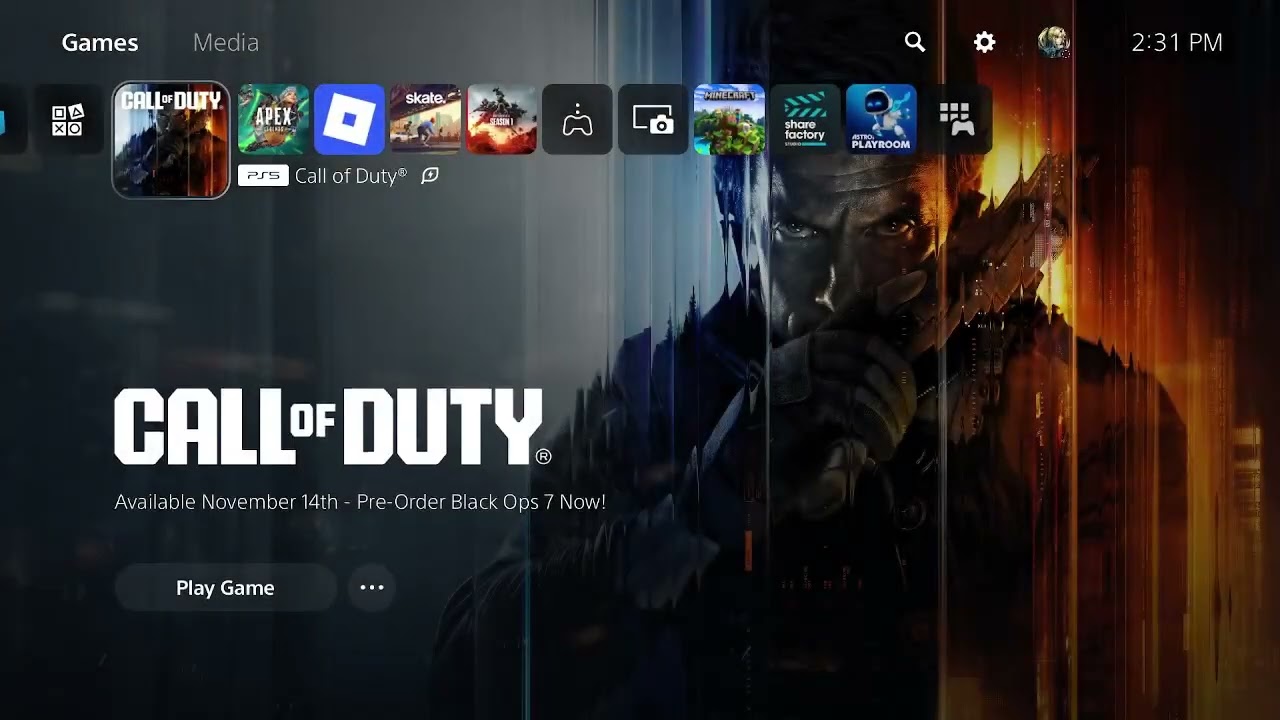
Author: MoeGaming

  • Fix Black Ops 6 Stuck on Loading Screen During a Steam Match

    Fix Black Ops 6 Stuck on Loading Screen During a Steam Match

    Quick answer: If Black Ops 6 reaches the lobby but hangs when a Steam match begins, restart Steam so it can finish updates, verify the Call of Duty installation, then restart the PC and router. Check Activision service status before changing Windows networking. Use a DNS change only as a reversible last test, not as a guaranteed fix.

    Before you start

    • Close Call of Duty and let any Steam download finish.
    • Save work before restarting Windows.
    • Know whether the problem affects every mode or only one playlist; a single broken playlist can be server-side.

    How to fix the match loading screen

    1. Check for a service incident. Open Activision Online Services and select Call of Duty. If a current outage or maintenance notice appears, local file or DNS changes will not repair it; wait and test again later.
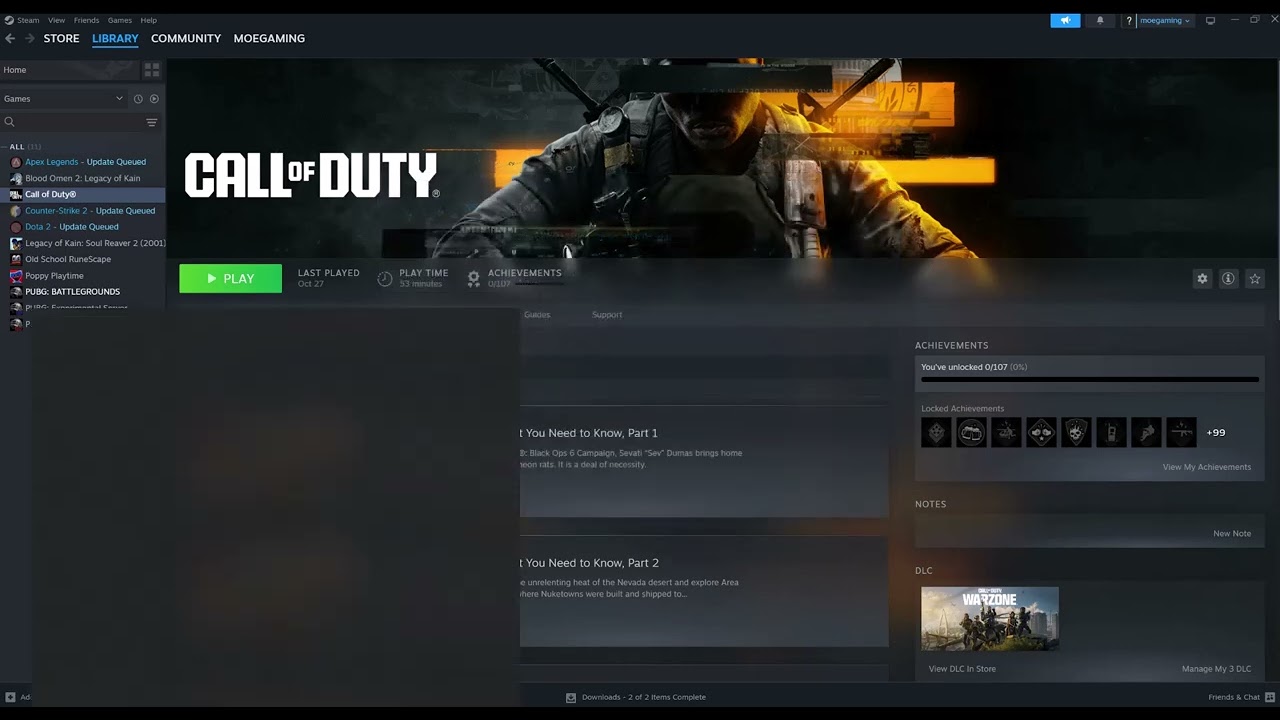
    2. Refresh Steam and the game update. Exit Steam completely from Steam > Exit, reopen it, select Library > Call of Duty, and allow every update to complete. Do not launch while Steam shows disk activity or a pending restart.
    3. Verify the installation. In Steam, right-click Call of Duty, choose Properties > Installed Files > Verify integrity of game files. Steam compares the local installation with the current depot and downloads missing or changed files.
    4. Restart the PC and network equipment. Restart Windows. If other online games are also slow or disconnecting, power the modem/router off for about 30 seconds, reconnect it, and wait for internet service to return.
    5. Allow Call of Duty through Windows Security. Open Windows Security > Firewall & network protection > Allow an app through firewall. Confirm Call of Duty and Steam are allowed on the network profile you use. Do not disable the firewall globally.
    6. Flush the DNS cache. Open Command Prompt as administrator, run ipconfig /flushdns, close the window, and test again. This removes cached name-resolution entries; it does not erase saved Wi-Fi networks or game data.
    7. Optional: test a public DNS provider. The source video demonstrates Cloudflare IPv4 DNS (1.1.1.1 and 1.0.0.1). This may help only if the current resolver is failing. Record the original setting first. To undo it, return the adapter’s IPv4 DNS setting to Obtain DNS server address automatically.

    Why these steps can work

    A match transition depends on current game files, a synchronized Steam client, Activision services and a working route to matchmaking endpoints. File verification addresses damaged assets; restarting and flushing DNS clear stale local state. They cannot fix a live server outage or an account enforcement issue.

    Alternatives if it still hangs

    • Try another playlist and disable any VPN or proxy for one test.
    • Install current Windows and GPU-driver updates from Microsoft and the GPU manufacturer.
    • Use Activision support and include the time, region, platform, playlist and any error code.

    Warnings and limits

    Do not open ports at random, disable antivirus protection, or download replacement DLL files. The video-derived DNS method is an unofficial workaround and may have no effect. Viewer feedback is mixed, so treat each change as a test and reverse it if it does not help.

    Frequently asked questions

    Will verifying files delete my progress?

    No. Black Ops 6 progression is tied to the online account. Steam verification checks the local installation, though it may redownload changed files.

    Is this for console?

    No. The source demonstration and Steam menus are for Windows PC. Console troubleshooting uses different storage and network menus.

    How do I undo the DNS change?

    Open the active adapter’s IPv4 properties and restore automatic DNS, then restart the PC.

    Official references

    Source video

    The video below demonstrates Steam updates, file verification, DNS settings and the Windows DNS-cache command. Captions were used as source material; the steps above distinguish supported guidance from the optional workaround.

    As an Amazon Associate I earn from qualifying purchases.
  • How to Fix Battle.net Connection and Server Issues

    How to Fix Battle.net Connection and Server Issues

    Battle.net connection and server troubleshooting on Windows

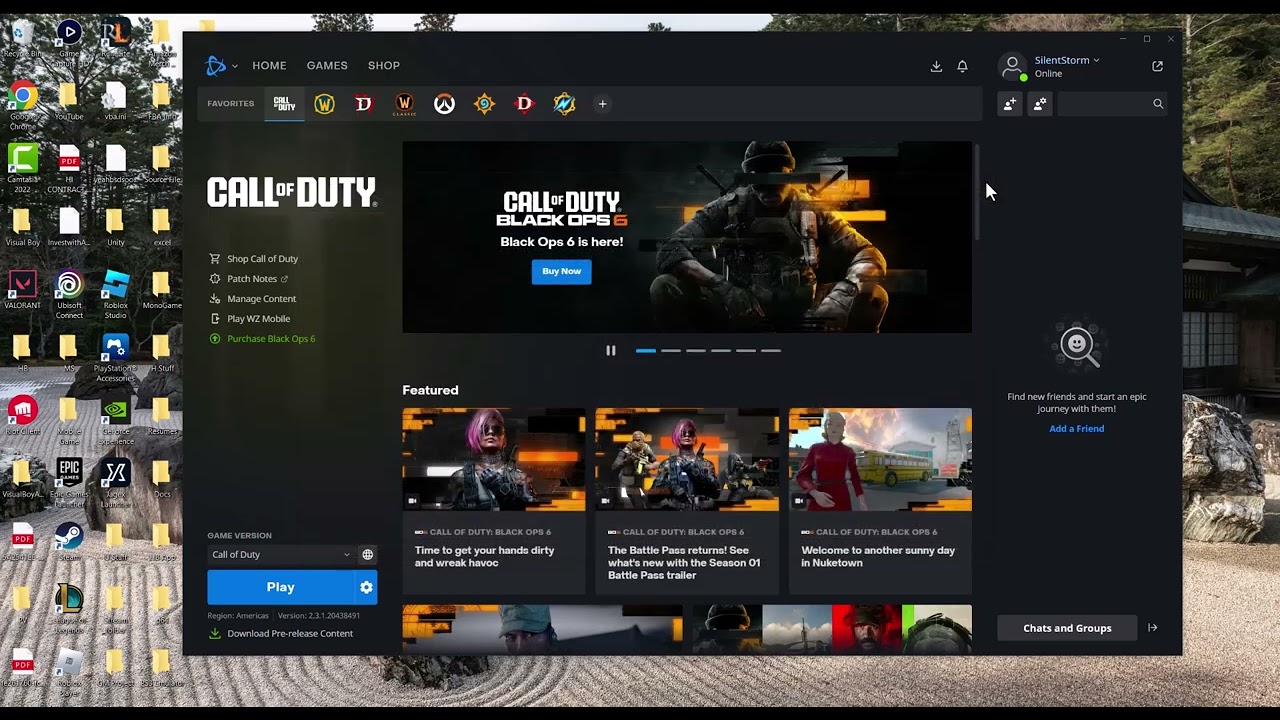
    Quick answer: When the Battle.net desktop app is stuck connecting, first check for a Blizzard service incident. Fully exit Battle.net, restart the PC and router, then release and renew the Windows IP configuration and flush the DNS cache. A custom DNS server is an optional, reversible test—not a guaranteed server fix.

    Before you start

    • Save any router or Windows network settings you intend to change.
    • Use an administrator account only for the Windows network commands that require it.
    • If Blizzard reports maintenance or an outage, wait instead of changing your PC.

    Fix Battle.net connection problems

    1. Check Blizzard support notices. Confirm whether maintenance or a live incident affects the Battle.net app or your game.
    2. Exit Battle.net completely. Close the window, then check the system tray and choose Exit. In Task Manager, end a stuck Battle.net or Agent process only if it remains after exit.
    3. Restart the PC. This reloads the app’s networking components and clears a stuck session.
    4. Power-cycle the network. Shut down the PC, unplug the modem and router for about 60 seconds, reconnect the modem first, wait for it to come online, then reconnect the router and start the PC.
    5. Renew the address and flush DNS. Open Command Prompt as administrator and run ipconfig /release, ipconfig /renew, and ipconfig /flushdns, one at a time. Microsoft documents these commands; expect a brief network disconnect during release and renew.
    6. Disable a known proxy or VPN temporarily. If you intentionally use one, turn it off long enough to test. Turn it back on afterward if it is required for work or privacy.
    7. Try a different connection. Ethernet or a temporary mobile hotspot can show whether the problem is the PC, home network, or internet provider. Avoid large game downloads over metered data.
    8. Reinstall the Battle.net app only after network checks. Keep installed game folders in place, remove the desktop app through Windows Settings, restart, and get the current installer from Blizzard.

    Why these steps work

    The app depends on both Blizzard services and the local path to them. A restart clears hung launcher processes, the router cycle rebuilds the WAN session, and release/renew plus flushdns replaces stale local address and name-resolution data.

    Optional DNS test

    The source video demonstrates Cloudflare DNS at 1.1.1.1 and 1.0.0.1. This can help when an ISP resolver is failing, but it cannot repair a Blizzard outage. In the adapter’s IPv4 properties, write down the current setting before changing it. To undo the test, choose Obtain DNS server address automatically.

    Warnings

    • Changing DNS affects name resolution for the whole PC, not just Battle.net.
    • Do not factory-reset the router for this issue; a normal power cycle is enough for the first test.
    • Do not disable antivirus or firewall protection broadly. Check for a specific block and use the vendor’s supported exception flow.

    Frequently asked questions

    Does “stuck connecting” always mean Blizzard is down?

    No. It can be a live service incident, a stuck app process, local DNS state, the router, or the internet path. The status check separates those cases.

    Is flushing DNS safe?

    It removes cached name lookups; Windows rebuilds them as sites are accessed. Release and renew briefly disconnects the network.

    Should I keep 1.1.1.1 permanently?

    Only if it proves reliable for your network. The change is optional and reversible.

    Official references

    Source video

    As an Amazon Associate I earn from qualifying purchases.
  • How to Fix Riot Client Not Launching on Windows

    How to Fix Riot Client Not Launching on Windows

    Riot Client not launching on Windows troubleshooting

    Quick answer: If Riot Client will not launch, end any stuck Riot processes in Task Manager and restart Windows. Then use Riot’s official Full Repair Tool or the repair option in the client, install Windows updates, and reinstall the affected Riot game only if repair cannot restore the files.

    Before you start

    • Save open work before restarting Windows.
    • Make sure you can sign back in to your Riot account.
    • Download repair utilities only from an official Riot support page.

    Fix Riot Client not launching

    1. Close stuck Riot processes. Press Ctrl+Shift+Esc, open Task Manager, and end Riot Client or RiotClientServices processes that remain after the window is closed. Do not end unrelated Windows services.
    2. Restart the PC. Choose Restart, not Shut down, so Windows closes the current session and reloads services.
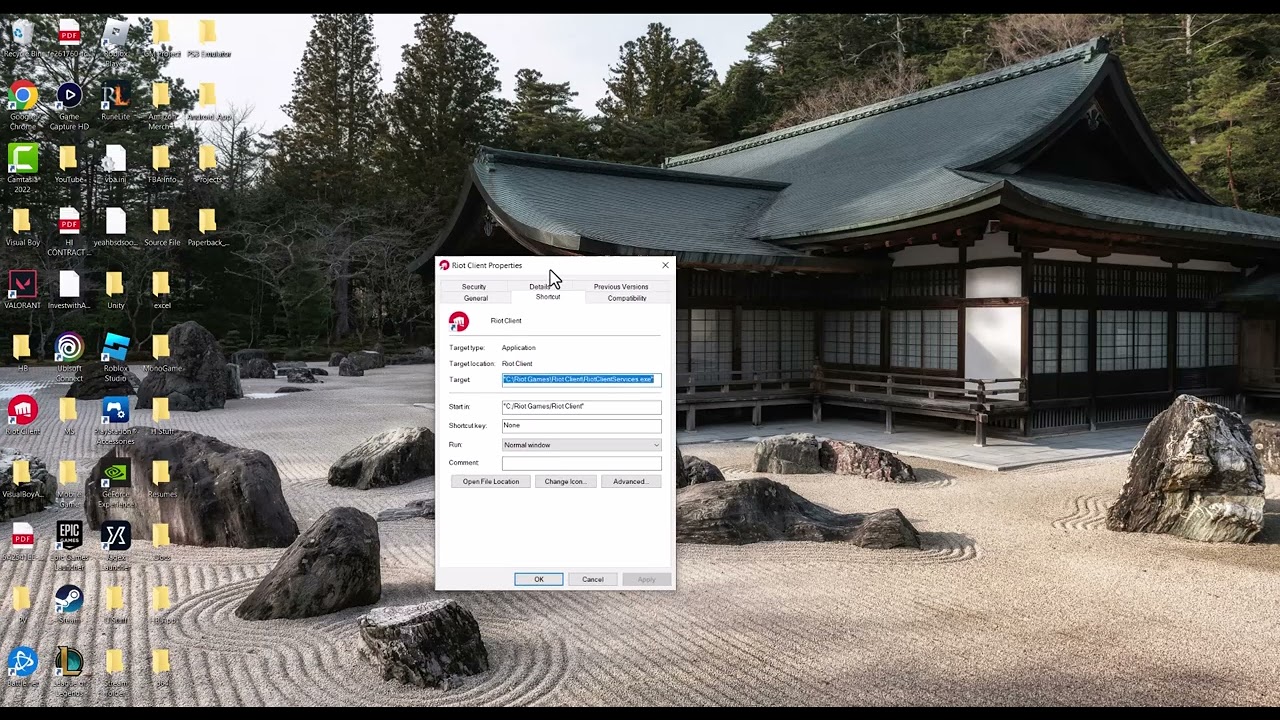
    3. Launch Riot Client normally. Use the Start menu entry instead of an old desktop shortcut. If this works, remove and recreate the broken shortcut.
    4. Run Riot’s Full Repair Tool. Riot says its automatic repair can replace missing or corrupted files for games launched through Riot Client. Follow the current instructions on Riot Support.
    5. Install Windows updates. Open Settings > Windows Update, install pending quality and driver updates, restart, and test again.
    6. Check security software history. Look for a Riot file that your antivirus actually quarantined. Restore it only if the publisher and path match the official installation, then add no broad exclusions unless Riot Support recommends them.
    7. Reinstall as a last step. Uninstall the affected Riot game and client through Windows Settings, restart, and download a fresh installer from Riot.

    Why these steps work

    A launcher may appear closed while a hung background process still owns its files. Ending that process and restarting gives the client a clean start. Riot’s repair tool verifies and replaces damaged files without requiring you to hunt through installation folders manually.

    What about administrator or compatibility mode?

    The source video demonstrates running Riot Client as administrator and trying older Windows compatibility modes. Those changes are reversible, but they are not the current first-party repair path. Avoid leaving the client permanently elevated or forcing Windows 7/Vista compatibility; it can create update, security, or anti-cheat conflicts. Undo the change from Properties > Compatibility if you already enabled it.

    Warnings

    • Do not download a “Riot fix” executable from a video description or file-sharing site.
    • Do not delete Riot or Vanguard folders manually unless the official uninstall instructions for your game require it.
    • Repairing or reinstalling can trigger a large download.

    Frequently asked questions

    Why does Riot Client show in Task Manager but not open?

    The background process may be hung or its window may have failed to initialize. Ending only the Riot processes and restarting is the safest first check.

    Should I run Riot Client as administrator?

    Not permanently. Use the official repair path first; elevation can complicate updates and anti-cheat behavior.

    Where should I get the repair tool?

    Use Riot Games Support. Avoid mirrors and bundled utilities.

    Official references

    Source video

    As an Amazon Associate I earn from qualifying purchases.
  • How to Fix PS4 Error NP-31866-4

    How to Fix PS4 Error NP-31866-4

    PS4 error NP-31866-4 cloud storage troubleshooting

    Quick answer: NP-31866-4 is a PS4 online-storage error. Confirm that the account has an active PlayStation Plus membership, keep cloud saves below PlayStation’s 100 GB and 1,000-file limits, restart the console, sign out and back in, and make the console your primary PS4.

    Before you start

    • Use the PlayStation account that owns the PlayStation Plus membership.
    • Do not delete local saved data until the needed cloud copy has been verified.
    • Have your PSN sign-in and verification method ready.

    Fix NP-31866-4

    1. Confirm PlayStation Plus. Cloud storage requires an active membership on the account performing the upload or download.
    2. Check cloud-storage limits. PlayStation lists a 100 GB total limit and a maximum of 1,000 saved-data files for PS4 online storage. Delete only cloud copies you no longer need.
    3. Restart the PS4. Use Power > Restart PS4 to clear the current upload session.
    4. Sign out and back in. Go to Settings > Account Management > Sign Out, restart, and sign in again.
    5. Activate the primary PS4. Open Settings > Account Management > Activate as Your Primary PS4 > Activate. If another console is primary, review which system should hold that role before changing it.
    6. Retry one save. Go to Settings > Application Saved Data Management and upload or download a single recent save. If that works, retry the remaining files in smaller groups.
    7. Restore licenses if ownership also looks wrong. Settings > Account Management > Restore Licenses is a reversible refresh demonstrated in the source video, although the official error page prioritizes membership, limits, sign-in, and primary-console activation.

    Why this works

    Online storage validates the membership, account session, storage quota, and console activation before transferring data. Refreshing those checks resolves common authorization failures; testing one file separates an account-wide problem from a single damaged save.

    Alternatives

    Copy supported saves to USB before cleaning up cloud storage. If one specific save fails while others transfer, preserve the local copy and contact PlayStation Support. If PSN is degraded, wait rather than deleting data.

    Warnings

    • Cloud and local saved data are separate copies. Read the date and size carefully before overwriting either one.
    • Deleting the only good save cannot be undone.
    • Changing the primary console can affect offline license access on another PS4.

    Frequently asked questions

    Do I need PlayStation Plus for PS4 cloud saves?

    Yes. The official NP-31866-4 page says to confirm the account has an active PlayStation Plus subscription.

    What are the PS4 cloud limits?

    PlayStation lists 100 GB total and up to 1,000 saved-data files.

    Will Restore Licenses erase saves?

    No. It refreshes entitlement data and does not intentionally delete saved data.

    Official references

    Source video

    As an Amazon Associate I earn from qualifying purchases.
  • How to Fix PS5 Error CE-107938-8

    How to Fix PS5 Error CE-107938-8

    PS5 error CE-107938-8 game update troubleshooting

    Quick answer: CE-107938-8 means the PS5 failed to update an application. Restart the console, install the newest PS5 system software, then highlight the affected game and choose Check for Update. If the same update still fails, delete and reinstall the game application.

    Before you start

    • Confirm the PS5 has room for both the download and temporary installation files.
    • Sync or back up saved data before deleting anything.
    • For a disc game, have the disc ready and clean.

    Fix CE-107938-8

    1. Restart the PS5. Close the game and choose Power > Restart PS5 rather than Rest Mode.
    2. Update system software. Go to Settings > System > System Software > System Software Update and Settings.
    3. Retry the application update. Highlight the game on the home screen, press Options, and select Check for Update.
    4. Check free storage. Open Settings > Storage. Remove or move an unused game if space is tight, then retry.
    5. Let queued work finish. Open Downloads/Uploads from Control Center and wait for other installations or copy operations to complete.
    6. Delete and reinstall the affected application. Delete the game application—not its saved data—then reinstall from your library or disc. Download every update before launching it.
    7. Escalate if several games fail. If unrelated games all show update failures, use PlayStation’s Safe Mode system-update flow or PlayStation Repairs instead of repeatedly reinstalling titles.

    Why this works

    The restart clears a stuck update process. A system update fixes compatibility between the operating system and current game packages. Checking the game manually requests fresh update metadata, while a reinstall replaces an incomplete or corrupted application package.

    Alternatives

    If the update is queued but not moving, pause and resume it once. Test a wired connection if the download repeatedly drops. For a disc game, clean the disc with a soft lint-free cloth and test another disc before assuming the drive is faulty.

    Warnings

    • Deleting a game application is different from deleting saved data; verify the selected item before confirming.
    • Do not interrupt a system software update.
    • A factory reset is not part of PlayStation’s primary CE-107938-8 instructions.

    Frequently asked questions

    Will reinstalling delete my progress?

    Deleting the application normally leaves saved data in console storage, but back it up first for protection.

    Can I fix the error without reinstalling?

    Often. Restarting, updating system software, and checking for the game update are the official first steps.

    What if there is no update listed?

    Restart and check again. If the game remains unusable, reinstalling requests the current full package.

    Official references

    Source video

    As an Amazon Associate I earn from qualifying purchases.
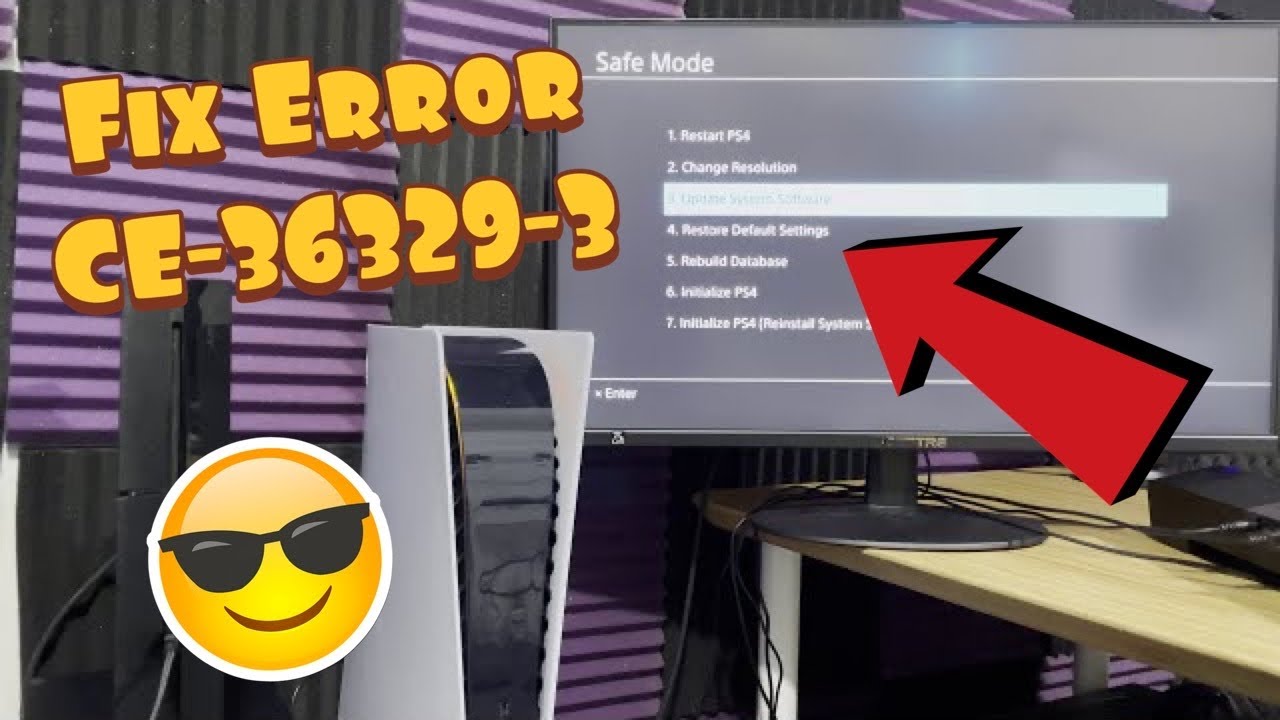
  • How to Fix PS4 Error CE-36329-3

    How to Fix PS4 Error CE-36329-3

    PS4 error CE-36329-3 system software troubleshooting

    Quick answer: CE-36329-3 is a PS4 system-software error. Install the latest system software and restart. If it returns, enter Safe Mode and choose Update System Software. Rebuild Database is a non-destructive follow-up; initialization is destructive and belongs at the end, after a complete backup.

    Before you start

    • Connect the controller with a data-capable USB cable for Safe Mode.
    • Back up saves, captures, and other important data before any initialization step.
    • Keep the console connected to reliable power during an update.

    Fix CE-36329-3 safely

    1. Install the normal system update. Go to Settings > System Software Update and install the newest version.
    2. Restart the PS4. If the error appeared while a game was running, check that game’s update too.
    3. Enter Safe Mode. Turn the console off. Hold the power button until the second beep, about seven seconds later, then connect the controller by USB and press the PS button.
    4. Select Update System Software. This is option 3 on PS4. Choose the internet method if the console is online, or use PlayStation’s official USB update instructions.
    5. Rebuild Database if needed. Return to Safe Mode and choose option 5, Rebuild Database. This rescans stored content and can repair a damaged index without intentionally deleting saves.
    6. Test before doing anything destructive. Launch the affected game and use the console normally. If the code returns across several apps, back up everything you can.
    7. Initialize only after backup. PlayStation’s CE-36329-3 page lists Initialize PS4 as the next step if the error recurs. This deletes local data. Prefer standard Initialize PS4 before the deeper Reinstall System Software option, and contact PlayStation Support when uncertain.

    Why these steps work

    A system update replaces faulty operating-system components. Safe Mode starts the console with minimal services, letting it update or rebuild its content index when the normal interface cannot. Initialization can remove deeper corruption, but it does so by erasing the console and should never be the opening move.

    Alternatives

    If CE-36329-3 happens only in one game, update or reinstall that game before resetting the console. If it appears in many games after a clean system update and database rebuild, use PlayStation Repairs. The source video also shows Safe Mode option 7, but that option deletes all user data and reinstalls the firmware; this guide reserves it for an official support-directed recovery.

    Warnings

    • Initialize PS4 and Reinstall System Software erase local data.
    • Use only the official PlayStation update file; do not download firmware from mirror sites.
    • Do not unplug the console during an update or database rebuild.

    Frequently asked questions

    Does Rebuild Database delete saves?

    It is designed to rescan the drive rather than erase user data, but back up important data before any Safe Mode maintenance.

    What if the error happened once?

    Update and restart, then monitor it. Do not initialize a console for a one-time crash.

    When should I request repair?

    If the error returns across multiple games after the official update and Safe Mode steps, contact PlayStation Support.

    Official references

    Source video

    As an Amazon Associate I earn from qualifying purchases.
  • How to Fix PS4 Error NP-31730-4

    How to Fix PS4 Error NP-31730-4

    PS4 error NP-31730-4 PlayStation connection troubleshooting

    Quick answer: PlayStation identifies NP-31730-4 as an error connecting to PlayStation. Sign out of PlayStation Network, turn the PS4 completely off, unplug it for five minutes, reconnect it, and sign in again. Check PSN status before changing network settings.

    Before you start

    • Have your PlayStation Network email, password, and two-step verification method available.
    • Do not choose Initialize PS4 unless your saves are backed up and the basic steps have failed repeatedly.
    • If PSN reports an outage, wait and retry later.

    Fix error NP-31730-4

    1. Check PlayStation Network status. If Account Management or Gaming and Social is degraded, local changes will not repair the service.
    2. Sign out of PSN. Open Settings > Account Management > Sign Out.
    3. Shut the PS4 down fully. Do not use Rest Mode. After the light is off, unplug the power cable.
    4. Wait five minutes. This clears the console’s retained network and account session.
    5. Reconnect and restart. Plug the console back in, start it, then sign in to PlayStation Network.
    6. Test the connection. Open Settings > Network > Test Internet Connection. If obtaining an IP address fails, restart the router and try Ethernet if available.
    7. Update system software. Install any pending PS4 system update, restart, and test again.
    8. Use backup and reset only as a last resort. PlayStation’s code page says to back up your data and reset the console if the error continues. Because initialization erases local data, contact PlayStation Support first when possible.

    Why this works

    The official sequence refreshes the PSN login token and forces a clean network session. The five-minute power disconnect also clears temporary state that a quick Rest Mode cycle can preserve.

    Optional network checks

    The source video demonstrates Ethernet and a third-party DNS service. Ethernet is a safe diagnostic when Wi-Fi is unstable. Changing DNS is not part of PlayStation’s primary NP-31730-4 instructions, so leave DNS on Automatic unless ordinary connection testing points to a name-resolution problem. If you experiment, record the old setting so you can switch back.

    Warnings

    • Initialization deletes local users, games, captures, settings, and saves that are not backed up.
    • Do not repeatedly change DNS, MTU, proxy, and router settings at the same time; you will lose track of which change helped.
    • Never share a PSN password or verification code with a support requester.

    Frequently asked questions

    Does NP-31730-4 mean my account is banned?

    The official code page describes a connection error, not an account suspension. Check PSN status and your account notifications separately.

    Will signing out remove games?

    No. It ends the current PSN session; installed games and local saves remain.

    Should I use Cloudflare DNS?

    It can be tested as an optional, reversible network change, but it is not the first-party fix for this code.

    Official references

    Source video

    As an Amazon Associate I earn from qualifying purchases.
  • How to Fix Battlefield REDSEC Crashing on PS5

    How to Fix Battlefield REDSEC Crashing on PS5

    Battlefield REDSEC crashing on PS5 troubleshooting steps

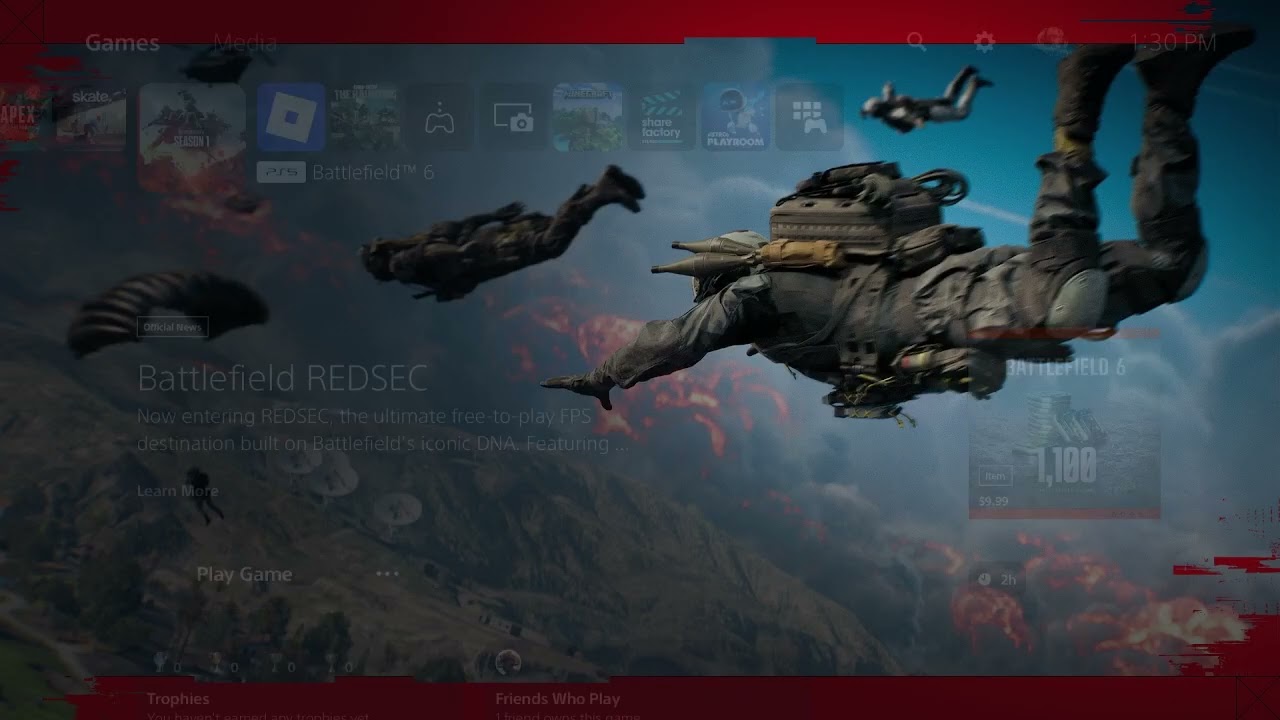
    Quick answer: If Battlefield REDSEC keeps crashing or freezing on PS5, fully close the game, restart the console, install both the game and PS5 system updates, and restore your PlayStation licenses. If the crash continues, check service status, test without the current save where possible, clear the PS5 cache, and reinstall the game as the last non-destructive step.

    Before you start

    • Make sure the PS5 has enough free storage for an update or reinstall.
    • Know your PlayStation Network sign-in details before signing out.
    • Sync or back up important saved data first. A reinstall normally leaves saved data alone, but a console reset does not.

    Fix Battlefield REDSEC crashing on PS5

    1. Check the game update. On the PS5 home screen, highlight Battlefield, press the Options button, and select Check for Update. Let the installation finish before launching REDSEC again.
    2. Restart the PS5. Choose Power > Restart PS5. A restart clears the active session more reliably than Rest Mode.
    3. Update PS5 system software. Open Settings > System > System Software > System Software Update and Settings, then install any available update.
    4. Restore licenses. Go to Settings > Users and Accounts > Other > Restore Licenses. This refreshes the console’s entitlement data without deleting games or saves.
    5. Sign out and back in. Sign out of PlayStation Network, restart the console, and sign in again. This is a reversible account-session refresh demonstrated in the source video; it may help, but it is not a guaranteed crash fix.
    6. Check EA and PlayStation services. If other online games also fail, wait for any active outage to clear instead of reinstalling repeatedly.
    7. Clear cache in Safe Mode. Turn the PS5 off, hold the power button until the second beep, connect the controller by USB, then choose Clear Cache and Rebuild Database and clear the system software cache. Do not select a reset option.
    8. Reinstall Battlefield. Delete only the game application, download it again, and allow every content pack and update to finish before testing REDSEC.

    Why these steps can work

    Updates replace known-bad game or system files, a full restart clears a stuck game session, restoring licenses refreshes ownership data, and cache clearing removes temporary indexes without erasing your saves. Reinstalling is slower, but it replaces damaged application files when an update cannot.

    Alternatives and limits

    Try another game to separate a Battlefield-specific crash from a console-wide problem. If multiple games crash, use PlayStation’s crash guide and repair flow. If only one save or mode crashes, test a new session before deleting any save. The source video focuses on updates, license restoration, and a PSN sign-in refresh; those are reasonable, reversible checks, not a promise that the underlying REDSEC bug is local.

    Warnings

    • Do not initialize or reset the PS5 for a single-game crash unless PlayStation Support directs you and your data is backed up.
    • Do not interrupt a system-software update.
    • A reinstall can be large; use a stable connection and verify every add-on is installed.

    Frequently asked questions

    Will restoring licenses delete my games?

    No. It refreshes digital entitlements and does not erase installed games or saved data.

    Should I delete my Battlefield save?

    Not first. Test a new session if the game allows it, and back up the original save before removing anything.

    What if every PS5 game crashes?

    That points away from REDSEC alone. Follow PlayStation’s system-level crash and repair guidance.

    Official references

    Source video

    As an Amazon Associate I earn from qualifying purchases.
  • How to Fix GTA 5 ERR_MEM_EMBEDDEDALLOC_GUARD_1

    How to Fix GTA 5 ERR_MEM_EMBEDDEDALLOC_GUARD_1

    Quick answer: GTA 5 ERR_MEM_EMBEDDEDALLOC_GUARD_1 is often reported in modded PC installations when the game cannot allocate memory for loaded content. Back up the modded setup, test a clean unmodded game, verify the official files, update the graphics driver and leave Windows virtual memory set to system managed. Do not download random “heap” or “packfile” fixes.

    GTA 5 err mem embeddedalloc guard 1 memory error on PC

    Before you start

    • Back up saves and the current mod configuration.
    • Keep mods out of GTA Online; test only Story Mode.
    • Do not download DLL, heap-adjuster or packfile tools from unknown sites.
    • Record any custom page-file settings before changing them.

    Safe steps to fix the memory error

    1. Restart the PC. This releases memory held by stopped processes and gives the game a clean test.
    2. Test an unmodded launch. Disable the mod loader and move optional mod files out of the GTA 5 directory using the mod author’s removal instructions. Do not simply delete files if you cannot distinguish official and modded data.
    3. Verify the official game files. Use Rockstar Games Launcher, Steam or Epic Games Launcher to verify/repair the installed copy. The launcher will replace missing or altered official files.
    4. Update the GPU driver. Install the correct driver from NVIDIA, AMD or Intel, restart Windows and test again.
    5. Close memory-heavy background apps. Exit unnecessary browsers, recording software and overlays. Check Task Manager for unusually high memory use.
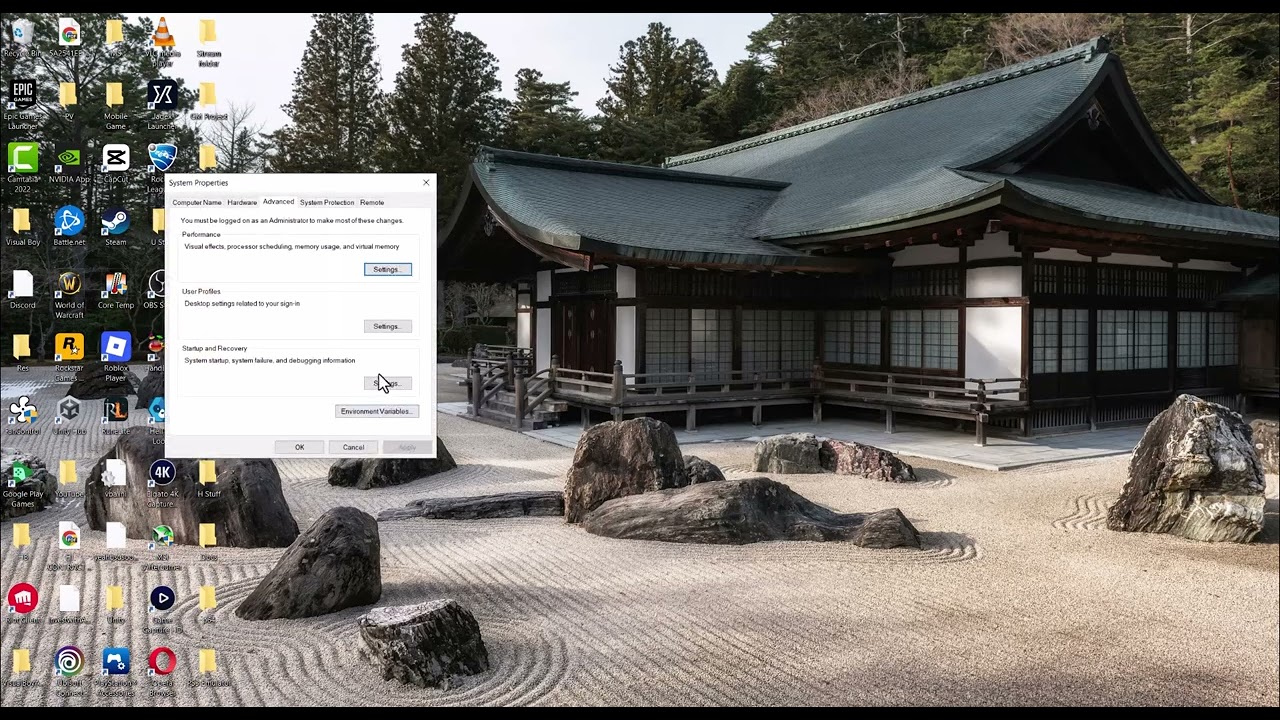
    6. Return virtual memory to automatic. Search Windows for View advanced system settings, open Performance > Settings > Advanced > Virtual memory > Change, and enable Automatically manage paging file size for all drives. Restart the PC.
    7. Add mods back one at a time. Confirm that each mod and dependency explicitly supports the current GTA 5 build. Stop when the error returns.

    Why these steps work

    The source video identifies modded installations and memory allocation as the main context, but it suggests searching for third-party adjusters and manually guessing page-file sizes. That can create security or stability problems. A clean-game test establishes whether a mod is responsible, verification restores official data, and a system-managed page file lets Windows adjust committed memory safely.

    What if the unmodded game still crashes?

    • Check free space on the Windows drive because the page file needs room.
    • Remove GPU and memory overclocks for the test.
    • Install Windows updates and run the launcher’s repair again.
    • Review Rockstar Support and submit the launcher logs and exact code.
    • Test the Windows Memory Diagnostic if other applications also crash.

    Warnings and undo steps

    Third-party mod tools are not official Rockstar fixes and may stop working after an update. Never take a modded client into GTA Online. To undo this guide, restore the backed-up mod files only after confirming compatibility. If you previously set a custom page file, keep the automatic setting unless a qualified administrator has a documented reason to change it.

    FAQ

    Does this error mean the GPU lacks VRAM?

    Not necessarily. The code can occur because of modded resources, corrupted files or overall memory allocation. Test a clean install before replacing hardware.

    Should I set a huge custom page file?

    No. Microsoft recommends system-managed sizing for most systems. Guessing minimum and maximum values can make troubleshooting harder.

    Will verifying files remove mods?

    It may replace modified official files, but it may not remove every extra file. Follow each mod’s removal instructions and keep a backup.

    Official references

    Source video

    The original video is embedded below. Its download and manual page-file suggestions are not recommended here because they cannot be verified as safe for every system.

  • Fix Black Ops 6/7 PUGET-MILAN and Permission Check Timeouts

    Fix Black Ops 6/7 PUGET-MILAN and Permission Check Timeouts

    Quick answer: A Black Ops 7 “Timed Out While Checking Permissions” message usually means the game did not finish an online entitlement or account check. Retry once, check Activision and platform services, restart the game and console/PC, then sign in again. On PlayStation, restore licenses before changing advanced network settings.

    Black Ops 7 timed out while checking permissions error

    Before you start

    • Confirm the account owns or can access the installed edition.
    • Check whether other online games work on the same platform.
    • Do not unlink the Activision account as a first step; relinking can be restricted.

    Steps to fix the permissions timeout

    1. Retry once. A short service delay can clear without any settings change. If the error returns, stop repeated retries and check status.
    2. Check online services. Review Activision Online Services and the PlayStation, Xbox, Battle.net or Steam status page for the platform in use.
    3. Restart the game and platform. Close Call of Duty completely, shut down the console or PC, wait 30 seconds and restart.
    4. Refresh the account session. Sign out of the platform account, restart, and sign in again. Do not remove or unlink the Activision account.
    5. Restore PlayStation licenses. On PS5, open Settings > Users and Accounts > Other > Restore Licenses. On PS4, use Settings > Account Management > Restore Licenses.
    6. Check game content and updates. Install the latest system and game updates. On PlayStation, use Manage Game Content to confirm required multiplayer/shared packs are installed.
    7. Restart the network. Power off the platform, unplug the modem/router for five minutes, reconnect it, and test again. Use Ethernet if available.

    Why these steps work

    The game must confirm platform ownership, Activision access and current service permissions before online play. A service outage, stale account token, missing content pack or interrupted network request can break that chain. The source video demonstrates retrying, restoring PlayStation licenses, selecting a Wi-Fi band and testing Cloudflare DNS. The first two are the most directly related to permissions.

    Optional Wi-Fi and DNS tests

    If the official checks pass but the console still times out, test 5 GHz close to the router or 2.4 GHz at longer range. You may temporarily test Cloudflare DNS at 1.1.1.1 and 1.0.0.1. These are unofficial diagnostics, not guaranteed fixes. Return DNS and band selection to automatic if they do not help.

    Warnings and undo steps

    Do not factory-reset the console, expose it through router DMZ, or unlink an Activision account for this timeout. Restoring licenses does not delete save data. Undo a DNS change by choosing automatic settings.

    FAQ

    Is this an account ban?

    The message alone does not establish a ban. Check the Activision account and official support notices for any enforcement message.

    Why does retry sometimes work?

    The previous permission request may have timed out during a short service or network interruption. A new request can succeed.

    What if the error says “instance inventory” instead?

    That is a different service response. Check status and contact Activision Support with the exact wording rather than applying unrelated fixes.

    Official references

    Black Ops 6 PUGET-MILAN variant

    The additional Black Ops 6 source labels the same failure PUGET-MILAN while the game waits to check permissions. It adds no separate destructive fix: update the game, restart, check services and restore PlayStation licenses. Its public-DNS suggestion remains an optional, reversible network test rather than a guaranteed entitlement fix.

    Original source video

    The video below supplies the original workaround. Network-setting suggestions are unofficial and may work only for some connections.

    As an Amazon Associate I earn from qualifying purchases. This guide includes no product recommendations or affiliate purchase links.