Author: MoeGaming

  • How to Fix PS5 Error NW-102633-5

    How to Fix PS5 Error NW-102633-5

    PS5 error NW-102633-5 network troubleshooting screen

    Quick answer: PlayStation defines NW-102633-5 as an error connecting to PlayStation. Check PSN status, restart the PS5, and use Ethernet if possible. Reconfigure the saved network, move closer to the router on Wi-Fi, and power off the modem/router for at least five minutes. Test manual DNS only after those official steps.

    Before you start

    • Save the Wi-Fi password before deleting a saved connection.
    • Check whether other devices can reach the internet.
    • Do not press the router’s factory-reset pin.
    • Record automatic DNS/IP settings before changing anything.

    Fix NW-102633-5

    1. Check PlayStation status. Wait if Gaming and Social or Account Management has an incident.
    2. Restart the PS5. Choose Power > Restart PS5, not Rest Mode.
    3. Test Ethernet. Connect directly to the router with a known-good cable and configure a wired connection.
    4. Reconfigure Wi-Fi. Go to Settings > Network > Settings > Set Up Internet Connection, forget the saved network and reconnect.
    5. Improve wireless placement. Move the console closer, remove obvious obstructions and test 5 GHz nearby or 2.4 GHz at longer range.
    6. Power-cycle for five minutes. Turn off the modem/router, wait at least five minutes as PlayStation instructs, reconnect it and wait for normal lights.
    7. Update router firmware. Follow the vendor’s instructions or ask the ISP. Do not flash firmware from another model.
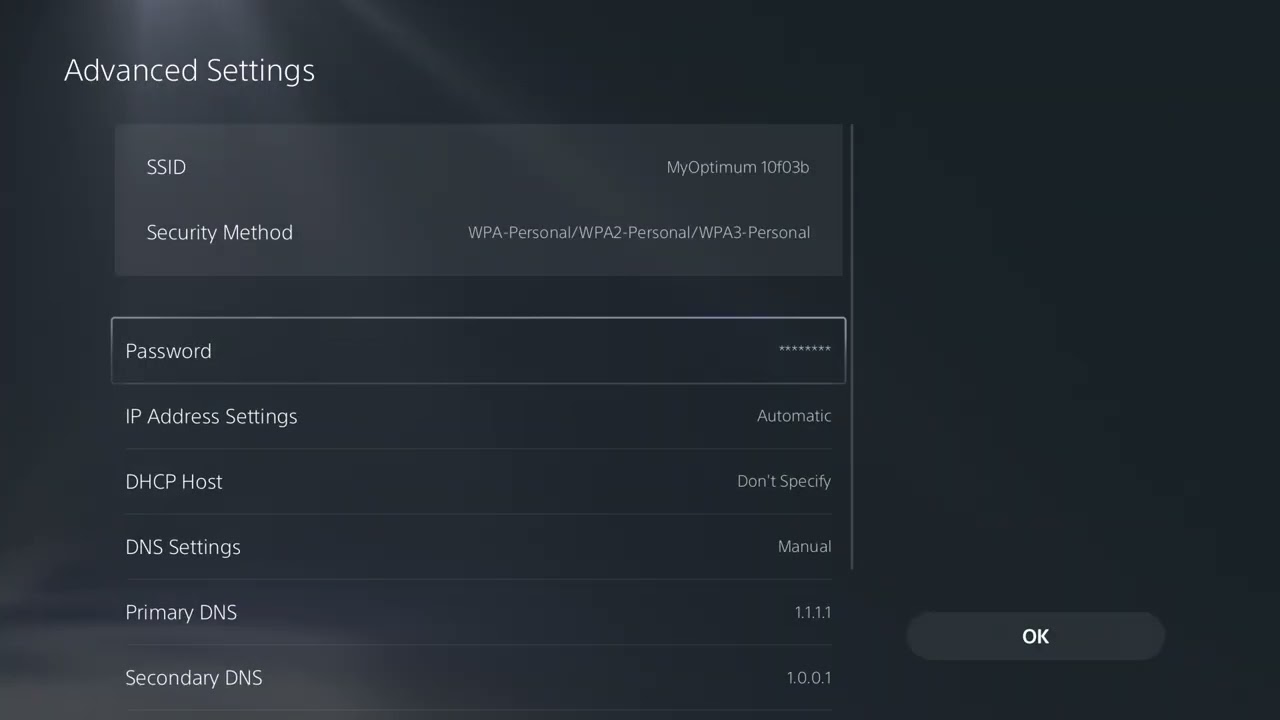
    8. Optional DNS test. Set DNS to Manual and test Cloudflare 1.1.1.1 and 1.0.0.1. Restore Automatic if there is no improvement.

    Why this works

    The console needs a stable local link, a valid address from the router and a working route to PlayStation. Restarting clears stale sessions, Ethernet bypasses interference, and recreating the connection removes incorrect saved values. DNS changes name resolution only and cannot fix an outage or weak signal.

    Alternatives

    • Test another network briefly to separate an ISP problem from a console problem.
    • Ask the ISP about port filtering or address assignment if multiple devices fail.
    • Leave IP address, DHCP host name, MTU and proxy automatic unless the network administrator supplies values.
    • Try later if the line is busy and every local check passes.

    Warnings

    A router power-cycle is reversible; a factory reset erases its Wi-Fi and ISP configuration. Do not copy a static IP from another device. If you test manual DNS, undo it by returning DNS to Automatic.

    FAQ

    What does NW-102633-5 mean?

    PlayStation says an error occurred while connecting to PlayStation.

    Should I open ports?

    Only with help from the ISP or network administrator. Avoid broad DMZ settings.

    Does changing DNS guarantee a fix?

    No. It is an optional, reversible test.

    Official references

    Source video

    https://www.youtube.com/watch?v=FZG6NYmoDc8

    As an Amazon Associate I earn from qualifying purchases.
  • How to Fix Xbox App Error 0x80073cf6 in Windows

    How to Fix Xbox App Error 0x80073cf6 in Windows

    Xbox app error 0x80073cf6 repair steps in Windows

    Quick answer: Update the Xbox app and Gaming Services in Microsoft Store, restart Windows, then use Settings > Apps > Xbox > Advanced options > Repair. If error 0x80073cf6 remains, run the Xbox Gaming Services Repair Tool. Use Reset only after Repair fails because it clears the app’s local data and sign-in state.

    Before you start

    • Write down the exact app or game that triggers the code.
    • Keep the Microsoft account password available.
    • Check free space on both the Windows drive and game drive.
    • Do not download replacement app packages or DLL files from third-party sites.

    Fix Xbox app error 0x80073cf6

    1. Restart cleanly. Close the Xbox app, Microsoft Store and affected game, then restart Windows.
    2. Update Microsoft Store apps. Open Store > Library > Get updates. Install all Xbox and Gaming Services updates.
    3. Install Windows updates. Open Windows Update, install available updates and restart again.
    4. Repair the Xbox app. Open Settings > Apps > Installed apps > Xbox > Advanced options > Repair, then test.
    5. Repair Gaming Services. Launch the official tool from Xbox app Support. Restart when it completes.
    6. Reset the Xbox app. If Repair changed nothing, use Advanced options > Reset, confirm, reopen the app and sign in.
    7. Repair Microsoft Store. Run wsreset.exe from Start, wait for Store to reopen, and try the install again.
    8. Verify the affected game. Use Manage > Files > Verify and Repair when the Xbox app offers it.

    Why this works

    The code can appear when Windows cannot register, update or launch an app package correctly. Updating replaces old packages, Repair checks the app without removing its data, and Reset rebuilds its local state. Gaming Services is separate, so repairing it is important when multiple Xbox games fail.

    Alternatives

    • Sign out of Store and Xbox, restart, then sign into both with the correct account.
    • Check Settings > Time & language and enable automatic time and time zone.
    • Temporarily disable a VPN or proxy and retry.
    • If only one game fails, repair that game before reinstalling the Xbox app.

    Warnings

    Reset may remove app preferences and cached login data. It should not be described as deleting every installed game or cloud save. Avoid registry edits and unofficial app-install scripts. If Windows reports disk errors, back up personal files before further repair work.

    FAQ

    Is Repair the same as Reset?

    No. Repair tries to fix the app while preserving its data. Reset clears the app’s local state.

    Why update Microsoft Store?

    The Xbox app and Gaming Services are distributed as Store packages, so Store updates can supply a corrected version.

    Should I reinstall Windows?

    No. Use the app-level repairs and Xbox Support first.

    Official references

    Source video

    https://www.youtube.com/watch?v=yUMIJUUBV0g

    As an Amazon Associate I earn from qualifying purchases.
  • How to Fix Black Ops 6 Xbox App Error 0x800705b4

    How to Fix Black Ops 6 Xbox App Error 0x800705b4

    Black Ops 6 Xbox app error 0x800705b4 troubleshooting screen

    Quick answer: Close Black Ops 6 and the Xbox app completely, restart Windows, and try again. If error 0x800705b4 returns, update the Xbox app, Microsoft Store, Gaming Services and Windows. Repair the Xbox app first; use Reset only if Repair fails. Then run the Gaming Services Repair Tool and verify the Call of Duty installation.

    Before you start

    • Save open work and note the drive where Call of Duty is installed.
    • Confirm Xbox, Microsoft Store and Windows use the same Microsoft account where appropriate.
    • Keep the Microsoft-account password available; Reset can sign you out.
    • Do not manually delete protected Gaming Services folders.

    Fix error 0x800705b4

    1. End the stuck session. Close the game and Xbox app. Open Task Manager and end only remaining Xbox, Gaming Services or Call of Duty processes, then restart Windows.
    2. Update Store apps. Open Microsoft Store > Library and choose Get updates. Install Xbox app and Gaming Services updates.
    3. Update Windows. Open Settings > Windows Update, install current updates and restart.
    4. Repair the Xbox app. Go to Settings > Apps > Installed apps > Xbox > Advanced options > Repair. Microsoft recommends Repair before Reset.
    5. Reset only if needed. Return to Advanced options and choose Reset. This clears Xbox app data and signs you out; it normally does not remove separately installed game files.
    6. Run Gaming Services Repair Tool. In the Xbox app, use Support > Gaming Services Repair Tool when available. Let the tool finish, then restart.
    7. Verify the game. Open the game’s Manage page in the Xbox app, choose Files, and run Verify and Repair if offered. Keep required shared Call of Duty content in the same supported installation.
    8. Check Activision services. If the app opens but the game times out, check Activision Online Services before reinstalling anything.

    Why this works

    0x800705b4 commonly signals a Windows operation timing out. A stuck process, outdated Store package, damaged Xbox app state or Gaming Services registration can prevent the launch request from completing. Repair preserves app data; Reset creates a clean app state; file verification addresses the game package separately.

    Alternatives

    • Sign out of the Xbox app and Microsoft Store, restart, then sign in again.
    • Pause VPNs or proxy software for one test and re-enable them afterward.
    • Make sure the system drive and game drive both have free space.
    • If other Game Pass titles also fail, report the Gaming Services issue to Xbox Support.

    Warnings

    Reset clears app settings and sign-in state. Do not use registry cleaners, third-party DLL downloads or PowerShell commands from unverified videos. Reinstall the entire game only after repair and file verification fail.

    FAQ

    Will Reset delete Black Ops 6?

    Resetting the Xbox app normally clears the app’s data, not installed game packages. Confirm the game remains listed before deleting anything manually.

    Should I reinstall Gaming Services?

    Use the official repair tool first. Manual removal is a last resort that Xbox Support should guide.

    What if only Call of Duty fails?

    Verify its files and required content, then check Activision service status.

    Official references

    Source video

    https://www.youtube.com/watch?v=rRbCa9jXcss

    As an Amazon Associate I earn from qualifying purchases.
  • How to Fix Black Ops 6 Ranked Error Cause 10 / Code 2030

    How to Fix Black Ops 6 Ranked Error Cause 10 / Code 2030

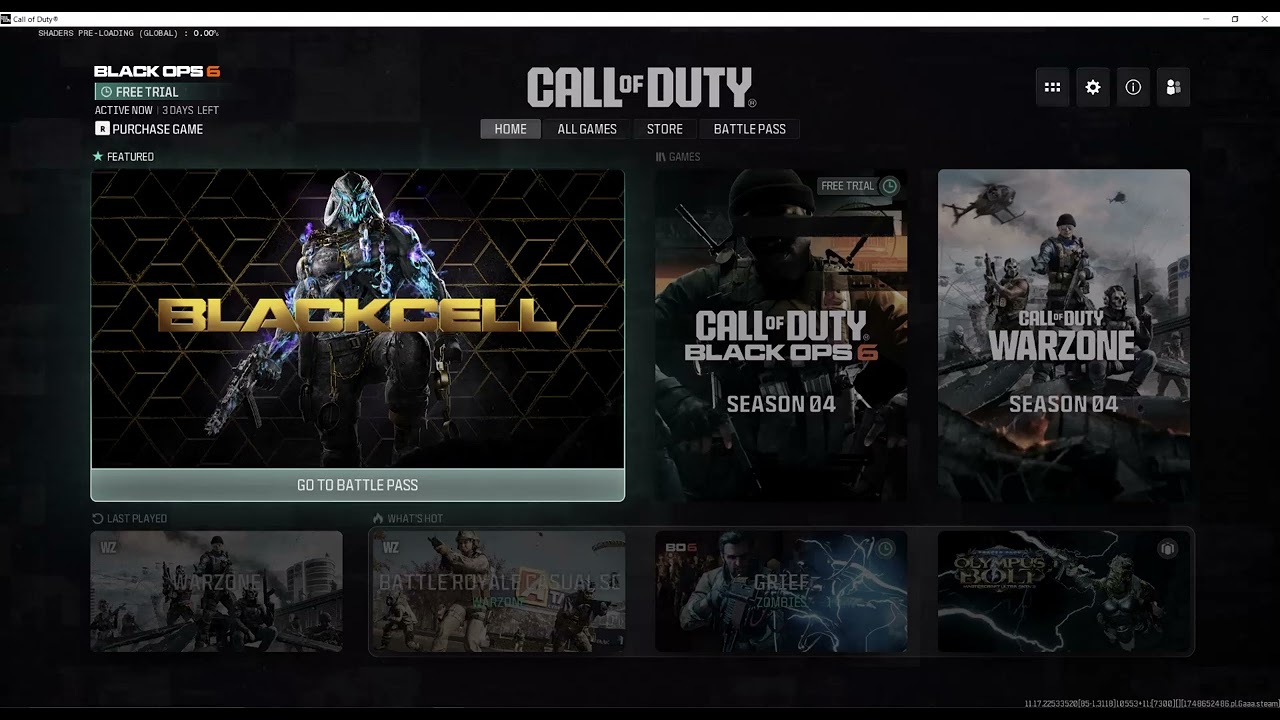
    Black Ops 6 Error Cause 10 and Code 2030 ranked error screen

    Quick answer: Error Cause 10 with Code 2030 is not documented on Activision’s public support pages. The source video demonstrates an unofficial, reversible workaround: photograph your custom classes, delete the Ranked Play loadouts, clear or change the clan tag, then recreate one clean class and retry. Viewer reports are mixed but include several confirmations. If the error affects an entire party or Activision reports an outage, do not change loadouts—restart the session and try later.

    Before you start

    • Take screenshots of every custom class, attachment, perk and equipment choice.
    • Make sure the error appears in Ranked Play rather than ordinary matchmaking.
    • Ask whether every party member has Ranked Play unlocked and can queue alone.
    • Do not delete saved data, reinstall the game or unlink your Activision account for this test.

    Try the Error Cause 10 / Code 2030 workaround

    1. Check services first. Open Activision Online Services and check the current Black Ops 6 status. If there is an incident, wait.
    2. Leave the party and restart. Fully close Call of Duty, restart the console or PC, then sign back in. Test Ranked Play alone before rebuilding the party.
    3. Save your class setup. Photograph the loadout names and every selected item so the change can be undone.
    4. Delete the Ranked Play custom classes. From the Ranked Play loadout screen, remove the custom classes shown in the video. This removes presets, not account progression.
    5. Clear or change the clan tag. Edit the clan tag to a simple value or remove it temporarily. Avoid special characters.
    6. Create one clean class. Build a single legal Ranked Play class without copied blueprints or unusual naming, then start matchmaking.
    7. Add party members one at a time. If solo matchmaking works, rebuild the party gradually. A member without access or with a conflicting setup may explain a party-only failure.

    Why the workaround may help

    The video and comments suggest that the queue can reject a stored Ranked Play profile, class or clan-tag value. Recreating a minimal class forces the game to save a fresh eligible configuration. Activision has not confirmed that explanation, so treat it as a diagnostic workaround rather than a guaranteed repair.

    Alternatives

    • Switch from Wi-Fi to Ethernet for one test, or restart the router if only this connection is affected.
    • Verify game files on PC, or check for a Call of Duty update on console.
    • Remove only attachments or blueprints that recently became restricted in Ranked Play.
    • Send Activision Support the complete code, platform, time, mode and a screenshot.

    Warnings and undo steps

    Deleting custom classes removes their presets. Recreate them from your screenshots to undo the change. Do not erase cloud saves, unlink platform accounts, use unlock tools or repeatedly change account details. If the code returns after a playlist update, stop repeating the workaround and report it.

    FAQ

    Is Error Code 2030 an account ban?

    The public Activision documentation does not identify it as a ban. Check account notifications and support before assuming an enforcement action.

    Will deleting classes erase weapon levels?

    No. The workaround removes loadout presets. Weapon progression remains account-based, but you must rebuild the class.

    Why test alone first?

    A solo test separates a local profile problem from a party eligibility or service problem.

    Official references

    Source video

    https://www.youtube.com/watch?v=KIQtfJIszMo

    As an Amazon Associate I earn from qualifying purchases.
  • Fix Rockstar Games Launcher Already Running for GTA V

    Fix Rockstar Games Launcher Already Running for GTA V

    Quick answer: Close GTA V and every store launcher, end only the stuck Rockstar Games Launcher and Social Club processes in Task Manager, then restart Windows. If the message returns, make the game launcher and store client use consistent permissions, verify GTA V files, and use Rockstar’s clean-install instructions as the last step.

    Before you start

    • Save work in other applications.
    • Know whether GTA V was installed through Rockstar, Steam or Epic Games.
    • Do not delete launcher folders before uninstalling or backing up settings.

    Fix the “already running” message

    1. Close the visible launchers. Exit GTA V, Rockstar Games Launcher and the store used to own the game. Check the system tray and choose Exit where available.
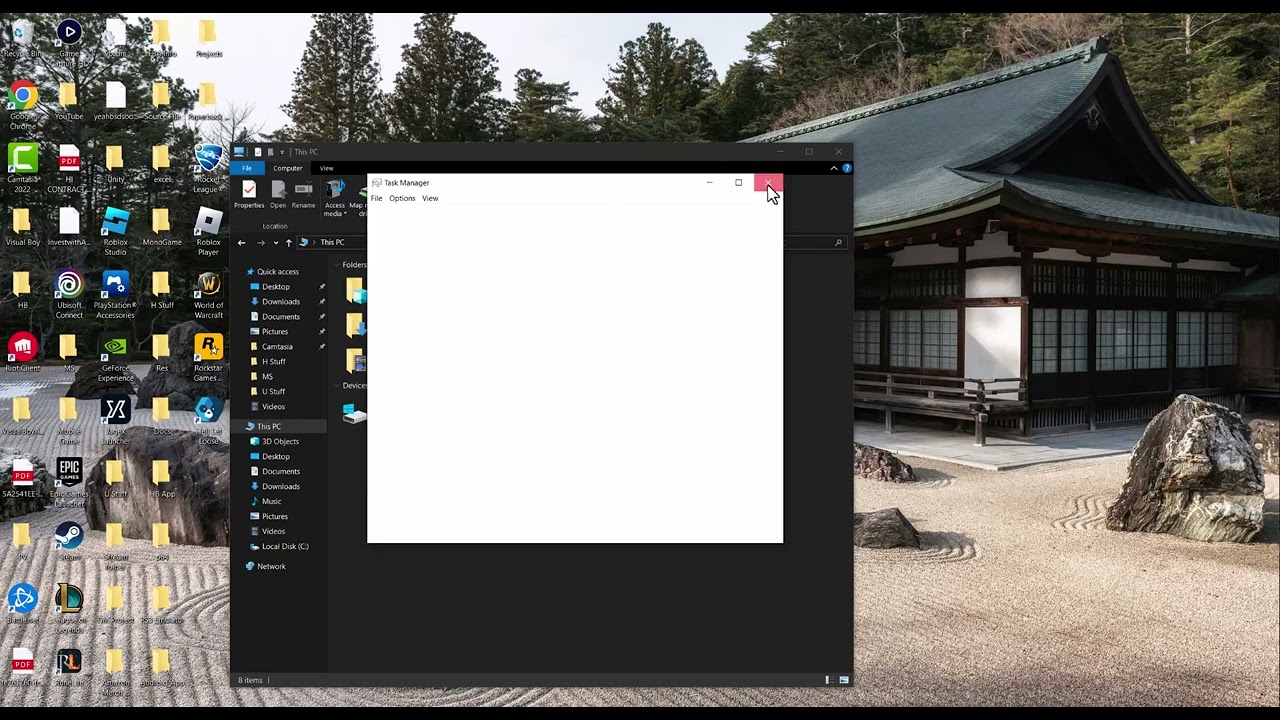
    2. End the stuck processes. Press Ctrl + Shift + Esc to open Task Manager. Under Processes or Details, end Rockstar Games Launcher, Social Club and GTA V entries that remain after the apps are closed. Do not end unrelated Windows processes.
    3. Restart Windows. A restart is safer than repeatedly killing a process that immediately returns. Launch only the store client first, then GTA V.
    4. Use consistent permissions. Rockstar’s current article for this error recommends running the involved launcher executables as administrator. Apply the setting to Rockstar Games Launcher and, if applicable, Steam or Epic Games Launcher so one client is not elevated while another is not. Revert the compatibility setting if it changes nothing.
    5. Verify GTA V files. Use the verification command in Rockstar Games Launcher, Steam or Epic Games Launcher. This repairs missing or changed game files without downloading the entire game again.
    6. Update the launchers. Let Rockstar and the store client install pending updates. Check Windows Update and restart once more.
    7. Clean reinstall the Rockstar launcher last. Follow Rockstar Support’s current clean-install procedure. Uninstall through Windows first, preserve save or profile data as instructed, remove only the documented leftover folders, then download the installer from Rockstar.

    Why this works

    The message often appears when a background launcher process survives after its window closes, or when a store client cannot communicate with a differently elevated launcher. Ending the orphaned process resets the current session; file verification and a supported reinstall address damaged program files.

    If Task Manager cannot end the process

    • Restart Windows instead of repeatedly clicking End task.
    • Temporarily disable launcher auto-start from Task Manager’s Startup apps, restart and open the launcher manually.
    • Check Rockstar service status and attach the launcher log to a support request.

    Warnings

    The video suggests uninstalling and deleting the Launcher folder. That can be appropriate only as part of Rockstar’s documented clean-install sequence. Deleting program or profile folders out of order can remove settings or leave the installation less repairable. Do not download replacement launcher files from third-party sites.

    Frequently asked questions

    Will ending the launcher process delete GTA V saves?

    No. Ending a process closes it. Still back up local Story Mode saves before a clean reinstall.

    Should everything run as administrator forever?

    Use Rockstar’s current compatibility guidance for this error, but keep the scope to the launcher executables and undo the change if it is ineffective.

    Do I need to reinstall GTA V?

    Usually not first. Restart, align launcher permissions and verify files before a full game reinstall.

    Official references

    Source video

    The video demonstrates ending duplicate launcher processes and reinstalling the launcher. The guide adds a safe order, Rockstar’s permissions guidance, file verification and a warning against deleting folders prematurely.

    As an Amazon Associate I earn from qualifying purchases.
  • Fix Nintendo Switch 2 Joy-Con 2 Stick Drift Safely

    Fix Nintendo Switch 2 Joy-Con 2 Stick Drift Safely

    Quick answer: Update the Nintendo Switch 2 and Joy-Con 2 firmware, confirm the controls are not remapped, then run System Settings > Controllers & Accessories > Calibrate Control Sticks. If the input still moves by itself, clean only the exterior with the controller powered off and arrange Nintendo service. Do not drip alcohol or cleaner beneath the stick.

    Before you start

    • Remove straps, grips or accessories that could press a stick.
    • Detach the affected Joy-Con 2 and check for obvious damage.
    • Test more than one game so an in-game dead-zone setting is not mistaken for hardware drift.

    How to troubleshoot Joy-Con 2 drift

    1. Install the latest system update. From HOME, open System Settings > System > System Update. Keep the console connected to power if the battery is low.
    2. Update the controller firmware. In System Settings, open Controllers & Accessories and select the controller-update option. Keep the affected Joy-Con 2 connected until the process finishes.
    3. Check button mapping. A wrench icon can indicate custom mapping. Restore the standard configuration before judging the stick response.
    4. Calibrate the affected stick. Go to Controllers & Accessories > Calibrate Control Sticks. Tilt the affected stick fully in one direction for a few seconds and follow the on-screen test and calibration prompts.
    5. Sleep and wake the console. Nintendo notes that a completed calibration may not appear immediately. Put the console into sleep mode, wake it, and repeat the test.
    6. Clean the exterior safely. Power off the console. Use a clean, dry microfiber cloth around the stick cap and housing. If the surface is sticky, follow Nintendo’s current cleaning guidance. Never pour or spray liquid onto the controller or under the stick skirt.
    7. Test and request service. Test in the calibration screen and in a second game. If the cursor still moves at neutral, the controller may require repair or replacement.

    About the video’s physical workaround

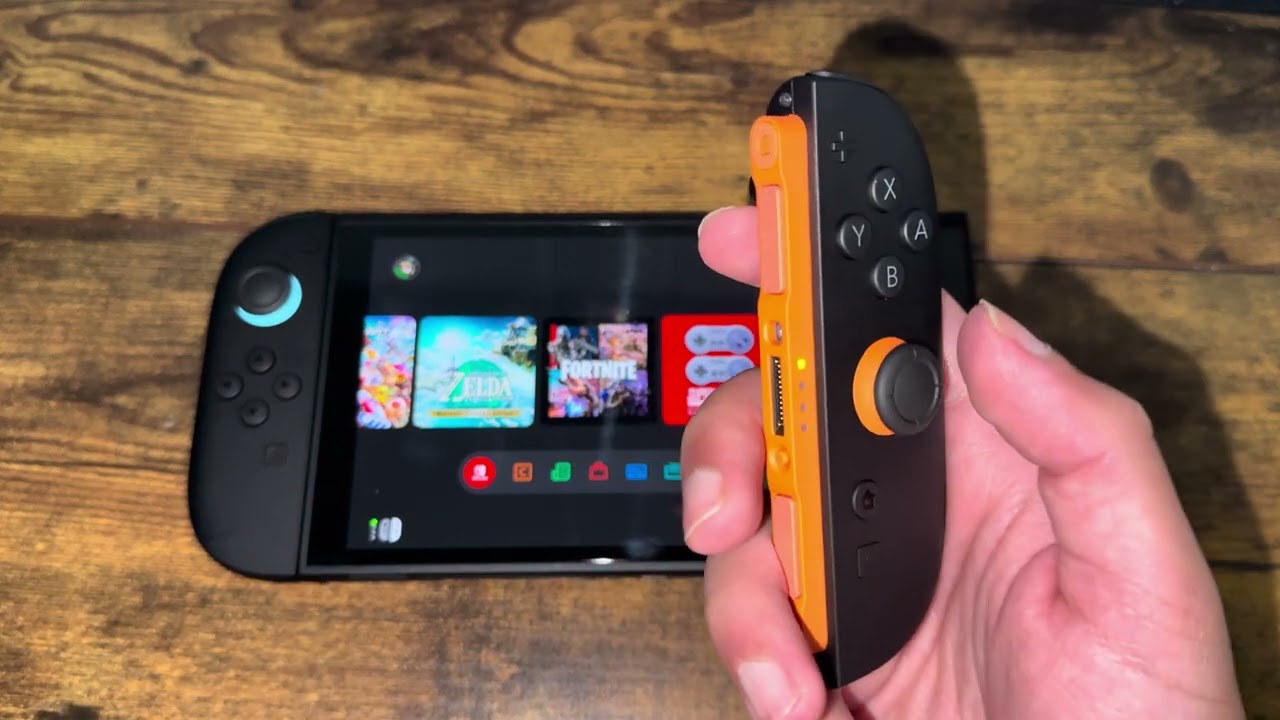
    The source video suggests pressing the stick and rotating it clockwise and counter-clockwise, then gently repeating while the cap is lifted. Some viewers report temporary improvement, but this is not Nintendo’s documented repair. If you try the reversible portion, keep the controller off, use normal playing pressure, stop if the cap catches, and do not pull, pry or apply liquid. Undoing it simply means releasing the stick and returning to normal use; it does not correct a worn sensor.

    Why calibration can help

    Calibration teaches the system the stick’s center and full range. Firmware updates can correct controller behavior, while standard mapping rules out a software interpretation problem. Persistent movement after those checks more strongly suggests contamination, damage or wear that needs service.

    Warnings

    • Do not open a new controller unless you accept warranty and damage risks.
    • Do not use canned air at close range, flood the stick with isopropyl alcohol, or force the cap upward.
    • Do not keep recalibrating a physically damaged stick; contact Nintendo Support.

    Frequently asked questions

    Does calibration erase games or saves?

    No. It changes controller calibration, not game data.

    Should I use an alcohol pad?

    The video suggests one, but liquid near an opening can enter the controller. This guide recommends dry exterior cleaning and Nintendo’s current cleaning instructions.

    What if only one game drifts?

    Reset that game’s controller and dead-zone settings first, then compare with the system calibration screen.

    Official references

    Source video

    The source shows exterior cleaning and gentle stick rotation. Those steps are treated here as unofficial and secondary to Nintendo’s firmware, mapping, calibration and repair process.

    As an Amazon Associate I earn from qualifying purchases.
  • Fix Black Ops 6 Xbox App Crash Codes 0x0, 0x1, 0x3, 0x7 or 0x9

    Fix Black Ops 6 Xbox App Crash Codes 0x0, 0x1, 0x3, 0x7 or 0x9

    Quick answer: Restart Windows, run wsreset.exe, then use Windows Repair for the Xbox app and Microsoft Store. Repair keeps app data; Reset is the stronger fallback and may sign you out or remove local app settings. Use Microsoft’s Gaming Services Repair Tool before reinstalling the game.

    Before you start

    • Write down the exact code and whether the crash occurs at launch or after the menu.
    • Finish pending Microsoft Store, Xbox app and Windows updates.
    • Confirm free storage space and save work before restarting.

    Fix the Xbox app crash codes

    1. Check Activision service status. If Black Ops 6 online services are degraded, local Xbox app repairs may not help.
    2. Refresh the Microsoft Store cache. Press Windows + R, enter wsreset.exe, and press Enter. Wait for the Store to reopen, then restart the Xbox app.
    3. Repair the Xbox app. Open Settings > Apps > Installed apps > Xbox > Advanced options, choose Terminate, then Repair. Test before using Reset.
    4. Repair Microsoft Store. Open the Store’s Advanced options page and choose Repair. Reopen Store, select Library > Get updates, and install all gaming-component updates.
    5. Run the Gaming Services Repair Tool. Use the official Xbox support tool. Restart Windows when it finishes, sign back into Microsoft Store and Xbox with the account that owns or can access the game, and test again.
    6. Reset only the failing app. If Repair does not work, return to Advanced options and choose Reset for Xbox, then Microsoft Store if necessary. This can remove local app data and require sign-in again; it does not erase online game progression.
    7. Verify or reinstall the game last. Use the Xbox app’s Manage/Files options when available. Reinstall only after Store and Gaming Services are healthy because a broken service layer can survive a game reinstall.

    Why these steps work

    The Xbox app, Microsoft Store, account licensing and Gaming Services share components. A stale Store cache or damaged app registration can prevent Black Ops 6 from starting even when the game files are present. Repair targets the app without removing its data; Reset recreates more of its local state.

    Alternatives

    • Install Windows updates and restart.
    • Confirm the Windows date, time and time zone are automatic.
    • Turn off third-party overlays for one test, but keep Windows Security enabled.
    • Contact Xbox or Activision support with the code, Xbox app version and Gaming Services result.

    Warnings

    Do not paste boot-configuration commands such as bcdedit from viewer comments. They can disable security or virtualization features and are not part of the video’s demonstrated method. Avoid registry cleaners and unofficial Gaming Services packages.

    Frequently asked questions

    Does Repair delete games?

    No. Windows Repair for an app is designed to keep its data. Reset is more disruptive and may clear the app’s local settings or sign-in.

    Why repair both Xbox and Microsoft Store?

    The Xbox app uses Store licensing and Gaming Services, so a failure in one component can affect game launch.

    Do these codes always mean the same thing?

    No. Short hexadecimal launch codes can accompany different component failures. Record the full message and context for support.

    Official references

    Source video

    The video demonstrates wsreset plus Windows Repair and Reset for Xbox and Microsoft Store. This guide keeps Reset behind the non-destructive Repair step and excludes an unsupported boot-setting suggestion from comments.

    As an Amazon Associate I earn from qualifying purchases.
  • Fix Helldivers 2 Crashing on Steam PC

    Fix Helldivers 2 Crashing on Steam PC

    Quick answer: Restart the PC, verify Helldivers 2 in Steam, install current Windows and graphics-driver updates from official sources, and remove overclocks or overlays for one test. If crashes began after a game update and affect many players, save the crash ID and check Arrowhead’s current known issues.

    Before you start

    • Note whether the crash occurs before the menu, when selecting a mission, or during play.
    • Save the Arrowhead crash-reporter ID if one appears.
    • Do not delete random AppData folders or download DLL files from third-party sites.

    Fix Helldivers 2 crashes

    1. Restart Windows and check current incidents. A clean restart clears a stuck game or anti-cheat process. Then review Arrowhead support and the Steam community announcements for a newly acknowledged issue.
    2. Verify the game installation. In Steam, right-click Helldivers 2, select Properties > Installed Files > Verify integrity of game files. Let Steam replace files that fail validation.
    3. Update Windows. Open Settings > Windows Update, install available quality updates and restart when requested.
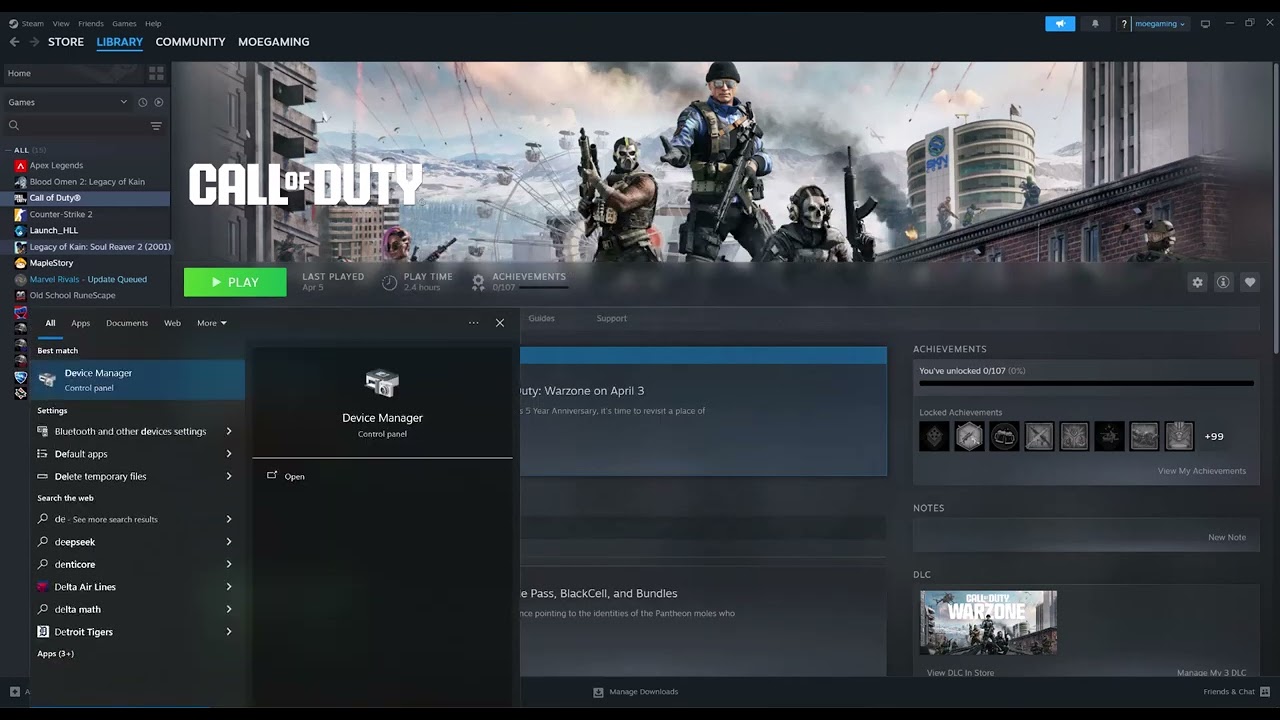
    4. Install the correct GPU driver. Identify the graphics card under Device Manager > Display adapters, then use NVIDIA, AMD or Intel’s official driver page. Windows’ automatic search may not offer the newest gaming driver.
    5. Return performance settings to stock. Disable CPU, GPU and memory overclocks or undervolts temporarily. Close monitoring overlays and recording hooks for one test. Record what you change so it can be restored.
    6. Reduce load as a diagnostic. Use the in-game frame-rate cap and a lower graphics preset, then test the same mission. If stability improves, raise settings gradually. This is a diagnostic workaround, not proof of a hardware fault.
    7. Check security software without disabling protection. Allow Helldivers 2, Steam and its anti-cheat through the firewall. Use the security product’s documented exclusion feature only for the verified game folder.

    Why these steps can work

    Crashes can come from damaged game assets, a driver mismatch, a game update, an unstable system tuning profile or a third-party hook. Verification and official driver updates address common local causes; a repeatable lower-load test helps separate a performance-triggered crash from a launch-file problem.

    If it still crashes

    • Remove launch options in Steam and retest with default settings.
    • Capture the exact time, crash ID, Windows version, GPU model and driver version.
    • Contact Arrowhead support with those details. A full-PC freeze or restart may require Windows Reliability Monitor and hardware diagnostics, not repeated game reinstalls.

    Warnings and limitations

    The source video demonstrates file verification and GPU-driver updating. It promises a permanent result more strongly than the evidence supports; viewer feedback shows mixed outcomes and update-specific crashes. Do not change BIOS memory speed solely because a comment recommends it. BIOS tuning can destabilize the system and is outside this guide.

    Frequently asked questions

    Will Verify Integrity remove saves?

    Steam verification checks installed files. Helldivers 2 progression is associated with the online account, but keep normal system backups.

    Should I delete the Arrowhead AppData folder?

    Not as a first step. It can remove local settings, and the exact effects can change. Start with verification and official support guidance.

    What if the whole PC freezes?

    Return overclocks to stock, update drivers and Windows, check Reliability Monitor, and test system stability. A full freeze is broader than a normal game crash.

    Official references

    Source video

    The video below demonstrates Steam file verification and identifying the display adapter. The expanded guide uses only official driver sources and treats performance changes as reversible tests.

    As an Amazon Associate I earn from qualifying purchases.
  • Fix Games Not Appearing in the Steam Store

    Fix Games Not Appearing in the Steam Store

    Quick answer: Open Steam, select your account name, choose Store Preferences, and review mature-content and language filters. Also check ignored products and Family View. If a store page still says the product is unavailable, the publisher may not sell it in your region or on your current platform.

    Before you start

    • Sign in to the Steam account that is missing the title.
    • Confirm the exact game name and publisher from an official page.
    • If this is a child or supervised account, do not bypass household restrictions; ask the account manager.

    How to make a filtered game appear

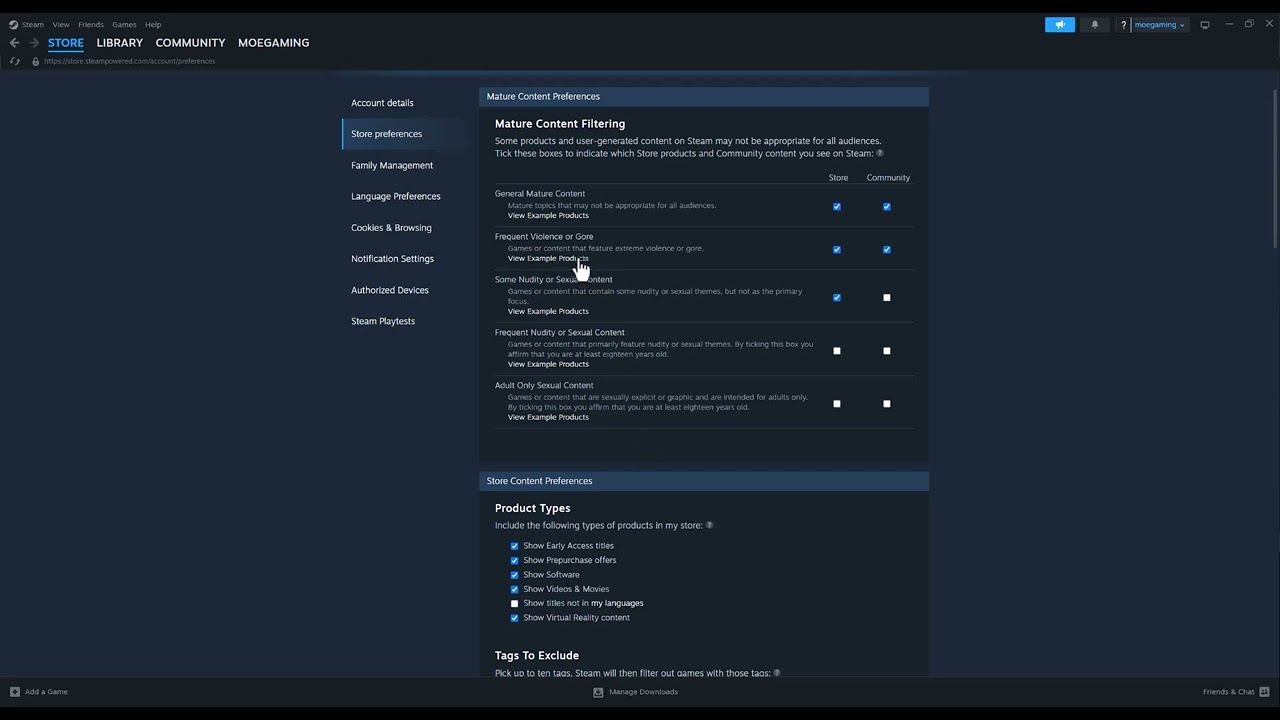
    1. Open Store Preferences. In the Steam desktop client, select your account name in the upper-right, choose Store Preferences, and review the content-preference section.
    2. Review mature-content filters. Enable only the types of content you are comfortable seeing. Steam applies these choices to search and recommendations. Some games disappear when their content category is excluded.
    3. Check language preferences. Review the setting that limits store results to languages you use. A title may be hidden when its listed supported languages do not match the current filter. Broadening the filter changes discovery only; it does not add a translation to the game.
    4. Check ignored products. In Store Preferences, open the list of ignored products. Remove the title if it was ignored accidentally.
    5. Check Family View or household controls. If the Store or a content category is restricted, the family PIN or organizer is required. Do not attempt to defeat the restriction.
    6. Open the direct product page. Search the web for the official Steam product page or follow the publisher’s Steam link. A direct page can reveal whether the title is delisted, unreleased, age-gated or unavailable in the account’s country.
    7. Restart Steam after saving. Exit the client completely, reopen it and repeat the search. Also test the Steam website while signed in to the same account.

    Why this works

    Steam search is personalized. Content, language and ignored-product preferences can remove items from normal discovery without removing them from the catalog. Family settings and regional sale rights are separate controls, so a preference change cannot override them.

    Other reasons a game may be missing

    • The publisher has not released the game yet, has delisted it, or does not sell it in your country.
    • The title is available only as downloadable content and requires a base game.
    • A temporary Store or search issue is affecting discovery. Reopen Steam and try the direct page later.
    • The game was purchased but is hidden from the Library rather than the Store. Use View > Hidden Games in the client.

    Warnings

    Changing Store Preferences does not prove a title is appropriate for every player. It also does not change the account’s date of birth, country, payment region or family permissions. Avoid VPN purchases or false region information; those actions can conflict with Steam rules and licensing.

    Frequently asked questions

    Why can I see the game in a browser but not Steam search?

    The browser may be signed out or using different preferences. Sign in to the same account and compare Store Preferences.

    Will enabling a content type buy or install anything?

    No. It only changes what the Store can show.

    What if the product page says unavailable in my region?

    A local preference cannot change publisher distribution rights. Check the publisher’s official availability information or contact Steam Support.

    Official references

    Source video

    The source demonstrates the account-name and Store Preferences route, including mature-content and language filters. Viewer reports indicate that the filter check helped many people, but it cannot solve delisting or regional availability.

    As an Amazon Associate I earn from qualifying purchases.