Author: MoeGaming

  • Fix THE FINALS Crashing or Not Launching on Steam

    Fix THE FINALS Crashing or Not Launching on Steam

    Quick answer: Restart the PC, verify THE FINALS in Steam, update Windows and hardware drivers, and close non-essential overlays or background tools. Embark also recommends checking Easy Anti-Cheat and reinstalling only after the safer steps fail.

    Before you start

    • Record any error code and when the crash occurs.
    • Confirm the PC meets the current system requirements.
    • Return overclocks or undervolts to tested defaults during diagnosis.

    Fix THE FINALS crashes

    1. Restart Windows: This clears a stuck game, Steam, or anti-cheat process.
    2. Verify files: In Steam, right-click THE FINALS, open Properties > Installed Files, and choose Verify integrity of game files.
    3. Install updates: Update THE FINALS, Windows, and the GPU driver from NVIDIA, AMD, or Intel. Restart after installation.
    4. Close non-essential software: Exit overlays, recording tools, hardware monitoring, RGB utilities, VPNs, and other injectors for one test.
    5. Check EAC: If the message names Easy Anti-Cheat or a system-integrity code, follow Embark’s code-specific guidance and repair the protected installation; do not bypass EAC.
    6. Run a clean boot: Hide Microsoft services before disabling non-Microsoft services, restart, and test. Re-enable items in groups to find the conflict.
    7. Reinstall last: If every earlier step fails, uninstall THE FINALS, remove only the leftover Embark game folder documented by support, restart, and reinstall through Steam.

    Why this works

    Verification replaces damaged files. Current drivers and Windows components address graphics-runtime faults. A clean boot isolates software that hooks the game or anti-cheat, while reinstalling provides a clean copy only when repair is insufficient.

    Alternatives

    • Run the game as administrator for one test, then turn the setting off if it makes no difference.
    • If the crash follows a patch, check Embark support and wait for a confirmed server-side fix.
    • Open an Embark ticket with the exact code, Windows version, and recent driver changes.

    Warnings and reversal

    Do not disable Microsoft services in a clean boot and do not run cheat, injection, or bypass tools. Re-enable disabled startup items after testing. Do not delete folders for other Embark games during reinstall.

    FAQ

    Will Steam verification remove settings?

    No. It checks installed game files; personal settings are stored separately.

    Should I disable antivirus?

    No. Use a narrow, verified exception only if security history shows a legitimate game or EAC file was blocked.

    What if I get a TFAV code?

    Use Embark’s System Integrity Violation article because the code groups have specific meanings and rules.

    Official references

    Source video

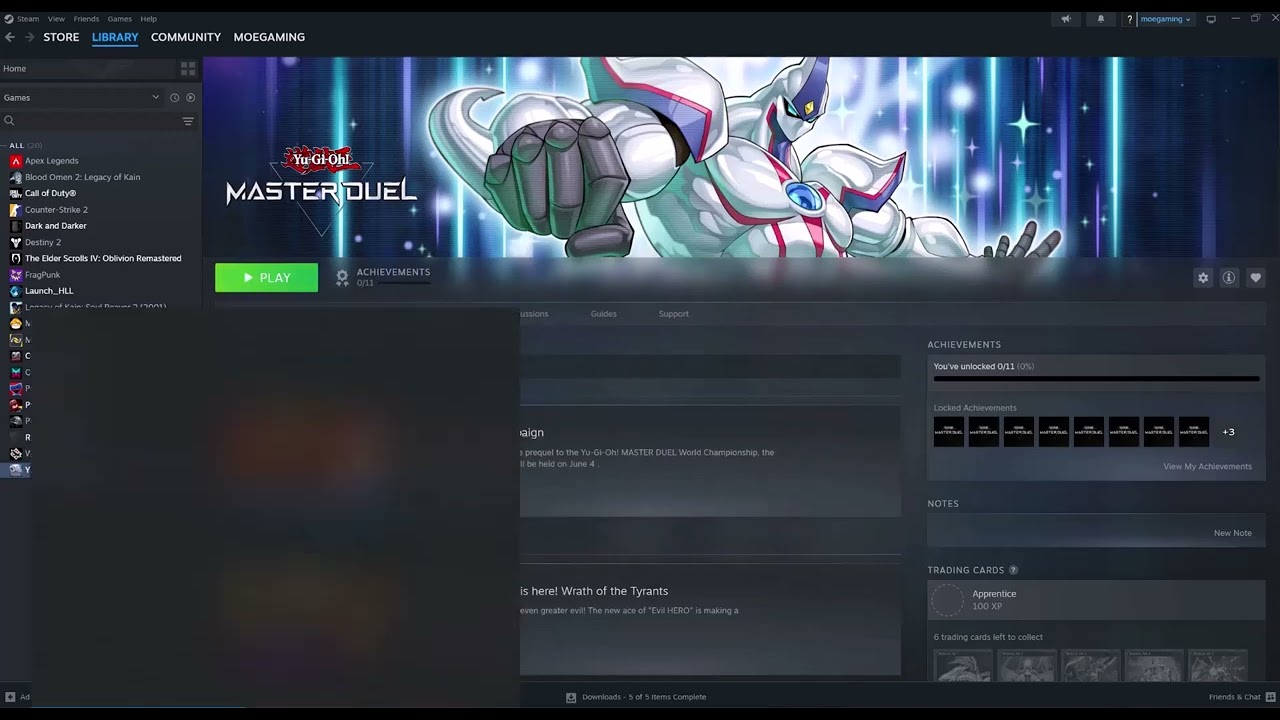
    The video demonstrates Steam file verification. The article adds Embark’s current driver, Windows, background-process, and EAC guidance and keeps reinstalling as a last resort.

    As an Amazon Associate I earn from qualifying purchases.
  • Fix World of Warcraft Crashing or Not Launching

    Fix World of Warcraft Crashing or Not Launching

    Quick answer: End any stuck World of Warcraft and Battle.net processes, restart the PC, install pending updates, then run Battle.net’s Scan and Repair. If the option is greyed out, make sure the game is fully closed and no update is already running.

    Before you start

    • Check Blizzard’s service notices for a patch-day incident.
    • Back up the WTF folder if it contains custom profiles you need.
    • Do not disable antivirus protection permanently.

    Fix WoW startup crashes

    1. Close stuck processes: Open Task Manager and end only World of Warcraft, Battle.net, and Blizzard Update Agent processes that remain after you close the apps.
    2. Restart Windows: Reopen Battle.net and install every WoW and launcher update.
    3. Scan and Repair: Select World of Warcraft, open the gear beside Play, choose Scan and Repair, then Begin Scan.
    4. If repair is greyed out: Confirm WoW is not running and let any active update finish. Restart Battle.net after closing its remaining processes.
    5. Update Windows and drivers: Install current Windows and graphics-driver updates, then restart.
    6. Test without addons: Rename Cache, Interface, and WTF to names ending in Old. Start WoW so clean folders are created.
    7. Try DirectX 11 only as a test: In Battle.net Game Settings, add -d3d11 as an additional command-line argument. Remove it if it does not help.

    Why this works

    A stuck background process can make Battle.net think WoW is still running and block repair. Scan and Repair replaces damaged game files. Clean configuration folders isolate an addon or cached-setting conflict without deleting the originals.

    Alternatives

    • Launch Wow.exe directly once to determine whether Battle.net itself is the failing layer.
    • Temporarily exit overlays and addon managers, then test again.
    • Reinstall only after repair, updates, and a clean configuration test fail.

    Warnings and reversal

    Do not delete the WTF folder before backing it up; it contains settings and addon profiles. To undo the clean-folder test, close WoW, remove the newly created folders, and restore the original names. Remove -d3d11 to return to the default renderer.

    FAQ

    Why is Scan and Repair greyed out?

    Battle.net usually detects a running WoW process or an active update. End the stuck process or let the update finish.

    Will Scan and Repair remove addons?

    No. Addons live in the Interface folder and are not normally removed by file repair.

    Should I reinstall immediately?

    No. Scan and Repair plus a clean configuration test is faster and preserves more local setup.

    Official references

    Source video

    The video demonstrates Battle.net Scan and Repair. Viewer feedback about greyed-out repair and stuck processes informed the recovery steps, while destructive cache deletion was replaced with reversible folder renaming.

    As an Amazon Associate I earn from qualifying purchases.
  • Fix a PlayStation Portal That Is Not Charging

    Fix a PlayStation Portal That Is Not Charging

    Quick answer: Use the cable supplied with the PlayStation Portal or PS5 and connect it to an awake PS5. If charging in Rest Mode, set USB power to a choice other than Off. A compatible USB-PD wall adapter rated at least 5 V/3 A is also supported.

    Before you start

    • Inspect the USB-C port and cable for visible damage or debris; do not insert tools into the port.
    • Use the supplied cable for the first test.
    • If the Portal is very low, leave it connected for at least 30 minutes before trying to turn it on.

    Fix the charging problem

    1. Use an awake PS5: Connect the Portal to the powered-on PS5 with the included USB cable and check for the charging indicator.
    2. Enable Rest Mode USB power: On PS5, open Settings > System > Power Saving > Features Available in Rest Mode > Supply Power to USB Ports, then choose a setting other than Off.
    3. Reseat and reverse the cable: Disconnect both ends, inspect them, reconnect firmly, and try reversing the USB-C end.
    4. Try a supported wall adapter: Use a USB-C Power Delivery adapter that supplies at least 5 V/3 A with a standards-compliant cable.
    5. Restart the Portal: Hold the power button, turn it off, wait 30 seconds, and power it on while connected.
    6. Update system software: Once the battery has enough charge, install the latest Portal update. Check Settings > System > Battery because current software may stop at an 80% charge limit by default.

    Why this works

    The Portal requires adequate USB power and a compatible cable. PS5 Rest Mode can stop supplying USB power, while current Portal software can intentionally cap charging at 80% for battery health. A USB-PD adapter isolates the console port from the test.

    Alternatives

    • Try another known-good, standards-compliant USB-C cable.
    • Test another PS5 USB port while the console is awake.
    • If the port is loose, hot, wet, damaged, or repeatedly reports a USB fault, stop and contact PlayStation Repairs.

    Warnings and reversal

    Do not use frayed cables, force the connector, clean the port with metal objects, or open the Portal. Return the Rest Mode USB setting to its original value if desired. A reset erases Portal settings and sign-in, so it is not a first-line charging fix.

    FAQ

    Why does it stop at 80%?

    Recent Portal software defaults to an 80% charge limit for long-term battery health. Change it under Settings > System > Battery if needed.

    Can I use a phone charger?

    Yes only if it is a compatible USB-C Power Delivery adapter supplying at least 5 V/3 A and uses a standards-compliant cable.

    How long should charging take?

    Sony’s instruction manual estimates about 2 hours 30 minutes under its test conditions.

    Official references

    Source video

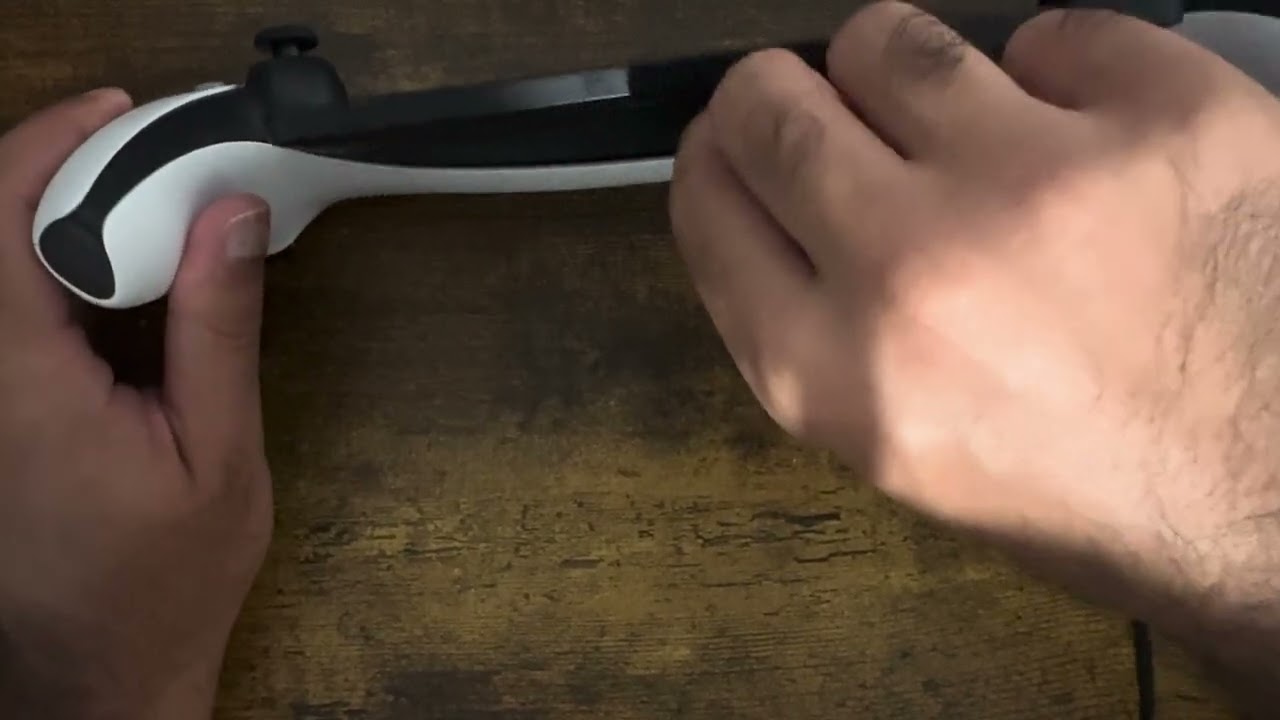
    The video and viewer feedback suggest testing the included cable and a compatible wall charger. The electrical rating, Rest Mode setting, and 80% battery limit above come from current PlayStation documentation.

    As an Amazon Associate I earn from qualifying purchases.
  • Fix Easy Anti-Cheat Errors in Hell Let Loose on PC

    Fix Easy Anti-Cheat Errors in Hell Let Loose on PC

    Quick answer: Verify Hell Let Loose in Steam, restart Windows, and use Easy Anti-Cheat’s installed service repair. Do not delete the entire EAC folder: viewer feedback shows that can leave Easy Anti-Cheat reported as not installed.

    Before you start

    • Close Hell Let Loose and Steam.
    • Install pending Windows and game updates.
    • Write down the exact EAC message or code.

    Repair Easy Anti-Cheat

    1. Verify game files: In Steam, right-click Hell Let Loose, select Properties > Installed Files > Verify integrity of game files.
    2. Restart Windows: This releases locked EAC files and restarts its service.
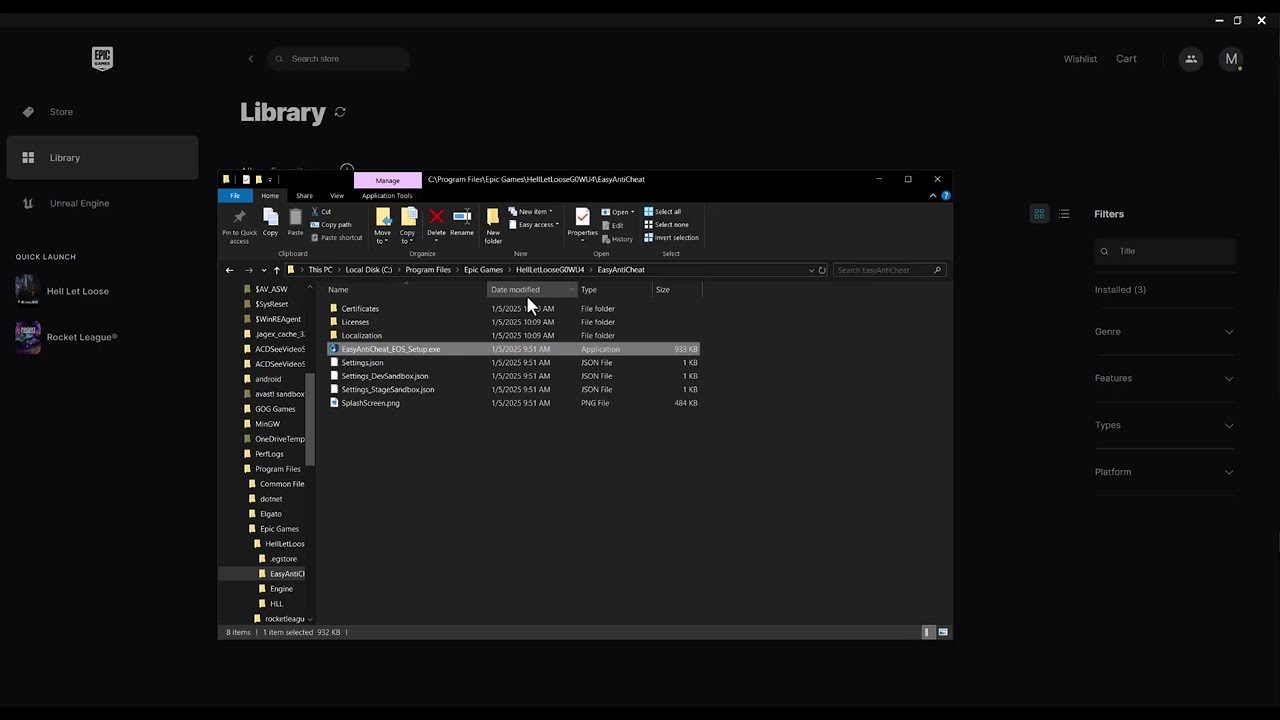
    3. Run the EAC service repair: Open Command Prompt as administrator. Locate EasyAntiCheat_EOS_Setup.exe in the game’s EasyAntiCheat folder and use the official EAC Windows Service repair command documented for the installed service.
    4. Re-verify after repair: Run Steam verification again so any missing anti-cheat component is restored.
    5. Check antivirus quarantine: Restore only verified Hell Let Loose or EAC files, then create the narrowest possible exception. Keep real-time protection enabled.
    6. Launch from Steam: Start the game through the normal Steam button, not an unknown third-party shortcut.

    Why this works

    Easy Anti-Cheat starts a Windows service and validates the protected game installation. File verification restores missing components; service repair re-registers EAC without removing the whole folder; a restart clears locked files.

    Alternatives

    • If the error says EAC is not installed, verify files before trying the service repair again.
    • Disable overlays and hardware-monitoring utilities for one test, then re-enable them individually.
    • Use the EAC support article matching the exact code, such as Error 30005 or Unknown File Version.

    Warnings and reversal

    Do not download EAC DLLs from file-sharing sites or bypass anti-cheat. Do not remove the full EAC directory unless official support instructs you to reinstall it. Remove any test antivirus exception that does not help.

    FAQ

    Should I delete the EasyAntiCheat folder?

    No. That can change the symptom to “Easy Anti-Cheat is not installed.” Verify and repair instead.

    Will verification delete progress?

    No. Steam checks installed files; Hell Let Loose account progression is separate.

    Can I bypass EAC for online play?

    No. Bypassing anti-cheat is unsafe, may violate the game’s rules, and is not part of this guide.

    Official references

    Source video

    The video discusses repairing EAC. Because some viewers reported that deleting the folder removed the installation, this guide uses the official service-repair and file-verification path instead.

    As an Amazon Associate I earn from qualifying purchases.
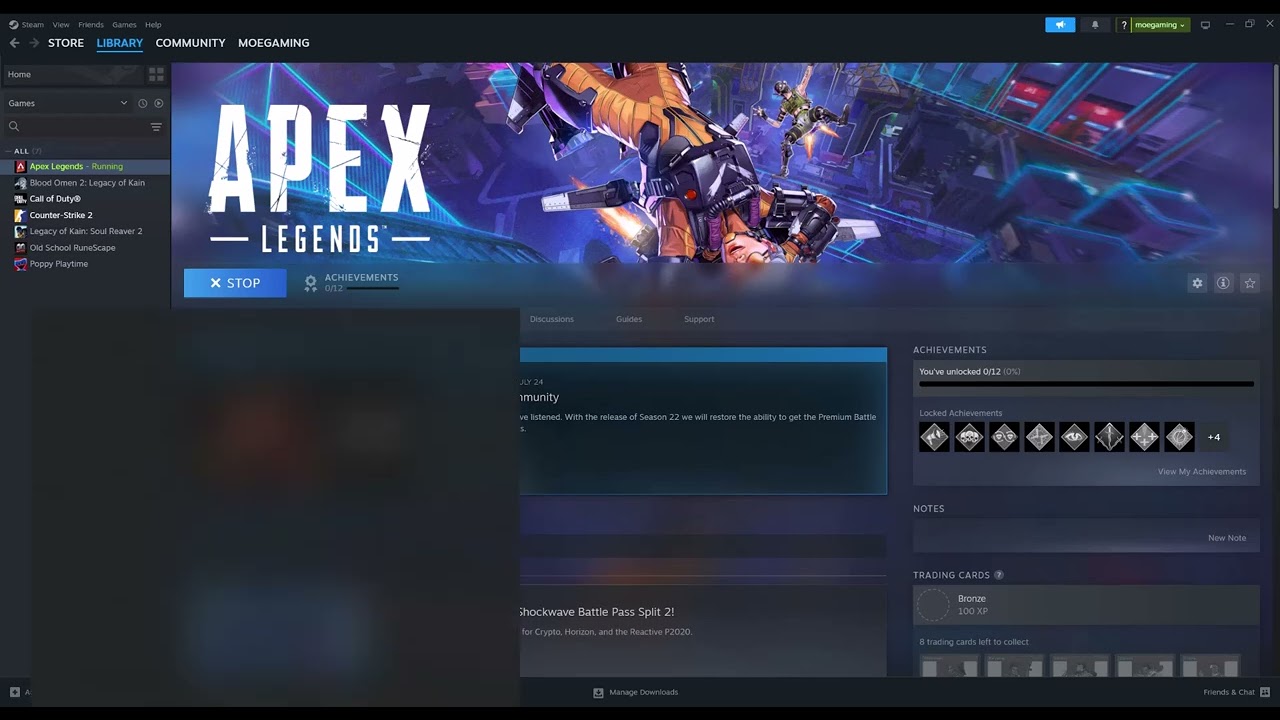
  • Fix Apex Legends Code:Leaf and Server Timed Out Errors

    Fix Apex Legends Code:Leaf and Server Timed Out Errors

    Quick answer: EA defines code:leaf as its servers not responding to a match request. Check Apex server status first, then restart the game and router, try Ethernet, and select the nearest low-ping data center. If EA reports an outage, wait rather than changing your system.

    Before you start

    • Check the official Apex Legends server-status page.
    • Note your current data center, ping, and packet-loss values.
    • Pause downloads, streaming, VPNs, and cloud sync during testing.

    How to fix code:leaf

    1. Restart Apex and your platform: Fully close the game, restart the PC or console, and reconnect.
    2. Restart the router: Unplug it for 30 seconds, reconnect it, and wait for internet service to return.
    3. Use Ethernet if possible: A wired test removes Wi-Fi interference from the diagnosis.
    4. Choose a closer data center: On the Apex launch screen, do not select Continue. Open Data Center and choose the nearby location with the lowest ping and packet loss.
    5. Update the game: Install any pending Apex update before joining a match.
    6. Repair PC files: In the EA app choose Library > Apex Legends > Manage > Repair; in Steam use Properties > Installed Files > Verify integrity.

    Why this works

    EA says code:leaf occurs when its servers stop responding. A restart rebuilds the session, Ethernet removes wireless packet loss, and a nearby data center shortens the network path. File repair matters only when the local installation is damaged.

    Alternatives

    • Test a different home network briefly to isolate the router or ISP.
    • Turn on Apex Performance Display to monitor latency and packet loss.
    • If every data center has high loss, stop troubleshooting locally and recheck EA status.

    Warnings and reversal

    Do not factory-reset your router, open broad port ranges, or disable security software for code:leaf. Return the data center to Automatic if a manual choice is worse. Re-enable VPN or background apps after testing one at a time.

    FAQ

    Is code:leaf an account ban?

    No. EA identifies it as a server-response or connectivity error.

    Does changing data center erase progress?

    No. It changes the server region used for the connection, not your account data.

    What if the error starts after an update?

    Check EA status and install the latest game update before repairing files.

    Official references

    Source video

    The video demonstrates changing the Apex data center. The guide limits that workaround to nearby, low-loss regions and uses EA’s current description of code:leaf for the remaining steps.

    As an Amazon Associate I earn from qualifying purchases.
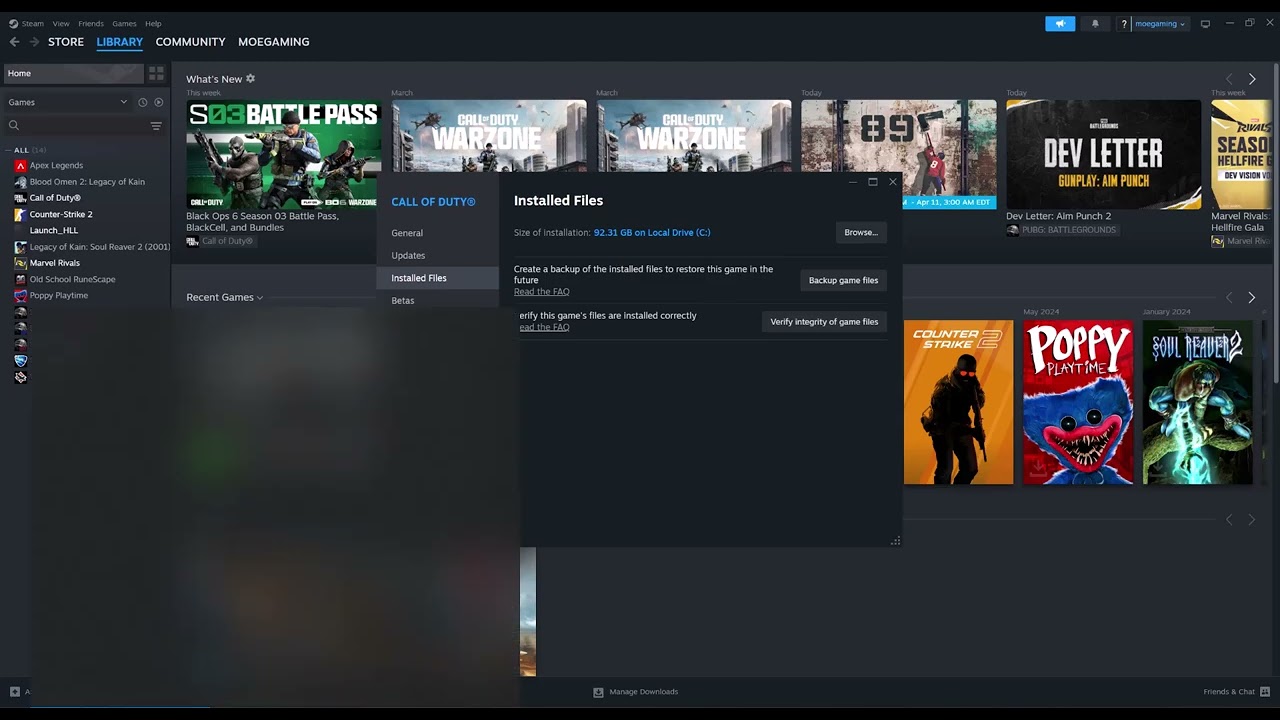
  • Fix Baldur’s Gate 3 Crashing on Steam

    Fix Baldur’s Gate 3 Crashing on Steam

    Quick answer: Update Baldur’s Gate 3, Windows, and the graphics driver; verify the game in Steam; remove mod conflicts; then test the other launcher renderer—DirectX 11 or Vulkan. Back up saves before changing profile or cache folders.

    Before you start

    • Update the game completely and restart Steam.
    • Back up local saves under %LocalAppData%Larian StudiosBaldur's Gate 3PlayerProfiles if cloud sync is disabled.
    • Record whether the crash occurs at startup, during a save load, or in a specific area.

    Fix Baldur’s Gate 3 crashes

    1. Verify the Steam installation: In Steam, right-click Baldur’s Gate 3, open Properties > Installed Files, and choose Verify integrity of game files. Steam reacquires missing or changed files.
    2. Update Windows and the GPU driver: Install Windows updates, then get the current stable driver directly from NVIDIA, AMD, or Intel for your graphics card. Restart the PC.
    3. Switch renderer: In the Larian launcher, choose DirectX 11 if Vulkan crashes, or Vulkan if DirectX 11 crashes. Larian supports testing both.
    4. Disable overlays and monitoring tools: Turn off Steam Overlay, Discord overlay, GPU tuning overlays, and non-essential monitoring software for one test.
    5. Isolate mods: If you use mods, move them out of %LocalAppData%Larian StudiosBaldur's Gate 3Mods into a backup folder. Do not delete them until the game starts cleanly.
    6. Test a clean configuration: Rename the Baldur's Gate 3 folder under %LocalAppData%Larian Studios to Baldur's Gate 3-backup. Start the game so it creates a fresh folder. Restore the original name if this does not help.
    7. Check the faulting module: Open Windows Event Viewer, go to Windows Logs > Application, and inspect the most recent bg3.exe or bg3_dx11.exe error before contacting Larian.

    Why this works

    Verification replaces damaged game files. A driver update repairs graphics-runtime compatibility. Switching renderer isolates a DirectX/Vulkan-specific failure, while removing overlays, tuning tools, and mods eliminates common injected-code and data-mismatch conflicts.

    Alternatives

    • Launch bg3.exe or bg3_dx11.exe directly from the game’s bin folder to determine whether the Larian launcher is the failing component.
    • If a particular save crashes after an update, test a new game before modifying the save.
    • Send Larian the dxdiag, gold.log, and any CrashDump files requested in its support article.

    Warnings and reversal

    Do not permanently delete saves, profiles, or mods while diagnosing the crash. Renaming or moving folders is reversible: close the game, remove the new test folder, and restore the original name. Do not download replacement DLLs from third-party sites.

    FAQ

    Should I use DirectX 11 or Vulkan?

    Use whichever is stable on your PC. Larian explicitly recommends switching between them as a troubleshooting test.

    Can mods cause crashes after a patch?

    Yes. UI and script-extender mods may become incompatible after updates. Test without them and add them back one at a time.

    Will verifying files remove saves?

    No. Steam verification checks installed game files, not the separate save-profile folder.

    Official references

    Source video

    Captions remained unavailable after every retry, but the public chapters identify file verification and graphics-driver updates. Those steps and the additional alternatives above are confirmed by Larian and Steam guidance.

    As an Amazon Associate I earn from qualifying purchases.
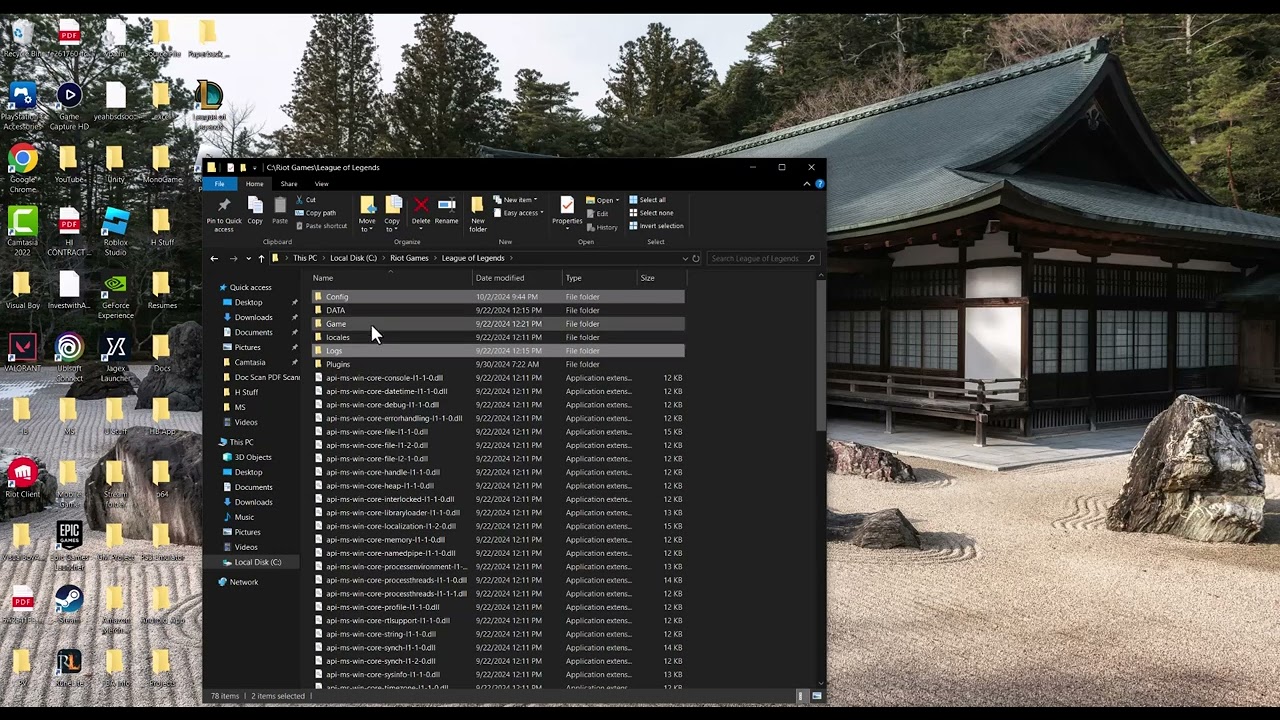
  • Fix the League of Legends Reconnect Loop on PC

    Fix the League of Legends Reconnect Loop on PC

    Quick answer: Check Riot’s server status, test in a custom game, switch to Ethernet, close bandwidth-heavy apps and VPNs, then run Riot Client’s Full Repair Tool. Configure DNS or firewall rules only if the basic connection is stable but the loop remains.

    Before you start

    • Do not test in ranked play; use Practice Tool or a custom game to avoid AFK penalties.
    • Note whether every device loses connection or only League does.
    • Keep Windows Firewall enabled while troubleshooting.

    Fix the reconnect loop

    1. Check Riot status: Confirm your region is not reporting a game or login incident.
    2. Test safely: Enter a custom game or Practice Tool. If the reconnect message appears there, continue without risking a match penalty.
    3. Use Ethernet: Connect the PC directly to the router if possible. Wi-Fi interference and packet loss commonly trigger the reconnect state.
    4. Close network-heavy software: Pause downloads, streaming, cloud sync, VPNs, and proxies. Restart the Riot Client.
    5. Restart the network path: Exit the client, restart Windows, and power-cycle the router for at least 15 seconds.
    6. Repair Riot files: Use Riot’s official Client Full Repair Tool to repair missing or corrupted files, then restart the client.
    7. Update Windows and the network adapter: Install Windows updates. In Device Manager, expand Network adapters, right-click the active adapter, and choose Update driver.
    8. Configure DNS only if needed: Use Riot’s official DNS guide and flush the DNS cache. Record the original setting so you can return it to Automatic.
    9. Allow Riot through the firewall: Add the Riot Client and League executables as allowed apps instead of turning the firewall off.

    Why this works

    Riot explains that the reconnect message appears when the game has missed network data and is trying to catch up. Ethernet, removing VPN or proxy routing, reducing traffic, and repairing files address the most common packet-loss, path, and client-integrity causes.

    Alternatives

    • Run Riot’s Lag Report where available to compare the ISP route with Riot’s servers.
    • Test a second network briefly to determine whether the home network or PC is responsible.
    • Gather Riot Repair Tool logs and attach them to a Player Support ticket if the loop persists.

    Warnings and reversal

    Do not permanently disable the firewall, antivirus, or router security. If a DNS change does not help, restore Obtain DNS server address automatically. Remove test firewall rules that are broader than the Riot and League executables.

    FAQ

    Why can I browse the web while League reconnects?

    Web browsing tolerates brief packet loss; a live match needs continuous low-latency traffic to Riot’s game servers.

    Will reinstalling League fix it?

    Only if files are damaged. Run the Full Repair Tool first because it is faster and preserves the installation.

    Can I keep playing while testing?

    Use a custom game or Practice Tool until the connection is stable, as Riot recommends, to avoid an AFK or LeaverBuster penalty.

    Official references

    Source video

    Captions remained unavailable after all retries. The article uses the video topic but bases the repair sequence and safety limits on current Riot guidance.

    As an Amazon Associate I earn from qualifying purchases.
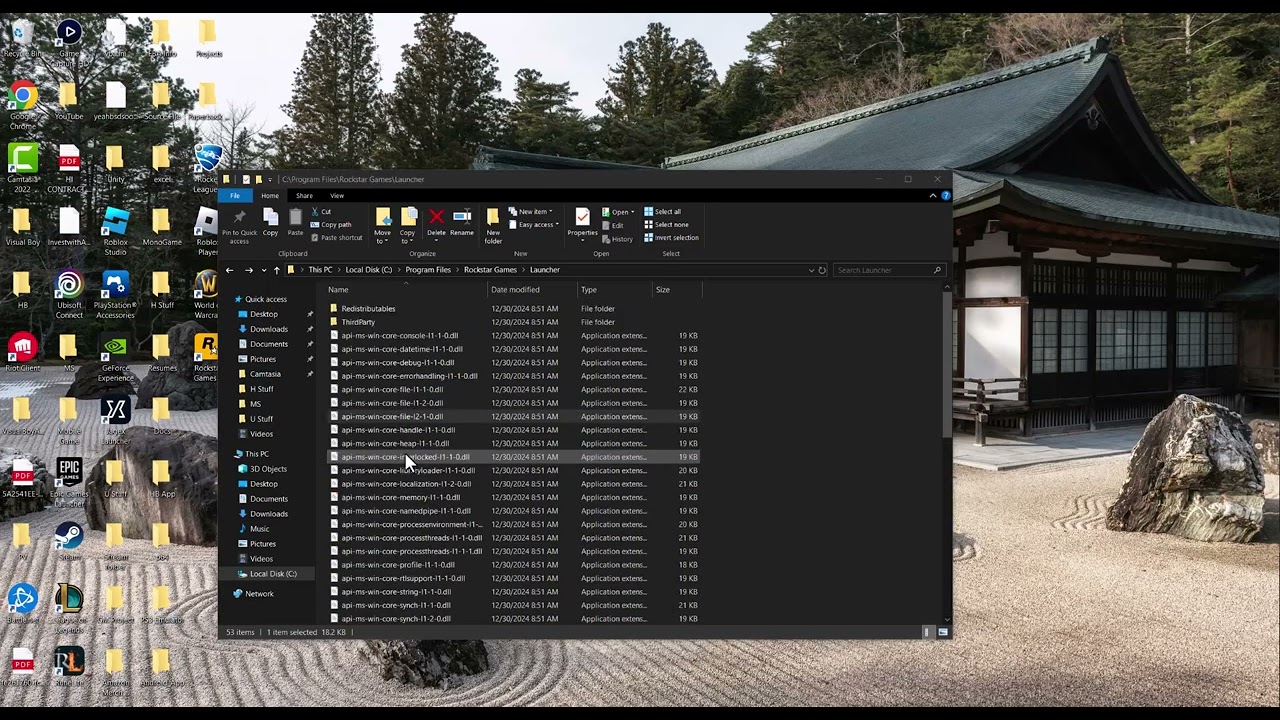
  • Fix Rockstar Games Launcher Failed to Initialize for GTA 5

    Fix Rockstar Games Launcher Failed to Initialize for GTA 5

    Quick answer: Install the latest Rockstar Games Launcher over the existing copy, verify GTA 5 files, and restart Windows. If the launcher is still incomplete or corrupted, perform Rockstar’s clean-install procedure while leaving game data unchecked.

    Before you start

    • Close GTA 5, Steam or Epic, and Rockstar Games Launcher.
    • Back up any local-only saves and launcher settings you cannot replace.
    • Confirm you can sign into the Rockstar account that owns the game.

    Fix the failed-to-initialize error

    1. Check service status: Make sure Rockstar Games Launcher and Authentication are operational.
    2. Install the current launcher: Download Rockstar Games Launcher from Rockstar’s official page and run the installer. Restart Windows afterward.
    3. Verify GTA 5 files: In Rockstar Games Launcher, sign in, open Settings, choose GTA 5 under My installed games, and select Verify Integrity.
    4. Update Windows: Install available Windows updates and reboot. Incomplete runtime or security updates can prevent launcher components from loading.
    5. Try a clean launcher install: If the same message remains, run uninstall.exe in C:Program FilesRockstar GamesLauncher. Leave uninstall the game data unchecked. Remove only the exact Launcher and Social Club folders listed in Rockstar’s clean-install article, restart, and reinstall the launcher.
    6. Launch normally: Start the launcher from its regular shortcut. Use Run as administrator only as a temporary diagnostic if normal launch is blocked by permissions.

    Why this works

    Rockstar documents failed initialization as a launcher installation or update problem. Installing the current launcher repairs missing components; verifying GTA 5 repairs damaged game and supporting files; a clean launcher install replaces stale Social Club and launcher files without removing the game when the game-data option stays unchecked.

    Alternatives

    • Verify GTA 5 in Steam or Epic if that launcher owns your copy, then start Rockstar Games Launcher again.
    • Disable overlays and monitoring tools for one test, then re-enable them if they are not the cause.
    • Submit a Rockstar Support request with the exact wording and any error code if initialization still fails.

    Warnings and reversal

    Do not delete the entire Documents folder or GTA 5 installation. During uninstall, keep uninstall the game data unchecked. If you temporarily use administrator mode, clear Run this program as an administrator after testing so the launcher does not always run elevated.

    FAQ

    Will reinstalling the launcher delete GTA 5?

    Not if you leave the game-data option unchecked and delete only the launcher/Social Club paths Rockstar lists.

    Should I redeem my activation code again?

    No if the game already appears on the correct Rockstar account. Codes are one-time use and permanently attach to the signed-in account.

    Can file verification fix launcher errors?

    It can fix damaged supporting files, but a missing launcher component still requires the current installer or clean launcher install.

    Official references

    Source video

    Captions remained unavailable after the required retries. The guide uses the video’s stated error as the topic and relies on current Rockstar instructions for every repair step.

    As an Amazon Associate I earn from qualifying purchases.
  • Fix Black Ops 6 DEV Error 10493 on PS5

    Fix Black Ops 6 DEV Error 10493 on PS5

    Quick answer: There is no current Activision article defining DEV Error 10493. On PS5, start with a game update, confirm Black Ops 6 content is installed, restore licenses, and test the network. The DNS change shown in the source video is an unofficial, reversible workaround—not a guaranteed fix.

    Before you start

    • Make sure the PS5 has enough free storage for an update or repaired content pack.
    • Do not delete saved data. None of the steps below requires it.
    • Check Activision Online Services for a current outage.

    Try these fixes in order

    1. Restart the game and PS5: Close Black Ops 6 from the switcher, restart the console, and try again.
    2. Check for a game update: Highlight Black Ops 6, press Options, and choose Check for Update.
    3. Update PS5 system software: Open Settings > System > System Software > System Software Update and Settings and install any update.
    4. Check installed content: Highlight the game, press Options, and open Manage Game Content. Install any required Black Ops 6 pack that is not marked usable or installed.
    5. Restore the game license: Highlight the game, press Options, and choose Restore License. You can also use Settings > Users and Accounts > Other > Restore Licenses. This does not affect saved data.
    6. Test the connection: Open Settings > Network > Connection Status > Test Internet Connection. Restart the router only if the test shows a connection problem.
    7. Optional unofficial DNS test: Edit the active connection, open Advanced Settings, set DNS to Manual, and try Cloudflare DNS: 1.1.1.1 and 1.0.0.1. If it does not help, return DNS to Automatic.
    8. Reinstall only as a last resort: If content verification still fails, delete and reinstall the game application—not saved data—from the PlayStation library.

    Why this may work

    The source video treats the code as a content, license, or connectivity problem. Current Activision guidance confirms the importance of a complete standalone Black Ops 6 installation and an up-to-date console, while PlayStation confirms license restoration can help when a game crashes or content cannot be found. The code-specific cause remains unconfirmed.

    Alternatives

    • Switch temporarily between Wi-Fi bands or test Ethernet to isolate wireless interference.
    • If Activision services are degraded, wait before reinstalling anything.
    • Contact Activision Support with the exact code, PS5 system version, and the time it occurred.

    Warnings and reversal

    Do not delete saved data, initialize the PS5, or factory-reset the router for this code. Restore Licenses is safe and does not remove data. To undo the DNS workaround, edit the connection and set DNS back to Automatic. Reinstalling the game is bandwidth-heavy and should be last.

    FAQ

    Is DEV Error 10493 officially documented?

    No current Activision support page defines this exact code, so this guide does not claim a guaranteed cause.

    Will Restore Licenses delete saves?

    No. PlayStation states that restoring licenses does not affect data.

    Should I use Google or Cloudflare DNS?

    Only as a temporary test. DNS can help a name-resolution problem but will not repair corrupted game content.

    Official references

    Source video

    The full captions show the PS5 update, content, license, router, Wi-Fi-band, and DNS checks. Because the error itself is not defined by Activision, the video-derived DNS step is labeled as an unofficial test.

    As an Amazon Associate I earn from qualifying purchases.
  • Fix ‘Can’t Get a Teredo IP Address’ on Xbox Series X|S

    Fix ‘Can’t Get a Teredo IP Address’ on Xbox Series X|S

    Quick answer: Test the Xbox NAT status, restart the console and network equipment, then make sure the router has UPnP enabled and the Xbox is not behind two routers. Avoid opening ports or factory-resetting the router until you have isolated the cause.

    Before you start

    • Check Xbox service status for a multiplayer outage.
    • Note any custom DNS, alternate port, port-forward, or DMZ settings so you can undo them.
    • If possible, have an Ethernet cable available for one isolation test.

    Fix the Teredo IP address error

    1. Run the Xbox test: Go to Settings > General > Network settings. Run Test network connection, then Test NAT type.
    2. Restart the console fully: Hold the Xbox power button for about 10 seconds, disconnect power for 30 seconds, reconnect it, and start the console.
    3. Restart the modem and router: Unplug them, wait at least 30 seconds, power on the modem first, wait for it to reconnect, then power on the router.
    4. Remove a Wi-Fi variable: Test with Ethernet, or forget and re-add the Wi-Fi network. If Ethernet works, Wi-Fi interference or router wireless settings are the likely cause.
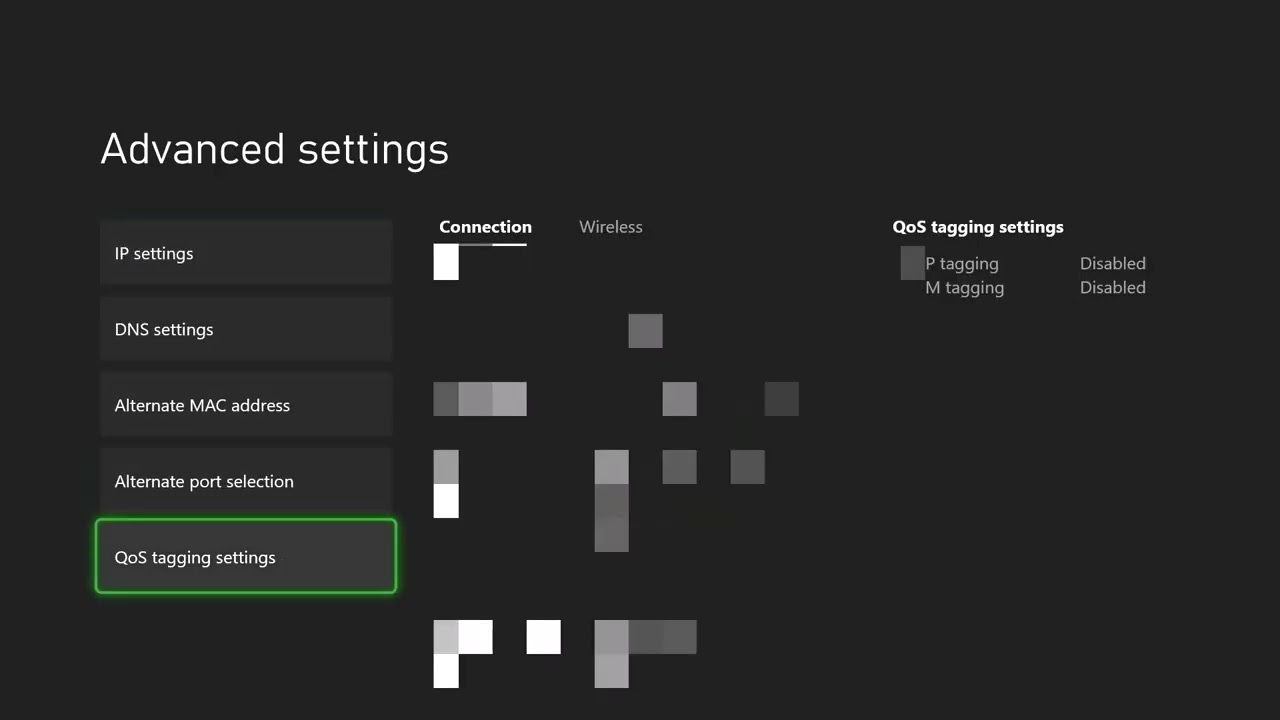
    5. Return the alternate port to Automatic: In Network settings > Advanced settings > Alternate port selection, select Automatic unless your network administrator gave you a specific port.
    6. Check UPnP and double NAT: In the router’s settings, enable UPnP and reboot the router. If an ISP gateway feeds a second router, use the gateway’s bridge/passthrough mode or place the Xbox behind only one routing device; contact the ISP if those options are unfamiliar.
    7. Retest NAT: Return to Xbox Network settings and run the NAT test again.

    Why this works

    Teredo carries Xbox multiplayer traffic across IPv4 networks. A stalled gateway session, blocked UDP mapping, manual port conflict, or two layers of NAT can prevent the console from obtaining a usable Teredo address. Restarting rebuilds the session; UPnP lets the console request mappings automatically.

    Alternatives

    • Temporarily test another network, such as a phone hotspot, only to isolate whether the home router or ISP path is responsible. Mobile data can be expensive and is not a permanent fix.
    • Ask your ISP whether the connection uses carrier-grade NAT. The ISP may need to provide a public IPv4 address or compatible IPv6 service.
    • If Xbox services are affected, wait and retest instead of changing the router.

    Warnings and how to undo changes

    Do not put the Xbox in a DMZ or forward a large port range as a first step. Those changes broaden exposure and can conflict with other consoles. Return any test DNS or port setting to Automatic, and disable any manual forwarding you added if it did not help. Do not factory-reset the router unless you have the ISP credentials and a configuration backup.

    FAQ

    Is Teredo an Xbox hardware fault?

    Usually not. It describes the network tunnel used for multiplayer, so the problem is commonly in routing, NAT, or service availability.

    Why does another console work?

    Two consoles can compete for the same manual port mapping. Automatic alternate-port selection and UPnP are normally better for multi-console homes.

    Will changing DNS fix Teredo?

    DNS does not directly create a Teredo tunnel. It can help only if name resolution is the underlying problem, so leave DNS automatic unless a tested provider clearly improves the connection.

    Official references

    Source video

    Captions remained unavailable after every retry. The guide therefore uses the public video topic only as the starting point and bases the reproducible steps on current Xbox network guidance.

    As an Amazon Associate I earn from qualifying purchases.