Author: MoeGaming

  • Fix Rockstar Games Launcher ‘Failed to Connect to the Games Library Service’

    Fix Rockstar Games Launcher ‘Failed to Connect to the Games Library Service’

    Quick answer: Update Windows, run the current Rockstar Games Launcher installer as a repair, and set Rockstar Games Library Service to Automatic in Windows Services. Keep antivirus protection on; add a narrow launcher-folder exception only if security software is blocking the service.

    Before you start

    • Close GTA 5 and the Rockstar Games Launcher.
    • Confirm Rockstar’s service-status page does not show an outage.
    • Use a Windows administrator account for the service and installer steps.

    Fix the Games Library Service error

    1. Update Windows: Open Settings > Windows Update, install available updates, and restart.
    2. Repair launcher components: Download the current installer from Rockstar’s official launcher page and run it. The installer checks existing components and the Library Service.
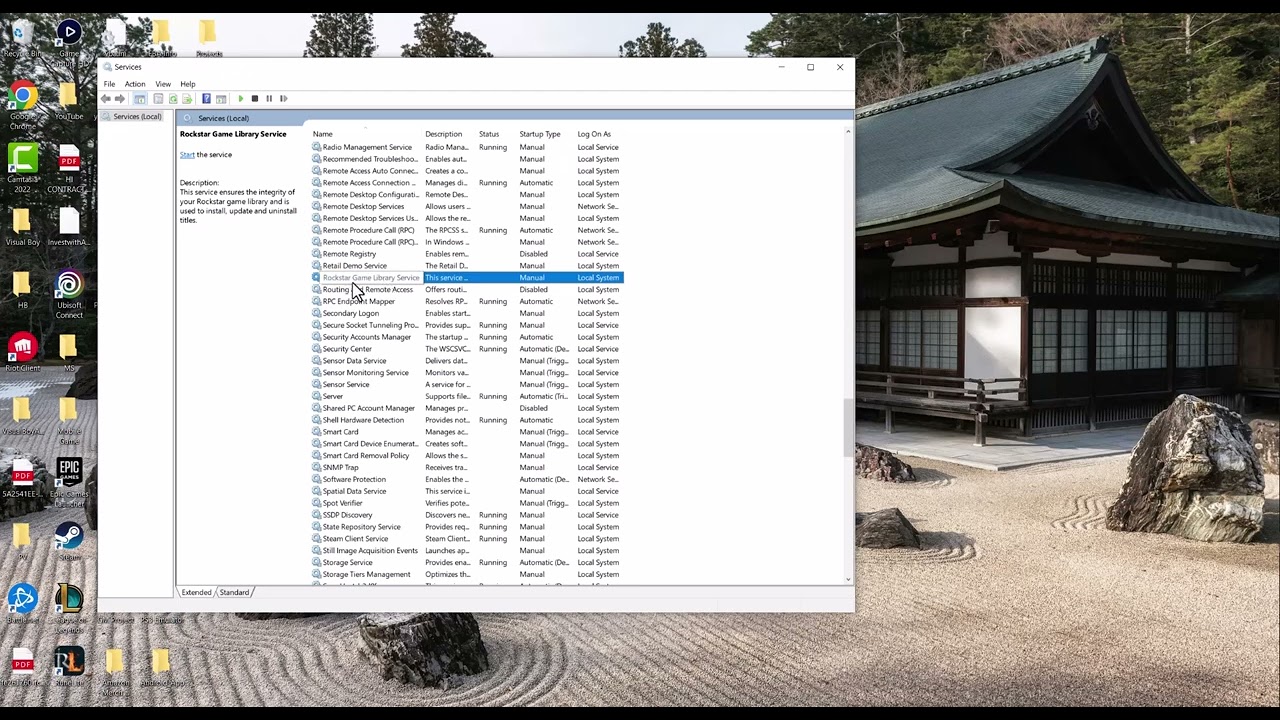
    3. Set the service to Automatic: Search for Task Manager, choose Run as administrator, open Services, right-click Rockstar Service, and choose Open Services. Double-click Rockstar Games Library Service, set Startup type to Automatic, select Apply, then Start if the service is stopped.
    4. Restart the launcher: Close Services and start Rockstar Games Launcher normally.
    5. Check security software: If the service stops again, allow the exact folder C:Program FilesRockstar GamesLauncher through your security software. Do not exclude a whole drive.

    Why this works

    The launcher depends on a Windows service to discover and manage installed Rockstar games. Rockstar says this error can appear when Windows is outdated, a launcher component is misconfigured, or the Library Service is paused or stopped. Automatic startup ensures the service is available before the launcher requests it.

    Alternatives

    • Verify Rockstar Games Launcher is operational on the official status page.
    • If the service entry is missing, reinstall the launcher using the official installer.
    • If Windows security repeatedly blocks the service, remove any broad exclusions and create only the exact launcher-folder exception recommended by Rockstar.

    Warnings and reversal

    Do not permanently disable antivirus or firewall protection. If the folder exception makes no difference, remove it from Windows Security > Virus & threat protection > Manage settings > Exclusions. Changing the service from Manual to Automatic is reversible from the same Services window.

    FAQ

    Should I reinstall GTA 5?

    Not first. This message points to the launcher service, so repair the launcher and service before downloading the entire game again.

    What if the Start button is unavailable?

    Run Services as an administrator. If the service is missing, reinstall the current launcher from Rockstar.

    Is the workaround official?

    The source video highlights the service setting, and the actionable path is independently confirmed by Rockstar Support.

    Official references

    Source video

    The transcript remained unavailable after all retries. The video’s visible title and chapter labels identify the service-settings method; the steps above use Rockstar’s current first-party instructions rather than inferred narration.

    As an Amazon Associate I earn from qualifying purchases.
  • Fix ‘You’ll Need a New App to Open This ms-xbl-multiplayer Link’ on PC

    Fix ‘You’ll Need a New App to Open This ms-xbl-multiplayer Link’ on PC

    Quick answer: Update the Xbox app, repair it in Windows Settings, then run Microsoft’s Gaming Services Repair Tool. Reset the app only if Repair does not work. This restores the Xbox protocol handler that opens multiplayer invitations and game-session links.

    Before you start

    • Save any work and close the Xbox app and Microsoft Store.
    • Make sure Windows can reach the internet and that date and time are correct.
    • Know your Microsoft account sign-in details. Resetting the app signs you out and clears local app settings.

    How to fix the ms-xbl-multiplayer link

    1. Update the Xbox app: Open Microsoft Store, choose Library, select Get updates, and install updates for Xbox and Gaming Services.
    2. Repair the Xbox app: Go to Settings > Apps > Installed apps > Xbox > Advanced options. Select Terminate, then Repair.
    3. Test the link: Open the Xbox app, sign in, and try the invitation or multiplayer link again.
    4. Use Reset only if needed: Return to Xbox Advanced options and select Reset. This clears the app’s local data and sign-in state; it does not normally delete installed game files, but you may need to relink a custom game-library folder.
    5. Repair Gaming Services: In the Xbox app, open your profile, choose Support, run the Gaming Services Repair Tool, and restart Windows when it finishes.
    6. Install Windows updates: Go to Settings > Windows Update, install available updates, restart, and test once more.

    Why this works

    The ms-xbl-multiplayer address is a Windows protocol handled by the Xbox app and Gaming Services. An outdated or damaged app registration can leave Windows with no working handler. Repair preserves the app’s data while checking its installation; Reset rebuilds the local registration when Repair is not enough.

    Alternatives if the error remains

    • Sign out of Microsoft Store and the Xbox app, then sign back into both with the same account.
    • Reinstall the Xbox app from Microsoft Store. Do not remove Microsoft Store itself or run unverified PowerShell scripts.
    • Check whether the invite opens from inside the Xbox app. If it does, the game and account are probably fine and the remaining fault is the Windows link association.

    Warnings and how to undo changes

    Do not delete game folders or saved-game folders to fix this link error. If Reset changed the Xbox app’s settings, sign in again and select the original library drive under the app’s installation options. Repair and Windows Update do not need to be undone.

    FAQ

    Does Reset uninstall my Xbox games?

    No. Windows app Reset clears Xbox app data, not the separate installed game files. The app may need to rediscover a custom library location.

    Why does the error say I need a new app?

    Windows cannot find a registered application for the Xbox multiplayer protocol. Updating or repairing Xbox and Gaming Services restores that registration.

    Should I edit the registry?

    No. Microsoft’s repair, reset, and Gaming Services tools are safer first-line fixes and are reversible.

    Official references

    Source video

    The video demonstrates updating the Xbox app and using its Windows repair options. Viewer feedback shows that this does not solve every case, so the official Gaming Services and Windows steps are included as fallbacks.

    As an Amazon Associate I earn from qualifying purchases.
  • Fix League of Legends VAN 128 Vanguard Error

    Fix League of Legends VAN 128 Vanguard Error

    Quick answer: VAN 128 means Riot Vanguard could not complete a startup or system-trust check. Restart once, restore Windows security to a normal state, install Windows updates, and make sure the vgc service is available. If the error remains, remove and reinstall Vanguard using Riot’s supported process.

    Before you start

    • Confirm the message says VAN 128, not VAL 128 or another VAN restriction.
    • Install pending League of Legends and Riot Client updates.
    • Save work because several steps require a restart.
    • Do not download Vanguard files or registry fixes from unofficial sites.

    Fix VAN 128 in Riot’s recommended order

    1. Restart Windows and the Riot Client. A stopped Vanguard service can recover after a normal restart.
    2. Restore normal Windows security settings. If you used debloat, debugging, or security-hardening scripts, undo unsupported changes using Riot’s linked security guide.
    3. Disable debug memory dumps if Riot directs you to. Press Windows, run sysdm.cpl, open Advanced > Startup and Recovery > Settings, set Write debugging information to (None), confirm, and restart.
    4. Update Windows. Install every available security and system update, then restart.
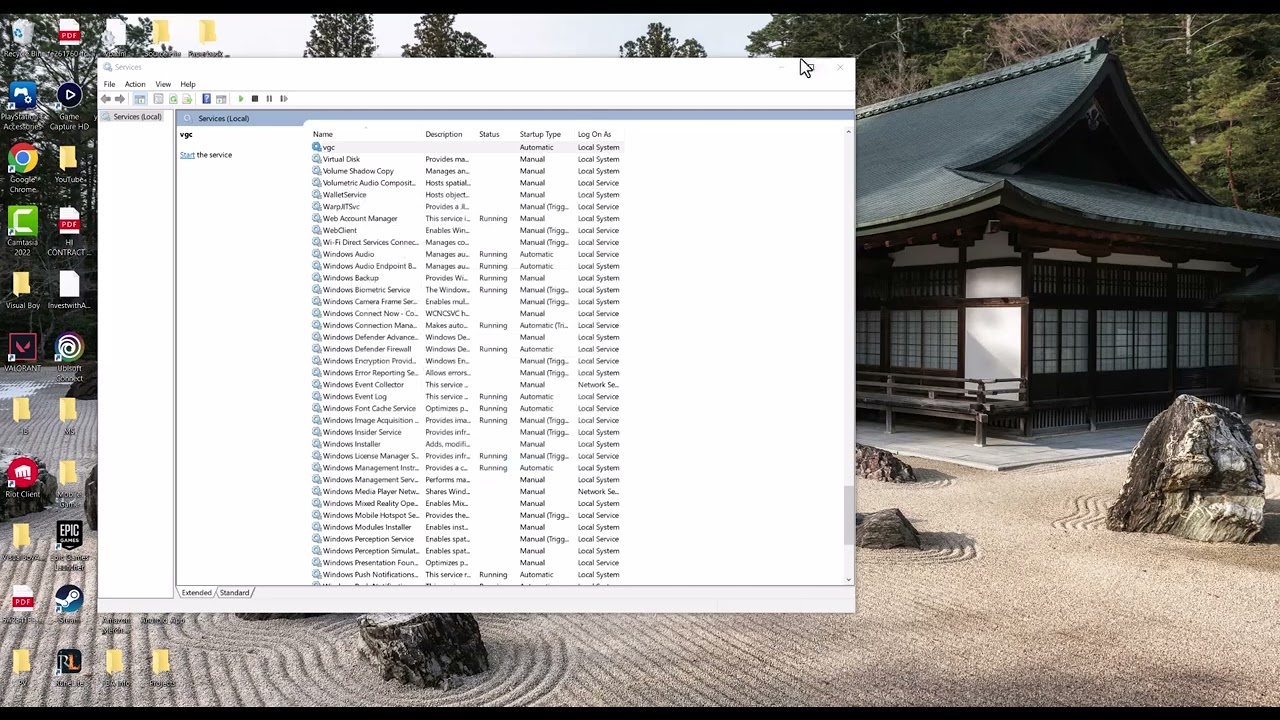
    5. Check the Vanguard service. Press Windows + R, enter services.msc, open vgc, set Startup type to Automatic if you are not using Vanguard Pre-Check, start the service, and apply the change.
    6. Reinstall Vanguard. Use Windows Installed apps to uninstall Riot Vanguard, restart, then launch League of Legends so the Riot Client can install a fresh copy. Restart again when prompted.
    7. Use a clean boot for conflicts. If Vanguard works in a clean boot, re-enable non-Microsoft services gradually to find the conflict.
    8. Reinstall League only last. If Riot’s earlier steps fail, reinstall the game and submit logs to Player Support if VAN 128 returns.

    Why this works

    Riot says VAN 128 usually appears when Vanguard cannot complete startup or system-trust checks. Windows security, debugging configuration, the vgc service, and Vanguard’s installation are therefore more relevant than generic DNS changes. The source video includes service and network-reset steps; this guide prioritizes Riot’s current error-specific sequence.

    About network commands

    Flushing DNS and resetting Winsock can help ordinary connection problems, but Riot’s current VAN 128 article treats the code primarily as a Vanguard trust-check failure. If other apps also have network trouble, Microsoft’s supported commands include netsh winsock reset and ipconfig /flushdns, followed by a restart. Do not use them as a substitute for the Vanguard repair steps.

    Warnings and reversibility

    Do not disable Secure Boot, TPM, antivirus, or Windows security features to make Vanguard launch. Do not change BIOS settings unless Riot’s exact error-specific guidance and the PC manufacturer both require it. To undo the debug setting, return to Startup and Recovery and choose the previous dump type. If a clean boot identifies no conflict, restore normal startup.

    Frequently asked questions

    Is VAN 128 the same as VAL 128?

    No. Riot maintains separate guidance for VAN Vanguard errors and VALORANT client codes. Match the prefix exactly.

    Should vgc always be Automatic?

    Riot says Automatic is needed when Vanguard is not using its newer Pre-Check on-demand option. Follow the current Riot article for your configuration.

    Will reinstalling Vanguard remove League data?

    It removes the anti-cheat component, not your Riot account or online progression. Restart when Riot asks so the driver can be installed correctly.

    Official references

    Source video

  • Fix Hell Let Loose “A Network Error Has Occurred” on PC

    Fix Hell Let Loose “A Network Error Has Occurred” on PC

    Quick answer: Restart Steam and the router, verify Hell Let Loose, remove the regenerable LauncherInfo.hllinfo file, and flush Windows DNS. If the error remains, a public DNS server is an optional, reversible workaround. Team17 publishes steps for this exact Steam error.

    Before you start

    • Check whether Steam and Hell Let Loose services are available.
    • Close Hell Let Loose and Steam before changing game files.
    • Note your current DNS setting; most home PCs use Obtain DNS server address automatically.
    • On a managed network, ask the administrator before changing DNS or firewall rules.

    Fix the network error

    1. Restart the connection. Quit Steam, restart the PC, and power-cycle the router. Wait for the connection to return fully.
    2. Verify Hell Let Loose. In Steam, open Hell Let Loose > Properties > Installed Files > Verify integrity of game files.
    3. Remove the launcher information file. From the same Installed Files page, choose Browse, locate LauncherInfo.hllinfo, and delete that file only. The game can regenerate it.
    4. Allow the game through Windows Security. Check that the installed Hell Let Loose and Easy Anti-Cheat executables are not blocked. Add only the official files in the Steam installation folder; do not disable the firewall.
    5. Reset the Windows network stack. Open Command Prompt as administrator, run netsh winsock reset, then run ipconfig /flushdns. Restart the PC.
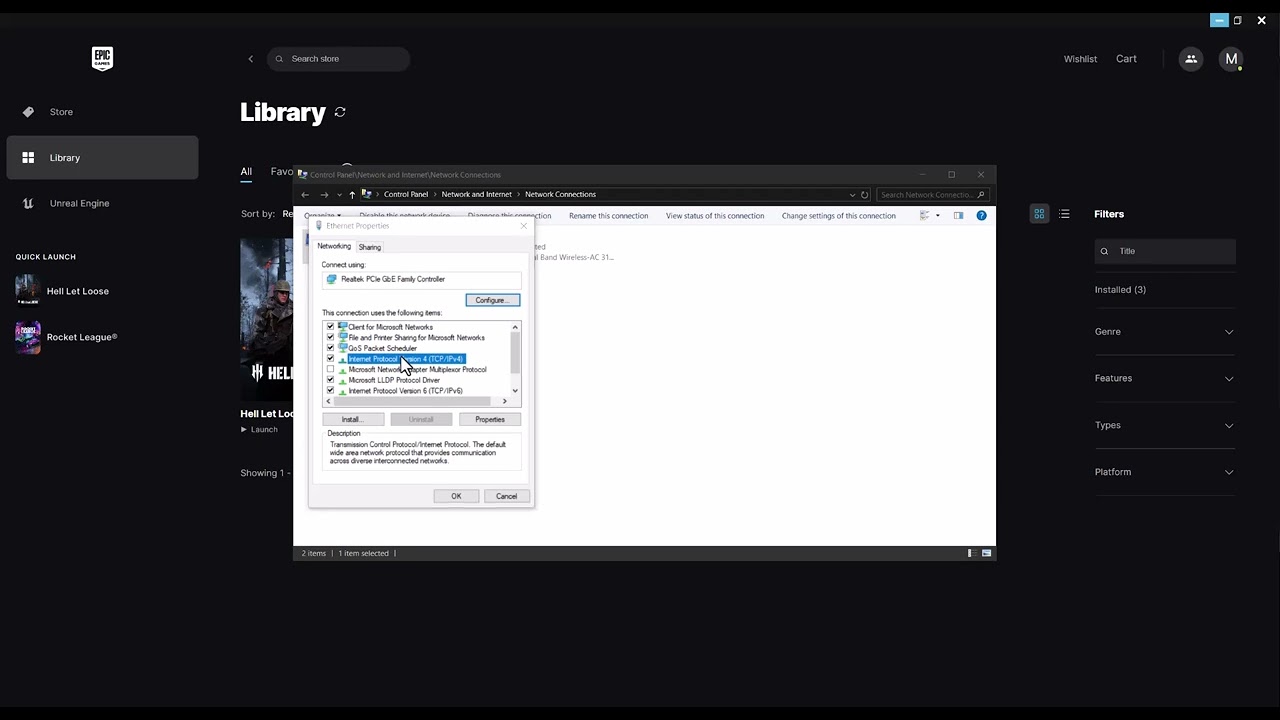
    6. Try a public DNS server. As the source-video workaround, set IPv4 DNS to Cloudflare’s 1.1.1.1 and 1.0.0.1, then test the server browser again.

    Why this works

    Team17 identifies the error as a connection or network issue and specifically recommends replacing the launcher-information file, checking security exceptions, resetting Winsock, flushing DNS, and testing another DNS provider. File verification repairs damaged installation data. A DNS change affects hostname lookup; it will not repair an outage or a banned account.

    Alternative checks

    • Remove special characters from the Steam display name temporarily; Team17 lists this as an additional test.
    • Test another official server and remove restrictive server filters.
    • Use Ethernet for one session to separate Wi-Fi instability from the game error.
    • If Easy Anti-Cheat reports its own error, repair it from the official installer inside the game folder.

    Warnings and how to undo the workaround

    The Cloudflare DNS values are a video-derived variation on Team17’s public-DNS advice, not a guaranteed fix. To undo them, open the adapter’s IPv4 properties and select Obtain DNS server address automatically. Do not open router ports, disable IPv6, disable antivirus, or turn off the firewall unless Team17 support diagnoses a specific need.

    Frequently asked questions

    Will deleting LauncherInfo.hllinfo remove progress?

    No. The file is launcher information, not your account progression. Delete only the named file from the verified installation folder.

    Is Cloudflare DNS required?

    No. Try the official file and network resets first. Public DNS is optional and reversible.

    What if the error affects Game Pass rather than Steam?

    Use Team17’s separate Game Pass article because the repair path includes Xbox app and Microsoft account components.

    Official references

    Source video

  • Fix Black Ops 6 “Update Required” Loop on Steam

    Fix Black Ops 6 “Update Required” Loop on Steam

    Quick answer: Fully exit Call of Duty and Steam, confirm that no Steam download is paused, reopen Steam, and verify the Call of Duty game files. Remove custom launch options, update Windows and the supported graphics driver, then retest. Do not force DirectX 11: Black Ops 6’s supported PC path is DirectX 12.

    Before you start

    • Check Activision’s online-service status and Steam connectivity.
    • Allow enough free storage for the update and temporary unpacking files.
    • Save any screenshots of the exact update message.
    • Back up custom configuration files before resetting them.

    Fix the Update Required loop

    1. Exit everything. Close Call of Duty, quit Steam from its menu, and confirm that no Call of Duty or Steam process remains in Task Manager.
    2. Restart the PC. This releases files that may still be locked by the game or updater.
    3. Finish Steam downloads. Open Steam’s Downloads page, resume Call of Duty, and wait until patching and verification are complete.
    4. Verify the game files. Right-click Call of Duty > Properties > Installed Files > Verify integrity of game files. Let Steam reacquire anything missing.
    5. Remove launch options. In Properties > General, clear custom commands for one test. In particular, do not add -d3d11 or another unsupported renderer override.
    6. Update Windows and the GPU driver. Activision recommends a current supported Windows build and compatible NVIDIA, AMD, or Intel driver. Restart afterward.
    7. Clear Steam’s download cache if the loop remains. Go to Steam > Settings > Downloads > Clear Download Cache. You will need to sign in to Steam again.
    8. Reinstall only as a last resort. If the loop survives a clean verification and cache reset, uninstall Call of Duty, restart, and reinstall to a library with enough space.

    Why this works

    An update loop usually means the launcher and the installed files disagree about the current build. Completing pending downloads and verifying files lets Steam reconcile that state. Clearing the download cache removes stuck update metadata. Removing old launch commands prevents an unsupported configuration from being applied at startup.

    Suggestions from the video that are not recommended

    The source video also suggests forcing DirectX 11 and permanently running the game as administrator. Those are not the default supported repair paths. Activision’s current PC guidance focuses on supported Windows and drivers, Steam file verification, and closing interfering applications. Leave compatibility and administrator boxes unchecked unless official support gives a specific reason.

    Alternatives

    • Temporarily close overclocking, monitoring, and overlay tools before launching.
    • Confirm the antivirus has not quarantined a Call of Duty file; use a narrow game-folder exception only if the security product blocked a verified file.
    • Move the Steam library through Steam’s storage settings if the current drive is full or failing.

    Warnings and reversibility

    Clearing the Steam download cache signs you out but does not uninstall games. File verification can restore modified files. Reinstallation is bandwidth-intensive, so reserve it for last. If you removed legitimate launch options, restore them one at a time only after the game updates normally.

    Frequently asked questions

    Should I change DNS?

    A DNS change may help a name-resolution problem, but it is not the first fix for local update metadata. Check service status, downloads, files, and cache first.

    Will Verify integrity delete progress?

    Online Call of Duty progression is account-based. Verification checks installation files, but you should still back up any local custom configuration you care about.

    Why does the update return after verification?

    Steam may still be finishing a download, the download cache may be stuck, or an unsupported launch option or background tool may be interfering.

    Official references

    Source video

  • Fix Dota 2 “Failed to Create DX11 Render Device”

    Fix Dota 2 “Failed to Create DX11 Render Device”

    Quick answer: Confirm that the PC and graphics card support DirectX 11, install the latest stable GPU driver, verify Dota 2’s files in Steam, and set dota2.exe to use the high-performance GPU in Windows. Remove experimental launch options before retesting.

    Before you start

    • Save open work and restart Windows once.
    • Make sure the display cable is connected to the graphics card rather than an inactive motherboard output on a desktop PC.
    • Do not download replacement DLL files from third-party sites.
    • Note any custom Dota 2 launch options so you can restore them later if needed.

    Fix the DX11 render-device error

    1. Check the requirement. Open dxdiag, select the Display tab, and confirm that the GPU supports DirectX 11 feature levels. Steam currently lists DirectX 11 as Dota 2’s Windows minimum.
    2. Install Windows updates. Restart after the update finishes.
    3. Update the graphics driver. Download the driver from NVIDIA, AMD, or Intel for the exact GPU model. If the error began immediately after a driver update, use the vendor’s supported rollback or clean-install option.
    4. Verify Dota 2 files. In Steam, right-click Dota 2 > Properties > Installed Files > Verify integrity of game files.
    5. Clear conflicting launch options. Open Properties > General and temporarily remove custom renderer or configuration commands. Launch with the default settings.
    6. Select the high-performance GPU. In Windows 11, go to Settings > System > Display > Graphics. Add or select dota2.exe, choose Options, select High performance, save, and restart the game.
    7. Disable overlays for one test. Close GPU tuning overlays and other injectors, then launch Dota 2 again.

    Finding dota2.exe

    In Steam, right-click Dota 2, choose Manage > Browse local files, and open the game folders until you reach the Windows executable, commonly under game\bin\win64. Use the real executable when adding the app to Windows Graphics settings.

    Why this works

    The error appears before Dota 2 can create a compatible Direct3D rendering device. File verification replaces damaged game files, a vendor driver restores the DirectX interface, and the Windows graphics preference prevents hybrid-GPU laptops from launching the game on an unsuitable adapter. The source video demonstrates the per-app graphics preference; it does not increase physical VRAM.

    Alternatives

    • If a laptop has switchable graphics, update both the integrated and discrete GPU drivers.
    • Disconnect extra displays or docks temporarily to rule out an adapter-selection problem.
    • Reinstall Dota 2 only after file verification and driver repair fail.
    • If the GPU lacks DirectX 11 feature support, software settings cannot add that hardware capability.

    Warnings and how to undo changes

    Do not force unsupported registry edits or install random DLL packages. To undo the Windows GPU preference, return to Settings > System > Display > Graphics, open Dota 2’s options, and choose Let Windows decide. Restore only launch options you know are current and necessary.

    Frequently asked questions

    Should I add -dx11 to Steam launch options?

    Start with no renderer override. The error already concerns DX11 device creation, so forcing the same renderer does not solve missing hardware support or a broken driver.

    Does High performance add more VRAM?

    No. It selects the preferred GPU; it does not increase the GPU’s physical memory.

    Why did the error start after an update?

    A game, Windows, or GPU-driver update can expose a corrupted file or incompatible configuration. Verify files and use the GPU vendor’s supported driver path.

    Official references

    Source video

  • Fix “Unable to Log In to Your Epic Games Account at This Time”

    Fix “Unable to Log In to Your Epic Games Account at This Time”

    Quick answer: Check Epic’s service status first, turn off any VPN or proxy, and test your account in a private browser window. If web sign-in works but the launcher still fails, fully close the launcher and clear its web cache. Use Windows Network Reset only as a last resort because it removes and reinstalls network adapters.

    Before you start

    • Know your Epic account email and sign-in method.
    • Save work before restarting the launcher, router, or PC.
    • If you use a work, school, or managed network, do not change its settings without permission.
    • Keep access to any two-factor authentication method tied to the account.

    Fix the Epic Games login error

    1. Check the Epic Games status page. If Login or Epic Account Services shows an outage, wait for Epic to resolve it.
    2. Disable a VPN or proxy temporarily. Reopen the launcher and test. If this works, leave the VPN off only while needed or use a supported route.
    3. Test web sign-in. Open the Epic account sign-in page in a private or incognito browser window. Try the same sign-in method you normally use.
    4. Restart the launcher completely. Exit it from the system tray, confirm no Epic Games Launcher process remains in Task Manager, and open it again.
    5. Clear the launcher web cache. With the launcher closed, open %localappdata%\EpicGamesLauncher\Saved. Delete only folders whose names begin with webcache, then reopen the launcher.
    6. Restart the router and PC. Leave the router unplugged for about 30 seconds before reconnecting it.
    7. Use Windows Network Reset only if other steps fail. In Windows 11, open Settings > Network & internet > Advanced network settings > Network reset. Choose Reset now, then let the PC restart.

    Why these steps work

    Web sign-in separates an account or authentication problem from a launcher-only problem. Clearing the web cache removes stale login-session files without deleting the account. Restarting the connection refreshes local network state. Microsoft says Network Reset reinstalls network adapters and returns their settings to defaults, which is why it belongs at the end.

    If web sign-in also fails

    • Use Sign in with email instead of a console-network button if the account supports it.
    • Confirm your device clock is set automatically; a large time difference can break secure sign-in.
    • Use Epic’s account-recovery process instead of repeatedly guessing a password.
    • Do not unlink console accounts as a troubleshooting shortcut; unlinking can affect progression and entitlements.

    Warnings and how to undo changes

    Network Reset can remove saved adapter settings, virtual switches, and VPN configuration. After the restart, reinstall or reconfigure required VPN software and set trusted home networks back to Private if appropriate. If disabling a VPN made no difference, turn it back on. Never enter Epic credentials into unofficial repair tools.

    Frequently asked questions

    Is this error always an account ban?

    No. It can result from an outage, a stale launcher session, a VPN route, or local network configuration. Follow Epic’s account support process if the web login says the account is disabled.

    Will clearing webcache uninstall games?

    No. Deleting only the launcher’s webcache folders does not uninstall the game library.

    Should I reinstall the launcher?

    Only after status, web sign-in, cache, and networking checks. Back up or locate installed games first because launcher reinstallation can require re-detection or redownloads.

    Official references

    Source video

  • How to Change the Camera Angle in NBA 2K26 Park

    How to Change the Camera Angle in NBA 2K26 Park

    Quick answer: During an NBA 2K26 Park or outdoor-court game, press Right on the D-pad to open the camera selector. Choose a camera angle, adjust its available options, and return to play. The shortcut is video-derived and may only appear during live play or a stoppage in supported modes.

    Before you start

    • Enter a Park or City court game; the setting may not appear in every menu or game mode.
    • Use a controller with a working D-pad.
    • Wait for a safe moment or stoppage before opening the overlay.

    Change the Park camera

    1. Start or join a Park game in NBA 2K26.
    2. Press Right on the D-pad.
    3. Use the on-screen camera selector to cycle through the available views.
    4. Highlight the angle you want to use.
    5. Adjust any options the selected angle offers, such as zoom or height.
    6. Close the overlay and play a possession to judge visibility.
    7. Repeat the shortcut if you want to compare another angle.

    Why this works

    NBA 2K uses contextual controls during games. The right-D-pad shortcut opens the camera overlay without requiring you to leave the court. Camera choices affect only your view; they do not change player attributes, shot timing, latency, or what opponents see.

    If the D-pad shortcut does nothing

    1. Confirm you are already inside an active Park or supported court game.
    2. Try the shortcut during a dead ball or after the next possession begins.
    3. Close any Social, squad, or substitution overlay that may be using the D-pad.
    4. Test the D-pad in another game or the console’s accessory app.
    5. Restart NBA 2K26 and install any pending game or controller update.
    6. Check the normal controller-settings menu if a custom button layout is active.

    Choosing a useful angle

    A wider view helps you see cutters and weak-side defenders, while a closer view can make dribble and finishing animations easier to read. Try one change at a time and play several possessions before deciding. Competitive comfort matters more than copying another player’s exact zoom or height.

    Warnings and how to undo the change

    Opening the selector during live play can distract you, so wait for a stoppage when possible. To undo the change, press Right on the D-pad again and select your previous camera. Camera availability and saved preferences can vary by mode.

    Frequently asked questions

    Does the camera change affect other players?

    No. It changes your local view only.

    Why are some camera options missing?

    NBA 2K can offer different camera presets in Park, MyCAREER, and traditional NBA games. Enter the intended mode before comparing options.

    Will a wider camera reduce input delay?

    No. Camera choice changes framing, not network latency or controller response.

    Official support

    Source video

  • How to Enable Voice Chat in NBA 2K26

    How to Enable Voice Chat in NBA 2K26

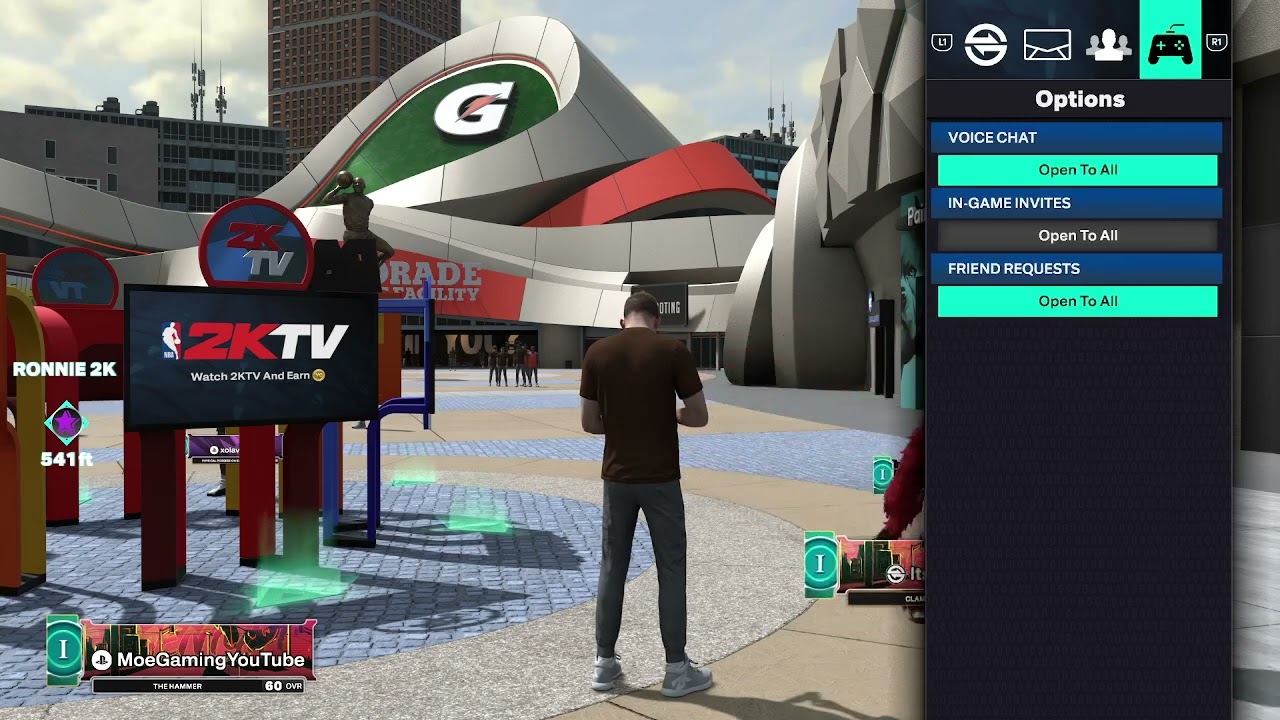
    Quick answer: While you are in The City or another supported online mode, open Social, choose Voice Chat, and set voice chat to Open to All. Everyone who wants to talk must enable the setting. This menu path comes from the source video; the option can be absent in some modes or platform/account configurations.

    Before you start

    • Make sure NBA 2K26 is fully updated and you are connected to its online services.
    • Connect a working headset or microphone and confirm that the platform detects it.
    • Leave console party chat or a Discord voice channel if you want to use in-game chat.
    • Check parental controls, privacy settings, and communication permissions for every account involved.

    Enable NBA 2K26 voice chat

    1. Enter The City, Park, or the online mode where you want to talk.
    2. Open the Social menu.
    3. Select Voice Chat.
    4. Change the setting to Open to All.
    5. Ask the other player to repeat the same steps on their system.
    6. Return to the session and test the microphone. If you are in a console party, switch to game chat first.

    This is an in-game, video-derived menu path rather than a published 2K support procedure. A viewer reported that the option did not appear, so treat the path as mode- and platform-dependent rather than universal.

    Why this works

    Open to All removes the game’s most restrictive voice-channel filter. It does not override PlayStation, Xbox, Steam, or family-account privacy controls, and it cannot make a blocked or disconnected microphone work. Both players must be in the same supported voice channel.

    If Open to All is missing

    1. Back out to the main menu, install any NBA 2K26 update, and reconnect to the online mode.
    2. Check the console or PC microphone input and make sure NBA 2K26 is allowed to use it.
    3. Review the account’s privacy and parental-control rules for voice communication.
    4. Leave party chat, restart NBA 2K26, and try the in-game Social menu again.
    5. If you stream through cloud gaming or capture software, test ordinary in-game chat first. This setting does not control whether a stream records other players’ voices.

    Warnings and how to undo the change

    Open voice chat can expose you to strangers. Mute or report abusive players and do not share personal information. To undo the change, return to Social > Voice Chat and select a more private option or disable voice chat. Platform privacy settings can also block communication.

    Optional headset recommendation

    As an Amazon Associate I earn from qualifying purchases.
    If your current microphone is faulty, this gaming headset is a direct product option. A new headset will not fix a hidden menu, privacy restriction, or service outage, so test those first.

    Frequently asked questions

    Why can I hear teammates but they cannot hear me?

    Confirm the correct input device, unmute the headset, and check microphone permissions. On consoles, switch from party chat to game chat.

    Why is Voice Chat missing?

    The menu can vary by mode, platform, region, age settings, or account permissions. Update the game, enter a supported online area, and review privacy controls.

    Will this make recorded streams capture other players?

    Not necessarily. Capture and streaming privacy rules are separate from NBA 2K26’s in-game channel setting.

    Official support

    Source video

  • How to Enable Crossplay in NBA 2K26

    How to Enable Crossplay in NBA 2K26

    NBA 2K26 crossplay setting on PS5 and Xbox Series consoles

    Quick answer: From the NBA 2K26 main menu, open Features > Settings, scroll near the bottom, and set Crossplay to On. Both players should enable it. Official 2K guidance says NBA 2K26 crossplay is limited to PlayStation 5 and Xbox Series X|S.

    What you need

    • The Gen 9 version of NBA 2K26 on PS5 or Xbox Series X|S.
    • An internet connection, an NBA 2K account, and the platform subscription required for online console multiplayer.
    • Both players updated to the same current game version.

    Enable crossplay in NBA 2K26

    1. Launch NBA 2K26 and reach the main menu.
    2. Select Features.
    3. Open Settings.
    4. Scroll close to the bottom of the list.
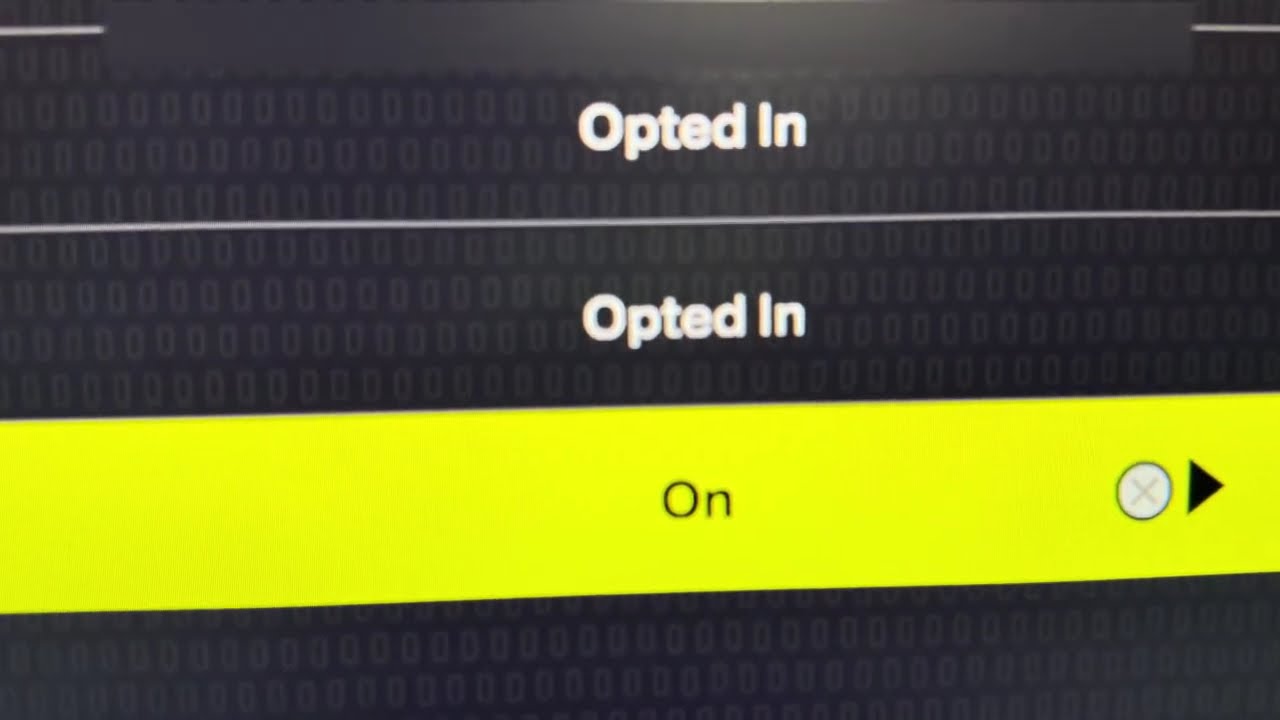
    5. Find Crossplay and set it to On.
    6. Ask the friend on the other console family to repeat the same steps.
    7. Return to the relevant online mode, open the social or friends interface, and send or accept the 2K friend invitation.

    If the Crossplay option is missing

    • Confirm you launched the PS5 or Xbox Series X|S version—not the PS4 or Xbox One version through backward compatibility.
    • Install the latest NBA 2K26 update and restart the game.
    • Check the account’s privacy, age, and cross-network-play permissions.
    • Confirm 2K and platform services are available.

    Why this works

    The in-game toggle controls whether NBA 2K26 includes the other supported console network when building social and matchmaking sessions. Both players need a compatible Gen 9 version and permitted cross-network play; turning on one side alone cannot override the other account’s platform restrictions.

    Limits and tradeoffs

    • Crossplay is officially supported only between PS5 and Xbox Series X|S. It does not add PS4, Xbox One, PC, Switch, or Switch 2 players to that pool.
    • Turning Crossplay off can reduce the available player pool and make some matchmaking searches take longer.
    • Online modes still require internet access, account registration, and the relevant console subscription.
    • To undo the change, return to Features > Settings and set Crossplay to Off.

    Frequently asked questions

    Can PS5 play NBA 2K26 with Xbox Series X|S?

    Yes. 2K explicitly supports crossplay between those Gen 9 console versions.

    Can PS4 play with PS5?

    Not through NBA 2K26 crossplay. The PS4 and PS5 releases are separate products, even when a purchase includes dual entitlement.

    Do both friends need the setting enabled?

    Yes. Each player’s game and platform privacy settings must permit cross-network play.

    Does crossplay transfer progress?

    Crossplay and cross-progression are separate features. Do not assume that enabling crossplay moves saves, VC, or MyPLAYER data between console families.

    Official references

    Source video

    As an Amazon Associate I earn from qualifying purchases.