Author: MoeGaming

  • Fix Modern Warfare III Error 0x00001338 on PC

    Fix Modern Warfare III Error 0x00001338 on PC

    Modern Warfare III PC crash error 0x00001338 troubleshooting

    Quick answer: For Modern Warfare III or Warzone error 0x00001338, close the game and launcher, verify or repair the installed files, install current Windows and graphics-driver updates, and retest without overlays. Reinstall only after those checks.

    The hexadecimal suffix can appear with different letters or numbers. It identifies a crash report, not one guaranteed root cause, so work from the safest checks toward the most disruptive.

    Before you start

    • Restart Windows once.
    • Remove CPU, GPU, or RAM overclocks while testing.
    • Make sure the system meets the game’s current requirements and has free SSD space.

    Steam: verify the game files

    1. Open Steam > Library.
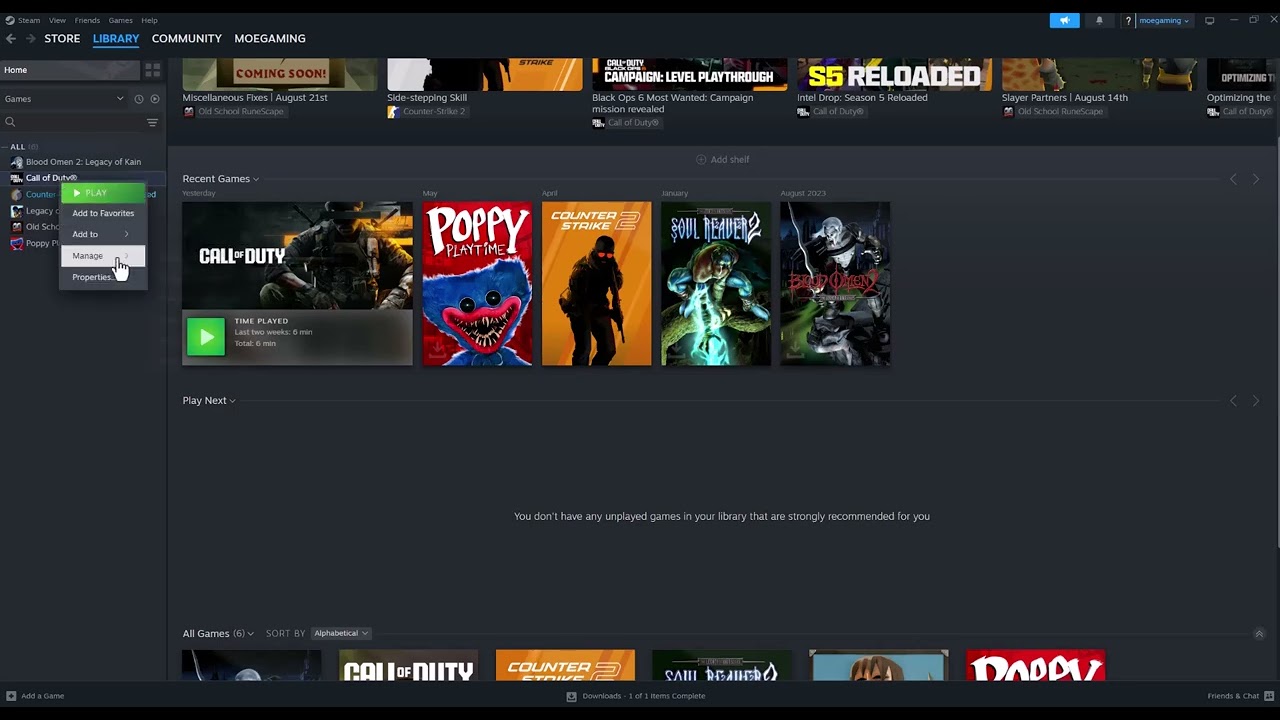
    2. Right-click Call of Duty or Modern Warfare III and choose Properties.
    3. Select Installed Files.
    4. Choose Verify integrity of game files and allow the scan to finish.
    5. Restart Steam and launch the game normally.

    Battle.net: scan and repair

    1. Open Battle.net and select Call of Duty.
    2. Open the cog menu beside Play.
    3. Choose Scan and Repair > Begin Scan.
    4. Let Battle.net replace damaged files, then restart the launcher.

    Continue with these safe checks

    1. Update Windows. Install normal stable updates and restart.
    2. Update the display driver from NVIDIA, AMD, or Intel. Use the hardware vendor’s official app or site. Do not download DLL files or drivers from unofficial mirrors.
    3. Disable overlays temporarily. Turn off Steam Overlay, Discord Overlay, GeForce/NVIDIA overlay, Xbox Game Bar, and monitoring overlays one at a time.
    4. Remove incompatible launch options. Clear experimental command-line flags. Do not force DirectX 11 unless Activision explicitly supports it for the title.
    5. Test a clean reinstall last. Uninstall the required Call of Duty content, restart, and reinstall the correct Modern Warfare III/Warzone packages. Current Activision guidance notes that MWIII has moved to a standalone title, so review the selected content before deleting anything.

    Why this works

    File verification compares local packages with the launcher manifest and reacquires missing or changed files. Driver and Windows updates address graphics and runtime faults. Disabling overlays removes software that injects into the game’s rendering process.

    Warnings and alternatives

    • Reinstalling can consume a large download and may remove optional campaign or high-resolution packages. Review them first.
    • Do not disable antivirus permanently. If security software is implicated, use a narrow official game-folder exception and reverse it after testing.
    • Do not delete personal Documents folders, random registry keys, or download replacement DLLs.
    • If the crash persists, submit Activision’s PC crash report with the code and system information.

    Frequently asked questions

    Will verifying files erase progress?

    Online progression is account-based. Verification replaces installation files; it does not intentionally reset online progress.

    Should I reinstall the graphics driver?

    Start with the vendor’s current recommended driver. A clean driver install is a later troubleshooting step, not the first.

    Does the exact suffix matter?

    Record it for support, but do not assume every 0x00001338 crash has the same cause.

    Official references

    Source video

    As an Amazon Associate I earn from qualifying purchases.
  • PS4 Error WS-45479-9: What to Do When a Voucher Was Redeemed

    PS4 Error WS-45479-9: What to Do When a Voucher Was Redeemed

    PS4 voucher history and error WS-45479-9

    Quick answer: PlayStation defines WS-45479-9 as “This voucher code has already been redeemed.” A redeemed code cannot be entered again. Check which account redeemed it, look for the content in the Library or transaction history, restore licenses if the content is missing, and contact the retailer or PlayStation Support if a supposedly new code was already used.

    Before you start

    • Do not post or send the voucher code publicly.
    • Keep the receipt and packaging.
    • Confirm the code’s country or region matches the PSN account.

    How to resolve WS-45479-9

    1. Check the correct PSN account. Sign in to any family or alternate account that may have redeemed the code.
    2. Review transaction history. On PS4, go to Settings > Account Management > Account Information > Wallet > Transaction History. Choose a date range that includes the original redemption.
    3. Find the content in Library. Open Library > Purchased. For DLC, open the game’s PlayStation Store page and check Your Add-Ons.
    4. Restore licenses if ownership is recorded. Go to Settings > Account Management > Restore Licenses > Restore, then restart the PS4.
    5. Verify the game edition and region. A code can redeem successfully but not appear for an incompatible edition or different-region disc.
    6. Contact the seller for a new product sold with a used code. Provide the receipt and sealed-package photos if requested. A used game normally does not guarantee an unused one-time code.
    7. Contact PlayStation Support. If nobody on the household accounts redeemed a brand-new code, ask Support to check the redemption status. Have the code, receipt, retailer, and purchase date ready, but submit them only through the official support channel.

    Why Restore Licenses sometimes helps

    It cannot make a one-time voucher usable again. It only refreshes the account’s entitlement so already-redeemed games or DLC can reappear. This distinction prevents accidental repurchases.

    Warnings

    • Never pay a third party to “unredeem” or regenerate a voucher. That is not a legitimate PlayStation service.
    • Do not buy region-mismatched codes.
    • Do not repeatedly guess characters; too many attempts can trigger a temporary restriction.
    • There is no undo for a completed redemption. The content stays with the account that redeemed it.

    Frequently asked questions

    Can PlayStation move redeemed content to another account?

    Usually no. Digital entitlements are tied to the account that redeemed or purchased them.

    What if the voucher came inside a used game?

    Assume a one-time code may already be used unless the seller explicitly guaranteed otherwise.

    Should I buy the DLC again?

    Not until transaction history, Library, the correct account, and Restore Licenses have all been checked.

    Official references

    Source video

    As an Amazon Associate I earn from qualifying purchases.
  • Fix Nintendo Switch Error 2-ARVHA-0000 in YouTube

    Fix Nintendo Switch Error 2-ARVHA-0000 in YouTube

    Nintendo Switch date and time settings for error 2-ARVHA-0000

    Quick answer: Nintendo says YouTube error 2-ARVHA-0000 usually requires correcting the Switch date and time. Open System Settings > System > Date and Time and enable Synchronize Clock via Internet. Confirm the time zone, then reopen YouTube.

    Before you start

    • Connect the console to the internet.
    • Save and close any running game.
    • If you changed the clock for a game, note the old setting before correcting it.

    How to fix error 2-ARVHA-0000

    1. From the HOME Menu, open System Settings.
    2. Scroll down and select System.
    3. Select Date and Time.
    4. Turn on Synchronize Clock via Internet. The console may require the parental-control PIN.
    5. Confirm that Time Zone matches your current location.
    6. Press HOME, highlight YouTube, press X, and choose Close.
    7. Restart the Switch from Power Options, then launch YouTube again.

    Why this works

    YouTube uses time-sensitive secure connections and account tokens. If the console clock is far from the real time, those checks can fail even when Wi-Fi is working. Internet synchronization restores a trusted clock automatically.

    If the error continues

    1. Run System Settings > Internet > Test Connection.
    2. Check System Settings > System > System Update.
    3. Delete and redownload only the YouTube app. Highlight YouTube, press +, choose Manage Software > Delete Software, then reinstall from Nintendo eShop. This does not delete game save data.
    4. If the clock immediately becomes wrong again, check the time zone and any parental-control restrictions.

    Limitations and undo steps

    • Games that use the local clock may react to a corrected date. Review that game’s rules before changing it.
    • Do not factory-reset the console for this error.
    • To return to manual time, switch Synchronize Clock via Internet off and set the date and time manually. YouTube may fail again if the clock is inaccurate.

    Frequently asked questions

    Does this affect save files?

    Changing the system clock does not directly delete saves, but some games may apply cooldowns or event changes after a large time jump.

    Is this a YouTube account ban?

    No. Nintendo’s support article points to the console date and time, not an account suspension.

    Does the fix apply to Switch 2?

    Nintendo includes the same error article in its Switch 2 error-code topics. Menu wording may differ slightly by system version.

    Official references

    Source video

    As an Amazon Associate I earn from qualifying purchases.
  • PS5 Error WS-116483-3: Fix DLC Download and License Problems

    PS5 Error WS-116483-3: Fix DLC Download and License Problems

    PS5 DLC license troubleshooting for error WS-116483-3

    Quick answer: When WS-116483-3 blocks DLC or an add-on on PS5, first check PSN status and confirm that the add-on belongs to the same account and game region. Then manage the game content, restore licenses, restart, and only then clear the system cache if necessary.

    PlayStation’s current public error directory does not provide a dedicated WS-116483-3 page. The source video’s license and cache steps are safe and reversible, so they are presented here as an unofficial workaround that may not fix every server or region mismatch.

    Prerequisites

    • Use the account that purchased or redeemed the add-on.
    • Keep the game installed and updated.
    • Confirm adequate free console storage before redownloading content.

    How to fix WS-116483-3

    1. Check PlayStation Network status. Wait if PlayStation Store, Gaming and Social, or Account Management is degraded.
    2. Confirm ownership and region. Open PlayStation Store on the purchasing account and find the add-on. It should show Download or Purchased—not a price. Disc games and DLC must be from compatible regions.
    3. Manage game content. Highlight the game on the home screen, press Options, choose Manage Game Content, and install any add-on marked Not Installed.
    4. Restore licenses. Go to Settings > Users and Accounts > Other > Restore Licenses > Restore.
    5. Restart and retry. Fully restart the PS5, open the game tile, and retry the add-on once.
    6. Clear cache only if the entitlement is correct. Turn off the PS5. Hold the power button until the second beep, connect the controller by USB, choose Clear Cache and Rebuild Database, then Clear System Software Cache.
    7. Rebuild the database if the content still is not indexed. Return to Safe Mode and choose Rebuild Database. This can take time but does not intentionally erase games or saves.

    Why the fix works

    Add-on downloads depend on four separate pieces: Store entitlement, game-region compatibility, available storage, and the local content index. Restore Licenses refreshes ownership; Manage Game Content exposes missing packages; cache/database maintenance refreshes local records.

    Warnings and alternatives

    • Do not select Reset PS5 or Reinstall System Software in Safe Mode. Those options erase data and are not part of this guide.
    • Do not buy the add-on again if transaction history already shows ownership.
    • If the game is shared from another account, temporarily sign in with the owner and confirm Console Sharing and Offline Play is configured as intended.
    • To undo console sharing, return to Settings > Users and Accounts > Other > Console Sharing and Offline Play.

    Frequently asked questions

    Will Restore Licenses remove my DLC?

    No. It asks PlayStation to resynchronize content ownership for the signed-in account.

    Can DLC from another region work?

    Often not. The add-on must match the game’s region and edition. Contact the publisher before purchasing a second copy.

    When should I contact support?

    If the Store shows Purchased, the regions match, and the add-on still cannot be installed, contact PlayStation Support with the transaction ID and publisher support with the game edition.

    Official references

    Source video

    As an Amazon Associate I earn from qualifying purchases.
  • PS4 Error WV-33907-2: Fix Server Timeout and Unstable Connection

    PS4 Error WV-33907-2: Fix Server Timeout and Unstable Connection

    PS4 network settings for error WV-33907-2

    Quick answer: WV-33907-2 means the PS4 could not reach the server before the connection timed out. Check PSN status, restart the console and router, try Ethernet, and retest the connection. Leave DNS on Automatic first; if your ISP’s resolver is the problem, a public DNS is an optional reversible fallback.

    Before you start

    • Save any offline progress and close running games.
    • Check whether phones or computers on the same network can reach the internet.
    • Have your Wi-Fi password available before rebuilding the PS4 connection.

    How to fix WV-33907-2

    1. Check PlayStation Network status. A busy or unstable PlayStation service can produce this exact timeout. If a service is down, wait.
    2. Restart the PS4. Use Power > Restart PS4 rather than Rest Mode.
    3. Power-cycle the network. Turn off the router and modem, wait at least five minutes, then start the modem first and the router second.
    4. Test the connection. Open Settings > Network > Test Internet Connection. Note whether the failure is IP address, internet connection, or PSN sign-in.
    5. Try a wired connection. Connect the PS4 directly to the router with Ethernet when possible. If Wi-Fi is required, move the console closer and remove obvious interference.
    6. Recreate the connection with Automatic DNS. Go to Settings > Network > Set Up Internet Connection, choose Wi-Fi or LAN, choose Custom, then Automatic for IP Address, Do Not Specify for DHCP, Automatic for DNS, Automatic for MTU, and Do Not Use for Proxy.
    7. Optional DNS test. If only DNS resolution fails, repeat the Custom setup and use Google Public DNS: Primary 8.8.8.8 and Secondary 8.8.4.4. The source video says 8.4.4.8 for the secondary address; that is not Google’s published secondary DNS, so do not copy it.

    Why this works

    The code is a timeout, not proof that the PS4 is broken. Status checks separate a PlayStation-side incident from a home-network problem. A restart renews network state, Ethernet removes wireless interference, and a known resolver can test whether the ISP DNS is delaying lookups.

    Alternatives, limits, and undo steps

    • Pause large downloads or streaming on other devices and test again.
    • Do not use port forwarding as a first step; incorrect rules can weaken network security.
    • Public DNS does not increase bandwidth and will not fix a PSN outage.
    • To undo manual DNS, rebuild the connection and select Automatic under DNS Settings.

    Frequently asked questions

    Is WV-33907-2 a ban?

    No. PlayStation lists it as a server timeout caused by a busy or temporarily unstable connection.

    Should I reset the router?

    Use a power-cycle first. A factory reset erases Wi-Fi names, passwords, and ISP settings and is rarely needed.

    What if Ethernet works but Wi-Fi does not?

    The problem is likely wireless coverage or interference. Keep using Ethernet, move the router, or test the other supported Wi-Fi band.

    Official references

    Source video

    As an Amazon Associate I earn from qualifying purchases.
  • PS5 Error CE-112837-2: Fix Store and Purchase Problems

    PS5 Error CE-112837-2: Fix Store and Purchase Problems

    PS5 screen showing error CE-112837-2 troubleshooting

    Quick answer: If CE-112837-2 appears while buying or downloading something on PS5, check PlayStation Network status first. Then restart the console, sign out and back in, verify the payment method, and retry. Restoring licenses is a safe fallback for content you already own, but it does not repair a PlayStation Store outage or make an invalid payment method work.

    Important: PlayStation’s current error-code directory does not publish a dedicated CE-112837-2 article. The source video demonstrates Console Sharing and Offline Play plus Restore Licenses. Those are reversible account checks, so this guide presents them as an unofficial workaround—not a guaranteed fix.

    Before you start

    • Use the PSN account that made the purchase.
    • Confirm the console is online and its system software is current.
    • Keep the payment card and billing address handy if the error appears before checkout completes.

    How to fix CE-112837-2

    1. Check PSN status. If PlayStation Store or Account Management is degraded, stop and retry after Sony marks the service operational. Repeated checkout attempts can create extra pending authorizations.
    2. Restart the PS5. Close the Store or game, turn the console off normally, wait about 30 seconds, and start it again.
    3. Sign out and back in. Open Settings > Users and Accounts > Other > Sign Out, then sign in again with the purchasing account.
    4. Verify the payment method. Go to Settings > Users and Accounts > Account > Payment and Subscriptions > Payment Methods. Make the cardholder name, expiry date, billing address, and region match the issuer’s records.
    5. Restore licenses for owned content. Open Settings > Users and Accounts > Other > Restore Licenses > Restore. This refreshes ownership records; it does not delete games, saves, or captures.
    6. Check Console Sharing and Offline Play. In Settings > Users and Accounts > Other, open Console Sharing and Offline Play. Enable it only if this is the PS5 you use for that account’s offline games. Do not deactivate another person’s console without their permission.
    7. Restart once more, open PlayStation Store, and retry a single time.

    Why this can work

    Store purchases depend on PSN availability, a valid account session, accepted payment details, and a current content entitlement. Restarting refreshes the session; Restore Licenses asks PlayStation to resynchronize entitlements. A widespread service fault must be fixed by Sony, which is why status comes first.

    Alternatives and warnings

    • For a card failure, remove and re-add the payment method only after confirming the billing details.
    • A wallet top-up or official PlayStation gift card can avoid a card-authorisation problem, but only buy codes for the same account country or region.
    • Do not factory-reset the PS5, change DNS, or repeatedly submit the same purchase for this error.
    • To undo the video’s console-sharing change, return to Console Sharing and Offline Play and choose Disable.

    Frequently asked questions

    Does Restore Licenses delete anything?

    No. It refreshes digital-entitlement information and leaves installed games and save data in place.

    What if several people report the error at once?

    Treat it as a likely service-side incident. Wait for PlayStation Status to clear instead of changing console settings.

    When should I contact support?

    Contact PlayStation Support if PSN is operational, the payment details are correct, and the same account still cannot access a confirmed purchase. Keep the receipt, transaction date, and error code.

    Official references

    Source video

    As an Amazon Associate I earn from qualifying purchases.
  • How to Fix PS4 Error NW-31246-6 (Invalid DNS Settings)

    How to Fix PS4 Error NW-31246-6 (Invalid DNS Settings)

    PS4 error NW-31246-6 DNS settings troubleshooting

    Quick answer: PlayStation defines NW-31246-6 as “DNS settings are invalid.” Restart the PS4 and router, recreate the internet connection with DNS set to Automatic, and test it. Use a trusted manual DNS only if the automatic setting still fails.

    Before you start

    • Keep the Wi-Fi password available.
    • Write down any static IP, proxy or manual DNS values.
    • If the network is managed by school, work, a hotel or another person, ask the administrator before changing it.

    How to fix NW-31246-6

    1. Restart the PS4. Choose Power > Restart PS4 to refresh the connection.
    2. Power-cycle the router. Turn it off or unplug it for at least five minutes, then wait for it to reconnect fully.
    3. Set up the connection again. Go to Settings > Network > Set Up Internet Connection and choose Wi-Fi or LAN.
    4. Use Automatic DNS first. Choose Custom, then Automatic for IP Address Settings, Do Not Specify for DHCP Host Name, and Automatic for DNS Settings. Leave MTU on Automatic and choose Do Not Use for Proxy Server unless the network requires one.
    5. Test the connection. Select Test Internet Connection. If both internet access and PlayStation sign-in succeed, stop here.
    6. Try a trusted manual DNS only if necessary. Repeat the setup and enter one provider’s matching pair exactly. Google Public DNS uses 8.8.8.8 and 8.8.4.4; Cloudflare uses 1.1.1.1 and 1.0.0.1.
    7. Try Ethernet or another network. This helps distinguish a PS4 setting from a router or ISP problem.

    Why this works

    DNS translates service names into IP addresses. A mistyped, unavailable or blocked DNS server can prevent PSN access even while the PS4 connects to the router. Automatic DNS uses the router or provider’s configured service; a trusted public resolver is an optional fallback.

    How to undo manual DNS

    Run Set Up Internet Connection again and choose Automatic for DNS Settings. This returns the PS4 to the network’s normal configuration.

    Alternatives

    • Check the PlayStation status page in case the apparent DNS problem coincides with maintenance.
    • Update router firmware using the router maker’s official instructions.
    • Contact the ISP if multiple devices cannot resolve websites.

    Warnings

    • Do not mix the primary address from one DNS provider with the secondary address from another.
    • Do not use an unknown DNS address copied from comments.
    • Do not press the router’s factory-reset button.

    FAQ

    What does NW-31246-6 mean?

    PlayStation’s current directory says the DNS settings are invalid.

    Should I use Google or Cloudflare DNS?

    Either can be tested, but neither is guaranteed to be faster or available on every network.

    Will this delete games or saves?

    No. Reconfiguring the network does not remove game data.

    Official references

    Source video

    As an Amazon Associate I earn from qualifying purchases.
  • How to Fix PS5 Error WS-116142-5 (Network Sign-In Issue)

    How to Fix PS5 Error WS-116142-5 (Network Sign-In Issue)

    PS5 error WS-116142-5 network troubleshooting

    Quick answer: WS-116142-5 is an older code that the source video associates with PSN sign-in or network failure. Sony’s current PS5 error directory does not list it, so treat the exact label as unconfirmed: check PSN, restart the PS5, test the connection, recreate the saved network and power-cycle the router before trying optional DNS changes.

    Before you start

    • Confirm another device can use the same connection.
    • Keep the Wi-Fi password handy.
    • Write down any custom IP or DNS settings before changing them.

    How to troubleshoot WS-116142-5

    1. Check PlayStation Network status. If sign-in or gaming services are down, wait for recovery rather than changing the console.
    2. Restart the PS5. Close the game and choose Power > Restart PS5.
    3. Test the connection. Go to Settings > Network > Connection Status > Test Internet Connection.
    4. Recreate the saved network. Open Settings > Network > Settings > Set Up Internet Connection, forget the current Wi-Fi profile, and reconnect.
    5. Power-cycle the modem and router. Unplug both for at least five minutes, restore the modem first, then the router.
    6. Try Ethernet. A temporary wired test reveals whether wireless interference is involved.
    7. Retry later or contact Support. If normal internet access works but the code persists, record when it appears and which PSN action triggers it.

    Why this works

    This sequence separates a service outage from a local configuration problem without deleting games, saves or accounts. Recreating the connection clears stale Wi-Fi settings, while a wired test bypasses signal and band issues.

    Optional Wi-Fi-band and DNS tests

    The video demonstrates forcing 2.4 GHz or 5 GHz and entering Cloudflare DNS. Those are unofficial, reversible diagnostics. Use 5 GHz near the router and 2.4 GHz at longer range. If you test manual DNS, use a trusted provider and record the old values. To undo it, edit the connection and set DNS to Automatic.

    Warnings

    • Do not factory-reset the router; use a normal power cycle.
    • Do not remove the PSN account as an early step.
    • Because the code is absent from the current directory, do not assume every occurrence has the same cause.

    FAQ

    Is WS-116142-5 currently documented by Sony?

    It does not appear in Sony’s current public PS5 error-code directory as of October 4, 2026.

    Is public DNS guaranteed to fix it?

    No. It helps only when DNS resolution is the failing component.

    How do I undo the workaround?

    Return the connection’s DNS and frequency-band choices to Automatic.

    Official references

    Source video

    As an Amazon Associate I earn from qualifying purchases.
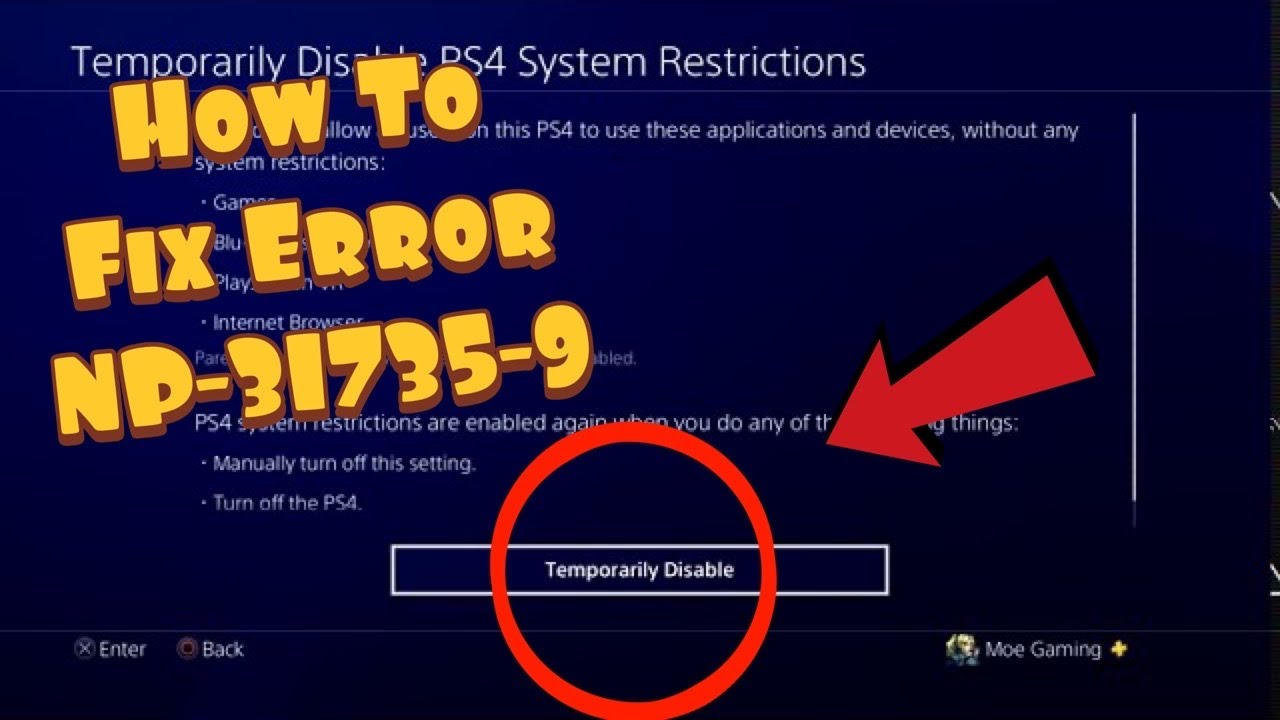
  • How to Fix PS4 Error NP-31735-9 (Age Restriction)

    How to Fix PS4 Error NP-31735-9 (Age Restriction)

    PS4 error NP-31735-9 parental controls guidance

    Quick answer: NP-31735-9 is presented in the source video as an age-restriction error. The safe fix is for the family manager, parent or guardian to review the child account’s allowed games and age level. Do not use the PS4’s default system-restriction passcode to bypass a guardian’s settings.

    Before you start

    • The family manager must sign in.
    • Check the game’s ESRB or regional age rating.
    • Decide whether to approve only this game or change the broader age level.

    How a family manager can resolve NP-31735-9

    1. Confirm which account shows the error. Child-account restrictions follow that account and may apply on more than one PlayStation console.
    2. Sign in as the family manager. On PS4, open Settings > Parental Controls/Family Management > Family Management.
    3. Select the child account. Review the parental-control settings for games, communication and user-generated content.
    4. Review Age Level for Games. Choose a level appropriate for the child and the household. Use the game’s published age rating rather than simply selecting “Allow.”
    5. Review an access request. Where PlayStation offers a request for a specific restricted game, approve that title without weakening unrelated protections.
    6. Restart the game. Close it completely, sign the child account out and back in, then launch it again.
    7. Secure the controls. Change the PS4 system-restriction passcode from the default if it has never been changed, and keep it with the parent or guardian.

    Why this works

    PlayStation applies age ratings and family settings before starting restricted content. Changing the authorized child-account rule or approving a specific title updates the permission being checked; network and DNS changes do not.

    What not to do

    The source video demonstrates entering the default 0000 passcode and setting games to “Allow.” That can be appropriate only when the authorized console owner or guardian is making the change. It should not be used as a parental-control bypass, and disabling every restriction is broader than necessary.

    Alternatives

    • Use the PlayStation Family app or Family Management website to review the request.
    • Leave the age level unchanged and use a title-specific exception where available.
    • If an adult account is incorrectly treated as a child account, contact PlayStation Support; do not create false identity details.

    Warnings

    • Changing the console-wide restriction can affect every local user.
    • Communication and spending controls are separate; do not loosen them unless intended.
    • A game’s online features may have additional publisher age requirements.

    FAQ

    Can the child user fix this alone?

    No. A family manager, parent or guardian should make the decision.

    Does reinstalling the game help?

    Not when the launch is blocked by an active age rule.

    Should I choose Allow for all games?

    Usually no. Set the appropriate age level or approve only the specific game.

    Official references

    Source video

    As an Amazon Associate I earn from qualifying purchases.
  • PS4 Error WS-37338-4: What a Console Suspension Means

    PS4 Error WS-37338-4: What a Console Suspension Means

    PS4 error WS-37338-4 console suspension guidance

    Quick answer: WS-37338-4 is associated with a PlayStation console suspension. There is no router, DNS or factory-reset fix. Check the email sent to the account, review the suspension in My Support, and use official PlayStation Support if the notice is missing or you believe the action was mistaken.

    Before you start

    • Do not pay anyone who claims they can “unban” a console.
    • Do not share passwords, two-step verification codes or payment details.
    • Keep the console serial number and purchase proof available for Support.

    What to do for WS-37338-4

    1. Confirm the scope. Try another account only to determine whether the console itself is suspended. A console suspension blocks every account on that system from PlayStation online services.
    2. Check the account email. PlayStation normally sends the reason and, for temporary suspensions, the duration. Check spam and junk folders.
    3. Open My Support. Sign in through the official PlayStation support site to review the account status.
    4. Use the official contact route. If no notice arrived, contact PlayStation Support from the suspension page. Do not rely on phone numbers copied from old videos or comments because regional contact routes change.
    5. Use an appeal only when offered. PlayStation currently allows appeals in certain cases, including some permanent account suspensions and account-debt cases. Follow the link shown for the affected account.
    6. If the console was bought used, contact the seller. PlayStation states that a second-hand suspended console cannot have that suspension lifted for the new owner.

    Why ordinary fixes do not work

    A console suspension is enforced by PlayStation’s service against the hardware, not stored as a removable local setting. Reinstalling system software, changing DNS, creating a new account or resetting the console does not remove it.

    Account debt and chargebacks

    If PlayStation identifies an account debt, use the official debt-resolution path. A payment dispute or chargeback can trigger a protective suspension while the transaction is reviewed. Do not send money through an unofficial intermediary.

    Correction to the source video

    The video suggests that calling or chatting will usually get the console unbanned. Current PlayStation guidance is more limited: support can explain the status, but not every suspension is appealable, and a second-hand console suspension will not be lifted.

    Warnings

    • Do not attempt account or device-ban evasion.
    • Do not buy “unban” software or provide remote access to the console.
    • Do not sell a suspended console without clearly disclosing its online limitation.

    FAQ

    Can changing DNS remove WS-37338-4?

    No. DNS settings do not alter a PlayStation enforcement action.

    Can I create a new account?

    A console suspension prevents any account on that console from accessing PlayStation online services.

    Can a second-hand suspended console be restored?

    PlayStation’s current guidance says no; contact the seller.

    Official references

    Source video

    As an Amazon Associate I earn from qualifying purchases.