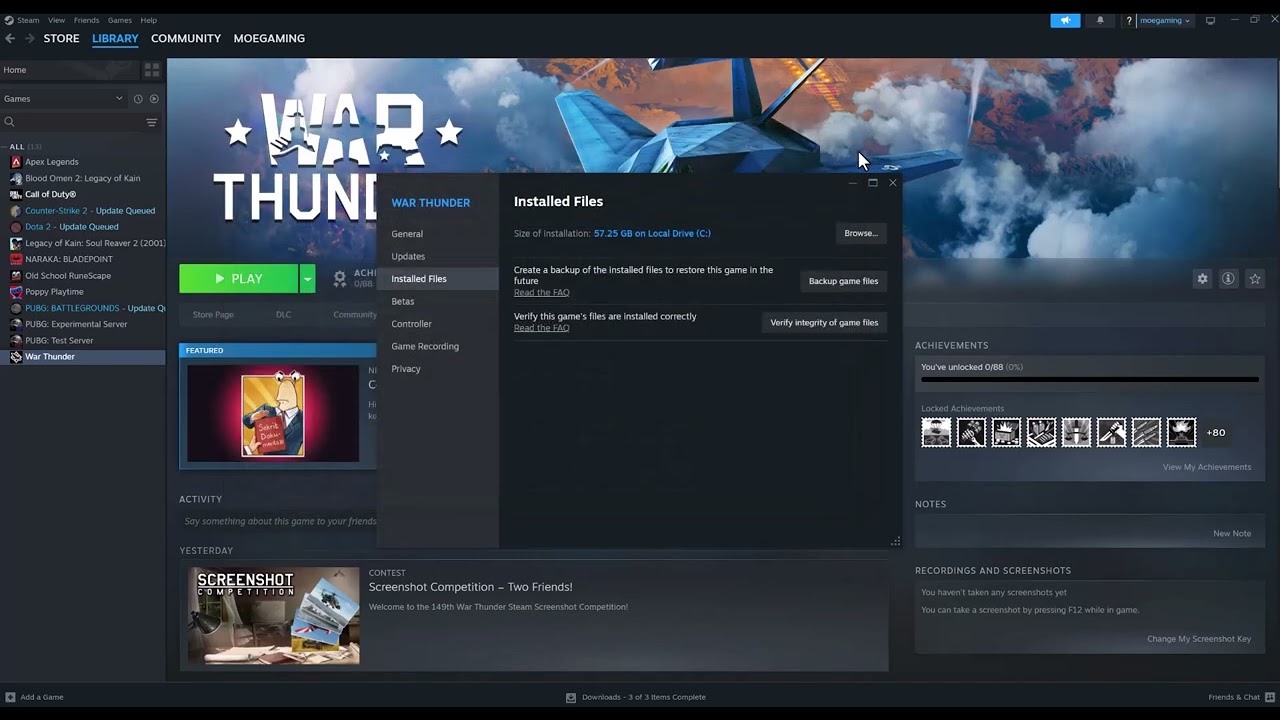
Quick answer: For a War Thunder Easy Anti-Cheat or aces.exe launch error, verify the game files first, then run the Easy Anti-Cheat setup in the game folder and choose its repair option when available. Update Windows and security definitions, restart, and use Run as administrator only as a one-time diagnostic. Do not force Steam into Windows 95 compatibility mode.
Before you start
- Use the official Steam or Gaijin installation.
- Keep Windows security enabled and note any quarantined War Thunder or anti-cheat file.
- Close War Thunder, its launcher and Steam before repairing files.
Fix the Easy Anti-Cheat aces.exe error
- Restart the PC. This clears a stuck game or anti-cheat service.
- Verify game files. In Steam, open Library > War Thunder > Properties > Installed Files > Verify integrity of game files. In the standalone launcher, use its file-check function.
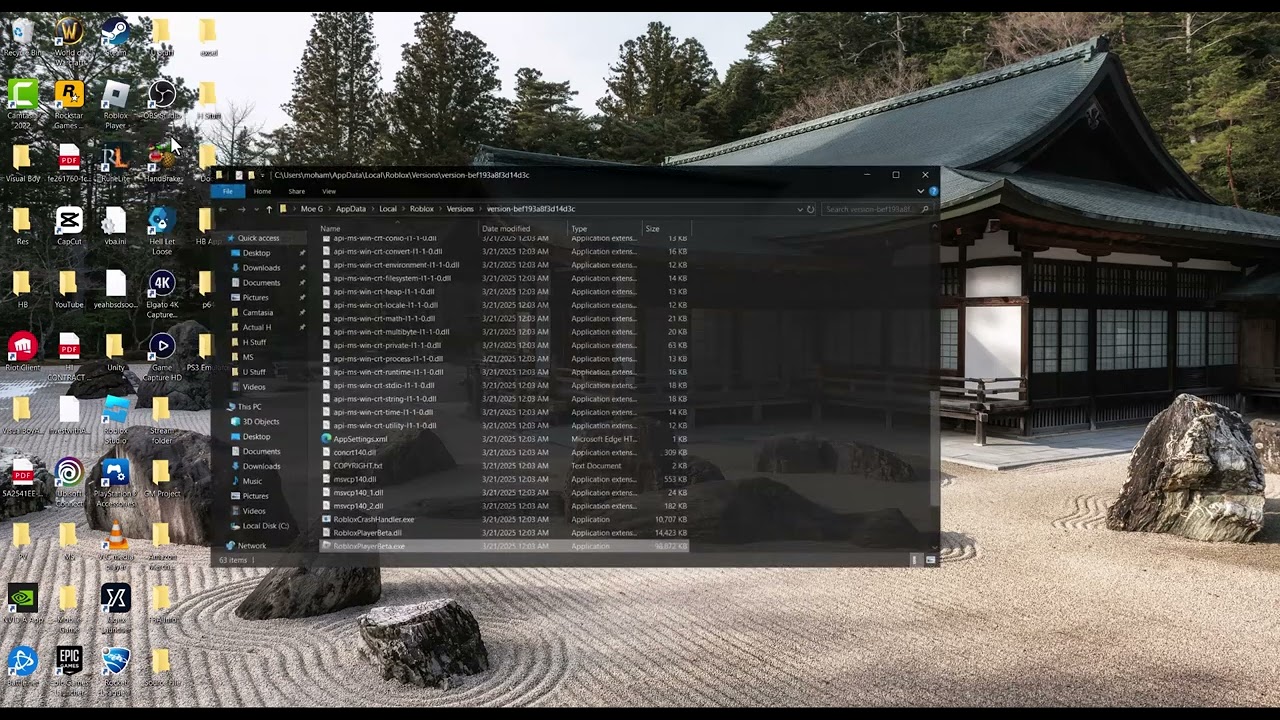
- Repair Easy Anti-Cheat. Browse the War Thunder installation for the EasyAntiCheat setup program. Open it, select War Thunder if prompted and choose Repair Service. If the current installer offers different wording, follow its on-screen repair option.
- Update Windows. Install Windows updates and current GPU drivers, then restart.
- Review security history. If Windows Security or another antivirus quarantined a verified game component, restore it only after confirming the path belongs to the official installation. Add the narrowest possible allow rule; do not disable protection globally.
- Try a one-time administrator launch. Gaijin documents running launcher.exe or aces.exe as administrator when the launcher does not start the game. Use this as a test, not a permanent requirement.
- Reinstall the anti-cheat or game. If repair is unavailable or fails, remove and reinstall the official anti-cheat component, then verify files again. Reinstall War Thunder only after the smaller repairs fail.
- Contact Gaijin Support. Include the exact message, launcher logs and the time of the failure. Do not post logs publicly.
Why this works
Easy Anti-Cheat must start a valid service and match the game’s installed files. File verification repairs missing or changed components; the setup utility restores the service; updates and a narrow security review address blocked or incompatible files.
Alternatives
- Launch once from the official Gaijin launcher to compare with Steam.
- Remove unofficial overlays, injectors or mods that hook the game process.
- Use Easy Anti-Cheat Player Support when its service reports a specific error.
Warnings
Do not disable anti-cheat to enter protected multiplayer, download replacement aces.exe files, or force Steam into obsolete compatibility modes. Those changes can create security and launch problems. To undo the one-time administrator test, launch normally; if you changed Compatibility properties, clear those boxes.
FAQ
Is aces.exe malware?
It is War Thunder’s executable when it resides in the verified official game folder. A file with the same name elsewhere should not be trusted automatically.
Can I play online with Easy Anti-Cheat disabled?
Protected multiplayer requires the game’s supported anti-cheat path. Do not use disabling it as a workaround.
Should Steam run in Windows 95 mode?
No. The source video suggests old compatibility modes, but they are inappropriate for a current Steam and War Thunder installation.
Official references
Source video
The Moe Gaming video below is source material. Current first-party instructions and the warnings in this guide take priority.
As an Amazon Associate I earn from qualifying purchases. This guide includes no product recommendations or affiliate purchase links.