Category: Game Fixes

Troubleshooting guides and fixes for gaming errors, crashes, installation problems, and connectivity issues.

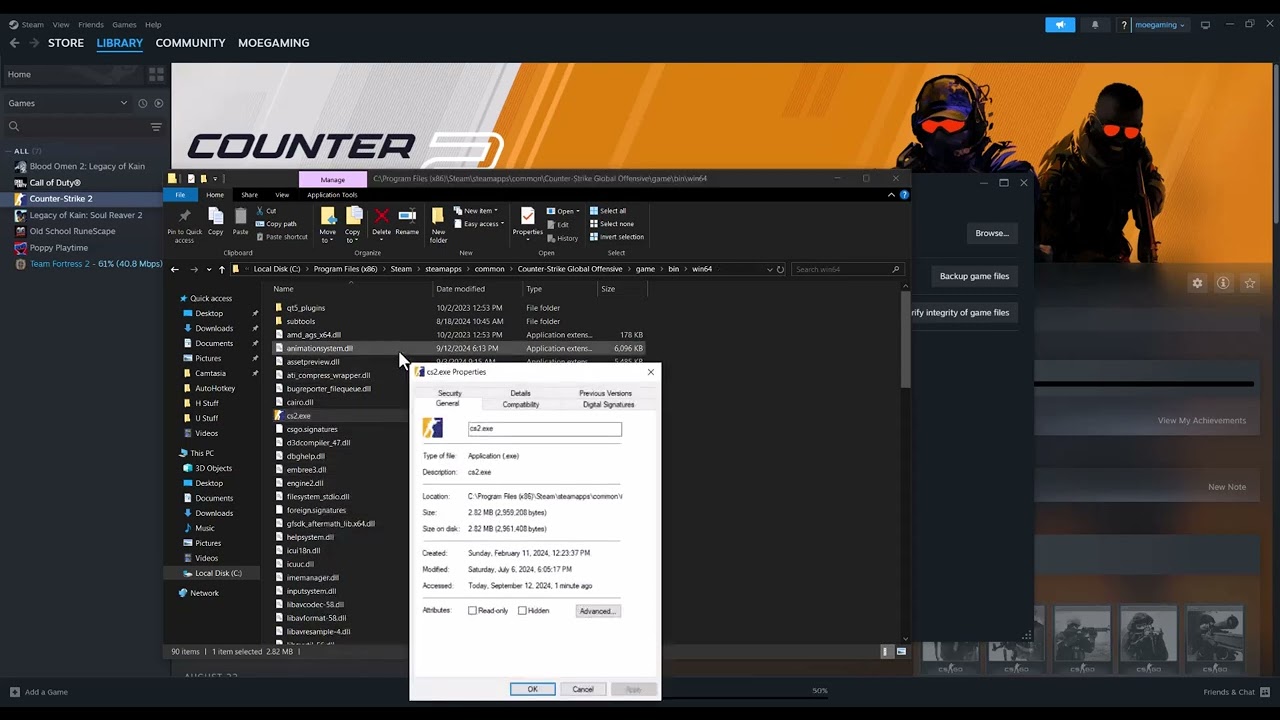
  • How to Fix CS2 “Error Reading From Loaded Packed Store”

    How to Fix CS2 “Error Reading From Loaded Packed Store”

    Quick answer: Restart the PC, clear Steam’s download cache, then verify Counter-Strike 2’s installed files. These two Steam-supported repairs address damaged downloads and missing or corrupted game data.

    Before you start

    • Close CS2.
    • Know your Steam sign-in details; clearing the download cache signs you out.
    • Let any active downloads finish or pause them.

    Fix the packed-store read error

    1. Restart Steam and Windows. This releases files that may still be locked by a failed update.
    2. Clear the Steam download cache. Open Steam → Settings → Downloads → Clear Download Cache, confirm, and sign in again.
    3. Verify CS2 files. In Library, right-click Counter-Strike 2 → Properties → Installed Files → Verify integrity of game files.
    4. Wait for verification to finish. Steam may redownload damaged or missing packages. Do not run another disk-heavy task during the check.
    5. Launch CS2 normally. Test before changing Windows compatibility or administrator settings.

    Why this works

    A packed-store read error points to data Steam or CS2 cannot read correctly. Clearing the download cache removes stale download metadata, while file verification compares the local installation with Steam’s current copy and replaces damaged content.

    Alternatives

    • Check the drive for free space and Windows file-system errors.
    • Temporarily test without third-party overlays or aggressive antivirus scanning.
    • Move or reinstall CS2 through Steam if verification repeatedly finds damaged files.

    Warnings and reversibility

    The source video also suggests permanent Windows 8 compatibility and administrator settings. These are not needed for the core repair and can create new permission or anti-cheat problems, so this guide does not recommend them. Clearing the cache only signs you out; file verification preserves normal saves and inventory.

    FAQ

    Will verification remove skins or inventory?

    No. CS2 inventory is tied to your Steam account.

    Why does Steam say one or more files failed to verify?

    Steam notes that local configuration files may be intentionally excluded and recreated.

    What if the error returns after every update?

    Check drive health, security software and available storage, then contact Steam Support.

    Official references

    Source video

    As an Amazon Associate I earn from qualifying purchases.
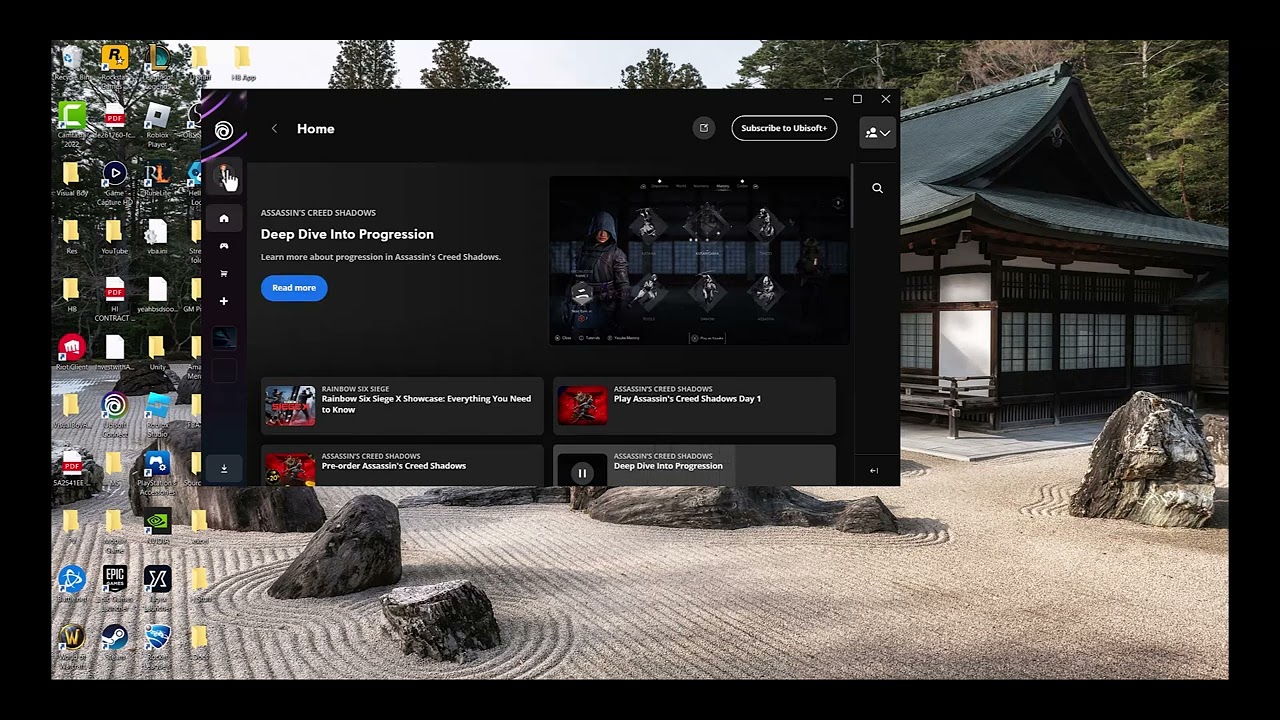
  • How to Fix Ubisoft Connect In-Game Overlay Not Opening

    How to Fix Ubisoft Connect In-Game Overlay Not Opening

    Quick answer: Open Ubisoft Connect PC, select your profile, open Settings → Interface, enable the in-game overlay/interface for supported games, then fully restart Ubisoft Connect and the game.

    Before you start

    • Install the current Ubisoft Connect PC client.
    • Close the affected game before changing the overlay setting.
    • Confirm the feature is supported by that game and platform.

    Enable the Ubisoft Connect overlay

    1. Open Ubisoft Connect PC and sign in.
    2. Select the profile/menu control in the upper-left corner and open Settings.
    3. Open Interface.
    4. Enable the option for the in-game overlay/interface in supported games.
    5. Close Ubisoft Connect completely, including its system-tray process.
    6. Reopen Ubisoft Connect, launch the game through it, and test the overlay again.

    Why this works

    The overlay supplies Ubisoft Connect features inside supported games. If its interface toggle is off, the in-game button can appear unresponsive even while the launcher itself works. A full restart reloads the setting for the next game session.

    Alternatives

    • Update Ubisoft Connect and the game, then reboot Windows.
    • Verify the game files through the launcher used to install the game.
    • Temporarily close other overlays, such as Steam, Discord, or GPU overlays, to test for a conflict.
    • Use Ubisoft Support if the overlay is enabled but fails in every supported title.

    Warnings and reversibility

    The video method is a simple, reversible setting change. Some games do not support every Ubisoft Connect overlay feature. To undo it, return to Settings → Interface and switch the overlay off.

    FAQ

    Why does it work in one game but not another?

    Overlay support varies by title and platform.

    Do I need to reinstall Ubisoft Connect?

    Usually not. Enable the interface and restart first; reinstall only if Ubisoft Support recommends it.

    Will disabling other overlays delete anything?

    No. It is a temporary diagnostic step; turn them back on after testing.

    Official references

    Source video

    As an Amazon Associate I earn from qualifying purchases.
  • Elden Ring Crashing on Steam: Verify Files and Drivers

    Elden Ring Crashing on Steam: Verify Files and Drivers

    Quick answer: Verify Elden Ring in Steam, restart Windows, install the latest stable graphics driver from the GPU or PC manufacturer, and launch without mods or overlays.

    As an Amazon Associate I earn from qualifying purchases.
    Before you start

    • Back up saves before troubleshooting. Elden Ring save data is separate from installation files.
    • Remove mods, ReShade, and unofficial DLLs from the test path.
    • Check that Windows and the game are fully updated.

    How to fix it

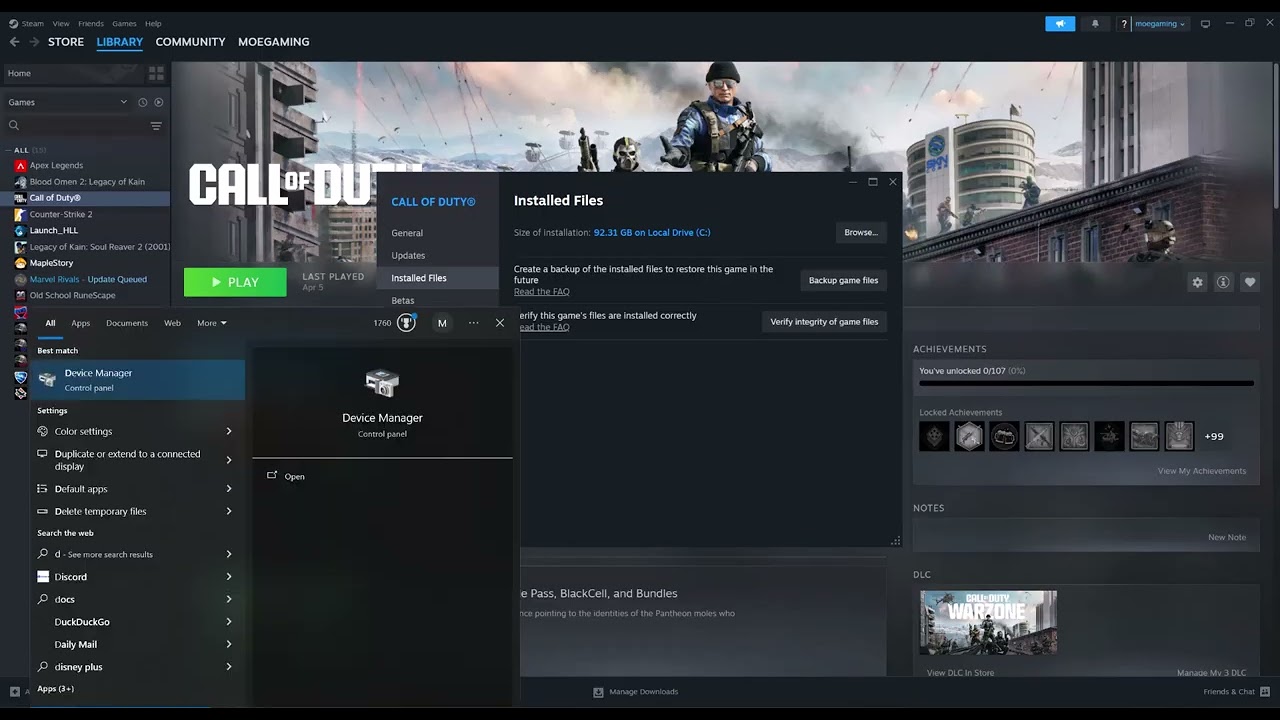
    1. Verify game files. In Steam Library, right-click Elden Ring, choose Properties > Installed Files > Verify integrity of game files, and let Steam finish.
    2. Restart the PC. This releases locked files and finishes driver or Windows changes.
    3. Update the GPU driver. Identify the card in Device Manager and install the stable driver from NVIDIA, AMD, Intel, or the PC manufacturer.
    4. Test a clean launch. Remove launch options, disable overlays, and launch the unmodified game.
    5. Check official notices. Review current Elden Ring patch notes and Bandai Namco support for known crash issues before changing deeper Windows settings.

    Why this can work

    Damaged game files and graphics-driver incompatibilities are common launch-crash causes. Verification restores the current Steam build, while an official driver update refreshes the DirectX and shader components the game uses. Removing modifications makes the test reproducible.

    Other safe fixes to try

    • Temporarily disable Steam, Discord, and capture overlays.
    • Return CPU, memory, and GPU tuning to stock settings.
    • Confirm the game uses the dedicated GPU on a laptop.
    • Contact Bandai Namco support with system information and the exact crash point.

    Warnings and how to undo the change

    Verifying files can remove modified files, so back up mod configurations first. Never download replacement DLLs or “crash fix” executables from unknown sites. Updating through Device Manager may not find the newest driver; use the official manufacturer site, not a generic search result.

    Frequently asked questions

    Does verification erase saves?

    It normally checks installation files, not save data, but back up saves before troubleshooting.

    Can Easy Anti-Cheat reject mods?

    Yes. Test the unmodified game and follow official rules for online play.

    What if the game crashes only after loading a character?

    That may point to a save, mod, or specific graphics setting rather than the base installation.

    Official references

    Source video

    The menu path demonstrated in this Moe Gaming video was used as source material and checked against the official guidance linked above.

  • NBA 2K25 Crashing on Steam: Safe PC Fixes

    NBA 2K25 Crashing on Steam: Safe PC Fixes

    Quick answer: Verify NBA 2K25 files in Steam, restart the PC, and install the latest stable graphics driver directly from NVIDIA, AMD, Intel, or the PC manufacturer.

    As an Amazon Associate I earn from qualifying purchases.
    Before you start

    • Back up custom files and remove mods before testing.
    • Confirm the PC meets NBA 2K25 system requirements.
    • Finish pending Windows updates and restart once.

    How to fix it

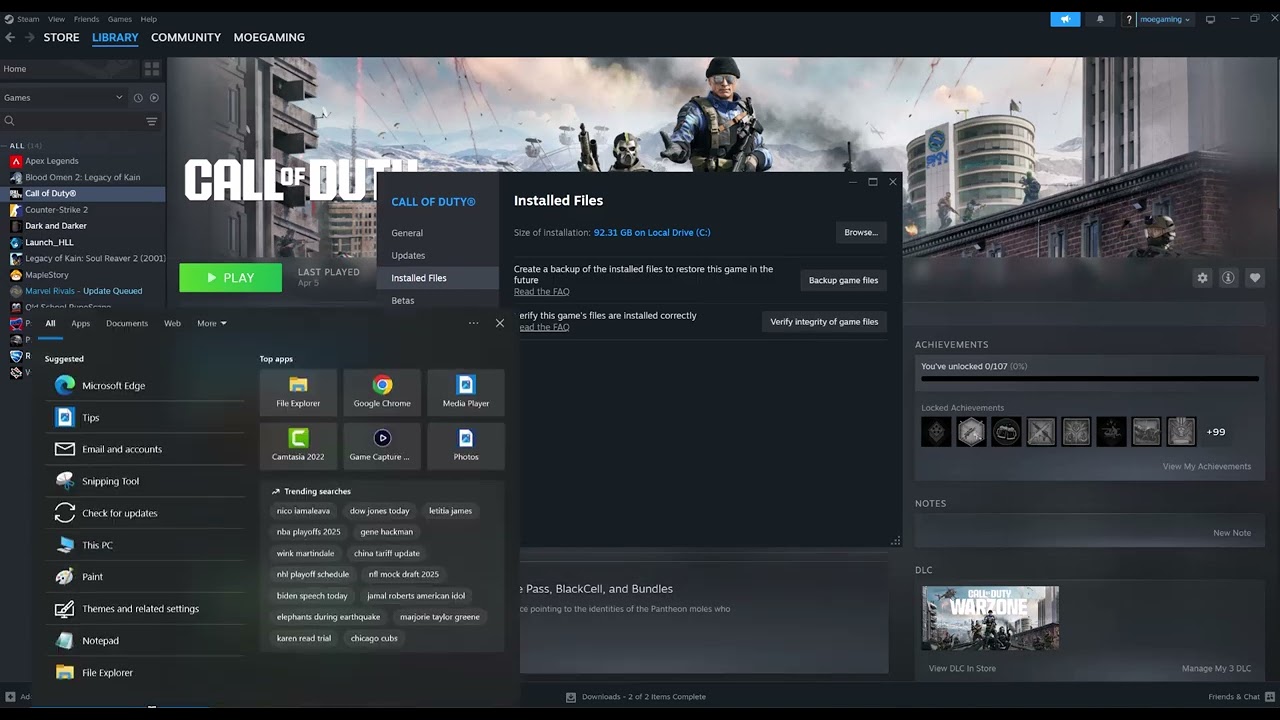
    1. Verify the installation. In Steam Library, right-click NBA 2K25, open Properties > Installed Files, and select Verify integrity of game files. Wait for Steam to finish.
    2. Restart Windows. This clears locked files and completes pending updates.
    3. Update the graphics driver. Identify the GPU in Device Manager, then download the stable driver from NVIDIA, AMD, Intel, or the PC maker. Restart after installation.
    4. Test without overlays. Disable the Steam, Discord, recording, and GPU overlays for one launch.
    5. Use stock settings. Remove launch options, CPU/GPU overclocks, and mods, then test an offline game.

    Why this can work

    Steam verification compares installed files with the current depot and replaces missing or damaged files. A current graphics driver can repair crashes caused by shader compilation or an outdated API path. Clean testing separates a game problem from overlays, mods, and unstable system tuning.

    Other safe fixes to try

    • Allow NBA 2K25 through antivirus protection instead of disabling security.
    • Repair Microsoft Visual C++ components through official Microsoft installers if 2K support recommends it.
    • Send a 2K support ticket with the crash time, system information, and logs.

    Warnings and how to undo the change

    Steam may redownload modified files, so back up legitimate custom content. Download drivers only from the GPU or PC manufacturer, not search ads or “driver updater” sites. Do not delete save folders while diagnosing a launch crash.

    Frequently asked questions

    Will file verification delete MyCAREER progress?

    It checks installed game files, not normal cloud or local save data, but keeping a backup is still sensible.

    Should I choose a beta GPU driver?

    Use the latest stable or recommended release unless 2K specifically identifies a beta fix.

    What if the crash began after an update?

    Verify files first, then check current 2K notices before making deeper system changes.

    Official references

    Source video

    The menu path demonstrated in this Moe Gaming video was used as source material and checked against the official guidance linked above.

  • GTA V Enhanced Sound Problems: Windows Audio Fixes

    GTA V Enhanced Sound Problems: Windows Audio Fixes

    Quick answer: Confirm GTA V is using the intended Windows output device, run the audio troubleshooter, test Windows Sonic off and on, and disable audio enhancements if sound is distorted.

    As an Amazon Associate I earn from qualifying purchases.
    Before you start

    • Close GTA V before changing the device format or enhancements.
    • Connect the headset or speakers directly and select them as the Windows output.
    • Remember the current spatial-sound and enhancement settings.

    How to fix it

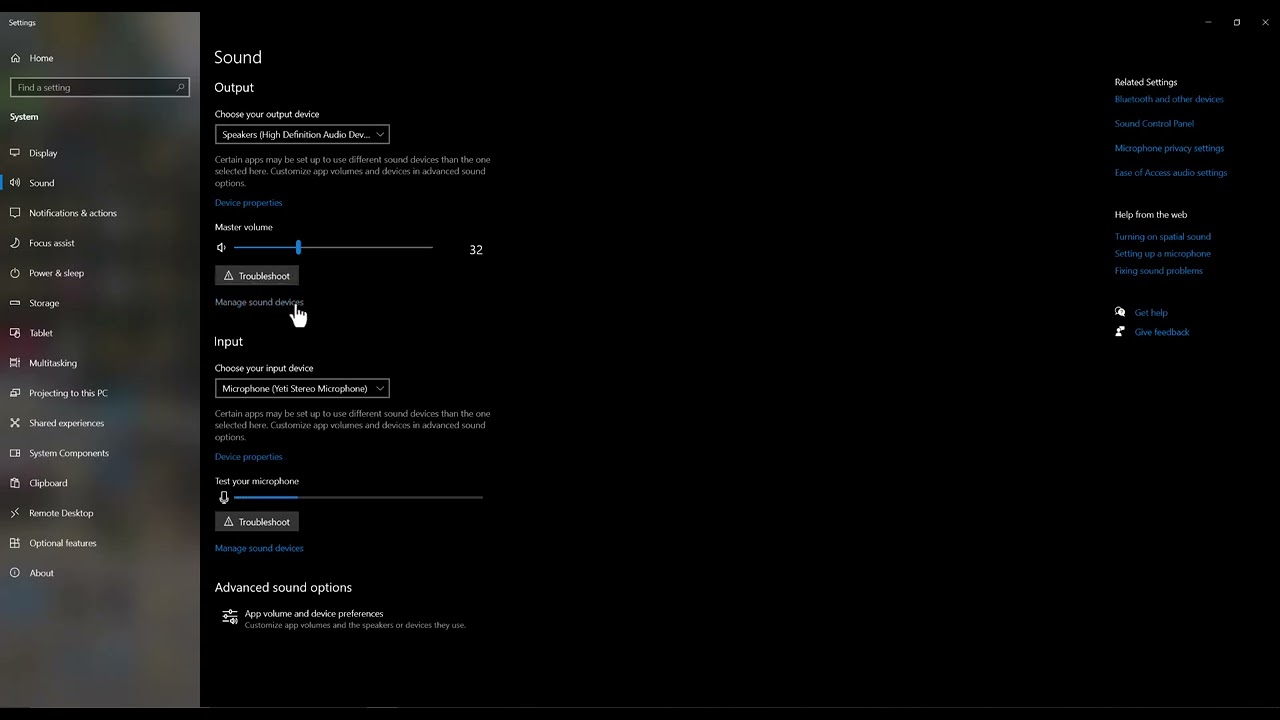
    1. Select the right output. Open Settings > System > Sound and choose the headset or speakers you want GTA V to use.
    2. Run the audio troubleshooter. Use Windows Get Help audio troubleshooting and apply only relevant recommendations.
    3. Test spatial sound. Open the output device properties and switch Windows Sonic for Headphones on for a headphone test. If it was already on and sound is distorted, switch it off and test again.
    4. Test enhancements. In Audio enhancements, turn enhancements off first. Microsoft specifically recommends this for crackling or distortion. Do not enable loudness equalization unless the problem is low dialogue or uneven volume.
    5. Restart the game. Launch GTA V Enhanced and recheck Story Mode before testing GTA Online.

    Why this can work

    GTA V Enhanced outputs audio through the Windows device and processing chain. An incorrect output, spatial format, or driver enhancement can cause silence, crackling, or badly balanced channels even when the game itself is installed correctly. Testing one setting at a time identifies the layer causing the problem.

    Other safe fixes to try

    • Update the audio driver from the PC or device manufacturer.
    • Disconnect unused Bluetooth and HDMI audio outputs.
    • Verify GTA V files in the launcher if only this game is affected.
    • Reset GTA V audio settings to defaults.

    Warnings and how to undo the change

    The best spatial-sound setting depends on the device. Windows Sonic can improve headphones but may sound wrong on some speaker setups. Every change here is reversible. Avoid third-party “driver updater” packages; use Windows Update or the hardware manufacturer.

    Frequently asked questions

    Should loudness equalization always be enabled?

    No. It changes dynamic range and may make music or effects sound unnatural.

    Why is GTA V silent while other apps work?

    The game may have opened on a different output device or retained a stale audio session.

    Does this affect GTA Online access?

    No. These are local Windows audio settings.

    Official references

    Source video

    The menu path demonstrated in this Moe Gaming video was used as source material and checked against the official guidance linked above.

  • Rockstar Games Launcher Error 1.000.7: Fix Windows Time

    Rockstar Games Launcher Error 1.000.7: Fix Windows Time

    Quick answer: Open Windows Settings > Time & language > Date & time, enable automatic time and time zone, select Sync now, restart the Rockstar Games Launcher, and test again.

    As an Amazon Associate I earn from qualifying purchases.
    Before you start

    • Close the Rockstar Games Launcher from the notification area.
    • Make sure Windows can reach the internet.
    • Note the correct local time zone; do not choose random zones to make the error disappear.

    How to fix it

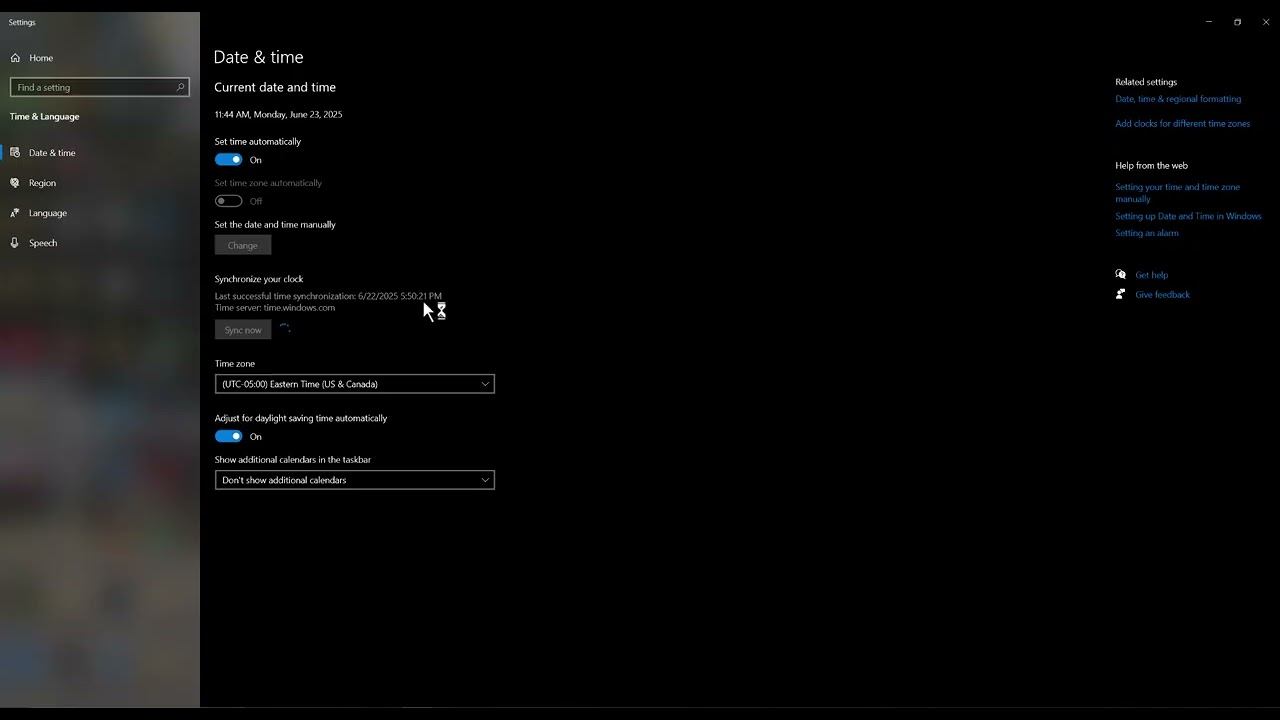
    1. Open Date & time. Right-click the taskbar clock and select Adjust date and time.
    2. Correct the time zone. Turn on Set time zone automatically, or choose your actual zone manually if automatic detection is unavailable.
    3. Enable automatic time. Turn on Set time automatically.
    4. Synchronize Windows. Under Additional settings, select Sync now and confirm the displayed time is correct.
    5. Restart the launcher. Reboot Windows, open Rockstar Games Launcher normally, and sign in again if prompted.

    Why this can work

    Secure sign-in and update services use time-limited certificates and tokens. If the PC clock is far from the real time, those checks can fail and the launcher may show an update or connection error. Correcting the clock fixes the validation environment without modifying game files.

    Other safe fixes to try

    • Check Rockstar service status before changing the PC.
    • Install pending Windows updates.
    • Temporarily disable a VPN or proxy and retry.
    • Use Rockstar’s official launcher reinstall instructions if the clock is correct and the error remains.

    Warnings and how to undo the change

    Use your real time zone. The video mentions experimenting with zones, but that can create new sign-in and certificate problems and is not recommended. This change is reversible: turn off automatic settings and restore the previous values. Do not delete Social Club folders or run unknown repair utilities for this error.

    Frequently asked questions

    Why does the date matter to a game launcher?

    Authentication certificates and tokens have validity windows that depend on an accurate clock.

    Will syncing the time delete anything?

    No. It changes only clock settings.

    What if Sync now fails?

    Verify the internet connection and Windows Time service, then install Windows updates before retrying.

    Official references

    Source video

    The menu path demonstrated in this Moe Gaming video was used as source material and checked against the official guidance linked above.

  • Black Ops 6 “Could Not Fetch Playerstats” on PS5: Fixes

    Black Ops 6 “Could Not Fetch Playerstats” on PS5: Fixes

    Quick answer: Check Activision and PlayStation service status, update Black Ops 6, confirm the Multiplayer content pack is installed, restore PlayStation licenses, and only then test a manual DNS setting.

    As an Amazon Associate I earn from qualifying purchases.
    Before you start

    • Keep your Activision and PlayStation sign-in details available.
    • Make sure the PS5 has enough free storage for a content-pack reinstall.
    • Do not delete saved data; these steps concern installed content and licenses.

    How to fix it

    1. Check both services. Confirm Activision Online Services and PlayStation Network are operational. Wait if either service reports maintenance.
    2. Close and update the game. Highlight Call of Duty, press Options, select Check for Update, and install everything offered.
    3. Inspect installed content. Press Options on the game tile and open Manage Game Content. Confirm the Black Ops 6 Multiplayer pack is installed. If it appears damaged or incomplete, remove only that pack and reinstall it.
    4. Restore licenses. Open Settings > Users and Accounts > Other > Restore Licenses, choose the affected content, and complete the restore.
    5. Restart the PS5 and router. Fully restart both, then test multiplayer.
    6. Optional DNS test. In the active network’s advanced settings, try Cloudflare DNS 1.1.1.1 and 1.0.0.1. Revert to Automatic if it does not help.

    Why this can work

    The error appears while the game is requesting online profile data. A missing multiplayer pack, stale content license, service interruption, or failed name lookup can break that request. The order above starts with nondestructive checks and avoids redownloading the whole game unless a specific pack needs replacement.

    Other safe fixes to try

    • Sign out of the Activision account in-game, restart, and sign back in only if credentials are known.
    • Test a wired connection.
    • Clear PS5 system cache in Safe Mode if official guidance recommends it for persistent launch problems.

    Warnings and how to undo the change

    Restoring licenses does not delete saves. Removing a content pack does require a large download. Manual DNS is an unofficial, reversible workaround; return the network’s DNS setting to Automatic to undo it. Do not unlink platform accounts casually because relinking restrictions can apply.

    Frequently asked questions

    Does “connection interrupted by user” mean I canceled it?

    Not necessarily. It can be a generic failure while the game fetches profile data.

    Should I reinstall all of Call of Duty?

    No. Check the Multiplayer pack first.

    Will restoring licenses remove game sharing?

    No. It refreshes local entitlement data; it does not change the account owner.

    Official references

    Source video

    The menu path demonstrated in this Moe Gaming video was used as source material and checked against the official guidance linked above.

  • League of Legends Stuck After Champion Select: Loading Screen Fix

    League of Legends Stuck After Champion Select: Loading Screen Fix

    Quick answer: On a dual-GPU Windows PC, add the League of Legends game executable in Settings > System > Display > Graphics and choose the high-performance GPU. Restart the Riot Client and test a Practice Tool match.

    As an Amazon Associate I earn from qualifying purchases.
    Before you start

    • Close League of Legends and the Riot Client completely.
    • Know where League is installed; the default Riot Games folder is common, but your location may differ.
    • Install pending Windows and graphics-driver updates from the hardware manufacturer.

    How to fix it

    1. Find the game executable. Right-click your League shortcut, choose Open file location, then locate the game folder and League of Legends.exe. Do not select only the Riot Client shortcut.
    2. Open Graphics settings. Go to Windows Settings > System > Display > Graphics, choose to add a desktop app, and browse to the League game executable.
    3. Choose the high-performance GPU. Select the added app, open Options, choose High performance, and save. Windows shows which GPU that option uses.
    4. Restart the client. Exit Riot from the notification area, reopen it, and test in Practice Tool before joining a live queue.
    5. Repair if the loading screen still stalls. Use Riot’s Full Repair Tool or the client repair option, then reboot Windows.

    Why this can work

    After champion select, League switches from the client to the game process. On laptops and multi-GPU desktops, Windows can assign that process to the power-saving GPU. Giving the actual game executable a specific graphics preference removes that ambiguity. It is a targeted preference, not a global overclock.

    Other safe fixes to try

    • Turn off Discord, GeForce, Xbox Game Bar, and other overlays for one test.
    • Remove third-party skins or injectors.
    • Use Riot’s repair tool to replace damaged files.
    • Temporarily test borderless mode if exclusive fullscreen is failing.

    Warnings and how to undo the change

    This video-derived workaround may help only on systems with more than one GPU. It can increase power use and heat on a laptop. To undo it, return to Graphics settings, select League, and choose Let Windows decide or remove the entry. Do not disable antivirus protection or download replacement DLL files.

    Frequently asked questions

    Should I add the Riot Client or the game?

    Add the League game executable first because that process renders the match.

    Will this fix a Riot server outage?

    No. If many players cannot enter games, check Riot service status before changing the PC.

    Can I test without risking a penalty?

    Yes. Use Practice Tool or a custom game before returning to a matchmade queue.

    Official references

    Source video

    The menu path demonstrated in this Moe Gaming video was used as source material and checked against the official guidance linked above.

  • How to Fix CS2 “Failed to Reach Any Official Servers”

    How to Fix CS2 “Failed to Reach Any Official Servers”

    Quick answer: First confirm Steam and CS2 are not having a service outage. If only your PC is affected, change the active adapter to a trusted DNS resolver, flush the Windows DNS cache, reset Winsock, restart the PC, and test CS2 again.

    As an Amazon Associate I earn from qualifying purchases.
    Before you start

    • A Windows administrator account.
    • The name of the adapter you actually use: Wi-Fi or Ethernet.
    • Your current DNS settings written down or photographed so you can restore them.

    How to fix it

    1. Rule out a wider outage. Restart Steam, check Steam support and Counter-Strike service notices, and ask one friend on another connection to test. Local network changes cannot repair a Valve outage.
    2. Open the adapter properties. Search Windows for View network connections, right-click the active Wi-Fi or Ethernet adapter, and select Properties.
    3. Set a known DNS resolver. Open Internet Protocol Version 4 (TCP/IPv4). Choose manual DNS and enter Cloudflare’s documented addresses: 1.1.1.1 and 1.0.0.1. Leave IP addressing automatic.
    4. Flush cached lookups. Open Command Prompt as administrator and run ipconfig /flushdns.
    5. Reset Winsock only if needed. Run netsh winsock reset, restart Windows, then open Steam and test an official CS2 queue.

    Why this can work

    CS2 must resolve Valve service hostnames and create normal Windows network sockets. A stale DNS entry or damaged Winsock catalog can stop that path even while ordinary web pages still load. These steps refresh those two Windows layers; they do not change CS2 files or your Steam inventory.

    Other safe fixes to try

    • Power-cycle the router for about 60 seconds.
    • Disable a VPN or proxy temporarily, then retry.
    • Allow Steam and CS2 through Windows Firewall instead of disabling the firewall.
    • Verify CS2 files in Steam if the network works but the game still fails to launch.

    Warnings and how to undo the change

    This is an unofficial, reversible workaround and will not fix a server-side outage. A managed work or school network may require its assigned DNS server. To undo the change, return to TCP/IPv4 properties and select Obtain DNS server address automatically. Never turn off the firewall or download “network fix” programs.

    Frequently asked questions

    Will this lower my ping?

    Usually not. DNS affects name lookup, not the route used after the match connection is established.

    Do I need to reinstall CS2?

    No. Reinstallation is a later step after service status, network, and file verification checks.

    What if every device is affected?

    That points to the router, ISP, or a Valve service issue rather than this PC.

    Official references

    Source video

    The menu path demonstrated in this Moe Gaming video was used as source material and checked against the official guidance linked above.