Category: Game Fixes

Troubleshooting guides and fixes for gaming errors, crashes, installation problems, and connectivity issues.

  • How to Fix Microsoft Store Error 0x89235106

    How to Fix Microsoft Store Error 0x89235106

    Quick answer: For Microsoft Store error 0x89235106, reset the Store cache with wsreset.exe, install Windows and Store updates, then repair Gaming Services. These official, reversible steps address the install and service layers without deleting game folders.

    Source note: The source video had no usable transcript after the required retries. Its visible title, description, and chapter cues were used only to identify the problem; the repair steps below were checked against current first-party support on September 29, 2026.

    Before you start

    • Confirm that Microsoft Store and the Xbox app use the Microsoft account that owns the game or subscription.
    • Pause other installs and restart Windows once.
    • Keep enough free space on the selected install drive.

    Fix Microsoft Store error 0x89235106

    1. Reset the Store cache. Press Windows + R, type wsreset.exe, and select OK. A blank window should close automatically and reopen Microsoft Store.
    2. Update Windows. Open Settings > Windows Update > Check for updates, install available updates, and restart.
    3. Update Microsoft Store. Open Store, choose Library > Get updates, and let Store and Xbox-related components update.
    4. Repair Microsoft Store. Go to Settings > Apps > Installed apps > Microsoft Store > Advanced options > Repair.
    5. Repair Gaming Services. Run the official Gaming Services Repair Tool from the Xbox app support area, then restart the PC.
    6. Repair the Xbox app if involved. In Installed apps, open Xbox > Advanced options > Repair. Use Reset only if Repair fails.
    7. Retry from Library. Reopen Microsoft Store, sign in, find the game in Library, confirm the destination drive, and install again.

    Why this works

    Game installation depends on Microsoft Store licensing, the Store cache, the Xbox app, Gaming Services, Windows updates, and the selected drive. Cache reset removes stale Store state; Repair preserves app data while rebuilding the app registration; the Gaming Services tool fixes the component that manages many PC game installs.

    Alternatives

    • Verify Windows date, time, and region are correct.
    • Sign out of Microsoft Store and the Xbox app, restart, then sign into the same account in both.
    • If only one game fails, check its system requirements and availability for your region/device.

    Warnings

    Use Repair before Reset; resetting an app can remove its local settings and sign-in state. Do not delete protected WindowsApps folders, change their ownership, or run unverified PowerShell scripts. Those methods can break every Store game.

    FAQ

    Does wsreset delete installed games?

    No. It resets the Microsoft Store cache and reopens the Store.

    Why repair Gaming Services?

    Xbox PC game installs rely on Gaming Services. Microsoft’s repair tool targets launch, install, and update failures in that layer.

    What if the Install button is missing?

    Confirm the account, region, device compatibility, and Windows version. Store can hide apps that are unavailable or incompatible.

    Official references

    Source video

    https://www.youtube.com/watch?v=SdeVVvPvXxw

    As an Amazon Associate I earn from qualifying purchases.
  • How to Fix Xbox Error 0x87DD0019

    How to Fix Xbox Error 0x87DD0019

    Quick answer: Xbox identifies error 0x87DD0019 as an Xbox service outage or a connection error. Check Xbox status first. If services are healthy, restart the console or PC and network equipment, then test the connection again.

    Source note: The source video had no usable transcript after the required retries. Its visible title, description, and chapter cues were used only to identify the problem; the repair steps below were checked against current first-party support on September 29, 2026.

    Before you start

    • Do not change account credentials until Xbox status is normal.
    • Check whether other devices can reach the internet.
    • If you use Xbox on Windows, close the Xbox app and Microsoft Store before restarting.

    Fix Xbox error 0x87DD0019

    1. Check Xbox status. Look for an incident affecting Account & profile, multiplayer, or the game you are opening. If an incident is active, wait and retry later.
    2. Retry the sign-in once. Return to the Home screen or close the Xbox app, wait a minute, and sign in again. Repeated rapid attempts will not fix an outage.
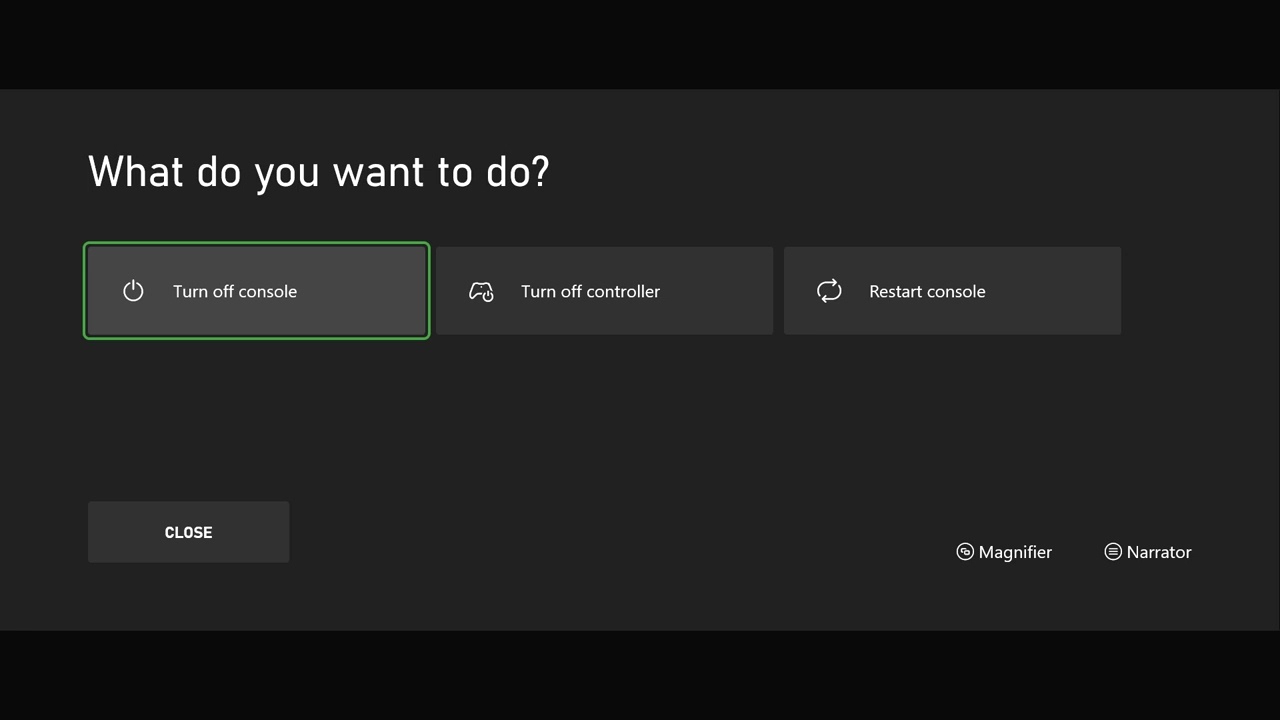
    3. Power-cycle the device. On console, hold the Xbox button and choose a full restart. On PC, restart Windows rather than only closing the app.
    4. Restart the network. Turn off the modem/router for about 30 seconds, restore it, wait for internet service, then reconnect the Xbox device.
    5. Run the network test. On Xbox console, open Settings > General > Network settings > Test network connection. Address any result shown there before retrying sign-in.
    6. Test Ethernet if available. A temporary wired test can reveal whether Wi-Fi interference is causing the connection error.
    7. On Windows, repair Gaming Services. Open the Xbox app Support area and run the Gaming Services Repair Tool if games and sign-in remain affected.

    Why this works

    The code does not identify a damaged game installation. It indicates that the device could not complete the online Xbox request. Status comes first because no local change can repair a service outage; restarts and the network test then clear temporary device, router, or app-session failures.

    Alternatives

    • Try another network, such as a trusted mobile hotspot, only as a short diagnostic test.
    • If every device on the home connection fails, contact the ISP.
    • If only one Xbox profile fails after services recover, use Xbox Support rather than deleting saved data.

    Warnings

    Do not factory-reset the console, delete your profile, or change router security settings for this code as a first response. Avoid public VPNs and third-party “network repair” tools. A temporary outage can resolve without any destructive action.

    FAQ

    Does 0x87DD0019 mean my account is banned?

    No. Xbox describes it as a service outage or connection error, not an enforcement message.

    Will reinstalling the game help?

    Usually not, because the failure happens at the service or connection layer.

    Can I play offline?

    Only games and licenses already configured for offline use will work, and online features remain unavailable until the connection returns.

    Official references

    Source video

    https://www.youtube.com/watch?v=C-vf_28l1Do

    As an Amazon Associate I earn from qualifying purchases.
  • How to Fix Arma Reforger Crashing on Steam

    How to Fix Arma Reforger Crashing on Steam

    Quick answer: Verify Arma Reforger’s files in Steam, install the current game update, and test a vanilla session without Workshop content. If the crash remains, send the built-in crash report with exact reproduction steps.

    Source note: The source video had no usable transcript after the required retries. Its visible title, description, and chapter cues were used only to identify the problem; the repair steps below were checked against current first-party support on September 29, 2026.

    Before you start

    • Write down when the crash occurs: launch, server join, loading a scenario, or during play.
    • Note whether the server or scenario uses mods.
    • Let Steam finish all downloads before testing.

    Fix Arma Reforger crashing on Steam

    1. Restart and update. Exit the game and Steam, restart Windows, reopen Steam, and allow every Arma Reforger update to finish.
    2. Verify game files. In Steam Library, right-click Arma Reforger > Properties > Installed Files > Verify integrity of game files.
    3. Test without Workshop content. Temporarily disable or unsubscribe from recently added Reforger mods and join an unmodded official scenario. Re-enable items one at a time after a successful test.
    4. Remove custom launch options. In Properties > General, clear launch options you added yourself, then retest. Do not add undocumented flags.
    5. Update the graphics driver and Windows. Use the GPU manufacturer’s official app or site, install current Windows updates, and reboot.
    6. Submit the crash report. When Bohemia’s Crash Reporter opens, include the exact action, server/scenario, active mods, and whether the failure repeats. Keep the report GUID.
    7. Attach logs when escalating. Reforger game logs are stored in %userprofile%\Documents\My Games\ArmaReforger\logs. Send the relevant timestamped files through Bohemia’s Feedback Tracker.

    Why this works

    File verification repairs a damaged or incomplete Steam installation. A clean, unmodded test separates a base-game crash from a Workshop dependency or version mismatch. Accurate crash reports and logs give Bohemia the game version, context, and technical data needed to identify an engine or content bug.

    Alternatives

    • Try a different official server or scenario to determine whether the crash is server-specific.
    • Close nonessential overlays and monitoring tools for one test, then restore them.
    • If a new update introduced the crash, check the current Reforger changelog and known-issue notes before reinstalling.

    Warnings

    Do not download replacement DLL files, delete the entire Documents folder, or disable the crash reporter. Back up any local configuration before removing it. Mod testing is reversible: keep a list so you can restore the working set.

    FAQ

    Will verification remove mods?

    Steam verification checks the base installation. Workshop items are managed separately, which is why a vanilla test is still useful.

    Where are Reforger crash logs?

    For the Windows game, Bohemia documents them under %userprofile%\Documents\My Games\ArmaReforger\logs.

    Should I reinstall immediately?

    No. Verification is faster and less disruptive. Reinstall only after the smaller tests fail and your connection can restore the game.

    Official references

    Source video

    https://www.youtube.com/watch?v=cLmDleElIkk

    As an Amazon Associate I earn from qualifying purchases.
  • How to Fix Steam Download Speed Dropping to 0

    How to Fix Steam Download Speed Dropping to 0

    Quick answer: First check whether Steam is unpacking files while network speed reads zero. If both network and disk activity stay idle, remove any bandwidth limit, clear the download cache, and temporarily select another nearby download region.

    Source note: The source video had no usable transcript after the required retries. Its visible title, description, and chapter cues were used only to identify the problem; the repair steps below were checked against current first-party support on September 29, 2026.

    Before you start

    • Open Steam’s Download Manager and watch both the network and disk graphs for a minute.
    • Pause other downloads and confirm the destination drive has free space.
    • Save your Steam password because clearing the cache signs you out.

    Fix Steam download speed dropping to zero

    1. Let disk work finish. Steam may stop receiving data while it patches, decompresses, or moves files. If the disk graph is active, wait until that work completes.
    2. Check the bandwidth limit. Open Steam > Settings > Downloads. Disable Limit download speed or set an appropriate value. Steam notes that displayed units may differ from the bits-per-second figure sold by an ISP.
    3. Clear the download cache. In the same Downloads page, choose Clear Download Cache, sign back in, and restart the download.
    4. Change download region. Choose another nearby region under Download Region, restart Steam, and retest. Return to the closest stable region afterward.
    5. Repair the library folder. Go to Settings > Storage, open the drive menu, and choose Repair Folder.
    6. Reduce local contention. Close other launchers, cloud-sync jobs, torrents, and high-bitrate streams. If possible, test Ethernet to remove Wi-Fi interference.
    7. Restart the route. Exit Steam, restart the PC, then power-cycle the modem/router if all devices are seeing unstable downloads.

    Why this works

    A zero network reading can be normal while storage is the bottleneck. When it is not, Steam’s cache, bandwidth setting, content region, library permissions, or the local connection may be stopping the next data block. Testing one layer at a time shows which one is responsible.

    Alternatives

    • Try a different Steam library on a healthy internal drive.
    • Verify the affected game after the download completes if it will not launch.
    • Run the drive maker’s diagnostic if disk activity repeatedly stalls or Windows reports storage errors.

    Warnings

    Do not use “speed booster” software, disable security tools permanently, or delete Steam’s installation folders at random. Avoid uninstalling Steam until you have backed up anything that cannot be re-downloaded; uninstalling can remove game content.

    FAQ

    Why is the network at zero while disk usage is high?

    Steam has already downloaded a block and is applying it. Storage speed, patch size, and available space determine how long this phase lasts.

    Which download region should I use?

    Start with the nearest region. If it is overloaded, test the next-nearest region and keep the most stable result.

    Will clearing cache erase installed games?

    No. It resets Steam’s download cache and account session, not your installed library.

    Official references

    Source video

    https://www.youtube.com/watch?v=pv-y-lvXb8g

    As an Amazon Associate I earn from qualifying purchases.
  • How to Fix High Ping in League of Legends

    How to Fix High Ping in League of Legends

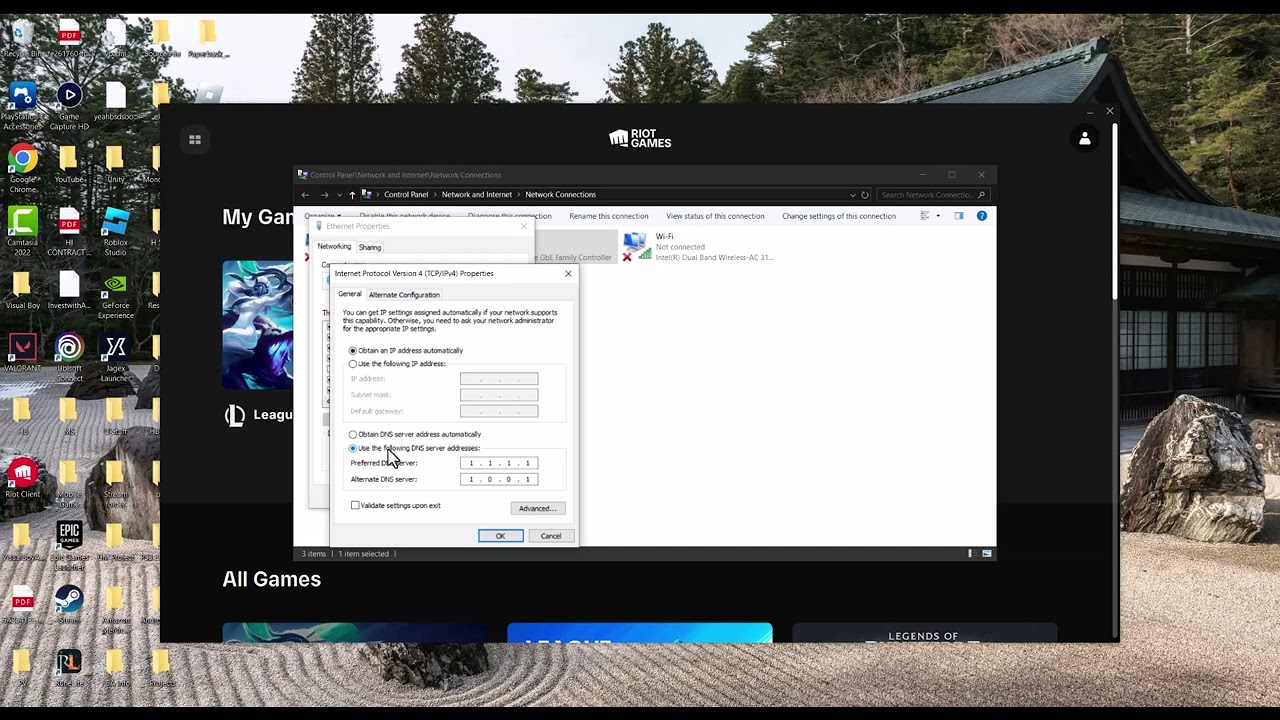
    Quick answer: Check Riot’s regional service status, stop active downloads and streams, disconnect any VPN or proxy, and test one match over Ethernet. If ping is still high, use Riot’s connection log tools to determine whether the route, ISP, or local network is responsible.

    Source note: The source video had no usable transcript after the required retries. Its visible title, description, and chapter cues were used only to identify the problem; the repair steps below were checked against current first-party support on September 29, 2026.

    Before you start

    • Note your normal ping and the region/account shard you use.
    • Test in a practice game where leaving will not affect teammates.
    • Remember that high ping is network latency; low frame rate is a separate graphics-performance problem.

    Fix League of Legends high ping

    1. Check Riot’s status first. Select your region on Riot’s service-status page. If there is an incident, wait for the service to recover instead of changing the PC.
    2. Stop background traffic. Pause Steam or console downloads, cloud backups, torrents, high-resolution streams, and large uploads on every device sharing the connection.
    3. Turn off VPN or proxy routing. Riot advises against normal play through a VPN or proxy because the extra route can create latency and instability.
    4. Test a wired connection. Connect the PC directly to the router with Ethernet for one match. If the spikes disappear, Wi-Fi interference or signal quality is the likely cause.
    5. Restart the network path. Close the Riot Client, shut down the PC, power off the modem/router for about 30 seconds, restore the network, then start the PC.
    6. Run Riot’s repair/log tools. Use the Riot Repair Tool or Connection Log Reader. League stores match and network logs under C:\Riot Games\League of Legends\Logs\GameLogs.
    7. Escalate with evidence. If only League is affected, submit the relevant NetLog and match time to Riot Support. If every service is slow, contact the ISP with the same timestamps.

    Why this works

    Ping measures the round trip between your PC and Riot’s server. Riot identifies three broad sources: the game service, the ISP route, or the player’s equipment/software. The sequence above separates those causes before you make deeper changes.

    Alternatives

    • On Wi-Fi, move closer to the router or use the less congested band supported by both devices.
    • Compare Riot’s Lag Report for your region and ISP when it is available.
    • Update the network adapter driver from the PC or adapter manufacturer if the connection is unstable outside League too.

    Warnings

    Do not factory-reset the router, open a DMZ, forward random ports, or permanently disable the firewall as a first step. Those changes increase risk and rarely fix a Riot-side or ISP routing problem. If a support technician asks for a temporary firewall test, restore protection immediately afterward.

    FAQ

    Is high ping the same as packet loss?

    No. Ping is delay; packet loss is missing data. Both can feel like lag, but Riot’s NetLogs help distinguish them.

    Will a faster internet plan always lower ping?

    No. Capacity helps when the connection is saturated, but distance and routing can still dominate latency.

    Why does Ethernet help?

    It removes radio interference and weak-signal changes from the test, giving you a stable baseline.

    Official references

    Source video

    https://www.youtube.com/watch?v=7PTLn-nBekI

    As an Amazon Associate I earn from qualifying purchases.
  • How to Fix Steam “Content File Locked” Errors

    How to Fix Steam “Content File Locked” Errors

    Quick answer: Restart Steam, clear its download cache, repair the affected library folder, and verify the game files. A “Content File Locked” message usually means Steam cannot replace or write one of the files needed for an install or update.

    Source note: The source video had no usable transcript after the required retries. Its visible title, description, and chapter cues were used only to identify the problem; the repair steps below were checked against current first-party support on September 29, 2026.

    Before you start

    • Pause other Steam downloads and close the affected game.
    • Make sure the destination drive has enough free space for the download plus unpacking.
    • Keep your Steam account credentials available: clearing the download cache signs you out.

    Fix Steam Content File Locked

    1. Fully restart Steam. Choose Steam > Exit, wait for it to close, then reopen it. If an update process is still stuck, restart Windows once.
    2. Clear Steam’s download cache. Open Steam > Settings > Downloads > Clear Download Cache. Sign back in and retry the update.
    3. Repair the library folder. Go to Steam > Settings > Storage, open the three-dot menu for the drive that contains the game, and choose Repair Folder.
    4. Verify the installed files. In Library, right-click the game, choose Properties > Installed Files > Verify integrity of game files. Steam will replace files that do not match its current copy.
    5. Try a different download region. In Settings > Downloads, choose another nearby region, restart Steam, and try once more.
    6. Check the drive. Confirm that the drive is connected, writable, and not full. For a removable library, reconnect it before launching Steam.

    Why this works

    The error is about a write operation, not necessarily a bad game. Clearing the cache removes incomplete download metadata, repairing the library refreshes Steam’s access to that folder, and file verification compares the installed copy with Steam’s manifest. Changing region rules out a troubled content server.

    Alternatives if the error remains

    • Move the game to another Steam library from Settings > Storage if another drive is available.
    • Install current Windows and storage-controller updates, then reboot.
    • If Windows Security or another security product reports that it quarantined a game file, review that specific alert. Restore or allow a file only when you can verify it came from Steam.

    Warnings

    Do not download replacement DLLs or game files from random sites. Do not permanently disable antivirus protection, take ownership of the entire Steam folder, or delete the whole library. Uninstalling Steam can remove installed game content; use the repair steps first.

    FAQ

    Will clearing the cache delete my games?

    No. It clears download data and signs you out, but it does not remove installed games.

    Can verification reset mods?

    It can replace modified files that differ from Steam’s official copy. Back up legitimate mod configuration before verification.

    What if only one drive shows the error?

    That points to the library folder, permissions, free space, connection, or drive health rather than Steam as a whole. Test another library if possible.

    Official references

    Source video

    https://www.youtube.com/watch?v=406kAr4VqGI

    As an Amazon Associate I earn from qualifying purchases.
  • How to Fix Marvel Rivals Crashing During Shader Compilation

    How to Fix Marvel Rivals Crashing During Shader Compilation

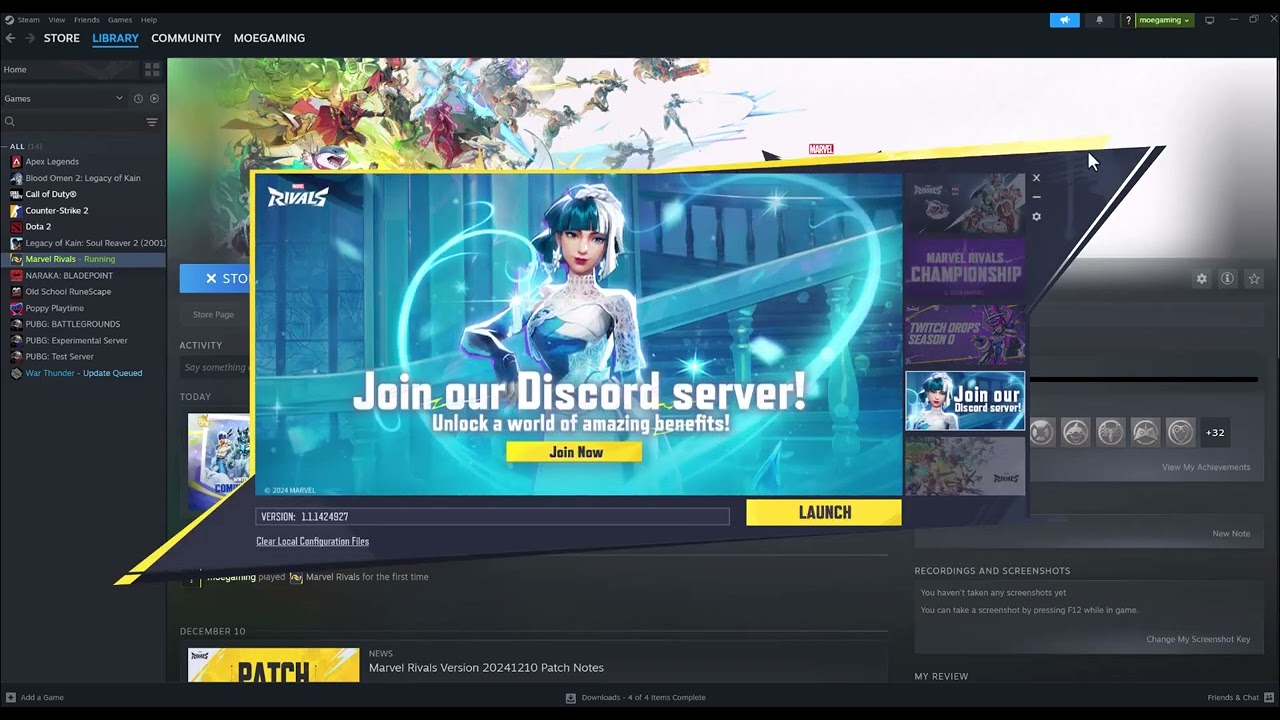
    Quick answer: In the Marvel Rivals launcher, open the settings/cog menu and enable GPU Debug Mode. On current builds, also try Switch Shader Compilation Mode. Verify files and install the latest supported GPU driver before testing again.

    Before you start

    • Update Marvel Rivals and its launcher.
    • Close GPU overclocking and overlay tools.
    • Identify your GPU and, for Intel systems, your CPU generation.

    Fix the shader-compilation crash

    1. Enable GPU Debug Mode. Open the launcher settings before selecting Launch, enable GPU Debug Mode, and start the game.
    2. Try Switch Shader Compilation Mode. Marvel Rivals added this launcher option to reduce shader-related crashes on affected systems.
    3. Verify installed files. In Steam, open Properties → Installed Files → Verify integrity of game files.
    4. Update the GPU driver. Download it from NVIDIA, AMD, or Intel’s official site, then restart Windows.
    5. Clear the GPU shader cache only if the official debug guide calls for it. Rebuilding the cache may make the next launch take longer.
    6. Check Intel 13th/14th-generation CPU guidance. Marvel Rivals documents a separate stability path for affected Intel processors.
    7. Collect crash information for support. GPU Debug Mode helps produce diagnostic data if the crash happens again.

    Why this works

    Shader compilation stresses the graphics driver, cache and CPU. Marvel Rivals’ official debug and alternate compilation modes change how that work is performed and improve the diagnostic data available to support.

    Alternatives

    • Return GPU and CPU overclocks to defaults.
    • Close other overlays and hardware-monitoring tools.
    • Use the official Intel CPU crash guide if its symptoms match your system.

    Warnings and reversibility

    The video also suggests an unspecified launch option plus Windows 7/8 compatibility and permanent administrator mode. Because the launch string is not visible in the captions and those compatibility changes are not part of the current official shader-crash guidance, this article omits them. GPU Debug Mode and Switch Shader Compilation Mode can be switched off in the launcher after testing.

    FAQ

    Is GPU Debug Mode only for collecting logs?

    Marvel Rivals says it can help with continued crashes and produces useful diagnostic information.

    Why does the first launch take longer?

    Rebuilding or switching shader compilation can require fresh shader work.

    Should I use Windows 8 compatibility mode?

    No—not unless current official support specifically asks for it.

    Official references

    Source video

    As an Amazon Associate I earn from qualifying purchases.
  • How to Fix Cyberpunk 2077 Crashing on Steam

    How to Fix Cyberpunk 2077 Crashing on Steam

    Quick answer: Update Cyberpunk 2077, remove unsupported mods, verify its Steam files, then install the correct GPU driver from NVIDIA, AMD, or Intel. If crashes began immediately after a driver update, CD PROJEKT RED recommends testing the previous driver.

    Before you start

    • Confirm the PC meets Cyberpunk 2077’s current requirements.
    • Back up important saves and disable mods.
    • Close overlays and other GPU-heavy programs for testing.

    Fix Cyberpunk 2077 crashes on Steam

    1. Update the game and Windows. Restart the PC after updates.
    2. Remove mods for a clean test. Outdated scripts and framework files can break after game patches.
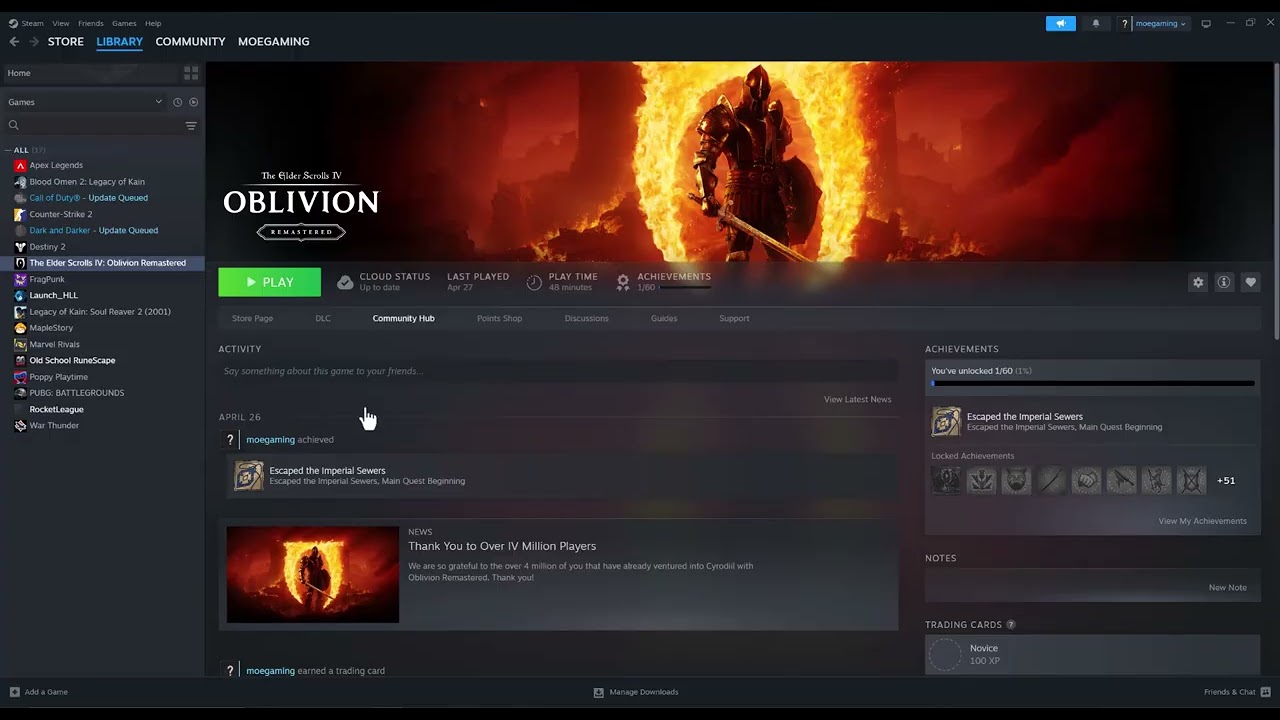
    3. Verify game files. In Steam, right-click Cyberpunk 2077 → Properties → Installed Files → Verify integrity of game files.
    4. Update the GPU driver from the manufacturer. Use NVIDIA, AMD, or Intel’s official tool or site—not a random driver-download page.
    5. Roll back if the crash began after updating. CD PROJEKT RED specifically notes that the previous driver may be more stable in that situation.
    6. Test without overlays and overclocks. Return CPU, GPU and memory tuning to default while diagnosing.
    7. Send crash data to CD PROJEKT RED. If the problem continues, gather the requested logs and system information.

    Why this works

    Verification replaces missing or damaged game files. A clean, supported driver fixes graphics-path faults, while removing mods and overclocks eliminates common variables that can make a crash survive a reinstall.

    Alternatives

    • Run Steam as administrator for one diagnostic launch if permissions are suspected.
    • Load an earlier save if one location or save consistently crashes.
    • Use CD PROJEKT RED’s clean-driver procedure if ordinary driver installation does not help.

    Warnings and reversibility

    The source video suggests permanently forcing the game executable to run as administrator. CD PROJEKT RED documents launcher-level administrator testing, but permanent elevation is not required for most players. Undo it from the executable’s Properties → Compatibility tab. Driver changes are reversible by reinstalling the prior supported version.

    FAQ

    Will file verification delete saves?

    No, but back up saves before major troubleshooting.

    Should I use Device Manager to update the GPU?

    Use the GPU manufacturer’s official driver package for the current supported release.

    What if the game crashes only with mods?

    Update or remove the affected mods and their dependencies.

    Official references

    Source video

    As an Amazon Associate I earn from qualifying purchases.
  • How to Fix Rockstar Games Error Code 16 (Incomplete Installation)

    How to Fix Rockstar Games Error Code 16 (Incomplete Installation)

    Quick answer: Rockstar identifies Error Code 16 as an incomplete installation. Update Rockstar Games Launcher and the affected game, verify the game files, and only then follow Rockstar’s clean launcher reinstall instructions.

    Before you start

    • Close Rockstar Games Launcher, Steam or Epic, and the game.
    • Know your Rockstar account sign-in details.
    • Back up local saves and record custom install locations.

    Fix Rockstar Games Error Code 16

    1. Finish pending updates. Update Rockstar Games Launcher, the storefront launcher, and the affected Rockstar title.
    2. Check activation. Confirm the game is visible on the correct Rockstar account and that any required activation code has been redeemed.
    3. Verify game files. In Rockstar Games Launcher, open Settings, select the installed game, and choose Verify integrity. Steam and Epic users can also verify in their storefront.
    4. Restart Windows. Launch Rockstar Games Launcher normally and test again.
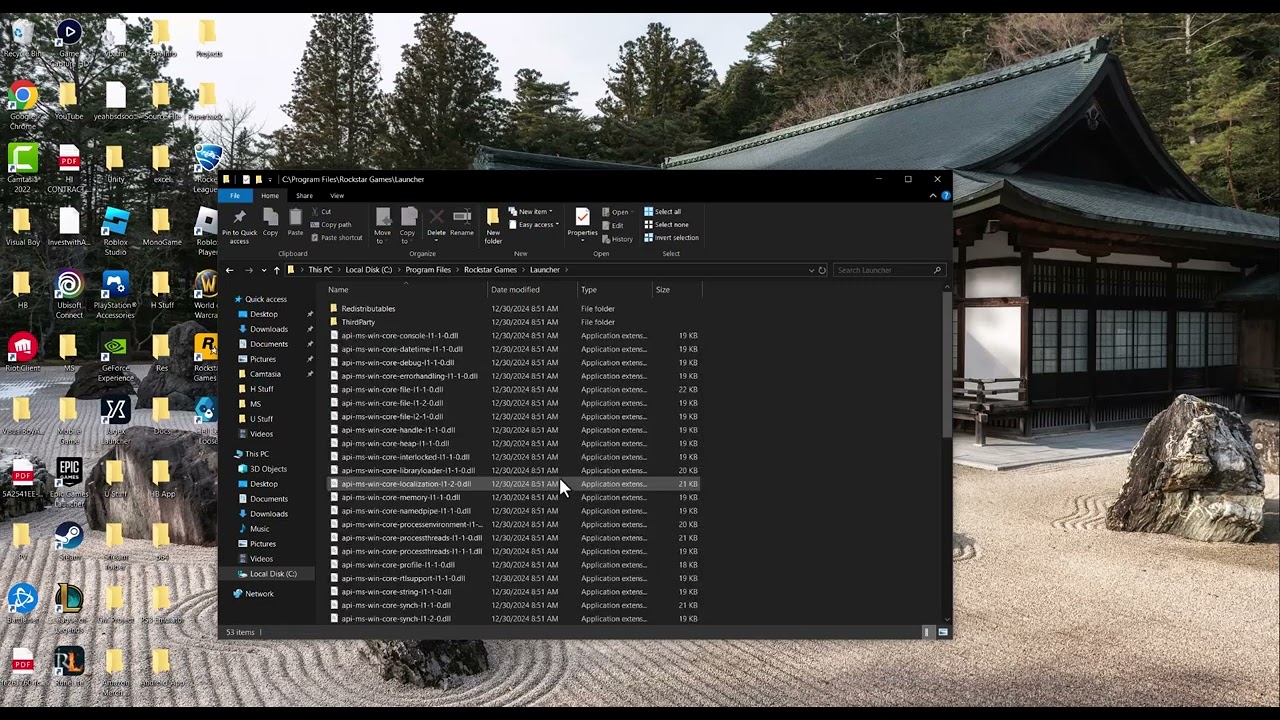
    5. Clean-reinstall the launcher if Code 16 remains. Follow Rockstar’s Error Code 16 page exactly. Uninstall the launcher, remove only the folders Rockstar names, download the latest installer from Rockstar, and reinstall.

    Why this works

    Code 16 is tied to an incomplete or inconsistent Rockstar installation. Updates and verification repair missing components first. A clean reinstall replaces the launcher and Social Club components when the normal repair is not enough.

    Alternatives

    • Temporarily pause third-party overlays and restart the launcher.
    • Use Rockstar’s general GTA V launcher troubleshooting if the error changes.
    • Collect launcher logs and contact Rockstar Support if a clean reinstall fails.

    Warnings and reversibility

    The source video proposes renaming the Rockstar Games folder and deleting Social Club manually. A viewer said the rename helped, but folder renames can break registered paths. This guide uses Rockstar’s documented procedure instead. Delete only the exact folders named by Rockstar; deleting other folders can remove game data. Restore backed-up saves if needed after reinstalling.

    FAQ

    What does Error Code 16 mean?

    Rockstar describes it as an incomplete installation of required Rockstar components.

    Do I need to reinstall GTA V first?

    No. Update and verify files before reinstalling the game itself.

    Can I just rename the Rockstar folder?

    It may change behavior temporarily, but it is not the preferred current fix because it can break launcher paths.

    Official references

    Source video

    As an Amazon Associate I earn from qualifying purchases.
  • How to Fix “The Software Was Closed Because an Error Occurred” on Nintendo Switch

    How to Fix “The Software Was Closed Because an Error Occurred” on Nintendo Switch

    Quick answer: Fully restart the Nintendo Switch, update the system and affected game, then use Check for Corrupt Data. If Nintendo reports damaged software, redownload it. Do not delete save data as a routine fix.

    Before you start

    • Connect the console to the internet.
    • Keep the console charged or docked.
    • If you use Save Data Cloud, confirm the latest backup before any destructive action.

    Fix the software-closing error

    1. Perform a full restart. Hold the POWER Button for at least three seconds, choose Power Options → Restart, and try the game again.
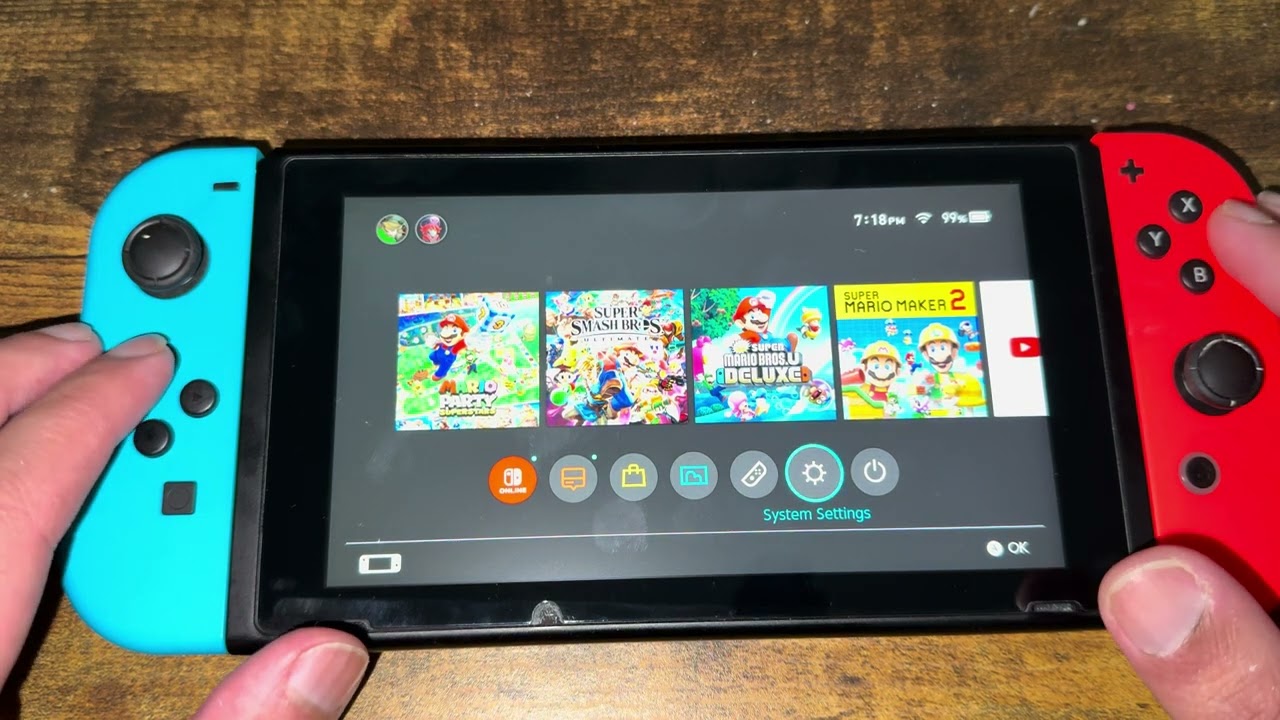
    2. Update the console. Open System Settings → System → System Update.
    3. Update the game. Highlight it on the HOME Menu, press + or −, then choose Software Update → Via the Internet.
    4. Check for corrupt data. Open System Settings → Data Management → Manage Software, choose the game, then select Check for Corrupt Data.
    5. Redownload the software if prompted. Reinstalling downloaded software does not normally erase separate save data, but verify your backup first.
    6. Contact Nintendo if it persists. Repeated errors across multiple games can indicate a console or storage problem.

    Why this works

    A complete restart clears a stuck game process. Updates address known software defects, while Nintendo’s corruption check can identify damaged installed data and direct the console to redownload it.

    Alternatives

    • Remove and reinsert the game card, then inspect it for dirt or damage.
    • If the game is on microSD, test it from system memory or another supported card.
    • Try another game to learn whether the fault affects one title or the whole console.

    Warnings and reversibility

    The source video suggests deleting save data. That is destructive and may be unrecoverable without a cloud backup, so this guide replaces it with Nintendo’s safer Check for Corrupt Data and redownload workflow. Do not erase saves unless Nintendo Support specifically instructs you and you have confirmed a backup.

    FAQ

    Does redownloading a game delete save data?

    Save data is stored separately, but always confirm a backup before reinstalling or managing storage.

    What if only one game crashes?

    Update, check that game’s data, and redownload it if needed.

    What if every game crashes?

    Update the system and contact Nintendo Support; the console or storage may need service.

    Official references

    Source video

    As an Amazon Associate I earn from qualifying purchases.