Category: Game Fixes

Troubleshooting guides and fixes for gaming errors, crashes, installation problems, and connectivity issues.

  • Fix Rockstar Games Services Authentication Error

    Fix Rockstar Games Services Authentication Error

    Rockstar Games Launcher authentication error troubleshooting

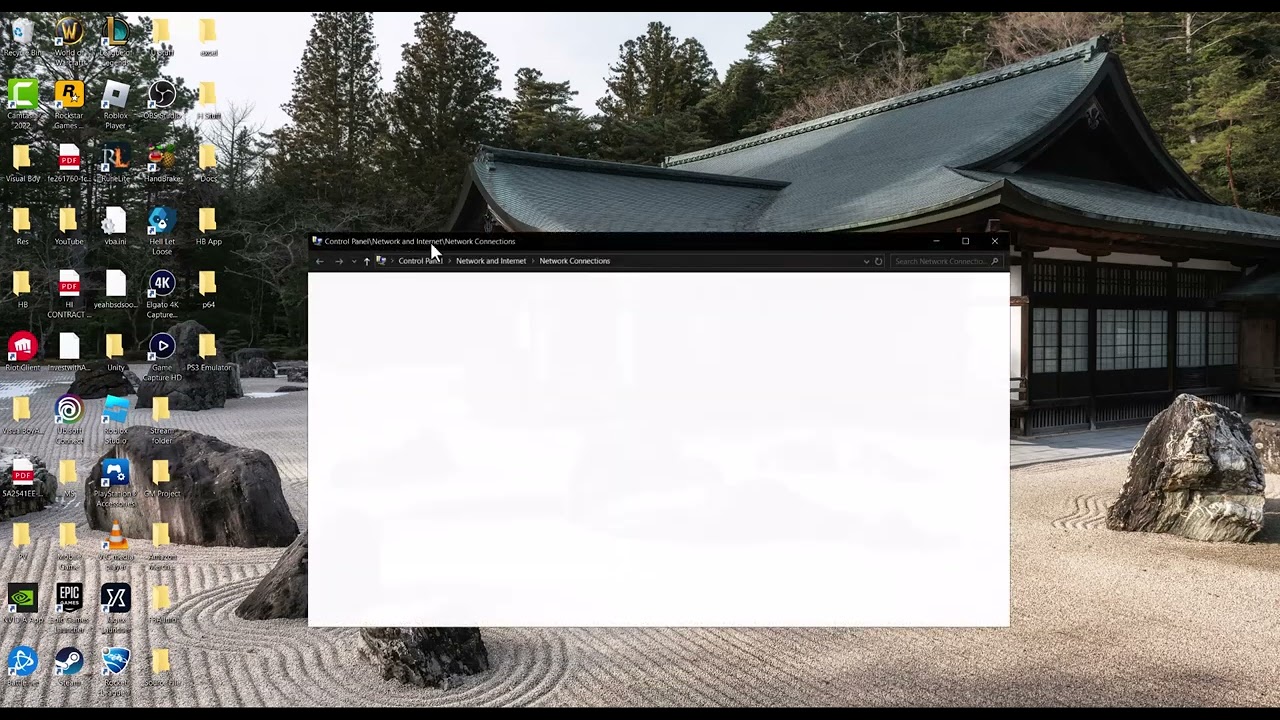
    Quick answer: Check Rockstar’s service status, turn off any proxy or VPN, fully restart the Rockstar Games Launcher, and reboot the router and PC. If the connection still fails, flush Windows DNS and reset Winsock, restart the PC, and only then test Rockstar’s documented DNS settings.

    Rockstar says this authentication message usually appears when the network or ISP uses a proxy or VPN. The source video demonstrates DNS and Windows network-reset commands; use them only after the simpler checks and restart afterward.

    Before you start

    • Know your Windows administrator password; the network commands require an elevated terminal.
    • Record any custom DNS addresses before changing them.
    • If this is a managed school or work network, contact the administrator instead of changing proxy or DNS settings.

    Fix the authentication error

    1. Open Rockstar Service Status. If Authentication or the Launcher is down, wait and test later.
    2. Disconnect any VPN. In Windows proxy settings, turn off a proxy you did not intentionally configure. If your ISP routes traffic through a proxy, contact it for help.
    3. Exit the Rockstar Games Launcher from the notification area, restart the PC, and sign in again.
    4. Power-cycle the router: unplug its power, wait several minutes, reconnect it, and wait for internet access to return. This briefly disconnects everyone using that router.
    5. If the error remains, open Windows Terminal (Admin). Run ipconfig /flushdns, then netsh winsock reset. Restart Windows before testing.
    6. As an optional reversible test, follow Rockstar’s connection guide to use Google Public DNS: IPv4 8.8.8.8 and 8.8.4.4. Do not change other adapter values.

    Why this works

    Authentication requires the launcher to reach Rockstar’s sign-in services directly. A service outage cannot be fixed locally. A proxy, VPN, stale name-resolution entry, or damaged Winsock catalog can instead redirect or interrupt that request. Restarting the relevant components and refreshing Windows networking removes those local failure points.

    How to undo the changes

    To undo a DNS change, return to the adapter’s IPv4 properties and choose Obtain DNS server address automatically, or restore the values you recorded. Reconnect a trusted VPN only after Rockstar sign-in works. A Winsock reset is completed by the required Windows restart; it may require some network software to reinitialize.

    Other safe checks

    • Confirm the Windows date, time, and time zone are correct.
    • Install launcher updates and use Rockstar’s current installer if the launcher is damaged.
    • Test a phone hotspot briefly to distinguish a home-router problem from an account or PC problem. Watch mobile data usage.
    • If the error follows the account on multiple networks and service status is normal, contact Rockstar Support.

    Warnings

    Do not open router ports blindly, disable the firewall permanently, or download unofficial launcher files. Never enter Rockstar credentials into third-party “authentication fix” sites. A router restart interrupts all connected devices. DNS changes affect name resolution for that adapter but can be reversed as described above.

    Frequently asked questions

    Is this always a Rockstar outage?

    No. Check service status first. Rockstar specifically identifies proxy or VPN routing as a common cause of this exact message.

    Will flushing DNS delete files?

    No. It clears cached domain-name lookups. The Winsock reset changes Windows network catalog settings and requires a restart.

    Should I leave public DNS enabled?

    Only if it works reliably and you want to keep it. You can restore automatic DNS at any time.

    Official references

    Source video

    As an Amazon Associate I earn from qualifying purchases.
  • Fix Dota 2 Not Launching or Starting on Steam

    Fix Dota 2 Not Launching or Starting on Steam

    Dota 2 not launching on Steam troubleshooting

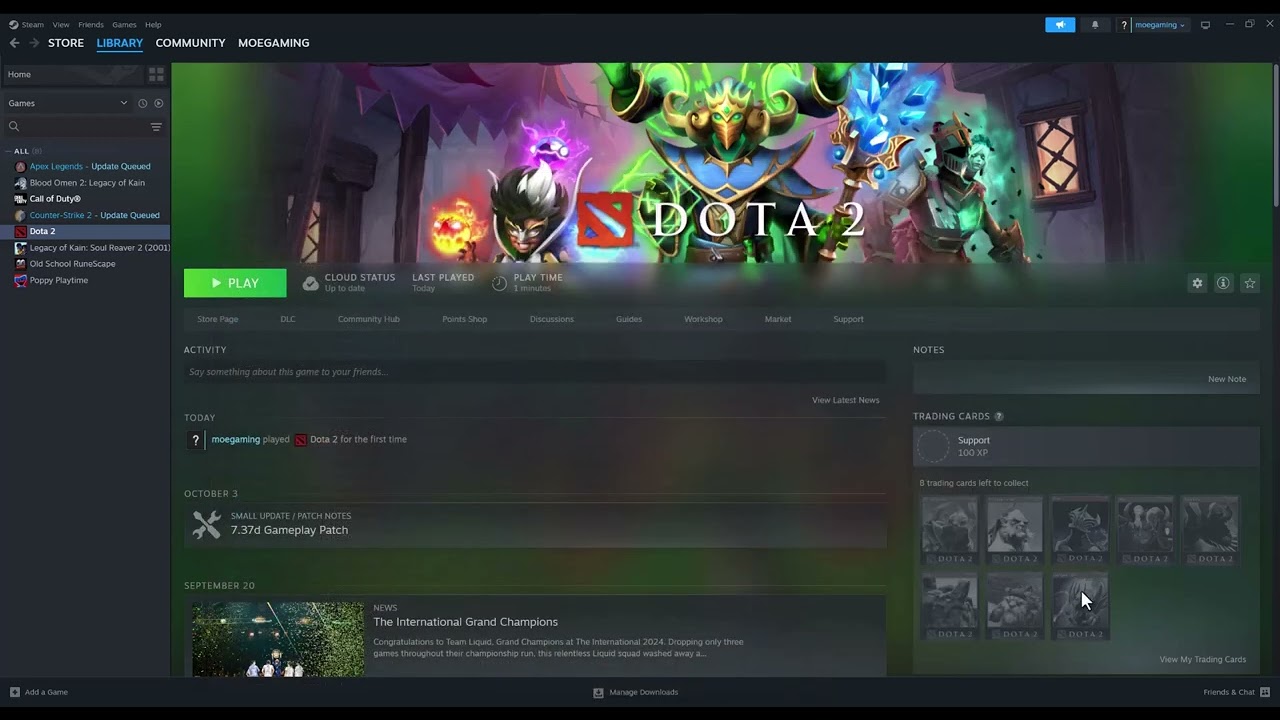
    Quick answer: Exit Steam completely, restart Windows, verify Dota 2’s installed files, remove unknown launch options, and update Windows plus the graphics driver. Test the game from the Steam Library before reinstalling it.

    Before you start

    • Close Dota 2 and save other work.
    • Confirm the PC still meets Dota 2’s current requirements on its Steam store page.
    • Note any custom launch options or mods so you can restore them later.

    How to fix Dota 2 not launching

    1. In Steam, choose Steam > Exit. Restart Windows, reopen Steam, and launch Dota 2 from Library.
    2. Right-click Dota 2, choose Properties > Installed Files, then select Verify integrity of game files. Let Steam finish any repair download.
    3. In Properties > General, review Launch Options. Remove entries you do not recognize. If you intentionally use options, copy them somewhere safe before testing with the field empty.
    4. Install pending Windows updates and the current graphics driver from NVIDIA, AMD, or Intel. Restart after updating.
    5. Temporarily close nonessential overlays, performance tuners, capture tools, and third-party antivirus features, then test. Re-enable protection after the test.
    6. If Steam reports the game as running when no window appears, end only the stuck Dota 2 process in Task Manager, restart Steam, and try again.

    Why these fixes work

    Verification replaces damaged or missing installation files. Clearing old launch options removes startup commands that may no longer match the current game build. Updating the operating system and graphics driver restores dependencies used when Dota 2 creates its window and rendering device.

    Safe alternatives

    • Use Steam’s normal uninstall and reinstall path only after verification fails.
    • Check the Steam Downloads page for a paused Dota 2 or Steam client update.
    • If the failure began after enabling a mod or custom configuration, remove that change and retest.
    • Try a clean Windows user account when the game launches for other users on the same PC.

    Warnings

    Do not download DLL files from random websites. Do not permanently force Dota 2 or Steam to run as administrator or in compatibility mode; the source video suggests those methods, but they are unnecessary for a normal supported Windows setup and can create permission conflicts. Verification may replace modified game files. Any disabled security protection should be re-enabled immediately after testing.

    Frequently asked questions

    Will verifying Dota 2 remove my items or rank?

    No. Account inventory and matchmaking data are stored with your Steam/Dota account. Verification checks local installation files.

    Why does Steam say Dota 2 is running with no window?

    A stuck process, overlay conflict, bad launch option, or graphics initialization failure can leave the process active. Restart the process and work through the steps in order.

    Should I use compatibility mode?

    Not on a supported Windows system. Turn compatibility mode off unless Valve support explicitly asks you to test a specific setting.

    Official references

    Source video

    As an Amazon Associate I earn from qualifying purchases.
  • Fix GTA V Windows 7 or 8 No Longer Supported Message

    Fix GTA V Windows 7 or 8 No Longer Supported Message

    GTA V Windows 7 and Windows 8 support ended message

    Quick answer: If the PC actually runs Windows 7 or Windows 8, the supported fix is to upgrade to a supported version of Windows. Rockstar ended official Launcher and game support for those systems on January 30, 2024. If the message appears on Windows 10 or Windows 11, turn off Windows 7/8 compatibility mode for the Rockstar Games Launcher and GTA V, then update or reinstall the launcher.

    Check which situation applies

    1. Press Windows + R, enter winver, and note the Windows version.
    2. If it says Windows 7 or 8/8.1, back up important data and plan an operating-system upgrade. A launcher workaround cannot restore official support.
    3. If it says Windows 10 or 11, continue with the compatibility checks below.

    Fix a false Windows 7 or 8 warning on Windows 10/11

    1. Exit GTA V and the Rockstar Games Launcher.
    2. Right-click the Rockstar Games Launcher shortcut and choose Properties.
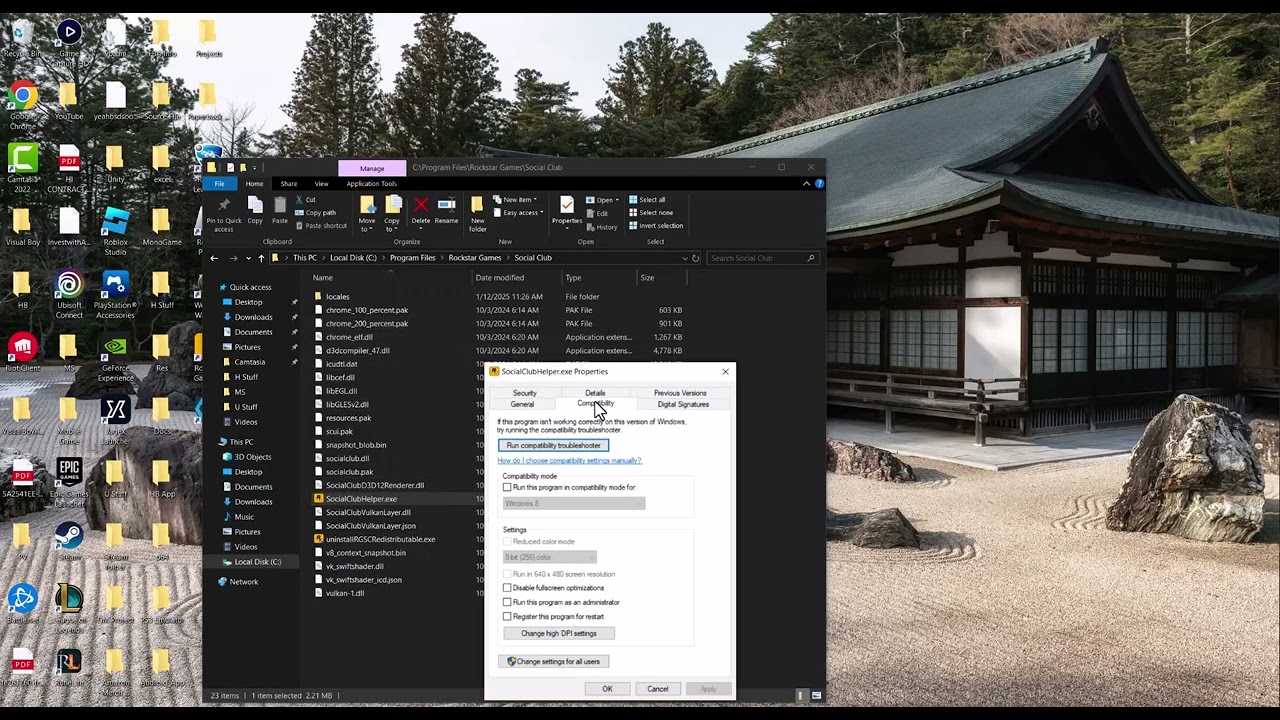
    3. Open Compatibility and clear Run this program in compatibility mode for. Also select Change settings for all users and clear the same option there if it is enabled.
    4. Repeat the check for GTA V’s executable and the launcher executable. Do not enable Windows 7 or Windows 8 mode.
    5. Restart Windows, open the launcher normally, and install any available launcher and game updates.
    6. If the warning remains, uninstall the Rockstar Games Launcher from Windows Apps, download the current installer from Rockstar, and reinstall it. Keep local game data unless the uninstaller clearly says it will remove it.

    Why this works

    Windows compatibility mode can report an older operating-system environment to an application. Disabling an accidental Windows 7/8 compatibility flag lets the launcher detect the real Windows 10/11 version. On a genuine Windows 7 or 8 installation, however, the warning reflects Rockstar’s support policy, so an operating-system upgrade is the durable route.

    What not to do

    • Do not download modified launcher files or DLLs.
    • Do not hide the warning with registry changes; that does not make an unsupported operating system secure or compatible.
    • Do not rename or delete the entire Rockstar Games folder without a backup. That can remove settings or local data and is not the official remedy for ended OS support.

    Alternatives and limitations

    If the computer cannot meet a supported Windows version’s requirements, use a supported PC or console. Before an operating-system upgrade, back up documents and game-related local files, confirm hardware and driver support, and keep any account recovery information available. Upgrading Windows may require reinstalling drivers or applications.

    Frequently asked questions

    Can I keep playing GTA V on Windows 7?

    It may launch in some circumstances, but Rockstar no longer officially supports Windows 7 or 8. Future launcher, security, or service changes can stop working without a supported fix.

    Why do I see the warning on Windows 11?

    A compatibility flag on the launcher or game is the most likely local cause. Disable it and restart before reinstalling anything.

    Can I undo the compatibility change?

    Yes. Return to Properties > Compatibility and restore the previous checkbox, although Windows 7/8 mode should not be needed on a current supported system.

    Official reference

    Rockstar Games Support: End of support for Windows 7 and Windows 8

    Source video

    As an Amazon Associate I earn from qualifying purchases.
  • Fix CS2 Failed to Connect With Local Steam Client Process

    Fix CS2 Failed to Connect With Local Steam Client Process

    Counter-Strike 2 Steam client connection error troubleshooting

    Quick answer: Fully exit Steam, reopen it so the client can update, launch Counter-Strike 2 from the Steam Library, and verify the game’s installed files. These steps repair the handoff between CS2 and the local Steam process without forcing administrator mode or changing compatibility settings.

    Before you start

    • Save any work and close Counter-Strike 2.
    • Make sure Steam is online and signed into the account that owns or can access CS2.
    • Allow time for Steam to verify the installation; it may download replacement files.

    Fix the local Steam client process error

    1. Close CS2. In Steam, choose Steam > Exit. Check Task Manager and wait for Steam and CS2 processes to close normally.
    2. Open Steam from its normal shortcut. Let any client update finish, then sign in again if prompted.
    3. Open Library, select Counter-Strike 2, and click Play. Avoid launching the game executable directly because the game needs the active Steam session.
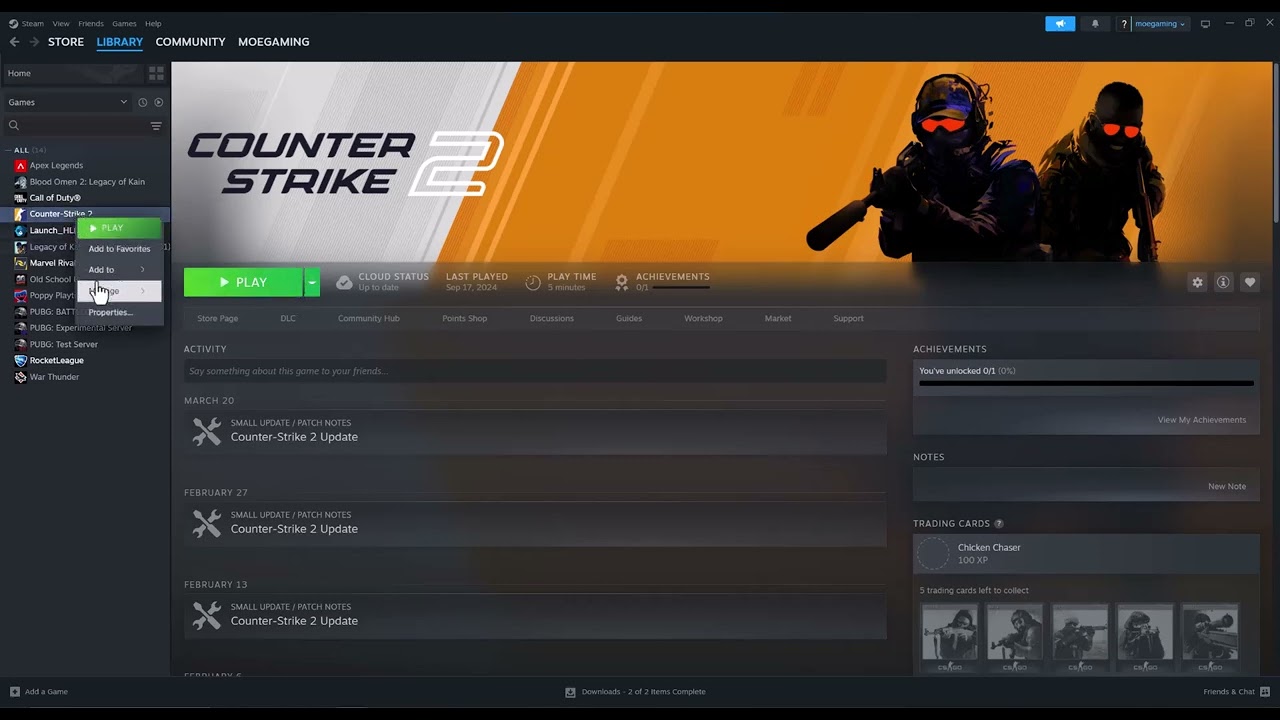
    4. If the error returns, right-click Counter-Strike 2 in the Library and choose Properties > Installed Files > Verify integrity of game files.
    5. When verification completes, restart Windows and try once more from Steam.
    6. Check Steam’s Downloads page for a pending client or game update. Finish it before testing again.

    Why this works

    CS2 relies on the local Steam client for ownership, account, update, and launch services. A stale client session, direct executable launch, or mismatched game file can break that connection. Restarting refreshes the client session; verification compares the installation with Steam’s current copy and reacquires damaged or missing files.

    Safe alternatives

    • Temporarily close nonessential overlays and monitoring tools, then test again.
    • Check whether security software quarantined a Steam or CS2 file. Restore it only when your security product identifies the official signed file, then verify the game again.
    • If Steam itself will not update, restart the PC and follow Steam’s update and installation troubleshooting.
    • Use a different network only when Steam cannot sign in or download updates; a DNS change is not a primary fix for a local-process error.

    Warnings

    Do not download replacement DLL files from third-party sites. Do not permanently run Steam or CS2 as administrator unless official support specifically asks you to test it; mismatched privilege levels can create another launch conflict. Compatibility mode is also unnecessary on a supported Windows installation. Verification normally preserves settings, but it can replace modified game files.

    Frequently asked questions

    Will verifying CS2 delete my inventory?

    No. Inventory is tied to your Steam account, not the local installation. Verification checks installed game files.

    Why should I launch CS2 from the Library?

    The Library launch starts the game through the authenticated Steam client. Opening the executable directly can miss that handoff.

    Should I reinstall CS2 immediately?

    No. Restarting Steam and verifying files are faster and less disruptive. Reinstall only after those steps fail and you have ruled out a Steam client problem.

    Official references

    Source video

    As an Amazon Associate I earn from qualifying purchases.
  • Fix Black Ops 6 Game Chat and Voice Chat Not Working

    Fix Black Ops 6 Game Chat and Voice Chat Not Working

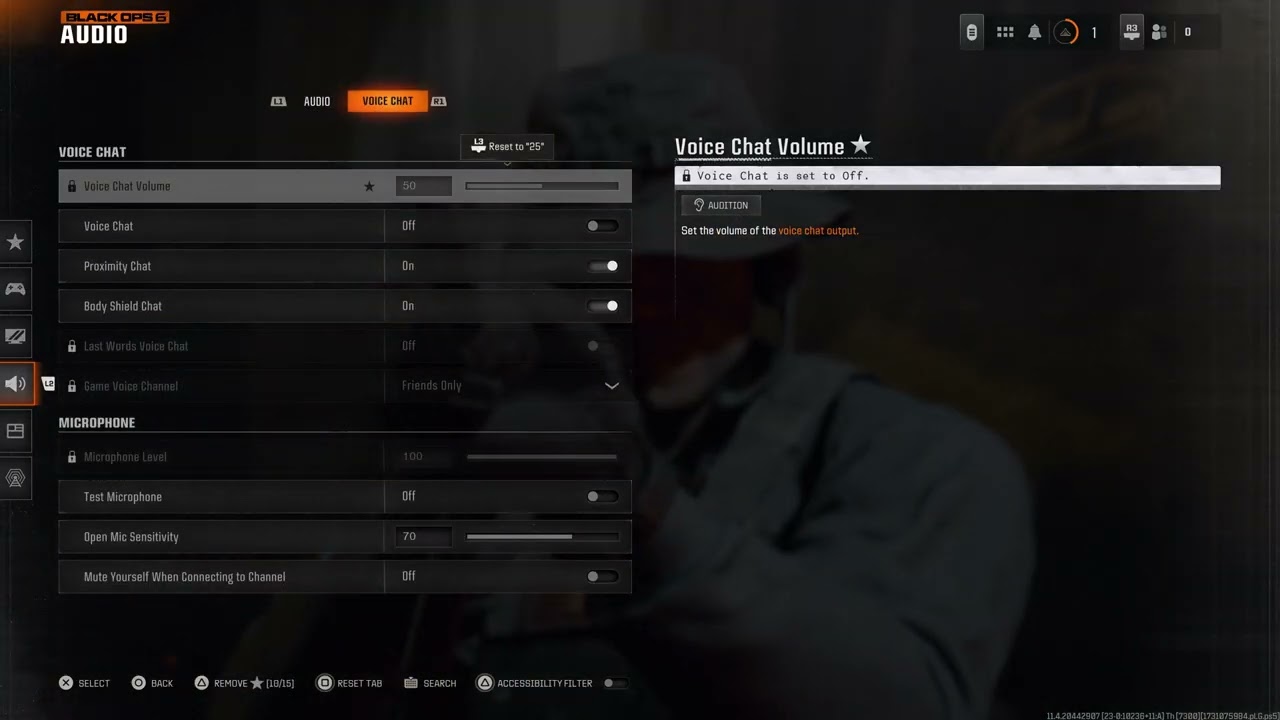
    Black Ops 6 voice chat settings menu for fixing game chat

    Quick answer: In Black Ops 6, open Settings > Audio > Voice Chat, turn Voice Chat on, raise Voice Chat Volume, and set Game Chat Voice to the audience you actually want to hear. If you want public lobby chat, choose All Lobby. Then join the correct channel, unmute the lobby, and check your console or PC microphone permission.

    The source video demonstrates the in-game menu path. Activision’s current support page confirms the same route and notes that platform account settings can override the game’s settings.

    Before you start

    • Connect the headset or microphone before launching the game.
    • Make sure the microphone works in your console’s audio test or Windows sound settings.
    • Use an account that is allowed to communicate online; child, family, and privacy settings can block chat.

    How to fix Black Ops 6 game chat

    1. From the main menu, open Settings.
    2. Select Audio, then open the Voice Chat tab.
    3. Set Voice Chat to On and move Voice Chat Volume above zero.
    4. Open Game Chat Voice. Choose All Lobby for public lobby communication, Party Only for your party, or Friends Only when you only want friends.
    5. Open the Chat section from the main menu and confirm you are connected to the intended chat channel. Black Ops 6 allows only one Chat Channel connection at a time.
    6. In the pre-game lobby, select Voice and make sure the lobby is not muted. During a match, open the scoreboard, highlight the affected player, and use Toggle Mute.
    7. Use the microphone test in the Voice Chat settings. If there is no input, select the correct microphone in Windows or your console’s sound settings, then restart the game.

    Why this works

    Voice chat can fail even while the microphone itself is working. The master Voice Chat switch, chat audience, active channel, per-player mute state, and platform privacy controls are separate layers. Correcting each layer removes the most common configuration conflicts without changing network security or account data.

    If chat still does not work

    • Leave any console party chat temporarily and rejoin the in-game channel.
    • Disconnect other microphones so the game cannot select the wrong input.
    • Restart the game after changing Windows microphone permissions or console privacy settings.
    • Check for an Activision voice-chat enforcement notice. Settings changes cannot bypass an account communication restriction.
    • If only one person is affected, ask both players to check their mute and blocked-player lists.

    Warnings and limitations

    All Lobby exposes you to public voice chat. Use Party Only or Friends Only when you prefer a smaller audience, and use mute, block, and report tools when needed. Do not disable parental controls without the account owner’s permission. Proximity Chat and opponent communication can also be limited by playlist rules.

    Frequently asked questions

    Why can I hear players but they cannot hear me?

    The output path is working, but the game may be using the wrong input device, microphone permission may be denied, or the mic threshold may be too high. Test the mic and select the correct input first.

    Why does party chat work but game chat does not?

    Party chat and game chat use different channels. Leave or switch from the platform party, connect to the in-game channel, and confirm Game Chat Voice is not limited to a different audience.

    Does this reset my audio settings?

    No. These steps change only the relevant voice-chat choices. You can undo them by restoring the previous Voice Chat and Game Chat Voice values.

    Official reference

    Activision: Communication Features in Call of Duty: Black Ops 6

    Source video

    As an Amazon Associate I earn from qualifying purchases.
  • How to Fix Fortnite Matchmaking Error #3

    How to Fix Fortnite Matchmaking Error #3

    Quick answer: Fortnite matchmaking error #3 can occur when servers are under maintenance, the connection is unstable, or available Battle Buses are full. Check Epic status, wait a few minutes, restart Fortnite, and keep Matchmaking Region on Auto. If one region appears stuck, test a nearby region once and return to Auto afterward.

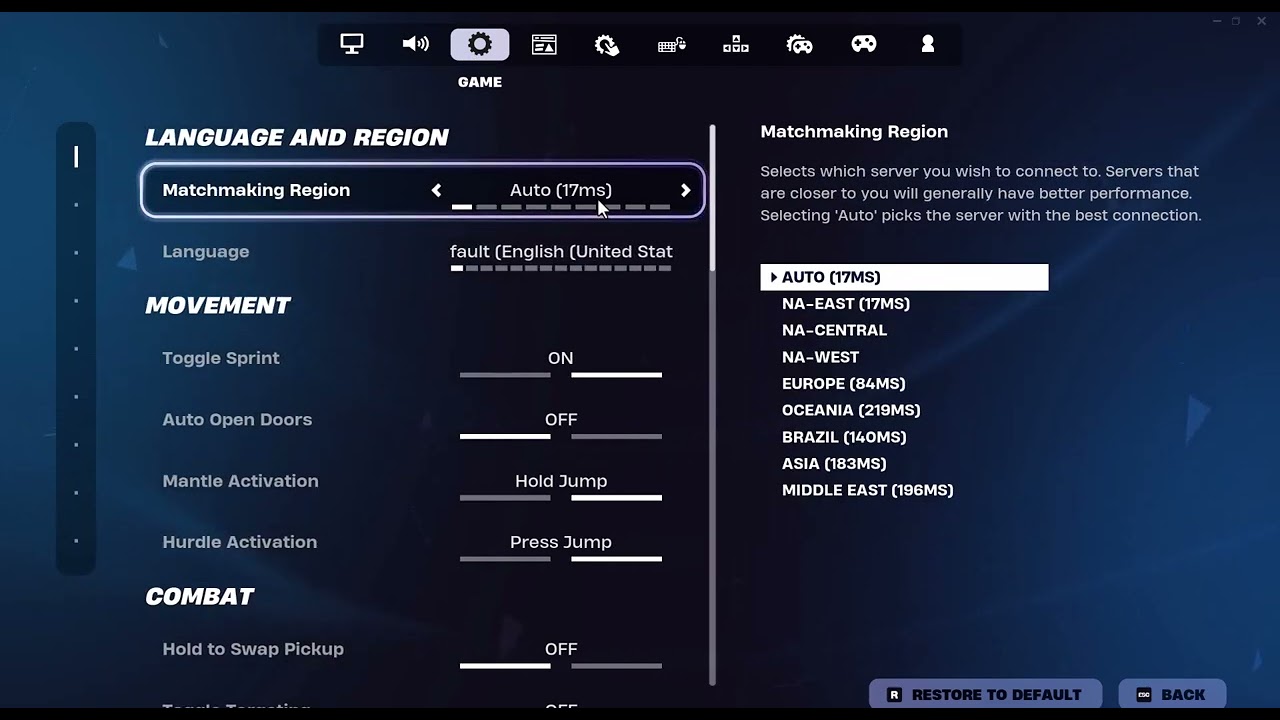
    Fortnite matchmaking region setting for error 3
    The source video demonstrates changing Matchmaking Region. Epic normally recommends Auto for the best available ping.

    Before you start

    • Access to the Fortnite Settings menu.
    • A stable connection and permission to restart the router if needed.
    • Your normal region and the displayed latency for nearby alternatives.
    • Patience for a server-capacity problem; local settings cannot open a full match server.

    How to fix Fortnite matchmaking error #3

    1. Check Epic Games status. Look for Fortnite matchmaking, login, or game-services incidents. If maintenance is active, wait rather than reinstalling the game.
    2. Retry after a short pause. Epic describes error #3 as potentially occurring when Battle Buses are full. Return to the lobby, wait several minutes, and queue again.
    3. Restart Fortnite. Close the game completely and reopen it. On a console, also restart the system rather than resuming a suspended session.
    4. Keep Matchmaking Region on Auto first. Open the menu, choose Settings, select the Game tab, find Matchmaking Region, select Auto, apply the change, and retry.
    5. Test one nearby region if Auto is stuck. Choose the nearest alternative with a reasonable latency, apply it, and queue once. This is an unofficial, temporary workaround demonstrated by the video, not a guaranteed fix.
    6. Restore Auto if the alternate is worse. High ping can create delay and packet loss. Return Matchmaking Region to Auto after the comparison.
    7. Restart the network if other online services also fail. Unplug the modem and router for five minutes, reconnect them, and test again. Use Ethernet for a clean comparison where possible.

    Why these steps work

    Status and capacity checks address the most likely service-side explanations before you touch local settings. Restarting clears a stale lobby session. Region selection can route the next queue to a different nearby matchmaking pool, but the tradeoff is higher latency. Auto remains Epic’s recommended setting because it selects the region with the best ping.

    Other safe options

    • Leave the party and test a solo queue; if solo works, rebuild the party.
    • Confirm every party member has the current Fortnite update.
    • Disable a VPN or proxy for the test.
    • If only one playlist fails, try a different official mode and return later.

    Warnings and how to undo changes

    Do not repeatedly jump to a distant region merely to avoid a full queue; worse latency can make the match unplayable. Do not delete the game or change router security for a short-lived capacity error. To undo the workaround, set Matchmaking Region back to Auto and select Apply.

    Source video

    The manual region change is video-derived and may help only when a particular matchmaking pool is congested. Epic’s current guidance is to use Auto for the best ping and to wait through service or capacity issues.

    Frequently asked questions

    What does Fortnite matchmaking error #3 mean?

    Epic’s current support page says it can be caused by server maintenance, a network problem, or all available Battle Buses being full.

    Which region should I choose?

    Use Auto first. For a brief comparison, pick the nearest alternative with the lowest displayed latency, then return to Auto if it does not help.

    Does reinstalling Fortnite fix error #3?

    Usually not when the cause is maintenance or full matchmaking capacity. Check status, wait, restart, and test the connection before considering a reinstall.

    Official references

    Checked October 1, 2026.

    As an Amazon Associate I earn from qualifying purchases.
  • How to Fix Rockstar Games Launcher Error 7002.1

    How to Fix Rockstar Games Launcher Error 7002.1

    Quick answer: Error 7002.1 is an audio-initialization problem. Update the PC’s sound driver, close third-party audio-enhancement software, select a working output device, and verify the game files. Resetting the Windows volume mixer or temporarily connecting headphones can help identify a bad audio route.

    Rockstar Games Launcher audio error 7002.1 in Windows
    The source video demonstrates the Windows volume-mixer reset and headphone test for Rockstar error 7002.1.

    Before you start

    • Administrator access to update the audio driver.
    • A known-working speaker, headset, or monitor audio output.
    • Time to verify GTA V, Red Dead Redemption 2, or the affected Rockstar game.
    • A note of custom per-app volume levels before resetting the mixer.

    How to fix Rockstar Games Launcher error 7002.1

    1. Restart Windows and reconnect the audio device. Make sure the device appears in Settings > System > Sound and can play the Windows test sound.
    2. Select the intended output. Choose the working speakers or headset as the default output before launching Rockstar Games Launcher. Disconnect unused HDMI, Bluetooth, or virtual audio outputs for one test.
    3. Update the sound driver. Install the current driver from Windows Update or the PC, motherboard, or audio-device manufacturer. Restart after installation.
    4. Close audio-enhancement software. Exit spatial-audio utilities, voice changers, equalizers, virtual mixers, capture tools, and motherboard audio suites, then test the game.
    5. Turn off audio enhancements. Open the output device’s properties in Windows Sound settings and disable enhancements for a comparison. You can turn them back on later.
    6. Reset the volume mixer. In Windows Sound settings, open Volume mixer and reset sound devices and volumes for apps to the recommended defaults. This clears a broken per-app route but also removes custom volume choices.
    7. Verify the game files. Use Verify Integrity or Verify Files in the launcher that owns the game. This repairs missing game audio files without downloading random DLLs.
    8. Test a wired headset. If the launcher works only with a wired output, the original Bluetooth, HDMI, or virtual device path is the likely trigger. Update or reconfigure that device instead of leaving an unnecessary workaround.

    Why this works

    Rockstar’s own 7002.1 guidance points to faulty or outdated sound drivers and third-party audio software. A valid default output lets the game initialize audio. Driver updates, closed enhancement utilities, and verified files address those causes. The video’s mixer reset and headset test are useful for isolating a per-app route or device problem.

    Other safe options

    • Apply Windows updates and restart before retesting.
    • In Bluetooth settings, remove and pair the headset again.
    • If monitor audio is selected, confirm the monitor is powered and the HDMI or DisplayPort cable carries audio.
    • Create a clean boot only if the error disappears when enhancement apps are closed and you need to identify the conflicting program.

    Warnings and how to undo changes

    Do not download replacement DLLs or audio drivers from an unofficial file site. Do not permanently disable security software. To undo the mixer reset, set each app’s volume and output again. To restore enhancements, reopen the device properties and enable only the feature you actually use.

    Source video

    The volume-mixer reset and headphone workaround come from the video. The driver, enhancement-software, file-verification, and safety sequence follows Rockstar and Microsoft guidance.

    Frequently asked questions

    Why does plugging in headphones fix 7002.1?

    It gives Windows and the game a different working output path. That points to the original output, driver, or enhancement layer rather than proving the launcher itself is damaged.

    Will Reset volume mixer delete audio drivers?

    No. It resets per-app volume and routing preferences. It does not uninstall the hardware driver.

    Should I reinstall the game?

    Verify files first. A full reinstall is slower and will not correct a conflicting audio utility or broken device driver.

    Official references

    Checked October 1, 2026.

    As an Amazon Associate I earn from qualifying purchases.
  • How to Fix Marvel Rivals Lag and Connection Errors on Xbox

    How to Fix Marvel Rivals Lag and Connection Errors on Xbox

    Quick answer: First separate network lag from low frame rate. If the network warning, rubber-banding, or disconnects affect Marvel Rivals, check official announcements and Xbox status, restart the game and console, test the Xbox connection, and try Ethernet. Clear an alternate MAC address or test manual DNS only after the basic checks.

    Marvel Rivals network troubleshooting on Xbox
    The source video demonstrates alternate-MAC and DNS settings on Xbox. Neither is a guaranteed cure for server-side lag.

    Before you start

    • An Xbox Series X or Series S with Marvel Rivals updated.
    • Access to Settings and your current Wi-Fi password.
    • An Ethernet cable if the console is close enough to the router.
    • A note of any alternate MAC address your school, hotel, or managed network requires.

    How to fix Marvel Rivals lag on Xbox

    1. Identify the symptom. Rubber-banding, teleporting players, network icons, and disconnects indicate connection trouble. Choppy animation without a network warning may be frame-rate or display performance and needs a different fix.
    2. Check for a service incident. Review Marvel Rivals official announcements and Xbox status. If many players are affected, local network changes will not repair the game service.
    3. Close and restart the game. Quit Marvel Rivals from the Guide so it does not resume from a suspended session, then restart the console.
    4. Run Xbox network tests. Go to Settings > General > Network settings. Test the connection and review speed, latency, and packet loss. Packet loss is more important to real-time play than a large headline download speed.
    5. Power-cycle the network. Turn off the Xbox, unplug the modem and router for five minutes, reconnect them in order, and start the console when the network is fully online.
    6. Try Ethernet. A wired test removes Wi-Fi distance and interference. If Ethernet is smooth, improve router placement or use the less congested Wi-Fi band.
    7. Clear Alternate MAC address only if appropriate. In Advanced settings, open Alternate MAC address and select Clear, then let the console restart. If a managed network requires a custom value, record it first and re-enter it if connectivity is lost.
    8. Try DNS only as a comparison. Manual DNS can be tested with a reputable resolver. It will not fix overloaded match servers. Return DNS to Automatic if there is no measurable improvement.

    Why these steps work

    The sequence rules out a game outage, a stale console session, local packet loss, and Wi-Fi interference before changing advanced settings. Clearing Alternate MAC removes only an alternate override and restarts networking. DNS affects name lookup; it cannot remove physical signal problems or server congestion.

    Other safe options

    • Pause household cloud backups and large uploads during a match.
    • Disable VPN or proxy routing on the home network for a clean comparison.
    • Test another online Xbox game. If both lag, focus on the connection rather than reinstalling Marvel Rivals.
    • If only one regional server is affected, wait and retry rather than repeatedly changing the console.

    Warnings and how to undo changes

    The source video promises that its settings will stop lag; no local setting can guarantee that. Clearing Alternate MAC can disrupt a network that intentionally uses a custom override, so record it first. To undo manual DNS, choose Automatic. Do not disable router security or expose the console through an unrestricted DMZ.

    Source video

    The alternate-MAC and DNS actions are unofficial, reversible diagnostics demonstrated by the video. The service and network checks follow current first-party guidance.

    Frequently asked questions

    Is every Marvel Rivals stutter caused by the network?

    No. Network lag changes player positions or causes disconnects. Low frame rate affects animation and controller feel even when the network is stable.

    Will Clear Alternate MAC delete games?

    No. It clears the alternate network identifier and restarts the console. It does not uninstall games, but managed networks may require you to restore a custom value.

    Why is my speed test fast while matches still lag?

    Real-time games are sensitive to packet loss, latency variation, Wi-Fi interference, and server load. Raw download bandwidth is only one part of the path.

    Official references

    Checked October 1, 2026.

    As an Amazon Associate I earn from qualifying purchases.
  • How to Fix Xbox Error 0x80072EE2

    How to Fix Xbox Error 0x80072EE2

    Quick answer: Check Xbox status, restart the console, power-cycle the modem and router, and run Xbox network tests. Retry the Store or Game Pass download on Ethernet if possible. Manual DNS is an optional diagnostic—not a guaranteed speed boost.

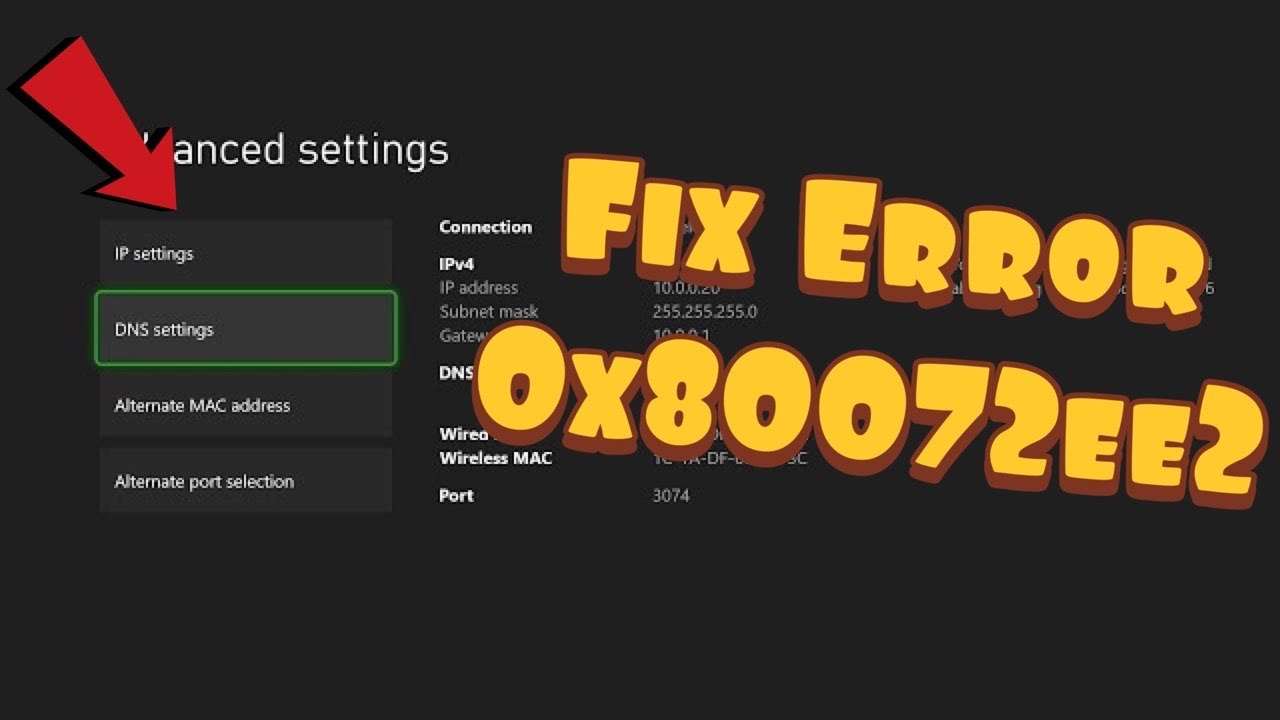
    Xbox network settings for error 0x80072ee2
    The source video demonstrates Xbox network and DNS settings for a timed-out download.

    Before you start

    • The account that owns the purchase or Game Pass entitlement.
    • Your Wi-Fi password or an Ethernet cable.
    • Access to the modem and router power plugs.
    • Enough free console storage for the game plus update overhead.

    How to fix Xbox error 0x80072EE2

    1. Check Xbox status. Look for Store, account, or games-and-gaming incidents. If a relevant service is limited, wait and retry later.
    2. Restart the console. Hold the Xbox button, choose Restart console, then retry the download from My games & apps or the Store.
    3. Restart the connection. Shut down the Xbox, unplug the modem and router for about five minutes, reconnect the modem first, then the router, and start the console after internet service returns.
    4. Test the network. Open Settings > General > Network settings and run Test network connection. Use Test network speed & statistics to look for packet loss or unusually high latency.
    5. Try Ethernet. Connect the console directly to the router if possible. A successful wired download points to Wi-Fi signal, interference, or congestion.
    6. Cancel only the failed queue item and retry. Do not remove installed data for other games. Confirm there is enough free space before starting again.
    7. Try manual DNS only as a final reversible test. In Advanced settings, open DNS settings and enter a reputable public resolver carefully. Test the connection again. If the error remains or performance worsens, return DNS to Automatic.

    Why these steps work

    Error 0x80072EE2 is encountered when the download or Store request times out. Status checks rule out a service-side incident. Restarting the devices renews the local session, while network tests and Ethernet identify packet loss or weak Wi-Fi. DNS changes only affect name resolution and do not create more bandwidth.

    Other safe options

    • Pause other console downloads and large household uploads.
    • Sign out and back in only after confirming the correct account owns the game.
    • Try a different game or app download to learn whether the problem affects one product or the whole Store.
    • If every device on the connection is slow, contact the ISP with the test results.

    Warnings and how to undo changes

    Do not factory-reset the router, disable its firewall, or erase the console as an early fix. The video states that Google DNS will make the connection faster; that is not guaranteed. To undo manual DNS, return to Network settings, open Advanced settings and DNS settings, then select Automatic.

    Source video

    The video supplies the console menu path and DNS test. This guide replaces its speed claim with a limited, reversible diagnostic.

    Frequently asked questions

    Is 0x80072EE2 always an Xbox outage?

    No. It can appear when a Store request times out anywhere along the path. Xbox status is the first check, followed by local network tests.

    Will changing DNS improve download speed?

    Not necessarily. DNS resolves names; it does not raise the connection’s bandwidth. Keep Automatic unless a careful comparison shows the alternate resolver helps.

    Should I reinstall the whole game?

    Not until the service and network are stable. A full reinstall can waste time and data if the connection is still timing out.

    Official references

    Checked October 1, 2026.

    As an Amazon Associate I earn from qualifying purchases.
  • How to Fix PS4 Error CE-43461-8

    How to Fix PS4 Error CE-43461-8

    Quick answer: Delete the failed PS4 system-software download from Notifications, restart the console, and download the update again through Settings > System Software Update. If the new download also fails, use Sony’s Safe Mode or USB update process.

    PS4 system software update download for error CE-43461-8
    The source video shows how to remove the failed download before requesting a clean copy.

    Before you start

    • A stable internet connection and enough free system-storage space.
    • Power that will remain connected throughout the update.
    • A USB data cable for the controller if Safe Mode becomes necessary.
    • A USB drive and computer only for Sony’s manual update method.

    How to fix PS4 error CE-43461-8

    1. Open Notifications. From the PS4 home screen, open Notifications and find the failed System Software Update download.
    2. Delete the failed download. Highlight it, press the Options button, choose Delete, and confirm. Remove only the failed update item—not saved data or installed games.
    3. Restart the PS4. Use Power > Restart PS4 to clear the current update session.
    4. Download a fresh update. Open Settings > System Software Update and allow the console to request the current version again.
    5. Keep the connection stable. Pause other large downloads and, if possible, use Ethernet while the file downloads and installs.
    6. Try Safe Mode Update System Software. Turn the PS4 fully off, hold the power button until the second beep, connect the controller by USB, and select Update System Software. Try the internet option first.
    7. Use Sony’s USB update instructions if required. Download the update only from PlayStation, preserve the exact PS4/UPDATE folder structure and official filename, then select the USB option in Safe Mode.

    Why this fix works

    An interrupted or damaged update package can remain in the download queue and fail repeatedly. Deleting that item forces the PS4 to request a clean copy. Restarting clears the stalled session, while Safe Mode provides a separate update path when the normal interface cannot finish.

    Other safe options

    • Check PlayStation Network status before repeating the download.
    • Free storage by deleting an installed game you can redownload; do not delete save data unless it is backed up.
    • Restart the modem and router by unplugging power for five minutes if other devices are also losing connectivity.

    Warnings and how to undo changes

    Do not turn off the console during installation. Use the standard update file for an update; the larger PS4 reinstallation file is for a data-erasing system-software reinstall. Deleting the failed notification cannot be undone, but it removes only that download and the PS4 can fetch a new copy.

    Source video

    The video demonstrates deleting the failed update and downloading it again. The Safe Mode and USB details follow Sony’s current instructions.

    Frequently asked questions

    Does deleting the update remove games or saves?

    No. Deleting the failed item from Notifications removes that download. It does not uninstall every game or erase save data.

    Why is the USB update not recognized?

    The usual causes are an incorrect folder path, wrong filename, unsupported drive format, or using the wrong update package. Follow Sony’s current page character for character.

    Should I initialize the PS4 for CE-43461-8?

    Not for the first attempt. Delete and redownload the update, then use Safe Mode Update System Software. Initialization erases data and belongs only in a broader recovery path after backups.

    Official references

    Checked October 1, 2026.

    As an Amazon Associate I earn from qualifying purchases.