Category: Game Fixes

Troubleshooting guides and fixes for gaming errors, crashes, installation problems, and connectivity issues.

  • How to Fix PS4 Error CE-39984-3

    How to Fix PS4 Error CE-39984-3

    Quick answer: Check PlayStation Network status, restart the PS4 and networking equipment without factory-resetting the router, then test Ethernet. If the error persists, recreate the PS4 connection and use manual DNS only as a reversible diagnostic.
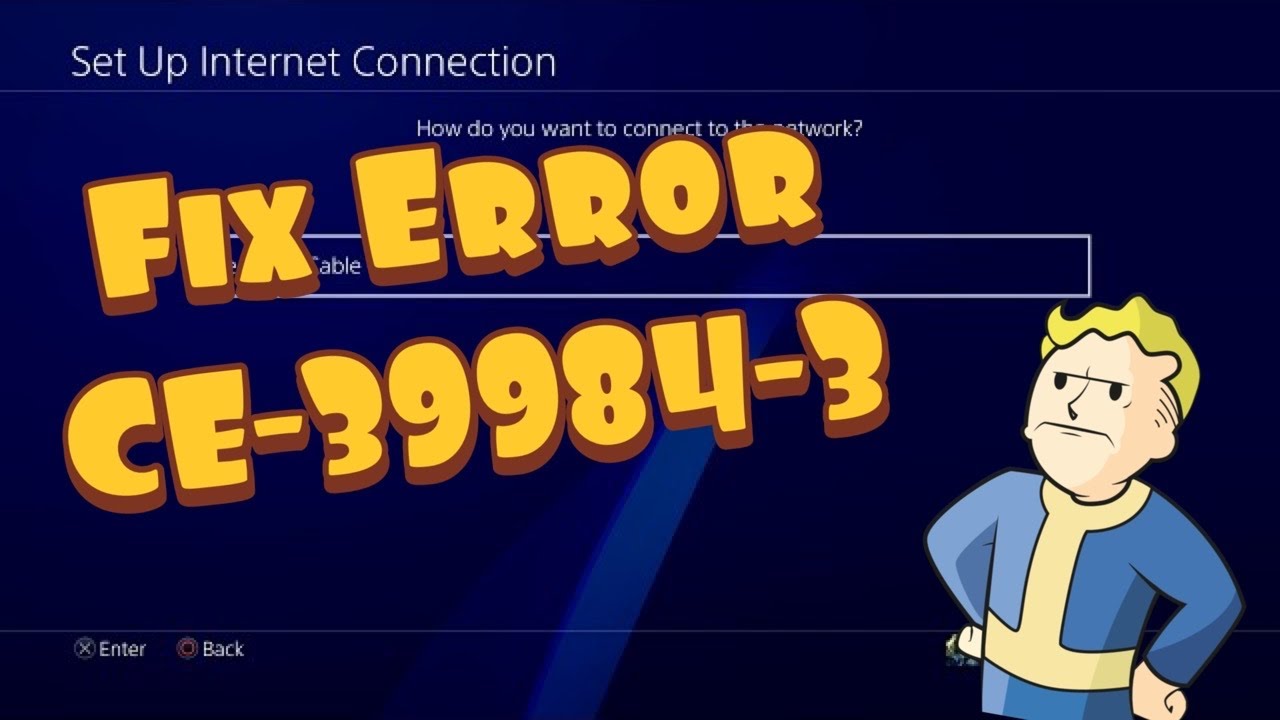
    PS4 network settings for error CE-39984-3
    The source video demonstrates Ethernet and custom DNS. This guide avoids its router factory-reset suggestion.

    Before you start

    • Your current Wi-Fi password or an Ethernet cable.
    • Access to the modem and router power plugs.
    • A phone or computer to check PlayStation status.
    • Any special ISP or apartment-network settings you may need to reconnect.

    How to fix PS4 error CE-39984-3

    1. Check PlayStation Network status. If account, gaming, or Store services show an incident, wait for recovery before changing the console.
    2. Restart the PS4. Use Power > Restart PS4 rather than Rest Mode.
    3. Power-cycle the network safely. Unplug the modem and router for about five minutes. Reconnect the modem first, wait until it is online, then reconnect the router and restart the PS4. Do not press a recessed reset button.
    4. Run Test Internet Connection. Open Settings > Network > Test Internet Connection. Note whether IP address, internet access, or PlayStation sign-in is the first failed stage.
    5. Try a wired connection. If possible, connect the PS4 directly to the router with Ethernet and set up the LAN connection. A successful wired test points to Wi-Fi signal or interference rather than the console account.
    6. Recreate the wireless connection. Choose Set Up Internet Connection, select the correct network again, and enter the current password. Move the console closer to the router for the test.
    7. Try manual DNS only if needed. Choose Custom, leave IP Address and MTU Automatic, choose Do Not Specify for DHCP Host Name, and Do Not Use for Proxy. A reputable public resolver can be entered manually. If nothing improves, set up the connection again with Easy to restore DNS to Automatic.

    Why these steps work

    This sequence separates a PlayStation outage from a local connection problem. A normal router power cycle renews the session without deleting ISP or Wi-Fi configuration. Ethernet removes radio interference from the test. Manual DNS only changes name resolution; it does not increase line speed or fix a service outage.

    Other safe options

    • Pause large downloads and video streams on other devices during the test.
    • Try the other Wi-Fi band if the router provides separate 2.4 GHz and 5 GHz networks.
    • Use a brief phone-hotspot test only to compare networks, and stop before consuming substantial mobile data.

    Warnings and how to undo changes

    The source video recommends using the router’s physical reset control. Do not do that as a routine troubleshooting step: a factory reset can erase the ISP login, Wi-Fi name, password, port rules, and security configuration. Unplugging power is different and is safe. To undo manual DNS, recreate the PS4 connection with Easy or set DNS back to Automatic.

    Source video

    The wired-connection and DNS menu paths come from the video. The router-reset step is intentionally replaced with the safer first-party power-cycle procedure.

    Frequently asked questions

    Will changing DNS fix every CE-39984-3 case?

    No. DNS cannot fix a PlayStation outage, poor Wi-Fi signal, failed account authentication, or an ISP fault. Treat it as one diagnostic after simpler checks.

    Should I open ports on the router?

    Not first. Test service status, restart equipment, and compare Ethernet before changing firewall or NAT rules. Avoid disabling the firewall or placing the console in an unrestricted DMZ.

    Why does Ethernet matter?

    It removes Wi-Fi congestion, distance, and interference from the path. If Ethernet works while Wi-Fi fails, focus on placement, band selection, and router settings.

    Official references

    Checked October 1, 2026.

    As an Amazon Associate I earn from qualifying purchases.
  • How to Fix PS4 Error CE-30781-9

    How to Fix PS4 Error CE-30781-9

    Quick answer: Turn the PS4 completely off, start it in Safe Mode, and try Rebuild Database. If the error remains, update the system software from Safe Mode. Treat Initialize PS4 or reinstalling system software as a final, data-erasing step—not as the first fix.

    PS4 Safe Mode options for error CE-30781-9
    The source video demonstrates the PS4 Safe Mode recovery sequence. Start with the non-destructive options.

    Before you start

    • A USB data cable that can pair the DualShock 4 with the console; charge-only cables may not work in Safe Mode.
    • Time for a database rebuild. The console can take longer than the initial estimate.
    • A recent backup of irreplaceable save data before considering initialization.
    • A USB drive and a computer only if the normal Safe Mode update cannot complete.

    How to fix PS4 error CE-30781-9

    1. Restart normally once. Shut down the PS4 fully, unplug it for a minute, reconnect it, and try the action that produced the error again.
    2. Enter Safe Mode. With the console off, press and hold the power button. Release it after the second beep, then connect the controller with a USB data cable and press the PS button.
    3. Select Rebuild Database. This scans the drive and rebuilds the content index. It is designed to reorganize the database rather than erase installed games or saved data, but a backup is still sensible whenever storage may be unhealthy.
    4. Test the console. Let the rebuild finish without removing power. Start the PS4 normally and check whether CE-30781-9 returns.
    5. Update system software from Safe Mode. Return to Safe Mode, choose Update System Software, and try the internet option first. If that fails, follow Sony’s current USB update instructions exactly.
    6. Back up before any reset. If the console is usable, copy eligible saves to USB or cloud storage and record which account owns the games.
    7. Use initialization only as a last resort. Safe Mode options that initialize the PS4 erase user data. The reinstall-system-software option also removes the console firmware and requires the full reinstallation file. If storage errors continue after a clean reinstall, use PlayStation Repairs rather than repeatedly wiping the drive.

    Why this can work

    The video’s sequence targets two different failure points: a damaged or inconsistent content index and incomplete system software. Rebuild Database refreshes the index without starting with a factory reset. Updating system software replaces outdated system components. Neither step proves that the hard drive is healthy, so recurring errors, unusual drive noises, or repeated update failures deserve a hardware assessment.

    Other safe options

    • Disconnect nonessential USB accessories and external storage, then retry.
    • Make sure the console has ventilation and is not losing power during updates.
    • If the USB update is not recognized, recheck Sony’s folder names and filename instead of downloading firmware from a third-party site.

    Warnings and how to undo changes

    Do not select Initialize PS4 or Initialize PS4 (Reinstall System Software) until you accept that local users, settings, games, screenshots, and unsynced saves can be deleted. A database rebuild cannot be “undone,” but it does not intentionally delete user content. An initialization can only be recovered from a backup or cloud copy.

    Source video

    The video presents this as a community workaround. Sony does not currently publish a dedicated CE-30781-9 page, so the guide uses Sony’s documented Safe Mode behavior and does not promise that a rebuild or reinstall will repair failing hardware.

    Frequently asked questions

    Does Rebuild Database delete PS4 saves?

    It is intended to rebuild the console’s content index, not erase user data. Because CE-30781-9 may appear alongside storage trouble, back up important data whenever the console still allows it.

    Which Safe Mode update should I try?

    Try the normal internet update first. Use Sony’s USB update method when the online update fails. Do not confuse the standard update file with the larger reinstallation file.

    Should I replace the hard drive immediately?

    No. Try the non-destructive recovery steps first. If the error repeatedly returns after a clean system-software installation, the drive disconnects, or the console cannot read storage reliably, contact PlayStation Repairs or a qualified technician.

    Official references

    Checked October 1, 2026.

    As an Amazon Associate I earn from qualifying purchases.
  • How to Fix PS4 Error CE-32895-7

    How to Fix PS4 Error CE-32895-7

    Quick answer: Check PlayStation status and the PS4 date and time, update system software, restart the console and router for five minutes, then test Ethernet or another network. Try manual DNS only as a reversible diagnostic, not as a guaranteed cure.

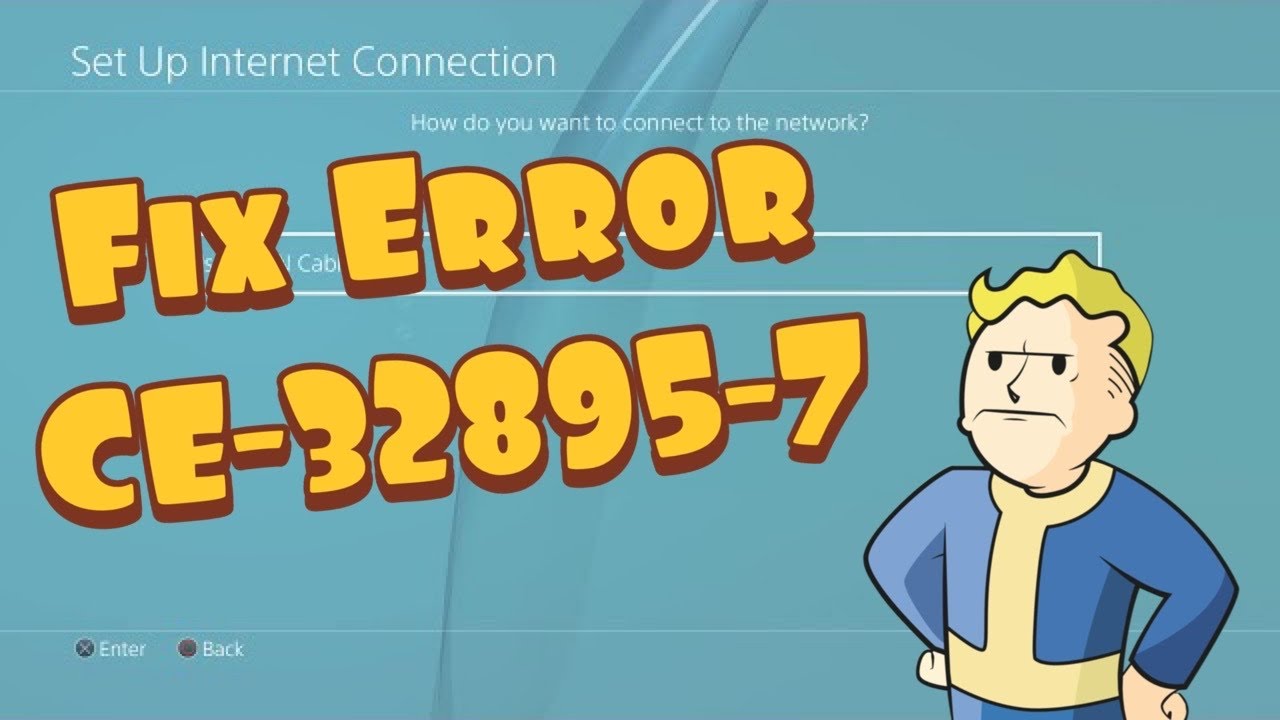
    PS4 network troubleshooting for error CE-32895-7
    The source video demonstrates network changes for CE-32895-7; this guide uses reversible diagnostics and avoids a router factory reset.

    Before you start

    • Your Wi-Fi password or an Ethernet cable.
    • Access to the router and modem power cables.
    • A phone or computer to check PlayStation status and the current time.

    How to fix PS4 error CE-32895-7

    1. Check PlayStation status. If PlayStation services are experiencing trouble, wait for recovery before changing network settings.
    2. Correct the PS4 date and time. Open Settings > Date and Time > Date and Time Settings and use the internet setting when available. Incorrect time can interfere with secure server connections.
    3. Update system software. Go to Settings > System Software Update and install the latest PS4 version.
    4. Restart the full connection. Turn off the PS4, unplug the router and modem for at least five minutes, reconnect them, wait for service, and start the console.
    5. Run Test Internet Connection. Open Settings > Network > Test Internet Connection and record the first failed stage.
    6. Try Ethernet or a second network. A cable rules out Wi-Fi interference. A short hotspot test can reveal whether the normal network is blocking the secure connection; stop afterward to avoid data use.
    7. Try manual DNS only if needed. In Set Up Internet Connection, choose Custom, keep IP Address and MTU Automatic, do not use a proxy, and test a reputable public DNS. Restore DNS to Automatic if there is no improvement.

    Why these steps work

    CE-32895-7 is encountered during a secure network connection. Correct time, current system software, a clean router session, and a stable path help the PS4 validate and reach PlayStation services. Ethernet, a second network, and DNS tests isolate local signal, ISP routing, and name-resolution causes without erasing the router.

    Other safe options

    • Forget and recreate the PS4 Wi-Fi connection with the current password.
    • Ask the operator of hotel, school, or apartment Wi-Fi whether the console must be registered or whether gaming services are blocked.
    • If every network fails after system software is current, use PlayStation Repairs or Support rather than repeating router changes.

    Warnings and how to undo changes

    Do not press the router’s factory-reset button, erase its configuration, or enter default administrator credentials from a video. A factory reset can remove ISP settings and Wi-Fi security. To undo manual DNS, set up the connection again with Easy or change DNS back to Automatic. A phone hotspot can incur data charges.

    Source video

    The video is source material, not a guarantee. Where its advice differed from current first-party support, the safer official sequence is used above.

    Frequently asked questions

    Does changing DNS always fix CE-32895-7?

    No. DNS is only one possible part of the connection. If a service outage, incorrect time, outdated software, or network restriction is responsible, DNS will not fix it.

    Why should I check the PS4 clock?

    Secure connections rely on valid certificate dates. A badly incorrect clock can make a legitimate server certificate appear invalid.

    When should I contact the ISP?

    If the PS4 works on a second network but not the normal connection after PlayStation status is healthy, share that comparison and the failed network-test stage with the ISP.

    Official references

    As an Amazon Associate I earn from qualifying purchases.
  • How to Fix PS4 Error WS-37469-9

    How to Fix PS4 Error WS-37469-9

    Quick answer: WS-37469-9 means the PS4 failed to connect to the server. Check PlayStation status, turn the router off for at least five minutes, restart it, and try again later. Use Ethernet or another network only to isolate the cause.

    PS4 network troubleshooting for error WS-37469-9
    The source video covers connection workarounds, while the guide begins with PlayStation’s official status and router restart steps.

    Before you start

    • A phone or computer to check PlayStation status.
    • Access to the router and modem power cables.
    • The PS4 network password if you need to reconnect.

    How to fix PS4 error WS-37469-9

    1. Check PlayStation status. If Account Management, Gaming and Social, or another relevant service is down, wait for recovery.
    2. Wait and retry once. A busy or blocked server session can clear without any local changes. Fully close the affected game or app before testing again.
    3. Restart network equipment for at least five minutes. Turn off the PS4, unplug the router and modem, wait five minutes, reconnect the network, and start the console after internet service returns.
    4. Run the PS4 network test. Open Settings > Network > Test Internet Connection and note which stage fails.
    5. Reconnect the saved network. Choose Settings > Network > Set Up Internet Connection and re-enter the Wi-Fi details, or connect an Ethernet cable.
    6. Test a second network briefly. A phone hotspot can show whether the home connection or public network is blocking PlayStation traffic. Stop after the test to avoid data charges.
    7. Escalate to the network provider only with evidence. If PSN works on the second network but not the normal one after status has recovered, give the ISP the test results and error code.

    Why these steps work

    The official PlayStation description is a server-connection failure. Status checks prevent needless local changes during an outage, while a five-minute network restart clears stale router and modem sessions. Connection testing then distinguishes PSN service trouble from Wi-Fi, ISP, or public-network restrictions.

    Other safe options

    • Try a wired Ethernet connection to rule out weak Wi-Fi.
    • On managed hotel, school, or apartment Wi-Fi, contact the operator about device registration or blocked services.
    • If only one game fails, check that publisher’s service status as well as PlayStation status.

    Warnings and how to undo changes

    Do not factory-reset the router, use a pinhole reset, or sign in to router administration with default credentials from a video. Those steps can erase ISP settings and weaken security. This guide changes no permanent console setting; reconnect to the original network after diagnostic tests. A hotspot can incur mobile-data charges.

    Source video

    The video is source material, not a guarantee. Where its advice differed from current first-party support, the safer official sequence is used above.

    Frequently asked questions

    Is WS-37469-9 a ban?

    The official description is a failure to connect to the server, not proof of an account suspension. Check account notices separately if sign-in is restricted.

    Why does the error disappear later?

    Server maintenance, congestion, or a temporary network route can recover without a console change. That is why PlayStation includes trying again later.

    Should I leave the router unplugged overnight?

    No. PlayStation’s current guidance says at least five minutes. Longer waits are rarely necessary and are not a substitute for contacting the ISP when the problem is network-specific.

    Official references

    As an Amazon Associate I earn from qualifying purchases.
  • How to Fix PS5 Error SU-101312-8

    How to Fix PS5 Error SU-101312-8

    Quick answer: PlayStation identifies SU-101312-8 as a Blu-ray Disc drive detection error. Power down and unplug the PS5, restart the router, delete the failed update notification, retry the update, then try Safe Mode. Back up before resetting, and use PlayStation Repairs if the error remains.

    PS5 system update error SU-101312-8 and Blu-ray drive detection
    PlayStation says SU-101312-8 means the PS5 cannot detect its Blu-ray Disc drive; this guide follows the official escalation order.

    Before you start

    • A PS5 model with a Blu-ray Disc drive that has not been physically removed.
    • A stable internet connection and access to the router’s power.
    • A USB data cable for Safe Mode and a backup destination if escalation reaches Reset Your Console.

    How to fix PS5 error SU-101312-8

    1. Power the console down completely. Turn off the PS5 and unplug its power cable. Do not open the console or disconnect the disc drive.
    2. Restart the network. Turn off the router and modem, wait at least five minutes, then restart them. Plug the PS5 back in only after the network is online.
    3. Delete the failed update notification. Open the control center, select Notifications, highlight the update file, press Options, and choose Delete.
    4. Restart the system-software update. Go to Settings > System > System Software > System Software Updates and Settings and try the update again.
    5. Try the official Safe Mode update route. Turn the console off, hold the power button until the second beep, connect the controller with a USB data cable, and select Update System Software. Use the internet option or Sony’s official USB update instructions.
    6. Back up before any reset. Copy or sync supported data. A console reset erases data stored on the PS5 and cannot be undone.
    7. Reset only as the official last software step. If safer update methods fail, go to Settings > System > System Software > Reset Options > Reset Your Console. If SU-101312-8 remains, arrange PlayStation Repairs.

    Why these steps work

    The PS5 checks the Blu-ray drive while applying system software. A temporary power state, incomplete update package, or system-software problem can prevent detection and stop the update. The official sequence clears those reversible causes before a destructive reset or hardware service.

    Other safe options

    • If the normal download fails, use PlayStation’s official USB update method with the exact folder and filename structure it specifies.
    • If the disc drive works but the code persists, note when it appears and provide that detail to PlayStation Support.
    • If the console was modified or the drive removed, restore the supported hardware configuration through qualified service.

    Warnings and how to undo changes

    Do not open the PS5, reseat ribbon cables, or replace the drive from an unverified tutorial. The source video jumps quickly to repair, but PlayStation provides several software steps first. Reset Your Console erases local storage; the only way to undo that loss is to restore data from a backup. A factory reset is not required until the earlier official steps fail.

    Source video

    The video is source material, not a guarantee. Where its advice differed from current first-party support, the safer official sequence is used above.

    Frequently asked questions

    Does SU-101312-8 prove the Blu-ray drive is broken?

    No. It means the console cannot detect the drive at that moment. Power, update, and Safe Mode steps can resolve software or state problems; persistent failure may require repair.

    Can I update the PS5 without the disc drive?

    Use only Sony-supported hardware and update procedures. A PS5 model designed with a drive expects it to be detectable during this error path.

    Will Safe Mode Update System Software erase data?

    The update option is separate from Reset PS5. Read the selected option carefully; the reset options are the ones that erase user data.

    Official references

    As an Amazon Associate I earn from qualifying purchases.
  • How to Fix PS4 Error CE-34054-6

    How to Fix PS4 Error CE-34054-6

    Quick answer: Restart the PS4, install the latest system software, back up important saves, then start Safe Mode and choose 5. Rebuild Database. If CE-34054-6 quickly returns, treat it as a possible storage problem instead of rebuilding repeatedly.

    PS4 Safe Mode Rebuild Database for error CE-34054-6
    The source video demonstrates PS4 Safe Mode option 5, Rebuild Database.

    Before you start

    • A DualShock 4 controller and a USB data cable; a charge-only cable may not work in Safe Mode.
    • Enough time for the database scan to finish without unplugging the console.
    • A current backup of important saves when possible.

    How to fix PS4 error CE-34054-6

    1. Restart once and check free space. Close running apps, restart the PS4, and make sure the internal drive is not completely full.
    2. Update PS4 system software. Open Settings > System Software Update and install the current version before using recovery options.
    3. Back up important data. Sync eligible saves to PlayStation Plus cloud storage or copy supported saves to USB. A rebuild is not the same as initialization, but a backup protects against an underlying drive fault.
    4. Shut the PS4 down fully. Do not use Rest Mode. Wait until the power indicator stops blinking.
    5. Enter Safe Mode. Press and hold the power button. Release it after the second beep, about seven seconds after the first. Connect the controller with a USB data cable and press the PS button.
    6. Select 5. Rebuild Database. Confirm the scan and let the PS4 finish. The console may restart and Home-screen organization can change.
    7. Test before escalating. Launch the same game and repeat the action that triggered CE-34054-6. If corruption returns, back up immediately and use PlayStation Repairs rather than running endless rebuilds.

    Why these steps work

    PS4 Safe Mode’s Rebuild Database option scans the drive and creates a new database of the content it finds. That can repair damaged indexing that makes games, icons, or system features behave as though the database is corrupt. It does not repair a failing hard drive, so repeated errors deserve hardware-focused diagnosis.

    Other safe options

    • Delete and reinstall only the affected game if the console is otherwise stable and the error appears with one title.
    • Use Safe Mode option 3, Update System Software, if a normal update cannot complete.
    • Contact PlayStation Repairs if the drive makes unusual noises, the console repeatedly checks storage, or corruption returns after rebuilding.

    Warnings and how to undo changes

    Do not choose Initialize PS4 or Initialize PS4 (Reinstall System Software); those erase user data. Do not unplug the console during a rebuild. Rebuild Database is not preventative maintenance that must be run on a schedule. There is nothing to undo, although folders and icon order may need to be reorganized.

    Source video

    The video is source material, not a guarantee. Where its advice differed from current first-party support, the safer official sequence is used above.

    Frequently asked questions

    Does Rebuild Database delete games or saves?

    It is designed to rescan and recreate the content database, not erase user data. Back up first because CE-34054-6 can also be a symptom of storage trouble.

    How long does a rebuild take?

    It depends on drive size, content count, and drive health. Leave the console powered and do not interrupt the scan even if the estimate changes.

    What if my controller will not work in Safe Mode?

    Use a USB cable that carries data, not only power, and connect it directly to the PS4.

    Official references

    As an Amazon Associate I earn from qualifying purchases.
  • How to Fix PS5 Error WV-109156-2

    How to Fix PS5 Error WV-109156-2

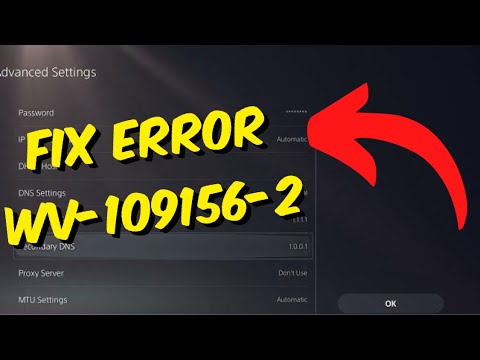
    Quick answer: Check both PlayStation and the affected game’s service status, run Settings > Network > Connection Status > Test Internet Connection, then restart the PS5 and network equipment. Change Wi-Fi band or DNS only as a diagnostic if the standard connection still fails.

    PS5 network settings for error WV-109156-2
    The source video shows PS5 Wi-Fi band and DNS settings; this guide puts service and network checks first.

    Before you start

    • The exact game or app that shows WV-109156-2.
    • Your Wi-Fi name and password, or an Ethernet cable.
    • Access to the router’s power plug; router administration is not required.

    How to fix PS5 error WV-109156-2

    1. Check for an outage first. Review PlayStation status and, for an EA title, EA server status. If either reports a problem, wait rather than changing the console.
    2. Test the PS5 connection. Open Settings > Network > Connection Status > Test Internet Connection. Note whether obtaining an IP address, internet access, or PlayStation Network sign-in fails.
    3. Restart cleanly. Turn off the PS5. Unplug the router and modem for at least five minutes, reconnect them, wait until they are fully online, and then start the console.
    4. Forget and reconnect to Wi-Fi. In Settings > Network > Settings > Set Up Internet Connection, highlight the network, press Options, forget it, and reconnect with the current password.
    5. Try the other Wi-Fi band. From the network list, press Options and switch Wi-Fi Frequency Bands between Automatic, 5 GHz, and 2.4 GHz. Use 5 GHz near the router and 2.4 GHz when distance or walls weaken the signal.
    6. Test a wired connection or a phone hotspot briefly. A second network is a diagnostic: if the game works there, the home or hotel network is the likely bottleneck. Stop using the hotspot after the test to avoid mobile-data charges.
    7. Use manual DNS only as an optional test. Edit Advanced Settings and try a reputable public resolver, then return DNS to Automatic if it makes no difference. DNS cannot repair an EA or PlayStation outage.

    Why these steps work

    The error appears while an online game or service is trying to complete a network session. Status checks separate a remote outage from a local fault. Reconnecting refreshes the console’s address and Wi-Fi authentication, while band, wired, hotspot, and DNS tests isolate signal, captive-portal, router, or name-resolution problems.

    Other safe options

    • On hotel, dorm, or public Wi-Fi, ask the network operator how to complete its sign-in or captive-portal step.
    • Confirm the platform account is linked to the intended game-publisher account; do not unlink accounts casually because relinking restrictions may apply.
    • Move the console closer to the router or use Ethernet for a stable test.

    Warnings and how to undo changes

    Do not factory-reset the router, enter default administrator passwords from a video, or unlink an EA account as an early troubleshooting step. To undo this guide, set DNS and Wi-Fi Frequency Bands back to Automatic, then reconnect to the original network. A phone hotspot test may consume mobile data.

    Source video

    The video is source material, not a guarantee. Where its advice differed from current first-party support, the safer official sequence is used above.

    Frequently asked questions

    Is WV-109156-2 always an EA outage?

    No. The code can surface during an online-session failure, but a service outage is only one possibility. Test PlayStation and the game’s service separately.

    Should I use Google or Cloudflare DNS permanently?

    Only keep a manual resolver if it clearly improves reliability. If nothing changes, restore Automatic so the network can supply its normal DNS settings.

    Why does the PS5 work on a hotspot but not hotel Wi-Fi?

    Public networks often require a web sign-in, device registration, or network-owner approval. That result points to the network, not a damaged PS5.

    Official references

    As an Amazon Associate I earn from qualifying purchases.
  • How to Fix Xbox App Error 0x80073CF9 on Windows

    How to Fix Xbox App Error 0x80073CF9 on Windows

    Quick answer: Close the Xbox app, install Windows and Microsoft Store updates, then use Settings > Apps > Installed apps > Xbox > Advanced options > Repair. Use Reset only if Repair does not clear error 0x80073CF9.

    Xbox app error 0x80073cf9 repair and Microsoft Store update screen
    The source video demonstrates Windows repair and reset controls for the Xbox app.

    Before you start

    • A stable internet connection and the Microsoft account that owns or accesses your games.
    • Administrator access to Windows Settings.
    • A note of your Xbox app sign-in and custom app settings; Reset can sign you out and clear local app data.

    How to fix Xbox app error 0x80073CF9

    1. Restart the PC. A normal restart clears a stuck Store or Xbox app process without changing files.
    2. Install Windows updates. Open Settings > Windows Update, select Check for updates, install anything offered, and restart if requested.
    3. Update Microsoft Store apps. Open Microsoft Store, choose Library > Get updates, and let updates for Microsoft Store, Xbox, Gaming Services, and related components finish.
    4. Repair the Xbox app. Go to Settings > Apps > Installed apps, open the three-dot menu beside Xbox, choose Advanced options, terminate the app if that control appears, and select Repair. Reopen Xbox and test.
    5. Reset the Xbox app only if Repair fails. Return to Advanced options, select Reset, confirm, then sign back in. This clears the app’s local settings; it is a stronger step than Repair.
    6. Reinstall only as a final app-level step. If the error remains, uninstall and reinstall the Xbox app from Microsoft Store. Do not delete game folders manually.

    Why these steps work

    Error 0x80073CF9 commonly appears when a Microsoft Store app package cannot update, register, or write its working data correctly. Updating the Store stack and repairing the Xbox app restores damaged app files while preserving more local data than a reset. Reset rebuilds the app’s local state when Repair is not enough.

    Other safe options

    • Confirm Microsoft Store and the Xbox app are signed in with the intended Microsoft account.
    • Make sure the system drive has free space and that Windows date, time, and region are correct.
    • If game installation—not app launch—is the failing operation, use the official Xbox game-installation troubleshooter instead of repeating app resets.

    Warnings and how to undo changes

    Do not use registry-cleaner scripts, take ownership of WindowsApps, or delete Gaming Services folders from an unverified guide. Those changes can break Store permissions. Repair is reversible by simply reopening the app. Reset cannot restore cleared local app settings, but you can sign in again and reconfigure them; cloud-synced game saves remain governed by each game’s own sync support.

    Source video

    The video is source material, not a guarantee. Where its advice differed from current first-party support, the safer official sequence is used above.

    Frequently asked questions

    Will Reset uninstall my installed games?

    Reset targets the Xbox app’s local data, not the contents of every installed game folder. It can sign you out or clear app preferences, so use Repair first and verify your library afterward.

    What if the Xbox app has no Advanced options?

    Update Windows and Microsoft Store first. If the control still is not available, reinstall the Xbox app through Microsoft Store rather than changing protected folders manually.

    Is 0x80073CF9 an Xbox server outage?

    Not necessarily. It is usually an app-package or Store problem on the PC. Check Xbox status if sign-in and cloud features also fail on other devices.

    Official references

    As an Amazon Associate I earn from qualifying purchases.
  • How to Fix PS5 Error CE-100006-7

    How to Fix PS5 Error CE-100006-7

    Quick answer: PlayStation says CE-100006-7 means the PS5 cannot recognize the external storage drive. Update system software, reconnect the USB cable, remove any USB hub, and connect the drive directly. Format it only if it is new or you accept erasing its contents.

    Source note: The source video had no usable transcript after the required retries. Its visible title, description, and chapter cues were used only to identify the problem; the repair steps below were checked against current first-party support on September 29, 2026.

    Before you start

    • Do not disconnect the drive while its activity light is flashing.
    • If the drive contains irreplaceable files, stop before formatting and back it up on a compatible computer.
    • Close running games before reconnecting storage.

    Fix PS5 error CE-100006-7

    1. Update PS5 system software. Open Settings > System > System Software > System Software Update and Settings and install the latest version.
    2. Shut down safely. Turn the PS5 fully off; do not use Rest Mode for this reconnection test.
    3. Reconnect the cable. Unplug and firmly reconnect the USB cable at both the drive and console ends.
    4. Remove the hub. If the drive is connected through a USB hub, adapter chain, or extension, connect it directly to a supported PS5 USB port.
    5. Try a compatible cable or port. Use the cable supplied with the drive when possible. Avoid the front USB Type-A port for USB extended storage if it does not meet the required SuperSpeed connection.
    6. Format only when appropriate. For a new drive, go to Settings > Storage > USB Extended Storage and choose the format option. Formatting deletes everything on the drive.
    7. Transfer content individually. If a bulk move fails, PlayStation recommends trying one game or item at a time.
    8. Test another drive. If the PS5 recognizes another supported drive, the original drive or cable may be failing.

    Why this works

    The code is specifically a recognition failure. Updating the console addresses compatibility fixes; a direct cable removes hubs and adapters from the path; formatting creates the PS5 extended-storage layout; and a second drive separates a console-port problem from a storage-device problem.

    Alternatives

    • Connect the drive to a computer only to check whether the hardware is detected; do not initialize or format it there if you need PS5 data.
    • Use internal M.2 SSD storage for compatible PS5 games if external USB storage is unreliable.
    • Contact PlayStation Repairs if multiple known-good drives and cables fail on supported ports.

    Warnings

    Formatting is destructive. It erases the external drive and is not an undoable “repair” for existing data. PS5 games can be stored on USB extended storage but must be copied back to compatible console storage to play; PS4 games can run from supported USB extended storage.

    FAQ

    Will reconnecting the drive erase it?

    No, not if the PS5 was fully shut down and you only reconnect the cable. Formatting is the step that erases data.

    Can I use a USB hub?

    PlayStation’s error guidance says to remove the hub and connect storage directly.

    What if the drive worked yesterday?

    Reseat the cable, update the PS5, and test another compatible cable or drive. Sudden failures can be connection or hardware related.

    Official references

    Source video

    https://www.youtube.com/watch?v=cb0-2RRBucY

    As an Amazon Associate I earn from qualifying purchases.