Quick answer: For NP-37614-1 during Share Play, check PlayStation service status, update both PS4 consoles, test each internet connection, power-cycle both consoles and routers, then create a fresh party and Share Play session. A different network is the safest diagnostic for NAT or ISP issues.
Before you start
Both players online and signed into PSN
Current PS4 system software on both consoles
Stable connections for both host and visitor
Steps to fix the error
Check PlayStation services. If gaming, social, or account services are degraded, wait for recovery.
Update both PS4 consoles. Each player should install the current system software and restart.
Test both connections. On each PS4, go to Settings > Network > Test Internet Connection. Share Play depends on both sides, not only the host.
Restart the connection path. Turn off both consoles and power-cycle each modem/router. Wait a few minutes before reconnecting.
Create a fresh session. Leave the existing party, create a new party, and start Share Play again. Confirm that the intended player is host and visitor.
Reduce connection strain. Pause large downloads and streaming on both networks. If possible, use wired Ethernet.
Test a different network. A brief mobile-hotspot or alternate-network test can reveal whether a home router or ISP path is blocking the peer connection. Return to the normal network afterward.
Escalate router changes. Do not blindly change ports, DMZ, or UPnP. Ask the router vendor or ISP to review NAT and peer-to-peer connectivity, and keep a record so changes can be undone.
Why this works
Share Play is a live peer connection involving two consoles and two networks. A clean session plus connection tests isolates service outages, stale sessions, bandwidth contention, and router/ISP path problems.
Safe alternatives
Have the other player host a test session.
Lower Share Play video quality when the option is available and the connection is unstable.
Warnings and limitations
Captions remained unavailable after every required retry. Viewer reports often mention router UPnP, but enabling UPnP changes network exposure and is router-specific. This guide treats it as an ISP/router-vendor decision, not a guaranteed fix.
Frequently asked questions
Is NP-37614-1 caused by the host or visitor?
Either side can be responsible, which is why both connections must be tested.
Should I put the PS4 in a DMZ?
No. That exposes the console more broadly than needed and is not a safe first-line fix.
Why try another network?
It is a reversible diagnostic: if Share Play works elsewhere, the original router or ISP path needs attention.
Checked against current PlayStation support guidance on September 18, 2026. The source video is supporting material; official instructions and the warnings above take priority.
Quick answer: Update FC 27 and the PS5 system software, restart the console, disconnect unnecessary USB devices, restore licenses, and test again. If crashes continue, use PS5 Safe Mode to clear cache before reinstalling the game. Do not delete saved data unless you have confirmed a backup and have evidence that the save itself is damaged.
Before you start
Note whether the crash happens at launch, in the menu, or during a particular mode.
Record any error code exactly.
Check EA and PlayStation service status.
Sync important saved data to your available backup method before any advanced step.
Leave enough free internal storage for updates and temporary installation files.
1. Update FC 27 and PS5
Highlight FC 27 on the PS5 home screen.
Press the Options button and select Check for Update.
Open Settings > System > System Software and install any available system-software update.
Restart the console and test the same FC 27 mode.
EA lists current platform software as the first PlayStation troubleshooting step. Game and system updates can contain compatibility and stability fixes.
2. Disconnect unnecessary USB devices and power-cycle
Close FC 27 completely.
Disconnect nonessential USB storage, capture devices, and accessories.
Turn the PS5 off completely; do not use Rest Mode.
Wait at least one minute, turn it back on, and test the game.
If FC 27 is installed on external storage, move or reinstall it to internal storage as a test. EA specifically recommends trying the internal drive when an external drive may be involved.
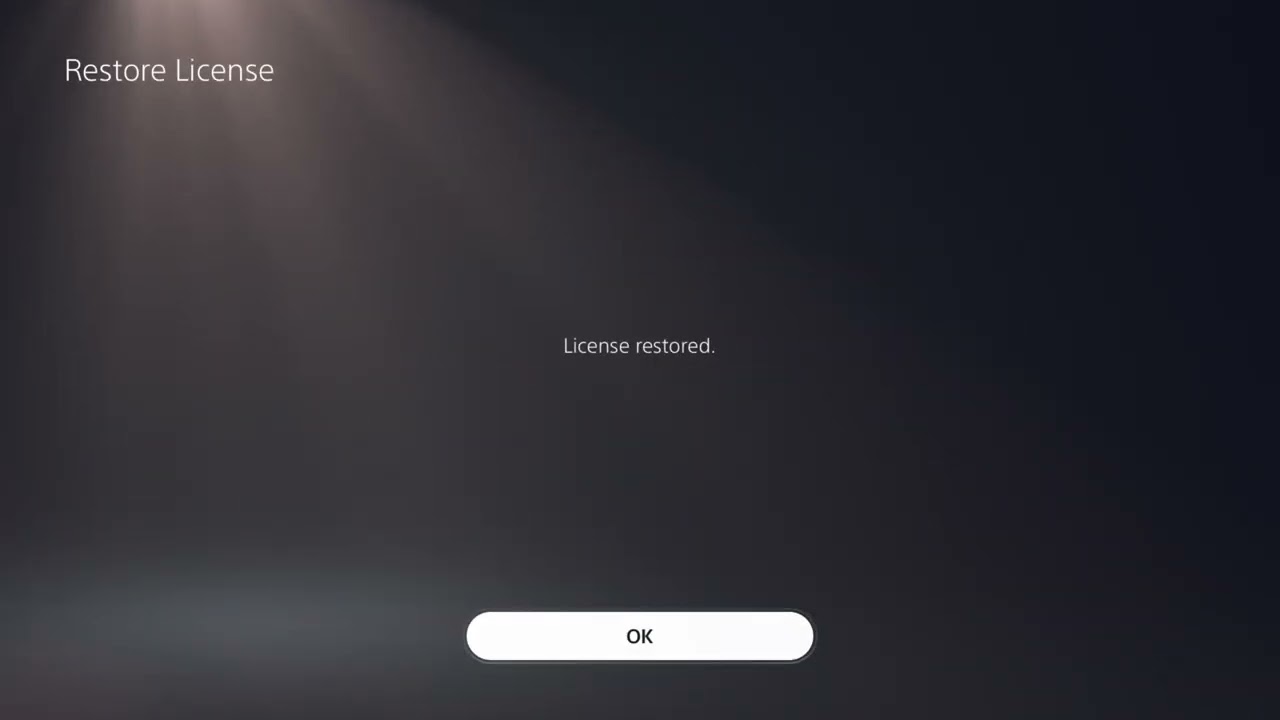
3. Restore the FC 27 license
Open Settings > Users and Accounts > Other.
Select Restore Licenses.
Wait for the process to finish.
Restart FC 27.
Restoring licenses refreshes access records. It does not delete the game or saved data, and it cannot add an edition or entitlement that the account does not own.
4. Clear cache in PS5 Safe Mode
Turn the PS5 off completely.
Press and hold the power button until you hear the second beep.
Connect the controller with a USB cable and press the PS button.
Select Clear Cache and Rebuild Database.
Choose Clear System Software Cache, then restart and test FC 27.
Clearing cache removes temporary system data. It is different from resetting the console. Read every Safe Mode option before selecting it; options that reset or reinstall system software can remove data.
5. Reinstall FC 27
Confirm that saved data is synced or backed up where applicable.
Delete the FC 27 game installation, not your saved data.
Restart the PS5.
Download the PS5 version again from Game Library.
Wait for the complete installation and updates before testing.
Why these fixes work
Updates correct known software faults. A full restart clears a stuck process and reinitializes attached devices. License restoration repairs entitlement checks. Cache clearing removes temporary system data that can become stale. Reinstalling replaces the full local game package after the lower-risk steps have failed.
Unsupported suggestions to avoid
The source narration repeatedly refers to FC 24 even though the upload title says FC 27. Its generic update, license, and reinstall ideas agree with current EA and PlayStation guidance, but this article does not repeat the video’s language-change workaround because there is no current first-party evidence that changing the PS5 language fixes FC 27 crashes.
Do not delete saved data as a routine crash fix.
Do not initialize or reset the PS5 for one crashing game without exhausting safer steps and backing up data.
Do not download unofficial game files.
Do not repeatedly power off the console while storage repair or an update is running.
If only one FC 27 mode crashes
Check EA service status and the FC 27 support hub for a known mode-specific issue.
Test another mode to separate a local installation problem from an online-service problem.
Capture the exact menu path and time of the crash for EA Support.
If the issue began after a new update, include the installed game version in your report.
Frequently asked questions
Does Restore Licenses delete anything?
No. It refreshes license information and does not remove games or saves.
Is clearing cache the same as rebuilding the database?
No. They are separate Safe Mode actions. Start with Clear System Software Cache. Rebuild Database is another maintenance option and can take longer.
Should I reinstall immediately?
No. Update, restart, disconnect accessories, restore licenses, and clear cache first. Reinstallation is slower and uses substantial bandwidth.
How do I undo these changes?
Reconnect accessories one at a time after the game is stable. Cache clearing and license restoration do not need to be undone. A reinstalled game can use the same account and backed-up saves.
Quick answer: First decide whether FC 27 feels delayed offline or only online. Offline delay points to the controller, display, or game performance; online delay points to ping, packet loss, or jitter. Update the DualSense controller, test a data-capable USB connection, enable your display’s Game Mode, then check EA Connection Quality and use Ethernet or a stable Wi-Fi band.
Identify which kind of delay you have
Offline input delay: button presses feel late in menus, training, or offline Kick-Off.
Online lag: offline play feels normal, but online matches stutter, react late, or show connection icons.
Performance stutter: the picture pauses or frame pacing becomes uneven even when the connection is stable.
These can feel similar but need different fixes. EA measures online Connection Quality using ping, packet loss, and jitter.
Fix controller input delay
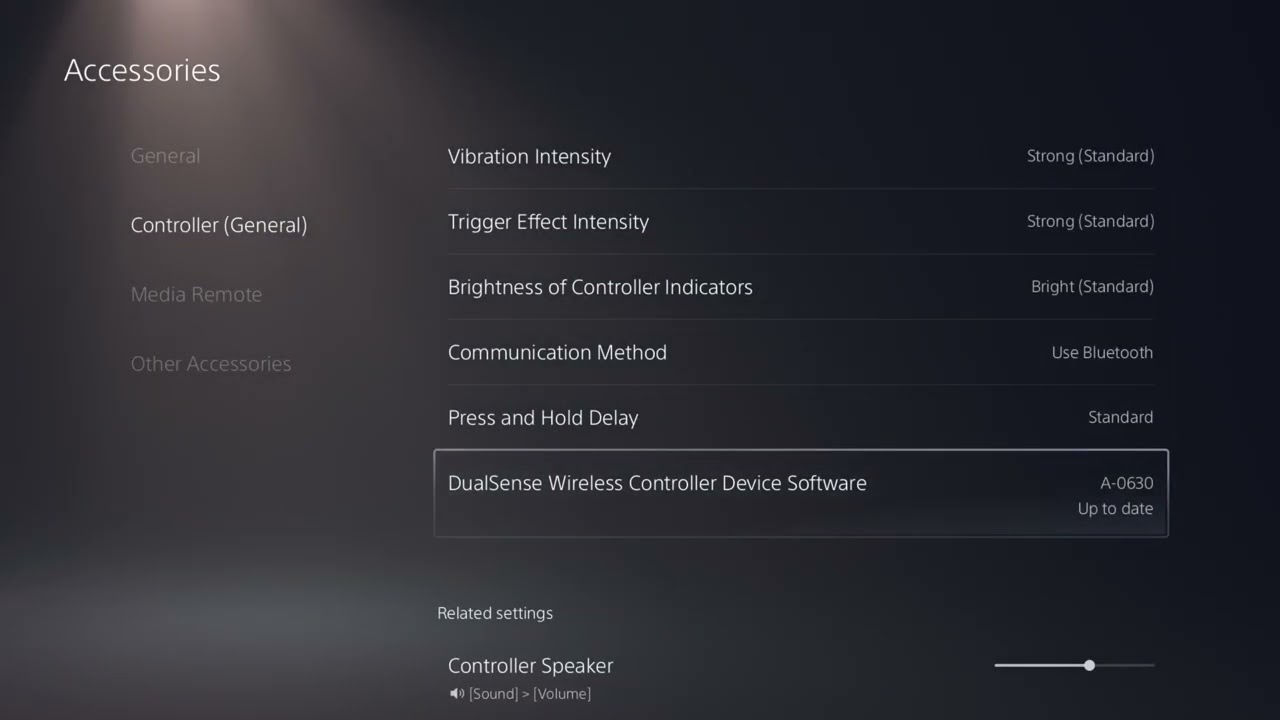
Connect the DualSense controller to the PS5 using a USB cable that carries data, not a charge-only cable.
Open Settings > Accessories > Controller (General).
Install any available DualSense wireless controller device-software update.
Test FC 27 with the controller connected.
If your PS5 provides a communication-method setting for the connected controller, select the USB-cable option and test again.
Turn on Game Mode or the lowest-latency mode on your TV or monitor.
The source video demonstrates updating the controller and testing USB communication. A wired test can remove Bluetooth interference as a variable, but it does not guarantee that every delay disappears. If there is no change, restore the communication method you prefer.
Fix online lag and unstable response
Check EA’s FC server status and your platform status before changing network settings.
Use the EA Connection Quality Report to review recent FC matches.
Pause downloads, cloud backups, and 4K streaming on the home network.
Restart FC 27, the PS5, and the router. Leave the router off for at least 30 seconds before reconnecting it.
Use Ethernet if practical.
If you must use Wi-Fi, move closer to the router and test 5 GHz at short range. Test 2.4 GHz if walls or distance make 5 GHz unstable.
The network video shows how to choose a Wi-Fi frequency band on PS5. EA’s current guidance agrees that 5 GHz is generally faster and more stable at short range, while 2.4 GHz travels farther but is usually slower and more prone to interference.
About changing DNS
The source video also suggests manually using Cloudflare DNS addresses 1.1.1.1 and 1.0.0.1. This is an optional, reversible troubleshooting test, not a guaranteed ping fix. DNS mainly helps the console look up service addresses; it does not control the route of every gameplay packet after a match connects.
Write down the current DNS setting before changing it.
Test the automatic setting first.
If you test manual DNS, use a known provider and run several matches under similar conditions.
Return DNS to Automatic if there is no consistent improvement or another service stops working.
Why the fixes work
Controller updates can correct device-software problems, and a USB test removes wireless interference from the local input path. Game Mode reduces display processing. Ethernet and a well-chosen Wi-Fi band reduce variation in how packets travel through the home network. These changes target separate sources of delay instead of treating every slow response as the same problem.
Warnings and limits
USB mode requires a data-capable cable. Many inexpensive cables charge only.
5 GHz has shorter range; it may perform worse through several walls.
A new DNS server cannot fix overloaded EA servers, ISP routing, or a distant game data center.
Do not open router ports, enable DMZ, or disable firewall protection as a first step.
When playing with friends in another region, EA warns that matchmaking may choose a location that raises ping for part of the group.
If the delay remains
Test another controller and USB cable.
Test a different display input and confirm Game Mode is active for that input.
Compare offline and online play again after restarting the game.
Use EA’s match history to compare ping, packet loss, and jitter across several matches.
Contact your ISP if problems affect multiple devices, not only FC 27.
Frequently asked questions
Will a USB cable always reduce DualSense latency?
No. It is a useful diagnostic and can help with wireless interference, but display processing, game performance, and network delay can still be responsible.
Should I force 5 GHz?
Use 5 GHz when the PS5 is reasonably close to the router. At longer distances, 2.4 GHz may be more stable. Ethernet is the most consistent option when available.
Does changing DNS lower ping?
Usually not by itself. It may help name resolution or work around a resolver problem, but it does not guarantee a shorter gameplay route.
How do I undo the changes?
Return controller communication and DNS to their previous or Automatic settings, reconnect the original Wi-Fi band, and remove the test cable.
Quick answer: If FC 27 says your trial time has expired or early access is missing, first confirm the edition, trial allowance, account, and release window shown by the platform store. A restart, license refresh, or launcher-cache reset may repair a stale entitlement check, but no workaround can extend a genuinely exhausted trial or grant access your account does not own.
Before troubleshooting
Sign in to the account that bought, redeemed, or subscribed for FC 27 access.
Check whether you own Standard Edition, Ultimate Edition, or an eligible EA Play trial.
Compare the store’s current date, edition, and trial allowance with your account.
Close FC 27 completely before changing licenses or launcher data.
Do not delete save data or buy a second copy while diagnosing an entitlement message.
Download FC 27 on PS5
Open PlayStation Store.
Search for EA SPORTS FC 27 and open the official product page.
Use the edition or three-dot selector if the wrong edition is displayed.
Choose the PS5 version unless you deliberately need the PS4 build.
Select Download and let all required game data finish.
The store page is authoritative for your account’s edition, file size, price, and launch date. FC 27’s current-generation features, including The Grounds, require the supported current-generation version.
Fix “Your FC 27 trial time has expired” on Xbox
Press the Xbox button, highlight FC 27, press the Menu button, and choose Quit.
Open Microsoft Store and search for FC 27.
Open the edition or trial page connected to your entitlement.
If Play trial or an equivalent owned-access button is offered, start the game from that page.
If the message remains, hold the console power button for about 10 seconds, disconnect power briefly, reconnect it, and restart.
Unofficial workaround: launching from the Store page is demonstrated in the source video and may refresh a stale handoff, but one viewer reported that it did not work. It cannot restore time that was already used. The power cycle is reversible and does not delete games or saves.
Fix the message on PS5
Go to Settings > Users and Accounts > Other > Restore Licenses.
Select Restore, then restart the console.
Return to the FC 27 product page and confirm the correct edition or trial.
If the entitlement is correct but the error persists, enter Safe Mode and use Clear System Software Cache.
Use Rebuild Database only if ordinary restart and cache clearing fail.
Restoring licenses and clearing the cache are official PlayStation troubleshooting steps. They do not delete saved data, extend a trial, or add a missing edition. Rebuilding the database reorganizes console data; keep the console powered and follow PlayStation’s on-screen guidance.
Fix the message in the EA app on PC
Exit FC 27 and the EA app completely.
Open the EA app recovery option and choose Clear cache.
Restart Windows and sign back in to the EA account that owns the access.
Open the FC 27 product page in the EA app and use the offered trial or owned-access button.
If needed, test one launch with the EA app opened as administrator, then return to normal launching afterward.
Clearing the EA app cache removes temporary launcher data, not your cloud or local game saves. Running the launcher as administrator is a temporary diagnostic step; do not leave broad elevated access enabled if it makes no difference.
If Download is missing or the countdown is wrong
Confirm the selected edition matches the purchase.
Check the platform library for FC 27.
Install any available game and system update.
Check EA and platform service status.
Retry after the account entitlement and regional launch time are active.
Why these fixes can work
A trial or early-access license must be recognized by both the platform and EA services. A restart, license restoration, or cache clear can replace stale local session data and force a fresh check. These steps fix recognition problems only; they do not change the underlying purchase, subscription, remaining trial time, or release window.
Undo and limitations
Store launching changes nothing; close the game and return to your usual shortcut.
A power cycle is undone simply by starting the console normally.
Cache files are recreated automatically after restart.
If you tested administrator mode on PC, close the app and relaunch it normally.
If the store says the trial is exhausted, only a qualifying purchase, subscription benefit, or full release can provide further access.
Warnings
Do not buy a second copy before checking the account, edition selector, trial allowance, and license restoration.
Do not delete FC 27 save data to repair an entitlement.
Do not trust an unofficial countdown over the date and time displayed by the platform store.
Do not share an EA, Xbox, or PSN verification code with anyone claiming to activate access.
Frequently asked questions
Can these steps reset my trial timer?
No. They may correct a stale entitlement check, but they cannot add time or reset time already consumed.
Why does the video’s Store method not work for me?
Your trial may be exhausted, the wrong account may be signed in, the offer may not apply in your region, or the entitlement may still be processing. Verify the live Store information and contact the relevant platform or EA support when it conflicts with your receipt.
Will Restore Licenses delete FC 27?
No. It refreshes licenses and does not delete installed games or saved data.
Can Standard Edition use Ultimate Edition early access?
Not through the Standard Edition entitlement alone. A separate eligible subscription trial may provide limited access according to its current terms.
Can I download both PS4 and PS5 versions?
If the purchase includes both through Dual Entitlement and the account is eligible, both may appear in the version selector. Choose PS5 for current-generation features.
The first video shows the original PS5 download flow. The second demonstrates unofficial platform-specific recovery steps for a trial-expired message; those steps are not a guarantee and cannot override an exhausted entitlement.
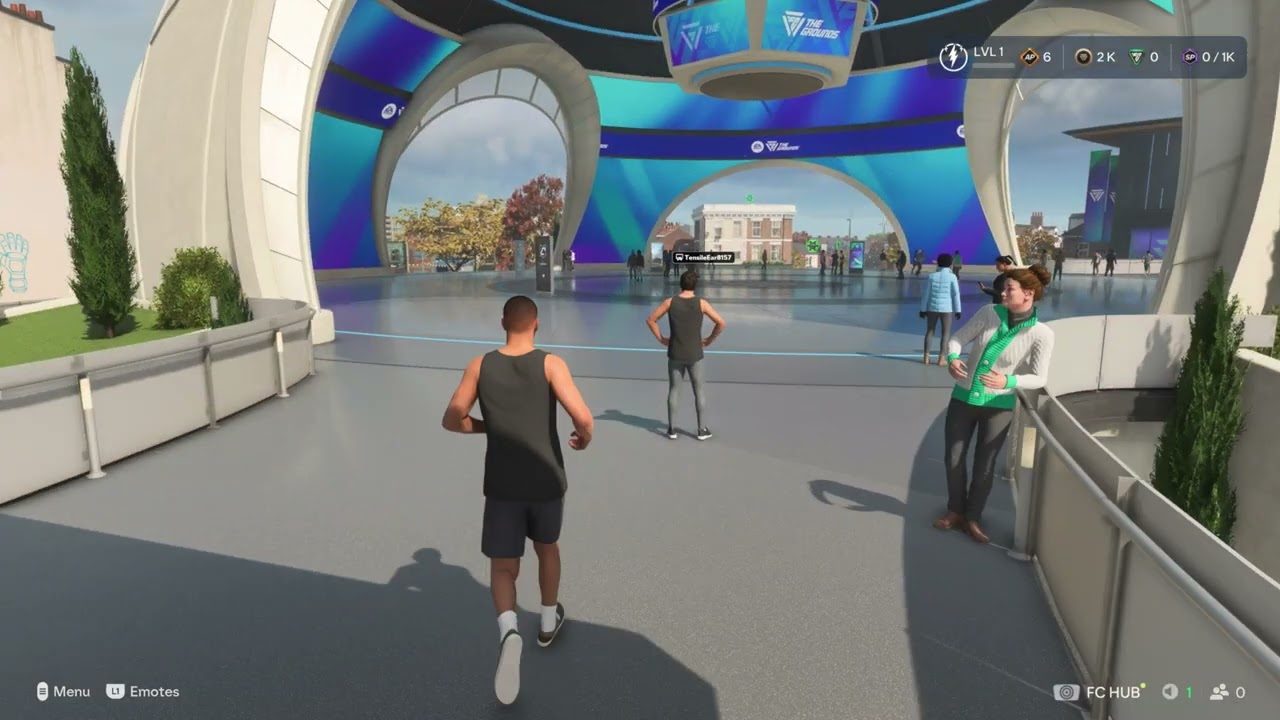
Quick answer: Open the World Map in FC 27 The Grounds, then use the shoulder-button tabs to reach Appearance, Objectives, Store, or Archetype. Select a labeled activity marker to queue for it. Use the marker name instead of relying on a fixed map position, because the layout and live events can change.
Before you start
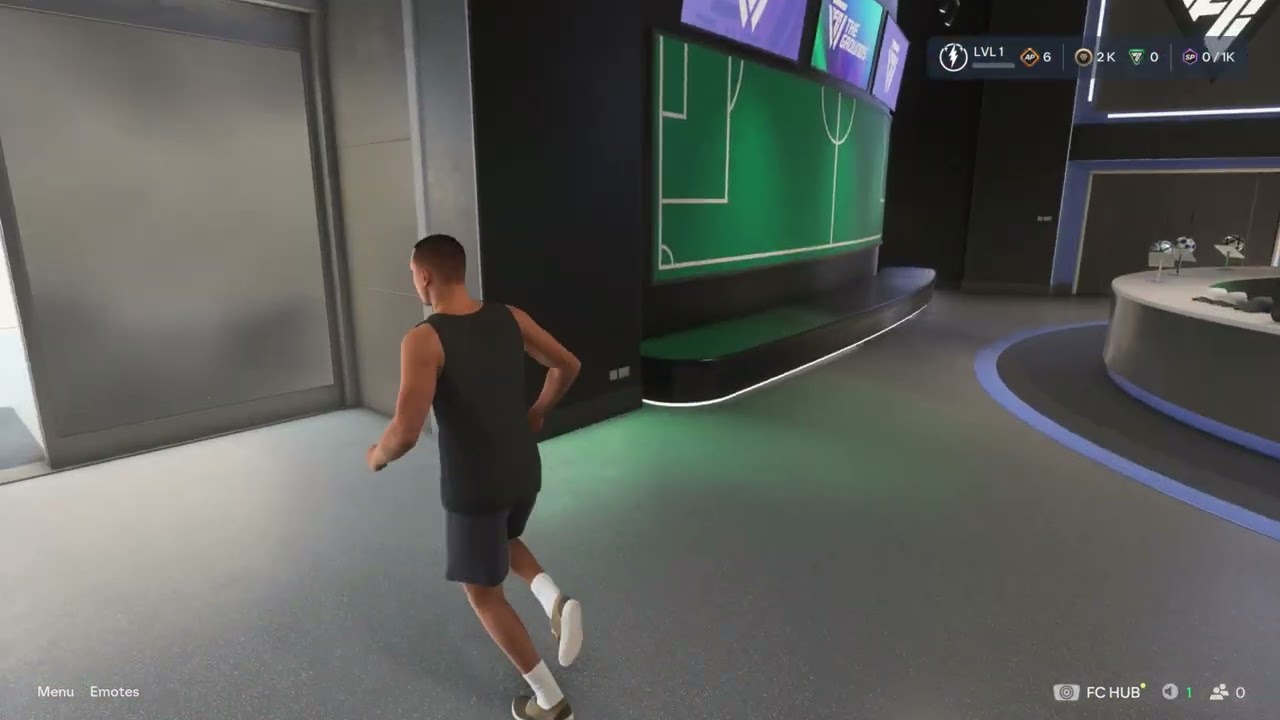
Use the current-generation FC 27 version that includes The Grounds.
Connect to EA servers and complete the first-time Grounds setup.
For purchases, check the currency, requirements, expiry, and purchase limit before confirming.
For an Archetype change, note your current setup before spending Attribute Points.
Open the main Grounds menus
Enter The Grounds.
Open the World Map.
Use the shoulder-button tabs shown at the top of the screen.
Choose Appearance, Objectives, Store, or Archetype.
Back out to the map when you want to travel or queue for an activity.
Edit your appearance
Open the World Map and switch to Appearance.
Choose the Street or Match Day category available to your player.
Select a body, hair, clothing, or accessory category.
Preview the change and confirm it.
Purchased or earned appearance items are stored in the Appearance Inventory. A video may show stock that is no longer available; treat every brand and item as an example.
Find Objectives and claim rewards
Open the World Map and switch to Objectives.
Review Mentor, Event, Club, or Player Milestone groups.
Open an objective to read its exact requirement and progress.
Use Go to Objective when the game offers it.
Claim the reward after completion.
Objectives can award Grounds Coins and other content. Use the wording displayed on your own account because weekly and event objectives change.
Edit an Archetype and upgrade attributes
Open the World Map and select Archetype.
Choose the active Archetype you want to inspect.
Review Attributes, PlayStyles, Specializations, and body information.
Spend available Attribute Points only after checking the cost and effect.
Confirm the change, then test it in a low-stakes activity.
Attribute choices affect how the Archetype plays. The source videos demonstrate the menu route, but they do not establish that every allocation is optimal. Record your original setup so you can restore it if the game offers a reset or respec option.
Find a World Store or use the Store tab
Open the World Map.
Select a labeled World Store marker and travel to it, or switch to the Store tab.
Browse Amps, Consumables, or other eligible categories.
Read the effect, currency, requirements, duration, and purchase limit.
Confirm only the item or currency bundle you intend to buy.
EA currently lists World Stores in the Terrace, Montclair, Parkside, and Zeiza. The menu Store sells Amps and Consumables, while vanity items require a physical World Store. Prices and bundles shown in videos can vary by region and over time, so the live store screen is authoritative.
What the currencies buy
Grounds Coins are earned through matches and Objectives.
FC Points may be used for eligible items; check the live price and platform purchase confirmation.
Some items come from Objectives or gameplay rewards instead of purchases.
Items cannot be traded or sold. Purchased or earned appearance items remain in inventory, subject to EA’s current service rules.
Find and play Grounds activities
Open the World Map.
Select the activity by its label, not only by its position.
Read the current player-count and event rules.
Queue alone or form a party if the activity allows it.
Confirm matchmaking and wait for the session to start.
Balloon Ball: the source video shows a four-player queue.
3v3 Classic: the source video shows a six-player queue.
Rush: the source video shows an eight-player queue.
Team Keepaway: select the labeled marker and verify the live rules before joining.
Bucket Ball: the source video shows a four-player activity with different scoring zones.
Bocce Ball: the source video shows a three-player accuracy activity.
The Big Race: the source video shows a four-player queue.
1v1 Classic: select its labeled marker on the right side of the demonstrated map.
Rush Stadium: select the stadium marker, then choose the currently available Rush or 5v5 event.
Player counts, map positions, and playlists can rotate. EA’s current Grounds overview confirms in-world 1v1, Rush, Rush Stadium, and 11v11 Drop-In, but the two new videos whose narration explicitly described FC 24 were not used for FC 27 instructions.
Enter the Clubhouse
Open the World Map.
Select the labeled Clubhouse marker.
Choose the travel or enter action.
Open the Club menu inside the Clubhouse.
Create or join a Club
Select Create Club to set a name, abbreviation, language, and available access settings; or select Join Club to search.
Review the Club details and conduct rules.
Confirm creation, or send the available join request.
Invite friends through the Club or EA Connect interface.
A Club name must follow EA’s conduct rules. Do not include personal information, impersonation, hate speech, or misleading official branding.
Why these routes work
The World Map is The Grounds navigation hub. Its tabs lead to player setup and commerce, while labeled map markers launch places and activities. Using names instead of memorized positions makes the steps more resilient when EA rotates events or updates the interface.
Warnings and limitations
Do not treat a video price, bundle, map position, or event roster as permanent.
Items can require a particular Archetype level, have purchase limits, or disappear after an offer expires.
Featured Bundles can mix vanity items, Amps, Consumables, and other content. Review every item before buying.
Do not spend FC Points merely to troubleshoot a menu.
If a marker is missing, confirm the supported game version, server availability, and any mode prerequisites.
Frequently asked questions
Where do purchased items go?
Street vanity items appear in the Appearance Inventory. Amps and Consumables appear in their respective Archetype inventories.
Can I buy vanity items from the Store tab?
No. EA’s current guidance says to visit a World Store for vanity items.
Why can’t I buy an item?
You may be below its Archetype level, at the purchase limit, outside the offer period, or short of the required currency.
Why can’t I find an activity?
Playlists and events can rotate. Look for the activity label, confirm server status, and check whether the current version requires a prerequisite.
Can I undo an appearance or Archetype change?
You can select another owned appearance item. For attribute spending, use only the reset or respec option shown by the current game; do not assume a free reset is available.
The menu routes and activity locations below come from Moe Gaming’s FC 27 demonstrations; live prices, playlists, player counts, and map positions should be checked in the current game.
Quick answer: Open EA Connect from FC 27 to search for friends by EA ID or platform username, manage requests, and reach the crossplay control. For harassment, cheating, or unsafe behavior, report the player from the in-game interaction when possible; EA says an in-game report captures useful investigation data automatically.
Before you start
Make sure the correct PlayStation, Xbox, Steam, Epic, or EA app account is linked to your EA Account.
Ask your friend for the exact EA ID or platform username, including punctuation.
Check platform privacy and parental-control settings if friend search or cross-platform play is unavailable.
Do not share passwords, verification codes, or personal information with another player.
How to add a friend in FC 27
From an FC 27 screen where EA Connect is available, open EA Connect. The source video uses the R2 shortcut on PlayStation.
Open Player search or Add Friend.
Enter the player’s EA ID or supported platform username.
Select the correct profile and choose Add friend.
Wait for the other player to accept the request, then reopen EA Connect to invite them.
EA’s current EA Connect guide confirms the Player search flow. If the result does not appear, check the spelling, ask which platform account is linked, and make sure neither account has blocked the other.
How to turn FC 27 crossplay on or off
Open EA Connect in FC 27.
Open the EA Connect options or settings menu.
Select Crossplay.
Turn crossplay On to allow supported cross-platform matchmaking, or Off to restrict matchmaking to your platform pool.
Back out of the menu and start a new matchmaking search so the new setting is used.
The crossplay video shows this EA Connect route. Menu wording can change with an update. If you do not see the option, check FC 27 and platform updates, then confirm that your account is eligible for online communication and multiplayer.
Crossplay tradeoffs
Turning crossplay off can reduce the number of available opponents and may increase search times.
Turning it on expands the matchmaking pool but also means you may meet players using another supported platform.
Crossplay does not override platform privacy, child-account, communication, or block-list settings.
The Grounds crossplay support covers PC, PlayStation 5, and Xbox Series X|S. EA warns that grouping with players in another region can increase ping.
How to report a player
The report-player upload did not provide a usable caption transcript during repeated checks, so the steps here follow EA’s current official reporting process rather than guessing at an unseen menu.
Best option: report in the game
Open the recent-player, match, squad, club, or social screen that shows the player.
Select the player’s profile or interaction menu.
Choose Report when available.
Select the most accurate reason and submit the report once.
EA recommends in-game reporting because it can automatically include information needed for the investigation. Do not retaliate, threaten the player, or submit repeated reports for the same incident.
Report from the EA app
Open the EA app and your Friends List.
Use Add Friend to search for the player’s EA ID if they are not already visible.
Open the player’s profile and choose the three-dot menu.
Select Send Report.
Choose the reason, identify where the incident happened, add concise factual details, and submit.
Why these steps work
EA Connect is the account-level social layer shared by supported EA games. Searching by EA ID avoids relying only on a platform friends list. The report flow sends the issue through EA’s safety system, while crossplay controls decide which supported platform pools can be included in matchmaking.
Alternatives and troubleshooting
If EA Connect does not open, restart FC 27 and check EA service status.
If a friend is missing, remove filters, confirm the EA ID, and review block lists on both EA and the platform.
If invitations fail, both players should update the game, return to the same mode, and send a fresh invite.
For immediate safety, block and mute the player in addition to reporting them.
Frequently asked questions
Does turning off crossplay improve connection quality?
Not automatically. Ping, packet loss, jitter, home-network conditions, ISP routing, and the selected data center all matter. Crossplay only changes the eligible platform pool.
Can I report someone who is not on my friends list?
Yes. Use the in-game recent-player or match flow when available. The EA app can also search by EA ID.
Why can’t I find my friend?
The most common causes are an incorrect EA ID, an unlinked platform account, privacy restrictions, a block, or a service problem.
Quick answer: If EA SPORTS FC 27 crashes or will not open from Steam, verify the installed files first, restart Steam and the EA app, install pending Windows and GPU-driver updates, and close overlays or recording tools. Test after each change. Avoid downloading replacement DLL files or applying blanket compatibility settings to every executable.
Before you start
Restart the PC once and confirm that Steam and the EA app can both sign in.
Install any queued FC 27 update before troubleshooting an older build.
Keep your EA Account and Steam credentials available, because relaunching the EA app may require another sign-in.
If Windows Security or another antivirus shows a blocked-file alert, review the exact item instead of disabling protection for the whole system.
1. Verify FC 27 files in Steam
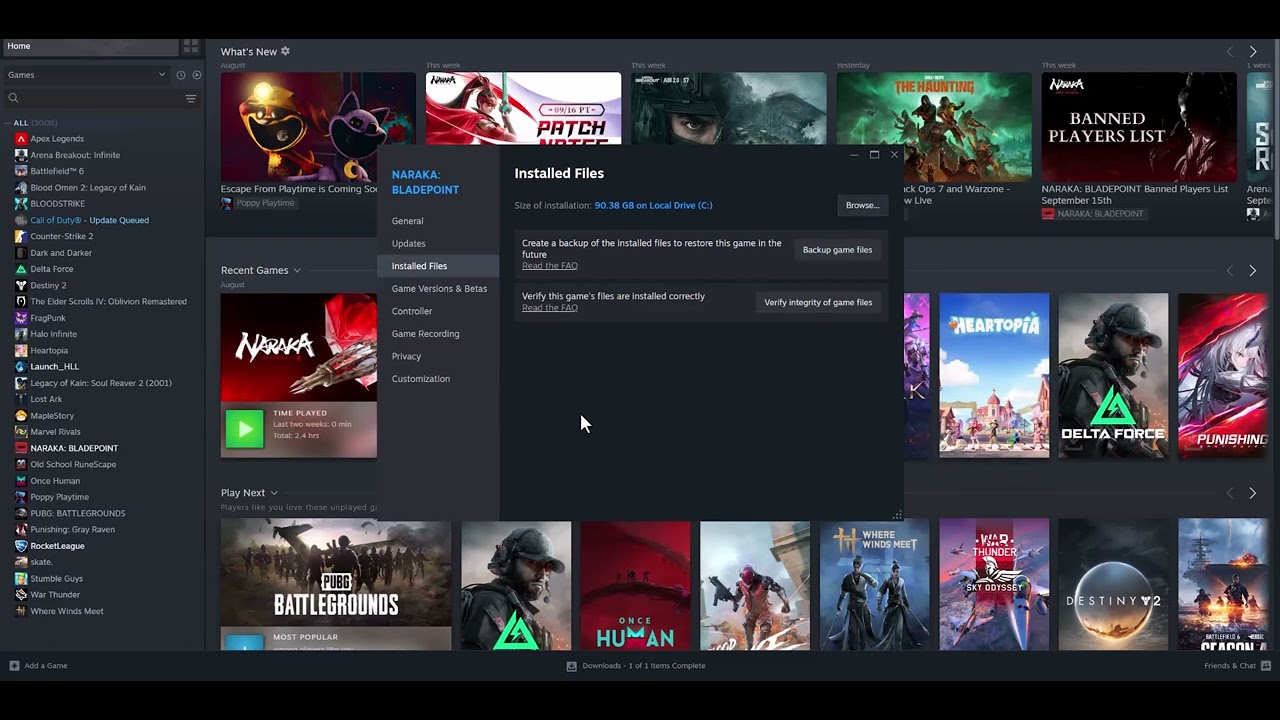
Open Steam and select Library.
Right-click EA SPORTS FC 27 and choose Properties.
Select Installed Files.
Choose Verify integrity of game files and let the scan finish.
Restart Steam, open the EA app if prompted, and test the game.
This is the core method demonstrated in the source video. Steam compares the local installation with its current manifest and replaces files that are missing or do not match. The scan can take several minutes and may redownload a small amount of data.
2. Update the software FC 27 depends on
Open Settings > Windows Update, check for updates, install them, and restart if requested.
Install the current driver from NVIDIA, AMD, or Intel for your graphics hardware.
Open the EA app and Steam again, then allow either launcher to finish its own update.
Launch FC 27 without starting other games, capture tools, or tuning utilities.
EA’s current FC 27 PC guidance identifies graphics drivers, background applications, power settings, resolution, and memory configuration as common causes of unstable performance. A current driver and a clean restart remove several variables at once.
Pause large downloads and close browser tabs that are using substantial memory.
Start FC 27 from Steam and test one launch.
If the game opens, restore the background tools one at a time to find the conflict.
4. Use a clean boot only if the crash continues
EA recommends a Windows clean boot when background tasks may be interfering. A clean boot is reversible, but it changes which non-Microsoft services start with Windows. Record what you disable and re-enable normal startup afterward. If the crash only happens in normal startup, re-enable services in small groups until the conflicting program is identified.
Why these fixes work
Launch failures usually occur before gameplay data loads. File verification repairs the installation; driver and operating-system updates address graphics or runtime faults; and a clean startup removes programs that inject overlays or compete for CPU, GPU, or memory resources. These steps target different points in the startup chain without modifying FC 27 files by hand.
What not to do
Do not download DLL files from random websites. Use the official launcher, Windows Update, or a hardware vendor’s official driver page.
Do not set every FC 27 executable to Windows 8 or Vista compatibility mode. The source video suggests compatibility changes, but that is not part of EA’s current FC 27 guidance and can create new launcher or anti-cheat problems.
Do not leave “Run as administrator” forced on multiple launchers. Mismatched privilege levels can stop Steam, the EA app, and the game from communicating correctly.
Do not reinstall first. Verification is faster and preserves the installation if only a few files are damaged.
If FC 27 still will not launch
Check EA’s service status before changing more settings.
Use the EA app’s repair option if your Steam launch also opens the EA app and the option is available.
Lower the target frame rate and graphics quality if the crash happens after reaching the menu rather than at startup.
Reinstall FC 27 only after verification, updates, and a clean-boot test fail.
Include the crash time, platform, GPU model, driver version, and any exact error message when contacting EA Support.
Frequently asked questions
Will verifying files delete my FC 27 progress?
No. Steam verification checks the installed game files. Cloud or account-linked progress is separate, though it is always sensible to let Steam finish syncing before closing it.
Should I use compatibility mode?
Not as a default fix. It is absent from EA’s current FC 27 PC troubleshooting guidance and can interfere with modern launchers or anti-cheat components.
Why does the game open after I close overlays?
Some overlays hook into the same graphics process used by the game. Closing them is a diagnostic step; if it works, re-enable programs one at a time.
Quick answer: PlayStation says WS-44949-0 means the action is temporarily restricted. Test the same credentials in Account Management from a web browser, verify the sign-in email and password, then wait 24 hours before trying again if the restriction remains.
Before you start
Access to the account’s sign-in email
A phone or computer browser
The correct sign-in ID and password
Steps to fix the error
Stop repeated sign-in attempts. Repeated retries can prolong confusion and will not remove a temporary restriction.
Use Account Management in a browser. Open the official PlayStation Account Management page and try signing in with the same account.
Verify the sign-in ID. Make sure the email address belongs to the intended PSN account and has no typing errors.
Reset the password only if needed. Use PlayStation’s official password-reset flow if the password is genuinely unknown. Never use third-party recovery tools.
Wait 24 hours. If credentials work but the PS4 still shows WS-44949-0, follow PlayStation’s instruction to wait 24 hours before another console sign-in attempt.
Contact PlayStation Support. If the restriction remains after the waiting period, contact support. Do not create replacement accounts to bypass an account restriction.
Why this works
This is an account-side temporary restriction, so database rebuilds, DNS changes, and console initialization are unrelated. Confirming the account in a browser separates credential problems from a console session restriction.
Safe alternatives
Check PlayStation service status before the next attempt.
Restart the PS4 after the 24-hour waiting period, then sign in once.
Warnings and limitations
The video transcript remained unavailable after all required retries. The guide therefore follows the current official error-code page exactly. Never share login codes or use unofficial account-unlock services.
Frequently asked questions
How long should I wait?
PlayStation says to wait 24 hours before signing in again when the error persists.
Should I rebuild the PS4 database?
No. WS-44949-0 is a temporary account-action restriction, not a storage fault.
Can changing DNS remove the restriction?
No. Network settings do not remove an account-side temporary restriction.
Checked against current PlayStation support guidance on September 18, 2026. The source video is supporting material; official instructions and the warnings above take priority.
Quick answer: If CE-100045-0 appears after a game update, restart the PS5, make sure there is free storage, restore licenses, and try deleting and reinstalling only the affected game. Use Safe Mode Clear Cache/Rebuild Database before considering any console reset.
Before you start
The correct PSN account for the game
A stable connection and enough free storage for a full reinstall
Cloud or USB backups before any reset step
Steps to fix the error
Restart the PS5. Close the game, restart the console, and retry the update once.
Check free space and the download queue. Cancel a stuck update, remove unneeded downloads, and leave enough room for the game plus update working space.
Restore licenses. Go to Settings > Users and Accounts > Other > Restore Licenses. This refreshes entitlement records but does not remove saved data.
Delete and reinstall the affected game. If the game can be deleted, remove only that title and download a clean copy from the Library. Back up local saves first if they are not synced.
Clear cache and rebuild the database. Start PS5 in Safe Mode, choose Clear Cache and Rebuild Database, and try Clear System Software Cache first; use Rebuild Database if the icon or storage index remains stuck.
Stop before Reset PS5. Reset PS5 and Reset PS5 (Reinstall System Software) delete user data. Use them only after PlayStation Support recommends them and after a verified backup.
Why this works
The error often appears when an update, game installation, license record, or storage index becomes inconsistent. Restarting, refreshing licenses, reinstalling one game, and rebuilding the database target those layers without wiping the console.
Safe alternatives
Sign out of PSN, restart, and sign back in once.
Update PS5 system software before reinstalling the game.
Warnings and limitations
The source video treats console initialization as a worst-case option. PlayStation confirms that Reset PS5 deletes all user data and Reinstall System Software also removes the system software. Those are not routine fixes.
Frequently asked questions
Does Restore Licenses delete anything?
No. It refreshes the account’s content licenses.
Will deleting a game delete its save?
Game data and saved data are managed separately, but back up saves before troubleshooting.
Which Safe Mode option should I try first?
Clear System Software Cache, then Rebuild Database if the problem persists.
Checked against current PlayStation support guidance on September 18, 2026. The source video is supporting material; official instructions and the warnings above take priority.
Quick answer: PlayStation says CE-34697-9 indicates a possible PS4 hard-disk problem. Restart first. If the HDD was replaced, confirm compatibility and try the original or another compatible drive. If formatting still fails or Safe Mode loops, use PlayStation Repairs.
Before you start
The PS4’s original internal HDD, if it was replaced
A compatible 2.5-inch SATA drive for controlled testing, if available
Backups of accessible saves and captures
Steps to fix the error
Restart the PS4. Power the console off completely and restart it once. Do not repeat initialization in a loop.
Identify whether the HDD was replaced. If the error began after a drive swap, power off and disconnect the console before checking the installation.
Verify drive compatibility and seating. Use only a PS4-compatible internal drive. Reseat it carefully according to the model’s hardware guide; do not open unrelated console components.
Retry the original drive. If the console is stuck in Safe Mode with a replacement drive, PlayStation recommends trying the original HDD or another compatible HDD.
Use Safe Mode only for supported recovery. Update System Software can be tried if storage is recognized. Avoid Initialize PS4 until you understand that it erases all user data.
Request repair when formatting still fails. Persistent format failure can indicate a failing drive, connector, or console hardware. Use PlayStation Repairs rather than repeatedly erasing or reinstalling.
Why this works
CE-34697-9 is tied by PlayStation to HDD formatting or compatibility. Account settings, DNS changes, and license restoration do not repair a drive the console cannot initialize.
Safe alternatives
If the original drive works, replace the incompatible or failing drive before restoring data.
If no compatible drive is recognized, stop troubleshooting and arrange repair.
Warnings and limitations
The video transcript never became available after all retries. Current PlayStation guidance is more specific than the old video title: this is an HDD issue. Initialization and firmware reinstall erase data and cannot rescue files from a failing drive.
Frequently asked questions
Does CE-34697-9 mean the HDD is definitely dead?
No, but PlayStation says there may be an HDD issue. Compatibility, seating, or the drive itself can be responsible.
Will Restore Licenses help?
No. This error occurs before account entitlements are relevant.
Can I keep retrying Initialize PS4?
No. Repeated initialization risks further data loss and does not correct incompatible hardware.
Checked against current PlayStation support guidance on September 18, 2026. The source video is supporting material; official instructions and the warnings above take priority.