Category: Game Fixes

Troubleshooting guides and fixes for gaming errors, crashes, installation problems, and connectivity issues.

  • How to Fix PS5 Error CE-113524-6 (Unable to Connect)

    How to Fix PS5 Error CE-113524-6 (Unable to Connect)

    Quick answer: CE-113524-6 means the PS5 cannot connect to PlayStation. Check service status, test the connection, power-cycle the router for five minutes, and verify any manual DNS settings. Try a cable, another Wi-Fi band, or a hotspot only as a diagnostic.

    Before you start

    • Access to Settings > Network on PS5
    • Permission to restart the home modem/router
    • An Ethernet cable or alternate network for testing, if available

    Steps to fix the error

    1. Check PlayStation services. Open PlayStation Status. If there is maintenance or an outage, wait rather than changing settings.
    2. Test the PS5 connection. Go to Settings > Network > Connection Status > Test Internet Connection. Note whether IP, internet, or PSN sign-in fails.
    3. Power-cycle the network safely. Turn off the modem/router, wait five minutes as PlayStation recommends, then power it back on. Do not press a recessed factory-reset button.
    4. Change the connection path. If possible, test Ethernet instead of Wi-Fi or Wi-Fi instead of Ethernet. Replace a suspect cable and move closer to the router.
    5. Try the other Wi-Fi band. Edit the saved network and try 5 GHz for speed at short range or 2.4 GHz for longer range. Return to Automatic if it performs worse.
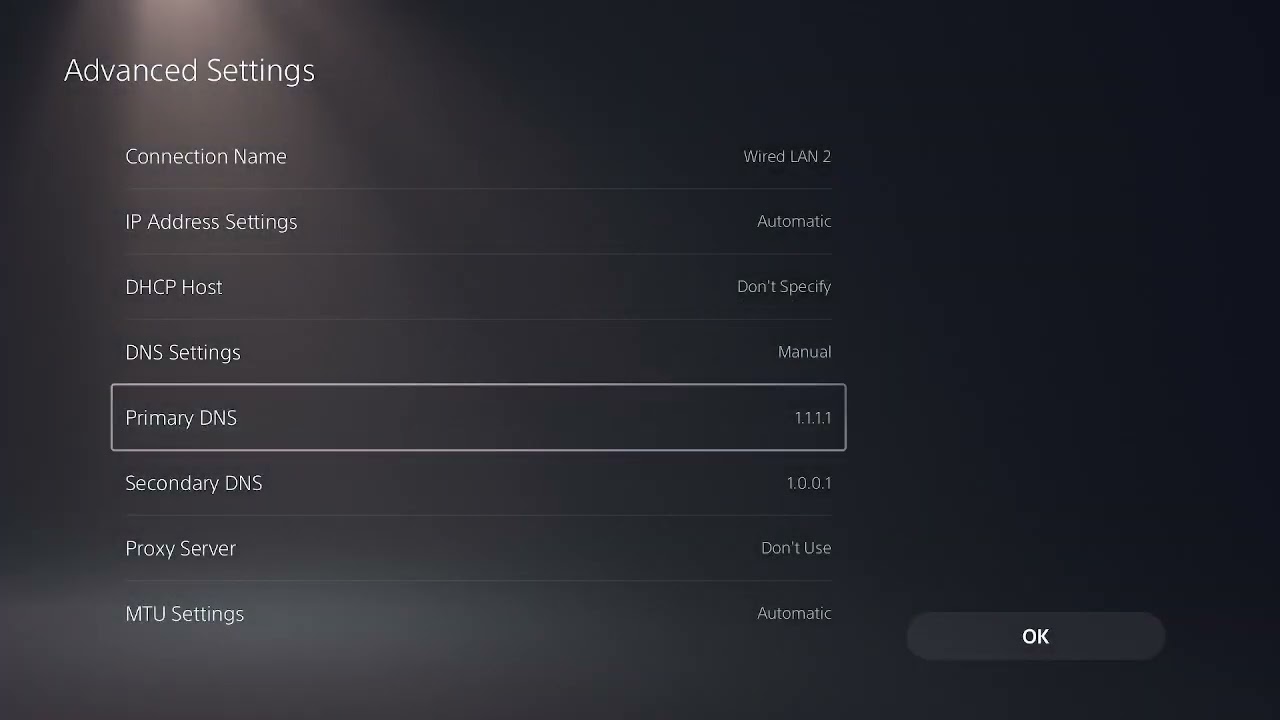
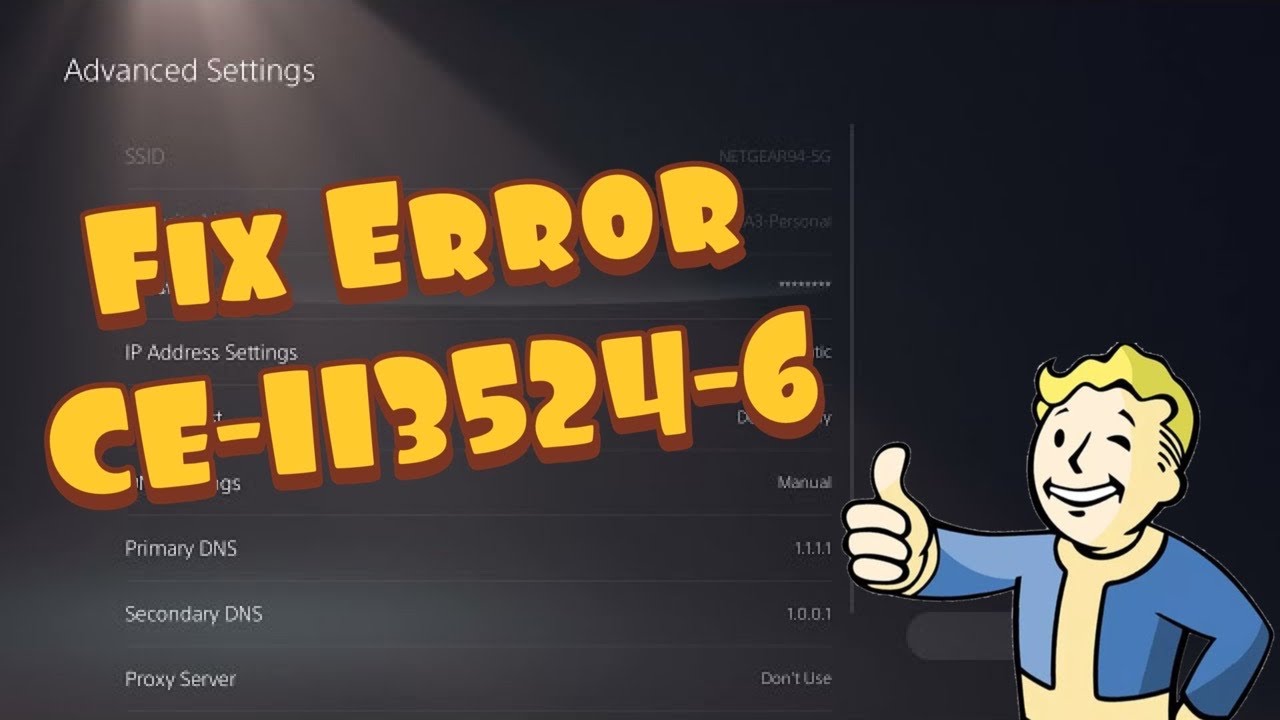
    6. Review manual DNS only if used. PlayStation specifically says to verify primary and secondary DNS values when DNS was set manually. Switching DNS is an unofficial diagnostic, not a guaranteed fix; undo it by selecting Automatic.
    7. Contact the ISP or wait. Test a phone hotspot briefly. If the PS5 works there, ask the ISP about an outage or routing issue. If every network fails, contact PlayStation Support.

    Why this works

    The code is an online connection failure. The sequence separates PlayStation service outages, local router problems, Wi-Fi/cable issues, and incorrect manual DNS settings without erasing console data.

    Safe alternatives

    • Forget the saved Wi-Fi network and add it again with the correct password.
    • Update PS5 system software after connectivity is restored.

    Warnings and limitations

    The source video mentions using the router’s reset pin and disabling IPv6. Do not factory-reset a router for this error. IPv6 changes are router-specific and can disrupt other devices; leave them to an ISP or network administrator and document how to reverse them.

    Frequently asked questions

    Is CE-113524-6 a PS5 hardware failure?

    Not usually. PlayStation classifies it as an inability to connect and says it may be temporary.

    Can I use Google or Cloudflare DNS?

    You can test a trusted DNS provider, but it is unofficial for this code and should be returned to Automatic if it does not help.

    Why test a hotspot?

    It isolates the console from the home connection. Success on a hotspot points toward the router or ISP path.

    Official references

    Source video

    Checked against current PlayStation support guidance on September 18, 2026. The source video is supporting material; official instructions and the warnings above take priority.
  • How to Fix PS4 Error CE-34668-7 Safely

    How to Fix PS4 Error CE-34668-7 Safely

    Quick answer: Start with a full restart and a normal system-software update. If CE-34668-7 returns, use PS4 Safe Mode to update system software, then try Rebuild Database. Initialization or a system-software reinstall is a data-erasing last resort only.

    Before you start

    • A DUALSHOCK 4 and data-capable USB cable
    • A stable internet connection or FAT32/exFAT USB drive for a manual update
    • A backup of saves and captures before any initialization step

    Steps to fix the error

    1. Power-cycle the PS4. Turn the PS4 fully off, unplug it for about one minute, reconnect it, and start normally.
    2. Remove a failed update download. If you can reach the home screen, open Notifications, highlight the failed update, press OPTIONS, delete it, then use Settings > System Software Update.
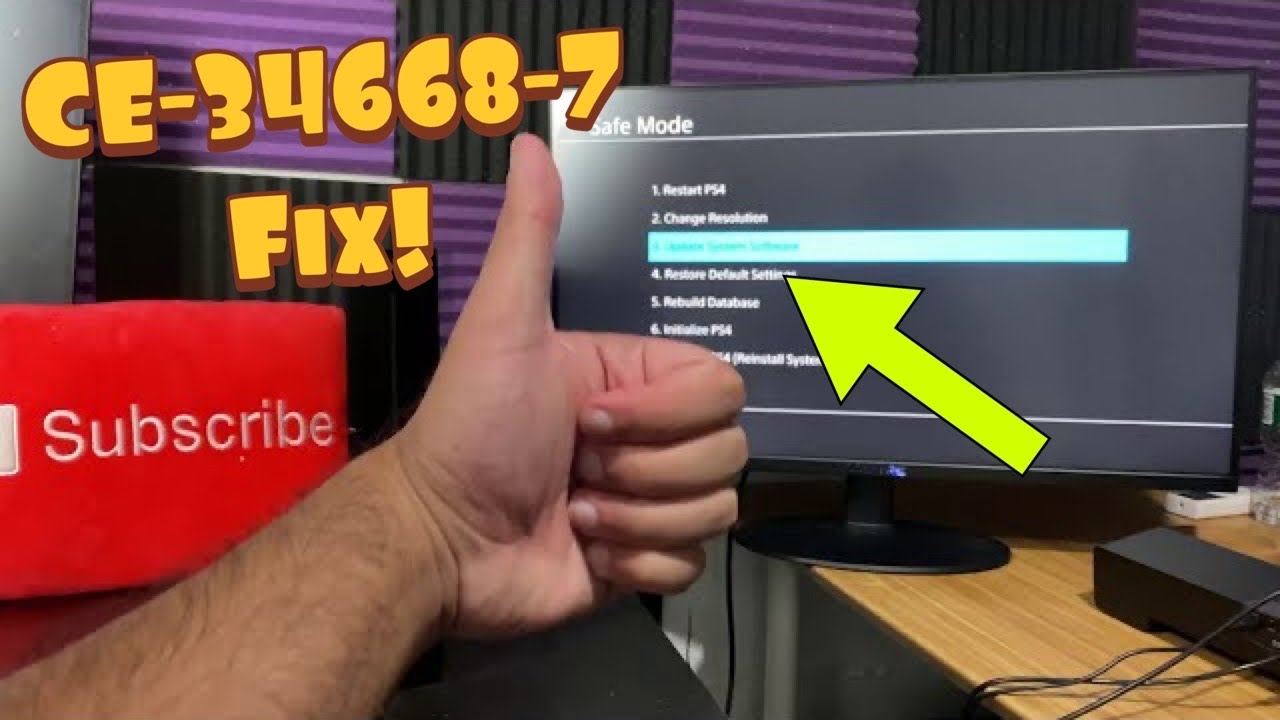
    3. Start Safe Mode. Turn the console off. Hold the power button until the second beep, connect the controller by USB, and press the PS button.
    4. Update System Software. Choose Safe Mode option 3. Try the internet method first. For USB, use Sony’s current folder and file-name instructions exactly.
    5. Rebuild Database. If the update completes but CE-34668-7 returns, reopen Safe Mode and choose Rebuild Database. This rescans storage and does not intentionally erase user data, although a backup is still wise.
    6. Escalate without guessing. If the console cannot update or rebuild reliably, use PlayStation Repairs. Treat Initialize PS4 and Reinstall System Software as last resorts after a verified backup.

    Why this works

    A failed update or inconsistent storage index can stop the PS4 from loading data correctly. Updating the firmware and rebuilding the database address those layers before any destructive reset.

    Safe alternatives

    • Disconnect nonessential USB storage and test the console’s internal storage only.
    • If a USB update is not recognized, recheck FAT32/exFAT format plus uppercase PS4/UPDATE folders and PS4UPDATE.PUP file name.

    Warnings and limitations

    YouTube captions remained unavailable after every required retry, so this guide does not reproduce undocumented narration. The safe sequence comes from current PlayStation Safe Mode and system-update instructions. Initialize PS4 and Reinstall System Software delete user data; do not choose them casually.

    Frequently asked questions

    Does Rebuild Database delete games?

    PlayStation describes it as scanning the drive and recreating the content database; it is not the same as Initialize PS4.

    What if the USB update is not recognized?

    Check the drive format, folder names, and filename exactly as PlayStation specifies.

    When should I request repair?

    When updates and database rebuilding repeatedly fail, or storage errors return after a clean update.

    Official references

    Source video

    Checked against current PlayStation support guidance on September 18, 2026. The source video is supporting material; official instructions and the warnings above take priority.
  • How to Fix PS4 Errors WS-45486-7 and WS-45480-1 When a Voucher Won’t Redeem

    How to Fix PS4 Errors WS-45486-7 and WS-45480-1 When a Voucher Won’t Redeem

    Quick answer: WS-45486-7 is usually a voucher-redemption problem, not a console-storage fault. Confirm the 12-digit code, expiry, retail activation, account region, and eligibility; then check PlayStation service status and try again after signing out and back in.

    Before you start

    • The voucher or receipt and proof of purchase
    • Access to the PSN account that should receive the content
    • A browser or phone for checking Account Management and service status

    Steps to fix the error

    1. Check PlayStation service status. Open PlayStation Status. If Store or Account Management is having an incident, stop retrying and wait for recovery.
    2. Verify the code itself. A standard PlayStation Store voucher has 12 digits. Re-enter it carefully, check its expiry date, and confirm a retail card was activated at checkout.
    3. Confirm the Store region. The voucher country must match the PlayStation Store region on the account. PlayStation says an account region cannot be changed. Contact the retailer if the card was sold for the wrong region.
    4. Check eligibility and redemption history. Subscription trials can have account-specific eligibility rules. Also check transaction history and the Game Library in case the code was already redeemed.
    5. Refresh the account once. Sign out of PlayStation Network, restart the PS4, sign back in, and retry once. Avoid repeated rapid attempts.
    6. Contact the right party. For an unactivated retail card, contact the retailer. For a valid matching-region code that still fails, contact PlayStation Support with proof of purchase.

    Why this works

    Voucher validation happens against the account, Store region, activation record, eligibility rules, and current PlayStation services. Changing console storage or rebuilding the database does not correct a mismatched or unactivated code.

    Safe alternatives

    • Try redeeming through the PlayStation Store website or PlayStation App while signed into the same account.
    • If content redeemed successfully but is missing, relaunch the game and check the Library and transaction history before considering Restore Licenses.

    Warnings and limitations

    The source video suggests creating another regional account or a new account for a trial. This guide does not recommend using false regional details or cycling trial accounts. Those actions can create account, payment, entitlement, and terms problems. Restore Licenses can refresh ownership data for purchased content, but it cannot make an invalid voucher redeemable.

    Frequently asked questions

    Does Restore Licenses fix WS-45486-7?

    Usually not when the voucher itself has not redeemed. It is useful after a purchase or redemption when owned content is missing.

    Can I change my PSN account region?

    No. PlayStation’s current voucher guidance says the account region cannot be changed after setup.

    Should I keep trying the code?

    No. Verify the code and service status, then wait or contact support; repeated attempts do not solve region or activation issues.

    Official references

    WS-45480-1 uses the same voucher-region workflow

    The additional source video shows WS-45480-1 during voucher redemption. Treat it as the same canonical voucher check: the voucher country must match the PlayStation Store region on the account. Signing out or restoring licenses cannot change a voucher’s region, activation state or eligibility.

    Original source video

    Checked against current PlayStation support guidance on September 26, 2026. The source videos are supporting material; official instructions and the warnings above take priority.
    As an Amazon Associate I earn from qualifying purchases. This guide includes no product recommendations or affiliate purchase links.

  • How to Fix PS5 ‘A Software Error Occurred the Last Time’

    How to Fix PS5 ‘A Software Error Occurred the Last Time’

    Quick answer: If the PS5 says “A software error occurred the last time this PS5 was used,” install the latest system update, shut the console down fully, disconnect power briefly, and restart. If the message returns, use Safe Mode to repair console storage, clear the system-software cache, and rebuild the database before considering any reset.

    The source transcript did not finish loading after all required retries, and the visible player was blocked by an advertisement. The safe sequence below is therefore based on current PlayStation recovery documentation, not assumed video steps.

    Before you troubleshoot

    • Sync important saves to PlayStation Plus cloud storage or back up supported data.
    • Disconnect nonessential USB storage and accessories for the first test.
    • Note whether the message follows Rest Mode, a game crash, a power loss, or every startup.

    Fix “A software error occurred the last time”

    1. Update system software. Go to Settings > System > System Software > System Software Update and Settings > Update System Software.
    2. Update the affected game. Highlight it, press Options, and select Check for Update. If the message follows only one title, test another title before changing console-wide settings.
    3. Perform a full power cycle. Turn the PS5 off, wait for the light to stop flashing, unplug power for about 20 minutes, reconnect it, and start normally.
    4. Remove external variables. Leave external USB storage, capture devices, and nonessential accessories disconnected and test again.
    5. Enter Safe Mode. Turn off the console, hold the power button, and release it after the second beep. Connect the DualSense controller with a USB cable.
    6. Run Repair Console Storage. PlayStation says this option does not erase data and is appropriate for startup or storage problems.
    7. Clear the system-software cache. In Safe Mode, choose Clear Cache and Rebuild Database > Clear System Software Cache.
    8. Rebuild the database. Return to the same menu and choose Rebuild Database if the error continues. This scans storage and recreates the content database.
    9. Restore default settings only if needed. This resets settings without deleting games, apps, captures, or saved data, but you will need to configure preferences again.

    Why these steps can work

    The message is a symptom of the previous session ending unexpectedly. Updating removes known firmware defects; a full shutdown clears a stuck power or Rest Mode state; Repair Console Storage, cache clearing, and database rebuilding address non-user-data storage structures.

    When to stop troubleshooting

    • If the console loses power, overheats, clicks, or repeatedly crashes across several games, stop repeated restarts and arrange PlayStation hardware support.
    • If only one game triggers the message, reinstall that game before resetting the console.
    • If the error began after a power outage, consider the power source and avoid unstable extension cords.

    Warnings

    Safe Mode options Reset PS5 and Reset PS5 (Reinstall System Software) erase user data. They are not part of the initial fix. Do not download system software from third-party sites; PlayStation explicitly requires the official file.

    FAQ

    Does Rebuild Database delete games or saves?

    It scans the drive and rebuilds the content database. It is not the same as Reset PS5, but keeping a current backup is still sensible.

    Why does the message appear after Rest Mode?

    The previous suspended session may not have resumed or shut down cleanly. Test a full shutdown instead of Rest Mode and install current system updates.

    Should I reinstall system software?

    Only after backing up and exhausting the non-destructive options, ideally under PlayStation Support guidance. Reinstallation erases the console.

    Official references

  • How to Fix Skate Friends Not Showing or Unable to Join

    How to Fix Skate Friends Not Showing or Unable to Join

    Quick answer: If a friend is missing or cannot join in Skate, make sure both players are EA Friends, are on the same game version, and have compatible cross-play settings. In Social & Spectate > Settings, toggle Cross-Play off, apply the change, restart if prompted, then turn it back on and rebuild the party.

    The two source videos show the same reversible refresh: both players toggle cross-play off and back on, then retry. EA documents the Social & Spectate cross-play menu and notes that Xbox players manage cross-network play through Xbox privacy settings.

    Prerequisites

    • Both players need a connected EA Account.
    • Install every available Skate update before testing.
    • Confirm whether the friend is on the same platform or a different one.

    Fix missing friends or failed joins in Skate

    1. Check EA and platform status. If Skate, EA, PlayStation, Xbox, Steam, or Epic services are down, wait for recovery.
    2. Confirm the EA Friend relationship. Open Social & Spectate and search the friend’s EA ID. Platform friendship alone may not populate a cross-platform EA list.
    3. Match game versions. Both players should close Skate and install updates. A party can fail when one client is behind.
    4. Match cross-play settings. In Skate, go to Social & Spectate > Settings > Cross-Play. Make sure both players use the same setting.
    5. Refresh cross-play. Both players turn Cross-Play off, accept any restart, reopen the game, then turn Cross-Play on. This is an unofficial refresh that may work only in some cases.
    6. Rebuild the party. Leave existing groups, return to the main social screen, and have one player send a fresh invite.
    7. Check privacy and family controls. Xbox users should allow cross-network play in Xbox privacy settings. Other platforms should permit communication, invites, and multiplayer.
    8. Restart the network only if joins still fail. Restart the console/PC and router, then test again without a VPN.

    Why toggling cross-play can help

    The setting change forces the client to rebuild its cross-platform matchmaking state. It does not repair the EA service or permanently change an account. Because it is reversible, it is reasonable after account, update, and service checks.

    Platform-specific notes

    • Xbox: EA says cross-play is controlled through Xbox console settings, so an in-game option may be unavailable or overridden.
    • PlayStation: Update the game and system software. Restoring licenses is relevant only when ownership or downloaded content is failing, not for every social-list issue.
    • PC: Close the launcher completely, reopen it, and verify game files if the Social menu fails to load.

    Warnings

    Do not unlink the EA Account as a first step. Account linking has restrictions and can affect progress or access. Do not open router ports or disable security features until basic status, account, version, and privacy checks are complete.

    FAQ

    Why is the cross-play option grayed out?

    Platform privacy or family settings may control it. On Xbox, adjust the cross-network play permission in Xbox privacy settings.

    Will toggling cross-play delete progress?

    No. It changes matchmaking compatibility, not career progress. You may need to restart and send a new invite.

    Why can I see a friend but not join?

    Different client versions, a full session, incompatible privacy settings, an existing party state, or a service incident can block the join even when the friend entry appears.

    Official references

  • How to Fix Battlefield REDSEC Lag and Low FPS on PS5

    How to Fix Battlefield REDSEC Lag and Low FPS on PS5

    Quick answer: First decide whether Battlefield REDSEC is suffering from network lag or low frame rate. For network lag, check EA status, restart the router, and use Ethernet. For low FPS or stutter, update the game and PS5, use the correct 120 Hz/display settings, and remove heat or storage bottlenecks. A DNS change may help lookups but will not raise FPS.

    The video recommends Ethernet, selecting a Wi-Fi band instead of Automatic, and testing Cloudflare DNS. Those are network tests. They can reduce connection instability in some setups, but they cannot fix locally rendered low FPS.

    Tell lag and low FPS apart

    • Network lag: rubber-banding, delayed hits, icons warning about latency or packet loss, or other players jumping position.
    • Low FPS: choppy camera movement and animation even when playing locally or when the network indicators look normal.

    Fix REDSEC network lag on PS5

    1. Check EA’s server-status page and the PlayStation status page. Wait if either service is degraded.
    2. Restart REDSEC and the PS5, then power cycle the router for 60 seconds.
    3. Connect the PS5 by Ethernet. EA specifically recommends a wired connection for Battlefield connection problems.
    4. If Wi-Fi is necessary, open Settings > Network > Settings > Set Up Internet Connection, highlight the network, press Options, and test 5 GHz at close range or 2.4 GHz at longer range.
    5. Run Settings > Network > Connection Status > Test Internet Connection. Look for a major speed change or failure.
    6. Disable a VPN on the router or upstream network and retest. Keep normal firewall protection enabled.
    7. Optionally test DNS 1.1.1.1 and 1.0.0.1 in Advanced Settings. Return DNS to Automatic if there is no measurable improvement.

    Fix low FPS or stutter

    1. Install the latest REDSEC and PS5 system updates.
    2. Restart the PS5 rather than resuming a long suspended session.
    3. Make sure the console has open ventilation and is not hot or clogged with dust.
    4. In PS5 Settings > Screen and Video, confirm the output matches the TV. Test with 120 Hz Output set to Automatic only if the display supports it.
    5. Temporarily disable VRR to test for a display handshake problem, then restore it if it was not the cause.
    6. Keep free internal storage available and move the game back to supported internal storage if an external setup is involved.

    Why these steps work

    EA identifies server status, router restarts, wired connections, VPN/firewall settings, and NAT as the main connection checks. Ethernet and a fixed Wi-Fi band reduce radio variability. Low frame rate is a rendering or system-performance problem, so network DNS cannot solve it; updates, thermal conditions, and display settings are the relevant checks.

    Warnings

    • Do not put the PS5 in a router DMZ as a first-line fix.
    • Do not disable the router firewall permanently.
    • Do not expect DNS to reduce every form of lag or increase FPS.

    FAQ

    Which Wi-Fi band should I use?

    Try 5 GHz near the router and 2.4 GHz when walls or distance make 5 GHz unstable. Compare matches, not just the speed-test number.

    Does REDSEC require internet?

    Yes. EA says REDSEC requires an EA Account and a persistent internet connection.

    Why does the game feel bad only at busy times?

    That pattern can point to server load or home-network congestion. Compare EA status and test when other household traffic is quiet.

    Official references

  • How to Fix PS5 Error NW-102254-4

    How to Fix PS5 Error NW-102254-4

    Quick answer: PlayStation’s guidance for PS5 error NW-102254-4 is to restart the console, use a wired internet connection when possible, and configure the network connection again. If that does not work, restart the router and test the PS5 connection before trying optional DNS changes.

    The source video’s captions remained unavailable, so this guide uses PlayStation’s exact error-code page and standard PS5 network procedures.

    What the error means

    NW-102254-4 appears when the PS5 cannot complete a network connection. The cause may be a temporary router state, weak Wi-Fi, an incorrect saved configuration, DNS failure, or a PlayStation Network incident.

    Fix PS5 error NW-102254-4

    1. Check PlayStation status. If PSN is reporting an incident, wait for recovery before changing local settings.
    2. Restart the PS5. Select Power > Restart PS5. Do not use Rest Mode for this test.
    3. Test the connection. Go to Settings > Network > Connection Status > Test Internet Connection. Note where the test fails.
    4. Restart the router. Unplug it for about 60 seconds, reconnect it, and wait for internet access to return.
    5. Use Ethernet if possible. Connect the PS5 directly to the router, then go to Settings > Network > Settings > Set Up Internet Connection and select the wired connection.
    6. Reconfigure Wi-Fi. Under Set Up Internet Connection, highlight the saved network, press Options, choose Forget, and reconnect with the correct password.
    7. Improve the Wi-Fi path. Move the console and router closer, avoid enclosed cabinets, and test the 5 GHz band at short range. Use 2.4 GHz when distance or walls make 5 GHz unstable.
    8. Try DNS only as a reversible test. Open the connection’s Advanced Settings, set DNS to Manual, and use a reputable resolver. Record the old values and return to Automatic if there is no improvement.
    9. Update system software. Go to Settings > System > System Software > System Software Update and Settings.

    Why this order helps

    The sequence separates an external outage from a local problem and changes one variable at a time. A restart renews the current session, Ethernet removes radio interference, and rebuilding the saved connection removes an incorrect password or stale address configuration.

    If it still fails

    • Test another device on the same network.
    • Briefly test a mobile hotspot to isolate the home router; watch data usage.
    • Check the router for paused devices, parental controls, MAC filtering, or a full DHCP pool.
    • Contact the internet provider if multiple devices cannot connect, or PlayStation Support if only the PS5 fails.

    Warnings

    Do not factory-reset the router unless you have the ISP credentials and a configuration backup. Do not set port forwarding or DMZ rules merely to solve this code; start with the supported connection checks.

    FAQ

    Will forgetting the Wi-Fi network delete games?

    No. It removes only the saved wireless connection and password.

    Is 5 GHz always better?

    It is usually faster at short range but loses strength faster through walls. A stable 2.4 GHz connection can be better at distance.

    Should I change MTU?

    Leave MTU on Automatic unless your ISP or network administrator provides a specific value.

    Official references

  • How to Fix Xbox Error 0x00000000 or 0x00000201

    How to Fix Xbox Error 0x00000000 or 0x00000201

    Quick answer: Xbox error 0x00000201 is associated with a console update that cannot complete. Restart the console and network, test the Xbox connection, confirm there is free storage, and retry the update. Use the official Offline System Update only when normal updating still fails and the console is not enrolled in an Xbox Insider preview.

    The source video’s captions remained unavailable. The procedure below follows Xbox’s current error and system-update guidance. Error 0x00000000 can be a generic companion code; use 0x00000201 and the update screen as the main diagnostic clue.

    Before you start

    • Note whether the error appears during a console update or while installing a game.
    • Check Xbox status for account, store, or network incidents.
    • Do not factory-reset the console before trying the non-destructive steps.

    Fix Xbox update error 0x00000201

    1. Retry once. If the update screen offers Try again, select it after confirming the internet connection is working.
    2. Restart the Xbox. Hold the Xbox button on the controller and choose Restart console. If the interface is unresponsive, hold the console power button for about 10 seconds, wait 30 seconds, and turn it on.
    3. Restart the router. Unplug the router for 60 seconds, reconnect it, and wait until the connection is stable.
    4. Test the network. Go to Profile & system > Settings > General > Network settings > Test network connection. Resolve any reported DNS, packet-loss, or NAT issue.
    5. Change the connection path. Use Ethernet if available. If already wired, reseat the cable and try another router port. On Wi-Fi, move closer and remove the saved network before reconnecting.
    6. Check storage. Remove an unused game if the internal drive is nearly full, restart, and try the update again.
    7. Use the Startup Troubleshooter. If the console will not reach the dashboard, follow Microsoft’s model-specific instructions to open the Xbox Startup Troubleshooter and retry the update.
    8. Consider the official Offline System Update. Download the OSU file only from Xbox Support and follow its USB instructions exactly. Xbox Insider consoles may need a different recovery path, so do not apply an OSU blindly.

    Why these steps work

    The update has to download, validate, unpack, and write system files. A temporary service interruption, unstable connection, insufficient working space, or stalled update state can break that sequence. Restarting clears the state; a wired connection reduces packet loss; the official offline package provides a clean update source.

    Alternatives and escalation

    • Try a mobile hotspot briefly to determine whether the home network is the cause; watch cellular data usage.
    • If the update works on the alternate network, return to the router and review firmware, filtering, and DNS settings.
    • If the Startup Troubleshooter or OSU reports another code, record the full code before contacting Xbox Support.

    Warnings

    A reset can remove local data depending on the option selected. Choose Reset and keep my games & apps only when Xbox Support’s flow specifically recommends it. Never download an Xbox update package from a third-party site.

    FAQ

    Does restarting the router erase its settings?

    No. Unplugging and reconnecting power is not the same as pressing the router’s factory-reset button.

    Can I use the offline update on an Insider console?

    Not safely by assumption. Preview builds may be newer than the public OSU package. Follow Xbox Insider recovery guidance.

    What if the code appears during a game download?

    Pause and resume the download, restart the console, check storage, and test the network. If the console itself is also requesting an update, complete that first.

    Official references

  • How to Fix Marvel Rivals Error Code 10 on PC

    How to Fix Marvel Rivals Error Code 10 on PC

    Quick answer: For Marvel Rivals Error Code 10 on PC, first check whether the game service is down. If services are available, restart the launcher and router, flush Windows DNS, and test a reversible switch to Cloudflare DNS. Change DNS back to Automatic if it does not help.

    The video demonstrates changing IPv4 DNS to 1.1.1.1 and 1.0.0.1, flushing DNS, and restarting. This is an unofficial workaround: it can help when name resolution is the problem, but it cannot repair a server outage, account restriction, or corrupted game file.

    What you need

    • An administrator account on Windows.
    • Your current network configuration, especially any custom DNS values, written down.
    • Marvel Rivals and its launcher fully updated.

    Fix Marvel Rivals Error Code 10

    1. Check service status. Review the official Marvel Rivals site and launcher notices. If there is maintenance or an outage, wait instead of changing the PC.
    2. Restart the game and launcher. Exit Marvel Rivals, close Steam or Epic from the system tray, reopen it, and try again.
    3. Power cycle the network. Shut down the PC. Unplug the router for about 60 seconds, reconnect it, wait for internet service to return, and start the PC.
    4. Flush Windows DNS. Open Command Prompt as administrator, run ipconfig /flushdns, and look for the successful flush message.
    5. Test Cloudflare DNS on Windows 11. Open Settings > Network & internet, select Wi-Fi or Ethernet, choose DNS server assignment > Edit, select Manual, enable IPv4, and enter 1.1.1.1 as Preferred DNS and 1.0.0.1 as Alternate DNS. Save, then restart the PC.
    6. Verify game files. In Steam, open Marvel Rivals > Properties > Installed Files > Verify integrity. Use the equivalent verify option in the launcher you actually use.
    7. Test without VPN or proxy. Disconnect it temporarily, retry, then restore it after the test if required for your normal setup.

    Why the DNS workaround can help

    DNS translates service names into network addresses. A stale Windows cache or unreliable resolver can prevent the client from reaching login services even when general browsing works. Flushing the cache forces Windows to request fresh results. A different resolver changes only that lookup path; it does not increase frame rate or bypass an account or regional restriction.

    How to undo the change

    Return to DNS server assignment and choose Automatic (DHCP). If you previously used custom DNS values, restore those instead. Public Wi-Fi with a sign-in page may require Automatic DNS.

    Warnings

    • Do not download DLL files or “network repair” tools from random sites.
    • Do not disable Windows Firewall permanently. If testing the firewall changes the result, add a narrow launcher/game rule and re-enable protection.
    • DNS cannot fix a Marvel Rivals outage. Repeated changes during an outage only make diagnosis harder.

    FAQ

    Is Error Code 10 always a DNS error?

    No. It can appear during broader connectivity or service problems. DNS is one reversible test after status and restart checks.

    Do I need to use 1.1.1.1?

    No. You can return to your ISP’s automatic DNS. The Cloudflare values are used here because Cloudflare publishes the setup and reversal steps.

    Will flushing DNS delete passwords or game data?

    No. It clears cached name-resolution records, not accounts, saved games, or browser passwords.

    Official references

  • How to Fix Black Ops 6 Black Screen or Not Launching on PS5

    How to Fix Black Ops 6 Black Screen or Not Launching on PS5

    Quick answer: If Black Ops 6 opens to a black screen or will not launch on PS5, fully close the game, restart the console, install both the PS5 system update and the latest Black Ops 6 update, then restore licenses. If it still fails, clear the PS5 system-software cache before reinstalling the game.

    The source video’s captions did not load after repeated checks, so the steps below rely on current Activision and PlayStation procedures rather than an unverified transcript. Viewer reports on the video mention updates and restoring licenses, but those reports are not guarantees.

    Before you start

    • Make sure the PS5 has enough free storage for the game and its temporary update files.
    • Use the PS5 version included with your purchase; Activision notes that cross-gen bundles can show more than one version.
    • Do not delete saved data. A normal reinstall removes game files, not cloud saves, but confirm synchronization first.

    Fix a Black Ops 6 black screen on PS5

    1. Close the game completely. Highlight Black Ops 6 on the home screen, press Options, and select Close Game. Do not leave it suspended.
    2. Restart the PS5. Use Power > Restart PS5. A restart clears a stalled launch session more reliably than Rest Mode.
    3. Update the PS5. Go to Settings > System > System Software > System Software Update and Settings > Update System Software.
    4. Check the game update. Highlight Black Ops 6, press Options, and select Check for Update. Let every download finish before launching.
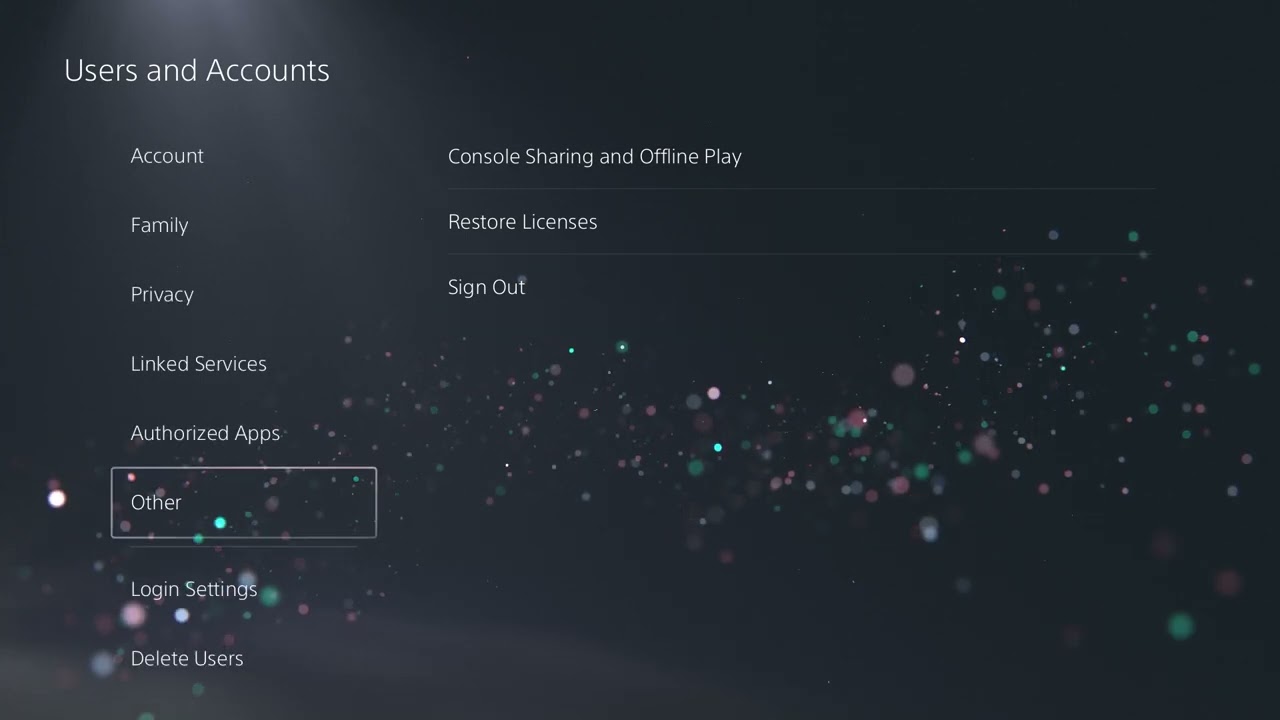
    5. Restore licenses. Go to Settings > Users and Accounts > Other > Restore Licenses. This does not delete games or saves.
    6. Confirm the installed version and content. Open Options > Manage Game Content and make sure the required Black Ops 6 content is installed. Remove obsolete packs only when the console identifies them as unnecessary.
    7. Clear the system-software cache. Turn off the console. Hold the power button until the second beep, connect the controller by USB, choose Clear Cache and Rebuild Database, then Clear System Software Cache.
    8. Reinstall only as a last non-destructive step. Delete Black Ops 6, restart, then download the standalone PS5 version again over a stable connection.

    Why these steps can work

    A black screen can come from an incomplete game update, a mismatched PS4/PS5 build, a stale entitlement, or damaged cached launch data. Updating addresses known game and firmware defects; restoring licenses refreshes purchase entitlements; clearing the cache removes temporary system data without erasing saves.

    If the screen is still black

    • Check Activision’s known-issues page before repeatedly reinstalling.
    • Test another game. If every title shows a black screen, troubleshoot the PS5 display path, HDMI cable, and TV input instead.
    • Disable 120 Hz or VRR temporarily under Settings > Screen and Video to rule out a display-mode handshake problem, then turn the setting back on after testing.
    • If the console itself crashes or powers off, stop testing and use PlayStation hardware support.

    Warnings

    Do not choose Reset PS5 or Reinstall System Software for a single-game launch problem; those options erase data. Avoid deleting saved data or downloading unofficial files.

    FAQ

    Will restoring licenses delete anything?

    No. It refreshes digital entitlements and does not remove installed games or save data.

    Should I install the PS4 or PS5 version?

    Use the PS5 version on a PS5 unless you have a specific compatibility reason to use the PS4 build. Confirm the version from the game’s three-dot menu.

    Is this a server problem?

    A server outage usually affects sign-in or online modes after the game launches. A black screen before the menu more often points to local game, cache, entitlement, or display state.

    Official references