Category: Game Fixes

Troubleshooting guides and fixes for gaming errors, crashes, installation problems, and connectivity issues.

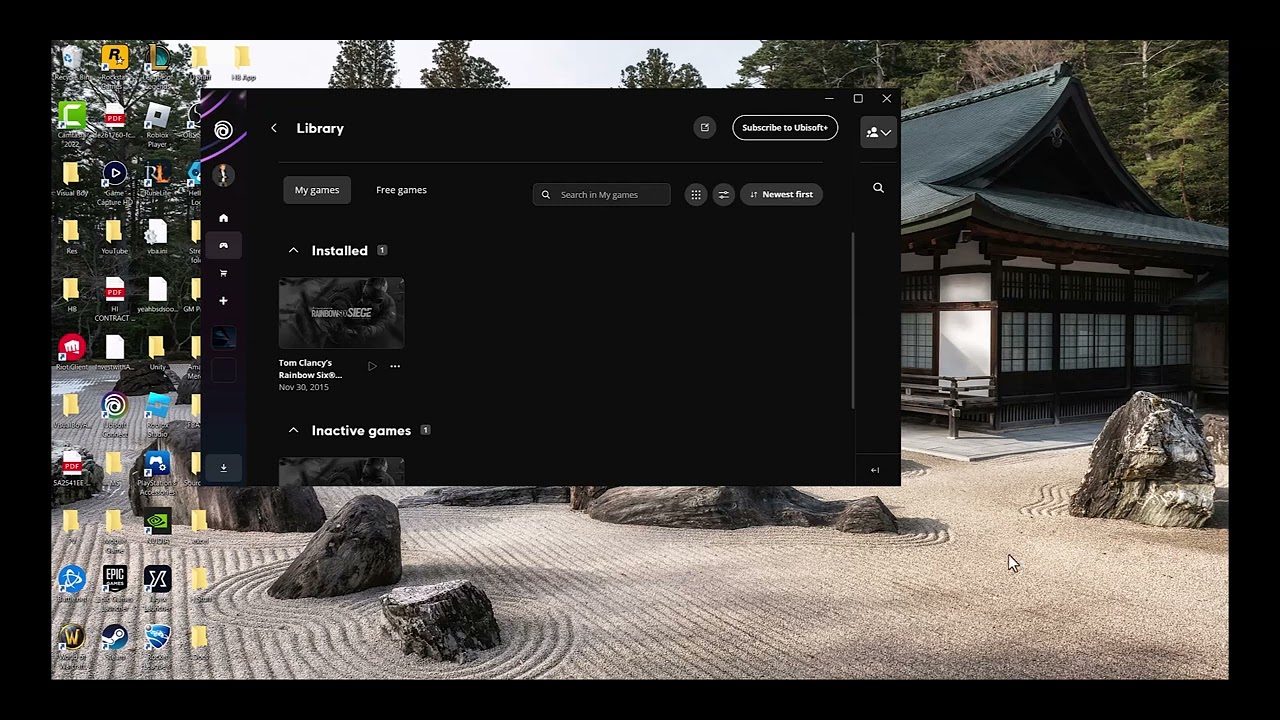
  • Fix Ubisoft Connect: Game Linked to a Different Account

    Fix Ubisoft Connect: Game Linked to a Different Account

    Quick answer: If Rainbow Six Siege or another Ubisoft game says it is linked to a different account, stop creating new accounts. Sign in to Ubisoft Account Management with the account that originally activated the game, verify the linked platform, and contact Ubisoft Support if the platform is attached to an account you cannot access.

    Before you start

    • Know which Steam, PlayStation, Xbox, or Epic account owns the game.
    • Gather the email addresses you may have used with Ubisoft.
    • Do not unlink an account until you understand the entitlement and progression warning.

    How to fix a game linked to a different Ubisoft account

    1. Close the game and Ubisoft Connect. This prevents another login attempt from caching the wrong account.
    2. Open Ubisoft Account Management. Visit account.ubisoft.com in a private browser window and sign in with the Ubisoft account you believe originally launched the game.
    3. Check Linked accounts. Confirm that the correct Steam, PlayStation Network, Xbox, or Epic account appears. Compare the visible platform username, not just the email address.
    4. Try your other known Ubisoft account. Sign out and repeat the check with any older Ubisoft email you legitimately own. Do not create another account—the license usually remains tied to the first Ubisoft account used.
    5. Sign in to Ubisoft Connect with the matching account. Restart Ubisoft Connect, sign out, then sign back in with the account whose linked-platform details match the game owner.
    6. Use Ubisoft account recovery if needed. Reset the password for the original email or open a Ubisoft Support case. Include the platform username and purchase receipt, but never post receipts or account details publicly.

    Why this works

    Ubisoft games can associate a platform license and cross-progression data with one Ubisoft account. Signing into a different Ubisoft profile does not move that license; it produces the linked-account message instead. Identifying the original account restores the expected ownership link without modifying game files.

    Alternatives

    • On Steam or Epic, verify that the store client is logged into the account that purchased the game.
    • Use Ubisoft’s password-reset flow for an old email before requesting a link change.
    • If an unknown account appears, secure the platform account and contact Ubisoft Support.

    Warnings

    Unlinking is not a guaranteed transfer. Ubisoft may restrict which account a platform can be relinked to, and progression, rewards, or entitlements may remain with the original Ubisoft account. Do not buy the game again until Support confirms the ownership state. Never share passwords, one-time codes, or full receipts with anyone outside official support.

    Frequently asked questions

    Can I move Rainbow Six Siege progress to a new Ubisoft account?

    Do not assume so. Cross-progression and entitlements are account-bound; ask Ubisoft Support about the exact platform and title before unlinking.

    Will reinstalling the game fix the link?

    No. Reinstallation changes local files, not the Ubisoft account that owns the license.

    What if I no longer have the original email?

    Use official account recovery and provide proof of ownership when requested through the support case.

    Official references

    Source video

    Transcript note: YouTube captions were unavailable after repeated checks. Account steps and warnings were checked against Ubisoft’s current guidance.

    As an Amazon Associate I earn from qualifying purchases.
  • How to Fix PS4 Error NW-31297-2 (Wi-Fi Won’t Connect)

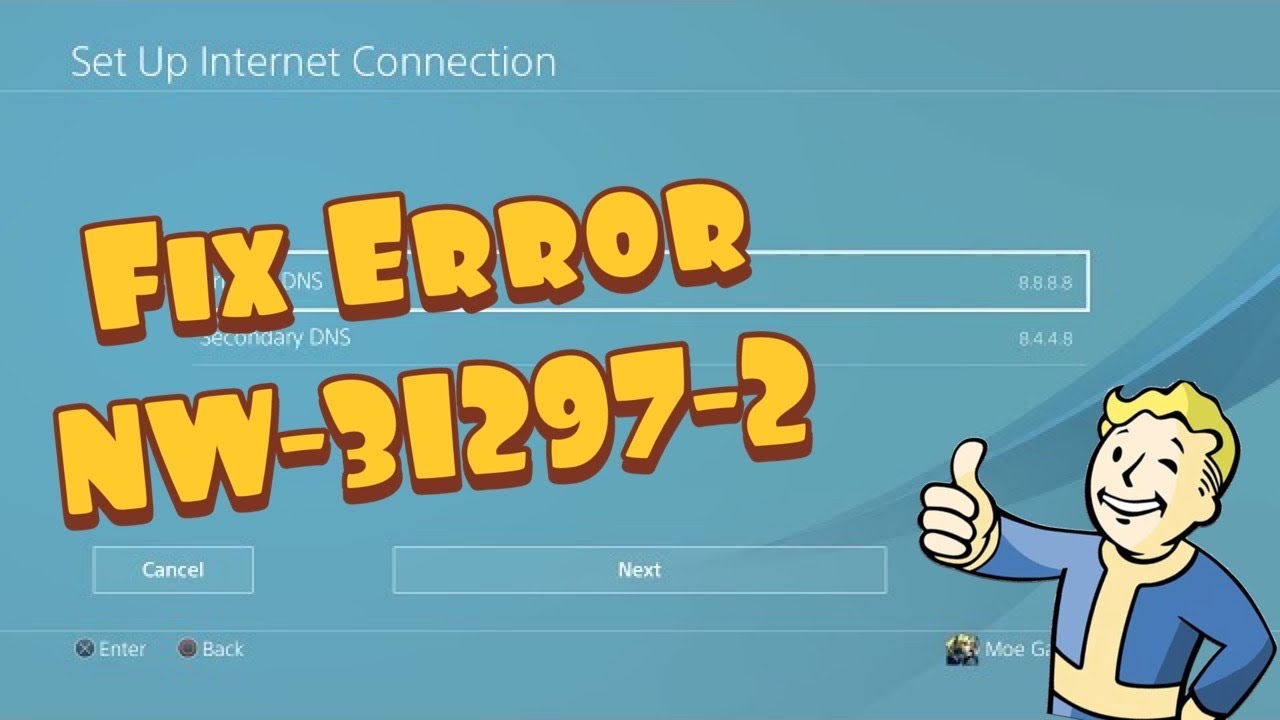
    How to Fix PS4 Error NW-31297-2 (Wi-Fi Won’t Connect)

    Quick answer: PS4 error NW-31297-2 means the console could not join the selected Wi-Fi network because the saved password is wrong or the wireless network is busy. Re-enter the Wi-Fi password first, then reduce wireless congestion and run the PS4 connection test.

    Before you start

    • Have the exact Wi-Fi name and password ready.
    • Keep the PS4 close enough to the router for a stable signal.
    • Do not factory-reset the router; this guide uses reversible network steps only.

    How to fix PS4 error NW-31297-2

    1. Set up Wi-Fi again. Open Settings > Network > Set Up Internet Connection > Use Wi-Fi > Easy. Select your network and carefully enter its current password. Passwords are case-sensitive.
    2. Test the connection. Go to Settings > Network > Test Internet Connection. If IP Address and Internet Connection both succeed, the stored Wi-Fi details were the problem.
    3. Reduce wireless congestion. Pause large downloads and temporarily disconnect devices that are streaming or backing up data. Wait a few minutes and test again.
    4. Restart the connection safely. Fully shut down the PS4. Unplug the router’s power for about 30 seconds, reconnect it, wait until its internet light is stable, then start the PS4 and retry.
    5. Try the other Wi-Fi band. If your router exposes separate 2.4 GHz and 5 GHz names, try the other one. 2.4 GHz reaches farther; 5 GHz is usually faster at short range.
    6. Use Ethernet as a diagnostic. If available, connect the PS4 directly to the router and choose Use a LAN Cable. A working wired connection points to Wi-Fi password, range, or congestion rather than PSN.

    Why these steps work

    Sony identifies two common causes for NW-31297-2: an incorrectly stored Wi-Fi password and a busy wireless network. Recreating the connection replaces the saved credentials. Reducing traffic, changing bands, or testing Ethernet separates a Wi-Fi problem from a broader internet or PlayStation Network issue.

    Alternatives if the error continues

    • Check PlayStation Network status.
    • Confirm another device can join the same Wi-Fi using the same password.
    • Install current PS4 system software from Settings > System Software Update.
    • Contact the internet provider if every device is dropping from Wi-Fi.

    Warnings

    Avoid changing advanced router security settings just to make the PS4 connect. Do not disable Wi-Fi encryption or expose the console through DMZ. If you temporarily change a band or network name for testing, restore the original setting afterward.

    Frequently asked questions

    Does NW-31297-2 mean PSN is down?

    Not usually. The code specifically points to joining the local wireless network. Check PSN status only after the PS4 can obtain an IP address.

    Will deleting the saved connection erase games?

    No. Reconfiguring the network does not remove games, captures, or save data.

    Should I use 2.4 GHz or 5 GHz?

    Use 5 GHz near the router when the signal is strong. Use 2.4 GHz when walls or distance make 5 GHz unreliable.

    Official references

    Source video

    Transcript note: YouTube captions were unavailable after repeated checks. The troubleshooting steps above follow current PlayStation guidance and use the source video only to identify the error scenario.

    As an Amazon Associate I earn from qualifying purchases.
  • How to Fix PS5 Error NW-102216-2

    How to Fix PS5 Error NW-102216-2

    Quick answer: PS5 error NW-102216-2 means an error occurred while connecting to PlayStation. Check PlayStation service status, restart the PS5 and router, use Ethernet if possible, and improve Wi-Fi placement. Update router firmware before considering port changes.

    Before you start

    • Know your Wi-Fi password.
    • Have access to the modem or router.
    • Use Ethernet if available.
    • Do not reset the PS5 or router to factory settings for this error.

    How to fix NW-102216-2

    1. Check PlayStation service status. If a service is down or under maintenance, wait rather than changing the home network.
    2. Restart the PS5. Select Power > Restart PS5. Viewer feedback indicates a normal restart resolved some cases, and it is the safest first local step.
    3. Restart the router. Turn it off, wait at least five minutes as PlayStation recommends, and turn it back on. Wait for all normal status lights.
    4. Try a wired connection. Connect the PS5 directly to the router with Ethernet. If this works, focus on Wi-Fi signal or interference.
    5. Improve Wi-Fi. Bring the PS5 closer to the router and remove obstacles. Under Settings > Network > Settings > Set Up Internet Connection, select the network again.
    6. Update router firmware. Use the router manufacturer’s official app or support instructions. Do not interrupt the update.
    7. Contact the provider before opening ports. PlayStation lists TCP 80, 443, 3478, 3479 and 3480, plus UDP 3478, 3479 and 49152–65535. Ask the ISP or network administrator for help; do not expose devices through DMZ as a shortcut.

    Why this works

    The error covers a failed connection between the PS5 and PlayStation services. The sequence distinguishes a service outage from router, Wi-Fi, firmware, or filtering problems. Ethernet removes the wireless layer, making it especially useful for diagnosis.

    Optional video-derived DNS test

    The source video demonstrates switching DNS from Automatic to Manual and testing a public resolver. This is reversible and may help name-resolution problems, but PlayStation’s current error page prioritizes service status, Ethernet, placement, router restart, firmware, and ports. Record current settings and return DNS to Automatic if it does not help.

    Warnings

    • Do not place the PS5 in a router DMZ.
    • Only change port-forwarding rules with help from the ISP or network administrator.
    • A factory reset is unnecessary for normal NW-102216-2 troubleshooting.
    • Mobile-hotspot tests can consume data quickly.

    Frequently asked questions

    Is NW-102216-2 a PS5 hardware failure?

    Usually not. It is a PlayStation network connection error. Test service status and another connection before considering repair.

    Why does restarting work?

    It refreshes the PS5 network session and router address mappings without deleting settings or data.

    Should I change DNS first?

    No. Use the official service, restart, Ethernet, Wi-Fi, and firmware checks first. DNS is an optional reversible test.

    Official references

    Source video

  • How to Fix PS4 Error NW-31291-6: Weak Wi-Fi Signal

    How to Fix PS4 Error NW-31291-6: Weak Wi-Fi Signal

    Quick answer: PS4 error NW-31291-6 means the console cannot connect to Wi-Fi and the signal may be too weak. Run the connection test, restart the router for five minutes, move the PS4 and router closer together, and remove obstructions. Ethernet is the best diagnostic alternative.

    What you need

    • Your Wi-Fi name and password.
    • Access to the router or modem.
    • An Ethernet cable if available.
    • No changes to saved games or console storage.

    How to fix NW-31291-6

    1. Test the connection. Open Settings > Network > Test Internet Connection. This confirms whether the failure is Wi-Fi, internet access, or PlayStation sign-in.
    2. Restart the PS4. Select Power > Restart PS4.
    3. Power-cycle the router. Turn it off, wait at least five minutes, then turn it back on and wait for the connection to stabilize.
    4. Improve placement. Move the PS4 closer to the router. Avoid placing either device behind metal furniture, inside a cabinet, or next to equipment that causes interference.
    5. Reconnect to Wi-Fi. Use Settings > Network > Set Up Internet Connection, select Wi-Fi, choose Easy, and enter the password again.
    6. Try Ethernet. If a wired connection succeeds, the console and PlayStation account are working; focus on Wi-Fi coverage or interference.
    7. Try the other Wi-Fi band if available. Depending on the PS4 model and router, 2.4 GHz reaches farther while 5 GHz can be faster at short range. Use the router’s normal settings rather than unsupported channel guesses.

    Why this works

    The official description ties NW-31291-6 to Wi-Fi connection failure and weak signal. Reducing distance and obstacles improves signal-to-noise ratio. Restarting the router clears temporary radio and address-assignment problems, while Ethernet bypasses Wi-Fi completely.

    Alternatives

    • Pause downloads and streaming on other devices during the test.
    • Update router firmware using the manufacturer’s official process.
    • Ask the internet provider about weak coverage or a failing router.
    • Compare with our PS4 NW-31295-0 Wi-Fi guide if that related code also appears.

    Warnings

    The source video demonstrates manual DNS values, but DNS does not strengthen a weak Wi-Fi signal. Use automatic IP and DNS settings first. If you test custom DNS, record the original configuration and undo it by recreating the connection with Easy settings.

    Frequently asked questions

    Does NW-31291-6 mean PSN is down?

    Not usually. The official page identifies a Wi-Fi connection problem, but checking PlayStation service status is still reasonable before changing settings.

    Why can my phone connect while the PS4 cannot?

    Devices have different antennas, locations, supported bands, and saved credentials. Test the PS4 near the router and reconnect it from scratch.

    Will changing DNS improve Wi-Fi signal?

    No. DNS only translates domain names. It does not increase radio strength or fix interference.

    Official references

    Source video

  • FC 27 Shot Assistance and Auto Shots Settings Explained

    FC 27 Shot Assistance and Auto Shots Settings Explained

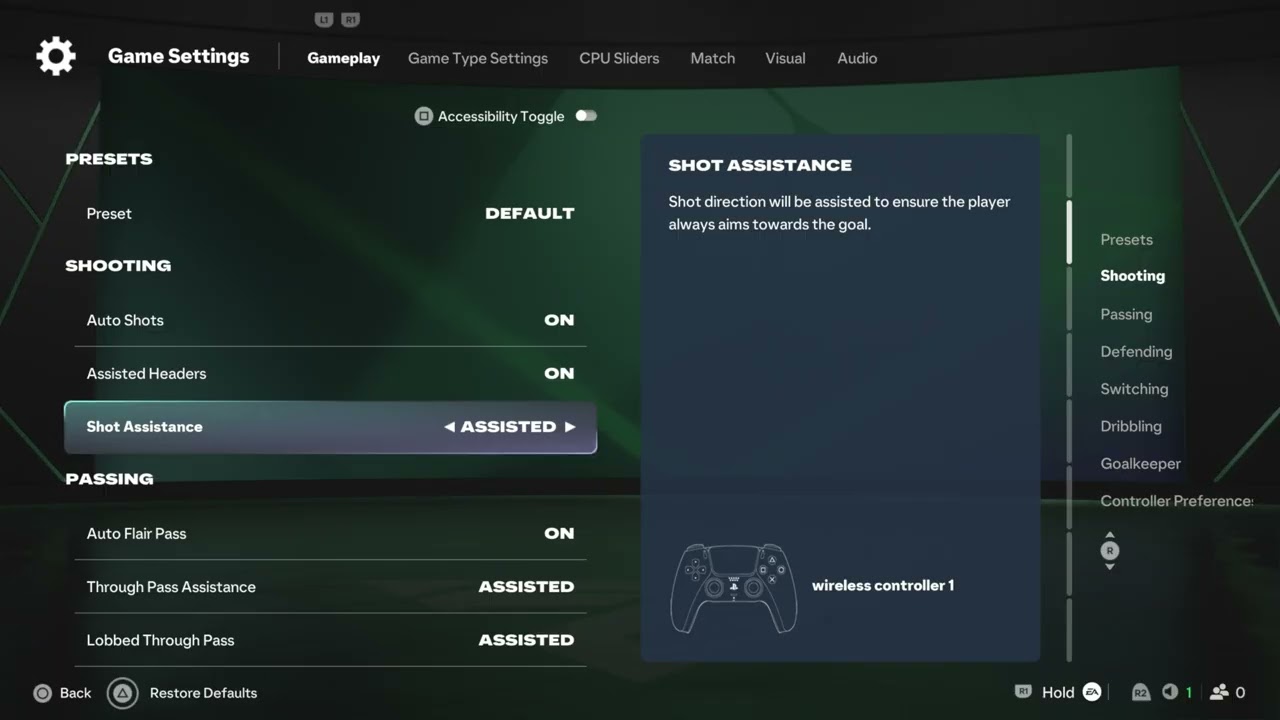
    Quick answer: From the FC 27 home screen, open Settings. Use Shooting > Shot Assistance to choose Assisted, Precision, or Manual aiming. Use Gameplay > Auto Shots to allow or block automatic close-range shots. Change one setting at a time, test it in practice, and return to your previous value if it feels worse.

    Before you change the settings

    • Note the current Shot Assistance and Auto Shots values.
    • Use an offline practice mode or low-stakes match for testing.
    • Check whether the selected online mode enforces competitive settings.
    • Expect menu wording or availability to change after updates.

    Change Shot Assistance

    1. From the main FC 27 home screen, open Settings.
    2. Choose Shooting.
    3. Highlight Shot Assistance.
    4. Select Assisted, Precision, or Manual.
    5. Apply the setting and test several shots in practice.

    What each Shot Assistance option does

    • Assisted: adds the most aiming help. This is the easiest starting point when shots are regularly going far from the intended target.
    • Precision: still provides assistance but places more weight on the direction of your input.
    • Manual: gives direct control with minimal aiming correction and therefore demands the most accurate stick direction.

    These behavior descriptions come from the in-game labels demonstrated in the source video. Your preferred setting depends on your controller, play style, and any rules imposed by the mode you enter.

    Turn Auto Shots on or off

    1. Return to the main Settings screen.
    2. Open Gameplay.
    3. Find Auto Shots.
    4. Choose On to allow automatic shots in short-reaction situations, or Off to require your own shot input.
    5. Save the change and test it in practice.

    Why these settings matter

    Shot Assistance changes how much the game corrects the direction you provide. Auto Shots controls whether the game may trigger a close-range attempt when there is little reaction time. Adjusting them can make the input feel more predictable, but it does not fix network delay, controller drift, or inconsistent timing.

    A sensible testing method

    1. Start with Assisted Shot Assistance and your current Auto Shots value.
    2. Take ten similar shots from the same practice position.
    3. Change only Shot Assistance and repeat the test.
    4. Restore that value, then test Auto Shots separately in close-range situations.
    5. Keep the combination that feels most consistent rather than copying another player’s setup.

    Alternatives if shooting still feels wrong

    • Recalibrate or test the controller for stick drift.
    • Use a wired connection or stable low-latency display mode if input feels delayed.
    • Confirm that the match type has not forced a different controller preset.
    • Practice shot timing before changing several assists at once.
    • Restart the game after an update if a saved setting appears not to apply.

    Warnings and limitations

    • Some competitive modes can restrict or standardize assistance settings.
    • Manual is not automatically “better”; it trades correction for direct control.
    • Auto Shots cannot compensate for poor positioning, lag, or an exhausted player.
    • Do not reset every controller setting at once unless you have recorded the original values.
    • Menu paths are based on the current FC 27 build shown in the videos and may move after updates.

    How to undo the change

    Return to the same menu and select the value you recorded before testing. If you cannot remember it, use the game’s restore-defaults option only after taking screenshots of any other customized controls.

    Frequently asked questions

    Should I use Assisted, Precision, or Manual?

    Start with Assisted. Try Precision when you want more directional control, and use Manual only when you can aim consistently without much correction.

    Does Auto Shots make every shot automatic?

    No. The in-game description shown in the source video limits it to certain close-range, short-reaction situations.

    Why did the option change in an online match?

    The selected mode may enforce a competitive preset. Check the mode rules and test your personal setting offline.

    Will these settings fix input delay?

    No. They change shooting behavior, not network latency or display delay. Troubleshoot those separately.

    Official reference

    Source videos

    The exact menu paths and option descriptions below come from Moe Gaming’s FC 27 demonstrations. EA’s live menus and mode rules remain authoritative.

    As an Amazon Associate I earn from qualifying purchases.
  • Fix PS4 USB Errors CE-41902-6, CE-41899-1 and CE-41901-5

    Fix PS4 USB Errors CE-41902-6, CE-41899-1 and CE-41901-5

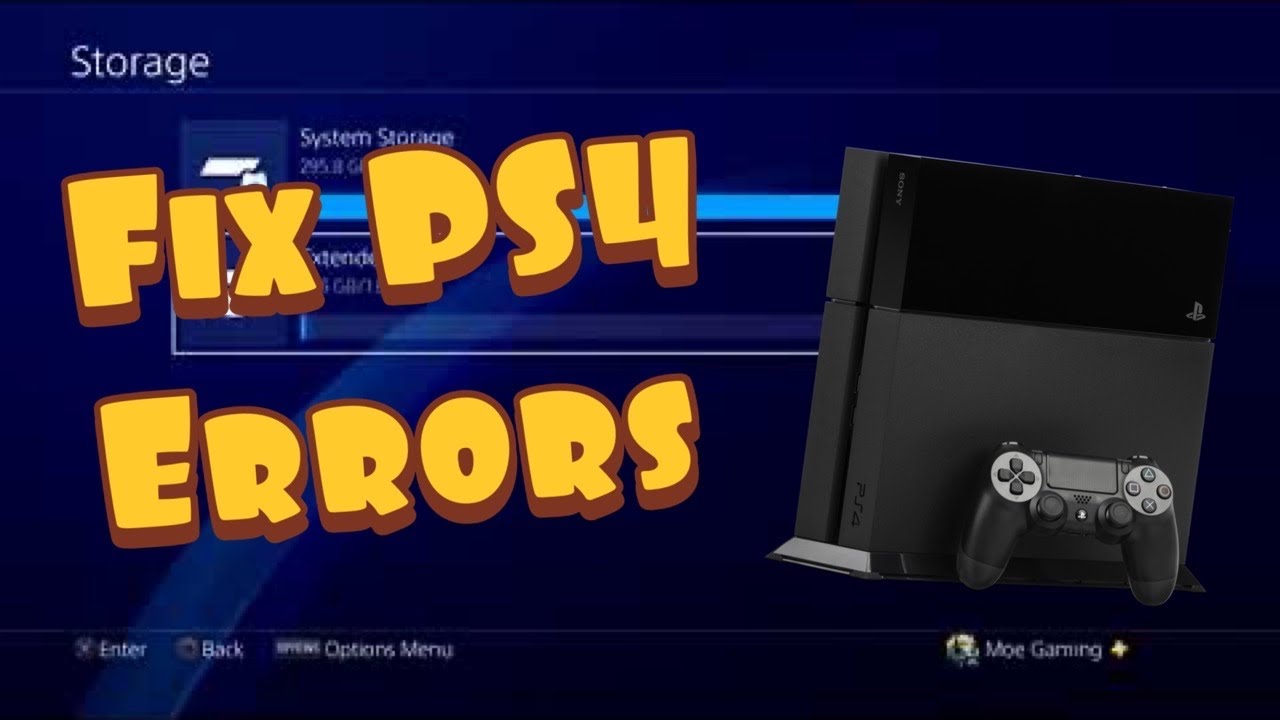
    Quick answer: PS4 errors CE-41902-6, CE-41899-1, and CE-41901-5 all point to extended-storage compatibility or connection problems. Use a 250 GB to 8 TB SuperSpeed USB drive, connect it directly to the PS4 with a good USB 3.0-or-later cable, and reseat it firmly. Back up anything important before formatting.

    What each error means

    • CE-41902-6: the drive or connection does not meet the required USB speed.
    • CE-41899-1: the drive must be connected directly to the PS4, not through a USB hub.
    • CE-41901-5: the drive does not meet the supported capacity requirement.

    How to fix the PS4 USB storage errors

    1. Check the capacity. Current PlayStation guidance requires 250 GB minimum and 8 TB maximum for PS4 extended storage.
    2. Confirm the USB standard. Use SuperSpeed USB 5 Gbps or later, commonly labeled USB 3.0, USB 3.1 Gen 1, or USB 3.2 Gen 1.
    3. Remove hubs and adapters. Connect the drive directly to a PS4 USB port. A hub is not supported for extended storage.
    4. Reseat the cable. Turn off the PS4, disconnect the cable, inspect it, and reconnect it quickly and firmly. Try the other PS4 USB port.
    5. Try another compatible cable. Some cables supply power but do not carry SuperSpeed data. Use the drive manufacturer’s cable when possible.
    6. Inspect without damaging the port. Power off and unplug the console. Remove loose surface dust with dry compressed air. Do not insert metal tools or drip liquid into the port.
    7. Format only when necessary. On PS4, open Settings > Devices > USB Storage Devices, select the drive, and choose Format as Extended Storage. Formatting erases the drive.

    Why this works

    Extended storage needs sustained SuperSpeed data, the supported capacity, and a direct connection. A worn cable, loose plug, slow USB bridge, hub, or incompatible drive can allow the PS4 to detect hardware but still reject it for extended storage.

    What viewer feedback adds

    Several viewers reported success after cleaning a dusty connection, changing the cable, or using the other USB port. Treat those as hardware diagnostics, not guarantees. The current PlayStation page specifically supports trying another port and another cable.

    Warnings

    • Use Stop Using This Extended Storage before disconnecting a drive while the PS4 is on.
    • Formatting deletes the drive’s contents.
    • Do not clean a powered console with liquid. Avoid forcing a loose connector.
    • A drive that repeatedly disconnects may be failing; copy recoverable data before further testing.

    Frequently asked questions

    Can I use a USB hub?

    No. PlayStation says extended storage must connect directly to the PS4.

    Why does the light turn on if the drive is incompatible?

    Power and data capability are separate. A port or cable can power the drive while failing the required SuperSpeed link.

    Can PS4 saved data be stored on extended storage?

    PlayStation extended storage is for applications and add-ons. Saved data, themes, screenshots, and video clips are handled separately.

    Official references

    Source video

  • How to Fix PS4 Error CE-33984-7: Cannot Obtain IP Address

    How to Fix PS4 Error CE-33984-7: Cannot Obtain IP Address

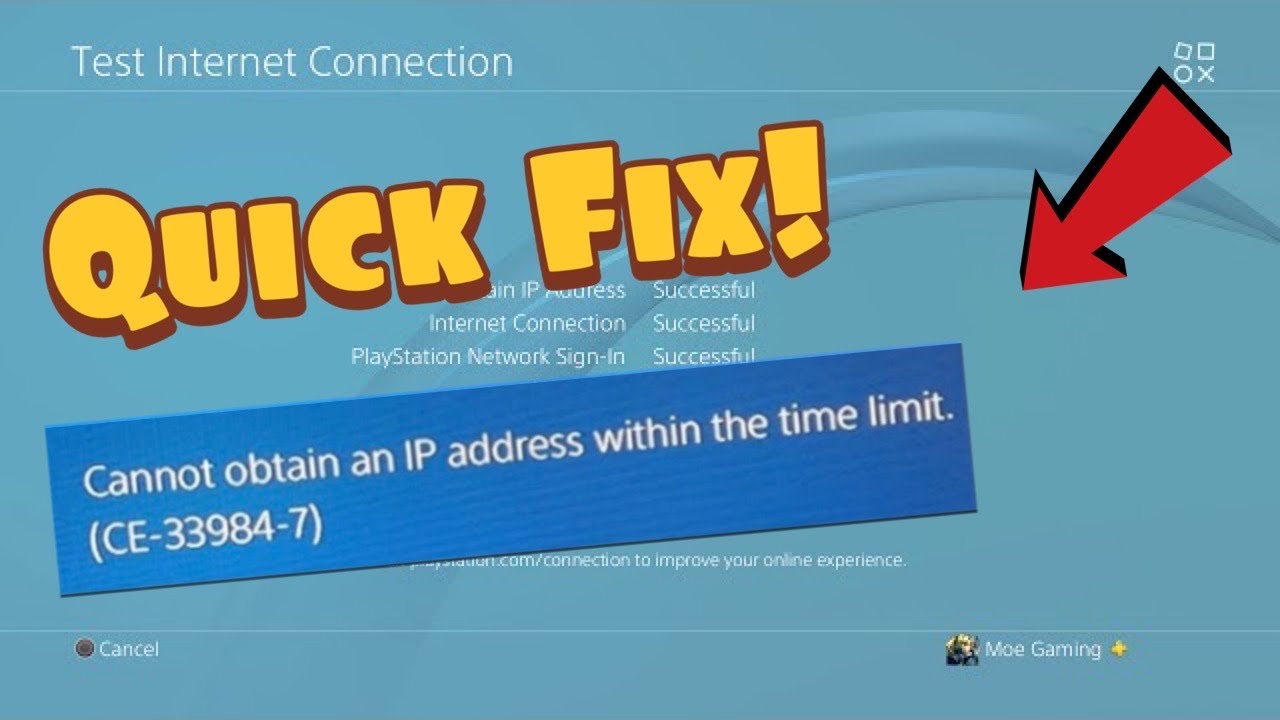
    Quick answer: PS4 error CE-33984-7 means the connection test timed out while trying to obtain an IP address. Test the connection, restart the PS4 and router, move closer to the Wi-Fi access point, or use Ethernet. Recreate the connection with automatic IP settings before trying manual DNS or a static address.

    Before you start

    • Know the Wi-Fi password.
    • Confirm other devices can connect to the same router.
    • Use an Ethernet cable if available.
    • Do not factory-reset the router unless your internet provider directs you to do so.

    How to fix CE-33984-7

    1. Run the PS4 connection test. Open Settings > Network > Test Internet Connection. Note whether the failure occurs at Obtain IP Address or Internet Connection.
    2. Restart the PS4. Use Power > Restart PS4, not Rest Mode.
    3. Power-cycle the network. Turn off the modem and router, wait at least five minutes, then power them back on. Wait until the connection lights stabilize.
    4. Rebuild the connection. Go to Settings > Network > Set Up Internet Connection. Select Easy so DHCP supplies the IP address automatically.
    5. Improve the signal. Move the PS4 and router closer together and remove large obstructions. If possible, switch to Ethernet for a clean diagnostic test.
    6. Check router capacity. Pause large downloads and disconnect unused devices temporarily. Confirm DHCP is enabled and has addresses available.
    7. Try manual DNS only as an optional test. The source video demonstrates Custom settings with manual DNS. This can help name resolution, but it does not repair a failed DHCP lease. Record the current settings so you can return DNS to Automatic.

    Why this works

    The router normally assigns the PS4 an IP address through DHCP. CE-33984-7 appears when that exchange does not finish in time. Restarting both ends clears stale leases, while Ethernet and closer Wi-Fi reduce packet loss during negotiation.

    Alternatives

    • Test a phone hotspot briefly to distinguish the console from the home network. Mobile data charges may apply.
    • Update router firmware using the manufacturer’s instructions.
    • Ask the internet provider to check DHCP, address exhaustion, or router faults.
    • See our PS4 weak Wi-Fi guide if signal strength is low.

    Warnings

    A manual static IP must be outside the router’s conflicting address range and within the correct subnet. An incorrect address can break connectivity. Start with automatic IP settings, and undo custom DNS or IP values by recreating the connection with Easy settings.

    Frequently asked questions

    Is CE-33984-7 a DNS error?

    Not primarily. The official description says the console timed out while obtaining an IP address. DNS changes are optional and should come after DHCP and signal checks.

    Why does Ethernet help?

    It removes Wi-Fi signal loss and interference, making the DHCP exchange more reliable.

    Will forgetting the network delete game data?

    No. It removes saved connection details, so you will need to enter the Wi-Fi password again.

    Official references

    Source video

  • How to Fix PS4 Error CE-34788-0: Update File Cannot Be Used

    How to Fix PS4 Error CE-34788-0: Update File Cannot Be Used

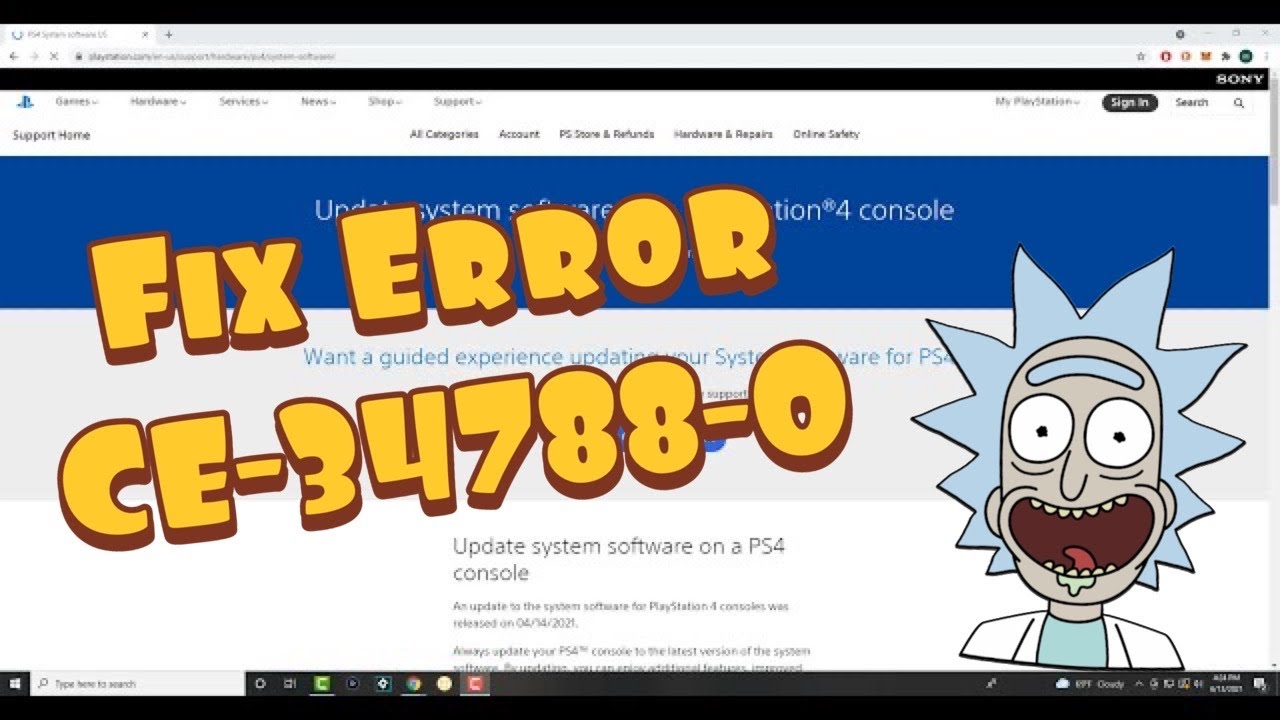
    Quick answer: PS4 error CE-34788-0 means the console cannot use the update file. Download the correct file directly from PlayStation, format the USB drive as FAT32 or exFAT, create the exact folders PS4/UPDATE, and save the file as PS4UPDATE.PUP. Do not mix the normal update file with the larger reinstallation file.

    What you need

    • A USB drive formatted as FAT32 or exFAT.
    • A PC or Mac with internet access.
    • The official PS4 system software page.
    • Enough time to verify the file before starting Safe Mode.

    How to fix CE-34788-0

    1. Delete old downloads. Remove duplicate PS4 update files from the computer so the browser does not rename the new download with “(1)” or another suffix.
    2. Choose the correct PlayStation file. Use PS4 console update file for Update System Software. Use the separate reinstallation file only when you intentionally select Initialize PS4 (Reinstall System Software).
    3. Prepare the USB drive. Format it as FAT32 or exFAT. Formatting erases the USB drive, so copy any needed files elsewhere first.
    4. Create the exact folder path. At the root of the USB drive, create a folder named PS4. Inside it, create UPDATE. Use uppercase letters.
    5. Name the file exactly. Put the downloaded file in the UPDATE folder and confirm its filename is PS4UPDATE.PUP. It must not be PS4UPDATE(1).PUP or PS4UPDATE.PUP.PUP.
    6. Use Safe Mode. Turn the PS4 off. Hold the power button until the second beep, connect the controller with USB, and select Update System Software > Update from USB Storage Device.
    7. Redownload if the error remains. Delete the file and download a fresh copy from PlayStation. A partial or modified download cannot be repaired by renaming it.

    Why this works

    The PS4 looks for a specific file at a specific path. The update and reinstallation downloads use the same final filename but serve different Safe Mode actions. Correcting the file type, folder capitalization, and filename removes the mismatch that triggers CE-34788-0.

    Alternatives

    • If the PS4 starts normally, try Settings > System Software Update without USB.
    • If a download is stuck, delete it under Notifications and start it again.
    • If the console asks for the reinstallation file, understand that reinstalling system software erases the console.
    • For a different “file not recognized” message, see our PS4 SU-41350-3 guide.

    Warnings

    Only use files supplied by PlayStation. Do not power off the PS4 during installation. The Initialize PS4 (Reinstall System Software) option deletes console data; do not select it as a trial fix.

    Frequently asked questions

    Why are the update and reinstallation files both named PS4UPDATE.PUP?

    They are different downloads intended for different Safe Mode actions. The shared filename is why verifying the download source and intended action matters.

    Does capitalization matter?

    Yes. PlayStation explicitly instructs users to enter the folder and filename using uppercase letters.

    Can I use NTFS?

    The current PlayStation instructions specify FAT32 or exFAT for the USB drive.

    Official references

    Source video

  • How to Fix PS4 Error CE-33729-4

    How to Fix PS4 Error CE-33729-4

    Quick answer: PS4 error CE-33729-4 means the console encountered an error while connecting to PlayStation. Check PlayStation service status first, restart the console and router, rebuild the internet connection, and try a wired connection. Rebuild Database in Safe Mode only after the basic checks fail.

    Before you start

    • Know your Wi-Fi password, or have an Ethernet cable available.
    • Allow at least five minutes with the router powered off.
    • Do not initialize the PS4. The official fallback is Rebuild Database, which is a different Safe Mode option.

    How to fix CE-33729-4

    1. Check PlayStation service status. If Account Management, Gaming and Social, or PlayStation Store is experiencing maintenance, wait and try again later.
    2. Restart the PS4. Choose Power > Restart PS4. Avoid Rest Mode for this test.
    3. Restart the modem and router. Turn both off, wait at least five minutes as PlayStation recommends, then power on the modem first and the router second.
    4. Reconfigure the connection. Open Settings > Network > Set Up Internet Connection. Choose your network again and enter the correct password. Use Easy settings initially so the router supplies IP and DNS details automatically.
    5. Try Ethernet. A wired connection removes Wi-Fi interference from the test. If Ethernet works, move the PS4 closer to the router or remove obstructions before returning to Wi-Fi.
    6. Sign out and sign back in. Open Settings > Account Management, sign out, restart, and sign in again.
    7. Rebuild the database if the error persists. Turn off the PS4. Hold the power button until the second beep, connect the controller by USB, and select Rebuild Database. Do not select Initialize PS4.

    Why these steps work

    The error can be caused by a temporary PlayStation service interruption, a stale network lease, weak Wi-Fi, router filtering, or corrupted local indexing. The order above isolates those causes without deleting games or changing advanced router settings unnecessarily.

    Advanced alternatives

    • Update the router firmware using the router manufacturer’s instructions.
    • Ask the internet provider whether port filtering or parental controls are blocking PlayStation traffic.
    • Use a mobile hotspot briefly as a diagnostic test. Avoid large downloads because mobile data charges may apply.
    • For similar connectivity symptoms, see our PS4 CE-33986-9 connection guide.

    Warnings

    Do not open router ports or assign a static IP unless you understand the network and have ruled out simpler causes. Rebuild Database can take time, but it is not the same as initialization. Never interrupt the console while Safe Mode maintenance is running.

    Frequently asked questions

    Is CE-33729-4 a PlayStation outage?

    It can be, which is why service status is the first check. If services are operational, test the local network.

    Will Rebuild Database delete saved data?

    It reorganizes local storage and normally preserves games and saves. Always maintain current backups before system maintenance.

    Why use Ethernet?

    It bypasses signal strength and radio interference, helping determine whether Wi-Fi is the cause.

    Official references

    Source video

    Captions remained unavailable after all required retries. The video title and description identify the error, while the reproducible instructions above come from current PlayStation support.

  • How to Fix PS4 Error CE-35285-3 (Signed Out)

    How to Fix PS4 Error CE-35285-3 (Signed Out)

    Quick answer: PS4 error CE-35285-3 appears when the same PlayStation account is used to sign in on another PS4. Sign out on the other console. If you cannot access it, use PlayStation Account Management to sign out of all devices, then sign back in on your PS4. Change your password first if the other sign-in was not yours.

    What you need

    • Access to the email address connected to your PlayStation account.
    • Your current PlayStation password.
    • A phone or computer if you need to manage devices remotely.
    • About five minutes. Deleting games or saved data is not required.

    How to fix PS4 error CE-35285-3

    1. Confirm the error. CE-35285-3 specifically means the account was signed out because it was used on another PS4. It is not a general network outage message.
    2. Sign out on the other PS4. If you have access to that console, open Settings > Account Management > Sign Out. Return to the original PS4 and sign in again.
    3. Sign out remotely if the other console is unavailable. Open PlayStation Account Management in a browser, choose Security, and select Sign Out on All Devices. You will need to sign in again on devices you still use.
    4. Secure the account if the sign-in was unexpected. Change the password, review the account email, and enable two-step verification or a passkey. Do this before signing back in so an unknown console cannot immediately reconnect.
    5. Restart the PS4. Fully power it off, wait 30 seconds, start it again, and sign in with the updated credentials.
    6. Check primary-console activation only if purchases remain locked. Go to Settings > Account Management > Activate as Your Primary PS4. Activation is separate from signing out, and only one PS4 can be primary for an account.

    Why this works

    PlayStation allows an account to be signed in on only one PS4 at a time. Ending the other session clears the conflict. A password change and sign-out of all devices also revoke access when the competing login is not recognized.

    If the error returns

    • Ask household members whether they are using the same account on another PS4.
    • Check the PlayStation status page before changing network settings.
    • Use PlayStation Support if you cannot access the account email or if security information was changed.
    • For other account restrictions, see our PS4 sign-in restriction guide.

    Warnings

    Do not share your password or verification code. Remotely deactivating consoles is not normally needed for this error; use the less disruptive Sign Out on All Devices option first. PlayStation limits remote deactivation, so reserve it for activation problems.

    Frequently asked questions

    Does CE-35285-3 mean my account was hacked?

    Not necessarily. It can happen when you or someone in your household signs in on another PS4. Treat an unfamiliar sign-in as a security warning and change the password.

    Will signing out of all devices delete games or saves?

    No. It ends account sessions. You may need to sign back in, and offline access to purchases can depend on primary-console activation.

    Can two PS4 consoles use the account simultaneously?

    No. PlayStation’s current error guidance says the account can be signed in on only one PS4 at a time.

    Official references

    Source video

    The public video page did not expose captions after the complete retry sequence. The steps above follow current official PlayStation guidance rather than guessed narration.