Category: Game Fixes

Troubleshooting guides and fixes for gaming errors, crashes, installation problems, and connectivity issues.

  • How to Download Modern Warfare 4 Campaign, Multiplayer and DMZ on PS5

    How to Download Modern Warfare 4 Campaign, Multiplayer and DMZ on PS5

    Quick answer: On PS5, download the correct Modern Warfare 4 base game from Game Library > Your Collection or PlayStation Store—do not select the beta. Then highlight the game, press Options > Manage Game Content, and install the packs for Campaign, Multiplayer, or DMZ plus any shared-content pack they require. If PS5 shows “Content Not Found,” update the game, restore licenses, and reinstall only the affected pack.
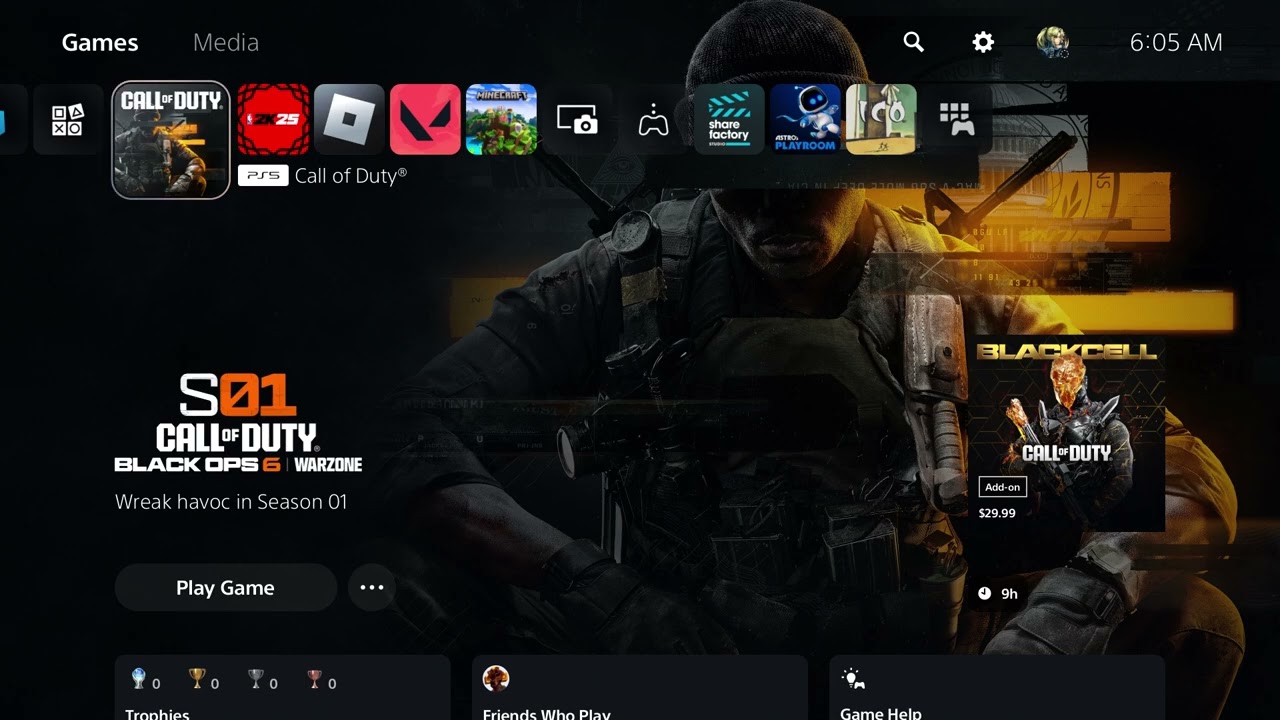
    Modern Warfare 4 pre-order and download screen on PS5

    Before you buy

    • Use the PlayStation account that should own the game.
    • Confirm the listing says PS5 and is published by Activision.
    • Compare the Standard and Vault contents on the official page before paying.
    • Check free console storage and your region’s price, refund and preorder terms.

    How to pre-order Modern Warfare 4 on PS5

    1. From the PS5 home screen, open PlayStation Store.
    2. Select search and enter Modern Warfare 4.
    3. Open the official Call of Duty listing and verify the PS5 platform, publisher, release date and account region.
    4. Use the edition selector or three-dot menu to compare Standard/Cross-Gen and Vault Edition.
    5. Review the price and included content, then complete checkout with your normal PlayStation payment method.
    6. Keep the transaction email or open Settings > Users and Accounts > Account > Payment and Subscriptions > Transaction History to confirm the purchase.

    How to download or preload it

    1. Open Game Library > Your Collection.
    2. Select Call of Duty: Modern Warfare 4 and choose Download when the button is available.
    3. If the game appears inside Call of Duty HQ, highlight the Call of Duty tile, press Options, choose Manage Game Content, and install the MW4 packs you need.
    4. Leave the PS5 connected to the internet. To allow downloads in Rest Mode, enable Settings > System > Power Saving > Features Available in Rest Mode > Stay Connected to the Internet.
    5. Check Downloads/Uploads for progress or an error.

    Why the download button may be missing

    A preorder can appear in the library before preload begins. Campaign early access and the full game have different activation dates, and Activision says timing can vary with outages and time zones. Also confirm that the purchasing account is signed in and that the correct edition was selected.

    Safe troubleshooting

    • Restart the PS5 and reopen Game Library.
    • Check PSN status and the official MW4 page for a timing change.
    • Restore licenses at Settings > Users and Accounts > Other > Restore Licenses if the purchase is confirmed but locked.
    • Delete only a failed download, not unrelated Call of Duty save data.
    • If the transaction is missing, contact PlayStation Support with the receipt instead of buying a second copy.

    Warnings

    Do not buy from an unfamiliar code reseller. Preorder bonuses, loyalty discounts and early access have eligibility rules and deadlines. The official page states that a 10% Vault Edition preorder discount is for eligible previous Call of Duty owners and runs until October 23, 2026; verify eligibility at checkout.

    FAQ

    When does MW4 release?

    Activision lists October 23, 2026. Campaign early access is listed from October 16, subject to availability.

    Can I download it immediately after pre-ordering?

    The library entry may appear immediately, but preload starts only when PlayStation and Activision enable it.

    Do I need to buy it again inside Call of Duty HQ?

    No. Use the same PSN account, check the purchase history and restore licenses before considering another transaction.

    Install Campaign, Multiplayer or DMZ packs

    1. Open PlayStation Store or Game Library > Your Collection and select the current Modern Warfare 4 PS5 base game. Do not choose the beta client.
    2. Download the base game and let the initial installation finish.
    3. Highlight Modern Warfare 4 on the PS5 home screen and press Options.
    4. Select Manage Game Content.
    5. For Campaign, install the Campaign pack. For Multiplayer, install every Multiplayer pack. For DMZ, install every DMZ pack.
    6. Install any Shared Content pack listed as required for the mode. A shared pack can support more than one mode.
    7. Wait for Downloads/Uploads to show completion, then restart the game and open the mode.

    The exact pack list can change with updates. The mode-specific paths above come from the Moe Gaming demonstrations, while Activision’s installation page remains the controlling source for current installation requirements.

    Fix “Content Not Found” on PS5

    1. From the PS5 home screen, highlight Modern Warfare 4, press Options, and choose Check for Update.
    2. Open Settings > Users and Accounts > Other > Restore Licenses. This does not delete the game or saved data.
    3. Return to Options > Manage Game Content and confirm the affected mode’s packs are installed.
    4. If only one pack appears damaged or incomplete, remove and reinstall that pack. The associated mode will be unavailable until the download finishes.
    5. If the store still cannot find owned content, sign out and back in only if you know the account password and recovery details. Confirm you are using the account and region that owns the game.

    Important limitations

    Removing optional or shared content is reversible, but it can require a large redownload and may disable several modes. Do not delete saved data for a missing-pack error. A viewer reported needing the single-player component before Multiplayer became available; treat that as one user’s experience, not a confirmed universal requirement. Follow the dependency labels shown in your own Manage Game Content screen.

    Source videos for the current installation

    These demonstrations show the current PS5 base-game selector, Manage Game Content paths, and the video-derived Content Not Found workaround.

    Official references

    Source video

    The source video demonstrates the PlayStation Store edition selector and download path. Prices shown in the recording may not match your region or the current store.

    As an Amazon Associate I earn from qualifying purchases.
  • How to Fix PS5 Error WV-109145-0

    How to Fix PS5 Error WV-109145-0

    Quick answer: PS5 error WV-109145-0 means the console could not connect to the internet. Check PlayStation Network status, restart the PS5, prefer Ethernet if available, and power-cycle the modem/router for five minutes. Then reset the PS5 network settings and test the connection.

    PS5 error WV-109145-0 internet connection troubleshooting

    Before you start

    • Check whether phones or computers can use the same internet connection.
    • Keep the Wi-Fi password nearby.
    • Write down any custom IP or DNS settings before changing them.

    Steps to fix WV-109145-0

    1. Check PSN status. If PlayStation services are down, wait instead of changing the console.
    2. Restart the console. Turn the PS5 off completely, wait 30 seconds and start it again.
    3. Use Ethernet if possible. A wired test separates Wi-Fi interference from a broader connection failure.
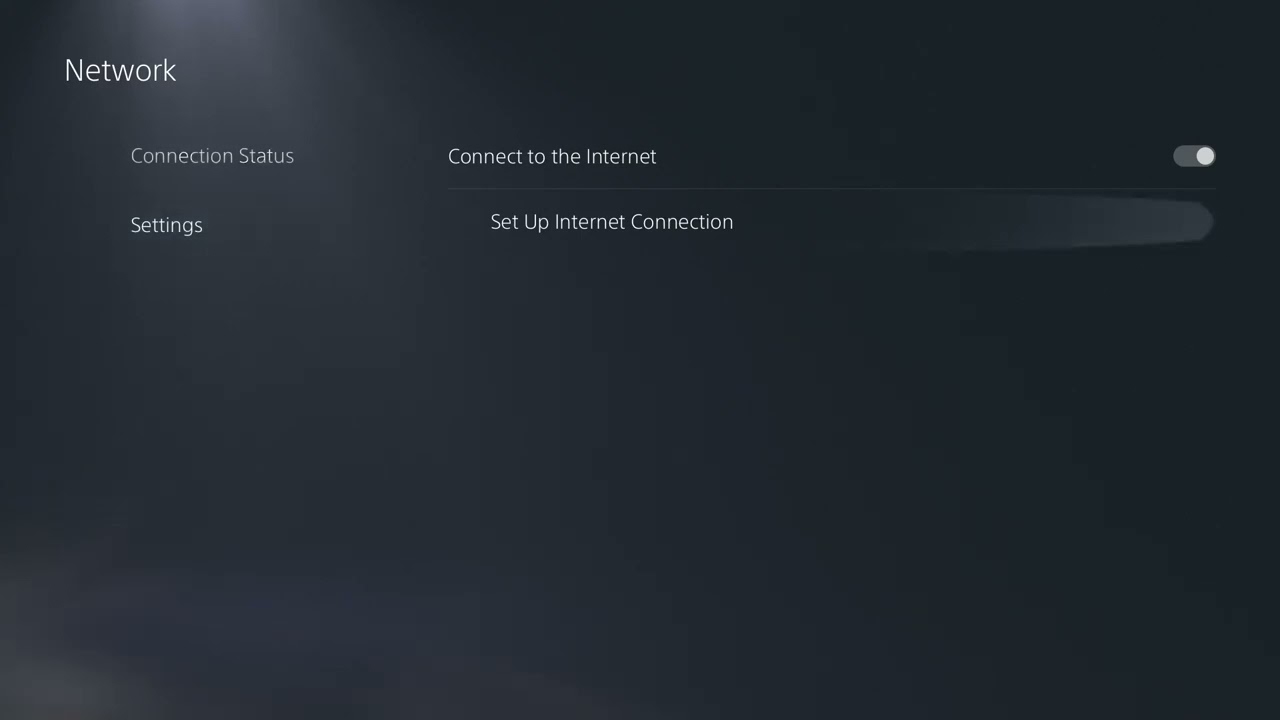
    4. Recreate the connection. Open Settings > Network > Settings > Set Up Internet Connection, select the network, re-enter its details and run Test Internet Connection.
    5. Power-cycle the modem and router. Turn off the PS5, unplug network equipment for five minutes, reconnect the modem, then the router, and wait for internet access before restarting the PS5.
    6. Improve Wi-Fi conditions. Move the PS5 closer to the router, remove obstacles, or test 5 GHz at short range and 2.4 GHz at longer range.
    7. Update the router. Check the manufacturer’s instructions for firmware updates. Avoid resetting the router unless you know how to restore the ISP settings.
    8. Test DNS or a static IP only if needed. A public DNS resolver may help a name-resolution failure. A static IP should be outside the router’s automatic-address pool. Revert both changes if they do not help.

    Why these steps work

    The official PlayStation guidance covers service status, wired connections, wireless placement, router restarts, firmware, ports, static IP and public DNS. The source video demonstrates wireless-band and DNS changes. Working from the simplest checks first prevents unnecessary router changes.

    Ports listed by PlayStation

    If a network administrator has intentionally restricted outbound traffic, PlayStation lists TCP ports 80, 443, 3478, 3479 and 3480, plus UDP ports 3478, 3479 and 49152–65535. Most home routers do not require manual port forwarding. Do not place the PS5 in a DMZ as a first fix.

    Warnings and undo steps

    Do not disable router security. Return IP and DNS settings to automatic if testing custom values does not help. If you changed a forced Wi-Fi band, return it to automatic when the signal becomes less stable.

    FAQ

    Is WV-109145-0 a hardware failure?

    Not by itself. It identifies a failed internet connection. Test another network before assuming the console needs repair.

    Should I factory-reset the PS5?

    No. PlayStation does not list initialization as a normal fix for this network code.

    Why does Ethernet work when Wi-Fi fails?

    That points to wireless signal, congestion, band selection or router settings rather than PSN account data.

    Official references

    Source video

  • How to Fix PS5 Error WS-116521-6

    How to Fix PS5 Error WS-116521-6

    Quick answer: PlayStation identifies PS5 error WS-116521-6 as a service-maintenance problem. Check PlayStation Network status first. If services are available, reset the PS5 internet connection, test it again, then power-cycle the router for five minutes. If maintenance is active, wait and retry later.

    PS5 error WS-116521-6 connection troubleshooting

    Before you start

    • Do not factory-reset the console for this error.
    • Have the Wi-Fi password available before deleting or resetting a saved connection.
    • If every device is offline, troubleshoot the modem or internet service first.

    Steps to fix WS-116521-6

    1. Check PlayStation Network status. Open the official status page on a phone or computer. If the affected service is under maintenance, local network changes will not restore it.
    2. Restart the PS5 and the game. Close the game, turn the console off completely, wait about 30 seconds and start it again.
    3. Reset the saved connection. Go to Settings > Network > Settings > Set Up Internet Connection. Select the network and configure it again, then run Test Internet Connection.
    4. Power-cycle the network. Turn off the PS5. Unplug the router and modem for at least five minutes, reconnect the modem first, wait for it to come online, then reconnect the router and PS5.
    5. Try a wired connection. If Ethernet works while Wi-Fi does not, improve the console’s Wi-Fi placement or check the router’s wireless settings.
    6. Wait before retrying. After a known outage or maintenance window, account and service availability can take time to normalize.

    Why these steps work

    The official PlayStation page ties this code to maintenance and recommends checking service status, resetting the internet settings and restarting the router. The source video also demonstrates choosing a Wi-Fi band and a public DNS resolver. Those are optional diagnostics only after the official checks, because neither can repair a PlayStation-side outage.

    Optional Wi-Fi and DNS tests

    If the code appears only on Wi-Fi, edit the connection and test 5 GHz when the console is near the router or 2.4 GHz when distance and walls are the problem. You can also temporarily test a reputable public DNS service. Record the original values and return DNS to automatic if there is no improvement.

    Warnings and undo steps

    Do not open router ports, disable firewall protection or initialize the PS5 for this maintenance code. A DNS change should be reversed by setting DNS back to Automatic. Recreate the original wireless-band setting if forcing one band makes the signal worse.

    FAQ

    Does WS-116521-6 mean the PS5 is banned?

    No. PlayStation’s description identifies a service-maintenance condition, not an account suspension.

    Will reinstalling the game help?

    Usually not. The error concerns service availability or connectivity, so check status and the network first.

    How long should I wait?

    Use the official status page rather than guessing. Retry after the listed maintenance or incident is resolved.

    Official references

    Source video

  • How to Fix inZOI “Limited Graphics Card Performance” on PC

    How to Fix inZOI “Limited Graphics Card Performance” on PC

    Quick answer: When inZOI reports limited graphics-card performance, first compare the PC with the current requirements, then install the latest driver directly from NVIDIA, AMD or Intel. Restart Windows and make sure inZOI is using the dedicated GPU. If the warning remains, verify the game files and reduce the heaviest graphics options.

    inZOI limited graphics card performance warning on PC

    Before you start

    • Save your work and close inZOI.
    • Identify the GPU in Task Manager > Performance > GPU.
    • On a laptop, connect the power adapter and disable battery-saver mode for the test.
    • Download drivers only from the GPU maker or the PC manufacturer.

    How to fix the limited graphics card performance warning

    1. Check the current requirements. Compare the processor, memory, storage and GPU with the specifications on the inZOI Steam page. A driver cannot add hardware features that the GPU does not support.
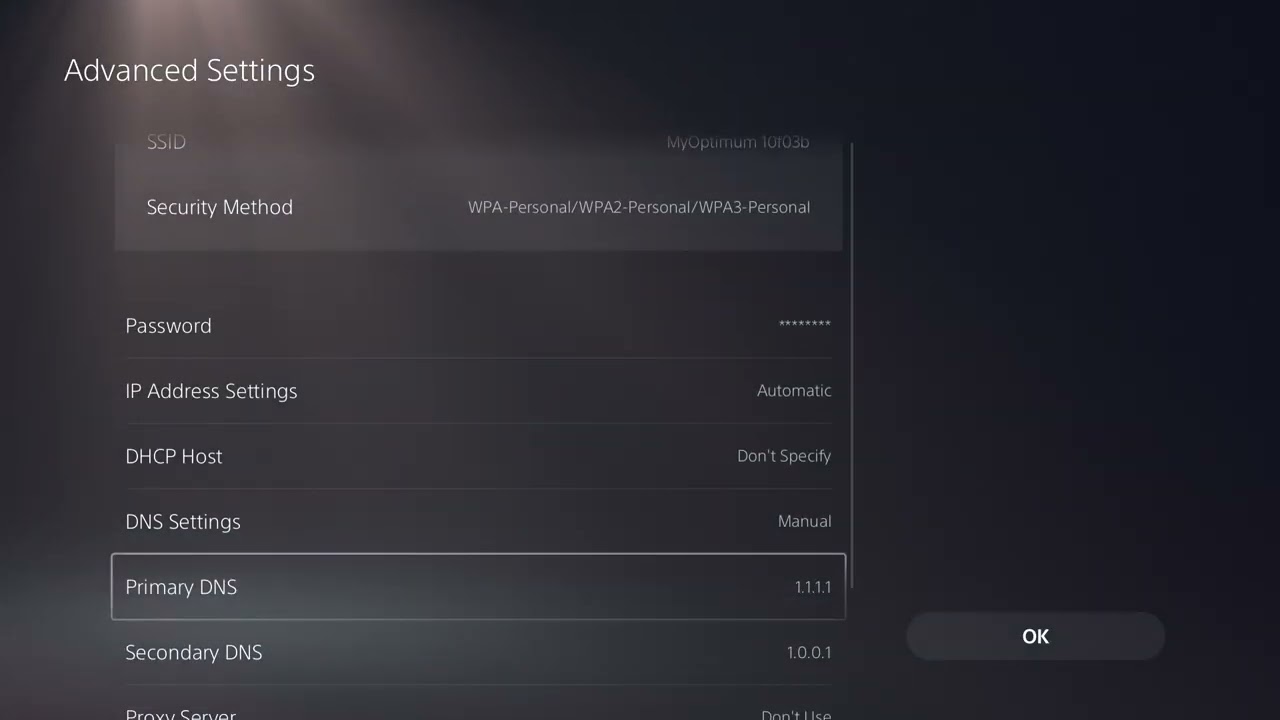
    2. Install the correct graphics driver. Use NVIDIA App, AMD Software: Adrenalin Edition, Intel Driver & Support Assistant, or the laptop maker’s support page. Choose the driver for the installed GPU and Windows version, finish the installation, and restart the PC.
    3. Make Windows use the high-performance GPU. Open Settings > System > Display > Graphics, add the inZOI executable if necessary, choose Options, select High performance, and save. Restart the game.
    4. Verify the game files. In Steam, open Library, right-click inZOI, choose Properties > Installed Files > Verify integrity of game files.
    5. Reset graphics options. Start with a lower preset. Reduce ray tracing, shadows, reflections and crowd/detail settings before lowering resolution. Change one group at a time so you can identify the expensive option.
    6. Close competing GPU workloads. Exit recording tools, browsers playing video and unnecessary overlays. Check Task Manager for another application using the GPU heavily.

    Why this works

    The source video demonstrates updating the graphics driver. Drivers provide the game-facing DirectX support and game profiles used by the GPU. Selecting the dedicated GPU prevents a laptop from launching inZOI on slower integrated graphics, while verification replaces damaged files. Lowering demanding options reduces load when the hardware is near the minimum requirement.

    Alternatives

    • Install pending Windows updates and restart.
    • Use the laptop manufacturer’s driver if a generic GPU driver causes instability.
    • Remove a recent GPU overclock and retest at default settings.
    • If the warning began after a driver update, use the vendor’s supported rollback or clean-install option instead of third-party driver cleaners.

    Warnings and undo steps

    Do not use random driver-download sites. Do not disable the integrated GPU in Device Manager; laptops may need it for the display path. To undo the Windows GPU preference, return the app to Let Windows decide. If lowering settings does not help, restore the previous preset.

    FAQ

    Can Device Manager always find the newest driver?

    No. Windows may offer a stable driver that is older than the latest game-ready release. Check the GPU vendor or PC maker directly.

    Will a driver update make unsupported hardware compatible?

    No. It can fix bugs and improve support, but it cannot add missing VRAM or hardware features.

    Should I reinstall inZOI?

    Verify files first. Reinstall only if verification and the driver steps fail.

    Official references

    Source video

    The video below is the original source for the driver-update method. Menu labels may vary with the installed GPU.

  • How to Fix Marvel Rivals Error Code 211 on PC

    How to Fix Marvel Rivals Error Code 211 on PC

    Quick answer: Marvel Rivals error code 211 is commonly encountered while the PC client is trying to reach an online service. Start by checking for a live outage, fully restart Steam and the game, then verify the game files. If the error remains, confirm that Windows Firewall is not blocking the game before testing a different network or DNS resolver.

    Marvel Rivals Error 211 message on PC troubleshooting guide

    Before you start

    • Close Marvel Rivals, its launcher and Steam completely.
    • Make sure your PC clock and time zone are set automatically.
    • Do not download replacement DLL files or “error fix” utilities from unofficial sites.
    • If many players are affected, local changes will not repair a server-side outage.

    How to fix Marvel Rivals error 211

    1. Check for a service issue. Review the official Marvel Rivals news and support channels. If login or matchmaking is under maintenance, wait and try again later.
    2. Restart the client cleanly. Exit the game and Steam, open Task Manager, and end any remaining Marvel Rivals or launcher process. Reopen Steam and launch the game once.
    3. Verify the Steam installation. In Steam, open Library, right-click Marvel Rivals, choose Properties > Installed Files > Verify integrity of game files, and allow Steam to replace any damaged or missing data.
    4. Allow the game through Windows Firewall. Open Windows Security > Firewall & network protection > Allow an app through firewall. Confirm that Marvel Rivals and Steam are allowed on the network profile you are currently using. Avoid turning the firewall off.
    5. Restart the network. Shut down the PC. Unplug the modem/router for about five minutes, reconnect it, wait for internet access to return, and then start the PC. If possible, test Ethernet or a mobile hotspot to tell whether the home network is involved.
    6. Reset cached network data. Open Command Prompt as administrator, run ipconfig /flushdns, restart Windows, and try again. This clears stale DNS records without changing account or game data.
    7. Try a public DNS resolver only as a test. Cloudflare uses 1.1.1.1 and 1.0.0.1. Record the original setting first. If it does not help, return DNS to automatic.

    Why these steps can help

    Error 211 is not documented publicly with one guaranteed cause. The source video demonstrates Steam file verification, a DNS refresh and compatibility changes. Viewer feedback particularly supports verifying files. Those steps address damaged client data or failed name resolution, while the service and firewall checks cover the other common points in an online sign-in path.

    What about administrator mode or Windows compatibility mode?

    The video also demonstrates running the launcher as administrator and selecting an older Windows compatibility mode. Treat these as temporary diagnostics, not permanent defaults. First try verification and network checks. If you test either setting, right-click the executable, open Properties > Compatibility, note the original values, and clear the checkboxes after the test. Compatibility mode can create new problems after game updates, and administrator mode gives the process broader access than most users need.

    Other safe alternatives

    • Install pending Windows and graphics-driver updates from Microsoft or your GPU manufacturer.
    • Disable VPN or proxy software temporarily, then test again.
    • Remove third-party overlays from the test path one at a time.
    • If the problem follows the account across two networks, use the official Marvel Rivals support channel and include the exact code, platform, region and timestamp.

    Warnings and how to undo changes

    Do not disable antivirus or the firewall globally. Remove only a specific temporary firewall rule if it made no difference. Return DNS to automatic if a public resolver does not help. Verifying files does not delete normal account progress, but locally modified game files may be replaced.

    FAQ

    Is error 211 definitely a server outage?

    No. An outage is one possibility, but damaged local files, a blocked connection or DNS failure can produce a similar result. Check service status before changing the PC.

    Will reinstalling Marvel Rivals fix it?

    Sometimes, but verification is faster and should be tried first. Reinstall only after the safer checks fail.

    Does changing DNS improve ping?

    Not necessarily. DNS mainly resolves names; it does not make the game server physically closer. Use it only to test whether name resolution is the failure point.

    Official references

    Source video

    The video below is the original troubleshooting source. Its workarounds are unofficial and may not solve every cause of error 211.

  • How to Fix Fortnite Easy Anti-Cheat Error 30004

    How to Fix Fortnite Easy Anti-Cheat Error 30004

    Quick answer: Fortnite Error 30004 is an Easy Anti-Cheat startup failure. Restart Windows, verify Fortnite in the Epic Games Launcher, use Easy Anti-Cheat’s official repair option, and repair Windows system files if the anti-cheat service still cannot start.

    Before you start

    • Install pending Windows and Fortnite updates.
    • Close Fortnite and Epic Games Launcher before repairing anti-cheat.
    • Do not disable Windows security or download replacement DLL files.

    How to fix Fortnite Error 30004

    1. Restart Windows. Use Start > Power > Restart. This clears a stuck Easy Anti-Cheat service or pending update.
    2. Check Fortnite service status. If Epic reports an incident, wait for recovery before changing the PC.
    3. Verify Fortnite. Open Epic Games Launcher > Library, select the three dots beside Fortnite, choose Manage > Verify, and let the scan finish.
    4. Repair Easy Anti-Cheat. Use Epic’s Easy Anti-Cheat repair instructions or the setup program installed with Fortnite. Select Fortnite when prompted, choose Repair Service, and restart the PC.
    5. Install Windows updates. Open Settings > Windows Update, check for updates, install them, and restart.
    6. Repair Windows system files. Open Terminal or Command Prompt as administrator. Run DISM.exe /Online /Cleanup-image /Restorehealth, wait for completion, then run sfc /scannow. Restart after both finish.
    7. Temporarily close conflicting utilities. Exit unsupported injectors, debuggers, macro tools, and low-level monitoring utilities. Do not close security software permanently.
    8. Reinstall Easy Anti-Cheat or Fortnite last. Follow Epic’s official EAC installation guidance. Reinstall Fortnite only if verification and service repair fail.

    Why these steps work

    Error 30004 appears before Fortnite enters a match because Easy Anti-Cheat cannot initialize correctly. Verification restores Epic-signed files, EAC repair rebuilds its service, and DISM/SFC restore damaged Windows components that the service depends on.

    Alternatives

    • Perform a clean boot to identify a startup-app conflict, then re-enable services in small groups.
    • Check Windows Security Protection History for a quarantined legitimate Fortnite or EAC file; verify the game after resolving it.
    • Contact Epic Support with the exact error and EAC logs if repair repeatedly fails.

    Warnings

    Do not bypass Easy Anti-Cheat, replace its files from another PC, or use unofficial “fix” downloads. Those steps can compromise security or trigger enforcement. Disabling antivirus is not a safe permanent fix; use product-specific allow-list guidance only when the security vendor confirms a false positive.

    Frequently asked questions

    Is Error 30004 a Fortnite ban?

    No. It indicates the anti-cheat service failed to start; it is not itself a ban notice.

    Will Verify remove my skins?

    No. Cosmetics are tied to the Epic account, not local installation files.

    Is SFC safe?

    System File Checker is a Microsoft repair tool. Let it complete and restart afterward; do not interrupt DISM while it is repairing the Windows image.

    Official references

    Source video

    Transcript note: YouTube captions were unavailable after repeated checks. The steps above use current Epic, Easy Anti-Cheat, and Microsoft repair guidance.

    As an Amazon Associate I earn from qualifying purchases.
  • How to Fix PEAK Crashing or Not Launching on Steam

    How to Fix PEAK Crashing or Not Launching on Steam

    Quick answer: If PEAK crashes or will not launch on Steam, verify its installed files first, remove custom launch options, update Windows and the graphics driver, then test with mods and overlays disabled. Reinstall only after those checks.

    Before you start

    • Restart the PC once and install pending Windows updates.
    • Confirm the PC meets PEAK’s current requirements on its Steam page.
    • Back up any local files you intentionally modified.

    How to fix PEAK crashing on Steam

    1. Close Steam completely. Exit PEAK, then choose Steam > Exit. Restart Windows before the first retest.
    2. Verify game files. In Steam Library, right-click PEAK, choose Properties > Installed Files > Verify integrity of game files. Let Steam replace any mismatched files.
    3. Remove launch options. In PEAK Properties > General, clear any custom command from Launch Options. Test with the game’s defaults.
    4. Disable mods and injectors. Temporarily remove unofficial mods, ReShade, performance injectors, or custom DLLs. Update them separately before restoring them.
    5. Turn off overlays for one test. Disable Steam Overlay and third-party overlays such as Discord or GPU monitoring. Re-enable them one at a time after the game launches.
    6. Update the graphics driver. Install a current driver from NVIDIA, AMD, or Intel for the installed GPU, then restart. Avoid third-party driver-download sites.
    7. Check Windows security history. If a PEAK file was quarantined, restore it only when it is the legitimate Steam file, then verify the installation again. Do not broadly disable antivirus protection.
    8. Reinstall on a healthy drive. If verification repeatedly reports corruption or the crash continues, reinstall PEAK. Choose a different Steam library drive if the current drive reports errors.

    Why these steps work

    Most startup crashes come from a mismatched installation, unsupported launch command, outdated graphics stack, or software injected into the game process. Steam verification restores the official build; clean launch settings and overlay isolation reveal which optional component causes the conflict.

    Alternatives

    • Try Steam’s default branch if a beta branch is selected.
    • Close unnecessary capture and hardware-monitoring tools.
    • Check Steam Discussions and the developer’s official channels for a current known issue after an update.

    Warnings

    Do not download missing DLL files from random websites, delete Windows components, or permanently disable antivirus. Running every game as administrator can create permission and security problems; use it only if the developer explicitly documents it.

    Frequently asked questions

    Will verifying files erase progress?

    Steam verification replaces installation files. It normally does not delete saves, but back up important local data before reinstalling.

    Why does PEAK work after disabling an overlay?

    Overlays inject display or capture code into the game. A conflict can crash the renderer before the main menu appears.

    Should I use a beta branch?

    Use the default branch while troubleshooting unless the developer specifically says a beta contains the fix.

    Official references

    Source video

    Transcript note: YouTube captions were unavailable after repeated checks. The guide uses Steam’s supported repair path and reversible Windows troubleshooting.

    As an Amazon Associate I earn from qualifying purchases.
  • How to Fix Black Ops 6 “Failed to Start Matchmaking”

    How to Fix Black Ops 6 “Failed to Start Matchmaking”

    Quick answer: When Black Ops 6 says “Failed to Start Matchmaking,” first check Activision service status. If services are online, cancel the search, rebuild the party, restart the game and router, then update or verify the game files on your platform.

    Before you start

    • Confirm Black Ops 6 and the console or PC are fully updated.
    • Know whether the error affects solo matchmaking, a party, or both.
    • Do not change router security, use DMZ, or open ports until basic tests are complete.

    How to fix failed matchmaking in Black Ops 6

    1. Check Activision services. Open the official Online Services page and select Black Ops 6. If an incident is listed, wait and retry later.
    2. Cancel the search completely. Return to the main multiplayer screen, wait 30 seconds, and start a new search rather than repeatedly resuming the failed lobby.
    3. Test solo matchmaking. Leave the party and queue alone. If solo works, recreate the party and invite players again.
    4. Change the party host. Let a player with a stable connection and an Open or Moderate NAT host. Remove inactive party members before retrying.
    5. Restart the game and platform. Fully close Black Ops 6, restart the console or PC, and launch again. Quick Resume or sleep mode can preserve a stale session.
    6. Restart the home network. Power off the router for about 30 seconds, reconnect it, wait for internet service to stabilize, then test again. Use Ethernet if possible.
    7. Update and repair the installation. On Steam, verify installed files. On Battle.net, use Scan and Repair. On console, check for both game and system updates.
    8. Review crossplay only as a test. If the issue happens only in a mixed-platform party, toggle crossplay off, restart matchmaking, then restore it when testing is complete. Turning it off narrows the player pool.

    Why these steps work

    Matchmaking depends on Activision services, a valid online session, party synchronization, compatible versions, and a reachable network. Status checks prevent wasted local changes during an outage. Rebuilding the party and restarting clears stale lobby tokens; file verification and updates correct version mismatches.

    Alternatives

    • Try a different playlist to see whether the issue is mode-specific.
    • Sign out of the platform network account, restart, and sign back in.
    • Test another network briefly, such as a phone hotspot, only to isolate the router or ISP. Stop if mobile data charges apply.

    Warnings

    Avoid DMZ, disabling the firewall, or using a VPN as a first fix. Those changes can reduce security or worsen latency. Do not clear saved game data unless Activision Support specifically directs you; matchmaking is normally account- or network-side.

    Frequently asked questions

    Is failed matchmaking always a server outage?

    No. It can also be a stale party, version mismatch, NAT conflict, or damaged local file. Service status is simply the safest first check.

    Will turning off crossplay fix it?

    It can isolate a mixed-platform problem, but it reduces the available player pool. Restore crossplay after the test if you normally use it.

    Should I reinstall Black Ops 6?

    Verify or scan files first. Reinstallation is slower and rarely helps when Activision services or the party session are the cause.

    Official references

    Source video

    Transcript note: YouTube captions were unavailable after repeated checks. The steps above are based on current Activision service and platform-repair guidance.

    As an Amazon Associate I earn from qualifying purchases.
  • How to Fix Dota 2 PAK01.VPK Corrupt Error

    How to Fix Dota 2 PAK01.VPK Corrupt Error

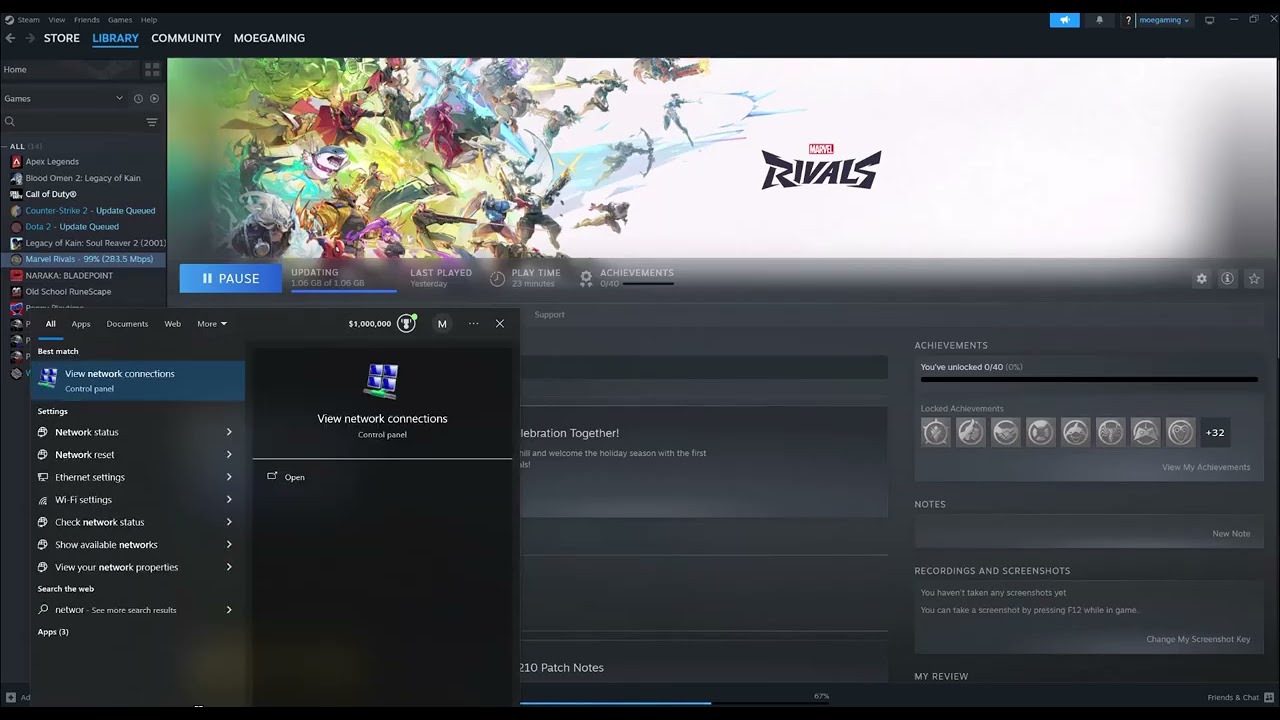
    Quick answer: A Dota 2 PAK01.VPK corrupt error means Steam cannot read one of the game’s packaged data files correctly. Close Dota 2, verify the installed files in Steam, restart the PC, and only then clear Steam’s download cache if verification keeps failing.

    Before you start

    • Let any active Steam download finish or pause it cleanly.
    • Keep enough free space for Steam to replace damaged files.
    • Do not download a VPK file from a file-sharing site.

    How to fix the PAK01.VPK corrupt error

    1. Exit Dota 2 and Steam. Close the game, then use Steam > Exit so no game file remains locked.
    2. Restart Windows. This clears file handles and pending disk writes.
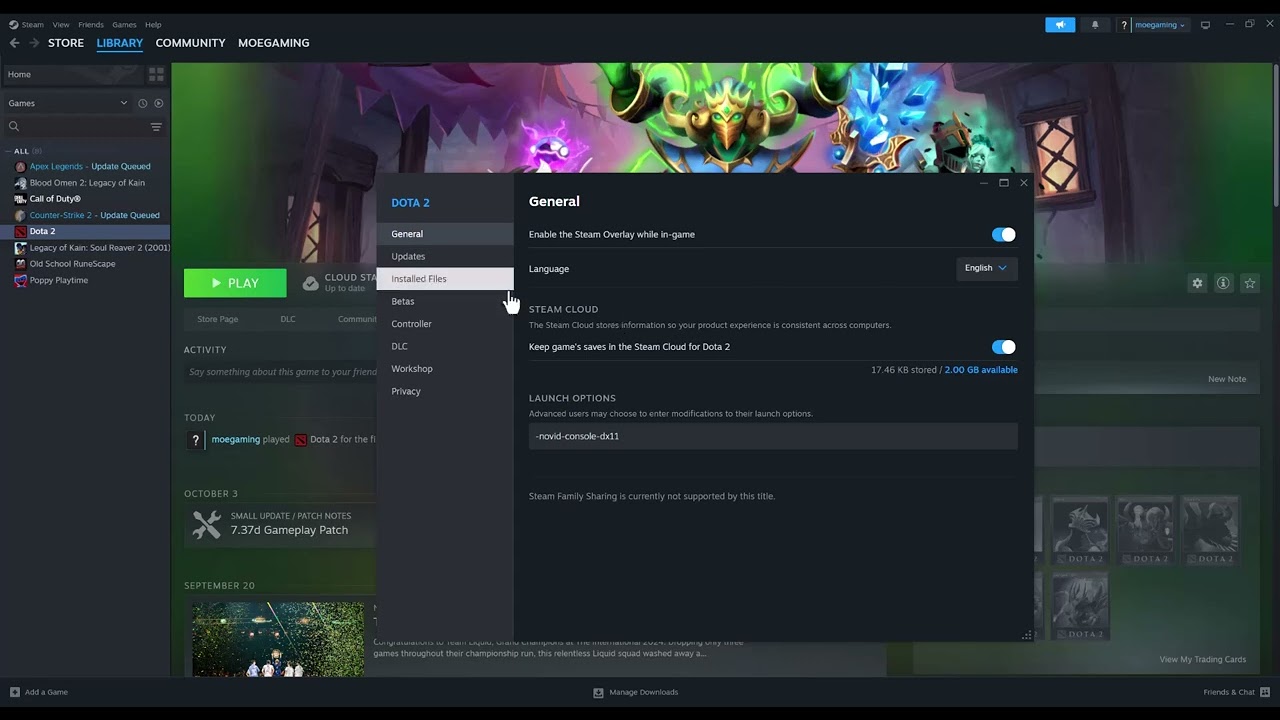
    3. Verify Dota 2 files. Open Steam > Library, right-click Dota 2, choose Properties > Installed Files > Verify integrity of game files. Let the check complete without launching the game.
    4. Launch once with default options. Temporarily remove custom Dota 2 launch options and test. Old commands can complicate diagnosis, although they do not normally repair VPK data.
    5. Clear Steam’s download cache if the same file fails again. Open Steam > Settings > Downloads > Clear Download Cache. Steam will restart and ask you to sign in again; this does not uninstall games.
    6. Try another download region. In Steam Downloads settings, select a nearby different region, restart Steam, and verify once more.
    7. Check the storage device. If multiple games report corrupt files, confirm the drive has free space and use Windows drive error checking. Back up important data if disk errors appear.
    8. Reinstall Dota 2 last. Use this only after repeated verification failures. Reinstall to a healthy library drive if another drive is available.

    Why these steps work

    VPK archives contain many Dota 2 assets. Steam verification compares installed data with Valve’s current manifest and downloads only files that do not match. Clearing the download cache and switching regions address a damaged partial download; recurring corruption across games points to storage or memory stability rather than Dota 2 alone.

    Alternatives

    • Disable an overclock temporarily if the system is unstable under load.
    • Ensure security software is not quarantining Steam files; use a narrow game-folder exception only if the security vendor documents it.
    • Move the Steam library to another healthy drive through Steam Storage settings.

    Warnings

    Never replace PAK01.VPK with a random download. It may be outdated or malicious. Avoid deleting the entire Steam library manually. Clearing the download cache signs you out of Steam, so have your account-recovery method ready.

    Frequently asked questions

    Will verification delete my Dota 2 settings?

    It normally replaces game installation files, not Steam Cloud settings. Custom modified files may be restored to official versions.

    Why does Steam reacquire files?

    That means one or more local files did not match the current manifest. Let Steam finish the replacement before launching.

    What if the error returns after every update?

    Repeated corruption across updates can indicate a drive, RAM, security-software, or download-cache problem. Check those before reinstalling again.

    Official references

    Source video

    Transcript note: YouTube captions were unavailable after repeated checks. The repair sequence uses Valve’s supported Steam verification path.

    As an Amazon Associate I earn from qualifying purchases.
  • How to Fix Minecraft for Windows Error Code BAT

    How to Fix Minecraft for Windows Error Code BAT

    Quick answer: Minecraft for Windows Error Code BAT is usually a Microsoft-account sign-in or required-service problem. Sign out of Minecraft Launcher, the Xbox app, and Microsoft Store, restart Windows, then sign all three back in with the same account and update Gaming Services.

    Before you start

    • Confirm which Microsoft account owns Minecraft or Game Pass.
    • Back up local Bedrock worlds before resetting or reinstalling any app.
    • Install pending Windows updates and restart once.

    How to fix Minecraft Error Code BAT

    1. Check service status. Review Xbox status. If account or multiplayer services are degraded, wait rather than changing the PC.
    2. Sign out everywhere. Sign out of Minecraft Launcher, the Xbox app, and Microsoft Store. Close all three apps.
    3. Restart Windows. Use Start > Power > Restart, not Shut down, so account and Gaming Services processes reload.
    4. Sign into Microsoft Store first. Use the Microsoft account that owns Minecraft. Then sign into the Xbox app and finally Minecraft Launcher with that same account.
    5. Update the required apps. Open Microsoft Store > Library > Get updates. Install updates for Minecraft Launcher, Xbox, Gaming Services, and Xbox Identity Provider if listed.
    6. Repair the apps. Open Settings > Apps > Installed apps. For Minecraft Launcher, Xbox, and Gaming Services, choose Advanced options > Repair. Test before using Reset.
    7. Use the Gaming Services Repair Tool. In the Xbox app, open your profile, choose Support, then run the Gaming Services Repair Tool if it is offered. Restart when finished.
    8. Reset or reinstall only as a last step. Back up worlds, then reset the Launcher or reinstall it from Microsoft Store or Minecraft’s official download page.

    Why these steps work

    The Windows edition depends on a chain of Microsoft identity components: Store licensing, Xbox sign-in, Gaming Services, and the Minecraft Launcher. BAT can appear when those components hold different accounts or stale tokens. Signing in in order and repairing the services rebuilds that chain without deleting worlds.

    Alternatives

    • Confirm the PC date, time, and time zone are automatic.
    • Run the Windows Store Apps troubleshooter if Microsoft Store itself will not sign in.
    • Try the official Minecraft Launcher from Minecraft.net if the Store package is damaged.

    Warnings

    Do not run unofficial registry cleaners, scripts, or PowerShell commands from random videos. Resetting Minecraft for Windows can remove local data, so back up worlds first. Use the same Microsoft account throughout; switching accounts can make the license appear missing.

    Frequently asked questions

    Does BAT mean my world is corrupted?

    No. It is a sign-in or component error, not a world-file diagnosis.

    Should I reset Gaming Services immediately?

    Start with Repair. Reset or reinstall only if repair and account resynchronization fail.

    Will reinstalling Minecraft delete worlds?

    It can affect locally stored worlds. Export or copy them before any reset or reinstall.

    Official references

    Source video

    Transcript note: YouTube captions were unavailable after repeated checks. The guide uses current Minecraft, Xbox, and Microsoft repair guidance.

    As an Amazon Associate I earn from qualifying purchases.