Category: Game Fixes

Troubleshooting guides and fixes for gaming errors, crashes, installation problems, and connectivity issues.

  • How to Fix PS5 Error CE-100005-6

    How to Fix PS5 Error CE-100005-6

    Quick answer: Delete the failed game installation, eject the disc, clean it from the center toward the edge with a soft lint-free cloth, and reinsert it in the correct orientation. Restart the PS5 and let the game install again. If another supported disc works but this one does not, the original disc is likely damaged; if no disc works, use PlayStation’s disc-drive troubleshooting or request service.

    Before you start

    • Use a clean, dry, lint-free cloth intended for optical discs.
    • Do not use solvents, abrasive cleaners or circular wiping motions.
    • Let the disc reach room temperature if it came from a cold or humid place.
    • Confirm the console has enough free storage for the full installation and update.

    Fix CE-100005-6 on PS5

    1. Cancel and delete the failed installation. Open Downloads/Uploads and cancel the stuck copy or update. On the home screen, highlight the partially installed game, press Options and choose Delete. This removes the incomplete local copy, not ownership of the game.
    2. Eject and inspect the disc. Hold it by the edges. Look for dirt, fingerprints, deep scratches, cracks or peeling. Do not use a cracked disc.
    3. Clean it correctly. Wipe with a soft, clean, lint-free cloth in straight strokes from the center toward the edge. Do not wipe in circles.
    4. Check disc orientation. On a standard PS5 standing vertically, PlayStation says the labeled side should face left as the disc enters. Orientation changes with how the console is positioned, so use the drive opening and official diagram rather than forcing the disc.
    5. Restart the PS5. Shut it down fully, wait for the light to turn off, disconnect power for about a minute, reconnect it and start again. Insert the clean disc and allow the copy to complete before launching.
    6. Test another supported disc. Try a known-good PS5 game, PS4 game, Blu-ray or DVD supported by the console. If only one disc fails, replace that disc. If every disc fails, the drive or console needs further troubleshooting.
    7. Reinstall the digital version differently. If CE-100005-6 appears with a digital game, delete the failed installation and download it again from Game Library. Use a stable connection and enough free storage.
    8. Use Safe Mode only if multiple discs fail. Update system software and try Clear Cache and Rebuild Database. Do not initialize the console for a single scratched disc.

    Why this works

    PlayStation documents CE-100005-6 as a game or application that cannot load. With a disc installation, dirt, incorrect orientation or unreadable sectors can interrupt the copy. Deleting the partial installation prevents the PS5 from resuming corrupted local data, while another-disc testing separates a media problem from a drive problem.

    Alternatives

    • Try the disc after the console and media have cooled to room temperature.
    • Install without launching other games or copying to external storage at the same time.
    • Exchange the disc with the retailer if it is new and fails in another compatible console.
    • Use PlayStation Repairs if several clean, supported discs are unreadable.

    Warnings

    Never force a disc into the slot, use a cracked disc or spray liquid onto it. Do not insert a cleaning disc unless Sony specifically supports it for the drive. Initializing the PS5 erases data and is not a reasonable first response to CE-100005-6.

    FAQ

    Will deleting the failed installation erase saved progress?

    Deleting the game installation is separate from deleting Saved Data. Verify the prompt and do not remove saved data.

    Can a PS4 disc trigger this on PS5?

    Yes. A supported PS4 game disc can fail to read or copy for the same physical-media reasons.

    What if cleaning works temporarily?

    Back up or synchronize saves and replace the damaged disc. Repeated read failures often return when scratches or disc damage are the underlying cause.

    Official references

    Source video

    https://www.youtube.com/watch?v=rBySti2NUdw

    As an Amazon Associate I earn from qualifying purchases.
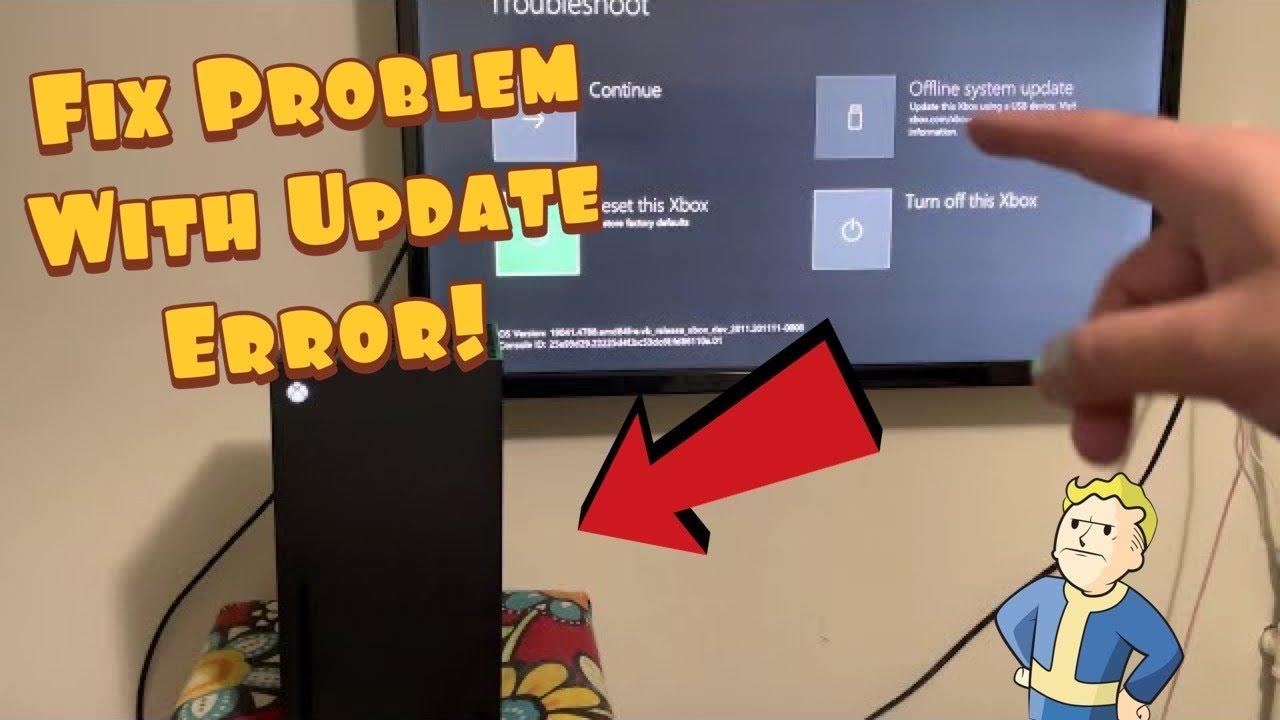
  • How to Fix Xbox Update Error 0xE0E8000F

    How to Fix Xbox Update Error 0xE0E8000F

    Quick answer: Restart the Xbox and network equipment, then retry the system update on a stable wired connection. If the console returns to the update error, open the Xbox Startup Troubleshooter. Use an Offline System Update with Microsoft’s current OSU1 file when supported. If updating still fails, choose Reset and keep my games & apps before considering the destructive Reset and remove everything option.

    Before you start

    • Keep the console connected to reliable power.
    • Have the Microsoft account email and password available for sign-in after a reset.
    • Use a Windows PC and a suitable NTFS-formatted USB drive if an Offline System Update is required.
    • Do not unplug the console while an update or reset is actively applying.

    Fix Xbox error 0xE0E8000F

    1. Restart the console. Hold the Xbox button on the controller, choose Restart console and retry the update. If the interface is unavailable, hold the console’s Xbox button for about ten seconds, wait and start it again.
    2. Power-cycle the network. Unplug the modem/router for about 60 seconds, reconnect it and wait until it is fully online. Use Ethernet if possible and avoid downloading on other devices during the retry.
    3. Check Xbox service status. If the Account, Store or Games services report an incident, wait rather than resetting the console.
    4. Open the Startup Troubleshooter. Turn the console fully off and unplug power briefly. On consoles with a Pair button and an Eject button, hold Pair and Eject, press the Xbox button and keep holding until the second startup tone. On an all-digital model without Eject, use Pair plus the Xbox button. Button combinations vary by model, so follow Microsoft’s model-specific page.
    5. Try an Offline System Update. On a Windows PC, download the current OSU1 file from Xbox Support, extract it and copy the $SystemUpdate folder to the root of an NTFS USB drive. Insert it at the troubleshooter and select Offline system update. If the option is unavailable, verify the console model and OS requirements on the official page.
    6. Reset while keeping games and apps. In the troubleshooter, choose Reset this Xbox > Keep games and apps. This removes accounts, settings and damaged system data but keeps installed game/app files. You must sign in and configure the console again.
    7. Remove everything only as the last resort. A full factory reset deletes accounts, settings, local saves not synchronized to Xbox network, and installed games/apps. Use it only after the offline update and keep-games reset fail.

    Why this works

    Update error 0xE0E8000F can leave the console unable to finish its normal startup path. A clean restart and stable connection address interrupted downloads. The Offline System Update supplies known system files from USB. The keep-games reset replaces console settings and system data while avoiding a full game reinstall.

    If the console keeps returning to the troubleshooter

    • Recreate the USB drive with a freshly downloaded OSU1 package.
    • Try another USB port and a known-good drive.
    • Disconnect external storage while updating, then reconnect it after the console starts.
    • If both reset options fail or the internal drive makes unusual noises, request Xbox service rather than repeatedly power-cycling it.

    Warnings

    The source video demonstrates both reset choices. Start with Keep games and apps. Remove everything is destructive and should never be presented as the first fix. Offline files must come from Xbox Support; unofficial update packages can damage the installation.

    FAQ

    Does Keep games and apps preserve everything?

    No. It preserves installed game and app files, but removes accounts, settings and potentially local data that has not synchronized. You will need to sign in again.

    Why is Offline system update unavailable?

    The drive format, folder structure, console model or installed OS version may not meet the requirements. Recheck Microsoft’s instructions for the exact console.

    Should I choose Remove everything?

    Only after the less destructive update and reset paths fail and important data has synchronized or been accepted as at risk.

    Official references

    Source video

    https://www.youtube.com/watch?v=BVatZS-UV6k

    As an Amazon Associate I earn from qualifying purchases.
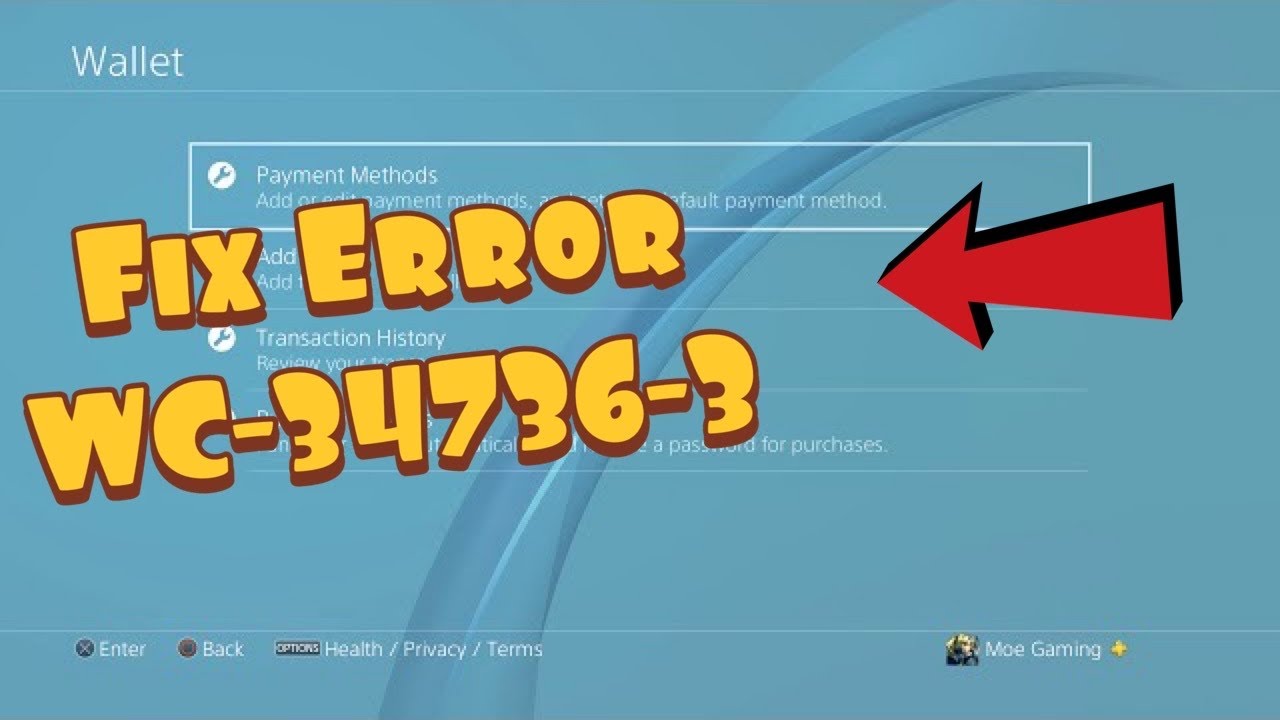
  • How to Fix PS4 Error WC-34736-3

    How to Fix PS4 Error WC-34736-3

    Quick answer: WC-34736-3 means PlayStation could not accept the registered payment information. On PS4, delete the saved payment method, then add it again with the exact card number, expiration date, name and billing address held by the issuer. If it still fails, use a different supported payment method or wait 24 hours before trying again.

    Before you start

    • Never post card details, voucher codes or account credentials in comments or support forums.
    • Check the billing address directly with the card issuer.
    • Make sure the PlayStation account country/region is compatible with the payment method.
    • Avoid many rapid retries, which can extend a temporary security restriction.

    Fix WC-34736-3 on PS4

    1. Stop repeated attempts. If the error followed several failed entries, wait before trying again. Repeated submissions can look like suspicious activity.
    2. Verify every billing field. Confirm the card number, expiration date, security code, cardholder name, street address and postal code. Use the issuer’s billing address exactly rather than a delivery address or nickname.
    3. Remove the saved payment method. On PS4, open Settings > Account Management > Account Information > Wallet > Payment Methods. Select the affected method and remove it.
    4. Add it again carefully. Re-register the card using the verified details. Avoid copying spaces into numeric fields.
    5. Try the PlayStation App or account website. Adding the same payment method through another official PlayStation interface can rule out a console form or cache problem. Use only the official app or PlayStation domain.
    6. Try another supported payment method. If available in the account’s region, use another card, PayPal or redeemed PlayStation Store wallet funds. A prepaid card may fail if it does not support address verification.
    7. Wait 24 hours. PlayStation’s code-specific guidance says the issue may be temporary and recommends waiting 24 hours before trying again. The source video suggests a longer wait in some cases, but that timing is not guaranteed; follow the official 24-hour minimum first.

    Why this works

    PlayStation and the payment processor compare submitted details with the issuer’s record and apply fraud controls. Removing and re-adding the method clears stale saved fields. Exact billing information passes address checks, while a pause allows a temporary risk block or service problem to expire.

    Alternatives

    • Contact the card issuer and ask whether it is declining an online digital-goods transaction.
    • Check PlayStation Network status for Store or Account Management incidents.
    • Redeem a legitimate PlayStation Store voucher purchased for the same account region, then pay from wallet funds.
    • Contact PlayStation Support if the method works elsewhere and still fails after 24 hours.

    Warnings

    Do not use a false billing address, buy codes from unverified resellers or share a card screenshot. PlayStation accounts and vouchers are region-specific. A voucher from another region may not redeem and should not be treated as a workaround for a card-address mismatch.

    FAQ

    Will a gift or prepaid card work?

    Only if the card supports online transactions and address verification, and its billing details can be registered correctly. Otherwise use another supported method.

    Why wait instead of retrying?

    Multiple failed attempts can trigger temporary fraud protection. A pause avoids feeding the same invalid or blocked request repeatedly.

    Does deleting the payment method cancel subscriptions?

    It removes that saved method. Check active subscriptions and add a valid replacement before the next renewal date.

    Official references

    Source video

    https://www.youtube.com/watch?v=ZmeoLc74N-k

    As an Amazon Associate I earn from qualifying purchases.
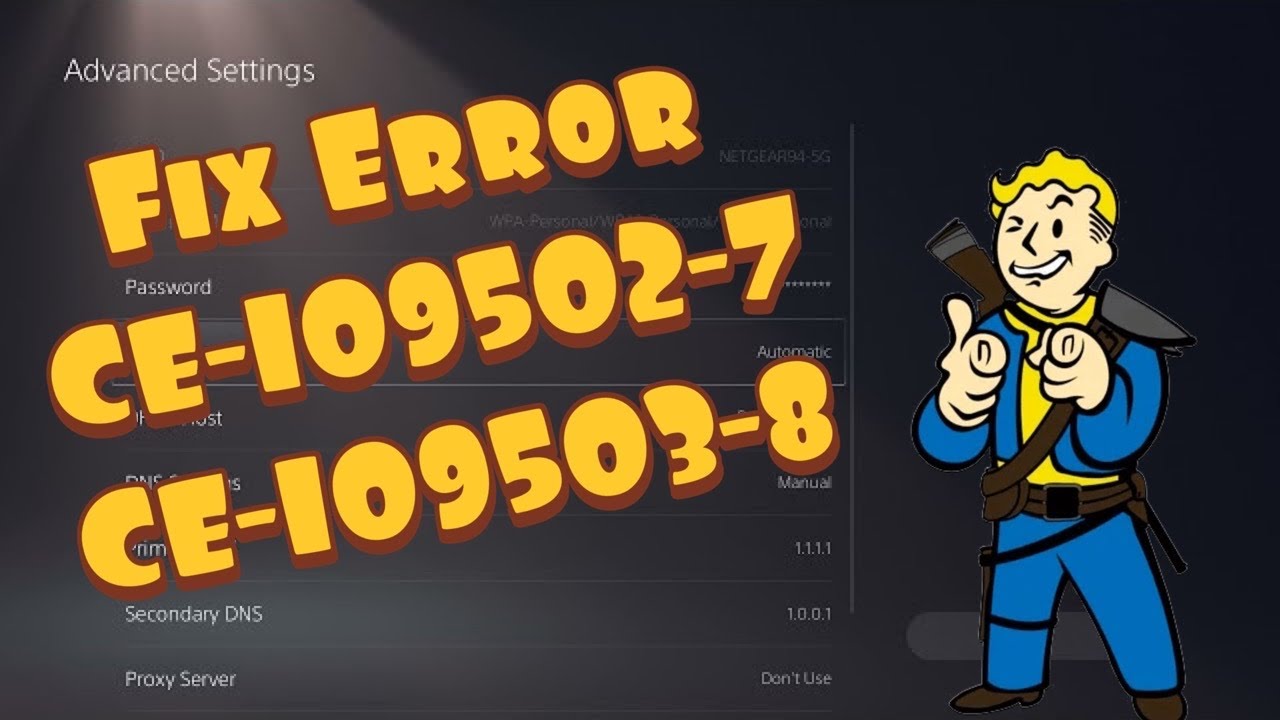
  • How to Fix PS5 Errors CE-109502-7 and CE-109503-8

    How to Fix PS5 Errors CE-109502-7 and CE-109503-8

    Quick answer: Check PlayStation Network status, restart the PS5 and power-cycle the modem/router. Then test Ethernet if possible, or switch the saved Wi-Fi connection between 5 GHz and 2.4 GHz. If the error continues, forget and reconnect to the network. A manual DNS resolver can be tested last and reversed easily.

    What the errors mean

    CE-109502-7 and CE-109503-8 are connection errors. CE-109503-8 is documented by PlayStation as an error connecting to PlayStation, and the on-screen message may say the console could not obtain an IP address within the time limit. The cause can be a service outage, a stalled router lease, weak Wi-Fi or incorrect saved settings.

    Before you start

    • Check whether phones and computers can use the same network.
    • Save the Wi-Fi password before forgetting the connection.
    • Do not press the router’s recessed factory-reset button unless you intend to erase its configuration.

    Fix CE-109502-7 and CE-109503-8

    1. Check PSN status. If Account Management, Gaming and Social or the PlayStation Store is reporting an incident, wait for service recovery rather than changing the home network.
    2. Restart the PS5. Use Power > Restart PS5. A restart renews network services more completely than Rest Mode.
    3. Power-cycle the network equipment. Turn the PS5 off, unplug the modem/router for about 60 seconds, reconnect it and wait for normal status lights before starting the console.
    4. Test Ethernet. Connect the PS5 directly to the router with a known-good cable and set up the wired connection. If Ethernet works, the error is likely limited to Wi-Fi range, interference or saved wireless settings.
    5. Choose a Wi-Fi band manually. Go to Settings > Network > Settings > Set Up Internet Connection. Highlight the network, press Options and test 5 GHz and 2.4 GHz separately. Five GHz is faster at short range; 2.4 GHz usually travels farther.
    6. Forget and reconnect. Delete the saved network from the PS5, restart the console and enter the Wi-Fi password again. Leave IP Address, DHCP Host Name, MTU and Proxy on Automatic or Do Not Use unless the network administrator gave you specific values.
    7. Optional DNS test. In Advanced Settings, set DNS to Manual and try Cloudflare 1.1.1.1 / 1.0.0.1 or Google 8.8.8.8 / 8.8.4.4. Use one pair, not a mix, and restore Automatic if it does not help.
    8. Update the router and PS5. Install current PS5 system software. Check the router maker’s instructions for firmware updates, then test again.

    Why this works

    The PS5 must receive an IP address from the router and reach PlayStation services. Restarting clears stale leases and sessions. Ethernet bypasses radio interference. Selecting a band can stabilize a weak connection, which matches the useful viewer reports on the source video. DNS changes only the lookup service and are therefore a secondary test.

    Alternatives

    • Move the console or router into a clearer line of sight.
    • Pause large downloads and disconnect unused devices for one test.
    • Use a phone hotspot briefly to distinguish a console problem from the home network; monitor data use.
    • Contact the ISP if multiple devices cannot obtain an IP address.

    Warnings

    Power-cycling means unplugging and reconnecting the router. It is not the same as holding the Reset pin, which may erase the Wi-Fi name, password and ISP configuration. Do not assign a manual IP copied from another device, because duplicate addresses cause more connection failures.

    FAQ

    Should I use 5 GHz or 2.4 GHz?

    Use 5 GHz near the router and 2.4 GHz when range or walls are the issue. Test both and keep the one that stays connected.

    Will DNS fix a weak Wi-Fi signal?

    No. DNS can affect name resolution, not radio strength. Ethernet, placement and band selection address signal problems.

    Do I need a factory reset?

    No. These are network errors; exhaust the reversible connection checks first.

    Official references

    Source video

    https://www.youtube.com/watch?v=E55H9R0XEgU

    As an Amazon Associate I earn from qualifying purchases.
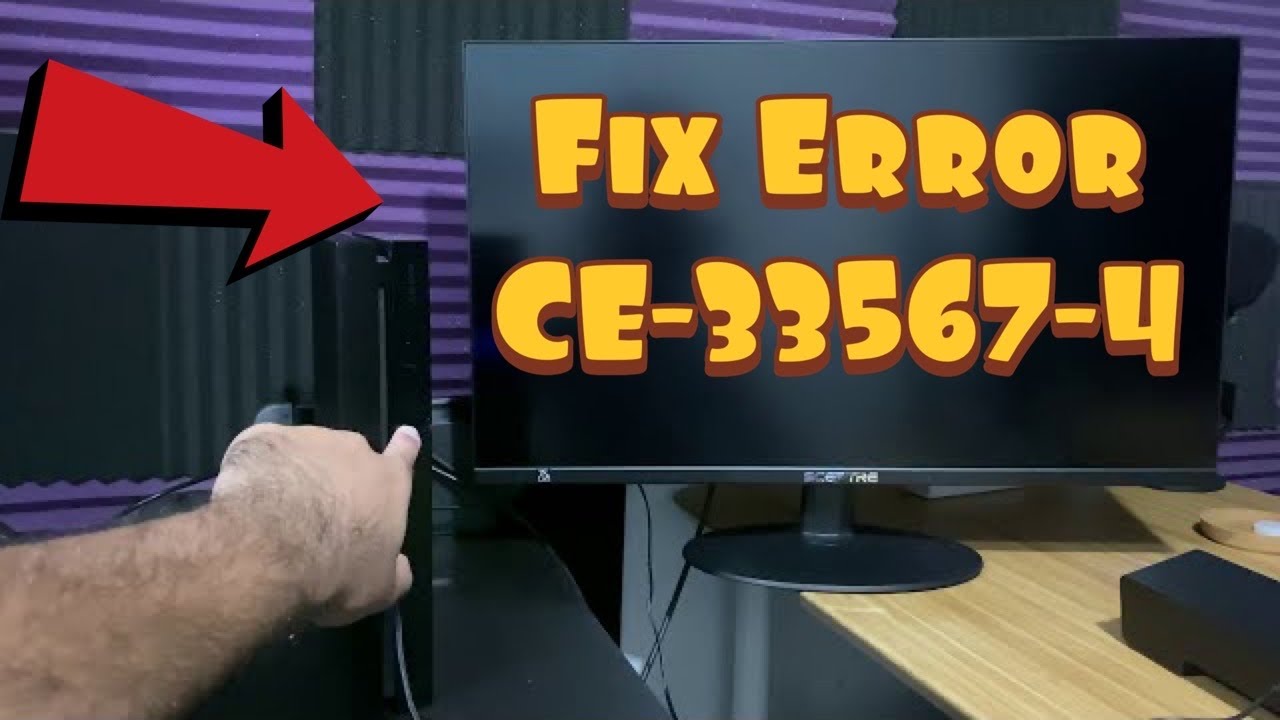
  • How to Fix PS4 Error CE-33567-4 (Cannot Initialize)

    How to Fix PS4 Error CE-33567-4 (Cannot Initialize)

    Quick answer: Start the PS4 in Safe Mode with a data-capable USB cable, then try Update System Software and Rebuild Database before initializing anything. If the console cannot complete initialization, download the official PS4 reinstallation file to a freshly formatted USB drive and use the Safe Mode reinstallation option only after understanding that it erases the console.

    Before you start

    • Use a USB cable that carries data; some charge-only cables cannot operate the controller in Safe Mode.
    • Back up accessible saved data, screenshots and captures before any initialization.
    • Use the current PS4 update or reinstallation file only from PlayStation Support.
    • Keep the console connected to stable power during system-software work.

    Fix PS4 error CE-33567-4

    1. Turn the PS4 fully off. Wait until the power indicator stops blinking. Do not begin from Rest Mode.
    2. Enter Safe Mode. Hold the console power button and release it after the second beep, usually about seven seconds after the first. Connect the controller with a data-capable USB cable and press the PS button.
    3. Try Update System Software first. Choose the Safe Mode update option and use the Internet method if available. This is the least destructive way to replace an incomplete system update.
    4. Rebuild the database. If the update completes but normal startup still fails, return to Safe Mode and select Rebuild Database. This scans the storage index and does not intentionally erase games or saves, although backups are always wise.
    5. Prepare a fresh USB update only if needed. Format a USB drive as FAT32 or exFAT. Create a folder named PS4, then an UPDATE folder inside it. Download the official file and use the exact filename PlayStation specifies.
    6. Retry with another USB drive or port. If the installation reaches the end and fails, recreate the folder structure and download the file again. A faulty drive, corrupted download or unreliable USB port can interrupt the read.
    7. Use reinstallation only as the last resort. The Safe Mode option labeled Initialize PS4 (Reinstall System Software) deletes all users and data on the internal drive. Choose it only when the non-destructive update and database rebuild fail and you have the official reinstallation file, not the smaller update file.

    Why this works

    CE-33567-4 appears during initialization when the PS4 cannot complete the system-software process. Safe Mode starts only essential services. Updating replaces incomplete software, while rebuilding the database repairs the storage index. A clean USB download removes the possibility that an old or damaged installer is being reused.

    If installation fails near 99%

    • Download the file again rather than copying the same archive back to the drive.
    • Verify the USB folder names and filename exactly, including capitalization.
    • Try a different data cable for the controller and a different known-good USB drive.
    • Inspect USB ports for debris without inserting metal tools or applying liquid inside the console.
    • If multiple drives and a fresh official file fail, the internal drive or another hardware component may need service.

    Warnings

    Do not select Initialize or Reinstall merely as a first troubleshooting step: both are destructive, and the reinstallation option erases the console. Never interrupt power during installation. Avoid unofficial system-software downloads.

    FAQ

    Does Rebuild Database delete my games?

    It is designed to rebuild the content index, not erase installed games or saves. Still back up anything important whenever storage trouble is suspected.

    Why does the controller not work in Safe Mode?

    Safe Mode requires a wired data connection. Replace a charge-only cable with a known data-capable micro-USB cable.

    Which PS4 file do I need?

    Use the normal update file for Update System Software. Use the larger reinstallation file only for the erase-and-reinstall option.

    Official references

    Source video

    https://www.youtube.com/watch?v=PeJ3fqnN2j0

    As an Amazon Associate I earn from qualifying purchases.
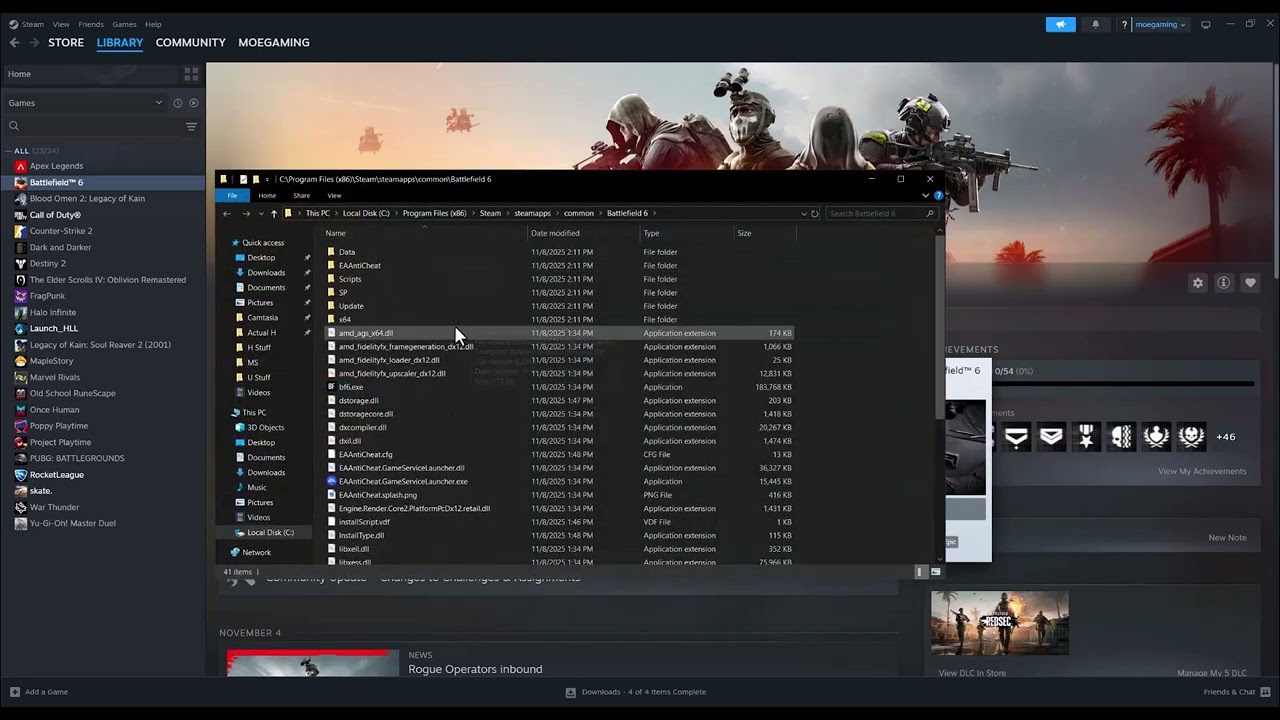
  • How to Fix Battlefield REDSEC DirectX ‘GetDeviceRemovedReason’ Error

    How to Fix Battlefield REDSEC DirectX ‘GetDeviceRemovedReason’ Error

    Quick answer: Restart the PC, update Battlefield and the graphics driver, then repair the game files. If the DirectX GetDeviceRemovedReason crash remains, turn off the Steam and other overlays for one test, return CPU/GPU tuning to stock, and launch again. Running the launcher or game as administrator can be tested temporarily, but it should not be treated as a permanent requirement.

    Before you start

    • Write down the complete DirectX or DXGI message and when it appears.
    • Confirm the PC meets the current Battlefield requirements.
    • Save work and restart Windows before changing settings.
    • Download graphics drivers only from NVIDIA, AMD or Intel.

    Fix the GetDeviceRemovedReason crash

    1. Install game and Windows updates. Let Steam or the EA app finish every Battlefield update, install pending Windows updates and restart the PC.
    2. Update the graphics driver. Install the current stable driver for the exact GPU. Choose the vendor installer’s clean-install option if the error began after a failed or partial driver update, then restart.
    3. Repair the game files. In Steam, open Library, right-click the game, select Properties > Installed Files > Verify integrity. In the EA app, open Library, use the game’s Manage menu and choose Repair.
    4. Disable overlays for one test. In Steam Properties > General, turn off Enable the Steam Overlay while in-game. Also close Discord, Xbox Game Bar, GPU recording/overlay tools and hardware-monitoring overlays. Re-enable them one at a time after testing.
    5. Return hardware to stock settings. Remove GPU undervolts or overclocks, restore default CPU/RAM tuning and reboot. Device-removed errors can appear when the graphics driver resets under load.
    6. Clear the launcher cache. For the EA app, use Help > App Recovery > Clear Cache. Restart the launcher and sign in again.
    7. Test administrator mode once. Browse to the game executable from Steam’s Installed Files page. Right-click it, open Properties > Compatibility and test Run this program as an administrator. If it makes no difference, turn the option off again. Permanent elevation increases the impact of any compromised add-on or overlay.
    8. Reduce the graphics load. Start with the game’s default settings. Disable frame generation and ray tracing temporarily, cap the frame rate and avoid using more VRAM than the settings meter allows.

    Why this works

    GetDeviceRemovedReason means Windows or DirectX lost the active graphics device or the driver reset. That can follow a driver fault, unstable tuning, corrupted shader or game files, an overlay conflict, or excessive graphics load. The sequence above replaces files and drivers first, then isolates software that hooks into the renderer.

    Optional launch-mode test

    The source video demonstrates trying -dx11 or -dx12 in Steam launch options. Treat this as an unofficial, reversible experiment: support varies by build and an unsupported flag may be ignored or make the game fail to start. Enter only one flag at a time in Properties > General > Launch Options, test once, and remove it if the error remains. Do not download replacement DLL files.

    If the error still appears

    • Check the Battlefield error-code and known-issues pages for a build-specific problem.
    • Use Windows Reliability Monitor to see whether the graphics driver or game executable failed.
    • Test the GPU at stock settings in another demanding game. Repeated driver resets outside Battlefield can indicate a system-level stability or hardware problem.
    • Submit an EA Error Reporter log with the exact timestamp, GPU model and driver version.

    Warnings

    Do not disable antivirus permanently, raise GPU voltage, edit the registry blindly or copy DLL files from download sites. If the PC is overheating or crashing outside Battlefield, stop stress testing and address cooling or hardware stability first.

    FAQ

    Should I leave the Steam overlay disabled?

    Only if testing proves it is the conflict. Otherwise re-enable it. The goal is to identify the cause, not remove features unnecessarily.

    Does administrator mode fix DirectX?

    Not directly. It may resolve a permissions conflict, but it will not repair a bad driver or unstable GPU. Disable it again if it does not help.

    Should I force DirectX 11 or 12?

    Only as a short, reversible test when the current Battlefield build supports the option. Remove the flag if the game ignores it or behaves worse.

    Official references

    Source video

    https://www.youtube.com/watch?v=YhYfrBqa02U

    As an Amazon Associate I earn from qualifying purchases.
  • How to Fix Black Ops 7/Warzone Stuck in a Server Queue Loop

    How to Fix Black Ops 7/Warzone Stuck in a Server Queue Loop

    Quick answer: First check Call of Duty service status. If services are online, fully close the game and relaunch it. On PS5, confirm the required Multiplayer or Warzone content pack is installed; if the loop continues, remove only that affected pack and download it again. Then restart the console and router, test a wired connection or a different Wi-Fi band, and retry. A public DNS service can be tested last, but it cannot repair an Activision outage.

    Before you start

    • Make sure the queue is actually looping rather than counting down normally.
    • Note which mode triggers it: Multiplayer, Warzone or Zombies.
    • Keep enough free storage and data allowance for a large content-pack download.
    • Do not delete saved data or the whole game until the smaller checks below fail.

    Fix the Black Ops 7 or Warzone server queue loop

    1. Check the servers. Open Activision’s Online Services page and select the relevant Call of Duty title. If there is an incident, leave the installation and network settings alone and try again after the service recovers.
    2. Close the game completely. Return to the console home screen, highlight Call of Duty, press the Options button and choose Close Game. Wait about 30 seconds, then relaunch it. Rest Mode is not a full restart.
    3. Restart the console. Choose Power > Restart PS5. This clears the suspended session and forces a new sign-in with Call of Duty services.
    4. Confirm the mode’s content pack. Highlight Call of Duty, press Options and choose Manage Game Content. Verify that the pack needed for the affected mode is installed. You can also open Call of Duty’s in-game Manage Files screen.
    5. Refresh only the affected pack. If the pack is installed but the queue loops every time, remove the Multiplayer or Warzone pack that matches the problem, restart the PS5 and download that pack again. Do not remove Campaign or other modes unnecessarily.
    6. Power-cycle the network. Shut down the console. Unplug the modem/router for about 60 seconds, reconnect it, wait until it is fully online and then start the console.
    7. Test the other connection path. If possible, connect by Ethernet. On Wi-Fi, open Settings > Network > Settings > Set Up Internet Connection, select the saved network, press Options and test 5 GHz and 2.4 GHz separately. Use the band that is stable in your room, not simply the one with the larger number.
    8. Optional: test a public DNS resolver. In the saved network’s Advanced Settings, set DNS to Manual and try Cloudflare’s primary 1.1.1.1 and secondary 1.0.0.1. Record the previous values so you can restore Automatic if nothing changes.

    Why these steps work

    The queue depends on a clean game session, the correct mode files, a working platform connection and available Call of Duty services. Closing the game clears a stale session. Reinstalling one content pack replaces damaged or mismatched files without forcing a full reinstall. Changing the network path can isolate weak Wi-Fi or router-state problems. DNS only changes how service names are resolved; it does not bypass a queue or fix an outage.

    Alternatives if the loop continues

    • Run the console’s internet connection test and note whether PSN sign-in fails.
    • Remove and re-add the saved Wi-Fi network instead of changing advanced router settings.
    • Try another network briefly, such as a phone hotspot, only as a diagnostic test. Watch mobile-data usage.
    • If every device reaches Call of Duty except this console, contact Activision Support with the time, platform, mode and a screenshot of the loop.

    Warnings

    Removing a content pack makes that mode unavailable until the download finishes. Do not factory-reset the router, open ports at random, or disable console security features. Avoid repeated reinstalls while the official status page reports an outage.

    FAQ

    Does changing DNS guarantee a fix?

    No. It is a reversible connection test that may help name-resolution problems. Restore DNS to Automatic if it makes no difference.

    Will deleting the Multiplayer pack erase my online progress?

    Online progression is tied to your account, but the mode cannot launch until its pack is downloaded again. Do not delete saved data.

    What if the queue has an estimated wait?

    Let a normal queue finish once. Use this guide when the countdown repeatedly restarts, returns to the same queue, or never hands off to the game.

    Official references

    Source video

    https://www.youtube.com/watch?v=3hl3QTpFbZw

    As an Amazon Associate I earn from qualifying purchases.
  • NBA 2K27 Dribbling Controls on PS5: Combos, Crossovers & Escapes

    NBA 2K27 Dribbling Controls on PS5: Combos, Crossovers & Escapes

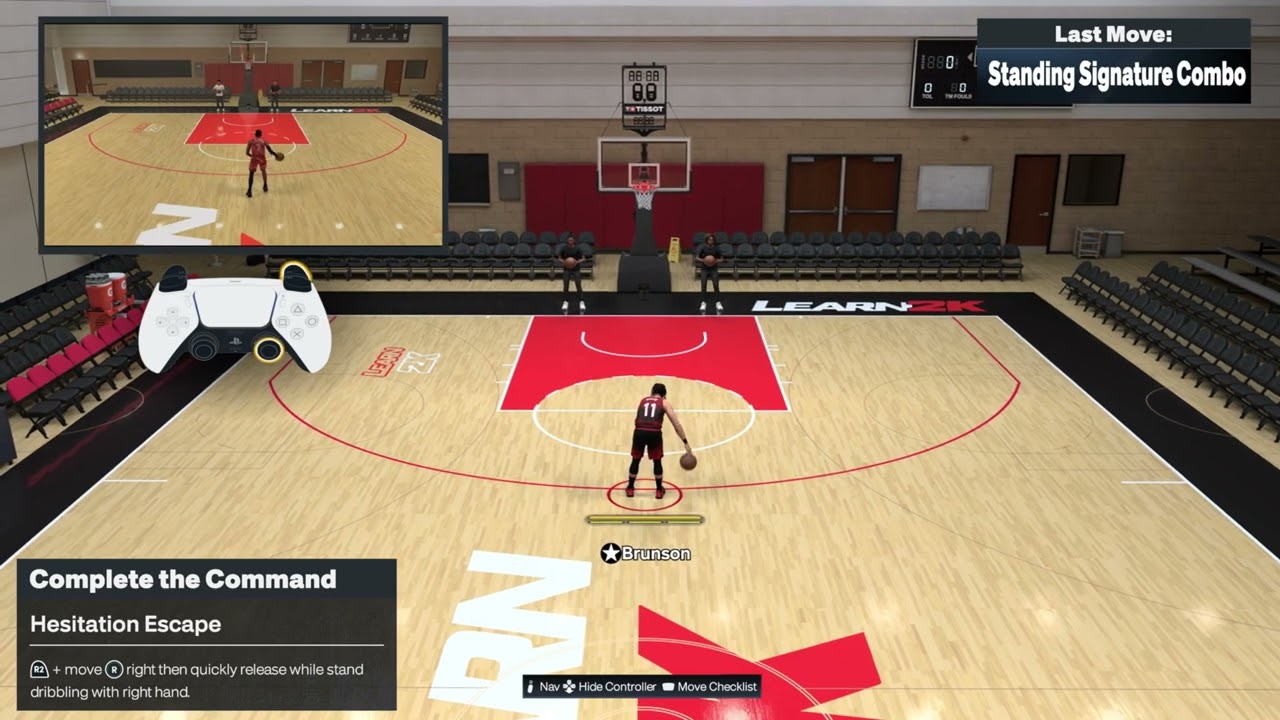
    NBA 2K27 dribbling controls on PS5 showing a hesitation escape
    NBA 2K27 hesitation escape and signature-combo controls on PS5

    Quick answer: For the hesitation escape demonstrated on PS5, stand dribbling with the ball in your right hand, hold R2, then quickly flick the Right Stick right and release it. For a signature combo, quickly flick and release the Right Stick up twice. For the stepback crossover, hold R2, flick the Right Stick down, and release it quickly. The equipped package, ball hand, ratings and timing can change the animation, so confirm the current Learn 2K prompt before using a move online.

    Move Default PS5 input demonstrated Important detail
    Hesitation escape From a stand dribble with ball in right hand: hold R2, flick Right Stick right, release The source clip shows the right-hand setup; follow Learn 2K for the mirrored prompt
    Signature combo Quickly flick and release Right Stick up twice Your equipped signature package controls the resulting sequence
    Stepback crossover Hold R2, flick Right Stick down, then release quickly Start with enough space behind the ball handler

    Before you practice

    • Use the default PlayStation control preset or compare each instruction with the live Learn 2K prompt.
    • Practice offline first so network delay does not hide whether the flick registered.
    • Start from a controlled stand dribble and leave room for the animation.
    • Check which signature size-up and combo packages your player has equipped.
    • If the Right Stick or R2 responds late, work through the NBA 2K27 controller input-delay checklist before changing your timing.

    1. Perform the hesitation escape

    1. Stop moving and begin a stand dribble with the ball in your right hand.
    2. Press and hold R2.
    3. Quickly flick the Right Stick right.
    4. Release the Right Stick immediately and let the escape animation start before adding another input.
    5. Practice the timing in Learn 2K, then add your next drive, shot or pass.

    The walkthrough demonstrates this specific right-hand setup. Ball hand and the active control prompt matter; do not assume the identical direction will produce the mirrored move from the left hand. Use the current Learn 2K prompt when practicing the opposite side.

    2. Trigger a signature combo

    1. Settle into a stand dribble with space around the ball handler.
    2. Quickly flick the Right Stick up and release it.
    3. Repeat the same up-and-release motion a second time without holding the stick.
    4. Let the equipped signature sequence complete before chaining another move.

    The video demonstrates the two quick upward inputs. The animation is not universal: NBA 2K27 links signature moves to the packages equipped on the player, so another build can display a different combo from the same request.

    3. Perform a stepback crossover

    1. Begin dribbling with enough room behind the ball handler.
    2. Press and hold R2.
    3. Quickly flick the Right Stick down.
    4. Release the Right Stick immediately and let the stepback crossover begin before adding another input.
    5. Read the defender, then drive, pass or shoot instead of preselecting the next action.

    The source demonstration uses a short R2-plus-down request. A held or diagonal stick motion can call a different stepback or escape animation. Your equipped Stepback Crossover package determines the exact motion and distance.

    Why these controls work

    NBA 2K27 groups dribble inputs into named move families and then applies the player’s signature packages. The official gameplay guide specifically lists Signature Size-Up, Combo Moves and Hesitation Escape among its expanded dribbling options. A short flick requests a move; holding the stick or continuing to steer can request a different animation. Starting from a stable stand dribble makes the input easier for the game to distinguish.

    Useful follow-ups and alternatives

    • Use the hesitation escape to create a change of direction, then read the defender instead of committing to a shot automatically.
    • Reset to a neutral stand dribble if the first input becomes a crossover or moving breakdown.
    • Practice one equipped package at a time; swapping packages changes the timing and distance you must learn.
    • For an on-ball scoring setup, pair the move with the NBA 2K27 shooting-controls guide.
    • If a screen is safer than an isolation, use the NBA 2K27 pick-and-roll controls.

    Warnings and common mistakes

    • Do not hold the Right Stick after the flick; a hold can request a shot or another move.
    • Do not mash several stick directions. Wait long enough to see which animation registered.
    • The hesitation clip documents a right-hand setup only. Use Learn 2K for the opposite-hand direction.
    • Signature packages, attributes, fatigue, defender position and patches can change the animation or result.
    • Online latency can make a correct flick appear late. Learn the move offline before judging it in multiplayer.
    • A new controller only helps if testing confirms stick drift or a faulty R2 input.

    Frequently asked questions

    Why do I get a crossover instead of a hesitation escape?

    You may still be moving, the ball may be in the other hand, or the stick may be traveling diagonally. Reset to a stand dribble, confirm the ball is in the right hand for this demonstration, then make one clean rightward flick while holding R2.

    Why does my signature combo look different?

    The same request can call the signature package equipped on your player. Different builds and packages can therefore produce different sequences.

    Should I hold the Right Stick up for the combo?

    No. The source demonstration uses quick up-and-release motions. Holding the stick can request a different action.

    Can I use these controls online?

    Yes, but practice offline first. Connection delay changes when the move appears on screen even though your controller input happened earlier.

    Are these inputs guaranteed after every update?

    No. Control presets and gameplay patches can change prompts. The current in-game Learn 2K display should take priority if it differs.

    Watch the Moe Gaming walkthroughs

    Hesitation escape

    Signature combo

    Stepback crossover

    Optional controller replacement

    As an Amazon Associate I earn from qualifying purchases.
    • DualSense wireless controller — relevant only after confirming stick drift or an unreliable R2 input; hardware will not correct move timing or package selection.

    Official references

  • How to Fix Battlefield 6 Black Screen at Launch on PC

    How to Fix Battlefield 6 Black Screen at Launch on PC

    Quick answer: For a Battlefield 6 black screen at launch, close Battlefield and the launcher in Task Manager, restart the PC, install the latest game and graphics-driver updates, then repair or verify the game files. EA also documents clearing the EA app cache through Help > App Recovery > Clear Cache. If the game still launches black, test without overlays and background capture tools before reinstalling.

    Before you start

    • Confirm the PC meets Battlefield 6’s current minimum requirements.
    • Save work and close nonessential apps.
    • Use only the official EA, NVIDIA, AMD or Intel download pages.

    Fix Battlefield 6 black screen at startup

    1. Close stuck game and launcher processes. Press Ctrl + Shift + Esc, end Battlefield 6 and the EA app, Steam or Epic process used to launch it, then restart Windows.
    2. Install pending updates. Update Battlefield 6, Windows and the launcher. Install the current graphics driver from the GPU maker, then restart again.
    3. Repair or verify the game files. In the EA app, open Library, use the three-dot menu on Battlefield 6 and choose Repair. On Steam, use Properties > Installed Files > Verify integrity. On Epic Games, choose Manage > Verify.
    4. Clear the EA app cache. Open the EA app menu, choose Help > App Recovery > Clear Cache. If the app will not open, use Start > All Apps > EA > App Recovery > Clear Cache.
    5. Disable overlays for one test. Turn off the EA, Steam, Discord, Xbox Game Bar and GPU capture overlay temporarily. Close RGB, monitoring and recording utilities, then launch the game.
    6. Run the launcher as administrator once. Close the launcher, right-click it and choose Run as administrator. EA lists this as a troubleshooting step for app installation and launch issues. Do not leave unrelated software permanently elevated.
    7. Check display behavior. Disconnect a secondary monitor for one test, use the display’s native resolution and disable HDR temporarily. If the game becomes visible, restore options one at a time to find the conflict.
    8. Reinstall the launcher before the whole game. If cache clearing and repair fail, reinstall the EA app, restart and relink the existing installation. Reinstall Battlefield 6 only if file repair repeatedly fails or the launcher cannot recognize it.

    Why this works

    A black screen can appear when the game process starts but cannot finish loading display resources. The common causes are a stuck launcher session, corrupted files or cache, an incompatible graphics driver, an overlay hook or a display-mode conflict. The steps isolate those causes from least disruptive to most disruptive.

    If the game still will not launch

    • Check EA’s online service updates and Battlefield 6 known issues.
    • Return CPU and GPU overclocks to stock and test again.
    • Use the EA Error Reporter and include the launcher logs, GPU model, driver version and exact time of the failure.

    Warnings

    Do not download replacement DLL files from third-party sites, disable antivirus permanently or delete random folders. Do not use undocumented launch commands from comments without confirming that EA supports them. If a clean graphics-driver installation is needed, use the vendor installer and create a restore point.

    FAQ

    Can an overlay cause a black screen?

    Yes. Overlays inject into the game’s display process. Disabling them briefly is a safe diagnostic test; re-enable them one at a time after the game works.

    Will clearing the EA app cache delete Battlefield 6?

    No. It removes temporary EA app data and the download queue, not the installed game files.

    Should I reinstall Windows?

    No. Repair the game, clear the launcher cache, update the graphics driver and test display/overlay conflicts first.

    Official references

    Source video

    https://www.youtube.com/watch?v=wyJMr69F1_Q

    As an Amazon Associate I earn from qualifying purchases.
  • How to Fix an “Unidentified Error” When Buying a Game on PS5

    How to Fix an “Unidentified Error” When Buying a Game on PS5

    Quick answer: If PlayStation Store shows an Unidentified Error during a PS5 purchase, check PlayStation status before retrying. Then confirm the payment name, address, card details and country match the PlayStation account region. If payment information was changed repeatedly, stop trying for 24 hours—PlayStation says another attempt during that period can restart the security block. An accepted alternative payment method or PlayStation Store Wallet Top-Up code can complete the purchase without reusing the rejected card.

    Before you start

    • Do not post card numbers, billing addresses or account details in support forums.
    • Confirm the item is sold in the same country or region as the account.
    • Check whether the bank has enabled online and international digital purchases.

    Fix the PS5 Store unidentified purchase error

    1. Check PlayStation service status. Make sure Account Management and PlayStation Store are operating normally. If either service is degraded, wait until it is green.
    2. Restart the PS5 and reopen the Store. Close the Store screen, restart the console and begin a fresh purchase attempt. Do not submit repeated rapid attempts.
    3. Verify the payment details. In Account Management > Payment Management, check the card number, expiration date, security code, name and billing address. Enter details exactly as the bank records them.
    4. Check region compatibility. PlayStation says a payment card from a different country than the Store region may not link. Use a card or payment method issued for the account’s region.
    5. Remove unsupported special characters. If the billing name or address uses punctuation the form rejects, PlayStation recommends basic Latin letters and avoiding characters such as asterisks, hyphens, apostrophes or slashes.
    6. Wait out a security block. If PlayStation reports that payment information was updated too often, wait a full 24 hours. Do not attempt another update during that period because it can start another 24-hour block.
    7. Try an accepted alternative. Use PayPal where supported or redeem a PlayStation Store Wallet Top-Up code bought for the same account region. Confirm the wallet balance before checking out.
    8. Contact the bank or PlayStation. Ask the bank whether the transaction was blocked and whether funds are available. If the bank approves it but PS Store still fails, contact PlayStation Support with the time and non-sensitive error details.

    Why this works

    Checkout depends on PlayStation services, the account region, payment validation and the bank’s authorization. A generic message can appear when any part of that chain rejects the request. Checking each layer in order avoids unnecessary account changes and prevents repeated attempts from extending a security lock.

    Alternatives

    • Try the PlayStation App or web Store after confirming the same correct account is signed in.
    • Use a wallet code that explicitly matches the account country.
    • Wait for a Store outage to clear; changing cards will not repair a service incident.

    Warnings

    Never buy a wallet code for a different region, and never share a voucher code before redeeming it. Do not keep retrying a declined card. Repeated authorizations may create pending holds, and repeated payment-detail updates can extend PlayStation’s 24-hour security block.

    FAQ

    Why does my wallet balance still fail?

    Check that the wallet covers the full price including tax and that the content is available for the account region. Contact PlayStation if a sufficient same-region wallet balance still produces the error.

    Will deleting the payment method remove a security block?

    No. If PlayStation says the information was updated too often, wait 24 hours without another attempt.

    Can I use a gift card from another country?

    Usually not. Store wallet codes are region-specific and should match the PlayStation account country.

    Official references

    Source video

    https://www.youtube.com/watch?v=Vmzv53xXhic

    As an Amazon Associate I earn from qualifying purchases.