Category: Game Fixes

Troubleshooting guides and fixes for gaming errors, crashes, installation problems, and connectivity issues.

  • How to Fix Skate Connection Lost Error 4269825243

    How to Fix Skate Connection Lost Error 4269825243

    Quick answer: Check EA and PlayStation service status first, restart Skate and the console, test the PS5 connection, then try Ethernet or the other Wi-Fi band. Use manual DNS only as an optional reversible test.
    Skate connection lost error 4269825243 troubleshooting
    Moe Gaming’s Skate connection-lost troubleshooting video thumbnail.

    Before you start

    • Confirm Skate and PS5 system software are current.
    • Note whether other online games connect normally.
    • Save a screenshot of the full error and code 4269825243.
    • Know your Wi-Fi password before removing or editing the connection.

    How to fix it

    1. 1. Check for an outage
      Review EA Help and PlayStation Network status. If services are degraded, wait and retry instead of repeatedly changing the console.
    2. 2. Retry once, then close the game
      At the error screen choose Start once. If it returns, close Skate from the PS5 switcher, wait 30 seconds, and reopen it.
    3. 3. Restart the network path
      Turn off the PS5. Unplug the modem/router for about a minute, restore power, wait until it is fully online, then restart the console.
    4. 4. Test the PS5 connection
      Open Settings > Network > Connection Status > Test Internet Connection. Record NAT type and whether sign-in succeeds.
    5. 5. Prefer Ethernet
      If possible, connect the PS5 to the router with Ethernet and choose Set Up Wired LAN. This bypasses Wi-Fi interference.
    6. 6. Try a fixed Wi-Fi band
      For Wi-Fi, highlight the network under Set Up Internet Connection, open options, and test 5 GHz near the router or 2.4 GHz at longer range. Retest after each single change.
    7. 7. Test manual DNS only if needed
      Edit Advanced Settings and test primary DNS 1.1.1.1 with secondary 1.0.0.1. If it makes no difference, restore DNS to Automatic. Then reopen Skate.

    Why these fixes work

    Connection-lost codes can appear when an EA service is unavailable, the console session is stale, or packets are being dropped between the PS5 and router. Status checks prevent needless changes, while restarting and testing Ethernet or one Wi-Fi band at a time isolates the local path. DNS changes may help only when name resolution is the issue; they do not repair an EA outage.

    Other safe options

    • Test another online EA title to distinguish an account/service issue from a Skate-only issue.
    • Temporarily try another trusted connection to isolate the home router, while avoiding metered mobile data for long sessions.
    • Collect the error code, timestamp, platform, ISP, and troubleshooting results for EA Help.

    Warnings

    • Do not open all router ports or disable the firewall as a first step.
    • Manual DNS is not a guaranteed fix; restore Automatic if it is slower or ineffective.
    • Repeated reinstalling is unlikely to fix a live service outage.

    Frequently asked questions

    Is 4269825243 an official explanation of the cause?

    EA does not currently publish a code-specific cause. Treat it as a connection symptom and isolate service, console, and network factors.

    Should I use 5 GHz or 2.4 GHz?

    Use 5 GHz when close to the router; try 2.4 GHz for longer range. Ethernet is the clearest test.

    Will changing DNS improve ping?

    Not usually after a connection is established. It is a limited diagnostic for resolution problems, not a general latency cure.

    Should I reinstall Skate?

    Only after status, restart, update, and network tests fail and EA Support recommends it.

    Source video

    Official references

    As an Amazon Associate I earn from qualifying purchases.

  • How to Fix Xbox App Error 0x803F8001 on Windows

    How to Fix Xbox App Error 0x803F8001 on Windows

    Quick answer: Make sure the Microsoft Store and Xbox app use the account that owns the game or subscription, sync Windows date and time, install Store updates, then repair the Xbox app. Reset it only if repair fails.

    Xbox app error 0x803F8001 troubleshooting on Windows
    Moe Gaming’s Windows Xbox app error troubleshooting video thumbnail.

    Before you start

    • Save any work and close the Xbox app and Microsoft Store.
    • Confirm Windows is online and fully activated.
    • Know which Microsoft account owns the game or active Game Pass entitlement.
    • Install pending Windows updates, then restart once.

    How to fix it

    1. 1. Verify the owning account
      Open Microsoft Store > profile picture and Xbox app > profile. Sign into both with the account that owns the game or Game Pass subscription. If different accounts are intentional, confirm the Store account is the purchaser.
    2. 2. Sync the clock
      Open Settings > Time & language > Date & time. Turn on Set time automatically and Set time zone automatically, then select Sync now. Incorrect time can disrupt Store licensing checks.
    3. 3. Update Microsoft Store apps
      Open Microsoft Store > Library > Get updates. Install updates for Microsoft Store, Xbox, Gaming Services, and the affected game.
    4. 4. Repair the Xbox app
      Open Settings > Apps > Installed apps > Xbox > Advanced options > Terminate, then Repair. Reopen the app and test.
    5. 5. Repair Gaming Services and Microsoft Store
      Use the same Advanced options page for Gaming Services and Microsoft Store. Choose Repair first, then restart Windows.
    6. 6. Reset only the affected app if needed
      If repair does not work, return to Advanced options and select Reset for Xbox. This clears local app data and signs you out, but it does not erase cloud-owned purchases.
    7. 7. Reinstall from your Library
      In Microsoft Store, open Library and reinstall or relaunch the owned game from there. If the entitlement still is not recognized, check Xbox service status and contact Xbox Support.

    Why these fixes work

    Error 0x803F8001 is commonly an entitlement or app-state failure: Windows cannot confirm that the signed-in account can launch the title. Matching the Store account, correcting the clock, updating licensing components, and repairing cached app data refresh the parts involved without immediately removing games. The source video shows the date/time and Xbox app repair sequence; the account and Store checks make the guide safer and more complete.

    Other safe options

    • Run the Windows Store Apps troubleshooter if it is available on your Windows build.
    • Sign out of both apps, restart Windows, then sign back into Microsoft Store before Xbox.
    • If only one title fails, verify that it remains included with your subscription and that the subscription has not expired.

    Warnings

    • Reset signs you out and removes local app preferences; try Repair first.
    • Do not download third-party DLLs or registry cleaners for a Store licensing error.
    • Do not buy the game again until Xbox Support confirms the account lacks a valid entitlement.

    Frequently asked questions

    Does resetting the Xbox app uninstall my games?

    Reset normally clears the app’s local settings and sign-in state, not installed games, but note your install locations before changing Gaming Services.

    Why does the Windows clock matter?

    Secure licensing and authentication use timestamps. A wrong clock or time zone can make a valid token appear invalid.

    Can the error mean Game Pass expired?

    Yes. Check the subscription and the game’s current catalog availability before reinstalling.

    Should I reinstall Windows?

    No. That is disproportionate for this error; complete account, time, update, repair, and support checks first.

    Source video

    Official references

    As an Amazon Associate I earn from qualifying purchases.
  • How to Fix PlayStation Portal Input Lag and Latency

    How to Fix PlayStation Portal Input Lag and Latency

    Quick answer: Connect the PS5 to the router with Ethernet, put the Portal on a strong 5 GHz Wi-Fi signal, pause large downloads, and test close to the router. Sony recommends at least 5 Mbps in each direction and about 15 Mbps for a better Remote Play experience.

    PlayStation Portal input lag troubleshooting settings
    Moe Gaming’s PlayStation Portal latency troubleshooting video thumbnail.

    Before you start

    • Update the PS5 and PlayStation Portal system software.
    • Confirm the PS5 and Portal can both reach the internet.
    • If the PS5 uses Wi-Fi, connect both devices to the same router for the first test.
    • Have an Ethernet cable available if the router is close enough to the PS5.

    How to fix it

    1. 1. Check the connection before changing settings
      On PS5, open Settings > Network > Connection Status and run Test Internet Connection. If the connection is unstable, restart the modem/router and retest before blaming the Portal.
    2. 2. Wire the PS5 to the router
      Connect the PS5 by Ethernet, then choose Settings > Network > Settings > Set Up Internet Connection > Set Up Wired LAN. This removes one Wi-Fi hop from the Remote Play path.
    3. 3. Use 5 GHz Wi-Fi for the Portal
      Connect the Portal to the router’s 5 GHz network when signal strength is good. If the router combines 2.4 and 5 GHz under one name and the Portal keeps switching bands, temporarily separate the bands or disable band steering if your router supports it.
    4. 4. Reduce congestion
      Pause PS5 downloads, cloud backups, 4K streaming, and other large transfers on the home network. Retest the same game in the same room so the comparison is meaningful.
    5. 5. Move closer and remove obstacles
      Test within clear range of the router. Thick walls, cabinets, televisions, and crowded wireless channels can add delay or packet loss even when an internet speed test looks fast.
    6. 6. Restart the Remote Play session
      Close the session, restart the Portal and PS5, and reconnect. A fresh session can clear a stalled connection without deleting settings.
    7. 7. Isolate the cause
      If latency remains, test the Portal on another trusted network. A phone hotspot can be a short diagnostic test, but mobile data charges and inconsistent carrier latency make it a poor permanent fix.

    Why these fixes work

    Remote Play sends controller input to the PS5 and streams video back. Delay rises when either direction suffers interference, congestion, or packet loss. Ethernet stabilizes the PS5 side, while a strong 5 GHz connection gives the Portal more bandwidth and usually less interference. The source video demonstrates Ethernet and Wi-Fi-band checks; Sony’s current guidance supports those network changes. It does not support changing HDMI Device Link as a latency fix, so that setting is intentionally omitted.

    Other safe options

    • If 5 GHz is weak at your usual seat, test 2.4 GHz; it is slower but can travel farther through walls.
    • Use router quality-of-service controls only if you understand them, and prioritize the PS5 and Portal rather than blocking other devices.
    • If every network shows the same severe delay, contact PlayStation Support and include the results of both network tests.

    Warnings

    • Do not factory-reset the PS5 or Portal for ordinary latency before completing network tests.
    • Do not expose the PS5 directly to the internet or disable router security.
    • A fast download result alone does not rule out high latency, jitter, or packet loss.

    Frequently asked questions

    How fast should my connection be?

    Sony lists 5 Mbps as the minimum and recommends at least 15 Mbps for a better experience. Local Wi-Fi quality still matters even with faster internet.

    Should the PS5 and Portal use the same Wi-Fi band?

    The PS5 is best connected by Ethernet. If it must use Wi-Fi, start with both devices on the same router; place the Portal on 5 GHz when signal strength is good.

    Will turning off HDMI Device Link reduce lag?

    Sony does not identify HDMI Device Link as a Remote Play latency control. Leave it enabled if you use it; focus on the network path instead.

    Why does latency change by room?

    Distance, walls, interference, and router placement affect real-time streaming more than ordinary browsing.

    Source video

    Official references

    As an Amazon Associate I earn from qualifying purchases.
  • PS4 Error WS-37368-7: Chargeback Suspension

    PS4 Error WS-37368-7: Chargeback Suspension

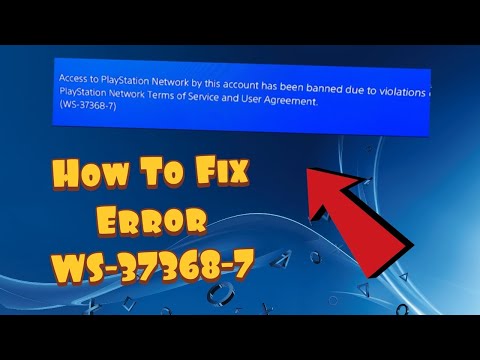
    PS4 error WS-37368-7 PlayStation chargeback suspension

    PS4 error WS-37368-7 means a financial institution reversed one or more PlayStation Store charges, and PlayStation suspended the account while the chargeback is investigated. This is an account-debt issue, not a Wi-Fi, DNS, database, or game-installation problem.

    Quick answer

    Open PlayStation’s official account-debt suspension page, check My Support, and use the Restore account access form. If the purchase was valid and there was no lawful reason for the reversal, PlayStation says access remains suspended until the balance is repaid through its official process.

    Before you start

    • Have the affected PSN sign-in ID and account details available for ownership checks.
    • Review your PlayStation transaction history and bank/card statement so you know which payment was reversed.
    • Use only playstation.com, My Support, or links opened from official PlayStation support.

    How to fix PS4 error WS-37368-7

    1. Confirm WS-37368-7. Record the exact code and affected online ID. Other suspension codes follow different rules.
    2. Review the account status. Visit PlayStation’s official account-debt suspension guide and open My Support.
    3. Match the reversed transaction. Compare PlayStation transaction history with the card or bank statement. Check whether a family member, recurring subscription, or another account explains the charge.
    4. Choose the correct official path. If the charge was valid, use PlayStation’s Restore account access form to resolve the balance. If it was genuinely unauthorized, follow PlayStation’s unauthorized-transaction and compromised-account guide instead.
    5. Complete identity and payment checks securely. Provide information only in the official form or verified support session. Keep case numbers and confirmation emails.
    6. Wait for PlayStation’s confirmation. Account access is restored by PlayStation after the debt or investigation is resolved; local console changes cannot force it.

    Why this fix works

    A chargeback removes funds from the merchant after a purchase. PlayStation treats that reversal as a possible fraud or account-takeover signal and suspends access while it investigates. Resolving the underlying balance or unauthorized-payment case through PlayStation is the only relevant path. The source page contains a comment directing people to buy gift cards for a supposed helper; that is a scam pattern and must be ignored.

    If the error is still happening

    • If you do not recognize the transaction, secure the email account and PSN account, review transaction history, and use PlayStation’s unauthorized payment guide before taking further action.
    • If a family member made the purchase, review family spending limits and require a password at checkout after the case is resolved.
    • If the code is WS-37337-3 instead, read our temporary policy suspension guide.

    Important warnings

    • Never pay an unsolicited social-media or comment-section ‘support agent,’ and never buy gift cards to have a suspension removed.
    • Do not share one-time codes, passwords, full card numbers, or identity documents outside PlayStation’s verified support flow.
    • Do not file another chargeback merely to test the process; speak with PlayStation and your financial institution about the actual transaction.

    Frequently asked questions

    What caused WS-37368-7?

    PlayStation says the financial institution reversed a charge on one or more PlayStation purchases, creating an account-debt suspension.

    Can a router reset or database rebuild fix it?

    No. The restriction is on the PlayStation account and must be handled through PlayStation’s official account-debt process.

    What if the purchase was not mine?

    Use PlayStation’s unauthorized-transaction guide and secure both your email and PSN account. Do not blindly repay a transaction you genuinely dispute without following the official investigation path.

    How long does restoration take?

    PlayStation does not give one universal time on the public guide. Keep the official case confirmation and wait for the status update after the balance or investigation is resolved.

    Watch the source video

    The public YouTube transcript was unavailable after the complete retry sequence. The steps above were independently checked against current PlayStation documentation and the visible source-page context; no unverified workaround was added.

    Official references

    As an Amazon Associate I earn from qualifying purchases.
  • How to Fix PS4 Error SU-42118-6

    How to Fix PS4 Error SU-42118-6

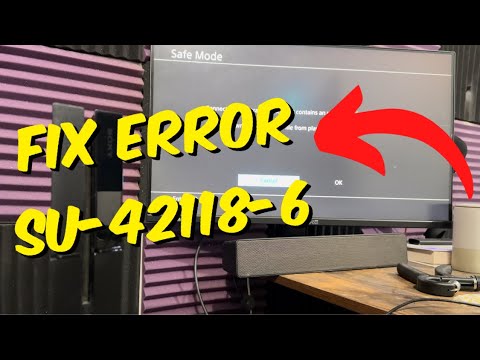
    PS4 error SU-42118-6 system software update problem

    PS4 error SU-42118-6 appears when the console cannot complete a system software update. Begin with PlayStation’s non-destructive reset sequence, delete the failed update notification, and try the update again before moving to Safe Mode or USB.

    Quick answer

    Turn off and unplug the PS4, restart the router after at least five minutes, reconnect the console, delete the failed system-software download from Notifications, and run Settings > System Software Update again. If that fails, use PlayStation’s official Safe Mode or USB update file.

    Before you start

    • Use a stable internet connection and keep the PS4 connected to power throughout the update.
    • If using USB, prepare a FAT32 or exFAT drive and download the update only from playstation.com.
    • Back up important saves before advanced Safe Mode work. Do not choose Reinstall System Software unless you accept that it deletes all console data.

    How to fix PS4 error SU-42118-6

    1. Power down completely. Turn off the PS4, wait until its lights stop flashing, and unplug the power cable.
    2. Restart the network equipment. Turn off the router or modem and wait at least five minutes, as PlayStation instructs. Restart it and wait for internet service to return.
    3. Reconnect and restart the PS4. Plug the console back in and start it normally.
    4. Delete the failed update notification. Open Notifications, highlight the failed system software update, press OPTIONS, and choose Delete.
    5. Download the update again. Go to Settings > System Software Update and follow the prompts without launching other applications.
    6. Use Safe Mode if the normal update fails. Turn off the console, hold the power button until the second beep, connect the controller by USB, and select Update System Software.
    7. Use the official USB update path if necessary. On a FAT32/exFAT drive, create PS4/UPDATE, save the official update as PS4UPDATE.PUP, then choose Update from USB Storage Device in Safe Mode. Folder and file names must be uppercase.

    Why this fix works

    The sequence clears a failed download record and establishes a fresh update session. Safe Mode reduces background activity, while the official USB method supplies the update locally when the network path is unreliable. Viewer comments report mixed outcomes, which is expected: this process addresses software delivery and installation, but it cannot prove or repair a hardware fault.

    If the error is still happening

    • Try a wired Ethernet connection if Wi-Fi repeatedly interrupts the update.
    • Re-download the PUP file from PlayStation if the PS4 says it cannot recognize the USB file; confirm the drive format, uppercase folders, filename, and correct update file.
    • If the console cannot complete an official update by normal, Safe Mode, or USB methods, stop repeating destructive options and use PlayStation Support or Repairs. Our SU-30746-0 guide covers a different PS4 update code.

    Important warnings

    • Do not download PS4 firmware from unofficial mirrors.
    • Update System Software and Reinstall System Software are not the same. Reinstalling system software erases all data on the console.
    • Do not open the console or assume the disc drive is defective based only on SU-42118-6. Seek an official hardware diagnosis if software methods fail.

    Frequently asked questions

    Does SU-42118-6 mean the PS4 disc drive is broken?

    Not conclusively. Online reports mention hardware in some cases, but the error alone does not diagnose a drive. Complete PlayStation’s official update steps before arranging repair.

    Can I update by USB without deleting everything?

    Yes. Safe Mode’s Update System Software option is separate from Reinstall System Software. Choose the update option and use the standard update file.

    Why does the PS4 not see PS4UPDATE.PUP?

    Check that the drive is FAT32/exFAT, the folders are PS4/UPDATE in uppercase, and the file is named PS4UPDATE.PUP and came from PlayStation.

    Should I initialize the PS4?

    Not as an early step. Initialization or system-software reinstallation can erase data and should be reserved for an official recovery path after backups and careful review.

    Watch the source video

    The public YouTube transcript was unavailable after the complete retry sequence. The steps above were independently checked against current PlayStation documentation and the visible source-page context; no unverified workaround was added.

    Official references

    As an Amazon Associate I earn from qualifying purchases.
  • PS4 Error WS-37337-3: Temporary PSN Suspension

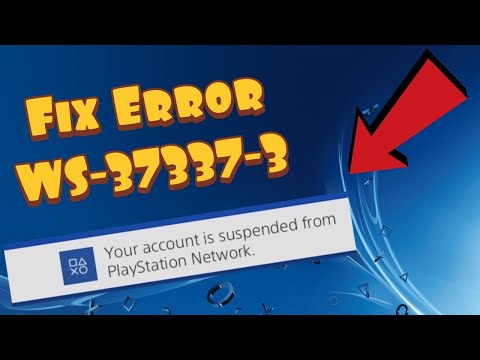
    PS4 Error WS-37337-3: Temporary PSN Suspension

    PS4 error WS-37337-3 temporary PlayStation suspension

    PS4 error WS-37337-3 means the account’s access to PlayStation Network has been temporarily suspended for a violation of the PlayStation Terms of Service or Community Code of Conduct. Router resets and game reinstalls cannot remove an account enforcement action.

    Quick answer

    Check the inbox and spam folder for the email address used as your PlayStation sign-in ID, then visit My Support through PlayStation’s official support pages. The email normally explains why the suspension happened and how long it lasts.

    Before you start

    • Know the sign-in ID (email address) attached to the affected PlayStation account.
    • Use only playstation.com pages or links reached from the console/account portal.
    • Record the exact code. WS-37337-3 is a temporary policy suspension; WS-37368-7 is a different chargeback-debt suspension.

    How to fix PS4 error WS-37337-3

    1. Confirm the exact code. Take a photo or note of WS-37337-3 and the affected online ID. This prevents following advice for a different suspension type.
    2. Check the registered email account. Search the inbox, spam, junk, promotions, and deleted folders for messages from PlayStation. The notice normally states the reason and suspension period.
    3. Open My Support. Use the official Suspensions on PlayStation page and follow its My Support link to review account status.
    4. Read the applicable policy. Compare the notice with the PlayStation Terms of Service and Community Code of Conduct so you understand the enforcement reason.
    5. Wait for the stated end time. Temporary suspensions normally end after the period in the official notice. Do not create new accounts to evade enforcement.
    6. Contact official support for missing access details. If you cannot access the registered email or My Support, use PlayStation’s official account-recovery or support flow. Be ready to verify account ownership.

    Why this fix works

    WS-37337-3 is attached to the PlayStation account, not to local PS4 game files. Checking the registered email and My Support gives you the authoritative reason and duration. Source-page comments show that some players could not find an email or encountered an old link, so this guide points to PlayStation’s current suspension hub instead of promising an unofficial bypass.

    If the error is still happening

    • If you lost access to the sign-in email, use PlayStation’s official account recovery process.
    • PlayStation currently limits appeals to certain cases, including account debt and some permanent suspensions. Its suspension page does not promise an appeal for every temporary suspension.
    • If your screen shows WS-37368-7, use our chargeback suspension guide instead.

    Important warnings

    • No DNS setting, router reset, database rebuild, or game reinstall can lift a PlayStation account suspension.
    • Never pay a stranger, buy gift cards for an unsolicited support agent, or share account verification codes.
    • Do not assume an exact end time unless it appears in your official notice or My Support account status.

    Frequently asked questions

    Is WS-37337-3 a permanent ban?

    The official error page describes it as a temporary suspension. Your PlayStation email or My Support status should provide the duration.

    Why did I not receive an email?

    Check spam and the email tied to the account. If you no longer control it, use official account recovery or contact PlayStation Support.

    Can I appeal WS-37337-3?

    PlayStation offers appeals only in certain suspension cases. The current suspension hub does not guarantee an appeal for every temporary enforcement action.

    Will making a new PSN account fix it?

    It does not remove the enforcement from the suspended account and may violate policy if used to evade a suspension. Follow the official notice instead.

    Watch the source video

    The public YouTube transcript was unavailable after the complete retry sequence. The steps above were independently checked against current PlayStation documentation and the visible source-page context; no unverified workaround was added.

    Official references

    As an Amazon Associate I earn from qualifying purchases.
  • How to Fix PS4 Error WC-34891-5 (Invalid Card)

    How to Fix PS4 Error WC-34891-5 (Invalid Card)

    PS4 error WC-34891-5 invalid credit card information

    PS4 error WC-34891-5 means PlayStation Store could not validate the credit or debit card information. The usual cause is a mismatch between the details entered on PSN and the billing record held by the card issuer—not a problem with the game you are buying.

    Quick answer

    Re-enter the cardholder name, number, security code, expiry date, and billing address exactly as they appear on the issuer’s statement. Use a physical street address, avoid unsupported special characters, and make sure the card country matches the PlayStation Store region.

    Before you start

    • Have a recent card statement or your bank’s official app open so you can copy the registered billing address exactly.
    • Confirm online payments are enabled and the card has available funds.
    • Check the official PlayStation status page before repeatedly editing payment details.

    How to fix PS4 error WC-34891-5

    1. Check every card field. Verify the cardholder name, full card number, CVV/security code, and expiry date. A single incorrect digit can trigger WC-34891-5.
    2. Match the billing address exactly. Use the address registered with the issuer, including the correct postal code. PlayStation says to use a physical street address rather than a PO Box or BFPO address.
    3. Simplify unsupported characters. If the name, address, or flat number contains accented or special characters, replace them with the nearest basic Latin letter and remove punctuation such as asterisks, hyphens, apostrophes, or slashes.
    4. Check the account region. A card registered in a different country from the PlayStation Store region may not link. Use a payment method registered to the same region when possible.
    5. Remove and add the card again. On PS4, open PlayStation Store, scroll to Payment Methods, remove the saved card, then add it again with the corrected details.
    6. Use a supported alternative if necessary. If the card still cannot be linked, use another accepted method or a PlayStation Store Wallet Top-Up code available for the same account region.

    Why this fix works

    Payment authorization compares PSN’s submitted identity and billing fields with the issuer’s record. Correcting the name, postal code, region, and character formatting lets that validation complete. Viewer comments especially mention postal-code mismatches, but results vary because banks, account regions, and supported payment types differ.

    If the error is still happening

    • If PlayStation says payment information was updated too often, stop trying for 24 hours. PlayStation warns that another attempt during the block restarts the 24-hour period.
    • Contact the card issuer to confirm online transactions are enabled and the payment was not blocked.
    • Use a region-compatible accepted payment method or wallet code. Related PS4 payment codes have different causes; see our WC-34737-4 guide and WS-43709-3 guide.

    Important warnings

    • Do not post card numbers, CVV codes, statements, or personal addresses in comments or support forums.
    • Prepaid cards cannot be used to purchase subscriptions in situations identified by PlayStation; use a supported recurring payment method or wallet option.
    • Only redeem wallet codes from legitimate sellers and on the official PlayStation interface.

    Frequently asked questions

    Why does WC-34891-5 appear when the card works elsewhere?

    PlayStation still has to match the issuer’s billing data and account region. A valid card can fail if the saved address, postal code, characters, or region do not match.

    Can I use a card from another country?

    PlayStation says a card registered in a different country from the Store region may not link. Use a same-region payment method when possible.

    Should I keep retrying?

    No. If the account is temporarily blocked after too many edits, wait a full 24 hours; another attempt can restart the waiting period.

    Can I use a wallet top-up code instead?

    Yes, where available and compatible with your account region. Buy only from a legitimate seller and redeem through PlayStation Store.

    Watch the source video

    The public YouTube transcript was unavailable after the complete retry sequence. The steps above were independently checked against current PlayStation documentation and the visible source-page context; no unverified workaround was added.

    Official references

    As an Amazon Associate I earn from qualifying purchases.
  • How to Fix PS5 Error CE-117773-6

    How to Fix PS5 Error CE-117773-6

    PS5 error CE-117773-6 PlayStation Plus access problem

    PS5 error CE-117773-6 can interrupt PlayStation Plus or other online access. It often appears during a temporary service problem, but an expired membership, signed-out account, connection failure, or outdated system can produce the same symptom.

    Quick answer

    Test the PS5 internet connection, confirm the correct PlayStation account is signed in, install any system-software update, and verify the PlayStation Plus subscription is active. If those checks pass, review the live PSN status page and try again later.

    Before you start

    • Know which PlayStation account owns the PlayStation Plus subscription or content.
    • Have access to the account’s subscription details and sign-in email.
    • Do not buy a second membership until you confirm the existing subscription status and PlayStation’s service status.

    How to fix PS5 error CE-117773-6

    1. Test the PS5 connection. Go to Settings > Network > Connection Status > Test Internet Connection. Resolve a failed sign-in or internet test before retrying.
    2. Confirm PlayStation Network sign-in. Make sure the console is signed in to the account that owns the subscription or content.
    3. Update PS5 system software. Open Settings > System > System Software > System Software Update and Settings and install an available update.
    4. Check PlayStation Plus status. Open Settings > Users and Accounts > Account > Payment and Subscriptions > Subscriptions and verify the membership has not expired.
    5. Check for a service incident. Open the official PlayStation Network status page. If a relevant service is degraded, wait for PlayStation to restore it.
    6. Retry after a short wait. When the connection, sign-in, software, subscription, and service status are all normal, close the affected screen and try the action again later.

    Why this fix works

    The code can represent an entitlement or online-service check that the console cannot complete. The steps above verify the whole chain: local internet, PSN authentication, current console software, an active PlayStation Plus entitlement, and PlayStation’s servers. Many comments on the source page arrived at the same time and described a shared outage, which is why status should be checked before changing account or payment settings.

    If the error is still happening

    • Sign out and back in only after confirming your password or passkey works; do not risk locking yourself out during a widespread outage.
    • If only one game is affected while PSN and the subscription are healthy, check that game’s service status or support page.
    • If Remote Play or Portal is the only failing path, troubleshoot that connection separately with our PlayStation Portal connection guide.

    Important warnings

    • Do not repurchase PlayStation Plus merely because this code appears; confirm the subscription and transaction history first.
    • Avoid changing DNS, port-forwarding, or router security settings when the PlayStation status page reports an outage.
    • Never share a verification code or password with someone claiming they can restore PSN access.

    Frequently asked questions

    Is CE-117773-6 always a PlayStation outage?

    No. It can also involve your connection, PSN sign-in, system software, or PlayStation Plus status, so check each item in order.

    Should I renew PlayStation Plus immediately?

    Only if the subscription page confirms it expired and you intend to renew. A service outage will not be fixed by buying another plan.

    Will restarting the router help?

    It can help a local connection failure, but first run the PS5 connection test and check the official status page so you know which side is failing.

    What if every check passes?

    PlayStation’s error page says the problem may be temporary. Wait and retry; contact official support if it continues after services are normal.

    Watch the source video

    The public YouTube transcript was unavailable after the complete retry sequence. The steps above were independently checked against current PlayStation documentation and the visible source-page context; no unverified workaround was added.

    Official references

    As an Amazon Associate I earn from qualifying purchases.
  • How to Fix PS4 Error CE-32930-7 (Corrupted Download)

    How to Fix PS4 Error CE-32930-7 (Corrupted Download)

    PS4 error CE-32930-7 corrupted downloaded data

    PS4 error CE-32930-7 appears when downloaded data on the hard disk is likely corrupted. PlayStation’s remedy is focused: delete the affected content from the Home screen and download it again.

    Quick answer

    Highlight the broken game or app on the PS4 Home screen, press OPTIONS, choose Delete, and download it again from Library. Back up saves first and make sure you delete application data—not the Saved Data folder.

    Before you start

    • Identify the exact game, application, add-on, or update that produces CE-32930-7.
    • Confirm important saves are backed up to PlayStation Plus online storage or USB where supported.
    • Check that the PS4 has enough free space and a stable connection for a complete re-download.

    How to fix PS4 error CE-32930-7

    1. Close the application. Press the PS button, highlight the running game, press OPTIONS, and choose Close Application.
    2. Delete the corrupted content. On the Home screen, highlight the affected title, press OPTIONS, and select Delete. Confirm the title carefully.
    3. Restart the PS4. Use Power > Restart PS4 so the next download starts in a clean session.
    4. Download the title again. Open Library > Purchased, select the game or app, and choose Download. For disc content, insert the disc and let it copy again.
    5. Wait for the full install. Check Notifications > Downloads and wait for the base content and update files to finish before launching.

    Why this fix works

    CE-32930-7 is tied to corrupted downloaded data, so retrying the same damaged installation usually does not change the result. Deleting and reacquiring the content replaces the bad data with a clean copy. Some viewers report a restart alone helped, but that does not replace PlayStation’s official delete-and-redownload fix when the code returns.

    If the error is still happening

    • If the download repeatedly stops, check PlayStation Network status and retry after any outage.
    • If several titles stored on the same external drive show corruption errors, stop using that drive until you can test it; install the affected title on system storage if space permits.
    • If the message changes to a disc/read problem, follow the code shown rather than treating every startup error as CE-32930-7. Our CE-30005-8 guide covers that separate condition.

    Important warnings

    • Do not choose Saved Data in Settings unless you intentionally want to manage saves. Deleting application data does not require deleting progress.
    • Avoid unplugging the PS4 during a download, copy, or database operation.
    • A factory reset is not the first-line fix for CE-32930-7.

    Frequently asked questions

    What does PS4 error CE-32930-7 mean?

    PlayStation says downloaded data on the hard disk is likely corrupted.

    Can I try restarting before deleting the game?

    A restart is safe and helped some viewers, but if the code comes back, follow PlayStation’s official delete-and-download-again instructions.

    Do I have to delete my save files?

    No. Delete the affected game or app installation, not its saved data. Back up important saves before you begin.

    Why does it return after a new download?

    Repeated failures can point to an interrupted service, insufficient space, or storage trouble. Check service status and contact PlayStation Support if clean downloads keep corrupting.

    Watch the source video

    The public YouTube transcript was unavailable after the complete retry sequence. The steps above were independently checked against current PlayStation documentation and the visible source-page context; no unverified workaround was added.

    Official references

    As an Amazon Associate I earn from qualifying purchases.
  • How to Fix PS5 Error CE-107891-6 (Content Not Installing)

    How to Fix PS5 Error CE-107891-6 (Content Not Installing)

    PS5 error CE-107891-6 content installation problem

    PS5 error CE-107891-6 means a game or app did not install correctly. The dependable fix is a clean reinstall of the affected content—not deleting your user, wiping the console, or changing unrelated network settings.

    Quick answer

    Back up or confirm your save data first, delete the affected game or app from Settings > Storage, then reinstall it from your library, disc, or PlayStation Store. PlayStation’s current error-code page recommends this exact sequence.

    Before you start

    • Make sure you know which game or app triggers the error; do not delete unrelated content.
    • Confirm important saves are synchronized to PlayStation Plus cloud storage or backed up where supported.
    • Keep the console powered and connected during the new installation, and allow enough free storage for the full download plus update data.

    How to fix PS5 error CE-107891-6

    1. Close the affected game or app. Return to the Home screen and close it before changing storage data.
    2. Open the PS5 storage menu. Go to Settings > Storage, then select the storage location that contains the affected title.
    3. Delete only the affected installation. Choose Games and Apps, select the title that shows CE-107891-6, and delete that installation. Do not remove your user profile or saved-data folder.
    4. Restart the PS5. A normal restart clears the failed install session before the next copy begins.
    5. Install a clean copy. Download the title again from Game Library > Your Collection or PlayStation Store. For a disc title, insert the disc and let the base game finish copying before launching it.
    6. Let all downloads finish. Open the Downloads/Uploads panel and wait for the game, required content packs, and current update to complete before testing.

    Why this fix works

    The code points to content that was not installed correctly. Removing that single installation clears incomplete or inconsistent game files; downloading or copying it again gives the PS5 a complete set of files. Viewer feedback on the source page repeatedly reports that reinstalling worked, but a few external-storage cases persisted, so a clean install is a fix—not a guarantee of healthy storage hardware.

    If the error is still happening

    • If the same download fails again, check the PlayStation Network status and retry when services are normal.
    • If the title was on USB extended storage, try installing a fresh copy to console storage to isolate an external-drive problem.
    • For repeated failures across several games, use PlayStation Support instead of repeatedly erasing data. A different download/startup code may need its own path; see our PS5 CE-112987-8 guide.

    Important warnings

    • Deleting a game installation is different from deleting saved data, but read every confirmation screen and verify your backup first.
    • Do not initialize or factory-reset the PS5 for this code unless PlayStation Support specifically directs you to do so.
    • Do not interrupt power while the console is installing or updating content.

    Frequently asked questions

    Does CE-107891-6 mean my PS5 is broken?

    Not by itself. PlayStation describes it as content that did not install properly. Start with the affected installation before assuming a hardware fault.

    Will deleting the game erase my progress?

    Game files and saved data are stored separately, but you should still verify cloud or supported backup copies and avoid selecting Saved Data in the storage menu.

    Can I reinstall from a disc?

    Yes. Delete the failed installation, restart, insert the disc, and let the copy and any required updates finish before opening the game.

    What if reinstalling does not work?

    Check service status, try console storage if external storage was involved, and contact official PlayStation Support if the code returns across clean installs.

    Watch the source video

    The public YouTube transcript was unavailable after the complete retry sequence. The steps above were independently checked against current PlayStation documentation and the visible source-page context; no unverified workaround was added.

    Official references

    As an Amazon Associate I earn from qualifying purchases.