Category: Game Fixes

Troubleshooting guides and fixes for gaming errors, crashes, installation problems, and connectivity issues.

  • How to Fix Where Winds Meet Lag on PS5

    How to Fix Where Winds Meet Lag on PS5

    Where Winds Meet lag on PS5 can mean two different things: network delay, where enemies or actions jump and respond late, or low frame rate, where the picture looks choppy. The network steps below help only with latency, packet loss, and disconnect-style lag. Graphics slowdown needs in-game performance settings or a game update.

    Quick answer: Check for a current Where Winds Meet or PlayStation outage, restart the game and router, use wired LAN when possible, and manually choose the better 5 GHz or 2.4 GHz Wi-Fi band instead of leaving an unstable automatic choice. DNS is an optional test, not a guaranteed speed boost.

    Before you start: identify the kind of lag

    • Network lag: delayed hits, rubber-banding, teleporting players, or disconnects.
    • Frame-rate slowdown: choppy motion while offline menus remain responsive.
    • Server-side latency: everyone in the same region or activity has problems at once.
    • This guide focuses on network lag. Do not expect a DNS change to increase frames per second.

    Reduce Where Winds Meet network lag

    1. Check current service conditions. Review PlayStation Network status and recent Where Winds Meet notices. The developer has documented regional high-latency work and server-infrastructure upgrades, so a temporary server problem cannot be repaired from the console.
    2. Close and reopen the game. Fully close Where Winds Meet rather than leaving it suspended, then restart the PS5. This creates a new session and removes a stalled connection.
    3. Power-cycle the router. Turn off the router and modem, unplug them, wait about one minute, reconnect them, and wait for internet service to return before launching the game.
    4. Use wired LAN if possible. On PS5, go to Settings > Network > Settings > Set Up Internet Connection > Set Up Wired LAN. A cable avoids Wi-Fi interference and is the best test of whether wireless conditions are causing packet loss.
    5. Choose a Wi-Fi band manually. Highlight the saved Wi-Fi network under Set Up Internet Connection, press Options, select Wi-Fi Frequency Bands, and try 5 GHz when the console is close to the router. Try 2.4 GHz when walls or distance make 5 GHz unstable.
    6. Pause competing traffic. Stop large downloads, cloud backups, and 4K streams on the same connection while testing. Resume them after confirming the game is stable.
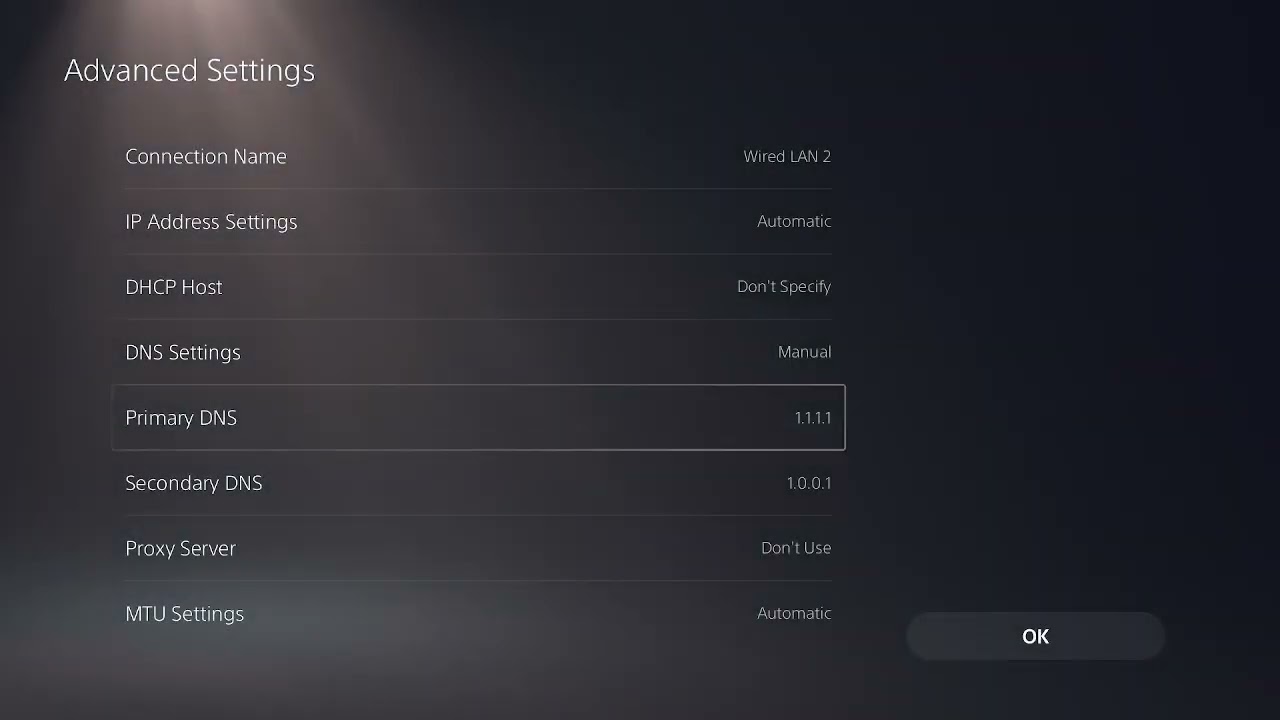
    7. Test an alternate DNS only if name resolution seems unreliable. Under the network’s Advanced Settings, set DNS to Manual and test a reputable resolver such as Cloudflare 1.1.1.1 and 1.0.0.1. Record the original setting so you can return to Automatic if there is no improvement.

    Why these changes work

    A wired link removes wireless interference. Manually selecting a band prevents the console from clinging to a congested or weak frequency. Restarting network equipment renews the local session, while pausing other traffic reduces queueing and packet loss. DNS can help a faulty resolver, but it does not shorten the physical route to a game server after the connection is established.

    If the problem is frame rate instead

    • Switch Where Winds Meet to its performance-focused graphics mode if the option is available.
    • Update the game and PS5 system software.
    • Restart after a large patch so the game is not finishing background work.
    • Compare performance in a solo area and a crowded city. Slowdown only in dense areas may be rendering load rather than network delay.
    • For the PC version, see our separate Where Winds Meet PC lag and stuttering guide.

    Warnings

    • Do not open random router ports or disable the firewall for a lag problem.
    • Changing DNS is reversible and optional; return it to Automatic if connectivity gets worse.
    • 5 GHz is usually faster at short range, while 2.4 GHz often reaches farther. Test rather than assuming one is always better.

    Frequently asked questions

    Will changing DNS lower my ping?

    Usually not by much after a game session is connected. It may help only when the ISP’s resolver is slow or unreliable.

    Why does Where Winds Meet lag only in cities?

    Crowded areas can expose either server load or rendering load. Check whether the frame rate is low or whether actions are delayed before changing the network.

    Should I use Wi-Fi or Ethernet?

    Use Ethernet when practical. It is the simplest way to remove Wi-Fi interference from the test.

    Watch the source video

    Official references

    Affiliate disclosure: As an Amazon Associate I earn from qualifying purchases. No product was added here because the safe fixes do not require new hardware.
  • How to Remove Black Ops 2 Season Pass DLC on PS5 (and Check Refund Eligibility)

    How to Remove Black Ops 2 Season Pass DLC on PS5 (and Check Refund Eligibility)

    If a Black Ops 2 Season Pass add-on is stuck, unwanted, or interfering with the game on PS5, separate the installation question from the refund question. You can remove and reinstall game content without deleting saved data, but PlayStation Store refunds follow strict eligibility rules.

    Quick answer: First check Manage Game Content and reinstall the affected DLC. If you want a refund, review the PlayStation Store cancellation policy and use the official refund request flow. A Season Pass generally qualifies for a change-of-mind refund within 14 days only if you have not started downloading or streaming included digital items, unless the content is faulty.

    Before you start

    • Confirm the exact Season Pass transaction and purchase date in PlayStation Account Management.
    • Back up important saved data if you plan to remove the full game.
    • Do not delete Saved Data when removing a game or add-on.
    • Check the product page to confirm that the Season Pass matches the same Black Ops 2 version and account region.

    Remove or reinstall the Season Pass content

    1. Close Black Ops 2. Press the PS button, highlight the game in the switcher, press Options, and choose Close Game so no content file is in use.
    2. Open Manage Game Content. Highlight Black Ops 2 on the PS5 home screen, press Options, and select Manage Game Content. Review the installed add-ons and language or DLC components shown for the title.
    3. Remove the affected DLC. Delete the individual add-on if PS5 offers that option. If the console groups the content with the main installation, delete the game installation—not saved data—and reinstall only the game and DLC you want.
    4. Restart the PS5. A restart clears the old mounted content list before you test the base game.
    5. Restore licenses if content is missing or locked. Go to Settings > Users and Accounts > Other > Restore Licenses and restore the Black Ops 2 license. PlayStation says this does not affect data.
    6. Reinstall from the owning account. Open Game Library > Your Collection, select Black Ops 2, and download the required add-ons. Make sure the console is using the account that purchased the Season Pass.
    7. Test before installing every pack. Launch the game after the base installation, then add one DLC component at a time if you are identifying a bad or incompatible download.

    How to check refund eligibility

    1. Open the official PlayStation refund page. Sign in with the purchasing account and select the transaction if the self-service option is available.
    2. Compare the purchase with the cancellation policy. For a Season Pass, PlayStation generally allows a request within 14 days, but starting a download or stream of included digital content normally ends change-of-mind eligibility unless the content is faulty.
    3. Describe a genuine fault accurately. If the DLC does not function as sold, explain the error, console model, purchase date, and troubleshooting already completed. Do not claim that refunds are automatic.
    4. Keep the decision email or case number. PlayStation Support determines eligibility. Removing content from the console does not itself cancel the purchase or guarantee a refund.

    Why reinstalling can help

    The Season Pass is an entitlement, while each DLC pack is a separate downloadable component. Restoring licenses refreshes the entitlement. Removing and downloading the affected component again replaces an incomplete or mismatched installation without requiring account changes.

    Important refund warning

    The source video suggests requesting a refund when the content does not work, but viewer reports were mixed. The current PlayStation policy is the controlling rule: downloading included content can make a Season Pass ineligible for a change-of-mind refund, unless it is faulty. Eligibility also varies by country or region.

    If DLC remains unavailable

    • Check that the Black Ops 2 game and Season Pass use the same PlayStation Store region.
    • Confirm the add-on appears in transaction history and on the current product page.
    • Update the game and PS5 system software.
    • Contact PlayStation Support with proof of purchase and the exact add-on name.
    • If the DLC loads but multiplayer parties fail, use our separate Black Ops 2 join-friend guide.

    Warnings

    • Deleting the game does not create a refund.
    • Do not delete saved data when your goal is only to replace DLC files.
    • Do not buy the Season Pass a second time to remove a lock icon.

    Frequently asked questions

    Can I delete one DLC pack but keep the Season Pass?

    The license remains on the account. Whether PS5 lets you remove one pack depends on how the current game packages its content; otherwise reinstall the base game and choose only the packs you need.

    Does uninstalling Season Pass content remove trophies or online progress?

    No. Removing the installation does not erase account trophies. Avoid selecting Saved Data during cleanup.

    Am I guaranteed a refund if the DLC does not work?

    No. PlayStation Support reviews the purchase and the applicable regional policy. Faulty-content claims may be eligible, but approval is not automatic.

    Watch the source video

    Official references

    Affiliate disclosure: As an Amazon Associate I earn from qualifying purchases. No product was added here because the safe fixes do not require new hardware.
  • How to Fix Black Ops 6 Error 0x00001337 on PC

    How to Fix Black Ops 6 Error 0x00001337 on PC

    Black Ops 6 error 0x00001337 is a PC crash rather than a single confirmed hardware diagnosis. Damaged game files, an interrupted update, background hooks, unstable overclocks, outdated drivers, or unsupported hardware can produce similar symptoms. Use the supported checks in order instead of applying random DLL or registry changes.

    Quick answer: Update Black Ops 6, Windows, and the GPU driver; verify or repair the game files; close overlays, monitoring tools, and background apps; return CPU, GPU, and RAM settings to stock; then reinstall only if the crash remains.

    Before you start

    • Record whether the error happens at launch, during shader compilation, or after entering a match.
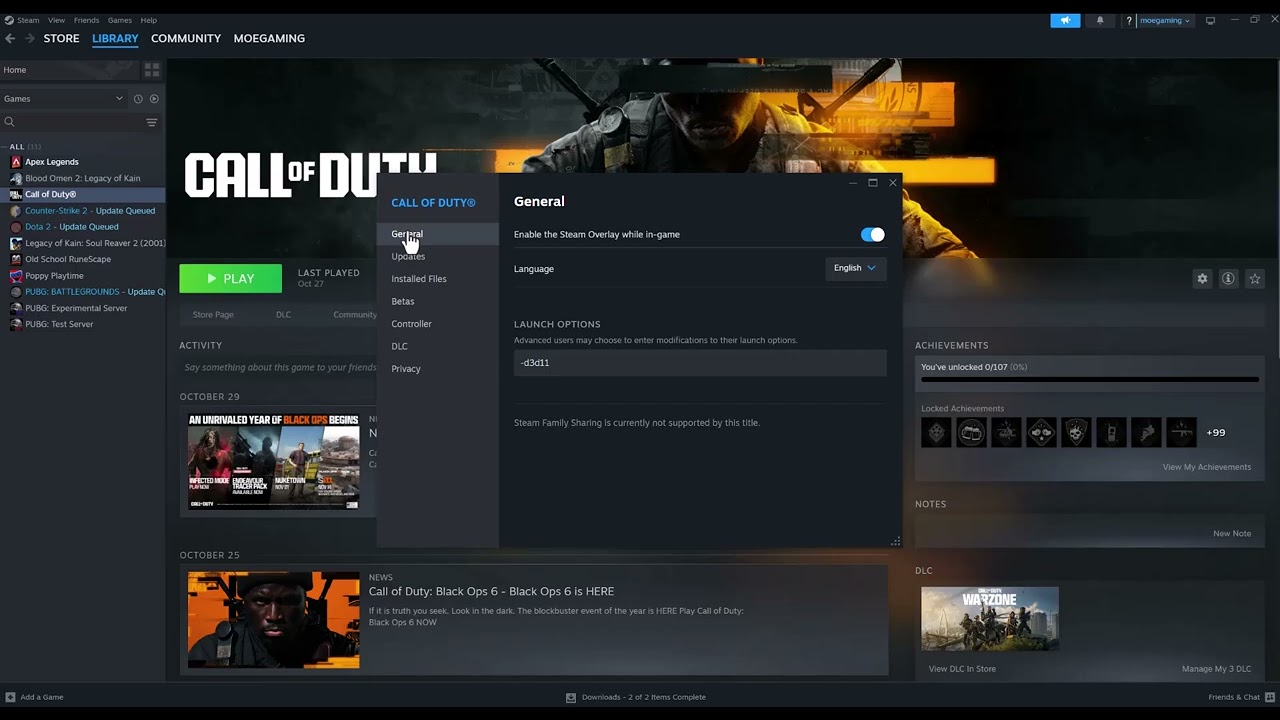
    • Remove any custom Steam or Battle.net launch option before testing.
    • Confirm the PC meets the current Black Ops 6 requirements.
    • Restart the PC so a pending update is not holding game files open.

    Fix error 0x00001337

    1. Install pending updates. Update Black Ops 6 in the launcher, install Windows updates, and install the stable driver for the exact NVIDIA, AMD, or Intel GPU. Restart after the updates.
    2. Repair the game files. In Steam, right-click Black Ops 6 > Properties > Installed Files > Verify integrity of game files. In Battle.net, use the Scan and Repair option. In the Xbox app, select the game’s three-dot menu > Manage > Files > Verify and Repair.
    3. Close interfering software. Exit third-party overlays, FPS counters, RGB utilities, capture tools, MSI Afterburner/RivaTuner, and other nonessential background apps. Activision specifically recommends closing applications that may interfere with the game or launcher.
    4. Return hardware tuning to stock. Temporarily disable GPU overclocks, CPU overclocks, undervolts, and aggressive memory profiles. Test at default settings. A crash that disappears at stock settings points to instability rather than a missing game file.
    5. Launch from the normal launcher. Remove compatibility-mode changes and launch the game normally through Steam, Battle.net, or the Xbox app. Running both the launcher and game with mismatched administrator settings can prevent a normal start.
    6. Check storage and system requirements. Keep free space on the game and Windows drives. Compare the installed CPU, RAM, GPU, Windows build, and DirectX support with Activision’s current requirements.
    7. Reinstall as the final software step. Uninstall Black Ops 6 from the launcher, restart Windows, and install a clean copy. Test before restoring overlays, tuning tools, or custom configuration.

    Why these fixes work

    File verification repairs missing or altered assets without replacing the entire game. A clean background-app test removes software that injects an overlay or hardware-monitoring hook. Stock clock settings rule out memory and GPU instability. Together, those checks isolate the major causes without changing Windows security settings.

    Avoid these risky shortcuts

    Do not download DLL files, disable Windows security features, or make broad registry changes. The source video demonstrates administrator and DirectX launch options, but viewer feedback was mixed, and Black Ops 6 is designed around current DirectX support. Those changes can create a second launch problem, so they are not part of the safe primary flow.

    If 0x00001337 continues

    • Check Activision’s Black Ops 6 known-issues page for a current patch-related crash.
    • Use the launcher’s support option to collect crash details and report the error.
    • If many unrelated apps also crash, troubleshoot Windows or hardware stability rather than repeatedly reinstalling only the game.
    • If the error began immediately after enabling an overlay or overclock, leave that feature disabled while testing.
    • If the game changes to a missing-content or installation error, use our Black Ops 6 installation guide instead.

    Warnings

    • Do not erase saved data or unlink the Activision account for this PC crash.
    • Do not update a motherboard BIOS unless the board or CPU vendor specifically documents the need and you understand the recovery process.
    • One repaired file after verification can be normal; test the game before assuming the drive has failed.

    Frequently asked questions

    Is 0x00001337 always a GPU error?

    No. It is a crash code with several possible causes. Repair files and test a clean, stock configuration before replacing hardware.

    Should I run Black Ops 6 as administrator?

    Use the default launcher configuration first. Administrator mode is not Activision’s primary repair step and mismatched privileges can stop the launcher and game from communicating.

    Will file verification delete progress?

    No. Online progression is associated with the account. File verification checks the local installation.

    Watch the source video

    Official references

    Affiliate disclosure: As an Amazon Associate I earn from qualifying purchases. No product was added here because the safe fixes do not require new hardware.
  • How to Fix Marvel Rivals Stuck at 99% Loading on PC

    How to Fix Marvel Rivals Stuck at 99% Loading on PC

    Marvel Rivals can appear frozen at 99% while it finishes loading data from storage. The official Marvel Rivals guidance specifically recommends installing the game on an SSD, and the current PC requirements call for DirectX 12. Start with storage and file integrity before trying launch-option or compatibility tweaks.

    Quick answer: Move or reinstall Marvel Rivals on an SSD, verify its files in Steam, restart the PC, and update Windows and the graphics driver. Do not force DirectX 11 as a first-line fix; the current game requirements specify DirectX 12.

    Before you start

    • Check that the PC meets the current minimum requirements, including 16 GB RAM, a supported DirectX 12 GPU, and adequate free storage.
    • Allow the first load after an update a few minutes before deciding it is permanently stuck.
    • Close the game before moving its installation or verifying files.
    • If the PC uses a hard disk drive, identify an SSD library with sufficient free space.

    Fix the 99% loading problem

    1. Restart the game and PC once. Fully exit Marvel Rivals and Steam, restart Windows, reopen Steam, and test again. This clears a stalled launcher or update process without changing files.
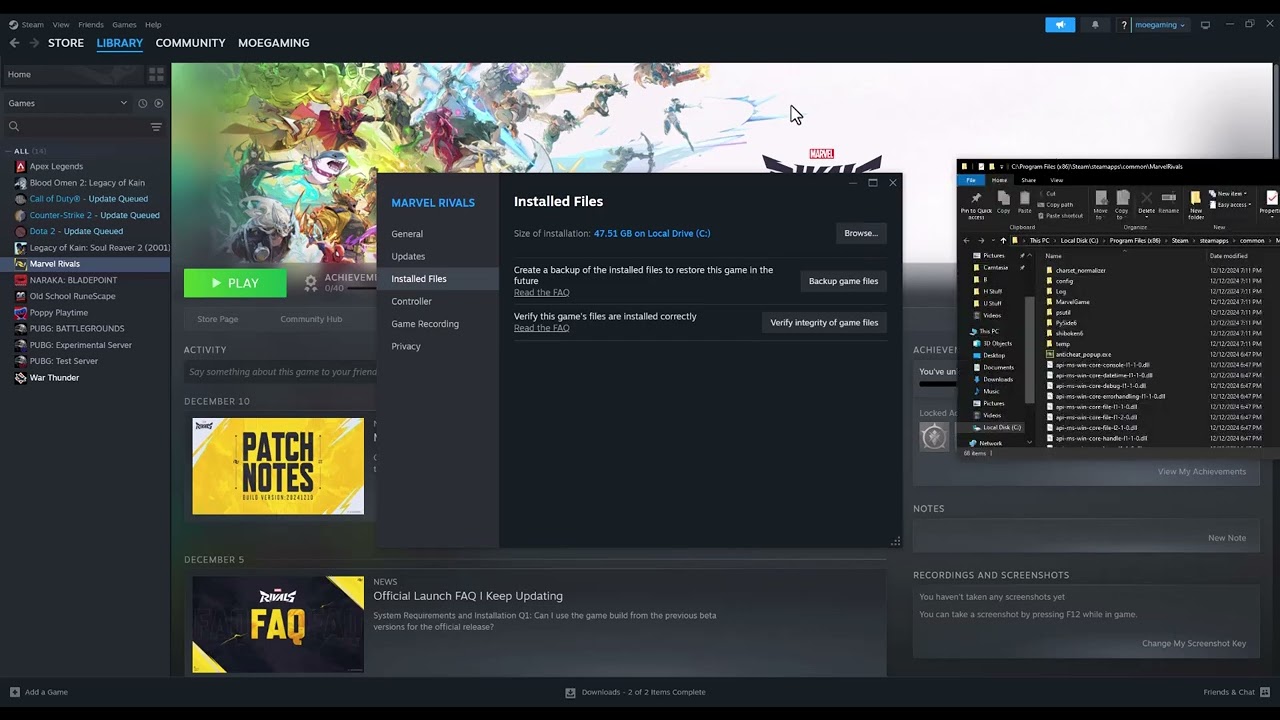
    2. Move Marvel Rivals to an SSD. In Steam, right-click Marvel Rivals > Properties > Installed Files > Move install folder. Choose a Steam library located on an SSD. If no SSD library exists, add one in Steam’s Storage settings. Marvel Rivals’ official FAQ recommends SSD installation for the 99% loading issue.
    3. Verify the installation. In Steam, open Properties > Installed Files > Verify integrity of game files. Let the check finish, allow Steam to reacquire any damaged files, and then restart Steam before launching the game.
    4. Update Windows and the graphics driver. Install pending Windows updates. Then use the official NVIDIA, AMD, or Intel software for the installed GPU. Marvel Rivals recommends a clean driver installation when troubleshooting graphics compatibility.
    5. Close GPU-heavy background apps. Temporarily exit recording tools, hardware overlays, browsers playing video, and other apps using substantial GPU memory. Reopen only Steam and Marvel Rivals to test.
    6. Confirm the hardware requirement. An unsupported integrated GPU, insufficient video memory, or an outdated Windows build can cause a loading failure that file verification cannot repair. Compare the PC to the current official requirements.
    7. Reinstall to the SSD only if needed. Uninstall Marvel Rivals, restart Windows, and install it directly into the SSD Steam library. Avoid copying a partially damaged folder back into the new installation.

    Why the SSD fix matters

    At 99%, the game may be waiting on asset loading rather than downloading. An SSD handles the large number of reads much faster than a hard drive. File verification addresses a separate cause by comparing installed files with Steam’s current copy and reacquiring damaged or missing data.

    What not to try first

    The source video also demonstrates compatibility and command-line ideas that have mixed viewer results. Current Marvel Rivals documentation specifies DirectX 12, so a -dx11 launch option is not a safe universal recommendation. Running the launcher as administrator can also create permission mismatches with Steam. Use the supported SSD, verification, update, and requirements checks first.

    If the bar still stops at 99%

    • Remove any custom launch options in Steam and test the default configuration.
    • Make sure the SSD has free space for patches and temporary files, not only the listed install size.
    • Check the official Marvel Rivals news and support channels for a current loading issue.
    • Collect the game logs and contact official support if the same clean installation fails on supported hardware.
    • If the game produces an access-violation code instead of stopping at 99%, use our 0xC0000005 PC game guide.

    Warnings

    • Moving the game can take time; do not interrupt Steam or power off the PC during the transfer.
    • Do not download replacement DLL files or unofficial repair utilities.
    • A loading bar and low frame rate are different problems. This guide addresses the game stopping at 99%.

    Frequently asked questions

    Can I keep Marvel Rivals on a hard drive?

    It may run on some systems, but Marvel Rivals officially recommends an SSD and specifically points to SSD installation for slow or failed loading around 99%.

    Does Verify integrity delete my account progress?

    No. Online account progress is not removed by Steam’s file-verification check. Local configuration files may be recreated only if the game itself determines they are damaged.

    Should I use DirectX 11?

    Not as a default fix. The current minimum specifications call for DirectX 12. Forcing an unsupported renderer can create a new launch failure.

    Watch the source video

    Official references

    Affiliate disclosure: As an Amazon Associate I earn from qualifying purchases. No product was added here because the safe fixes do not require new hardware.
  • How to Fix Black Ops 6 or Warzone Not Installing on PS5/PS4

    How to Fix Black Ops 6 or Warzone Not Installing on PS5/PS4

    If Black Ops 6 or Call of Duty: Warzone will not install, says content is missing, or sends you back to the PlayStation Store, the usual cause is an account-license mismatch, a missing game component, or an incomplete download. The current PlayStation and Activision menus may look different from older Call of Duty HQ videos, so use the current paths below.

    Quick answer: Sign in to the PlayStation account that owns the content, confirm the correct game entry in Game Library, restore licenses, then install the missing component through Manage Game Content or Call of Duty’s Manage Files menu. Check free storage and reinstall only after those steps fail.

    Before you start

    • Do not delete saved data. Game files and saved data are separate items on PlayStation.
    • Make sure the console is connected to the internet and PlayStation Network is available.
    • Confirm which account purchased the game or add-on, especially on a shared console.
    • Leave enough free storage for both the download and installation process.

    Fix Black Ops 6 or Warzone installation problems

    1. Check the correct product and account. Switch to the primary PlayStation user that owns the game. On PS5, open Game Library > Your Collection and select Black Ops 6 or Warzone. On PS4, open Library > Purchased. If the store asks you to buy content you already own, stop and verify the signed-in account before purchasing anything again.
    2. Check storage and the download queue. Open Settings > Storage and make room if needed. Then open Downloads/Uploads, cancel any failed duplicate download, restart the console, and begin one clean download.
    3. Restore the game license. On PS5, go to Settings > Users and Accounts > Other > Restore Licenses, select the affected game license, and restore it. On PS4, go to Settings > Account Management > Restore Licenses. This refreshes ownership data without deleting games or saves.
    4. Install the missing component from PlayStation. Highlight the game on the home screen, press Options, and choose Manage Game Content. Install the missing Black Ops 6 or Warzone item. For a disc copy, keep the disc inserted and confirm the disc region matches the PlayStation account region.
    5. Check Call of Duty’s current file manager. If the game opens, select Menu > Manage Files, choose the appropriate game tile, and install the missing campaign, multiplayer, shared-content, or Warzone component. Download only the components you use.
    6. Use the Store page only as a fallback. Open the game’s official PlayStation Store listing from Game Library and select Download rather than buying it again. Activision notes that reinstalling owners can sometimes be routed to a purchase screen when they are not using the primary account.
    7. Reinstall cleanly if the component remains stuck. Delete the affected game installation, restart the console, and download it again from the owning account’s Game Library. If possible, use a stable wired connection and do not put the console into a restricted network state while installation is finishing.

    Why these steps work

    PlayStation verifies a digital entitlement before it installs protected game content. Restoring licenses refreshes that entitlement, while Manage Game Content and Call of Duty’s Manage Files screen repair a different problem: a component that was never installed or did not finish updating. Reinstalling is last because it consumes the most time and bandwidth.

    Current menu note

    Black Ops 6 now has a standalone installation flow, while Warzone and some shared Call of Duty components may still appear through platform or in-game file-management screens. An older video can show Call of Duty HQ labels that no longer match every console. Follow the names shown on your current console and install the component for the mode you are trying to launch.

    If installation still fails

    • Test the PlayStation network connection and check the PlayStation service-status page.
    • Confirm the game disc and account use the same country or region if you own a physical copy.
    • Update PS5 or PS4 system software, then retry the download.
    • If the problem changes from missing content to an online-services error, use our Black Ops 6 connection guide.
    • Contact PlayStation Support with the transaction receipt if the Store still does not recognize ownership.

    Warnings

    • Do not purchase the same edition a second time just to bypass a Store prompt.
    • Deleting saved data is not required for an installation repair.
    • A region mismatch between a disc and Store add-on cannot be fixed by repeatedly reinstalling.

    Frequently asked questions

    Will restoring licenses delete anything?

    No. PlayStation states that restoring licenses does not affect your data.

    Why does the game say a pack is installed but still ask me to install it?

    The license can be stale, the shared component may be incomplete, or a different console version may be selected. Restore the license, confirm the PS4/PS5 version, and reinstall that component.

    Should I install every Call of Duty pack?

    No. Install the base experience and the specific mode you play. Extra language or mode packs use storage without helping an unrelated missing-content error.

    Watch the source video

    Official references

    Affiliate disclosure: As an Amazon Associate I earn from qualifying purchases. No product was added here because the safe fixes do not require new hardware.
  • How to Fix Black Ops 6 “Unable to Connect to Online Services”

    How to Fix Black Ops 6 “Unable to Connect to Online Services”

    Quick answer: Check Black Ops 6 server status first. If the platform is operational, close the game, restart the console or PC, power-cycle the router for five minutes, and test again with other downloads stopped. Use wired Ethernet when possible. Cloudflare DNS addresses 1.1.1.1 and 1.0.0.1 are a reasonable optional test for DNS-resolution trouble, but DNS will not repair an Activision outage, account restriction, or local packet loss.

    Black Ops 6 unable to connect to online services

    Before you start

    • Write down the complete error code or message, not just “unable to connect.”
    • Check whether other online games and platform services work on the same device.
    • Pause downloads, cloud backups, streams, and large updates on the home network.
    • Do not reinstall the game until you have ruled out an outage and tested the network.

    How to fix Black Ops 6 unable to connect

    1. Check Activision’s online-services page. Choose Black Ops 6 and your platform. Activision says to start here; if the indicator is not green or an alert is present, wait for service restoration.
    2. Check the platform network. Verify PlayStation Network, Xbox network, Battle.net, or Steam status. A platform authentication outage can block Call of Duty even when Activision’s own service is healthy.
    3. Close and restart everything. Quit Black Ops 6 completely and restart the console or PC. Reopen the launcher before the game on PC.
    4. Power-cycle the network. Turn off the modem and router, wait about five minutes, power the modem on first, then the router, and wait for a full connection. Activision lists router restart as a primary connection step.
    5. Test a wired connection. Connect the console or PC directly to the router with Ethernet. This separates a Wi-Fi signal problem from a game or service problem.
    6. Reduce competing traffic. Stop streaming, downloads, game updates, and cloud sync on other devices. Activision notes that bandwidth-heavy activity can interfere with online play.
    7. Test the local connection. On PS5 use Settings > Network > Connection Status > Test Internet Connection. On Xbox use Settings > General > Network settings > Test network connection. On PC, restart the launcher and verify that Windows has internet access without a VPN.
    8. Try alternate DNS only if necessary. On PS5, open Settings > Network > Settings > Set Up Internet Connection, highlight the saved network, press Options, choose Advanced Settings, and set DNS to Manual. Enter 1.1.1.1 and 1.0.0.1. On PC or Xbox, use the equivalent manual DNS settings. Revert to Automatic if it does not help.
    9. Check game files and installation. Install current updates. On PC, use the launcher’s verify or scan-and-repair feature. On console, confirm the released standalone Black Ops 6 installation and required content are present.
    10. Escalate the exact failure. If only your account fails, review Activision account email, enforcement status, and linked platform account. If every device on the home network fails but mobile hotspot works, contact the ISP with the test results.

    Why the order matters

    A server outage produces the same user-facing symptom as a home-network problem, but reinstalling or changing DNS cannot fix the server. Status checks prevent unnecessary work. Restarting clears stale sessions, a router power cycle renews local connections, and Ethernet removes wireless interference. DNS only changes how service names are resolved; it does not reduce all forms of lag or packet loss.

    When the message says Hueneme–Negev or “Networking is offline”

    Hueneme–Negev is another connection-state symptom, not proof that the game files are damaged. Use the outage, restart, five-minute router power-cycle, and wired-connection steps above first. On PS5, the source walkthrough also demonstrates switching the saved Wi-Fi connection between 5 GHz and 2.4 GHz, then temporarily testing Cloudflare DNS at 1.1.1.1 and 1.0.0.1. Keep the band that is stable in your room and return DNS to Automatic if the change does not help.

    The video also mentions a router factory reset. That is intentionally not a routine step here: a reset can erase ISP credentials, Wi-Fi names, parental controls, port rules, and other household settings. Only do it when the ISP or router manufacturer directs you and the configuration is backed up.

    Hueneme–Negev source video

    Platform-specific follow-ups

    • PS5/PS4: install system software, restore the game license if the title or packs appear locked, and confirm PlayStation Network sign-in.
    • Xbox: test multiplayer connection and NAT status, then clear the alternate MAC address only if Xbox Support recommends it for the symptom.
    • PC: allow the launcher and game through the firewall, disable VPN/proxy software for one test, and verify files in the correct launcher.

    Warnings

    • Do not open router ports blindly or place a console in a DMZ as a first step.
    • Do not pay for “gaming DNS” services; a DNS change is optional and may make no difference.
    • Do not delete saved data for an online-services connection error.

    Optional connection and gaming gear

    A Cable Matters Cat 6 Ethernet cable is useful for the wired isolation test. The WESEARY PS5/PC wireless gaming headset and PlayStation DualSense wireless controller are optional platform accessories; they do not repair a server outage.

    As an Amazon Associate I earn from qualifying purchases.

    Frequently asked questions

    Is Black Ops 6 down if I cannot connect?

    Not necessarily. Check Activision and your platform status. If both are green, test the local network in the order above.

    Will 1.1.1.1 fix Call of Duty servers?

    No. It can help only when DNS resolution is part of the problem. It cannot restore an unavailable server or remove an account restriction.

    Should I reinstall Black Ops 6?

    Only after status, restart, router, wired, update, and file-verification checks fail. Reinstallation is rarely the fastest connection fix.

    Watch the original walkthrough

    Official references

  • How to Fix Rainbow Six Siege “Synchronization Failed” on PC

    How to Fix Rainbow Six Siege “Synchronization Failed” on PC

    Quick answer: Close Rainbow Six Siege and Ubisoft Connect completely, including the tray process, then start Ubisoft Connect with administrator rights for one test and launch the game. If the error returns, check Ubisoft service status, verify the game files, and reset cloud-save synchronization carefully. Never overwrite a newer local save with an older cloud copy without checking timestamps.

    Rainbow Six Siege synchronization failed error on PC

    Before you start

    • Close Rainbow Six Siege before changing Ubisoft Connect settings.
    • Take a screenshot of any local-versus-cloud save prompt and its timestamps.
    • Confirm Windows date, time, and time zone are correct.
    • Do not delete save folders or launcher folders until supported repair steps fail.

    How to fix Rainbow Six Siege synchronization failed

    1. Check Ubisoft service status. If Ubisoft Connect or Rainbow Six Siege online services are degraded, wait for recovery. Local file changes cannot repair a server-side synchronization outage.
    2. Exit both processes completely. Close the game, right-click the Ubisoft Connect icon in the notification area, and choose Exit. Open Task Manager and confirm that the game and Ubisoft Connect processes have ended.
    3. Run Ubisoft Connect as administrator for one test. Search for Ubisoft Connect, right-click it, and choose Run as administrator. The video demonstrates opening the launcher’s file location and setting its executables to always run as administrator. Ubisoft does support administrator rights for permission-related problems, but start with the temporary one-time test rather than permanently changing every executable.
    4. Launch Rainbow Six Siege from Ubisoft Connect. Allow the launcher to sign in and finish any update before starting the game. Close and reopen both apps if an update was pending.
    5. Verify the game files. In Ubisoft Connect, open the game’s Properties and use Verify files. If you own it through Steam, verify there as well, then let Ubisoft Connect repair anything it finds.
    6. Reset cloud-save synchronization. Ubisoft’s cloud-save troubleshooting recommends starting Ubisoft Connect as administrator, temporarily disabling cloud-save synchronization and the Ubisoft Connect overlay, launching and closing the game, then turning cloud synchronization back on and testing again. Change one setting at a time so you know what helped.
    7. Choose the correct save if a conflict appears. Compare dates, progression, and file size. Keep a copy of the local save before choosing. If uncertain, cancel the prompt and contact Ubisoft Support instead of overwriting progress.
    8. Check security software and connectivity. Allow Ubisoft Connect and Rainbow Six Siege through Windows Firewall, disable a VPN or proxy for one test, and follow Ubisoft’s PC connectivity steps. Restore security settings after testing.
    9. Reinstall Ubisoft Connect last. Back up local saves first. Reinstalling the launcher is more disruptive than restarting, verifying files, and resetting cloud synchronization.

    Why administrator access can help

    Ubisoft Connect needs permission to update launcher files and read or write local save data before syncing it. A one-time administrator launch can reveal a permissions problem. It is not a universal fix, and leaving every executable permanently elevated expands what the program can change. Revert the compatibility setting if it does not help.

    If synchronization fails after every match

    • Check whether security software is quarantining or blocking the save folder.
    • Make sure the Windows account has write access to the Documents and Ubisoft save directories.
    • Pause OneDrive Known Folder Backup for one controlled test if it is redirecting the save folder, then restore it.
    • Collect Ubisoft Connect logs and the exact error time for a support case.

    Warnings

    • Do not delete the local save simply because cloud synchronization failed.
    • Do not choose a cloud or local version without checking which is newer.
    • Do not permanently run all launcher executables as administrator unless the one-time supported test proves it necessary.

    Optional PC gaming gear

    For voice chat and game audio, the WESEARY PS5/PC wireless gaming headset is a compatible optional accessory. A Cable Matters Cat 6 Ethernet cable can help isolate unstable Wi-Fi during online testing; neither item repairs damaged save data.

    As an Amazon Associate I earn from qualifying purchases.

    Frequently asked questions

    Will disabling cloud saves delete my Rainbow Six Siege progress?

    Temporarily disabling synchronization stops the launcher from exchanging files during the test. Do not delete local files, and turn synchronization back on afterward.

    Should I run all Ubisoft executables as administrator?

    No. Try launching Ubisoft Connect as administrator once. Make a permanent compatibility change only if it solves a confirmed permissions problem.

    What should I choose in a cloud-save conflict?

    Choose the version that contains the newest valid progress after checking timestamps. If you cannot tell, cancel and back up the local save before continuing.

    Watch the original walkthrough

    Official references

  • How to Fix Black Ops 7 Crashing on PS5

    How to Fix Black Ops 7 Crashing on PS5

    Quick answer: Close Black Ops 7, restart the PS5, and install current game and system updates. Check Activision’s server status and known-issues page, then restore the game’s license from the tile’s Options menu or Settings > Users and Accounts > Other > Restore Licenses. If crashes continue, clear the PS5 cache and rebuild the database before reinstalling.

    Black Ops 7 crashing on PS5 troubleshooting

    Before you start

    • Note where the crash occurs: launch, menus, matchmaking, or during a match.
    • Record any PS5 error code before dismissing it.
    • Sync saved data before deleting or reinstalling anything.
    • The source video was recorded during the beta, but PS5’s restore-license process remains current for the released game.

    How to fix Black Ops 7 crashing on PS5

    1. Close and restart the game. From Control Center, highlight Black Ops 7, press Options, and choose Close Game. Activision recommends restarting after a freeze or crash.
    2. Restart the PS5. Select Power > Restart PS5. Do not rely on Rest Mode for this test.
    3. Check Activision status and known issues. If the platform indicator is not green or a new crash is listed, wait for service recovery or the announced fix rather than reinstalling repeatedly.
    4. Install updates. Highlight Black Ops 7, press Options, and select Check for Update. Then open Settings > System > System Software > System Software Update and Settings and install any console update.
    5. Restore the Black Ops 7 license. Highlight the game, press Options, and choose Restore License. If that item is unavailable, go to Settings > Users and Accounts > Other > Restore Licenses, select Black Ops 7, and restore it. Sony says this does not affect your data.
    6. Confirm the correct installation. Open the game’s Manage Game Content screen and make sure required packs are installed. Remove an obsolete beta client if the released game has a separate tile.
    7. Free storage and keep the PS5 ventilated. Activision recommends current software, available storage, and a cool, well-ventilated console. Move the PS5 away from enclosed spaces and delete unneeded captures or games if storage is nearly full.
    8. Clear cache and rebuild the database. Turn off the PS5, hold the power button until the second beep, connect the controller by USB, and choose Clear Cache and Rebuild Database. Start with cache clearing; use database rebuild if needed.
    9. Reinstall last. Delete Black Ops 7, restart the PS5, and download the released version again over a stable connection. Do this only after the status, updates, license, content packs, and Safe Mode steps fail.

    Why restoring the license can stop a crash

    A digital game and its packs rely on PlayStation entitlement records. A stale or incomplete record can break launch or handoff between the Call of Duty interface and Black Ops 7. Restoring the license makes PS5 revalidate that entitlement without deleting saves. It will not fix every crash, so update and service checks still come first.

    If Black Ops 7 crashes only in one mode

    • Remove and reinstall the pack for that mode rather than the entire game.
    • Try a default loadout if the problem began after changing a weapon blueprint.
    • Disable a newly changed 120 Hz or VRR display setting for one test, then restore it if unrelated.
    • Report the exact mode, map, action, and error code through Activision’s bug-report page.

    Warnings

    • Do not delete cloud or console saves as the first fix.
    • Do not unplug the PS5 during an update or database rebuild.
    • Do not keep using a beta client when the released game has its own current installation.

    Optional PS5 gaming gear

    The PlayStation DualSense wireless controller and PS5 controller charging station are optional PS5 accessories. They do not repair software crashes or replace the troubleshooting above.

    As an Amazon Associate I earn from qualifying purchases.

    Frequently asked questions

    Will Restore Licenses delete Black Ops 7 data?

    No. PlayStation states that restoring licenses does not affect your data.

    Why does Black Ops 7 still crash after restoring the license?

    The cause may instead be an outage, outdated software, a missing content pack, damaged game files, low storage, or a game bug.

    Should I initialize the PS5?

    Not for an ordinary single-game crash. Complete the supported game, license, update, cache, database, and reinstall steps first and contact support before resetting the console.

    Watch the original walkthrough

    Official references

  • How to Fix Battlefield 6 “Insufficient VRAM” on PC

    How to Fix Battlefield 6 “Insufficient VRAM” on PC

    Quick answer: First confirm that the GPU running Battlefield 6 has at least 6GB of dedicated VRAM, EA’s published minimum. On a dual-GPU laptop, set Battlefield 6 to High performance in Windows Settings > System > Display > Graphics, restart the game, and confirm it uses the discrete GPU. Update the graphics driver and lower texture-related settings. Windows cannot convert ordinary system RAM into enough dedicated VRAM for a GPU that does not meet the requirement.

    Battlefield 6 insufficient VRAM error on PC

    Before you change graphics settings

    • Open Task Manager > Performance > GPU and note the GPU model and Dedicated GPU memory.
    • Compare the hardware with EA’s current minimum: an RTX 2060, RX 5600 XT 6GB, or Intel Arc A380-class GPU with 6GB VRAM.
    • Install pending Battlefield 6 and Windows updates.
    • Do not use registry “VRAM increase” tricks; they do not add physical video memory.

    How to fix Battlefield 6 insufficient VRAM

    1. Make sure Battlefield 6 is using the discrete GPU. Open Settings > System > Display > Graphics. Add or select the Battlefield 6 executable, choose Options, select High performance, and save. Restart the game.
    2. Use Windows preference before NVIDIA Control Panel. NVIDIA documents that Windows 10 20H1 and later can override the Control Panel’s preferred-processor setting. If Windows has no preference, open NVIDIA Control Panel > Manage 3D settings > Program Settings, add Battlefield 6, and select the high-performance NVIDIA processor where that option exists.
    3. Update the GPU driver from its manufacturer. Install the current driver from NVIDIA, AMD, or Intel, then restart Windows. Do not use a third-party driver-download site.
    4. Close programs using GPU memory. Exit browsers with hardware-heavy tabs, recording or streaming software, other games, GPU-accelerated editors, and unnecessary overlays. Check Task Manager again before launching Battlefield 6.
    5. Lower VRAM-heavy game settings. Start with texture quality, texture filtering, mesh or terrain detail, ray tracing, and resolution scale. Apply the changes and restart the game if prompted. Watch the in-game VRAM meter, but remember EA corrected that meter’s behavior in a 2026 update, so install current patches before trusting it.
    6. Return NVIDIA overrides to normal if they do not help. The source video shows super-resolution and performance overrides. Those can improve frame rate on supported hardware, but they do not create VRAM and can reduce image quality or introduce instability. Restore the program profile defaults if the warning remains.
    7. Verify game files. Use the repair or verify command in the EA app, Steam, or the launcher through which Battlefield 6 was installed. Corrupted configuration or shader data can surface during the graphics check.
    8. Accept the hardware limit when dedicated VRAM is below 6GB. Lower settings may let some systems start, but they cannot make an unsupported GPU meet EA’s minimum. The reliable fix is a supported GPU or PC.

    Why selecting High performance helps

    Many laptops have both an integrated GPU and a discrete GPU. If Windows launches Battlefield 6 on the integrated adapter, the game can see much less dedicated memory than the machine’s stronger GPU actually has. The Windows graphics preference directs the game to the high-performance adapter. It does not increase the capacity of that adapter.

    If the warning remains with a supported GPU

    • Confirm the monitor is connected to the discrete GPU on a desktop PC.
    • Remove custom launch arguments and reset the game’s graphics configuration.
    • Temporarily return GPU and VRAM overclocks to factory settings.
    • Install the current game update and driver, then reboot before retesting.
    • If the game reports the wrong VRAM amount, include a DxDiag report in an EA support case.

    Warnings

    • Do not edit the registry to report fake VRAM; it does not add physical memory.
    • Do not download replacement DLL files or modified executables.
    • Do not assume shared GPU memory is equivalent to dedicated VRAM for the minimum requirement.

    Optional PC gaming gear

    The WESEARY PS5/PC wireless gaming headset is an optional PC gaming accessory. It does not add VRAM or fix a GPU requirement error.

    As an Amazon Associate I earn from qualifying purchases.

    Frequently asked questions

    Can I allocate more RAM to Battlefield 6 as VRAM?

    Not in a way that replaces dedicated GPU memory. Integrated graphics may share system RAM automatically, but EA’s minimum is based on supported graphics hardware with 6GB VRAM.

    Should I force DLSS or super resolution in NVIDIA Control Panel?

    Use supported in-game upscaling first. A driver override may change performance or quality, but it is not a substitute for meeting the VRAM requirement.

    Why does my PC have enough VRAM but Battlefield 6 says it does not?

    The game may be launching on an integrated GPU, the driver may be outdated, the current VRAM meter may not be installed, or another process may be consuming GPU memory.

    Watch the original walkthrough

    Official references

  • How to Fix PS4 Error CE-30005-8 (Cannot Start the Application)

    How to Fix PS4 Error CE-30005-8 (Cannot Start the Application)

    Quick answer: CE-30005-8 means the PS4 had trouble reading the internal HDD or Blu-ray/DVD drive. If you use a disc, eject it and check for dirt, deep scratches, or damage. If the disc is usable—or the game is digital—start the PS4 in Safe Mode and choose 5. Rebuild Database. If the error affects several games after that, contact PlayStation Support because the storage or disc drive may need service.

    PS4 error CE-30005-8 cannot start application troubleshooting

    Before you start

    • Determine whether the failing game is on disc, internal storage, or USB extended storage.
    • Back up important saves before deleting any corrupted entry or reinstalling a game.
    • Use a clean, dry microfiber cloth on a disc; do not use solvents or abrasive materials.
    • Have a USB data cable ready for the controller in Safe Mode.

    How to fix CE-30005-8 on PS4

    1. Restart and test once. Close the game, restart the PS4, and try again. A single interrupted read does not automatically mean the drive has failed.
    2. Inspect the game disc. Eject it and look for fingerprints, dirt, cracks, or deep scratches. Wipe from the center toward the edge with a soft cloth, reinsert it, and test. Try another known-good game disc to learn whether the problem follows one disc or the drive.
    3. Check the installation location. If a digital game is on USB extended storage, power the PS4 down and reconnect the drive securely. If possible, test the game from internal storage. A failing external drive or cable can produce a read symptom similar to an internal-storage problem.
    4. Handle explicitly corrupted data carefully. Open Settings > Storage > System Storage. If PS4 labels an application item as Corrupted Data, back up saves and delete only the affected application or corrupted item. Do not delete every saved-data file merely because CE-30005-8 appeared.
    5. Rebuild the database. Turn the PS4 completely off. Hold the power button until the second beep, connect the controller by USB, press the PS button, and select 5. Rebuild Database. Allow the scan to finish without removing power.
    6. Reinstall one affected game. If only one digital game fails, delete its application data—not its backed-up save—and reinstall it from your library. For a disc game, allow all patches to download before testing.
    7. Update PS4 system software. Install any available update under Settings > System Software Update. If normal updating cannot complete, use PlayStation’s official Safe Mode update instructions.
    8. Arrange service if the error is broad or recurring. CE-30005-8 on several discs and digital games, repeated corrupted-data notices, clicking from the HDD, or rebuild failures all point beyond a single application.

    Why these steps work

    Sony defines CE-30005-8 as a read problem involving the hard drive or optical drive. Cleaning and comparison testing isolate a bad disc. Rebuilding the database recreates the index the PS4 uses to find application files. Reinstalling replaces one damaged game. None of these steps can repair a mechanically failing HDD or Blu-ray drive, which is why repeated cross-game failures should go to PlayStation Support.

    What not to delete

    • Do not delete all saved data unless a specific file is labeled corrupted and you have a backup.
    • Do not initialize the PS4 as the first response to CE-30005-8.
    • Do not download PS4 system files from third-party sites.

    Optional PS4 gaming gear

    The WESEARY wireless gaming headset lists PS4, PS5, and PC compatibility. It is optional equipment and does not repair a storage or disc-drive error.

    As an Amazon Associate I earn from qualifying purchases.

    Frequently asked questions

    Is CE-30005-8 always a bad hard drive?

    No. It can be caused by a damaged disc, a corrupted application, an inconsistent database, an external-storage problem, or failing hardware.

    Will rebuilding the database erase my games?

    The function is intended to reindex content rather than erase it. Still keep a current backup whenever you troubleshoot storage.

    When should I contact PlayStation Support?

    Contact support when the error affects multiple discs and digital games, returns after a database rebuild, or is accompanied by repeated storage corruption or unusual drive sounds.

    Watch the original walkthrough

    Official references