Category: Game Fixes

Troubleshooting guides and fixes for gaming errors, crashes, installation problems, and connectivity issues.

  • How to Fix Skate Error Code 3967269002

    How to Fix Skate Error Code 3967269002

    Skate error code 3967269002 usually means the game cannot complete its connection to EA’s online service. EA identifies this code with server or connectivity trouble, so check the live service first. If servers are operating, update the game and console, restart the connection, and then troubleshoot your home network.

    Quick answer

    1. Check the official EA server-status page for Skate and your platform.
    2. If there is an outage, wait—reinstalling or changing DNS will not repair an EA-side incident.
    3. If service is online, check for a Skate update, restart the console and router, and test the connection.
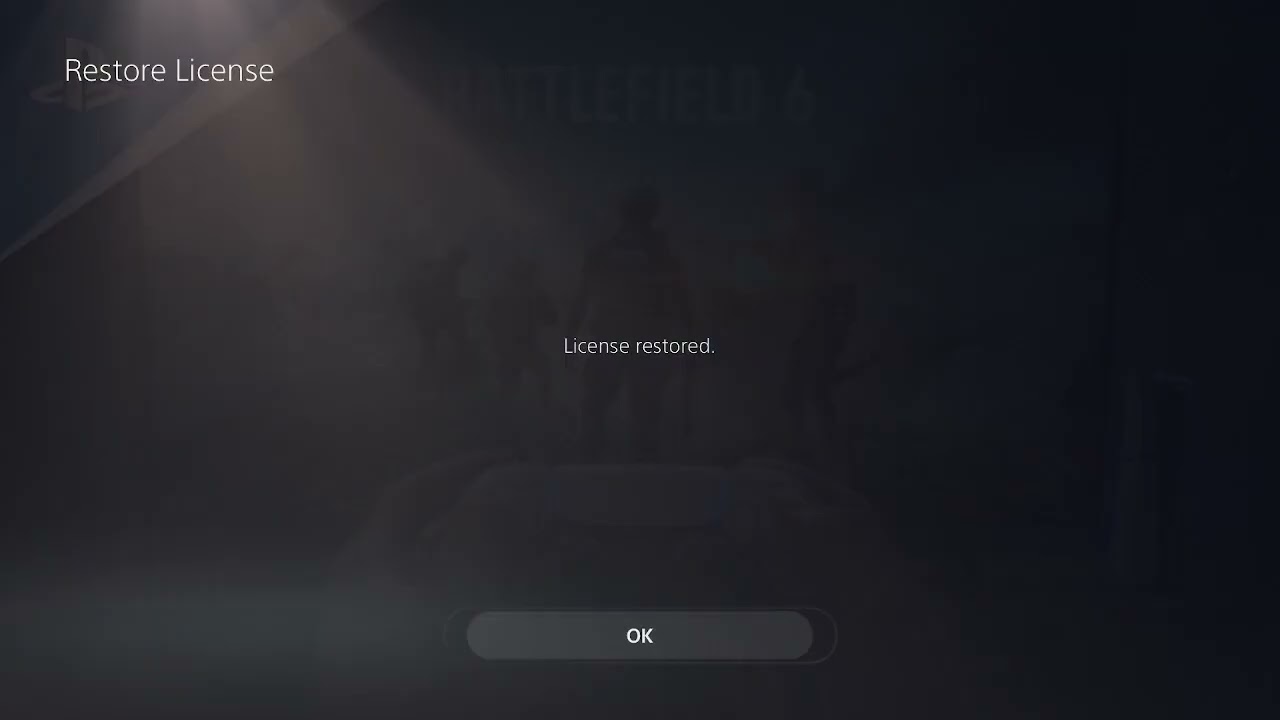
    4. On PlayStation, restore the game’s license and sign back into the correct account.
    5. Try Ethernet or a different Wi-Fi band before using manual DNS.

    Before you start

    • Record the complete error code: 3967269002.
    • Make sure the correct PlayStation, Xbox, Steam, and EA accounts are linked.
    • Stop downloads, cloud backups, and other bandwidth-heavy activity.
    • Do not delete local or cloud saves; this is normally an online-session problem.

    How to fix Skate error code 3967269002

    1. Check EA and platform service status

    Start with EA’s official status page and the status page for PlayStation, Xbox, or Steam. If Skate or the platform network reports an incident, wait until the service is restored. The error can appear even when your internet works normally because authentication or matchmaking is unavailable upstream.

    2. Install the latest Skate update

    Close the game completely. On PS5, highlight Skate on the home screen, press the Options button, and choose Check for Update. Install any available console-system update as well. An outdated client may be rejected after a server update.

    3. Restart the game, console, and router

    Quit Skate instead of leaving it suspended. Restart the console. If the error returns, switch off the router or gateway for about 30 seconds, turn it back on, and wait until the connection is fully restored. This clears stale sessions and requests a fresh network path.

    4. Test the console’s connection

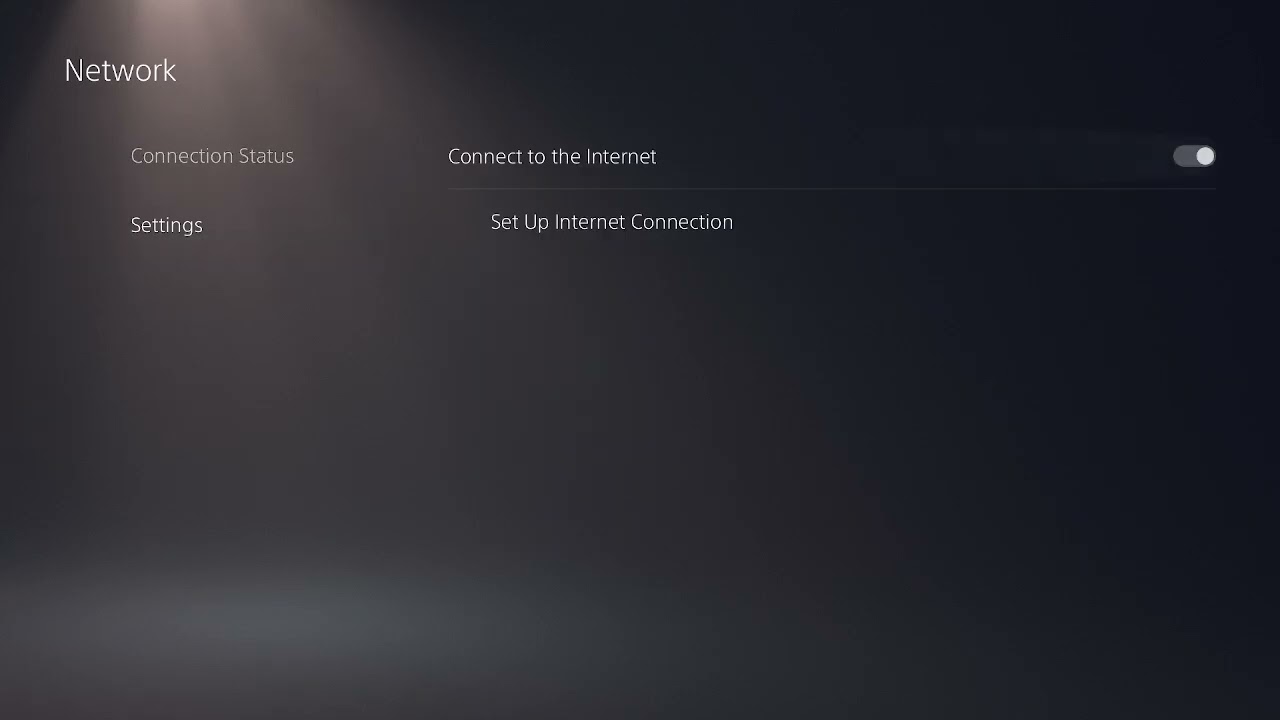
    On PS5, open Settings > Network > Connection Status > Test Internet Connection. Confirm the console receives an IP address and can sign in to PlayStation Network. A failed platform sign-in must be resolved before Skate can reach EA.

    5. Restore the license on PlayStation

    If the network test passes but Skate still cannot authenticate, highlight the game, press Options, and select Restore License. You can also use Settings > Users and Accounts > Other > Restore Licenses. Sony notes that restoring licenses does not remove your data.

    6. Refresh the account session

    Sign out of the platform account, restart the console, and sign back in. Then confirm the linked EA account is the one you expect. Avoid unlinking an EA account as a casual troubleshooting step because account progress and eligibility can be affected.

    7. Use a more stable network path

    • Connect the console directly to the router with Ethernet if possible.
    • Move closer to the router and reduce walls or interference.
    • Try 5 GHz when close to the router; try 2.4 GHz when range is the bigger problem.
    • If possible, briefly test a phone hotspot. If Skate works there, focus on the home router or ISP.

    8. Reset custom network settings before trying manual DNS

    If you previously entered a proxy, static address, custom MTU, or manual DNS, return the connection to automatic settings and retest. One viewer reported success after restoring default network settings. A clean automatic configuration is a better baseline than stacking more changes.

    If your ISP’s DNS is demonstrably failing, you can test Cloudflare’s public resolver with primary DNS 1.1.1.1 and secondary DNS 1.0.0.1. This may help name resolution, but it cannot fix an EA server outage and is not a guaranteed solution for code 3967269002.

    9. Reinstall only after service and network checks

    Reinstall Skate only if the game is fully updated, services are online, and other network steps fail. A reinstall is time-consuming and will not repair an account or server-side problem.

    Why these fixes work

    The error occurs before a stable online session is established. Server status isolates EA-side incidents; updates align the client with the current service; restarts discard stale sessions; license and sign-in steps repair platform authorization; and network tests isolate local Wi-Fi, router, or ISP problems.

    Helpful hardware

    As an Amazon Associate I earn from qualifying purchases.

    Frequently asked questions

    Is 3967269002 a ban?

    EA’s public guidance associates this code with service or connection trouble, not a ban message. If the account has a sanction, EA normally provides separate account information.

    Should I change DNS immediately?

    No. Check EA’s service status and restore automatic network settings first. Manual DNS is only an optional diagnostic when name resolution is the suspected problem.

    Will restoring licenses delete Skate progress?

    No. Sony states that restoring licenses does not affect your data. Online progress is normally tied to the relevant accounts.

    Why does it work on a hotspot but not home Wi-Fi?

    That comparison points toward the home router, wireless interference, DNS, ISP routing, or a restrictive network setting. Keep the console on the working path while you isolate the home-network issue.
    Watch the original walkthrough

    Official references

  • How to Fix PlayStation Portal Not Connecting to PS5

    How to Fix PlayStation Portal Not Connecting to PS5

    If your PlayStation Portal will not find, wake, or connect to your PS5, the fastest reliable fix is to verify Remote Play on the console, confirm both devices use the same PlayStation account, update and restart both devices, and rebuild the Portal’s Wi-Fi connection. Sign out and back in only after those checks.

    Quick answer

    1. Check PlayStation Network status.
    2. On PS5, open Settings > System > Remote Play and enable Remote Play.
    3. In Settings > System > Power Saving > Features Available in Rest Mode, enable Stay Connected to the Internet and Enable Turning On PS5 from Network.
    4. Confirm the PS5 and Portal are signed in to the same PlayStation account.
    5. Update and restart the PS5 and Portal, then reconnect the Portal to Wi-Fi.

    Before you start

    • Make sure the PS5 can reach the internet and is not fully powered off if you expect the Portal to wake it remotely.
    • Test the Portal near the PS5 and router before trying it from another location.
    • Pause large downloads or streams while troubleshooting.
    • Have your PlayStation sign-in details available in case you need to refresh the account session.

    How to fix PlayStation Portal not connecting to PS5

    1. Check PlayStation Network and your home internet

    If PlayStation Network or your internet connection is down, changing Portal settings will not help. Check the official status page, then confirm another device can browse the web on the same network. If the outage is on Sony’s side, wait for service to recover.

    2. Enable Remote Play on the correct PS5 account

    On your PS5, go to Settings > System > Remote Play and turn on Enable Remote Play. Confirm that the user listed for Remote Play is the same account signed in on the Portal. A Portal cannot find a console through an old or different account session.

    3. Allow the PS5 to wake from Rest Mode

    Go to Settings > System > Power Saving > Features Available in Rest Mode. Turn on Stay Connected to the Internet and Enable Turning On PS5 from Network. These options are required when the console is resting and the Portal needs to wake it.

    4. Update both devices

    Update the PS5 system software. On the Portal, swipe left from the upper-right corner, then open Settings > System > System Software > Update System Software. A version mismatch or a stale Remote Play component can prevent pairing.

    5. Restart the PS5, Portal, and router

    Restart both PlayStation devices normally. If the connection is still stuck, power off the router for about 30 seconds, turn it back on, and wait until internet service is fully restored before retrying.

    6. Reconnect the Portal to Wi-Fi

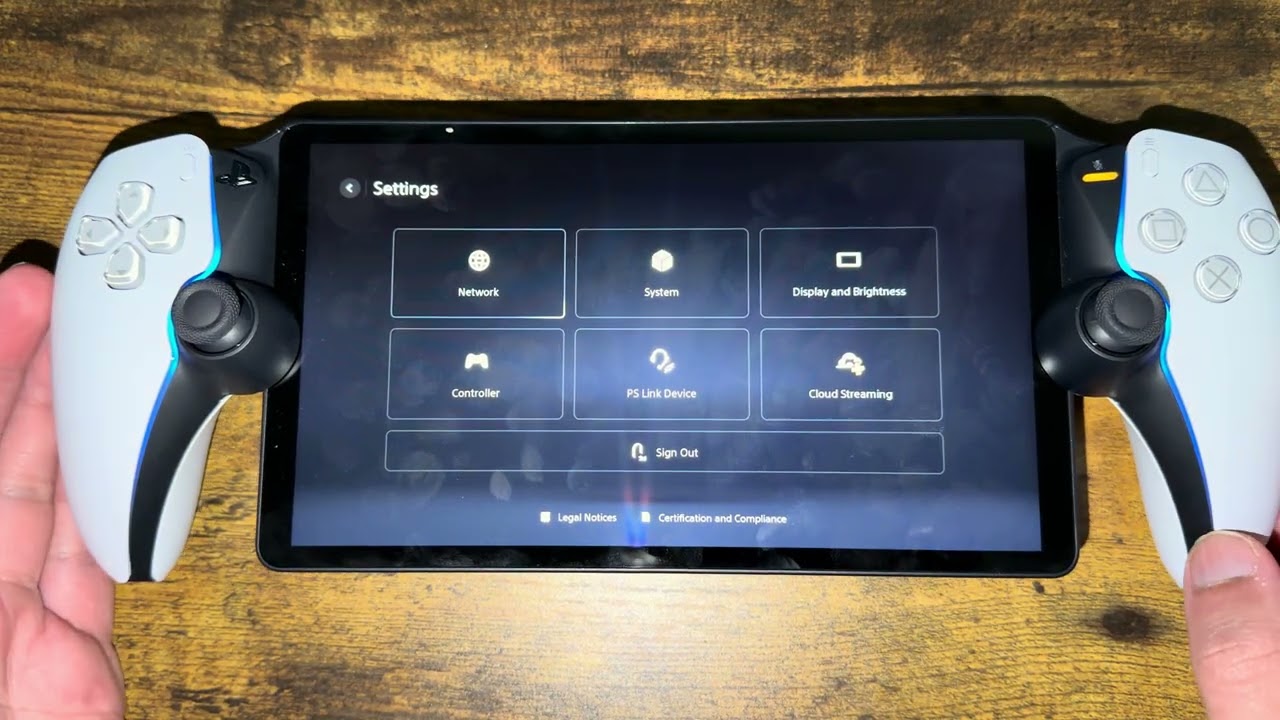
    On the Portal, open the Quick Menu and go to Settings > Network > Set Up Internet Connection. Select the network again and enter the password if prompted. You can briefly turn Airplane Mode on and off to reset the wireless radio before reconnecting.

    A phone hotspot is useful as a diagnostic test. If Portal connects through the hotspot but not your normal Wi-Fi, the issue is likely the home router, ISP, or wireless environment—not the Portal account.

    7. Improve the Remote Play connection

    • Connect the PS5 to the router with Ethernet when possible.
    • Move the Portal closer to the router and remove obstacles between them.
    • Pause game downloads, cloud backups, and 4K streaming during the test.
    • Test at home near the PS5 before attempting a connection from outside the home.

    8. Refresh the PlayStation account session

    If the network is healthy but the Portal still cannot find the PS5, sign out of the Portal and sign back in with the same account used on the console. This refreshes the Remote Play authorization. Do not create a new account as a workaround.

    9. Reset the Portal only as a last resort

    Sony’s final device-level option is a Portal reset. This signs you out and erases the Portal’s settings, so record anything important first. Use it only after the supported network and account checks above fail.

    Why these fixes work

    Portal streams a live session from the PS5; it does not run the game locally. The connection therefore depends on four separate pieces: a valid PlayStation account session, Remote Play permissions, a reachable PS5, and stable networks at both ends. The steps above isolate those pieces in order instead of resetting everything at once.

    What if Portal works at home but not away?

    First verify it connects while close to the console. Then leave the PS5 in Rest Mode with its network wake options enabled. If it only fails away from home, test a different outside network. Hotel, workplace, school, carrier, or public Wi-Fi may restrict the traffic Remote Play needs. A home-router NAT or ISP issue can also affect remote connections.

    Helpful hardware

    As an Amazon Associate I earn from qualifying purchases.

    Frequently asked questions

    Does the PS5 need to be on?

    It can be on or in Rest Mode. A fully powered-off PS5 cannot be awakened by Portal. The Rest Mode internet and network-wake options must be enabled.

    Do Portal and PS5 need to use the same Wi-Fi?

    No. Remote Play can work from another network, but first confirm the setup works locally. Both networks must be stable enough for game streaming.

    Why does Portal say it cannot find my PS5?

    Common causes are Remote Play being disabled, different PlayStation accounts, the PS5 being fully off, stale sign-in authorization, a service outage, or a network that blocks or disrupts Remote Play.

    Will resetting Portal delete games or PS5 saves?

    No PS5 games or save data are stored on Portal. A reset erases the Portal’s own settings and signs it out, so it still should be a last resort.

    Watch the original walkthrough

    Official references

  • How to Fix Battlefield 6 Unknown Error 1:85008S on PS5

    How to Fix Battlefield 6 Unknown Error 1:85008S on PS5

    Quick answer: For Battlefield 6 unknown error 1:85008S on PS5, check EA and PlayStation service status, close the game completely, install pending updates, and restart the console and router. Test Ethernet before changing advanced network settings. If the error survives a stable connection, restore the PlayStation license and reinstall only the affected game content before considering a full download.

    Accuracy note: EA’s Battlefield 6 error page, updated in August 2026, lists several similar 850xx and 840xx codes but does not currently document the full 1:85008S:20123264140 suffix shown in this video. Because the screen labels it an unknown error, this guide follows EA’s official unknown-error and connection troubleshooting instead of claiming the code has one proven cause.

    Before you start

    • Write down or photograph the complete code, including the suffix.
    • Check Battlefield and PlayStation service status. If either service is down, wait before reinstalling.
    • Make sure no Battlefield 6 download or content installation is paused.

    How to fix Battlefield 6 error 1:85008S on PS5

    1. Close Battlefield 6 completely. Highlight the game on the PS5 home screen, press Options, and select Close Game. Do not leave it suspended.
    2. Check for an update. Highlight Battlefield 6, press Options, and select Check for Update. Also open Settings > System > System Software > System Software Update and Settings and install any PS5 update.
    3. Restart the PS5. Choose Power > Restart PS5. EA’s current guidance for unknown Battlefield 6 errors begins with restarting the game and device.
    4. Test the PlayStation connection. Go to Settings > Network > Connection Status > Test Internet Connection. If internet or PSN sign-in fails, resolve that first.
    5. Restart the router and run a wired test. Power-cycle the router, wait for service to return, and connect the PS5 by Ethernet if possible. EA recommends a wired connection for Battlefield network errors.
    6. Restore the Battlefield 6 license. Highlight the game, press Options, and choose Restore License, or use Settings > Users and Accounts > Other > Restore Licenses. PlayStation says this does not affect saved data.
    7. Check installed game content. From the Battlefield 6 game tile, open the Options menu and manage game content. If the error began after a failed content update, reinstall the named or affected component first.
    8. Try manual DNS only if connection tests point to name-resolution instability. In the active connection’s Advanced Settings, use a documented resolver such as Cloudflare Primary 1.1.1.1 and Secondary 1.0.0.1. DNS is optional; it does not repair EA servers or corrupted game files.
    9. Reinstall the full game only as a last step. A complete reinstall is appropriate only after service, update, restart, network, license, and content checks fail.

    Why these steps help

    EA groups unknown Battlefield 6 errors separately from confirmed authentication, installation, DirectX, and matchmaking codes. A clean restart clears a stale game session, updates remove build mismatches, and a network test identifies connectivity failures. License and content checks address local ownership or installation problems without immediately deleting the entire game.

    When to contact EA Support

    Contact EA if the exact code returns while EA and PSN are online, the PS5 connection test passes, and the game is current. Include the full code, timestamp, PS5 system version, whether Ethernet changed the result, and the steps already completed. That information is more useful than reporting only “unknown error.”

    Warnings

    • Do not delete Battlefield save data for an online unknown error.
    • Do not change DNS, MTU, proxy, and router security settings together.
    • Do not reinstall during a known EA outage; it will not restore the service.

    Optional network gear

    The Cable Matters Cat 6 Ethernet cable can help you test whether Wi-Fi interference is contributing to the error. It is not a substitute for an EA or PlayStation service fix.

    As an Amazon Associate I earn from qualifying purchases.

    Frequently asked questions

    Is 1:85008S definitely a DNS error?

    No. EA does not currently publish that exact full code as a DNS-only error. Treat DNS as one optional connection test, not the diagnosis.

    Should I delete and reinstall Battlefield 6 first?

    No. Start with service status, updates, a full restart, and network tests. Reinstall affected content before the full game.

    Will restoring licenses delete progress?

    No. PlayStation states that restoring licenses does not affect saved data.

    Watch the original walkthrough

    https://www.youtube.com/watch?v=wn7j0NIIKIU

    Official references

  • How to Fix Where Winds Meet Lag and Stuttering on PC

    How to Fix Where Winds Meet Lag and Stuttering on PC

    Quick answer: First identify whether Where Winds Meet is suffering from network lag or frame-rate stutter. Rubber-banding and delayed online actions point to latency; choppy camera movement and low FPS point to PC performance. Use Ethernet, stop background traffic, or refresh DNS for connection symptoms. For stutter, verify files, reduce demanding graphics settings, update the GPU driver, and install the game on an SSD that meets the official storage guidance.

    Network lag or FPS stutter?

    • Network lag: other players jump positions, hits register late, menus report disconnection, or ping spikes.
    • Performance stutter: the whole image hitches, FPS drops during combat or traversal, audio may continue normally, and the issue can happen offline.

    This distinction matters. Changing DNS can help a name-resolution problem, but it does not raise your frame rate or compensate for a weak GPU.

    How to fix Where Winds Meet network lag

    1. Check for a service or patch issue. Review the game’s official news and current patch notes. If many players are affected immediately after maintenance, wait for the service-side fix.
    2. Stop competing traffic. Pause downloads, cloud backups, streams, and updates on the PC and other devices. Restart the game and router.
    3. Test Ethernet. A wired connection removes Wi-Fi interference from the comparison. If Ethernet fixes the problem, improve the Wi-Fi signal or keep the PC wired.
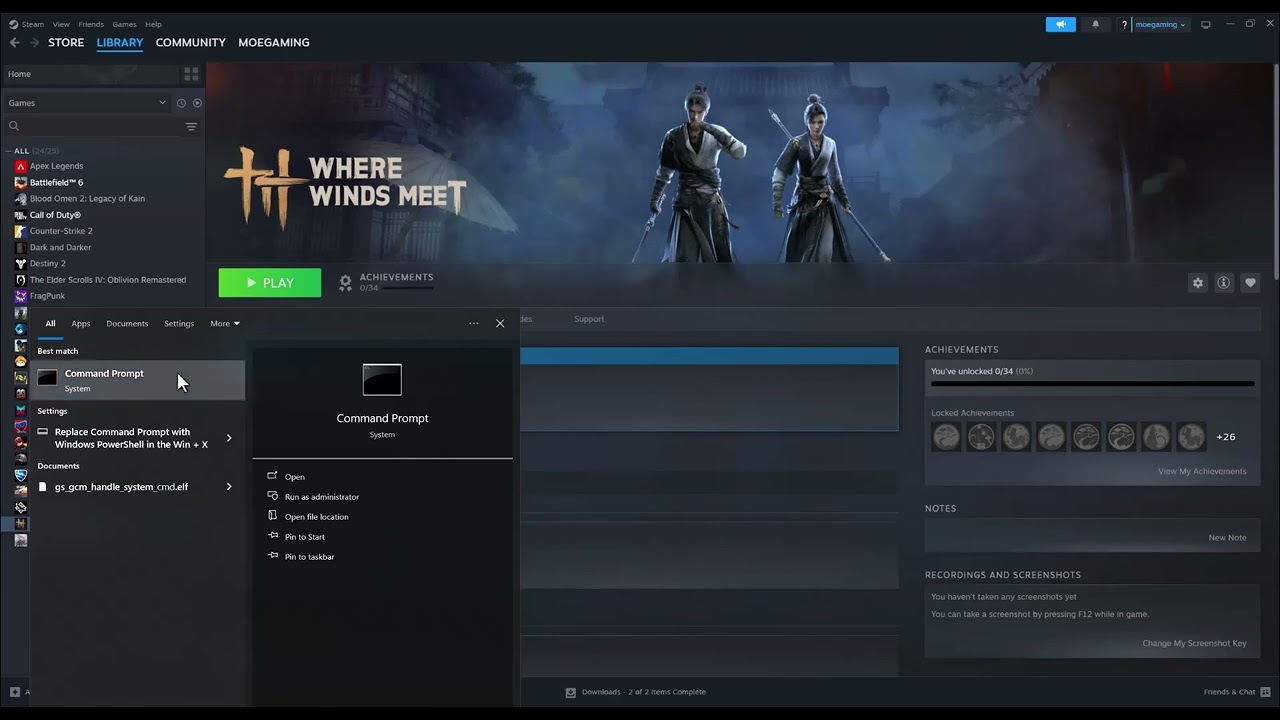
    4. Flush the Windows DNS cache. Search for Command Prompt, choose Run as administrator, enter ipconfig /flushdns, and restart the game. Microsoft includes this command in its Windows network troubleshooting.
    5. Try a reputable DNS resolver only if connection lookups remain unreliable. In the active network adapter’s IPv4 properties, you can test Cloudflare Primary 1.1.1.1 and Alternate 1.0.0.1. Record the original setting so you can return to automatic DNS if it does not help.

    How to fix Where Winds Meet FPS drops and stutter

    1. Compare your PC with the current requirements. The official installation guide lists Windows 10/11 64-bit, at least 8 GB RAM for its minimum tier, and 60 GB or more of storage, with an SSD recommended. Higher presets require substantially stronger hardware and more storage.
    2. Install on an SSD and keep free space. Texture streaming and patching can hitch when storage is slow or nearly full. Move the game through Steam’s storage settings rather than dragging the folder manually.
    3. Verify the installation. In Steam, right-click Where Winds Meet > Properties > Installed Files > Verify integrity of game files. Steam will replace files that do not match.
    4. Update the graphics driver and Windows. Use the official NVIDIA, AMD, or Intel update application for your GPU, restart the PC, and retest before changing many settings.
    5. Reduce the settings that cause the largest frame-time spikes. Lower shadows, effects, reflections, view distance, and resolution scaling one at a time. Cap the frame rate to a value the PC can sustain instead of chasing an unstable maximum.
    6. Close overlays and background recording for one test. Disable nonessential overlays, browser video, monitoring tools, and capture software, then add them back individually.

    Why these fixes work

    Network actions target packet loss, congestion, and name resolution. Performance actions target rendering load, storage access, corrupted files, and background contention. Treating “lag” as one problem can waste time: a DNS change will not repair insufficient hardware, while lowering graphics settings will not fix an unstable connection.

    If the game crashes instead of lagging

    Crashing is a different symptom. Use our separate guide for Where Winds Meet crashing or not launching on Steam, which focuses on file repair and launch problems.

    Optional PC gaming gear

    A Cable Matters Cat 6 Ethernet cable is useful for a wired latency test. The WESARY wireless gaming headset for PS5 and PC is an optional PC/PS5 audio accessory, not a performance fix.

    As an Amazon Associate I earn from qualifying purchases.

    Frequently asked questions

    Will 1.1.1.1 increase FPS?

    No. DNS resolves names to addresses. It may help a DNS-related connection problem, but it does not make the GPU render more frames.

    Should I reinstall the game?

    Verify the files first. Reinstall only if verification and the other targeted fixes fail.

    Why does the game stutter even when average FPS looks high?

    Uneven frame times can feel choppy despite a good average. Storage access, shader work, overlays, background tasks, or settings that cause short spikes can all contribute.

    Watch the original walkthrough

    https://www.youtube.com/watch?v=RUqg1WVipTY

    Official references

  • How to Fix Black Ops 7 “Update Requires Restart” Loop

    How to Fix Black Ops 7 “Update Requires Restart” Loop

    Quick answer: When Black Ops 7 keeps saying “Update Requires Restart,” fully close Call of Duty instead of returning to the title screen, verify that the game and console updates have finished, and restart the system. If the loop continues on PlayStation, restore the license and verify the correct Black Ops 7 content is installed. Reinstall only after the smaller checks fail.

    Before you start

    • Do not interrupt an update that is still downloading, copying, or installing.
    • Make sure the console or PC has enough free storage for the update to unpack.
    • If this appeared immediately after a new patch, check Activision’s current known-issues page before deleting anything.

    How to fix the Black Ops 7 restart loop

    1. Close Call of Duty completely. On PlayStation, highlight the game, press Options, and select Close Game. On Xbox, open the game tile’s menu and choose Quit. On PC, exit the game and its launcher. Returning to the main menu is not a full restart.
    2. Confirm the update has completed. Check the console download queue or the PC launcher. If any Call of Duty update is paused, resume it and wait until installation finishes.
    3. Check for another game update. On PS5 or PS4, highlight Black Ops 7, press Options, and select Check for Update. Also install any pending console system-software update.
    4. Restart the device. Use the console or Windows restart command rather than Rest Mode or sleep. Relaunch the platform store or game launcher, then open Black Ops 7.
    5. Restore the PlayStation license if applicable. On PS5, highlight the game, press Options, and choose Restore License, or go to Settings > Users and Accounts > Other > Restore Licenses. This is safe for saved data.
    6. Verify installed Black Ops 7 content. On PS5, open the game tile’s Options menu and choose Manage Game Content. On Xbox or PC launchers, open the game’s manage/install options. Confirm the base game and the mode you use are installed. Activision’s installation guide notes that players can select individual content packs, so a partial installation can matter after an update.
    7. Repair files on PC. Use the launcher’s Scan and Repair or Verify Files feature. This replaces missing or damaged update files without immediately redownloading the entire game.
    8. Reinstall only as the last step. If the update repeatedly fails after the above checks, reinstall the affected content pack first. Reinstall the full game only if the installation remains inconsistent.

    Why the error can repeat

    The message means the running game has detected data that should be loaded only after a clean restart. A suspended game session can continue using the old files. The same loop can also occur when an update has not finished, a selected content pack is missing, or a local file does not match the current build. A full close and restart forces the game to reload the installed version.

    If you play Warzone through Call of Duty

    Check the installed Warzone content separately. Black Ops 7 and Warzone share parts of the Call of Duty launcher but do not necessarily use the same selected packs. If the problem instead says you do not own or cannot find content, use our Black Ops 7 Content Not Found guide. For a session that repeatedly signs you out, see the Black Ops 7 Profile Was Signed Out guide.

    Warnings

    • Do not delete saved data, cloud saves, or your Activision account.
    • Do not remove random content packs unless you know which game mode they support.
    • Do not power off the console while an update is installing.

    As an Amazon Associate I earn from qualifying purchases.

    Frequently asked questions

    Why does restarting from inside the game not work?

    The game process may still be holding the previous update data. Closing the application completely and restarting the device creates a clean launch.

    Will restoring licenses delete progress?

    No. PlayStation states that restoring licenses does not affect your data.

    Do I need to reinstall all 100+ GB?

    Not first. Verify the update and installed content, then repair or reinstall the affected pack. A full reinstall is the final option.

    Watch the original walkthrough

    https://www.youtube.com/watch?v=RGwabOI_6WA

    Official references

  • How to Fix NBA 2K26 Error Code 56D85BB8 on PS5

    How to Fix NBA 2K26 Error Code 56D85BB8 on PS5

    Quick answer: For NBA 2K26 error code 56D85BB8 on PS5, check the NBA 2K server status first, install any game update, fully restart the console and router, and test with Ethernet. If the connection works but name resolution is unstable, try a reputable manual DNS service. Do not reinstall the game before you have ruled out a server outage or ordinary network problem.

    Before you change anything

    • Record the complete error code and when it appears: at launch, entering MyCAREER, or joining an online mode.
    • Check the official NBA 2K server-status page. If the service is down, local changes will not restore it.
    • Pause downloads and streaming on the PS5 and other devices during the test.

    How to fix NBA 2K26 error 56D85BB8

    1. Close NBA 2K26 and check for an update. Highlight the game on the PS5 home screen, press Options, and select Check for Update. Let the update finish before reopening the game.
    2. Test the PS5 internet connection. Open Settings > Network > Connection Status > Test Internet Connection. If PSN sign-in or internet access fails, solve that connection problem before testing 2K again.
    3. Power-cycle the network. Turn off the PS5. Unplug the modem and router for about 60 seconds, reconnect them, wait for internet service to return, and then restart the console. This refreshes the route and network session without deleting game data.
    4. Run one wired test. Connect the PS5 directly to the router with Ethernet if possible. 2K recommends a wired console connection because Wi-Fi interference and signal changes can cause disconnections.
    5. Refresh your PlayStation session. Go to Settings > Users and Accounts > Other > Sign Out, restart the console, and sign back in to the same PSN account.
    6. Try manual DNS only as an optional network test. Go to Settings > Network > Settings > Set Up Internet Connection, highlight the active connection, press Options, and choose Advanced Settings. Set DNS to Manual and use either the values recommended by 2K or Cloudflare’s documented gaming-console resolver: Primary 1.1.1.1, Secondary 1.0.0.1. Leave IP address, DHCP, proxy, and MTU settings unchanged unless your ISP tells you otherwise.
    7. Restart and retest NBA 2K26. If the code returns on multiple networks while 2K servers are online, submit a 2K support request with the exact code, platform, time, and troubleshooting already completed.

    Why these steps help

    Error 56D85BB8 is presented as an online error, and 2K’s current console guidance treats connection errors by checking the service, validating the console connection, restarting network equipment, and testing Ethernet. Updating the game prevents a version mismatch. Manual DNS can help only when DNS lookup is part of the failure; it does not increase bandwidth or repair a 2K outage.

    What not to do first

    • Do not delete saved data or MyCAREER files for a network error.
    • Do not repeatedly change IP, MTU, proxy, port-forwarding, and DNS values at the same time. You will not know which change mattered.
    • Do not reinstall NBA 2K26 until server, update, PSN, and network checks have failed.

    Other fixes worth trying

    If the problem is limited to one profile, test a different local console user to identify an account-specific issue. If you are seeing a different NBA 2K online code, see our guide to NBA 2K26 errors 4B538E50 and EFEAB30C rather than assuming the fixes are identical.

    Optional network gear

    For a stable wired test, the Cable Matters Cat 6 Ethernet cable is a direct product option. A cable can reduce Wi-Fi interference, but it cannot fix a 2K server outage.

    As an Amazon Associate I earn from qualifying purchases.

    Frequently asked questions

    Does changing DNS guarantee a fix for 56D85BB8?

    No. DNS is an optional test for name-resolution problems. Server outages, account issues, game-version mismatches, and packet loss need different fixes.

    Should I use 5 GHz or 2.4 GHz Wi-Fi?

    Use 5 GHz when the console is near the router and the signal is strong. Try 2.4 GHz for longer range through walls. Ethernet is the clearest comparison test.

    Will these steps delete my NBA 2K26 progress?

    No. The steps above do not delete saved data. Avoid deleting saves while troubleshooting a connection code.

    Watch the original walkthrough

    https://www.youtube.com/watch?v=NEMo-IAOPuM

    Official references

  • How to Fix NBA 2K26 Error 4B538E50 or EFEAB30C

    How to Fix NBA 2K26 Error 4B538E50 or EFEAB30C

    Quick answer: NBA 2K26 error 4B538E50 or EFEAB30C usually means the latest NBA 2K data has not finished downloading or syncing. On PS5, highlight NBA 2K26, press Options, and select Check for Update. Then open Play Now and allow the game to remain there—or complete a couple of Play Now games—until an update message appears. Return to the main menu when prompted and let the loading screen apply the data. Do not delete reserved space.

    Moe Gaming’s video correctly starts with the PS5 update check and then demonstrates network fallbacks. Current 2K Support identifies missing or unsynced data as the most common cause, so this guide puts the official in-game update process ahead of DNS changes.

    Before changing the network

    • Keep the PS5 connected to the internet and signed in to the normal PlayStation account.
    • Make sure there is free console storage for game updates.
    • Do not delete NBA 2K26 reserved space. 2K warns that interrupting its recreation can cause EFEAB30C.
    • Write down which code appears: 4B538E50, EFEAB30C, or both.

    How to fix NBA 2K26 error 4B538E50 or EFEAB30C

    1. Check for the PS5 game update

    1. Close NBA 2K26.
    2. Highlight NBA 2K26 on the PS5 home screen.
    3. Press the controller’s Options button.
    4. Select Check for Update.
    5. Install the full update and wait for copying or installation to finish.
    6. Restart NBA 2K26.

    PlayStation documents this exact update path. The error can persist until both the console download and the in-game data application are complete.

    2. Let NBA 2K26 download and apply its latest data

    1. Launch NBA 2K26 and select Play Now.
    2. Leave the game on that menu with a stable internet connection, or complete a couple of Play Now games.
    3. Watch for an update message in the corner of the screen.
    4. When prompted, return to the main menu.
    5. Allow the loading screen to apply the update without closing the game.

    2K says this is the most common fix. Depending on download speed and how far the data is out of sync, the message can take a long time—even hours—to appear. Do not cancel the process.

    3. Restart the PS5 after the update is applied

    Once NBA 2K26 returns to the main menu, close the game, restart the PS5, and launch it again. This confirms that the newly applied data survives a clean game session.

    4. Reverify the NBA 2K account

    If the data is current but the error remains, 2K lists account verification as another possible cause:

    1. On a phone or computer, open the official NBA 2K website.
    2. Select Sign In.
    3. Sign in through the same platform service used for NBA 2K26.
    4. After a successful sign-in, restart the PS5 and open NBA 2K26.

    Use only the official NBA 2K site and normal platform sign-in flow. Never share the account password or a verification code.

    5. Check the console’s NBA 2K account limit

    2K says a console can create a maximum of five NBA 2K accounts. If more than five have been created, server access can be restricted to the first five accounts ever created on that console. If this applies, changing DNS will not fix it; contact 2K Support with the console and account details.

    6. Troubleshoot the connection only after data and account checks

    1. Check 2K and PlayStation service status.
    2. Restart the router and PS5.
    3. Connect the PS5 by Ethernet if possible.
    4. On Wi-Fi, go to Settings > Network > Settings > Set Up Internet Connection, highlight the network, press Options, and compare 5 GHz with 2.4 GHz.
    5. As a final name-resolution test, open Advanced Settings and use Cloudflare DNS: 1.1.1.1 primary and 1.0.0.1 secondary.
    6. Return DNS to Automatic if there is no improvement.

    These are the network steps shown in the source video. They can help when the PS5 cannot reach 2K services reliably, but DNS will not apply missing NBA 2K data or bypass an account restriction.

    Why the official update method works

    NBA 2K uses reserved space and in-game downloads for updates and patches. The console can report the base application as updated while NBA 2K still needs to download or sync its latest data. Staying in Play Now lets that background process complete, and returning to the main menu applies it.

    If the codes still appear

    • Do not delete reserved space. Leave Play Now open again and wait for the update message.
    • Confirm the PS5 has sufficient free storage.
    • Check whether the NBA 2K account is expired or needs verification.
    • Use 2K’s requested PathPing and TraceRoute only when 2K Support asks for diagnostic results.
    • Contact 2K Support with the code, platform, account, approximate time, and steps already completed.

    Warnings and common mistakes

    • Do not delete reserved space. 2K explicitly warns against it.
    • Do not close the game while the update is being applied.
    • Do not assume a faster DNS server replaces the missing game data.
    • Do not create additional NBA 2K accounts to test the error; the console account limit can make the problem worse.
    • Do not reinstall the entire game until the official update, sync, account, storage, and network checks are complete.

    Optional network accessory

    As an Amazon Associate I earn from qualifying purchases.

    Watch the original Moe Gaming walkthrough

    Frequently asked questions

    What do 4B538E50 and EFEAB30C mean?

    2K says the common cause is that the latest NBA 2K data has not been fully downloaded or applied. Account verification, account limits, blocking software, or out-of-sync data can also be involved.

    How long should I wait in Play Now?

    2K says a couple of Play Now games is often enough, but severely out-of-sync data can take much longer. Keep the connection stable and wait for the in-game update message.

    Should I delete reserved space?

    No. 2K specifically says not to delete it. If the reserved space must be recreated and the process is interrupted, EFEAB30C can occur.

    Will changing DNS fix the error?

    Only if name resolution or the network path is part of the problem. It cannot replace missing update data, verify an account, or change the console’s NBA 2K account limit.

    Official references

  • How to Fix Black Ops 7 “Your Profile Was Signed Out” on PS5

    How to Fix Black Ops 7 “Your Profile Was Signed Out” on PS5

    Quick answer: If Black Ops 7 says “Your profile was signed out” on PS5, check Call of Duty and PlayStation service status, then install any game update. Restart the game and PS5, confirm the correct PlayStation account is signed in, and sign out and back in only if the account session appears stuck. If the message affects Black Ops 7 alone, verify the selected game content and reinstall only the affected pack. Restore PlayStation licenses before reinstalling the entire game.

    The source video shows the PS5 update, Manage Game Content, and Users and Accounts paths. This guide keeps those steps but checks servers and account state first, because Activision says platform sign-in and service status are the starting points for Black Ops 7 connection problems.

    Before removing game content

    • Write down when the sign-out occurs: at launch, in the Call of Duty menu, or during a match.
    • Check whether the same PlayStation account can open the PlayStation Store.
    • Do not unlink the Activision and PlayStation accounts as a first troubleshooting step. Activision limits account unlinking and progression remains tied to the original Activision account.
    • Sync important saved data before deleting or reinstalling anything.

    How to fix “Your profile was signed out” in Black Ops 7

    1. Check Call of Duty and PlayStation status

    1. Open Activision’s Black Ops 7 connection support page and server-status link.
    2. Check PlayStation Network status, especially Account Management and Gaming and Social.
    3. If an alert is present, wait for service recovery and retest.

    Activision specifically recommends checking Black Ops 7 status first. A service interruption can invalidate a session even when the home internet still works.

    2. Install pending Black Ops 7 and PS5 updates

    1. On the PS5 home screen, highlight Call of Duty or Black Ops 7.
    2. Press the Options button and select Check for Update.
    3. Install the complete update and wait for copying or installation to finish.
    4. Go to Settings > System > System Software > System Software Update and Settings and install a PS5 update if available.
    5. Restart the console and launch the game.

    A mismatched client version can fail authentication or online handoff after a season update. The source video’s comments also show the message appearing for some players immediately after an update, so confirm the update fully completed before changing accounts.

    3. Confirm the correct PlayStation account and restart the session

    1. Close Call of Duty completely.
    2. Go to Settings > Users and Accounts.
    3. Confirm that the account that owns or normally plays the game is signed in.
    4. If the PlayStation session appears stuck, sign out, restart the PS5, and sign back in using the normal secure sign-in method.
    5. Launch Black Ops 7 and retry.

    Activision’s connection guide says the platform account must be signed in. Signing out and back in can refresh that session, but it will not repair an Activision or PlayStation outage.

    4. Restore PlayStation licenses

    1. Open Settings > Users and Accounts > Other > Restore Licenses.
    2. Select Restore and wait for completion.
    3. Restart the game.

    Restoring licenses does not delete content. It refreshes the console’s access records and is safer than immediately reinstalling a large Call of Duty package.

    5. Verify Black Ops 7 game content

    1. Highlight Call of Duty or Black Ops 7 on the PS5 home screen.
    2. Press Options and select Manage Game Content.
    3. Confirm that the content needed for the mode you are opening is installed.
    4. If one Black Ops 7 pack shows an installation problem, remove only that affected pack.
    5. Download the pack again through Manage Game Content or the game’s supported install-options screen.
    6. Wait for every item to finish before launching.

    Activision’s current installation guide explains that Black Ops 7 lets PlayStation users choose specific content. Reinstalling one damaged or mismatched pack is more targeted than deleting the whole game.

    6. Check the network if the profile drops during play

    If the profile signs out only during online matches, test Ethernet, restart the router, stop competing downloads, and follow the existing Black Ops 7 Connection Failed guide. Activision recommends a wired connection for online play. If the message instead says the content is missing or unavailable, use the Black Ops 7 Content Not Found guide.

    Why these steps can work

    Black Ops 7 depends on three linked states: Activision services, the signed-in platform account, and the installed game content. Status checks identify remote incidents. Updates synchronize the client with the service. Restarting and signing in refresh the platform session. License restoration refreshes ownership, and a targeted pack reinstall repairs local content without disturbing unrelated data.

    If the error continues

    • Confirm the PlayStation and Activision accounts are linked to the expected profiles.
    • Do not repeatedly unlink accounts; Activision says platform accounts generally can be unlinked only once every 12 months.
    • Capture the exact time, game mode, and whether the message follows a season update.
    • Check Activision’s current known-issues page.
    • Contact Activision Support if services are green and the account continues to be removed from the game.

    Warnings

    • Do not share account passwords, backup codes, or one-time verification codes.
    • Do not delete all Call of Duty content before checking the affected pack and licenses.
    • Do not reset the PS5 or reinstall system software for this message.
    • Do not unlink the Activision account as a routine sign-in refresh.

    Optional network accessory

    As an Amazon Associate I earn from qualifying purchases.

    Watch the original Moe Gaming walkthrough

    Frequently asked questions

    Is this always a PlayStation account problem?

    No. Activision or PlayStation service interruptions, an incomplete game update, a lost network session, or mismatched content can produce a similar result.

    Will restoring licenses delete my games?

    No. It refreshes licenses associated with the signed-in PlayStation account and does not delete installed games or saved data.

    Should I reinstall Black Ops 7?

    Reinstall only the affected content pack first. A full reinstall is a last resort after updates, account/session checks, license restoration, and content verification.

    What if the error happens on PC or Xbox?

    The PS5 menu paths in this guide do not apply. Use the platform-specific sign-in, installation, cache, and network guidance from Activision and the platform provider.

    Official references

  • How to Fix Ubisoft Connect Error Dolphin-028 on Windows

    How to Fix Ubisoft Connect Error Dolphin-028 on Windows

    Quick answer: To fix Ubisoft Connect error Dolphin-028 on Windows, first check Ubisoft service status and restart Ubisoft Connect, the PC, and router. If the connection works elsewhere but Ubisoft Connect still fails, open Command Prompt as administrator and run ipconfig /release, ipconfig /renew, and ipconfig /flushdns in that order. Use Windows Network reset only as a final step because it removes and reinstalls network adapters and can remove VPN networking components.

    The Moe Gaming video demonstrates the Windows command and Network reset paths. This article places the disruptive reset last, adds Microsoft’s full safety context, and checks the error against Ubisoft’s current connectivity guidance.

    Before you reset anything

    • Check whether normal websites and another launcher can connect.
    • Write down the exact message and code Dolphin-028.
    • Close any game launched through Ubisoft Connect.
    • Save VPN settings or custom network configuration before using Network reset.

    How to fix Ubisoft Connect Dolphin-028

    1. Check Ubisoft service status

    Open Ubisoft Help for the affected game and look for maintenance or outage notices. Ubisoft’s connectivity guide recommends ruling out an ongoing service incident first. If the service is down, wait for recovery; local Windows changes will not bring Ubisoft servers back online.

    2. Fully restart Ubisoft Connect and Windows

    1. Close the game and Ubisoft Connect.
    2. Check the notification area and quit Ubisoft Connect if it is still running in the background.
    3. Restart Windows.
    4. Open Ubisoft Connect normally and sign in again.

    This clears a stale launcher session without changing the network configuration.

    3. Power-cycle the router and remove temporary interference

    1. Turn off the router and unplug it for about one minute.
    2. Reconnect it and wait until the connection is fully restored.
    3. Pause large downloads and cloud backups.
    4. Temporarily disconnect a VPN or manual proxy for the test.
    5. Use Ethernet if the PC can be connected directly to the router.

    Ubisoft recommends a router power cycle and checking software that can interfere with connectivity. Re-enable any intentional VPN or proxy after testing.

    4. Release and renew the Windows IP address

    1. Select Start and type Command Prompt.
    2. Choose Run as administrator and approve the Windows prompt.
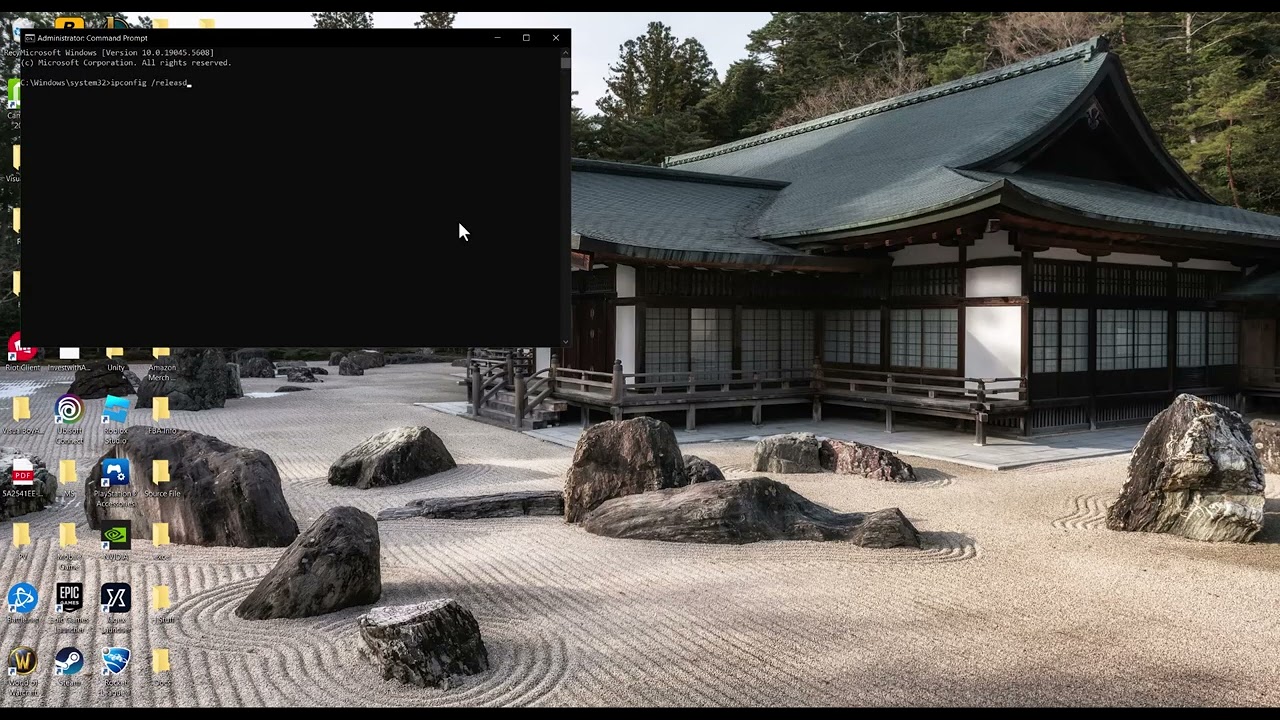
    3. Enter ipconfig /release and press Enter.
    4. Wait for the command to finish. The PC will temporarily lose its network address.
    5. Enter ipconfig /renew and press Enter.
    6. Enter ipconfig /flushdns and press Enter.
    7. Restart Windows and test Ubisoft Connect.

    Microsoft documents this sequence for Windows connection problems. Release and renew requests a fresh DHCP address, while flushdns clears cached name-resolution entries. If /renew reports that media is disconnected, reconnect the active Wi-Fi or Ethernet adapter and retry once.

    5. Reset Winsock and TCP/IP if the basic renewal fails

    Microsoft’s current network-troubleshooting sequence also includes the following administrator commands before a full Network reset:

    1. Run netsh winsock reset.
    2. Run netsh int ip reset.
    3. Restart Windows.

    These commands reset Windows networking components used by applications. Do not run unrelated command lists from unverified websites.

    6. Use Windows Network reset only as the last local step

    1. Open Settings > Network & internet > Advanced network settings.
    2. Select Network reset.
    3. Read the warning, then select Reset now.
    4. Allow Windows to restart, reconnect to the network, and test Ubisoft Connect.

    Network reset removes installed network adapters and reinstalls them after restart. Microsoft warns that you may need to reinstall VPN client software or other virtual networking components afterward. The source video’s viewers reported that both the command sequence and this second method helped different systems, but neither is universal.

    Why these fixes can work

    Dolphin-028 can appear when Ubisoft Connect cannot establish the expected online session. A router restart clears temporary network state. IP renewal requests a fresh local address, DNS flushing removes stale resolver entries, and Winsock/TCP-IP resets rebuild Windows networking components. Network reset is more disruptive and therefore belongs at the end.

    If Dolphin-028 still appears

    • Update Ubisoft Connect from Ubisoft’s official installer.
    • Confirm Windows date, time, and time zone are correct.
    • Allow Ubisoft Connect and the affected game through the active firewall instead of disabling the firewall.
    • Test a different trusted network briefly. If that works, contact the router manufacturer or internet provider.
    • Contact Ubisoft Support with the code, affected game, launcher version, Windows version, connection type, and steps already completed.

    Warnings and common mistakes

    • Network reset can remove VPN adapters and custom networking software.
    • ipconfig /release intentionally disconnects the adapter until a renewal succeeds.
    • Do not permanently disable antivirus or Windows Firewall.
    • Do not edit the registry or download a “Dolphin-028 repair tool.”
    • Do not assume the error proves the game installation is damaged; test the connection and launcher first.

    Optional network accessory

    As an Amazon Associate I earn from qualifying purchases.

    Watch the original Moe Gaming walkthrough

    Frequently asked questions

    What does ipconfig /release do?

    It gives up the adapter’s current DHCP address. The connection remains unavailable until ipconfig /renew obtains another address.

    Will Network reset delete personal files?

    It is designed to reset network adapters and settings, not personal documents. It can remove VPN or virtual-adapter configuration, so record those settings first.

    Should I change DNS for Dolphin-028?

    Only as a controlled fallback when DNS resolution appears unreliable. Start with Ubisoft status, a restart, and Microsoft’s supported network steps.

    Why does Ubisoft Connect fail while websites work?

    The launcher may have a stale session, blocked firewall rule, VPN/proxy conflict, or a route specific to Ubisoft services. A normal website test does not rule out those narrower causes.

    Official references