Category: Game Fixes

Troubleshooting guides and fixes for gaming errors, crashes, installation problems, and connectivity issues.

  • How to Fix Black Ops 2 Controller Input Lag on PS5

    How to Fix Black Ops 2 Controller Input Lag on PS5

    If Black Ops 2 reacts a fraction of a second after you move or press a button on PS5, the first fix is to make the controller communicate over USB instead of Bluetooth. This is especially useful when the game is running through backward compatibility and the controller feels delayed even in a private or offline match.

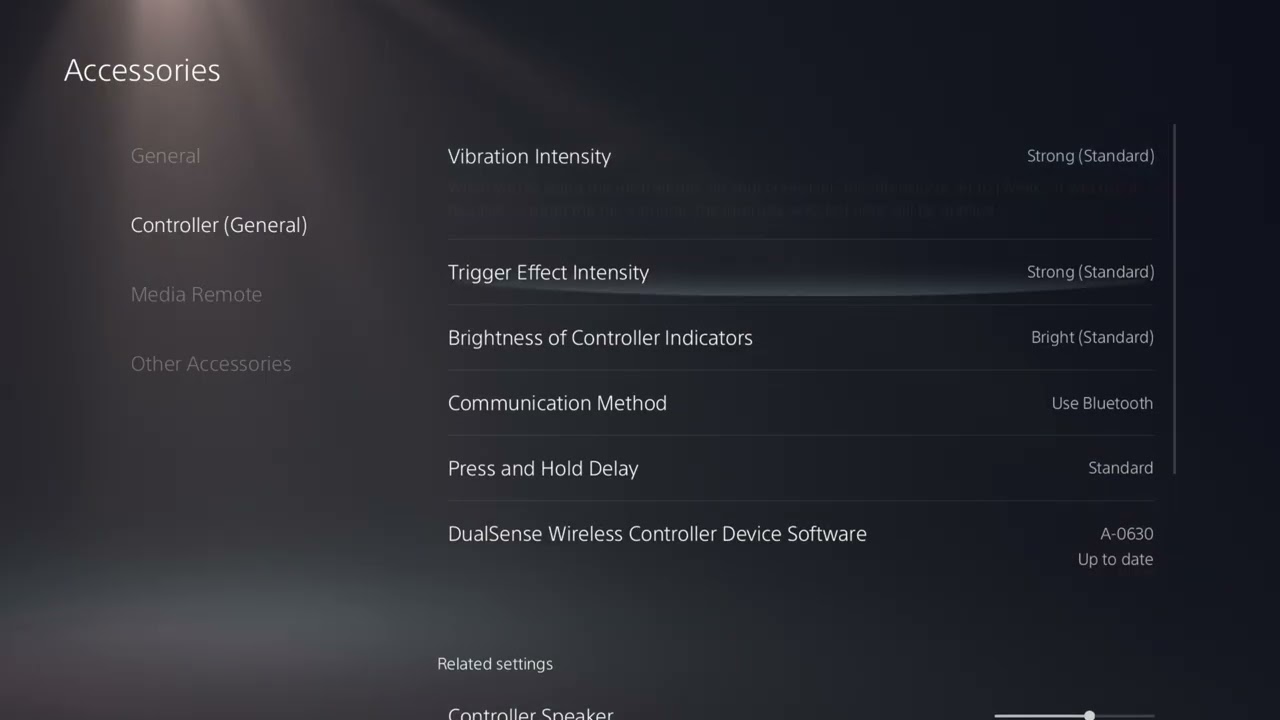
    Quick answer: Connect the controller with a USB cable that carries data, then open Settings > Accessories > Controller (General) > Communication Method and choose Use USB Cable. Restart Black Ops 2 and test it again.

    Before you change anything

    • Use a USB-C cable that supports charging and data. A charge-only cable cannot carry controller input.
    • Test in an offline or private match first. That separates controller delay from online ping or rubber-banding.
    • Close Black Ops 2 before changing the controller communication setting.

    How to remove controller input delay

    1. Connect the controller with a data-capable USB cable

    Plug the DualSense or supported DUALSHOCK 4 controller directly into the PS5. If the controller only charges but does not pair or send input over the cable, try the cable supplied with the console or another cable marked for charge and sync. PlayStation specifically notes that charge-only cables do not work for wired controller communication.

    2. Force the PS5 to use the wired connection

    On the PS5 home screen, open Settings, select Accessories, choose Controller (General), then open Communication Method. Change the setting from Use Bluetooth to Use USB Cable. PlayStation confirms that a controller set to Bluetooth continues using Bluetooth even while a cable is connected, so merely plugging it in is not enough.

    3. Relaunch Black Ops 2 and compare the response

    Start the game again and test camera movement, aiming and menu navigation. Compare the wired result with the same action over Bluetooth. If the delay disappears, Bluetooth interference or a weak wireless signal was the likely cause.

    4. Check the controller and USB path

    If the delay remains, try another PS5 USB port and another data-capable cable. Update the controller device software and PS5 system software, then restart the console. If you own another controller, test it briefly; a single-controller problem points to that controller rather than the game.

    If the game still feels delayed

    • Turn on Game Mode on the TV or monitor. Heavy picture processing can create display latency that feels like controller lag.
    • Test offline. If inputs feel immediate offline but players teleport online, troubleshoot the network rather than the controller.
    • Check the network separately. Use the dedicated Black Ops 2 lag guide for ping, Wi-Fi and DNS symptoms.
    • Reset the controller only if needed. Follow PlayStation’s controller troubleshooting steps before assuming the controller is defective.

    Why the USB setting can help

    Wired communication removes the Bluetooth radio link between the controller and console. That does not increase the game’s frame rate or reduce internet ping, but it can remove interference or wireless transmission delay. The important detail is selecting Use USB Cable; otherwise the PS5 can keep sending input over Bluetooth.

    Common mistakes and warnings

    • Do not confuse controller input delay with low frame rate or network lag.
    • Do not buy a new controller before testing a known-good data cable and another USB port.
    • Performance thumbsticks can change grip and stick height, but they do not repair latency.
    • Changing the communication method applies at the console level, not only to Black Ops 2.

    Frequently asked questions

    Why is my controller still using Bluetooth while plugged in?

    The PS5 communication method may still be set to Use Bluetooth. Change it manually under Settings > Accessories > Controller (General).

    Will this fix online lag?

    No. It targets the controller-to-console link. Online stutter, teleporting and high ping require network troubleshooting.

    Does the cable matter?

    Yes. It must support data transfer. A charge-only cable powers the controller but cannot provide wired input.

    Watch the original walkthrough

    The Moe Gaming video demonstrates the exact PS5 menu path used in this guide. Source video: How to Fix Black Ops 2 Controller Input Lag and Delay PS5.

    Optional controller gear

    If testing confirms that your controller itself is faulty, the PlayStation DualSense Wireless Controller is a direct replacement. For players who want a different stick feel after the latency is fixed, KontrolFreek PlayStation Performance Thumbsticks are an optional accessory, not a latency fix.

    Affiliate disclosure: As an Amazon Associate I earn from qualifying purchases.
    Official references

  • How to Fix Black Ops 7 Connection Failed on PS5

    How to Fix Black Ops 7 Connection Failed on PS5

    Quick answer: When Black Ops 7 says Connection Failed on PS5, check Activision and PlayStation service status first. If both are online, fully restart the game, PS5, modem, and router; test the PS5 connection; use a wired connection or choose a fixed Wi-Fi band; then try a reputable public DNS only if the normal connection still fails.

    Black Ops 7 Connection Failed fix on PS5

    Before changing network settings

    How to fix Black Ops 7 Connection Failed on PS5

    1. Close the game and restart the network

    1. Highlight Call of Duty on the PS5 home screen, press Options, and choose Close Game.
    2. Restart the PS5.
    3. Turn off the modem and router and unplug them.
    4. Wait at least one minute, reconnect the modem, and wait for it to come online.
    5. Reconnect the router, wait for Wi-Fi to stabilize, then launch the game.

    Activision’s Black Ops 7 connection guide recommends checking server status, restarting the router, and stopping bandwidth-heavy applications.

    2. Test the PS5 internet connection

    1. Open Settings > Network > Connection Status.
    2. Select Test Internet Connection.
    3. Confirm that obtaining an IP address, internet access, and PlayStation Network sign-in succeed.

    If the test fails before PSN sign-in, fix the home network or ISP problem first. If the test succeeds but Black Ops 7 still fails, continue below.

    3. Prefer Ethernet when possible

    Connect the PS5 directly to the router with an Ethernet cable, then open Settings > Network > Settings > Set Up Internet Connection and select the wired connection. Activision recommends wired networking because it avoids Wi-Fi interference and sudden band changes.

    4. Set a fixed Wi-Fi frequency band

    1. Open Settings > Network > Settings > Set Up Internet Connection.
    2. Highlight your saved Wi-Fi network and press the Options button.
    3. Open Wi-Fi Frequency Bands.
    4. Try 5 GHz when the console is close to the router.
    5. Try 2.4 GHz when the router is farther away or separated by several walls.
    6. Reconnect and run Test Internet Connection.

    Leaving the setting on Automatic is normally fine, but a router that repeatedly moves the console between bands can interrupt a game login. Choosing one band is a useful diagnostic step, not a universal requirement.

    5. Try a public DNS only after the basic checks

    1. Return to Set Up Internet Connection.
    2. Highlight the active network, press Options, and select Advanced Settings.
    3. Set DNS Settings to Manual.
    4. Enter 1.1.1.1 as Primary DNS and 1.0.0.1 as Secondary DNS.
    5. Leave the other settings unchanged, save, and test the connection.

    These are Cloudflare’s public DNS addresses. PlayStation acknowledges that temporarily changing to a reputable public DNS can help with some network errors. DNS does not improve a down server, and it may not lower in-game ping.

    6. Restore licenses if the error appears at content validation

    1. Open Settings > Users and Accounts > Other > Restore Licenses.
    2. Restore the Call of Duty license.
    3. Restart the PS5 and try again.

    This step is most relevant when the connection failure appears alongside a locked-game icon, missing add-on, or license-verification message. PlayStation says license restoration does not affect saved data.

    7. Check the game installation and updates

    1. Highlight Call of Duty, press Options, and select Check for Update.
    2. Launch Call of Duty and open Manage Files.
    3. Confirm the required Black Ops 7 content is installed.
    4. If a required pack is incomplete, reinstall that pack and restart.

    Why these steps work

    The message can appear at several points: the PS5 may not reach PSN, Call of Duty may not reach Activision, Wi-Fi may be unstable during authentication, DNS may fail to resolve a service address, or the console may not validate installed content. Testing in this order separates a server outage from a local network or installation problem and avoids unnecessary changes.

    If it still will not connect

    • Try a phone hotspot briefly. If that works, the issue is likely the router, ISP path, or DNS.
    • Disable VPN or network-filtering services on the router.
    • Check for double NAT if the ISP modem and a separate router both perform routing.
    • Return DNS to Automatic if the public DNS makes no difference.
    • Contact the ISP if the PS5 connection test fails on multiple devices.
    • Report a persistent game-specific issue to Activision with the exact error text and time.

    Frequently asked questions

    Is Connection Failed always a server problem?

    No. Check service status first, but local Wi-Fi, the router, DNS, PSN sign-in, or incomplete game content can produce a similar message.

    Should I use 2.4 GHz or 5 GHz?

    Use 5 GHz for higher speed at short range and 2.4 GHz for longer range through walls. Test both and keep the band that produces the more stable PS5 connection.

    Will changing DNS delete anything?

    No. DNS changes how the console looks up service addresses. Record the original setting and return it to Automatic if the change does not help.

    Watch the original walkthrough

    Official references

    As an Amazon Associate I earn from qualifying purchases.
  • How to Fix Battlefield 6 DXGI_ERROR_DEVICE_HUNG on PC

    How to Fix Battlefield 6 DXGI_ERROR_DEVICE_HUNG on PC

    Quick answer: EA says Battlefield 6 errors containing DXGI_ERROR_DEVICE_HUNG can occur when a background app is stuck. Fully restart the PC first. If the error returns, update the graphics driver, verify the game files, close overlays and monitoring tools, remove any GPU overclock, and make sure Battlefield 6 uses the high-performance GPU.

    Battlefield 6 DXGI_ERROR_DEVICE_HUNG fix on PC

    What the error means

    DXGI_ERROR_DEVICE_HUNG means Windows lost reliable communication with the graphics device while Battlefield 6 was rendering. This does not automatically mean the GPU is defective. A stalled background process, unstable driver, overlay, overclock, or corrupted game file can trigger the same message.

    EA’s current Battlefield 6 error-code guide specifically tells players with this error to fully restart the system because a stuck background application can be responsible.

    Before you start

    • Save open work because the first step is a full Windows restart.
    • Remove experimental DirectX launch arguments while troubleshooting.
    • Return CPU, GPU, and VRAM overclocks or undervolts to their default values.
    • Confirm the PC meets Battlefield 6’s minimum requirements.

    How to fix Battlefield 6 DXGI_ERROR_DEVICE_HUNG

    1. Fully restart Windows

    1. Exit Battlefield 6 and close Steam or the EA app.
    2. Open Start > Power > Restart.
    3. After Windows loads, open only the required launcher and Battlefield 6.

    Do not use Sleep or Hibernate for this test. A full restart clears graphics-driver state and closes the background process EA identifies as a common cause.

    2. Remove forced DirectX launch options

    If you added -dx11, -dx12, -d3d12, or another renderer switch in Steam, remove it for the baseline test:

    1. Open Steam and select Library.
    2. Right-click Battlefield 6 and choose Properties.
    3. Under General, clear the Launch Options box.
    4. Close Properties and relaunch the game.

    Important: EA’s official Battlefield 6 troubleshooting does not prescribe those generic switches for this error. An unsupported switch can introduce a second problem or prevent the game from launching, so test the supported fixes with a clean launch configuration.

    3. Update the graphics driver and Windows

    1. Install the newest stable driver for the exact NVIDIA, AMD, or Intel GPU from its manufacturer.
    2. Restart when the installer finishes.
    3. Open Settings > Windows Update, select Check for updates, and install available updates.
    4. Check Advanced options > Optional updates for relevant device drivers.

    EA notes that DirectX errors can indicate a driver problem. Microsoft also recommends Windows Update for current hardware drivers in its driver-update guidance.

    If the error began immediately after a new GPU driver, use the driver installer’s clean-install option or roll back to the last stable release rather than repeatedly installing over the same files.

    4. Verify the Battlefield 6 game files

    Steam:

    1. Right-click Battlefield 6 in the Library and choose Properties.
    2. Select Installed Files.
    3. Choose Verify integrity of game files and allow the scan to finish.

    EA app:

    1. Open the game in your Library.
    2. Select Manage, then use the available Repair option.
    3. Wait for the repair and any download to finish before launching.

    Steam documents file verification in its official verification guide. This step replaces missing or changed files without deleting saves.

    5. Close overlays and hardware-monitoring tools

    Quit nonessential software before testing, especially:

    • Discord, GeForce Experience, AMD, Steam, or EA overlays
    • MSI Afterburner, RivaTuner, RGB utilities, and frame-limit injectors
    • screen recorders and third-party performance overlays
    • browser tabs playing hardware-accelerated video

    Then launch the game with only the launcher and core Windows services running. If that works, restore applications one at a time to identify the conflict. Microsoft’s clean-boot guide provides a controlled test when the conflicting app is not obvious.

    6. Select the high-performance GPU

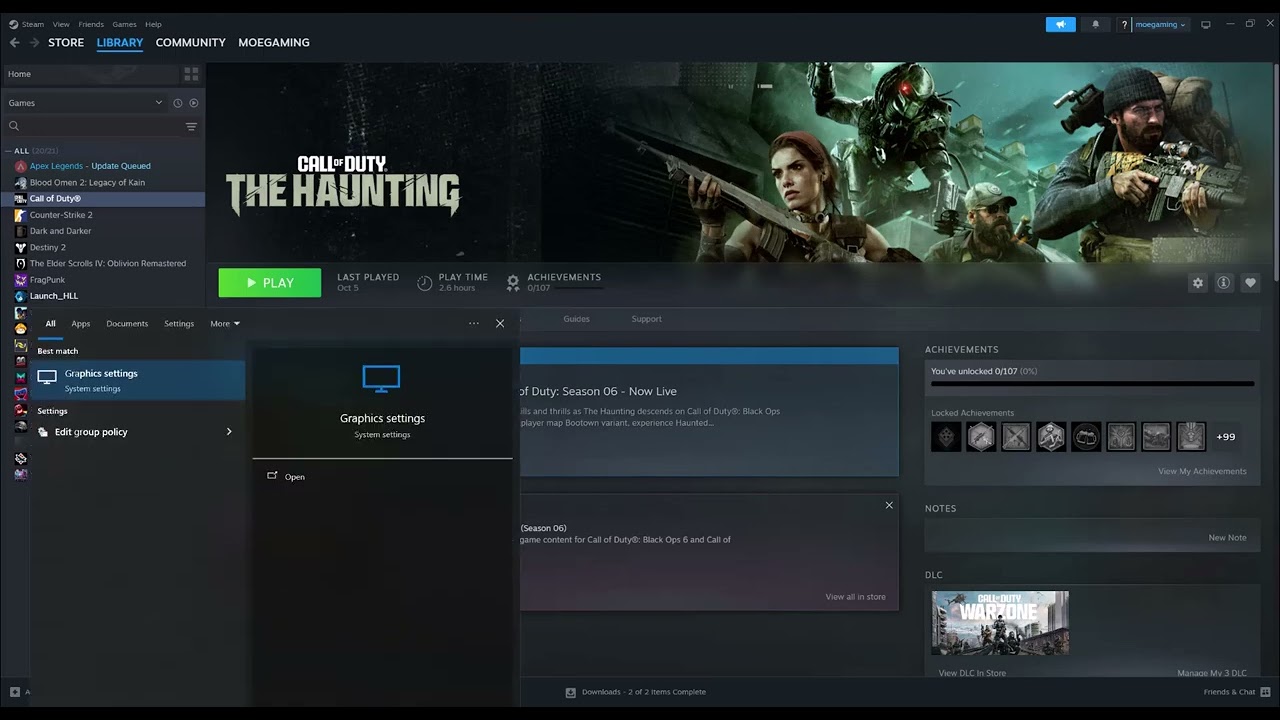
    1. Open Settings > System > Display > Graphics.
    2. Add or select the Battlefield 6 executable.
    3. Choose Options, select High performance, and save.
    4. Restart the game.

    This matters most on laptops with both integrated and dedicated graphics. Microsoft documents the per-app graphics choice in its Windows graphics settings guide.

    7. Test at stock settings

    Reset GPU tuning, CPU tuning, VRAM overclocks, and aggressive undervolts to default. Also disable third-party frame-generation or injection tools for the test. A setting that is stable in another game can still cause a device-hung error in Battlefield 6.

    Why these fixes work

    A restart clears stuck graphics and background processes. A current driver repairs the software layer between DirectX and the GPU. File verification replaces damaged shaders or game binaries, while closing overlays removes programs that hook into the same rendering pipeline. Testing at stock clocks rules out instability before you consider hardware problems.

    If the error continues

    • Lower texture quality and disable demanding ray-tracing features temporarily.
    • Check CPU and GPU temperatures for thermal throttling.
    • Run a clean boot and test again.
    • Generate a DxDiag report and include it in an EA support case.
    • Check the Battlefield 6 support hub for a newly acknowledged issue.

    Frequently asked questions

    Should I force Battlefield 6 to use DX11?

    Not unless EA documents that switch for your exact build and error. Remove unverified launch options first and use EA’s supported restart, driver, and file-repair steps.

    Does DXGI_ERROR_DEVICE_HUNG mean my GPU is broken?

    No. It can be caused by a stuck application, driver instability, overlays, an overclock, or corrupted files. Hardware is only one possibility after software causes are ruled out.

    Will verifying files delete my settings or saves?

    It normally checks installed game files and replaces damaged items. Cloud or local saves are not the target of the repair, but backing up important local data is always sensible.

    Watch the original walkthrough

    Official references

    As an Amazon Associate I earn from qualifying purchases.
  • How to Fix Battlefield 6 Connection Failed Error on PC

    How to Fix Battlefield 6 Connection Failed Error on PC

    Battlefield 6 Connection Failed error troubleshooting on PC
    A Battlefield 6 Connection Failed message can come from EA service status, the local network, Windows networking, or blocked game traffic.

    Quick answer: To fix the Battlefield 6 Connection Failed error on PC, check EA’s Battlefield 6 server status first. If services are online, fully restart the game and PC, power-cycle the router for about one minute, disable any VPN or manual proxy for testing, and try Ethernet. Then repair the game files, clear the EA app cache, and use Microsoft’s supported Windows network-reset commands. Treat firewall and DNS changes as later tests—not the first fix.

    This guide builds on Moe Gaming’s video walkthrough and verifies the troubleshooting order against current EA and Microsoft documentation. Work through the steps in sequence so you can separate a temporary outage from an EA app, game-file, or Windows network problem.

    Before changing network settings

    • Confirm that ordinary websites and another online service work on the PC.
    • Write down the exact Battlefield 6 message or error code, if one appears.
    • Pause game downloads, cloud sync, streaming, and other bandwidth-heavy activity.
    • Close Battlefield 6 and the EA app completely before repairing files or clearing the app cache.
    • Use an administrator account only for the Windows commands and firewall changes described below.

    How to fix Battlefield 6 Connection Failed

    1. Check Battlefield 6 and EA server status

    Open EA’s server-status page and select Battlefield 6. EA’s current error guide says connection and network messages can appear when the game cannot reach EA servers, the platform is offline, or a connection times out. If EA reports an outage or maintenance, local router and Windows changes will not restore the service; wait for EA to resolve it.

    If there is no reported outage, continue with the local checks below.

    2. Restart Battlefield 6, the launcher, and Windows

    Exit Battlefield 6, close the EA app or Steam from the notification area, and restart Windows. Then open the launcher, make sure it is online, and launch the game normally. EA recommends restarting the game and system when an error is not specifically listed.

    If Steam owns the game, confirm that Steam is online and that the correct Steam account is linked to the expected EA Account.

    3. Power-cycle the router

    1. Shut down Battlefield 6 and the PC’s launcher.
    2. Turn the router off and unplug its power cable.
    3. Wait about one minute.
    4. Reconnect the router and wait until internet service is fully restored.
    5. Restart the PC and try Battlefield 6 again.

    This refreshes the internet session and can clear a temporary routing, address-assignment, or router-state problem. EA specifically recommends restarting the router for connection issues.

    4. Remove avoidable connection interference

    • Disconnect from a VPN while testing. Some Battlefield 6 connection errors are associated with unstable DNS or VPN routing.
    • Turn off any manual Windows proxy you do not intentionally use.
    • Close large downloads, streaming apps, cloud backup, and unnecessary background applications.
    • Connect the PC directly to the router with Ethernet if possible.

    A wired test is especially useful: if Battlefield 6 connects over Ethernet but not Wi-Fi, focus on signal strength, interference, router placement, or the wireless adapter rather than reinstalling the game.

    5. Repair Battlefield 6 and clear the EA app cache

    If the network works but Battlefield 6 alone fails, verify or repair the installation in the launcher you use. EA’s current Battlefield error guide recommends repairing the game for certain unknown online errors on both EA app and Steam.

    For the EA app cache, open the EA app menu, go to Help > App Recovery, and select Clear cache. Temporary launcher data can become stale and interfere with sign-in, updates, or game handoff. Relaunch the app and sign in again after it finishes.

    6. Reset the Windows network stack

    If the error continues and other basic checks pass, use Microsoft’s supported network-command sequence:

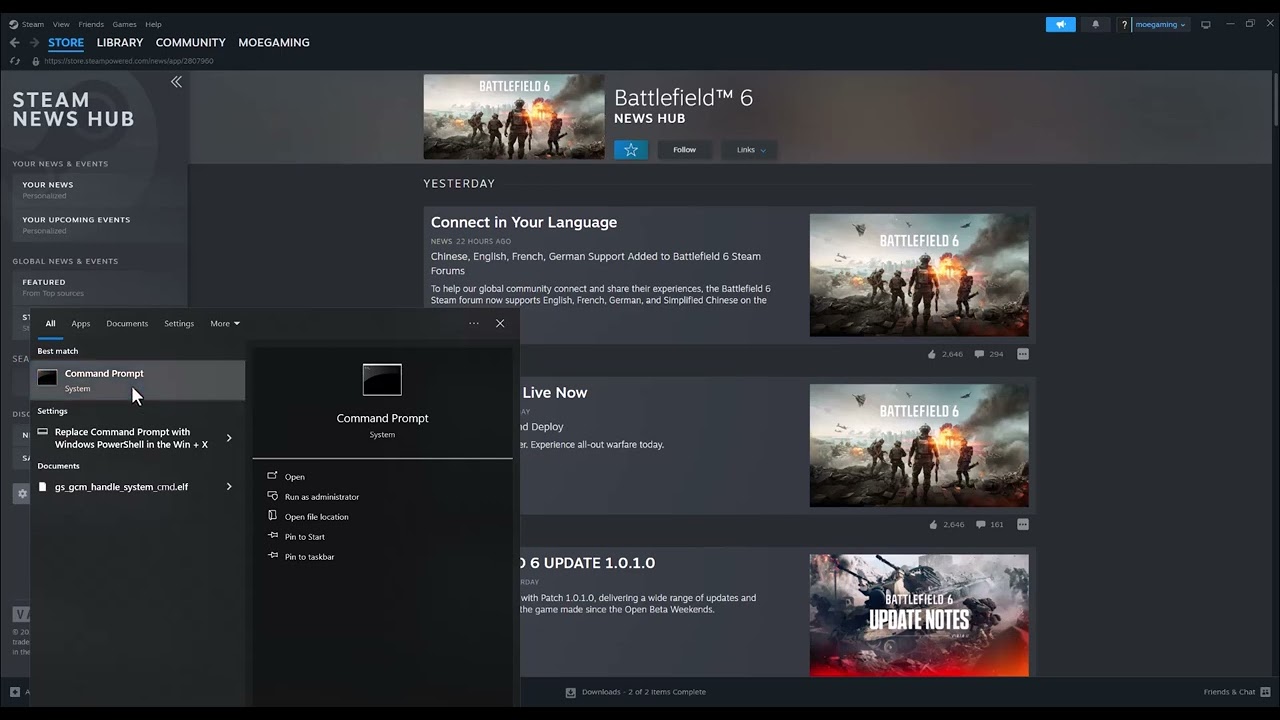
    1. Open Start, type Command Prompt, and choose Run as administrator.
    2. Run netsh winsock reset.
    3. Run netsh int ip reset.
    4. Run ipconfig /release.
    5. Run ipconfig /renew.
    6. Run ipconfig /flushdns.
    7. Restart Windows and test the game.

    The connection may briefly drop while the IP address is released and renewed. These commands reset Windows networking and clear cached DNS results; they do not repair an EA server outage.

    7. Allow the game and launcher through Windows Firewall

    Open Windows Security > Firewall & network protection > Allow an app through firewall. Confirm that Battlefield 6 and the launcher you use are allowed on the appropriate network type. Microsoft recommends allowing the specific app rather than permanently disabling the firewall or opening random ports.

    If a third-party security suite controls the firewall, use its supported app-exception process. Re-enable any protection you temporarily changed for a controlled test.

    8. Try a known public DNS only as an optional test

    EA lists changing DNS as a possible connection test when the provider’s resolver is unreliable. Google Public DNS uses 8.8.8.8 and 8.8.4.4 for IPv4. Record the current automatic or manual values before changing them, test Battlefield 6, and revert if there is no improvement.

    DNS can help the PC resolve service addresses, but it does not fix an EA outage, damaged game files, or a firewall rule.

    Why these fixes can work

    The same generic “Connection Failed” message can represent several layers of failure. EA’s status check rules out a service-side outage. Restarting the game, launcher, PC, and router clears temporary sessions. Ethernet and closing background traffic reduce local packet loss and congestion. File repair and cache clearing address corrupted or stale launcher data. The Windows commands rebuild local network state, while the firewall check makes sure the operating system is not blocking the game’s traffic.

    If Battlefield 6 still cannot connect

    • Test another EA online game. If every EA title fails, check the EA Account and launcher rather than Battlefield 6 alone.
    • Confirm the PC’s date, time, and time zone are correct; EA notes that incorrect device time can cause connection problems.
    • Check the exact error code against EA’s Battlefield 6 error guide.
    • If the message is a matchmaking or game-join error, refresh the server list, install pending updates, and verify that required cross-play settings match the error.
    • If only the home network fails, test a different connection briefly. A successful test elsewhere points to the router or internet provider.
    • Contact EA Support with the error code, launcher, platform account, troubleshooting already completed, and the approximate time of failure.

    Important warnings

    • Do not permanently disable Windows Firewall or antivirus protection.
    • Do not open random router ports without a current first-party instruction for the exact error.
    • Do not download “network repair” utilities from unverified websites.
    • Do not reinstall Windows for a game connection error.
    • Do not keep a manual DNS setting unless testing shows that it is more reliable.

    Optional connection accessories

    As an Amazon Associate I earn from qualifying purchases.
    Watch the original walkthrough

    Frequently asked questions

    Is Battlefield 6 down if I see Connection Failed?

    Possibly, but not always. Check EA’s Battlefield 6 server status first. If services are online, continue with the launcher, router, Windows, and firewall checks.

    Should I disable my firewall?

    No. Allow Battlefield 6 and its launcher through the firewall instead. Microsoft warns that adding exceptions or opening ports has security implications, so make the narrowest change necessary.

    Will flushing DNS fix Battlefield 6?

    It can help if Windows has stale DNS information, but it will not fix an EA outage or corrupted game files. Use it as part of Microsoft’s supported network-command sequence.

    Should I use 8.8.8.8 and 8.8.4.4?

    They are Google’s documented public DNS addresses and can be tested if the current DNS is unreliable. Keep your existing setting unless the test produces a clear improvement.

    Why does Battlefield 6 work on Ethernet but not Wi-Fi?

    That result points to local wireless interference, weak signal, congestion, or a Wi-Fi adapter or router issue. Focus on Wi-Fi troubleshooting instead of reinstalling the game.

    Official references

  • How to Fix Black Ops 7 Split Screen Not Working

    How to Fix Black Ops 7 Split Screen Not Working

    Black Ops 7 split-screen troubleshooting on PS5
    Black Ops 7 split screen works only on supported current-generation consoles and requires a correctly assigned second controller.

    Quick answer: If Black Ops 7 split screen is not working, confirm that you are playing on PlayStation 5 or Xbox Series X|S, connect the second controller to a different console profile, enter a split-screen-compatible lobby, and use the Player 2 prompt shown in the lobby. If that prompt is missing, fully close the game, restart the console, install pending game and system updates, and check Activision’s known-issues page before reinstalling anything.

    This guide uses the steps demonstrated in Moe Gaming’s video and current information from Activision, PlayStation, and Xbox. It also covers the two problems viewers report most often: the Player 2 prompt never appearing and the second half of the screen remaining black.

    Before you try to add Player 2

    • Use a supported console. Activision lists two-player split screen for PS5 and Xbox Series X|S. It is not supported on PS4 or Xbox One.
    • Keep the console online. Black Ops 7 requires a continuous internet connection for every game mode.
    • Update everything first. Install pending Black Ops 7, console-system, and controller updates.
    • Have two working controllers. Test the second controller on the console home screen before opening the game.
    • Use separate users. Player 2 should control a different console profile or supported guest profile—not the same profile already assigned to Player 1.

    How to fix Black Ops 7 split screen not working

    1. Confirm the console supports split screen

    Black Ops 7 split screen is officially available on PlayStation 5 and Xbox Series X|S. If you are using PS4, Xbox One, or PC, the missing Player 2 prompt is not a settings error that can be unlocked with a reinstall. Move to a supported console before attempting the remaining steps.

    2. Pair and test the second controller

    On PS5, connect the second DualSense with a USB cable and press the PS button, or pair it through Settings > Accessories > General > Bluetooth Accessories. PlayStation recommends making sure the second controller’s player indicator is off before beginning a fresh wireless pairing.

    On Xbox Series X|S, make sure the controller can navigate the dashboard. If it disconnects or does not respond over USB, test another cable or console USB port before blaming the game.

    3. Assign Player 2 to a different profile

    Press the PS or Xbox button on the second controller and select another user. A separate account is the most reliable test because both controllers assigned to the same console profile can behave like one player. On Xbox, a supported guest profile may work where the game allows it, but use a normal second profile if the guest option does not appear.

    If Player 2 will join an online lobby, also confirm that the second profile is allowed to use online multiplayer and is not blocked by parental or privacy restrictions.

    4. Enter a lobby that displays the Player 2 prompt

    Launch Black Ops 7 with Player 1, open a local split-screen-compatible Multiplayer or Zombies lobby, and look for the on-screen instruction to add the second player. Use the second controller to follow that prompt. Some menus and game modes do not accept a second local player, so return to the main mode-selection screen if no join instruction appears.

    Do not repeatedly press buttons while the game is still signing in or loading online services. Wait for the lobby to finish loading, then try the Player 2 control once.

    5. Fully restart the game and console

    If the join prompt is absent, close Call of Duty completely rather than leaving it suspended. Restart the console, sign in with Player 1, connect Player 2, and relaunch the game. This rebuilds the game session and controller assignments without deleting any files.

    On PS5, avoid using a suspended session for this test. On Xbox, quit the game from the guide so it does not resume an old Quick Resume state.

    6. Install pending game, console, and controller updates

    An outdated game build can lose compatibility with the current online service, while old console or controller firmware can interfere with sign-in and device detection. Check for a Black Ops 7 update, update the console system software, and update both controllers. Restart once more after the updates finish.

    7. Check Activision’s known-issues page

    If the Player 2 prompt disappeared immediately after a game update—or Player 2 joins but sees a black screen—check Activision’s live Black Ops 7 known-issues list. Those symptoms can be game bugs rather than a damaged installation. If Activision is tracking the problem, repeated reinstalls, router changes, or console resets are unlikely to fix it.

    Why these steps work

    Split screen depends on several separate checks succeeding: the platform must support it, the second controller must be recognized, each controller must have the correct user assignment, the selected mode must permit local multiplayer, and the game must complete its online sign-in. Restarting clears stale controller and lobby state; updates keep the game, console, and controller software compatible.

    The order matters. Confirming support and controller assignment first prevents a long reinstall for a problem caused by an unsupported platform or two controllers sharing one profile.

    If the Player 2 option still does not appear

    • Disconnect the second controller, return to the mode-selection screen, reconnect it, and wait for the lobby to finish loading.
    • Try a different second console profile to rule out account restrictions.
    • Test the second controller with a USB data cable to rule out a wireless pairing issue.
    • Confirm that Black Ops 7 is fully installed and not still downloading required game content.
    • Check whether Activision reports a current split-screen problem before reinstalling.

    If Player 2 joins but the screen is black

    A black second-player view is different from a missing join prompt. First, back out of the match, fully close the game, restart the console, and try another supported lobby. Install any pending update and check the known-issues page. If the same black screen returns after a clean restart, report the bug to Activision with the console model, game mode, time it occurred, and the exact steps that reproduce it.

    Important warnings

    • Do not factory-reset the console for a split-screen problem.
    • Do not delete saved data unless official support specifically identifies it as corrupted.
    • Do not assume a reinstall can add split screen to PS4, Xbox One, or PC.
    • Do not buy another controller until the existing second controller fails outside Black Ops 7 too.

    Optional split-screen accessories

    As an Amazon Associate I earn from qualifying purchases.
    Watch the original walkthrough

    Frequently asked questions

    Does Black Ops 7 support split screen on PS4 or Xbox One?

    No. Activision says split screen is available on PS5 and Xbox Series X|S and is not supported on PS4 or Xbox One.

    Does Black Ops 7 support split screen on PC?

    Activision’s supported split-screen platforms are PS5 and Xbox Series X|S. A missing local Player 2 option on PC should not be treated as a controller-pairing problem.

    Why does the second controller control Player 1?

    Both controllers may be assigned to the same console profile. Use the second controller to select another user before attempting to join the lobby.

    Why is there no option to add Player 2?

    The most common causes are an unsupported console, the wrong menu or game mode, a second controller that is not assigned to another user, an incomplete sign-in, or a current game bug.

    Should I reinstall Black Ops 7?

    Only after the support, profile, restart, update, and known-issue checks fail. Reinstallation is time-consuming and will not fix an unsupported platform or a server-side bug.

    Official references

  • How to Fix Dev Error 0x10295CAB in Black Ops 7 or Warzone

    How to Fix Dev Error 0x10295CAB in Black Ops 7 or Warzone

    Quick answer: Dev Error 0x10295CAB usually appears when Call of Duty cannot load an installed game component correctly. On PS5, close the game, install every available update, repair the affected Black Ops 7 or Warzone content through Manage Files, then restore the game license. Reinstall only the affected pack before reinstalling the entire game.

    Black Ops 7 Dev Error 0x10295CAB fix on PS5

    Before you start

    • Make sure the PS5 is online and signed in to the account that owns the game.
    • Leave enough free storage for the affected pack to download again.
    • Do not delete saved data. The repair below targets installed game content, not campaign or multiplayer progress.
    • Check the Call of Duty Online Services page. If Activision reports an outage, wait for service to recover before changing the installation.

    How to fix Dev Error 0x10295CAB

    1. Fully close Call of Duty and restart the PS5

    1. Highlight Call of Duty on the PS5 home screen.
    2. Press the Options button and choose Close Game.
    3. Restart the console from the Power menu instead of entering Rest Mode.
    4. Launch the game once and check whether the error returns.

    This clears a temporary game process before you alter any installed files. It is worth doing first because an interrupted update can leave the current session pointing at an older content version.

    2. Check for a game and system update

    1. Highlight Call of Duty, press Options, and select Check for Update.
    2. Open Settings > System > System Software > System Software Update and Settings.
    3. Install any available PS5 system update, then restart.

    Activision recommends keeping PlayStation system software current when troubleshooting Call of Duty crashes and loading failures.

    3. Repair the affected content in Call of Duty

    1. Launch Call of Duty and open the main menu.
    2. Select Manage Files, then open Manage Files again.
    3. Choose the Black Ops 7 or Warzone tile associated with the error.
    4. Uninstall only the affected multiplayer, Warzone, campaign, or shared-content pack.
    5. Return to the same screen and install that pack again.
    6. Wait until the download and installation are completely finished before launching the mode.

    Activision’s current Call of Duty content-management guide confirms that individual game components can be installed or removed from Manage Files. Repairing the smaller component is faster and less disruptive than deleting the entire game.

    4. Check PS5 game content if the in-game menu will not open

    1. Close the game.
    2. Highlight Call of Duty on the home screen and press Options.
    3. Select Manage Game Content.
    4. Confirm that the required Black Ops 7 or Warzone items are installed.
    5. If one item appears damaged or incomplete, remove that item and download it again.

    The exact pack names can change after a seasonal update. Match the pack to the mode that triggers the error rather than deleting unrelated language or campaign content.

    5. Restore the game license

    1. Open Settings > Users and Accounts > Other > Restore Licenses.
    2. Select the Call of Duty license, or use the available restore option.
    3. Restart the PS5 and test the affected mode.

    According to PlayStation Support, restoring a license does not affect saved data. It refreshes the console’s authorization for the game and add-ons.

    6. Reinstall the full game only as a last resort

    If the same error survives a clean pack download, license restoration, and restart, delete Call of Duty and reinstall it from the account’s Game Library. Use Install Options to select the content you actually play. Activision’s Black Ops 7 installation guide documents this PS5 flow.

    Why this fix works

    Call of Duty separates its launcher, shared assets, and individual game modes into multiple components. After a large update, one component can be missing, incomplete, or out of sync with the launcher. Reinstalling the affected pack replaces that component, while restoring licenses repairs the PS5 entitlement check. Those two actions address different failure points without touching saved progress.

    If the error still appears

    • Check that the download is installed, not merely queued.
    • Temporarily pause other downloads and restart the router.
    • Confirm that the correct PlayStation account owns or can access the game.
    • Check Activision’s Black Ops 7 known-issues page for a newly acknowledged 0x error.
    • Use PS5 Safe Mode’s Clear Cache and Rebuild Database only after the simpler steps. Do not choose Reset PS5.

    Frequently asked questions

    Will restoring licenses delete my progress?

    No. PlayStation states that license restoration does not affect your data.

    Do I need to reinstall both Black Ops 7 and Warzone?

    No. Start with the pack for the mode that produces the error. Reinstall the whole Call of Duty installation only if a targeted repair fails.

    Why did the error start after an update?

    A download may have stopped early, or the launcher and a game component may be on different versions. Finishing updates and reinstalling the affected pack corrects that mismatch.

    Watch the original walkthrough

    Official references

    As an Amazon Associate I earn from qualifying purchases.
  • How to Download NBA 2K27 and Access the Correct PlayStation Edition

    How to Download NBA 2K27 and Access the Correct PlayStation Edition

    Download NBA 2K27 and select the correct PlayStation edition
    Download NBA 2K27 and select the correct PlayStation edition

    Quick answer: Open the PlayStation Store or Game Library, find NBA 2K27, select the three-dot menu, and choose the exact edition you purchased. The Deluxe and Ultra Editions received early access beginning August 26, 2026 at 9:00 a.m. Pacific, while Standard Edition access begins September 4, 2026. If Download is missing after the correct release time, restore licenses and confirm the purchasing account.

    This guide combines the exact actions demonstrated in Moe Gaming’s source video with current first-party support information. Menu names can move after updates, so use the current on-screen label when it differs slightly.

    Before you start

    • Confirm which NBA 2K27 edition and platform generation you purchased.
    • Sign in with the PlayStation account that bought or redeemed the game.
    • Check available console storage on the current store page rather than relying on an old estimate.

    1. Select the purchased edition

    1. Open PlayStation Store and search for NBA 2K27, or open Game Library > Your Collection.
    2. Open the product page and select the three-dot menu beside Follow, Learn More, or the purchase button.
    3. Choose the purchased Deluxe, Ultra, or Standard Edition.
    4. Select Download when the entitlement is active.

    PlayStation groups several editions on related product pages. The default page can show a different edition from the one attached to the account.

    2. Check the official access date

    1. Deluxe and Ultra Edition early access began August 26, 2026 at 9:00 a.m. Pacific.
    2. Standard Edition access begins September 4, 2026.
    3. Regional store timing can differ, so consult 2K’s regional launch-time page.
    4. A preorder can appear in the Library before its playable date.

    A Follow or countdown state before the correct entitlement time is expected and does not necessarily indicate a broken purchase.

    3. Restore licenses if Download is missing

    1. Open Settings > Users and Accounts > Other > Restore Licenses.
    2. Choose Restore and wait for the process to finish.
    3. Return to Game Library > Your Collection and reopen the purchased edition.
    4. Restart the PS5 if the button still has not refreshed.

    PlayStation license restoration does not affect saved data and can refresh a valid digital entitlement.

    4. Verify account, region, and platform

    1. Confirm the current user is the purchasing account or an account permitted to use its console sharing.
    2. Check that the purchased product is the intended PS5 or PS4 edition.
    3. Review the transaction history or confirmation receipt.
    4. If the store still asks for payment, contact PlayStation Support with the transaction information.

    A different account, region, or product generation can make an owned edition appear unavailable.

    5. Complete the installation

    1. Keep enough free storage for the base game and update.
    2. Allow the download and copying stages to finish; avoid launching a partial installation unless the store marks the desired mode ready.
    3. Install the current game update before entering online modes.
    4. Do not delete reserved space after the first launch.

    The required size can change with updates, so the live PlayStation listing and console storage screen are more reliable than a fixed number.

    Why these steps work

    Choosing the exact edition aligns the store page with the account entitlement, while release-time and license checks explain why an owned game can appear as Follow, Learn More, or unavailable. Storage and update checks then address the actual installation.

    Warnings and common mistakes

    • Do not buy a second copy until you check the edition menu, purchasing account, receipt, and release date.
    • Do not trust a fixed storage estimate from an old video; updates change required space.
    • Avoid third-party “early unlock” methods or account sharing.

    Relevant gaming gear

    As an Amazon Associate I earn from qualifying purchases.
    Watch the original Moe Gaming walkthrough

    Frequently asked questions

    Why does NBA 2K27 only show Follow or Learn More?

    You may be viewing the wrong edition or the entitlement may not be active yet. Use the three-dot menu and check the official access date.

    When did NBA 2K27 early access begin?

    2K states that Deluxe and Ultra Edition early access began August 26, 2026 at 9:00 a.m. Pacific.

    When can Standard Edition owners play?

    The official Standard Edition date is September 4, 2026, subject to regional launch timing.

    Official references

  • How to Fix NBA 2K27 Crashing or Freezing on PS5

    How to Fix NBA 2K27 Crashing or Freezing on PS5

    Fix NBA 2K27 crashing and freezing issues on PS5
    Fix NBA 2K27 crashing and freezing issues on PS5

    Quick answer: Close NBA 2K27, restart the PS5, install the latest game and system updates, and make sure storage is not nearly full. Restore the game licenses next; this does not delete saved data. If crashes continue, use PS5 Safe Mode to Clear System Software Cache and then Rebuild Database. Reinstall the game only after protecting saved data and completing the safer checks.

    This guide combines the exact actions demonstrated in Moe Gaming’s source video with current first-party support information. Menu names can move after updates, so use the current on-screen label when it differs slightly.

    Before you start

    • Record where the crash occurs and any error code.
    • Sync or back up saved data before a reinstall.
    • Confirm the console has ventilation and enough free storage.
    • Avoid deleting NBA 2K reserved space.

    1. Restart and update

    1. Close NBA 2K27 instead of leaving it suspended.
    2. Restart the PS5.
    3. Highlight the game, press Options, and choose Check for Update.
    4. Open Settings > System > System Software > System Software Update and Settings and install available updates.

    A clean restart loads current game and system components and clears a temporary suspended state.

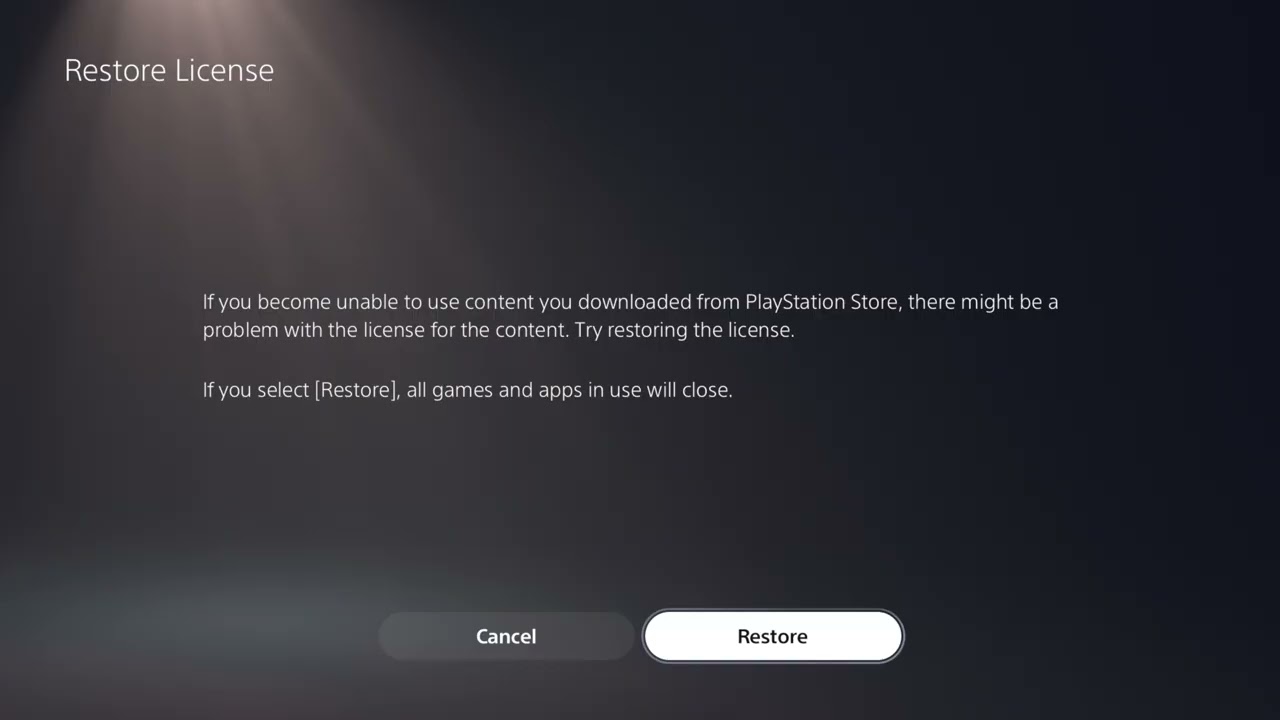
    2. Restore the game license

    1. Open Settings > Users and Accounts > Other > Restore Licenses.
    2. Choose Restore and wait for completion.
    3. Restart NBA 2K27 and test the same action.

    PlayStation says restoring licenses does not affect data. It can repair an entitlement check without reinstalling the game.

    3. Check storage and heat

    1. Make sure the internal SSD has reasonable free space.
    2. Remove dust only with the console powered down and follow PlayStation cleaning guidance.
    3. Keep vents unobstructed and test without an enclosed cabinet.
    4. If the entire PS5 shuts down or displays heat warnings, stop and investigate cooling.

    Crashes that affect multiple games or power off the console point beyond a single NBA 2K27 file.

    4. Clear cache and rebuild the database

    1. Turn off the PS5 completely.
    2. Hold the power button until the second beep and connect the controller by USB.
    3. Choose Clear Cache and Rebuild Database.
    4. Run Clear System Software Cache first; if needed, return and choose Rebuild Database.

    These Safe Mode options refresh system indexes and cached software data. Read the on-screen description and do not select Reset PS5.

    5. Reinstall NBA 2K27 last

    1. Confirm saved data is synced or backed up.
    2. Delete the game application—not saved data or reserved space.
    3. Download the correct NBA 2K27 edition again and wait for the full installation and updates.
    4. Launch and test before adding optional downloads.

    A clean application installation can replace files that update checks did not repair, but it should follow the faster, safer fixes.

    Why these steps work

    The order moves from temporary state and supported updates to entitlement repair, console health, system indexing, and finally full application replacement. It protects saves while isolating whether the problem affects only NBA 2K27.

    Warnings and common mistakes

    • Do not choose Reset PS5 in Safe Mode for a game crash.
    • Do not delete reserved space; 2K warns against it.
    • If several games crash or the PS5 powers off, contact PlayStation support or inspect the console environment rather than repeatedly reinstalling NBA 2K27.

    Relevant gaming gear

    As an Amazon Associate I earn from qualifying purchases.
    Watch the original Moe Gaming walkthrough

    Frequently asked questions

    Does Restore Licenses delete MyCAREER saves?

    No. PlayStation states that restoring licenses does not affect data.

    Should I rebuild the PS5 database?

    It is a supported Safe Mode step after updates and restarts. Read the menu carefully and do not choose a reset option.

    Why does NBA 2K27 crash only in one MyCAREER file?

    That may indicate a save- or account-specific problem. Preserve the file and use 2K’s missing/corrupted MyCAREER guidance instead of deleting it.

    Official references

  • How to Fix NBA 2K27 Lag on PS5

    How to Fix NBA 2K27 Lag on PS5

    Fix NBA 2K27 lag on PS5 with Ethernet and Wi-Fi troubleshooting
    Fix NBA 2K27 lag on PS5 with Ethernet and Wi-Fi troubleshooting

    Quick answer: Check NBA 2K service status first. If services are healthy, connect the PS5 by Ethernet for the best test. On Wi-Fi, open Settings > Network > Settings > Set Up Internet Connection, press Options on the network, and test 5 GHz when near the router or 2.4 GHz when farther away. Restart the console and router, stop competing downloads, and test again.

    This guide combines the exact actions demonstrated in Moe Gaming’s source video with current first-party support information. Menu names can move after updates, so use the current on-screen label when it differs slightly.

    Before you start

    • Note whether lag occurs in every online game or only NBA 2K27.
    • Check 2K and PlayStation service status before changing settings.
    • Avoid changing several network options at once; compare one controlled test at a time.

    1. Rule out a service incident

    1. Open 2K’s official server-status page.
    2. Check PlayStation Network status.
    3. If friends in different locations have the same issue, wait for the service to recover.
    4. Do not reinstall the game during an acknowledged outage.

    Local changes cannot repair a game-server or platform outage.

    2. Test wired Ethernet

    1. Connect the PS5 directly to the router with a known-good Ethernet cable.
    2. Open Settings > Network > Settings > Set Up Internet Connection and select the wired connection.
    3. Run Test Internet Connection, then play the same mode again.
    4. If Ethernet fixes the lag, focus on Wi-Fi placement or congestion rather than the game installation.

    Ethernet removes wireless interference and roaming decisions, providing the cleanest local network baseline.

    3. Choose the correct Wi-Fi band

    1. Open Set Up Internet Connection and highlight the connected Wi-Fi network.
    2. Press Options and select Wi-Fi Frequency Bands.
    3. Try 5 GHz when the PS5 is close to the router with few obstacles.
    4. Try 2.4 GHz when distance or walls weaken 5 GHz.
    5. Retest the same mode after each change.

    5 GHz can be faster and less congested at short range; 2.4 GHz usually reaches farther. Automatic is not inherently broken, so keep it if it consistently chooses the better link.

    4. Reduce congestion and packet loss

    1. Pause console and household downloads or cloud backups.
    2. Restart the modem/router and PS5; wait for the network to come fully online.
    3. Move the console/router away from interference and avoid an overloaded extender.
    4. Use the router’s supported quality-of-service controls only if you understand them.

    Stable latency matters more than headline download speed for online basketball.

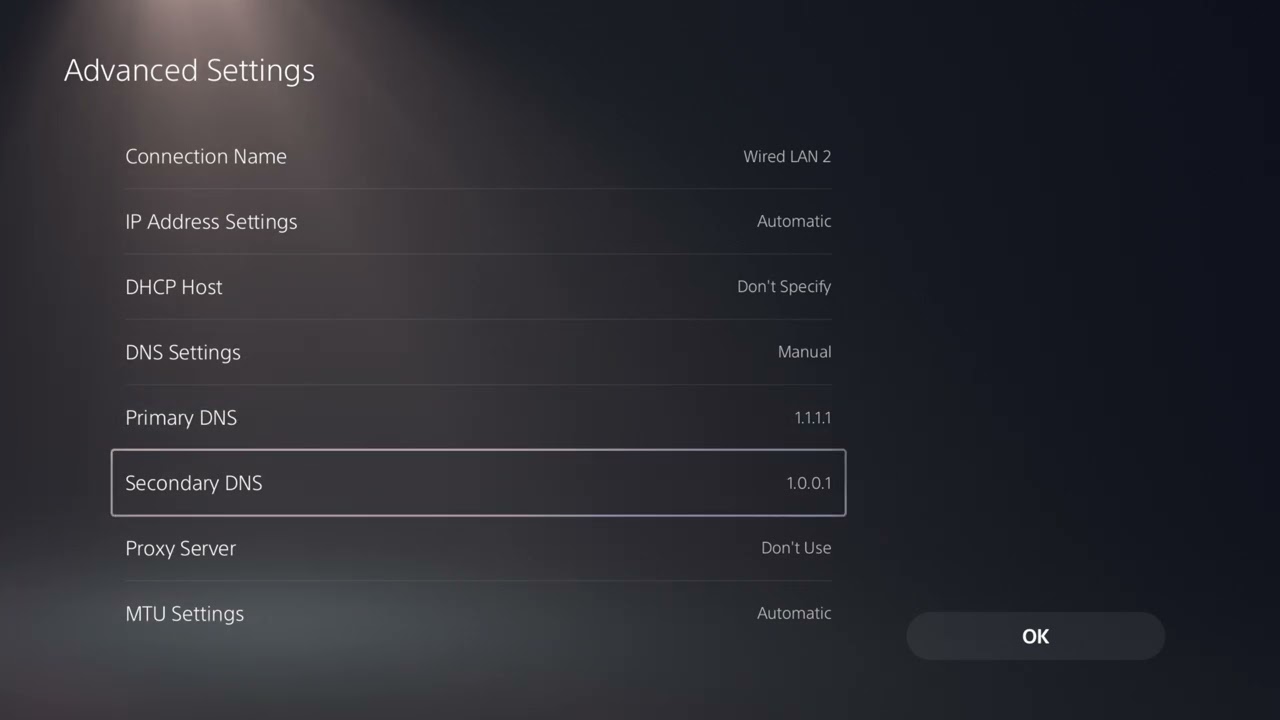
    5. Use manual DNS only as a fallback

    1. Leave IP address and DHCP settings automatic.
    2. If name-resolution problems are suspected, test a reputable resolver such as Cloudflare 1.1.1.1 and 1.0.0.1.
    3. Save, restart the connection, and compare results.
    4. Return to Automatic if there is no improvement.

    DNS helps translate service names to addresses; it does not directly lower in-game ping once a connection is established.

    Why these steps work

    The sequence distinguishes service-side problems from local wireless issues. Ethernet establishes a baseline, band selection improves radio conditions, and congestion testing addresses packet delay without making risky router changes.

    Warnings and common mistakes

    • Do not claim that changing DNS is a universal ping fix.
    • Do not factory-reset the router unless its owner understands the configuration and has a backup.
    • A fast download result can still hide jitter or packet loss.

    Relevant gaming gear

    As an Amazon Associate I earn from qualifying purchases.
    Watch the original Moe Gaming walkthrough

    Frequently asked questions

    Should I force 5 GHz?

    Use it when signal strength is good and the router is nearby. At longer range, 2.4 GHz may be steadier. Compare actual gameplay.

    Will 1.1.1.1 reduce NBA 2K27 latency?

    It can help DNS resolution problems, but it does not control the game-server route or guarantee lower ping.

    Why does only NBA 2K27 lag?

    The affected mode, 2K service region, game server, or account session may be involved. Check status and compare other NBA 2K27 modes before changing the whole network.

    Official references